
Add an embedded iJewel viewer to Shopify

This guide adds an iJewel3D viewer to a Shopify product page with an iframe. Each product stores its own iJewel embed URL in a Shopify metafield, and the theme renders the viewer only when that URL is present.
This is the simplest Shopify option because the viewer remains self-contained. Use the Mini Viewer SDK integration instead when Shopify variants or custom page controls must interact directly with the viewer.
Before you begin
You need:
- Access to Shopify products, settings, and theme code
- An embed URL for each model from iJewel Platform or iJewel Design
- A duplicate theme for development and testing
If you do not have an embed URL yet, follow Create an iJewel Viewer Embed. Shopify needs only the URL from the generated iframe's src attribute, not the complete iframe code.
Step 1: Duplicate the Shopify theme
In Shopify admin, open Online Store → Themes, open the current theme's actions menu, and select Duplicate. Make and test the changes in the duplicate before publishing it.
Step 2: Create a product metafield
Open Settings → Custom data → Products. In some Shopify admin versions, this appears as Settings → Metafields and metaobjects → Products.
Select Add definition.
Enter the following values:
- Name:
iJewel viewer URL - Namespace and key:
custom.model_source_embed - Description:
Embed URL generated by iJewel Platform or iJewel Design - Type:
URL - Values:
One value
- Name:
Save the definition.
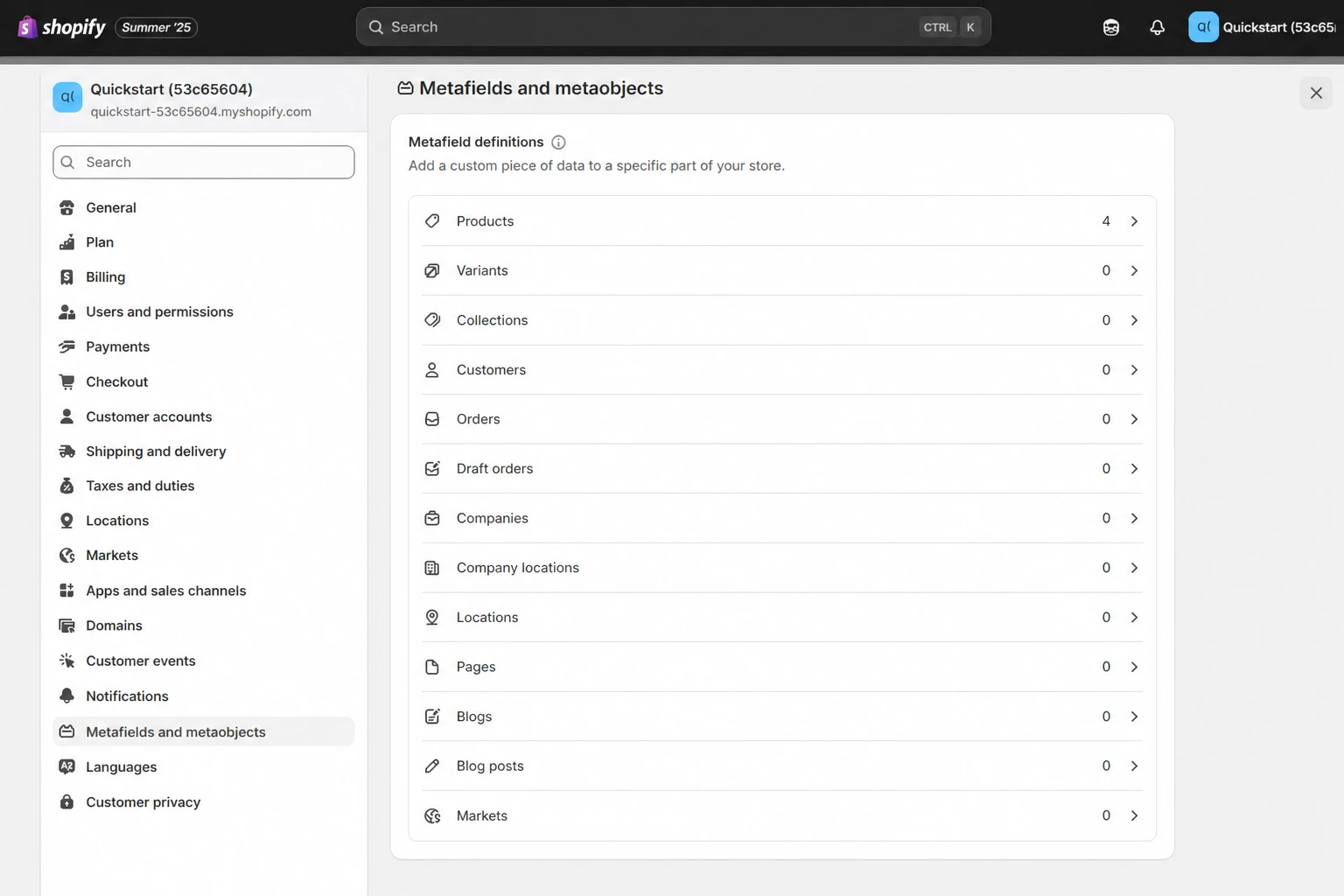
Select Products because every product can use a different viewer URL.
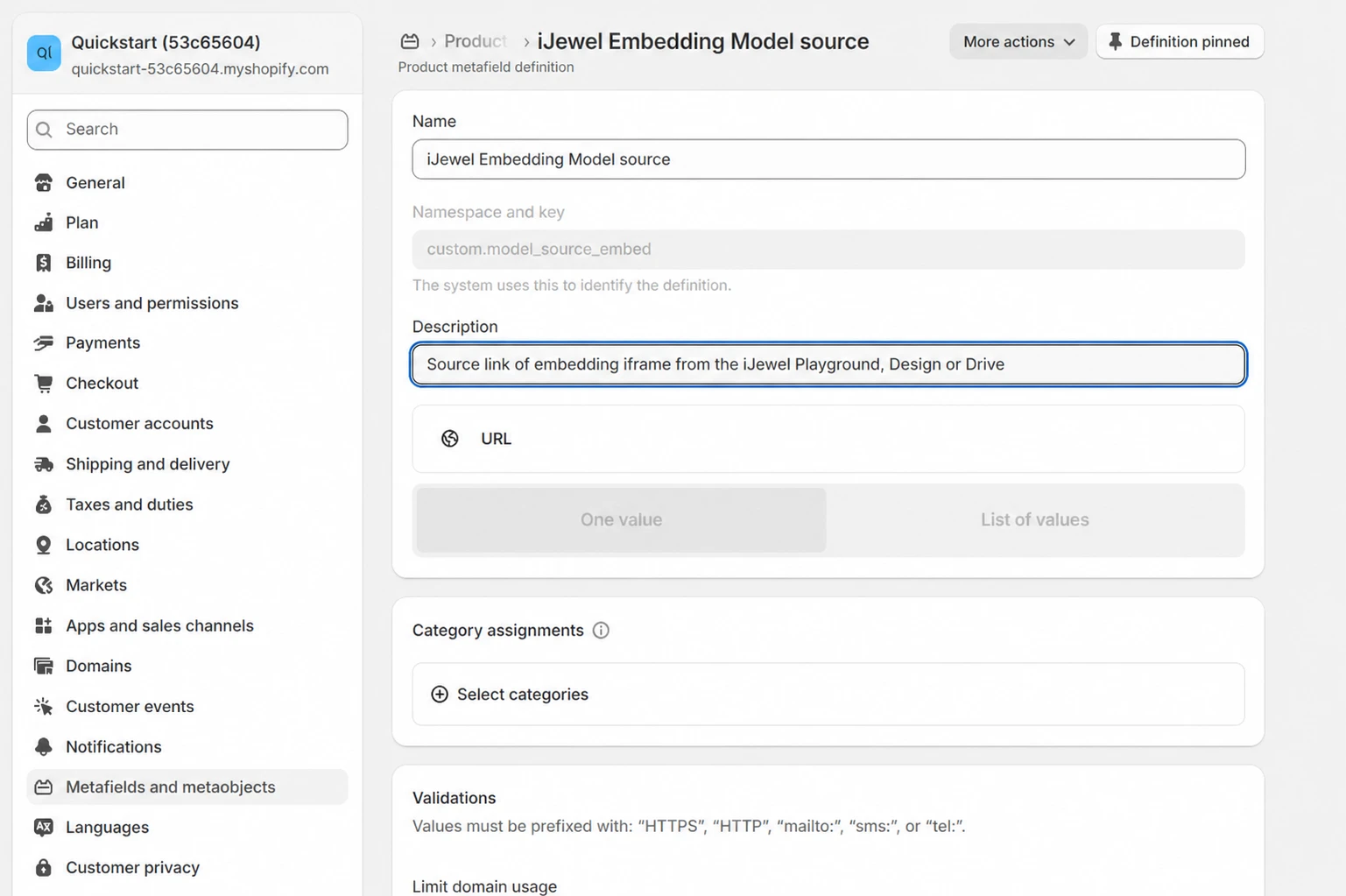
The display name can differ from this older screenshot; keep the documented namespace and key so the Liquid example works.
Step 3: Assign a viewer URL to a product
- Open Products in Shopify admin and select a product.
- Scroll to Metafields.
- Paste the iJewel embed URL into iJewel viewer URL.
- Save the product.
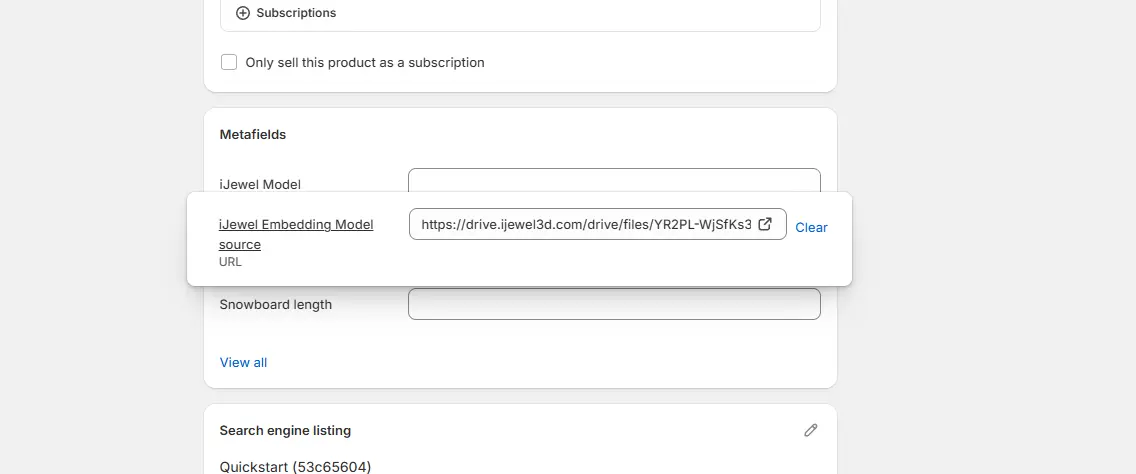
Paste the generated embed URL, not the full iframe code.
Repeat this step for every product that should display a 3D viewer. Products without a value will keep their normal layout.
Step 4: Add the iframe to the product template
In Shopify admin, open Online Store → Themes, open the duplicate theme's actions menu, and select Edit code. Open sections/main-product.liquid and add this block where the viewer should appear:
{%- assign ijewel_viewer_url = product.metafields.custom.model_source_embed.value -%}

{%- if ijewel_viewer_url != blank -%}
  <div
    class="page-width"
    style="margin-top: 2rem;"
  >
    <iframe
      src="{{ ijewel_viewer_url | escape }}"
      title="{{ product.title | escape }} — interactive 3D viewer"
      loading="lazy"
      allow="autoplay; fullscreen; xr-spatial-tracking; web-share"
      allowfullscreen
      style="width: 100%; min-height: 420px; aspect-ratio: 4 / 3; border: 0;"
    ></iframe>
  </div>
{%- endif -%}
The conditional prevents an empty iframe from appearing on products that do not have an iJewel URL.
Theme differences
Dawn-based themes are often customized. If sections/main-product.liquid does not exist, search the theme for the section that renders the main product media or product information. Place the block where it best fits that layout.
Alternative: Build the URL from a product tag
Use this option when many Shopify products map to public iJewel3D files. Each product stores a short tag instead of a complete URL.
The tag must identify one public file within the selected folder tree.
Prepare the iJewel3D files
- Open the folder that contains the models in iJewel3D.
- Make sure that each model file is public.
- Right-click a model and select Edit Tags.
- Add a unique product tag, such as
diamond-ring-001. - Repeat this process for each product model.
- Copy the folder ID from the address bar.
The folder URL has the format https://ijewel3d.com/drive/folders/FOLDER_ID. Copy the value after /folders/.
Create a tag metafield
Follow Step 2 with these values:
- Name:
iJewel model tag - Namespace and key:
custom.model_tag - Description:
Tag assigned to the public model in iJewel3D - Type:
Single line text - Values:
One value
Open each Shopify product and enter its iJewel3D tag in this metafield.
Add the tag-based iframe
Add this block to the product template. Replace YOUR_FOLDER_ID with the copied folder ID.
{%- assign ijewel_model_tag = product.metafields.custom.model_tag.value -%}
{%- if ijewel_model_tag != blank -%}
<div
class="page-width"
style="margin-top: 2rem;"
>
<iframe
src="https://ijewel3d.com/drive/files/embedded?tag={{ ijewel_model_tag | url_encode }}&scope=YOUR_FOLDER_ID"
title="{{ product.title | escape }} — interactive 3D viewer"
loading="lazy"
allow="autoplay; fullscreen; xr-spatial-tracking; web-share"
allowfullscreen
style="width: 100%; min-height: 420px; aspect-ratio: 4 / 3; border: 0;"
></iframe>
</div>
{%- endif -%}This template uses one URL pattern for all products. A file replacement does not require a Shopify URL change when its tag stays unchanged.
Step 5: Preview and test
Preview the duplicate theme and check:
- A product with an iJewel URL displays the correct model.
- A product without an iJewel URL does not show an empty space.
- The viewer has enough height on desktop and mobile.
- Fullscreen and viewer controls work as expected.
- The storefront console has no blocked-frame or URL errors.
- For a tag-based embed, each product displays the file with its assigned tag.
Troubleshooting
- The viewer is blank: open the metafield URL in a private browser window and confirm that the model is publicly accessible.
- The editor appears instead of the viewer: regenerate the embed and copy the iframe
src, not the browser's editor URL. - Shopify rejects the metafield value: confirm that you copied the complete
https://URL without quotation marks. - The viewer is too short or too tall: adjust
min-heightandaspect-ratioin the iframe style. - You need Shopify variants to change materials or models: use the Mini Viewer SDK integration.
Next steps
- Remove iJewel branding or use your own logo
- Customize initial material selections
- Move to the Mini Viewer SDK for direct page-to-viewer interaction
Contact
For Shopify integration or licensing assistance, email contact@ijewel3d.com.