
Export Models
iJewel Playground allows you to export your scene as a GLB file — a compact binary format that packages 3D geometry, materials, textures, and optionally scene settings into a single file. There are three ways to export, depending on how much control you need.
Export Format
| Format | Description |
|---|---|
.glb | Binary glTF — contains all objects, materials, textures, and optionally scene settings in one file |
Three Ways to Export
Method 1 — Quick Export (Canvas Toolbar)
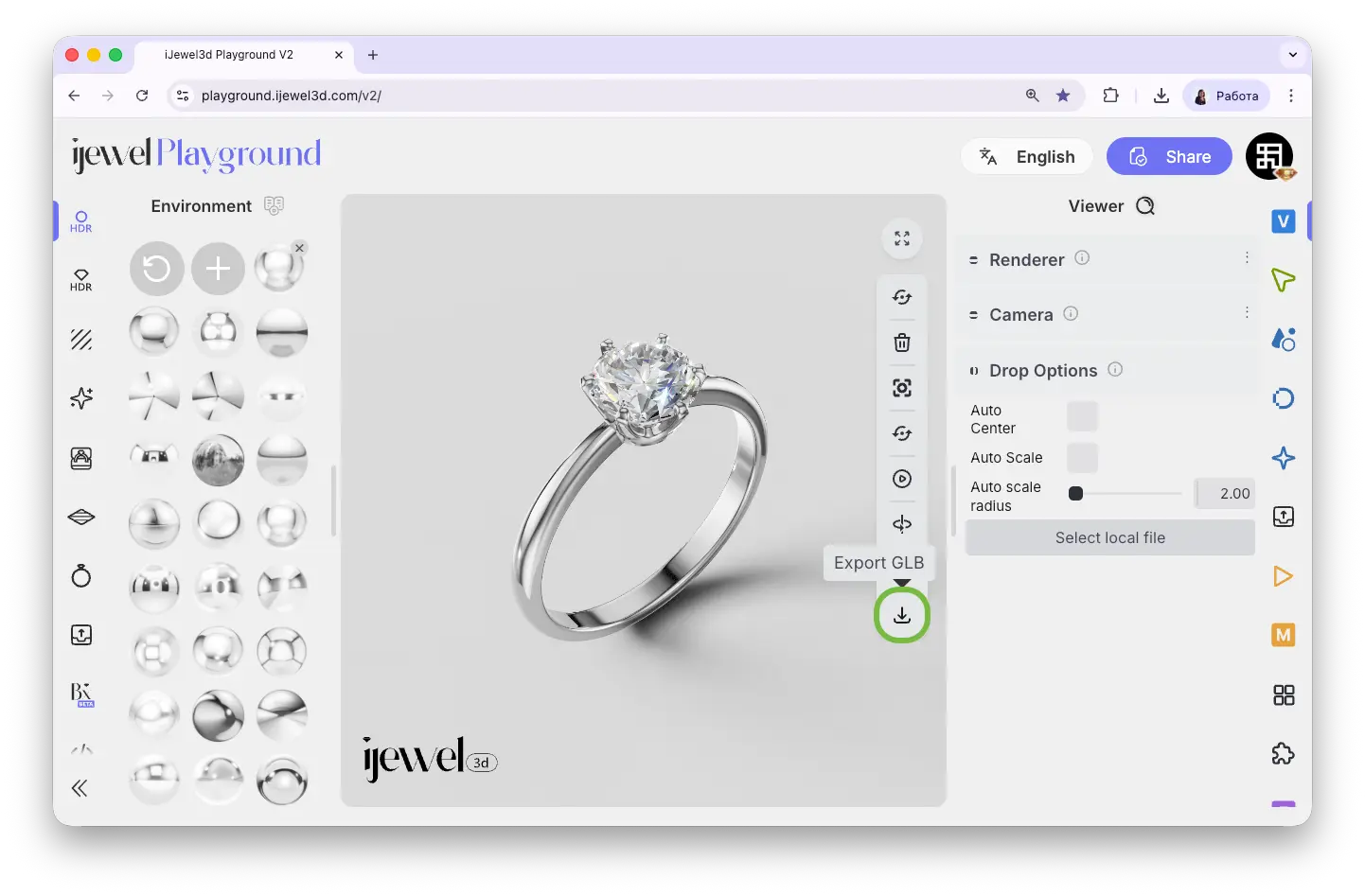
The fastest way to export. Click the  Export GLB button on the canvas toolbar — this immediately downloads your scene as a
 .glb file with current settings.
Method 2 — Left Panel Export
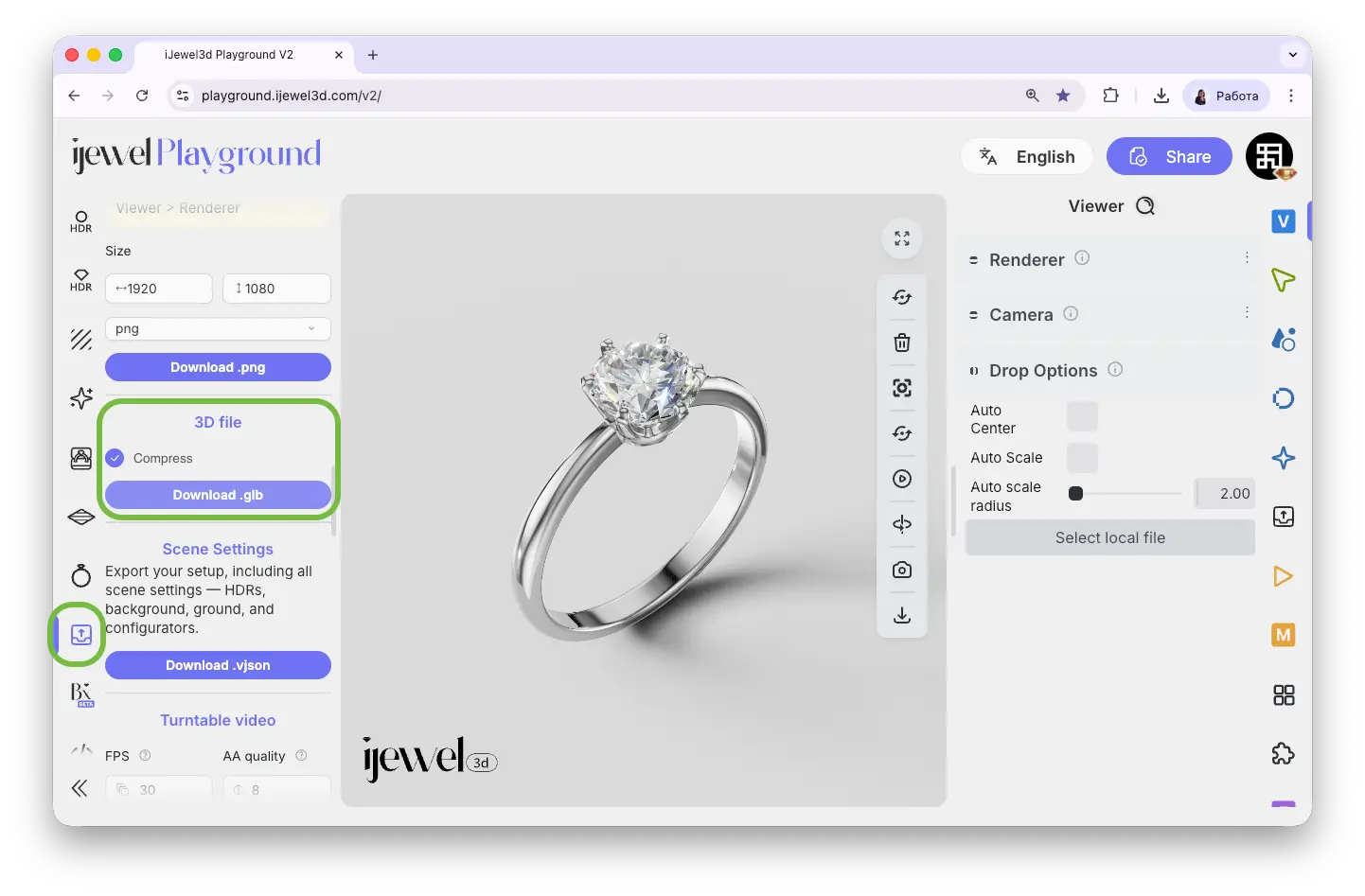
For a quick export with the option to enable compression:
- Open the
 Export tab on the left panel
 - Enable Compress if you want to reduce the file size (uses DRACO compression)
- Click Download .glb
TIP
Use the left panel export when you need a smaller file for web embedding or sharing. DRACO compression significantly reduces file size with minimal quality loss.
Method 3 — Right Panel (Advanced Export)
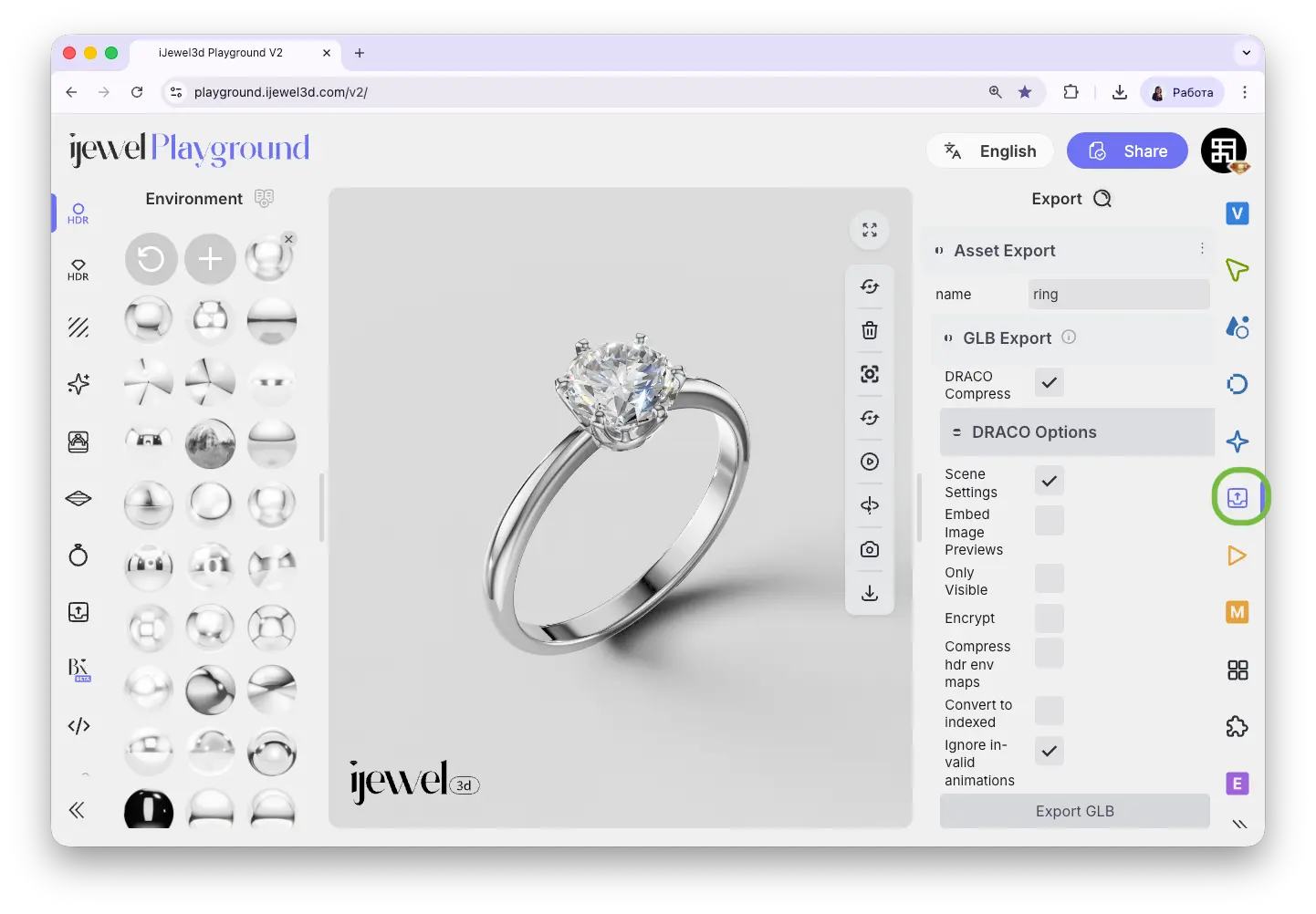
For full control over what's included in the exported file, use the Asset Export section on the right panel:
- Open the
 Export tab on the right panel
 - Go to the Asset Export → GLB Export section
- Enter a file name at the top
- Configure export options (see below)
- Click Export GLB
Export Options
Protecting Your Designs
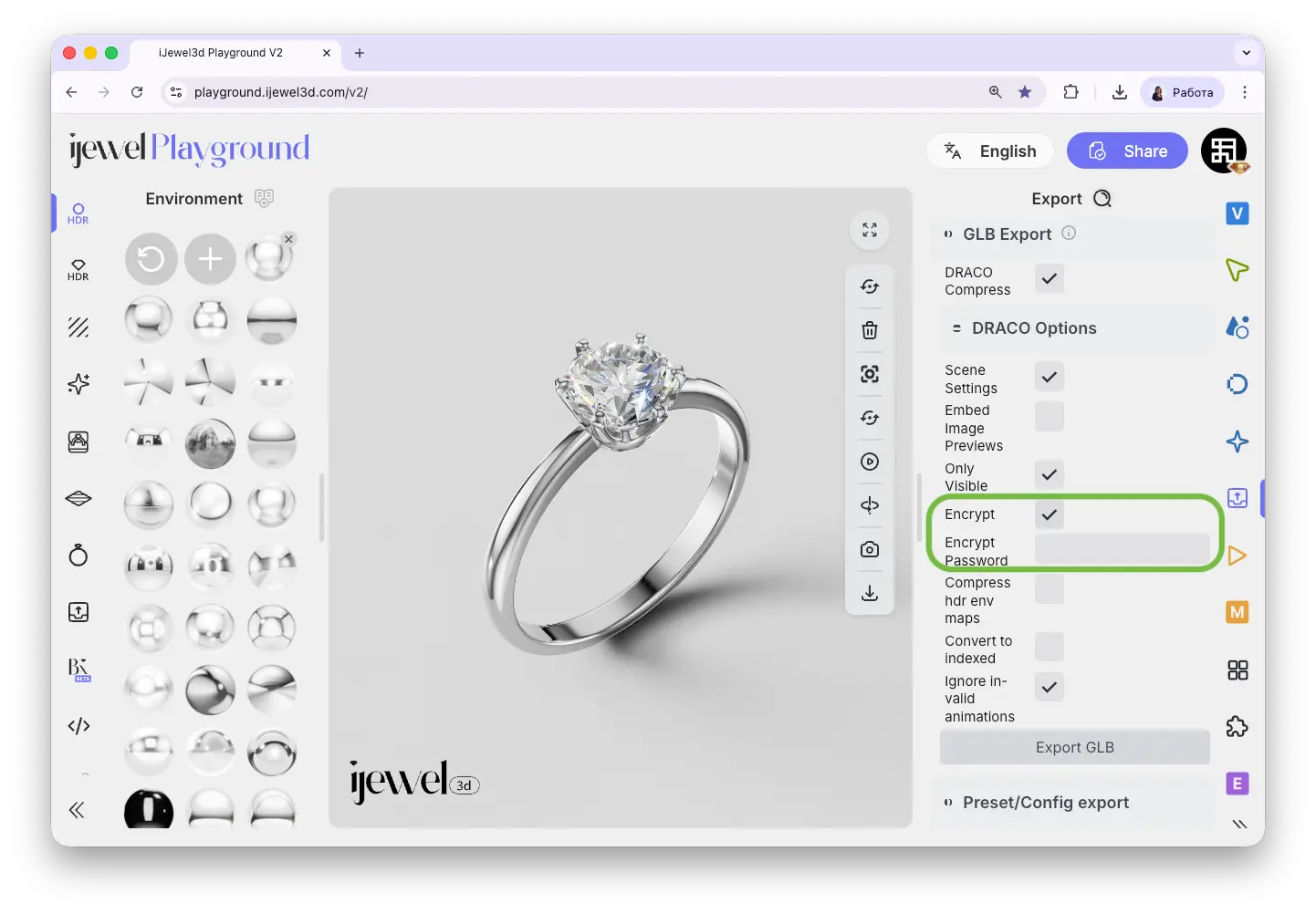
Jewelry designs are often unique and commercially valuable. The Encrypt option lets you protect your GLB files with a password — anyone trying to open the file will need to enter it first. This adds an extra layer of security when sharing files with clients, manufacturers, or partners.
Splitting a Scene into Multiple Files
Use the Only Visible option together with the Hierarchy to export parts of your scene separately. For example, hide everything except the ring band, export it, then hide the band and show the gemstone, and export again. This gives you individual GLB files for each component.
Related Pages
- UI Overview — Interface layout, toolbar, and panels
- UI Overview — Canvas Toolbar — Quick export button location
- Importing 3D Models — Bring your 3D designs into Playground
- Import Materials — Import custom
.pmatand.dmatfiles - Import Scene Settings — Import
.vjsonand.jsonscene files - Export Images — Save high-resolution renders as PNG, JPEG, or WebP
- Export Videos — Create turntable and camera animation videos