
Diamond Materials
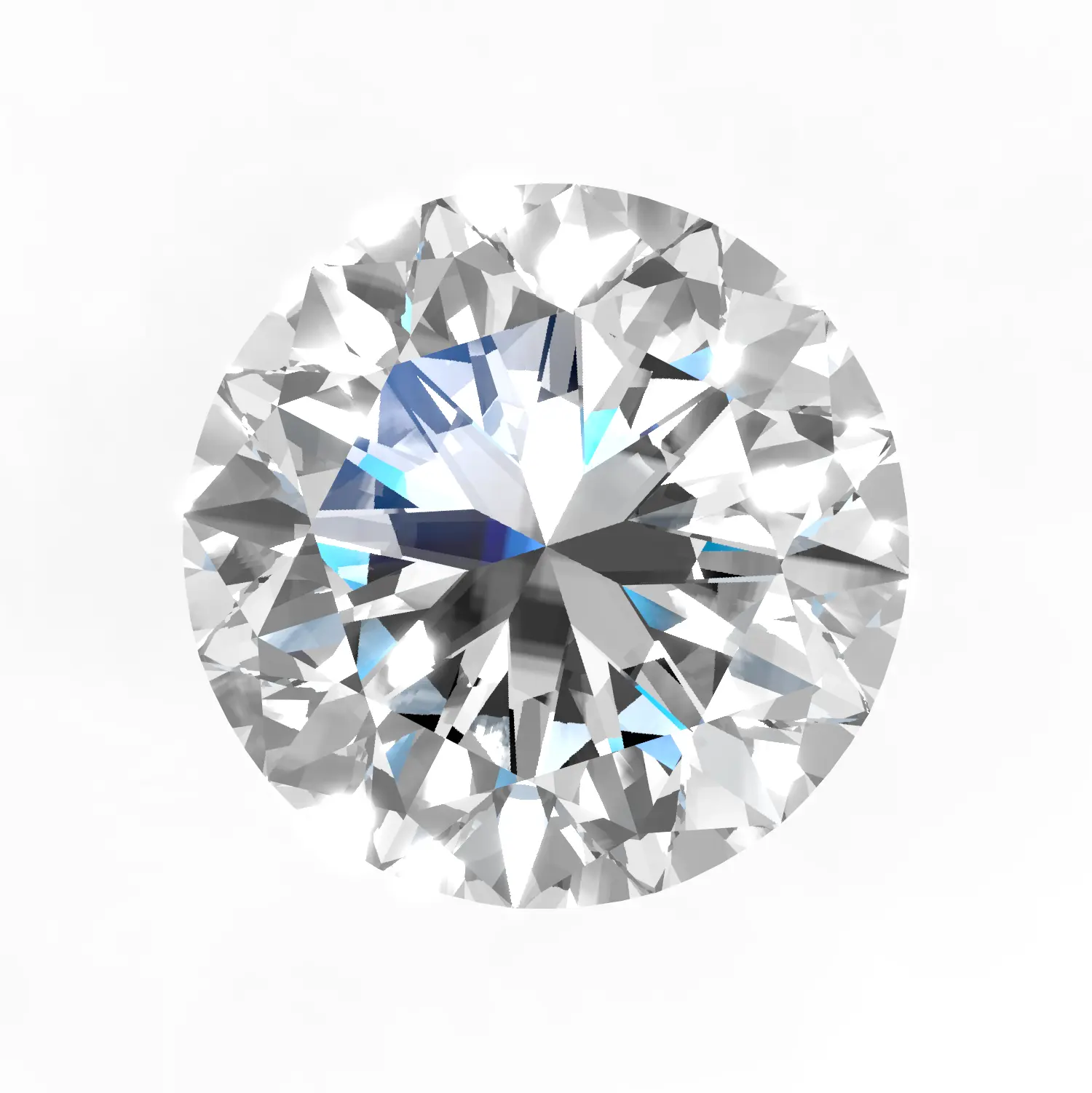
Diamond Material is a specialized shader designed for rendering gemstones — diamonds, emeralds, sapphires, rubies, and other precious stones. Unlike PBR Materials, which simulate opaque surfaces, Diamond Material uses ray-traced refraction and dispersion to produce realistic sparkle, fire, and brilliance inside the stone.
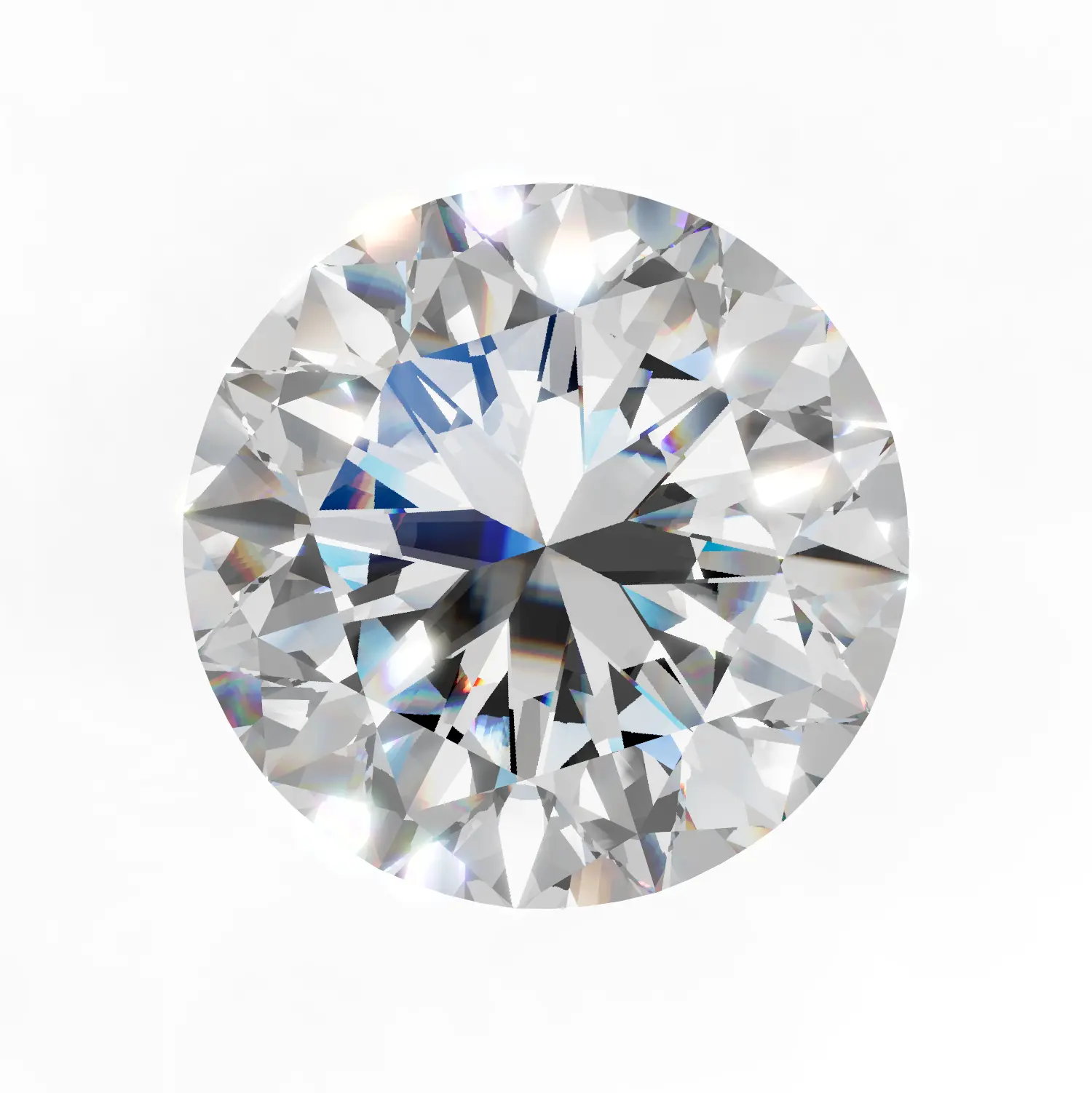
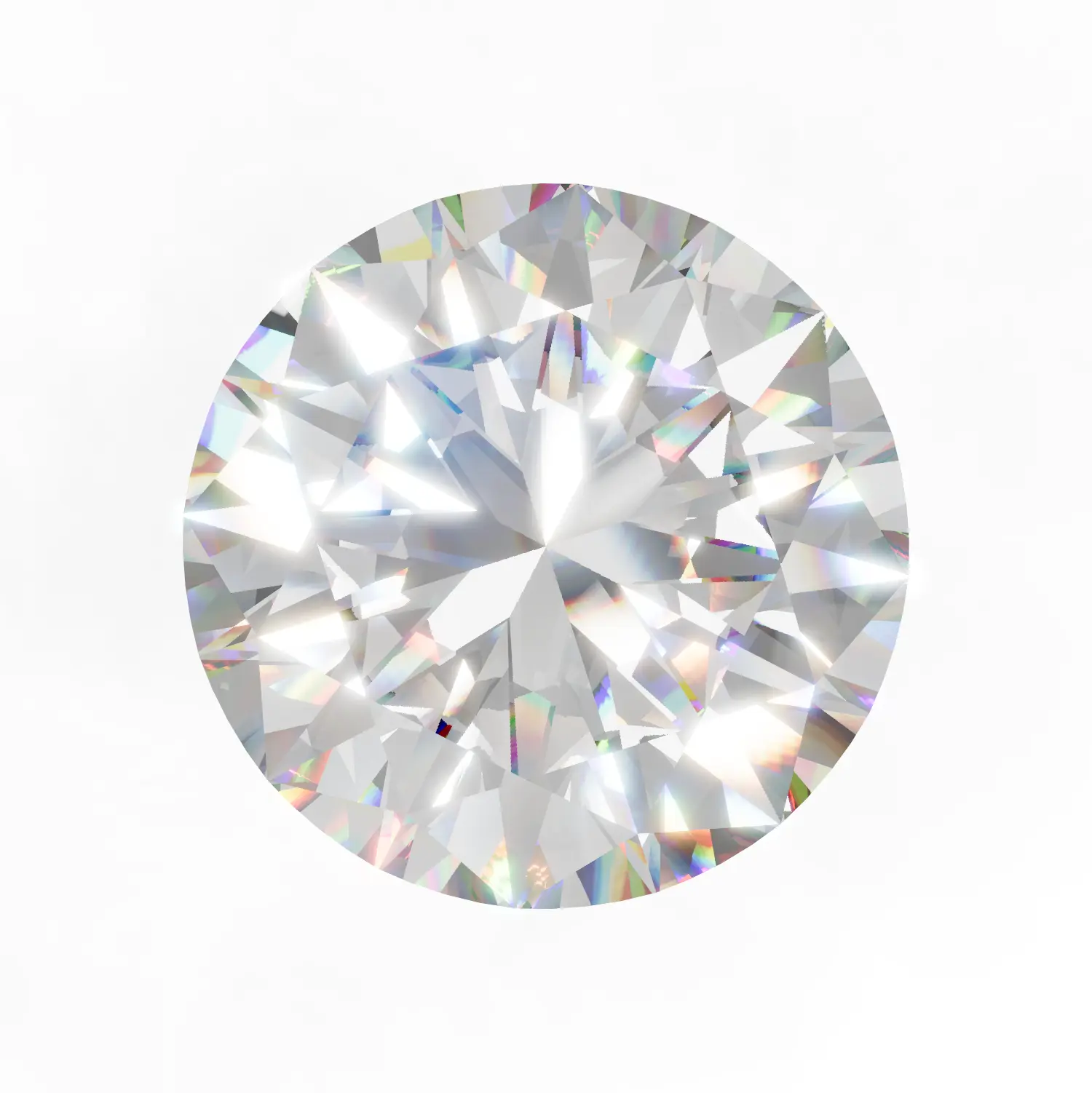
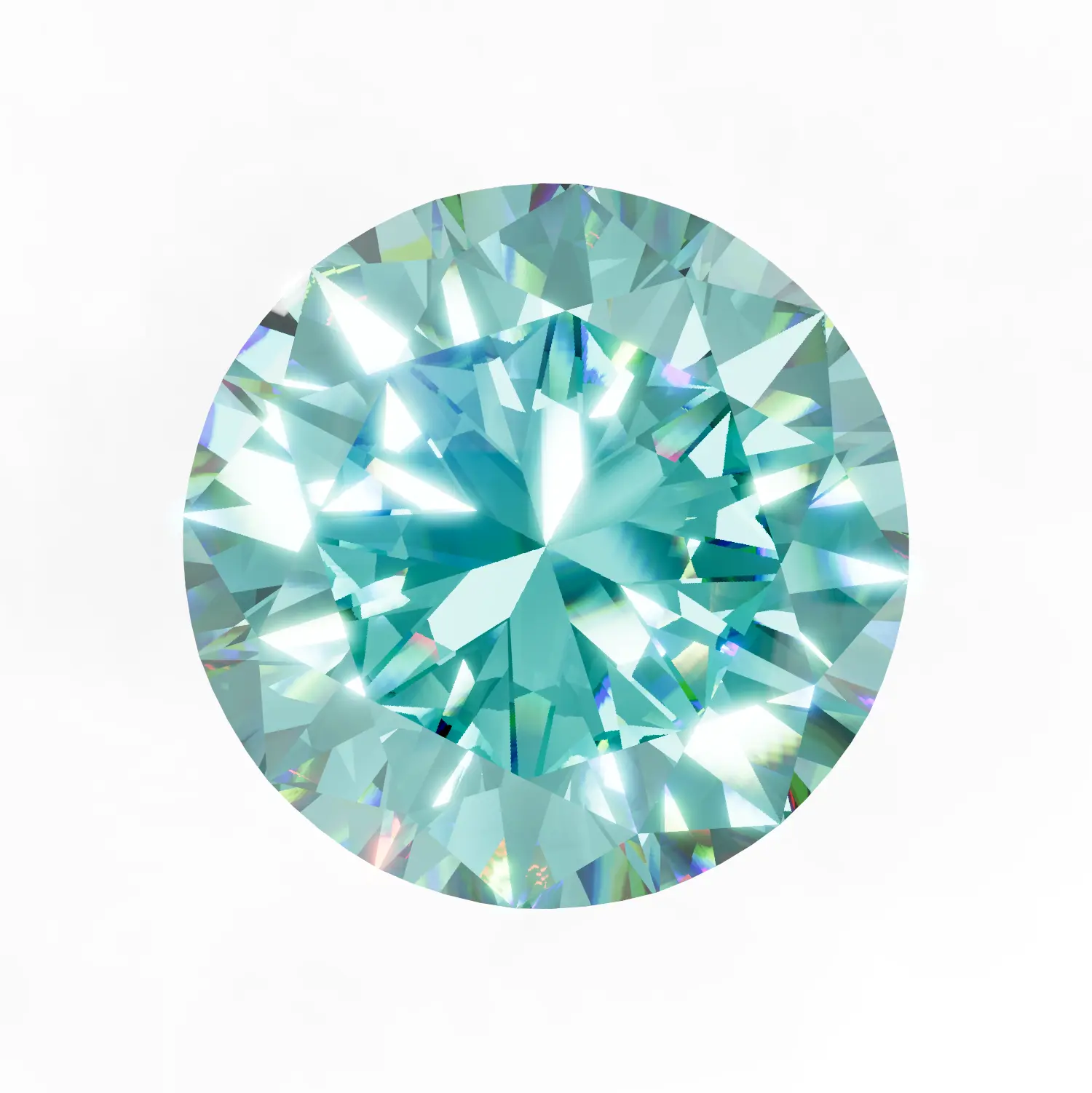
How your gemstone looks depends heavily on the HDRI environment map assigned to it. Different HDRI maps produce dramatically different sparkle patterns, so try several options from the Gems library on the left panel or create your own. All images on this page use the Gem001 HDRI map.
My diamond doesn't look right?
If your diamond looks white, flat, or lacks sparkle, the most common cause is the wrong HDRI environment map. See FAQ: Materials & Diamonds for troubleshooting steps and video tutorials on fixing common diamond issues.
Gem Shapes
If your scene contains multiple diamond shapes (round, pear, oval, princess, marquise, emerald, etc.), each shape must be on a separate material layer. For example, round diamonds should be on a "Gem 01" layer, pear shapes on a "Gem 02" layer, and so on. If different shapes share the same material layer, you won't be able to adjust settings per shape, and some stones may render incorrectly.
Video Tutorial — Fixing Diamond Rendering
Shape Examples
How to Open
- Click on any gemstone object in the canvas to select it
- Go to the
 Picking tab on the right panel
 - The Picker will show the material name, and the Diamond Material section will open below with all its settings
If your object does not have a Diamond Material yet, you can assign one in two ways:
- From the Gems library — Open the
 Gems tab on the left panel and select any gem preset to apply it to the selected object
 - From Picking → Diamonds — Go to the Picking panel, find the Diamonds section, and click Make Diamond. This converts the Physical Material on the selected object into a Diamond Material
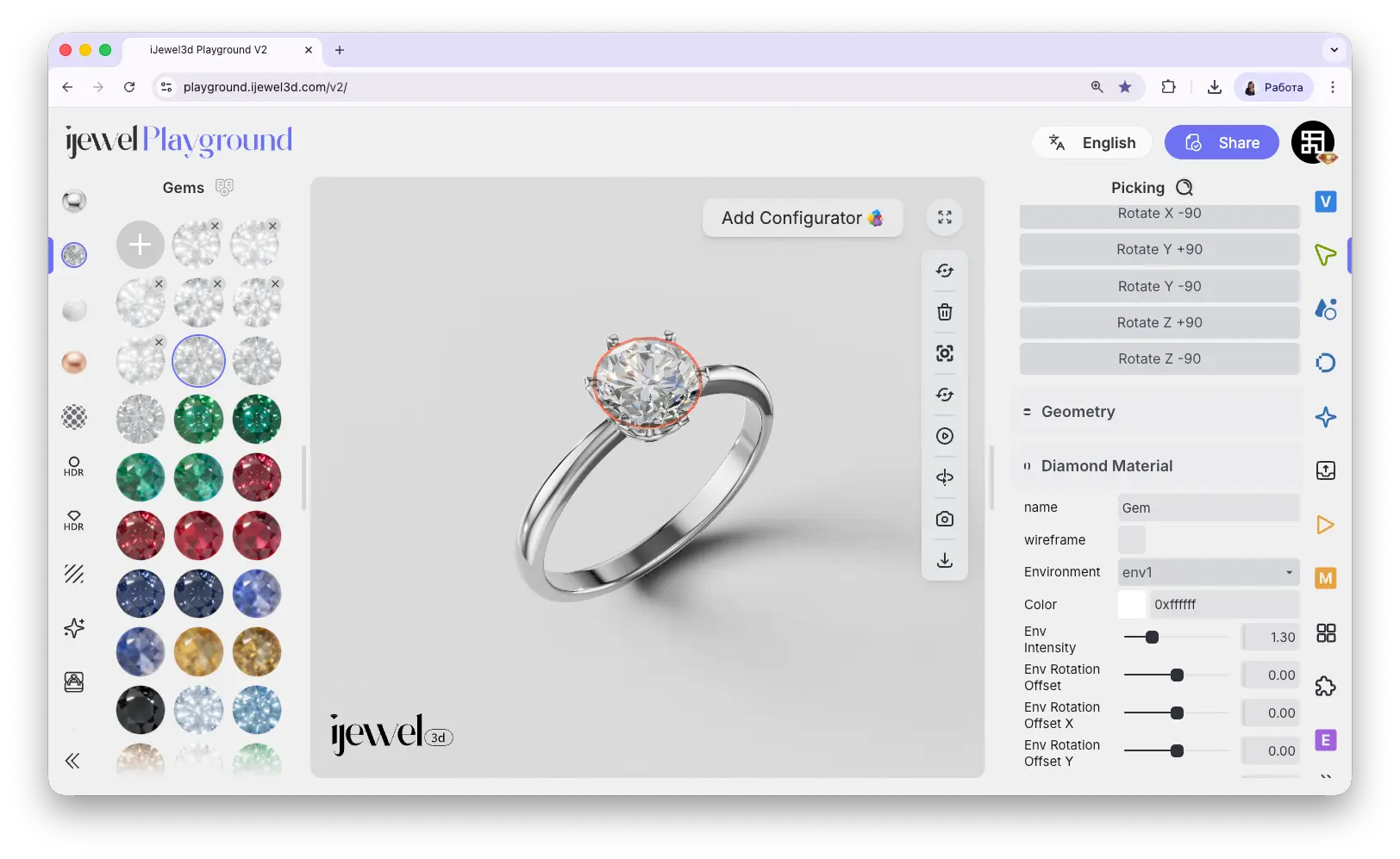
Diamond Material
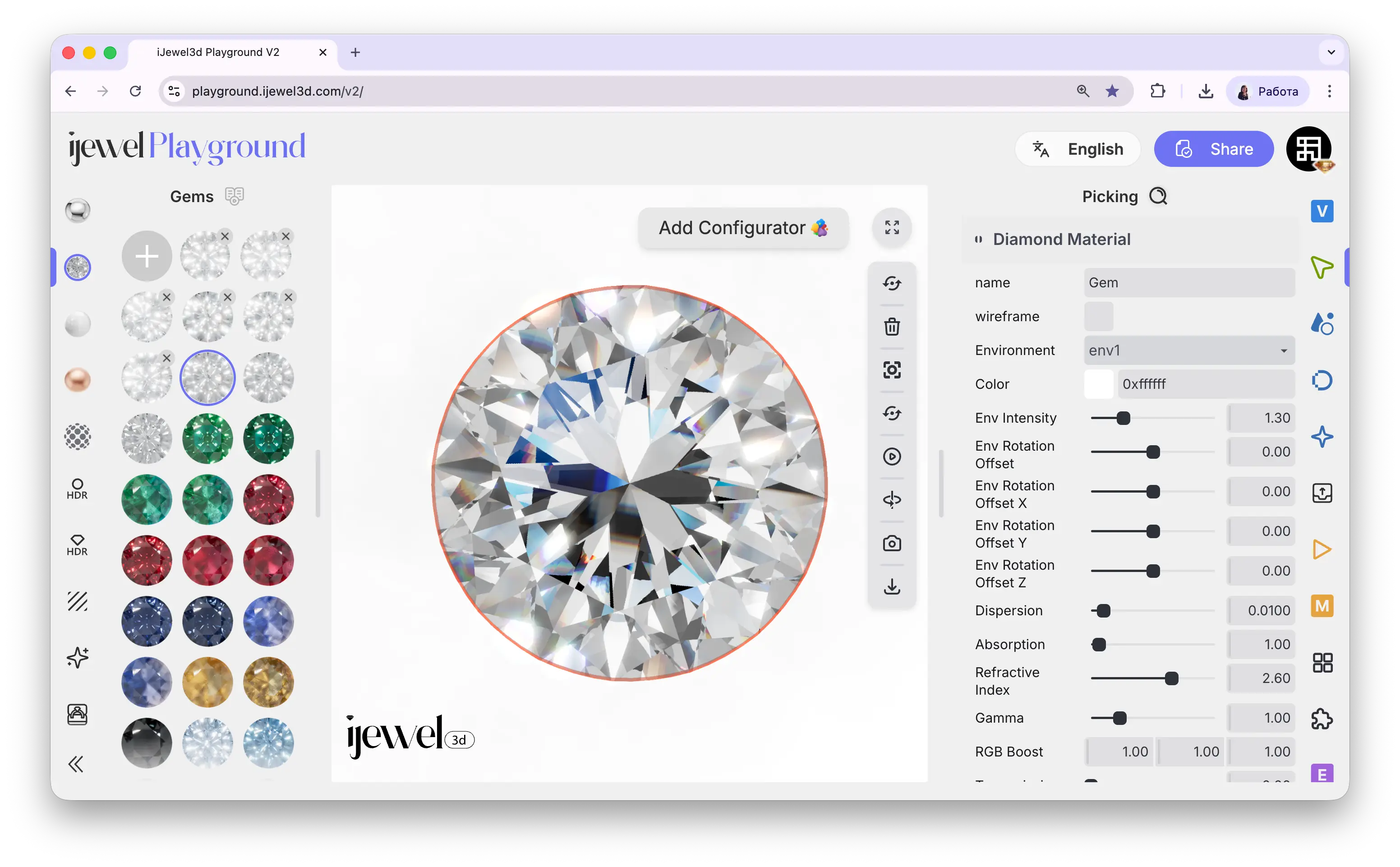
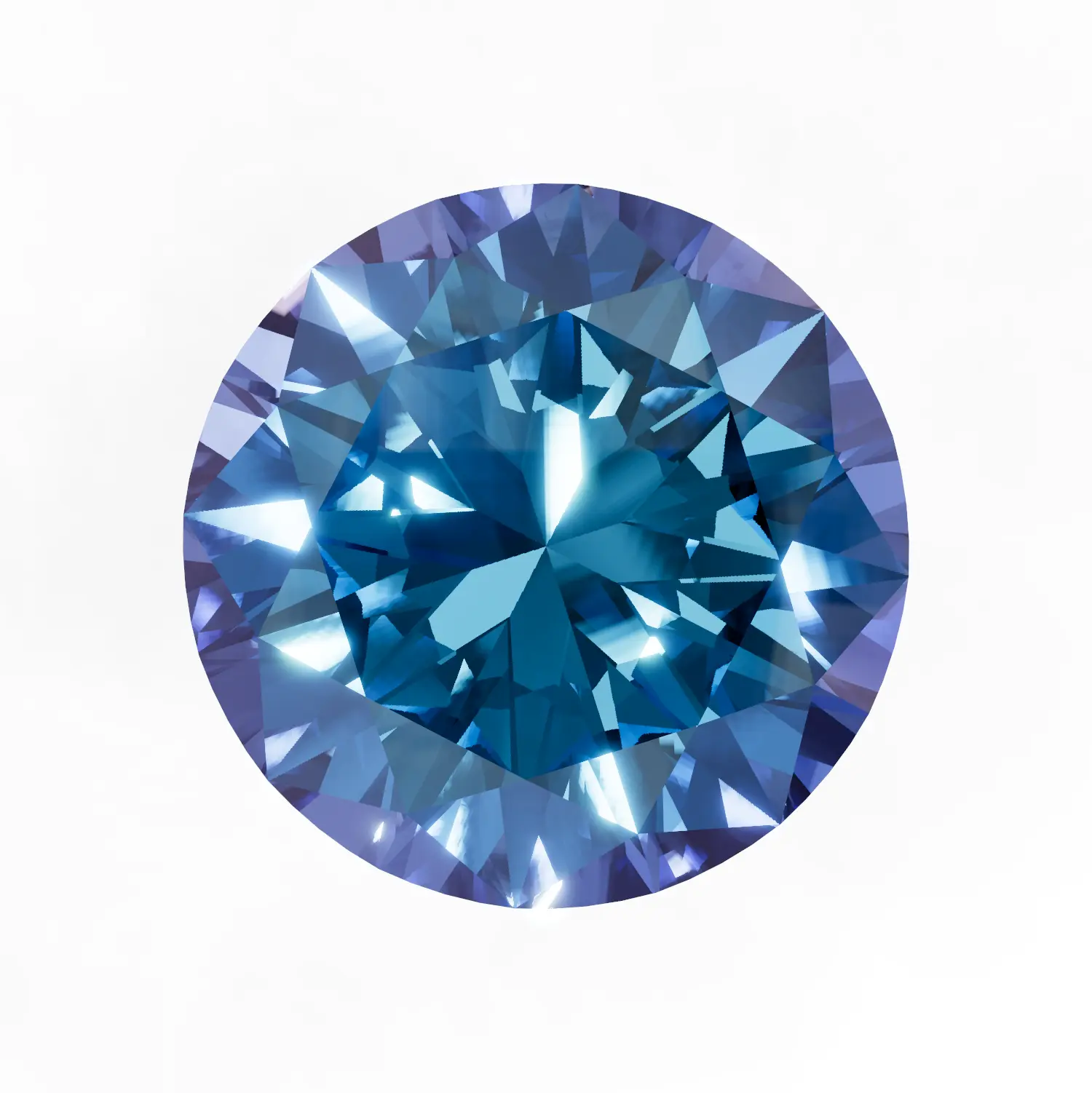
0xffffff) for a classic diamond, or any color for colored gemstones like emerald, sapphire, or ruby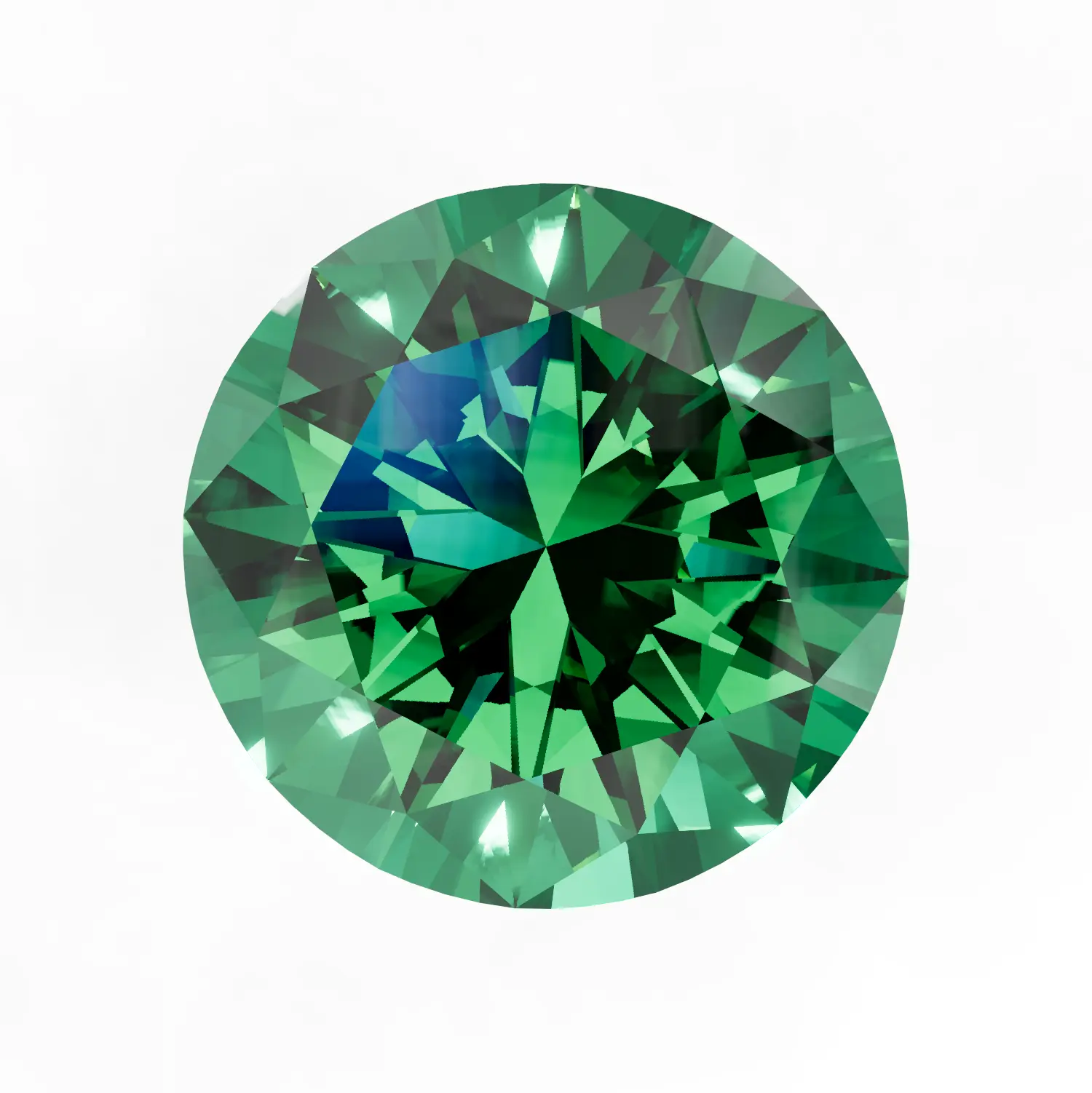
1.30. Increase for a brighter, more vivid stone; decrease for a subtler look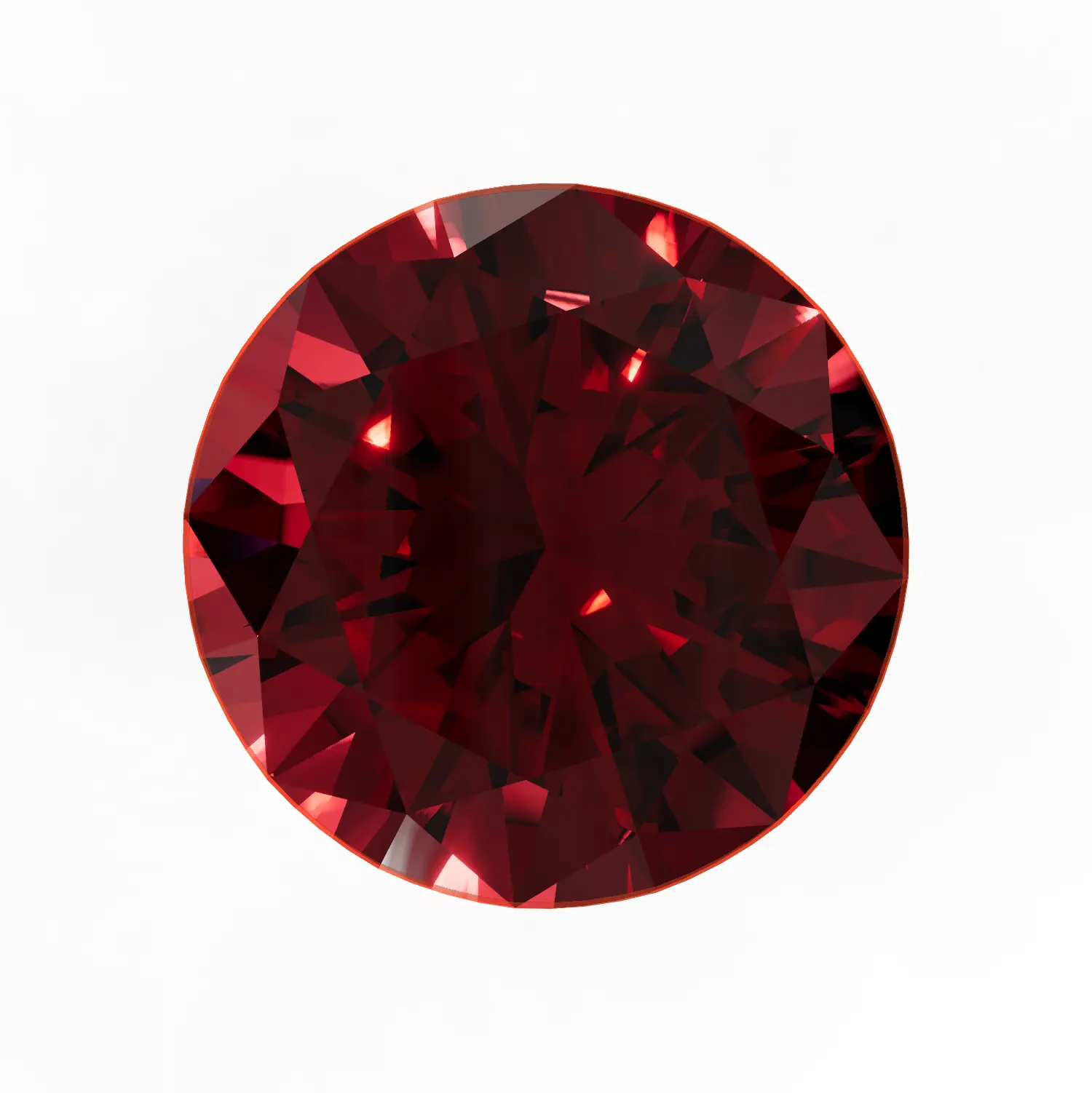
2.60. Lower values create a shallower, less brilliant look. Increase or decrease depending on the stone shape and cut — unusual or custom cuts may need adjustment1.00. Increase to boost contrast and make colors more vivid, decrease for a softer look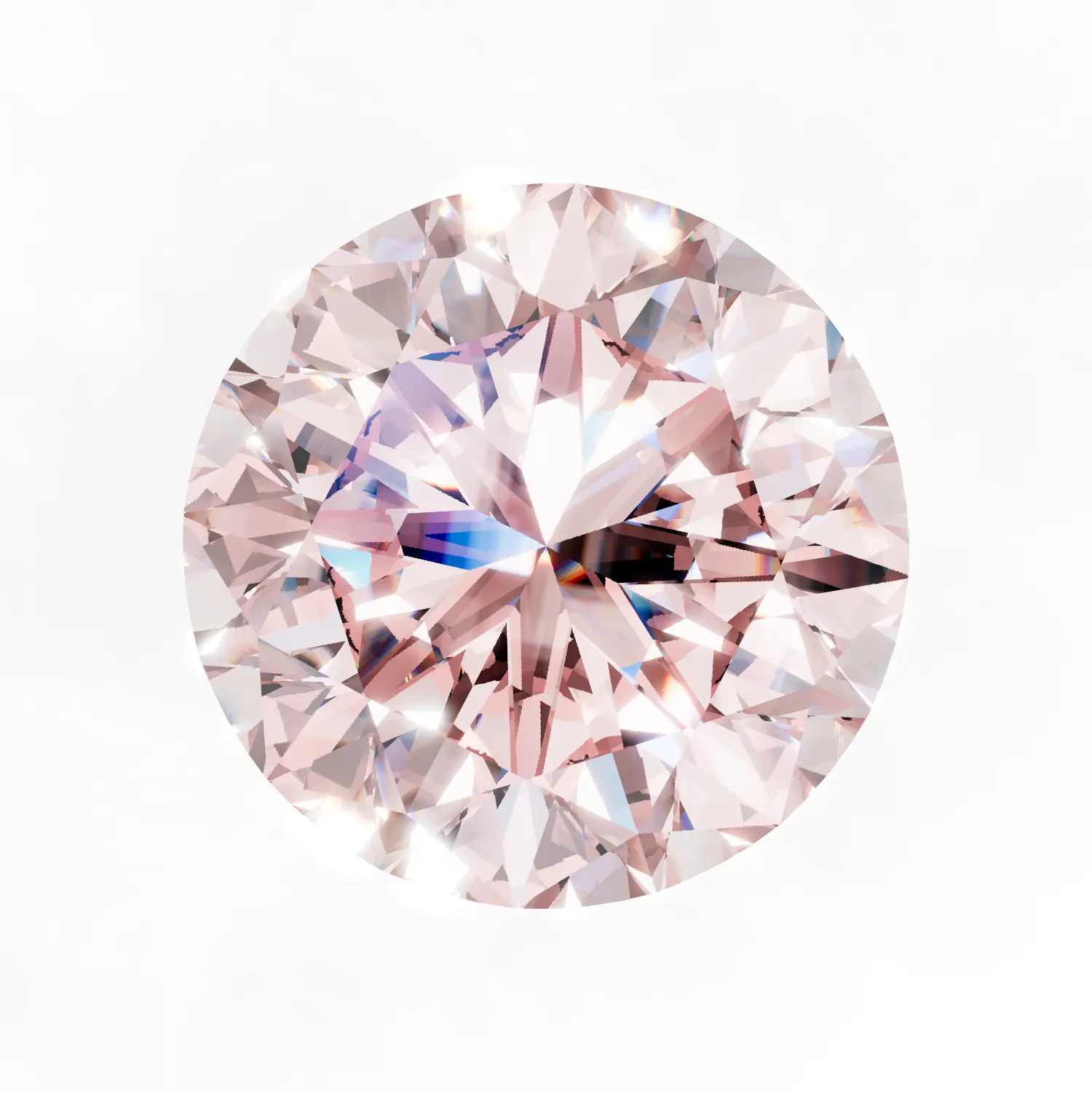
4–5. Increase up to 16 for more realistic results on certain cuts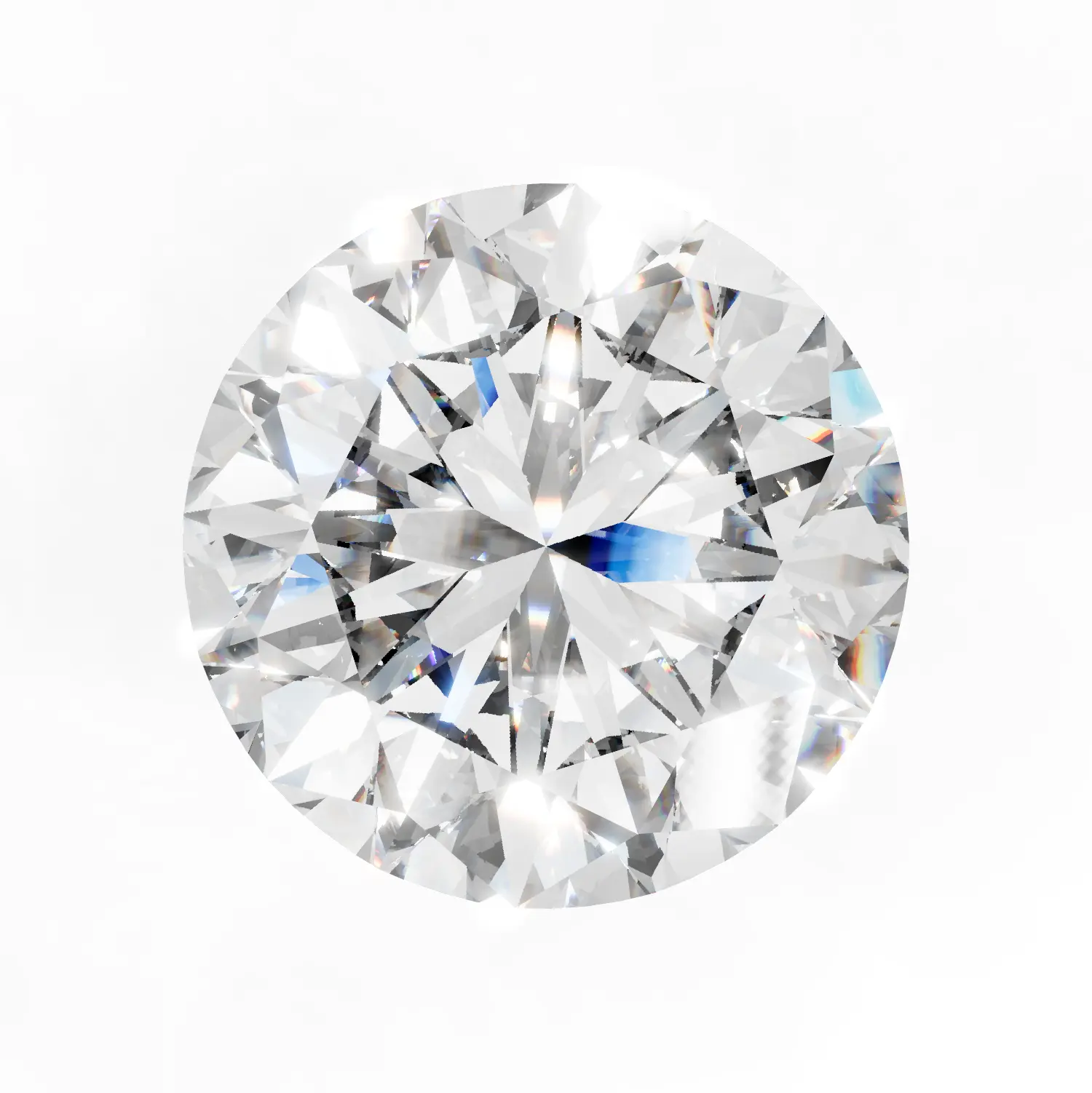
Finding the perfect sparkle
If a diamond looks overexposed (pure white with no detail) from a certain angle, use the Env Rotation Offset sliders to rotate the HDRI map slightly. Small adjustments can dramatically change how light enters the stone and produce much better fire and brilliance.
General Settings
Download .dmat
Exports the current diamond material as a .dmat file. You can save your custom gemstone settings and reuse them later. See Export Materials for more details.
LUT
Apply a per-material Look Up Table for color grading. See the Look Up Tables (LUT) page for a full overview of how LUT works.
ThinFilmLayer
Adds a thin film interference effect that creates rainbow-like color shifting on the stone's surface. See PBR Materials — ThinFilmLayer for settings details.
Flat Material
Renders the gemstone without any lighting calculations — a flat, unlit appearance.
Bloom
Per-material Bloom toggle. Allows you to enable or disable the Bloom post-processing effect for this specific gemstone.
Inclusions
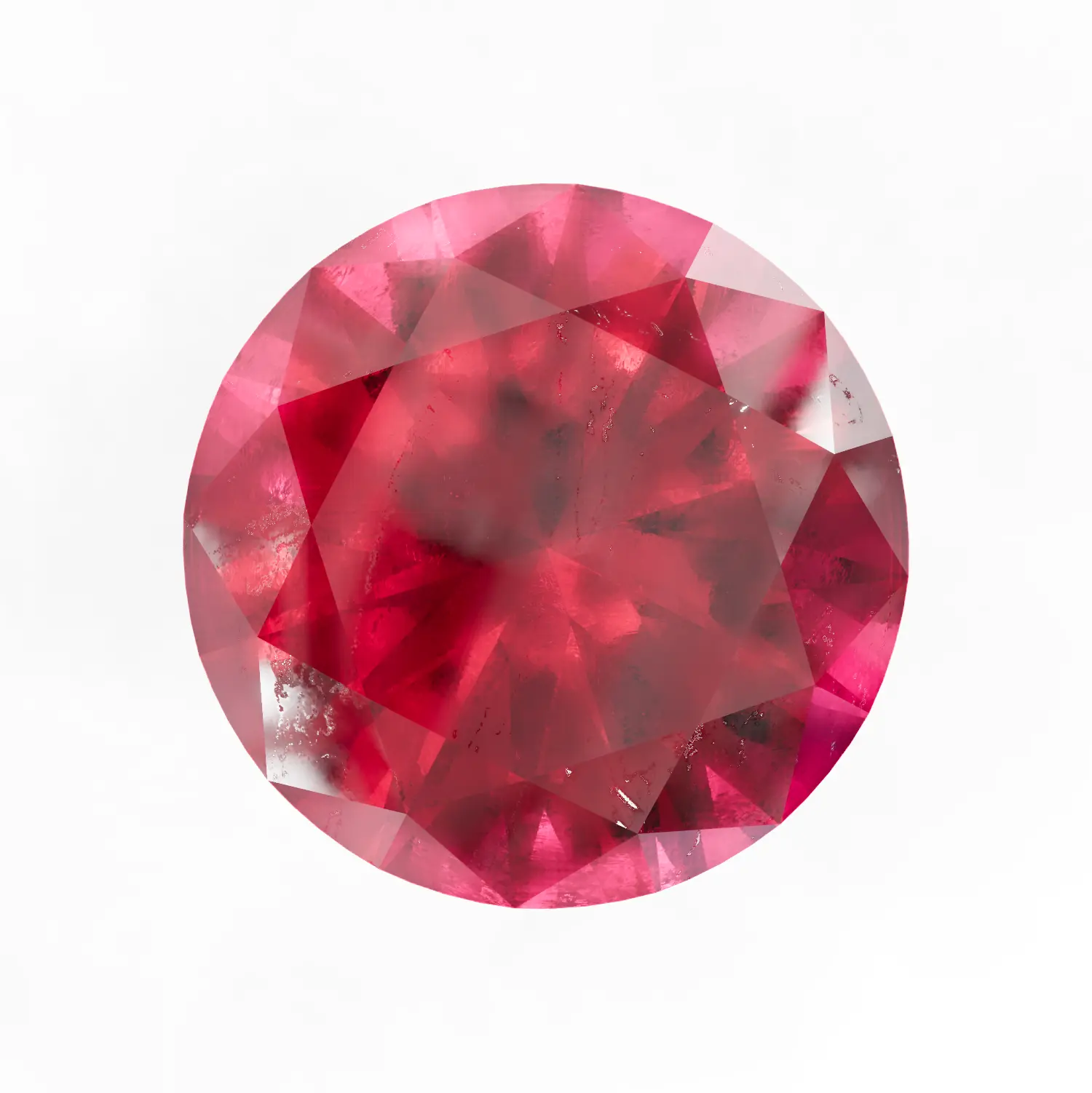
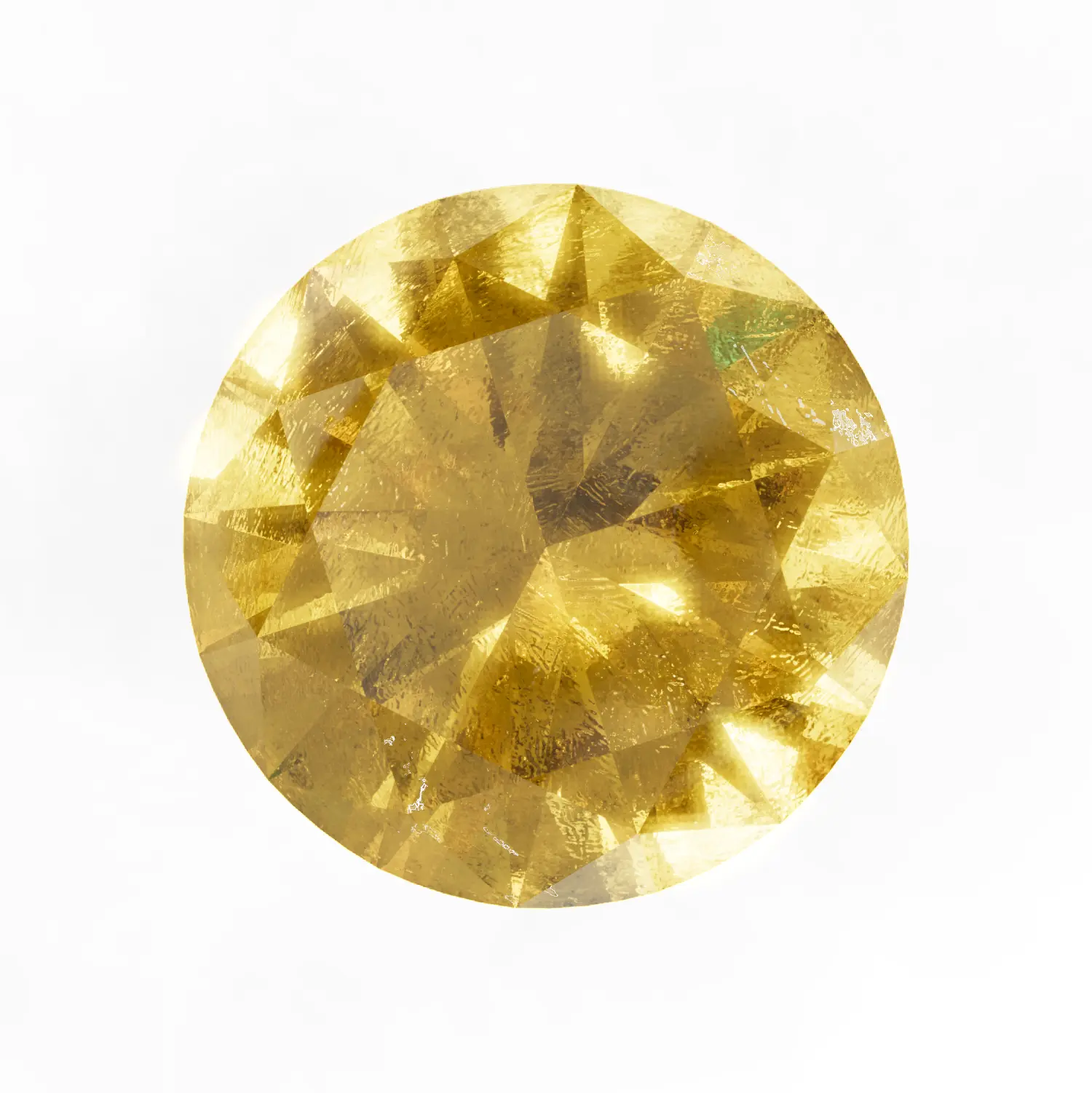
Inclusions simulate the natural imperfections found inside real gemstones — tiny cracks, mineral deposits, and internal fractures that give each stone its unique character. This is especially important for colored gemstones like emeralds, sapphires, and rubies, which naturally contain visible inclusions.
You can use ready-made inclusion maps from the Gems library on the left panel, or create your own unique inclusions by adding custom maps and adjusting the settings below.
Auto UV Mapping
Automatic UV unwrapping for the gemstone model.
Object Actions
These buttons appear at the bottom of the Picking panel and affect the selected object.
- Remove Material — Strips the material from the selected object
- Duplicate Object — Creates a copy of the selected object
- Wrap in Parent — Wraps the selected object inside a new parent group
- Delete Object — Permanently removes the selected object from the scene
Physics
Per-object physics body settings. See the Physics page for global physics configuration.
Transform Animation
Per-object transform animation settings for position, rotation, and scale keyframes.
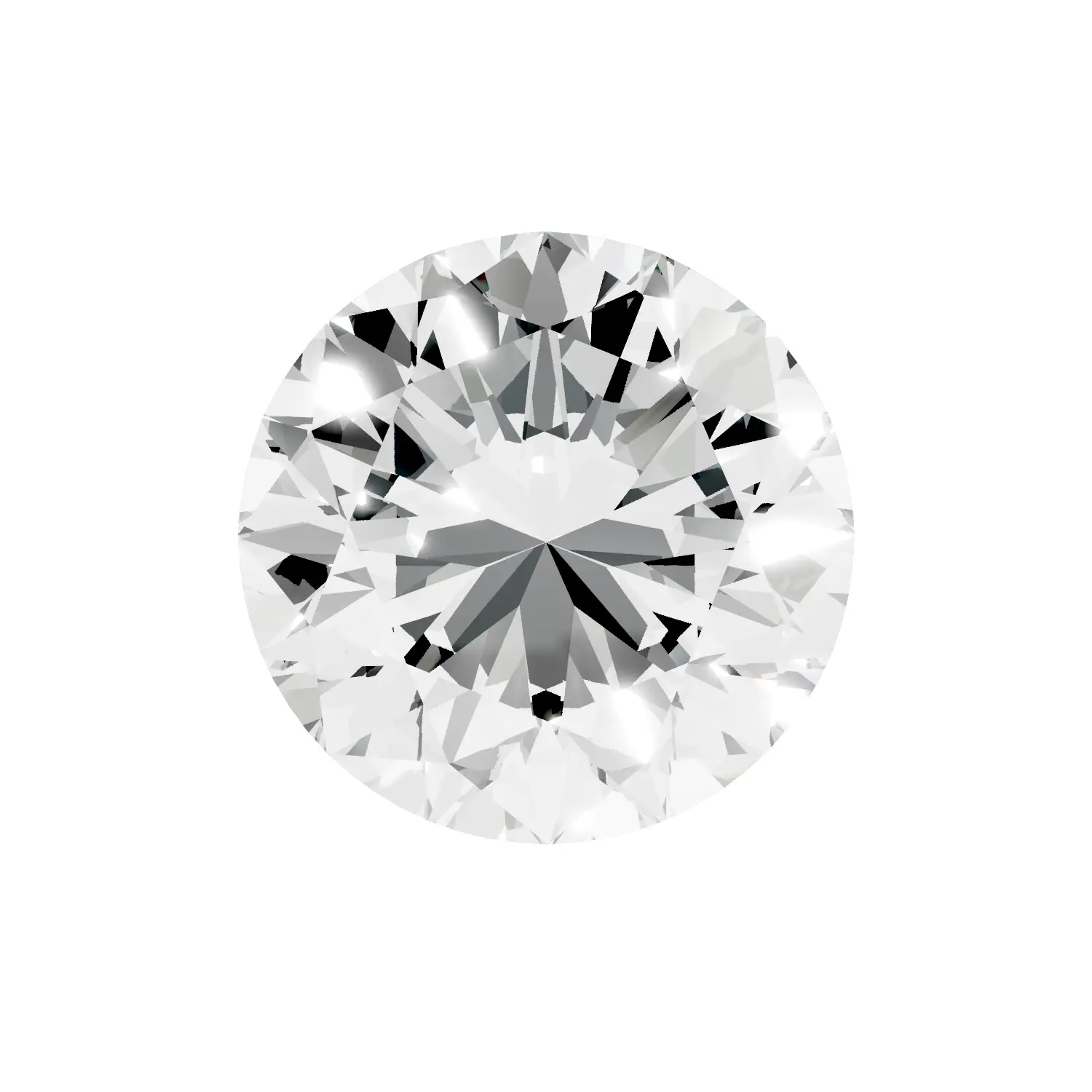
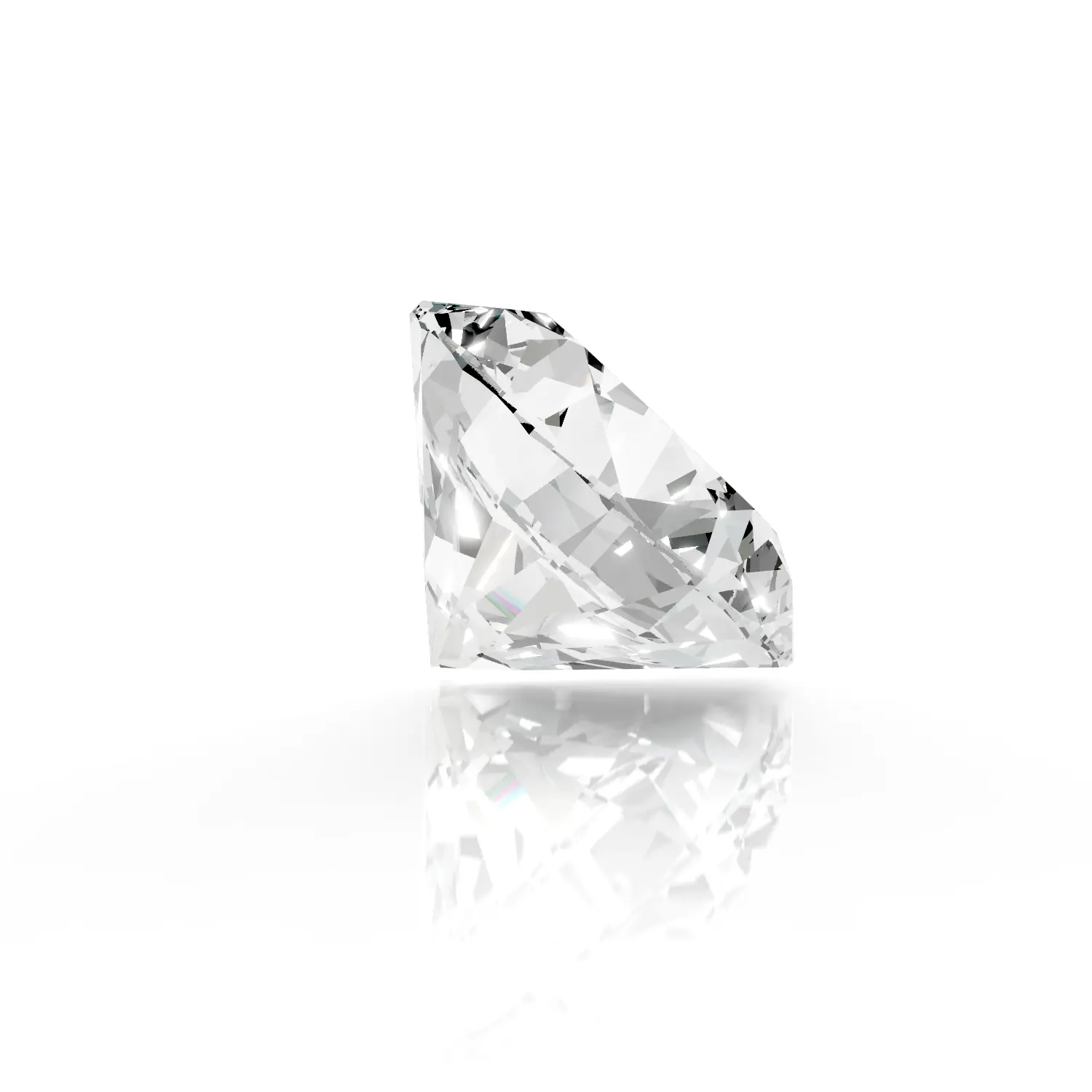
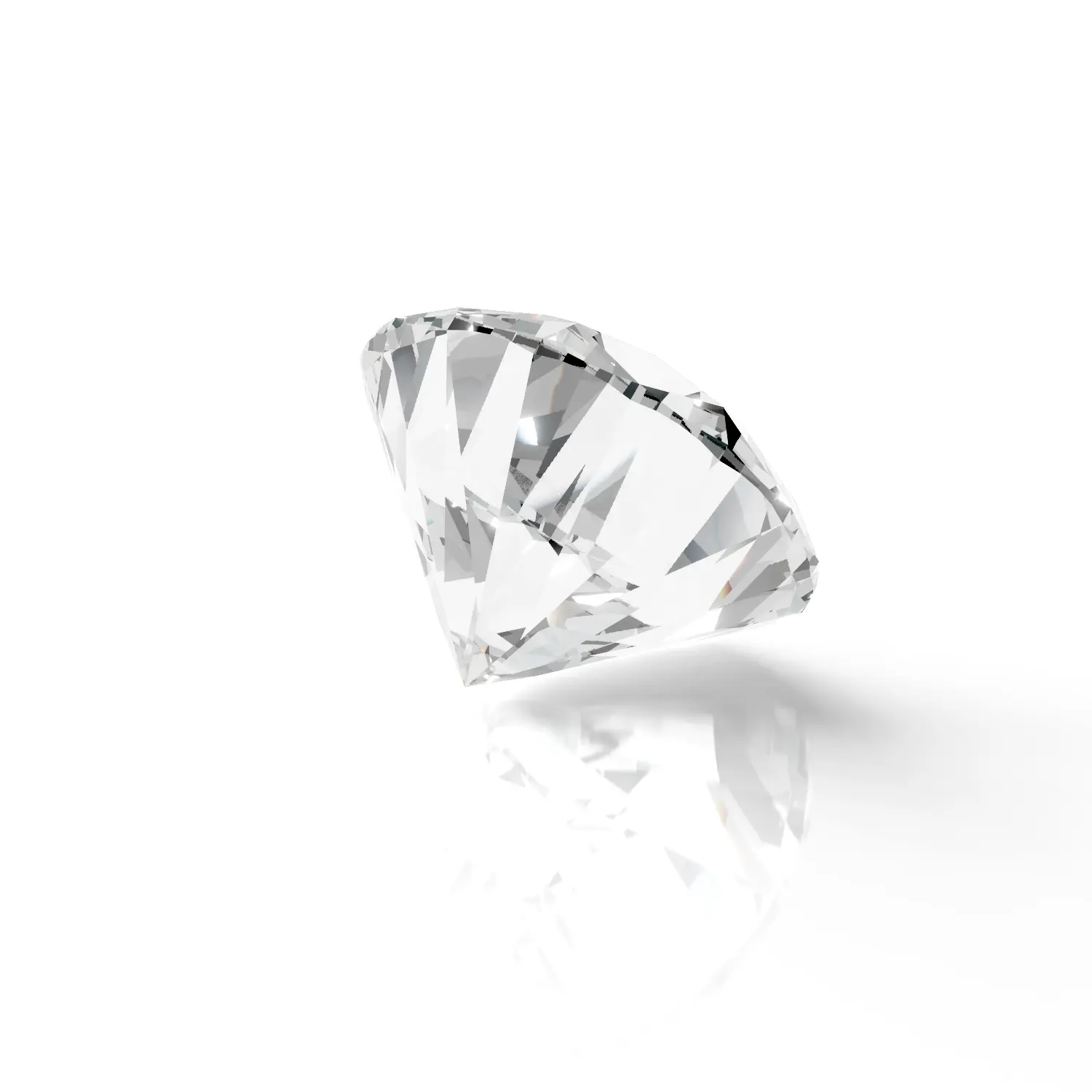
Diamond Close-Up Views
Video Tutorial
Related Pages
- PBR Materials — Physical material settings for metals, ceramics, and other surfaces
- Material Presets — Browse and apply ready-made material presets
- FAQ: Materials & Diamonds — Common questions about materials and diamonds
- Export Materials — Save and share material presets
- Look Up Tables (LUT) — LUT color grading
- Bloom — Bloom post-processing
- Viewer Animations — Animate Diamond Env Map Rotation for sparkling effects