
Material Presets
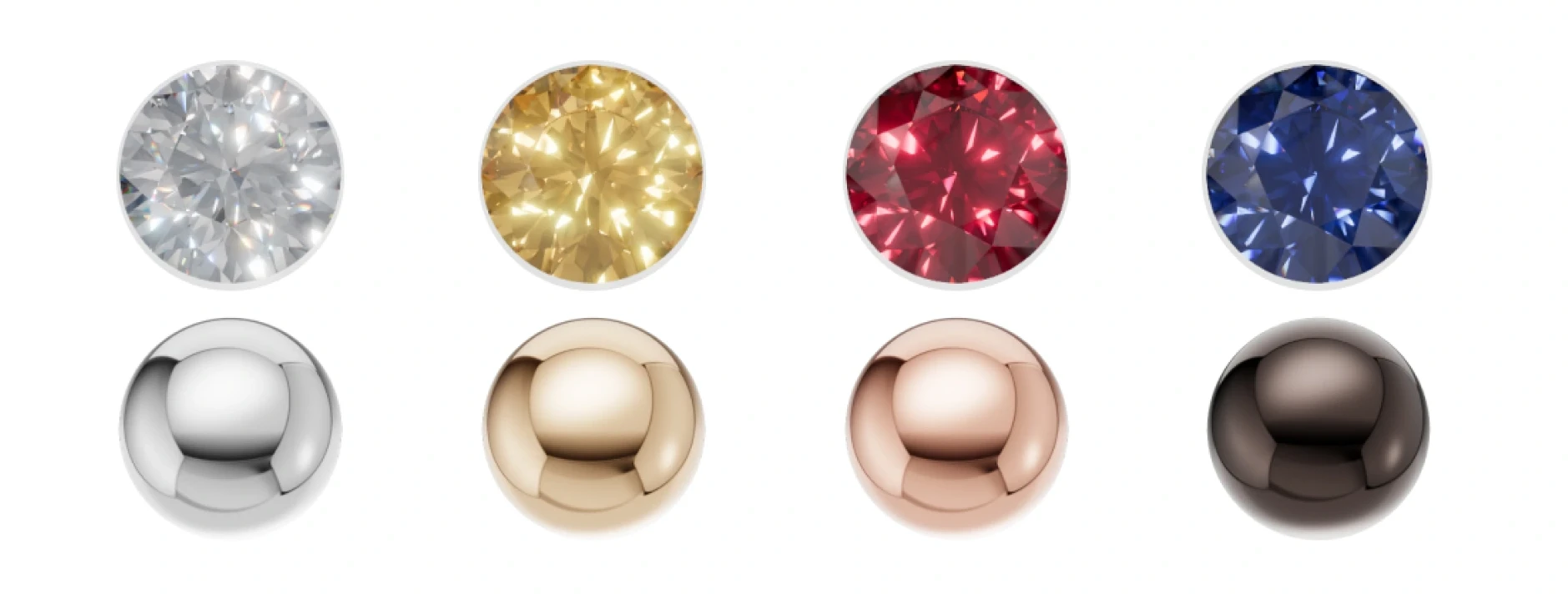
iJewel Playground includes a library of 300+ ready-made materials that you can apply to any object with a single click. The presets are professionally configured and cover the most common jewelry materials — from yellow and white gold to emeralds, sapphires, pearls, and ceramics.
How to Use
- Click on any object in the canvas to select it
- On the left panel, browse the material categories using the tabs at the top
- Click on any preset thumbnail to apply it instantly to the selected object
Categories
The library is organized into five tabs:


'/%3e%3cdefs%3e%3cpattern%20id='pattern0_2192_1301'%20patternContentUnits='objectBoundingBox'%20width='1'%20height='1'%3e%3cuse%20xlink:href='%23image0_2192_1301'%20transform='scale(0.0208333)'/%3e%3c/pattern%3e%3cimage%20id='image0_2192_1301'%20width='48'%20height='48'%20preserveAspectRatio='none'%20xlink:href='data:image/png;base64,iVBORw0KGgoAAAANSUhEUgAAADAAAAAwCAYAAABXAvmHAAAAAXNSR0IArs4c6QAACaRJREFUaEO9Wl1oG9kVvnc0iuwk2AZnSQot2NBCk8ihhixbu7tgJSlxUhYS+tiFzcvilt2yG0rBJVviZQ1LYWFdKDTQQvLQh0If0jzZJg0ipHkINXhfwxLiIEdxZOtfin5Gmqm/QZ84vhnJcrKtQB7N373nO+f7zjl3xlp9i59UKnWkVqv9yPO8I1rrI0qpyL59+1S9Xq/VarUNfD3P+zoajW58W9Pq1xkolUodtCzrx6FQ6GdKqfeUUofkeFprZVmWcl1XOY6jms2m/3UcZ6PRaCzV6/Vb/f39S6Ojo9VXteOVADx+/HhoYGDgE8uyPlZKDWFyGCu/MJz7OO95nv+t1Wo+IH6q1era5ubmrWq1ujAxMbG2VyB7AhBkOCeEsSYQ7IdCoR1AYHx/f78PolAo+KAQnVKpVKpUKjeq1epnJ0+e3OoVSM8AcrncGc/z/qKUGsGk0mAajm1fX197blxH70uDEB3btkknHwC+lUoFQNZc1/1dNBr9ey8gegKQz+fnlVJXYBDDbwIgZUzqdDKCIBqNhk8rbAGiWq2qcrmMeeaj0ejvdwPRFQBEeuDAgRuu6/4cE0CA+NBI6Xkck/ugjilo0xiOg3EBgkLHb4DwPO9v+/fv/6CbyLsCKBaLS5FI5CwG5gTSMNNoU8gEK4EFeRT3IbKYg5mKIAqFwr8rlcq7sVgsF3hvpxCVy+Ubtm2/XywW25dgEkxGbkvRysgwfe4WAWqJqRbXM0thLoDJZrMQ+9Lk5OS5ngHk8/m5cDh8FRMglPJD46kBnpP7+M3ssxuHzbFhNIwnAEY/mUz+IRaLzZrjvUShcrl8QSl1E5yHoEzRcgDSJwiAPGZetxsgGo8tnEVxI0OlUqmfxmKxf+2IrNxZWVk5FI1G/9NsNkdKpZIPgJznlp6mYZ0ishvvg4BzLBrPGgEQ+BYKhbVEIjF+8eLFth52RMCpO1823eZvYDgQI5ymgSa/zXQqDZP1olOkpJ54Dau2CeDFixcqnU7Pnz59up1e2wC2q+BIJBJZLZVKQzC+Xq/vEKspSGYcMxMFATb1EaQpHDMLHykER7JeVCqVXCKRGGUU2gByudx8OBy+ApQAEJRxSAvQKRwOtzMSr5VGmFqRKZbX0dPS8+YYFDNpBMc+ffp07uzZs5/59uBPPB633/nJO9+UXpR87uMiOYmkSSQSUWiRuUWawySMhGzUMIbshYKaO0mhoNZDZiQmls3NTWjge7FYrOQDcKrOtA7pxUw243ufoZMZiNyH5wcGBvwIIMVCL0GClWIHONlqSJH2AoAtDADAwWBJNps9c+7cuTs+gHw+/2fbtn+JotXqQ9q5WPY2MApNGBo2HEeOxqDyE1Sdcc+rAsDYMgowHgxJJpML58+fv+wDKBQK3zQaje/DeFzA7INJSQF6ik0YBzZFa7bPHAPH5VgsWEERkDSkQ2SBy+VyKpPJbJ06deoNjYZteHi4mMlk/P4clJAlHr07iwkGw0CyJpjrgKB6QdA4x7aBXpUAaLjpFHkPHIx2A9p78ODBd3Q6nZ4Oh8OL2+2Dzy8ihWEQ6+HDh9XW1pZ/E6iA8MmGjtogz0090PO4l7/NaksKmgBk1mNNIMUB5OHDh+/qra2tS7ZtX5cA4HEYBO8fPHjQBwbDYQTOcdGC3xiYng1qG0wAuIaiJJBOaRTOQbLgPa2Vm+9kAEkkEpf0xsbGx7ZtL4A+OMi+HzfBUHpdhnpwcNCfs9Wz/08BsDFkBNghwN5UKjWrk8nkrG3bX+CApBAAINcDtXy6AEDDw8M+AIhprxFgO84CtVsaZbHD9Yw4IgDGpFKpOf3kyZPZZrP5BYyHsQyrTJ/kIgYDKHzxYbtBkQZRSAqY2iGFzD4oqJWAsUwerB9cwW0LeU6vr6/PNBqNa/CmfOTRqd9nBQYAeASDSoHuKAqt5SfPk8uyhZDzBFViHpNpF8damWhWP3v27JLjONfT6XS7B+pWWSEqfAmAHJXFSoKQIjadIq+TK70gWhEAnMDGbru99kV8xnGc25ubm74GZA4mvyUgDMBGDpSTBpJ2ZmUOilBQhBmZTrWBPReo23oEM63xsMrzvCxEgdxKobCYBS0P6W14he2FrLSvA4BNJCs9900xtx4CvOG3Eo8ePXqWyWSOIAKysspoyDUuhUkAbBcAzPSsWYUJzhS8pJBZ0Eyx43y5XF4bHx8f9QGsrq5+tb6+/gkLEvt9k6Oyz8FvUkwK2TRMgpPngoBKr8tImJoAS7LZ7LXJyclf+QBu37495ThOnGlKAqFXMYjsKPmbjwg7UcjUCJ3SKcvtlpXQqwHAxsbGhenp6Vs+gKmpqb7Lly8nHMc5JDnPakxvU8wsbOiVZONHD8saQr1wa0bIpEcncdO5ELBlWWvPnz//QSwWa7SXlHfu3Lm6rYG51gXt1pd0Mo3DvglANnZcfZkAuqXSoPRNKhEAMl+xWJyfmJjwF/ZtADdv3hwaHBx8nM/nh9jMkUrMNOw4uUU6ZWqTlOoWAbNVNillApSrt1bmwWP4Mb5L2PFYZXl5+dNms/k5nxYzg5Am5DMmxW/md0k7do+dIiCXqdLjMvvJ5MHFlWgjvhwbG/ttG7i8GFEYGhpadRxnBIUCQEATk/vYp/E4TwCyJyKdZBR5LIgq3QDQeNd11+7fv//mzMxM+wXIS48WFxcXp2zbjrNhkgPTANk+MLXSUHP9awLoVgeCgMnC2mw2L5w4ceLWjvQud/h7cXHx6rYhc2x5yXPSQlZfHusVQCcNMEmYGiCFtrdzY2Nj/rOgXQHgguXl5WuRSGQGVDK5KkW9VwCmBkwRm2m21cT9NRqNfhDk7I4vOPCwS2v9D631Ba6GZPhpOCsttyZlQCn5CYpmkGFMn57nLR0/fjzw3cCONNppkLt37/5JKfUhDA7ynqzaXLDINGp6FPPI893qguu6NzzP+3U0Gi11sq+nl3zxePzTcDj8+Q7uideqso2QLUeQcawhUk9BxnmeN3/s2LHXe8knB753796U1vo6XrNKTchaAOO4BKSBZqtgUowgxXVrWutLR48evdvJ6z2JOOhm6MKyrCtKqY9CoZD/bwUAwELHldpLmaL1LwesE6Zwse+6Lh7YLtTr9T+Oj48HvtDbk4i7oY/H49+1bfs9rfWM1noEhnGhzgU/75d1QhYyEcWc1nqhWq3uyfC2E3oJU7drVlZW3lZK/QJNrW3bP+S7ZAlA8r6VCPBfK3gT/890Ov1g++Xd//efPToBisfjfYODg2+FQiH8O0KfZVn+P4LgEZJlWVXP8540Go2v90KR3Rz8X6w+WjatS3QzAAAAAElFTkSuQmCC'/%3e%3c/defs%3e%3c/svg%3e)


Availability
The number of available presets depends on your subscription plan. Free users have access to a limited selection, while Premium and Advance plans unlock the full library. See iJewel Pricing for plan details and feature comparison.
Saving Custom Presets
You can save your own custom materials to the library for reuse across projects. After configuring a material the way you want it, use the Download button in the material panel:
- Download pmat — saves a Physical Material as a
.pmatfile - Download dmat — saves a Diamond Material as a
.dmatfile
To reapply a saved material, drag and drop the .pmat or .dmat file into Playground. See Export Materials and Import Materials for the full workflow.
Video Tutorial
Related Pages
- PBR Materials — Full Physical Material editor reference
- Diamond Materials — Full Diamond Material editor reference
- Materials — Materials overview
- Export Materials — Save and share material presets
- Import Materials — Load saved material presets
- FAQ: Materials & Diamonds — Common questions about materials