
Transform Controls
Transform Controls allow you to move, rotate, and scale objects directly in the 3D viewport using interactive gizmos. This is the most visual and intuitive way to reposition objects in your scene.
Where to Find It
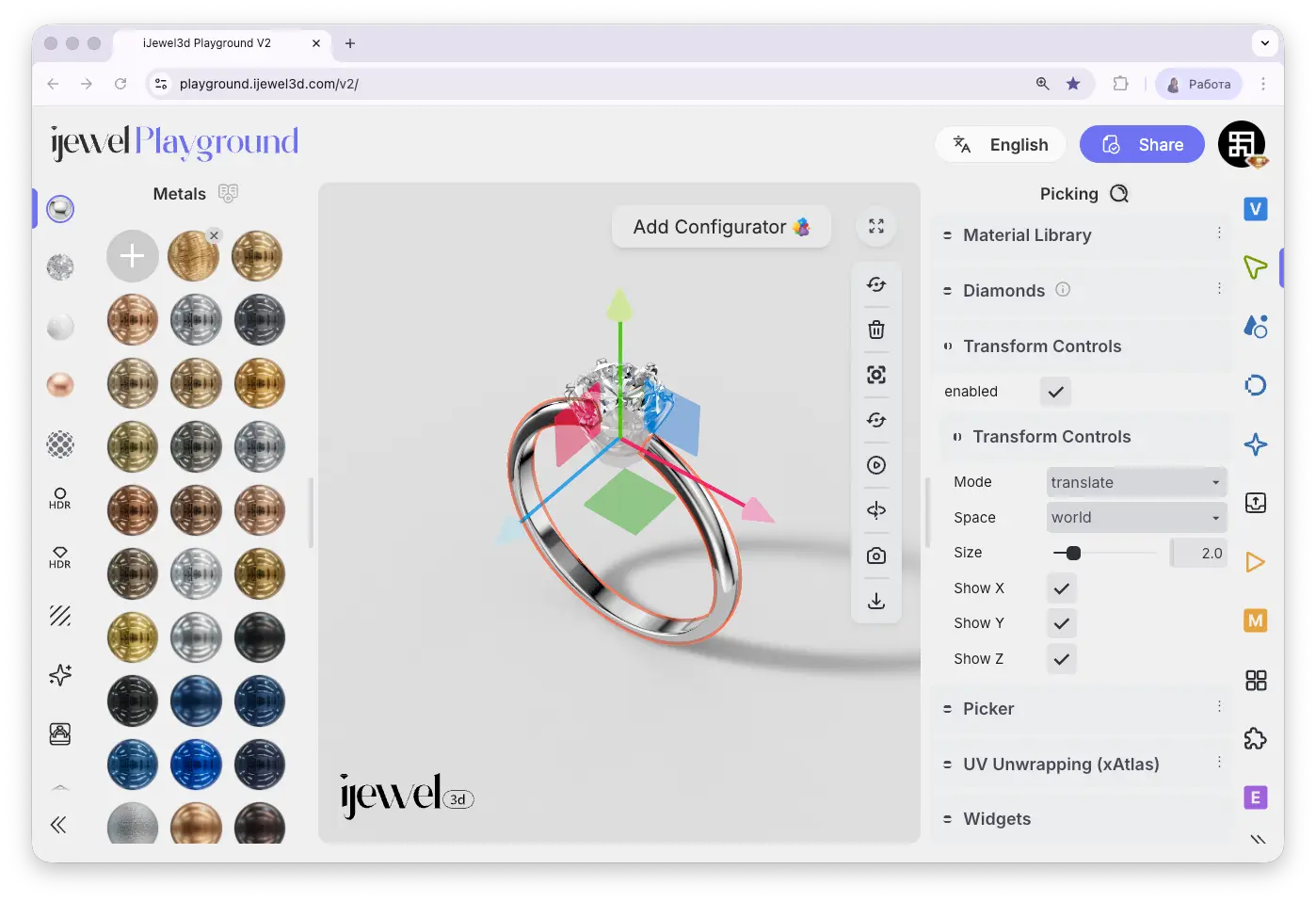
Transform Controls are located on the right panel, inside the  Picking tab, in the Transform Controls section.
How to Enable
- Open the Picking tab on the right panel
- Find the Transform Controls section
- Check the Enable checkbox
- Select any object in the scene
Once enabled and an object is selected, a 3D gizmo with colored arrows will appear on the object in the viewport. You can click and drag these arrows to transform the object.
To disable Transform Controls, simply uncheck the Enable checkbox — the gizmo will disappear from the viewport.
Settings
Keyboard Shortcuts
You can quickly switch between modes and toggle axes using keyboard shortcuts:
Scaling the Entire Object
In Scale mode (press R), you can scale the object along individual axes by dragging the corresponding arrow. To scale the entire object uniformly, click and drag the small gray square in the center of the gizmo — this resizes the object proportionally on all axes at once.
Moving the Entire Object
If you want to move or transform a complete object (not just an individual mesh), you need to select the root parent in the hierarchy first:
- Open the Scene Hierarchy
- Click on the parent object name (the top-level group)
- The Transform Controls gizmo will now affect the entire object, including all its children
This is a common workflow — for example, when you want to reposition a whole ring assembly rather than just one stone or the band.
Pivot Point
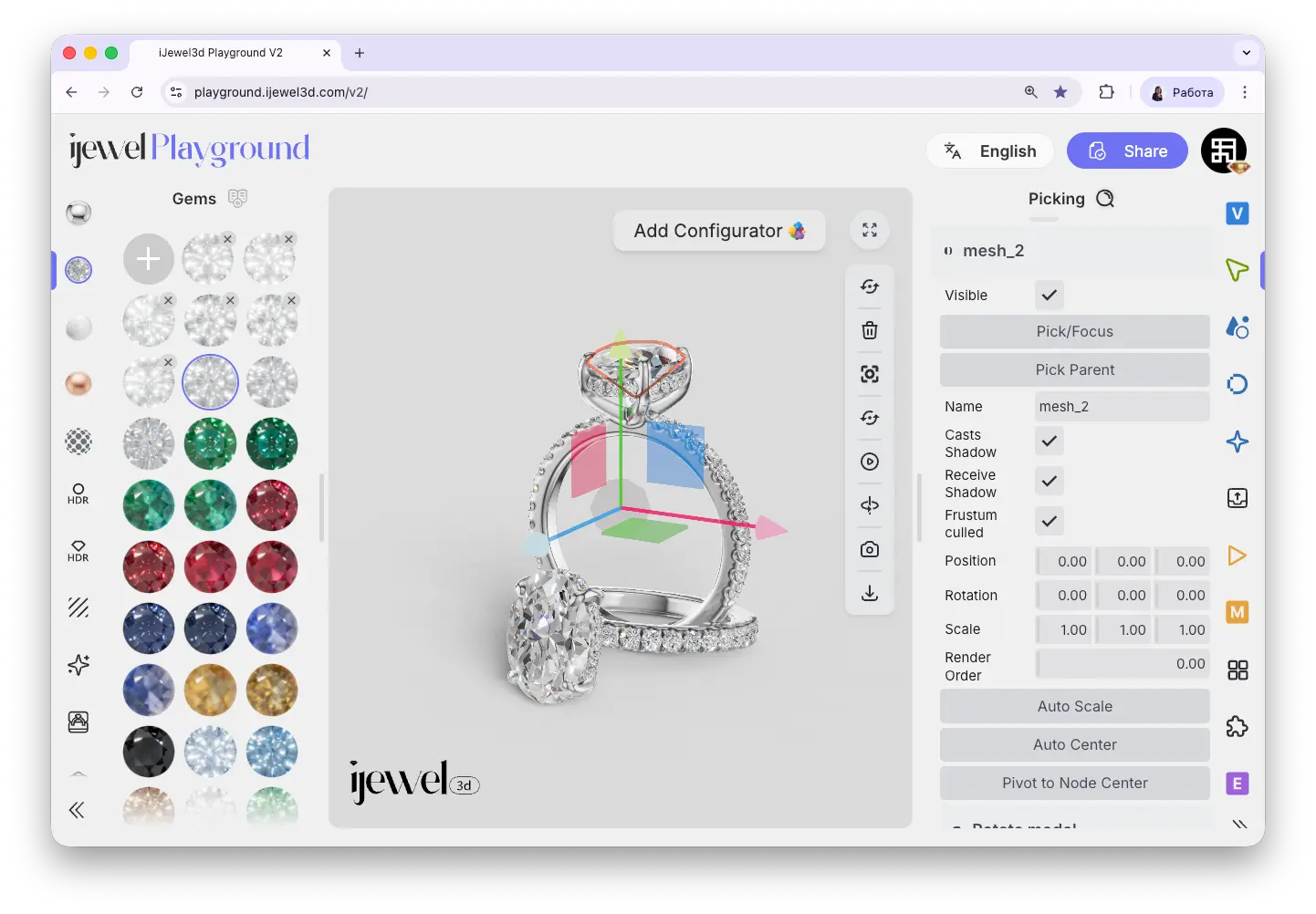
The gizmo appears at the object's pivot point. Sometimes, especially with imported models, the pivot may not be centered on the object — it can be at the origin of the scene or at an unexpected location. This makes transformations (especially rotation and scaling) behave unexpectedly.
To fix this, use the Pivot to Node Center button in the Picker section. This resets the pivot to the center of the object's bounding box.
WARNING
If you use Pivot to Node Center on a diamond object, it may affect the diamond material structure. To fix this, go to the Diamonds section and click Make Standard to revert the object to a regular material, then click Make Diamond again to reapply the diamond material. Alternatively, you can apply any diamond preset from the Material Library on the left panel.
Related Pages
- Picking — Full overview of the Picking tab and all its sections
- Scene Hierarchy — Select parent objects and manage the scene tree
- UI Overview — Full interface layout including the right panel
- Export Models — Export your transformed scene as
.glb - Import Models — How to bring 3D models into Playground