
Importing 3D Models
iJewel Playground supports all popular 3D formats, making it easy to bring your jewelry designs into an interactive, real-time environment.
Supported File Formats
Recommended Format for Jewelry
For jewelry workflows, the 3DM format is highly recommended. It supports layers, which Playground reads automatically — based on standard naming conventions, default materials are applied instantly, letting you view your jewelry in a photorealistic way right from the start.
STL Limitations
STL format does not support materials, making it unsuitable unless your model uses only a single material. Additionally, STL files often have unsmoothed normals, which can reduce the visual quality of jewelry models.
Import Methods
You can import files into Playground in two ways:
1. Drag & Drop
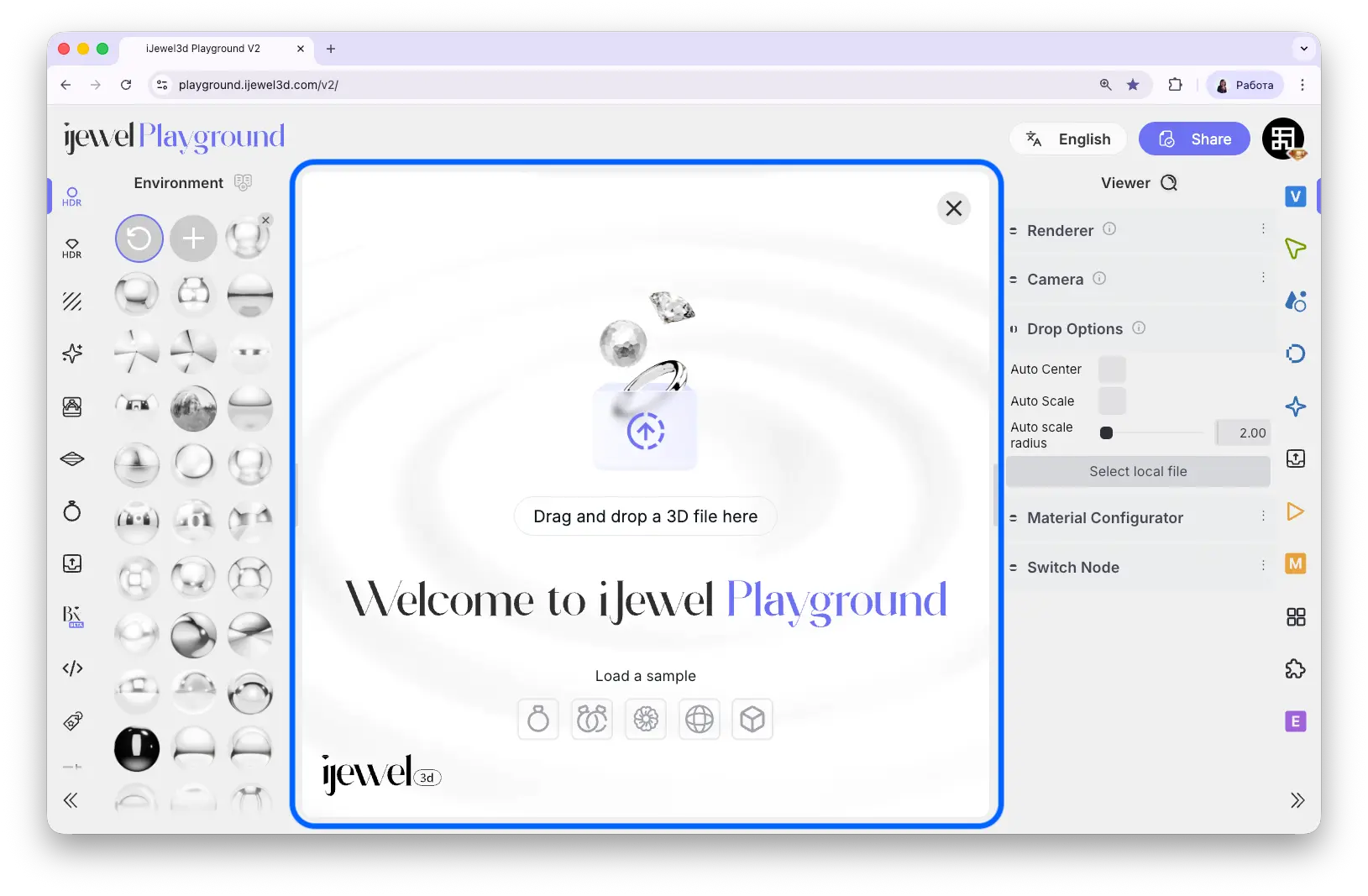
Drag your file(s) directly into the Main Canvas Area. When you first open Playground, the welcome screen provides a clear drop zone:
2. Browse & Select
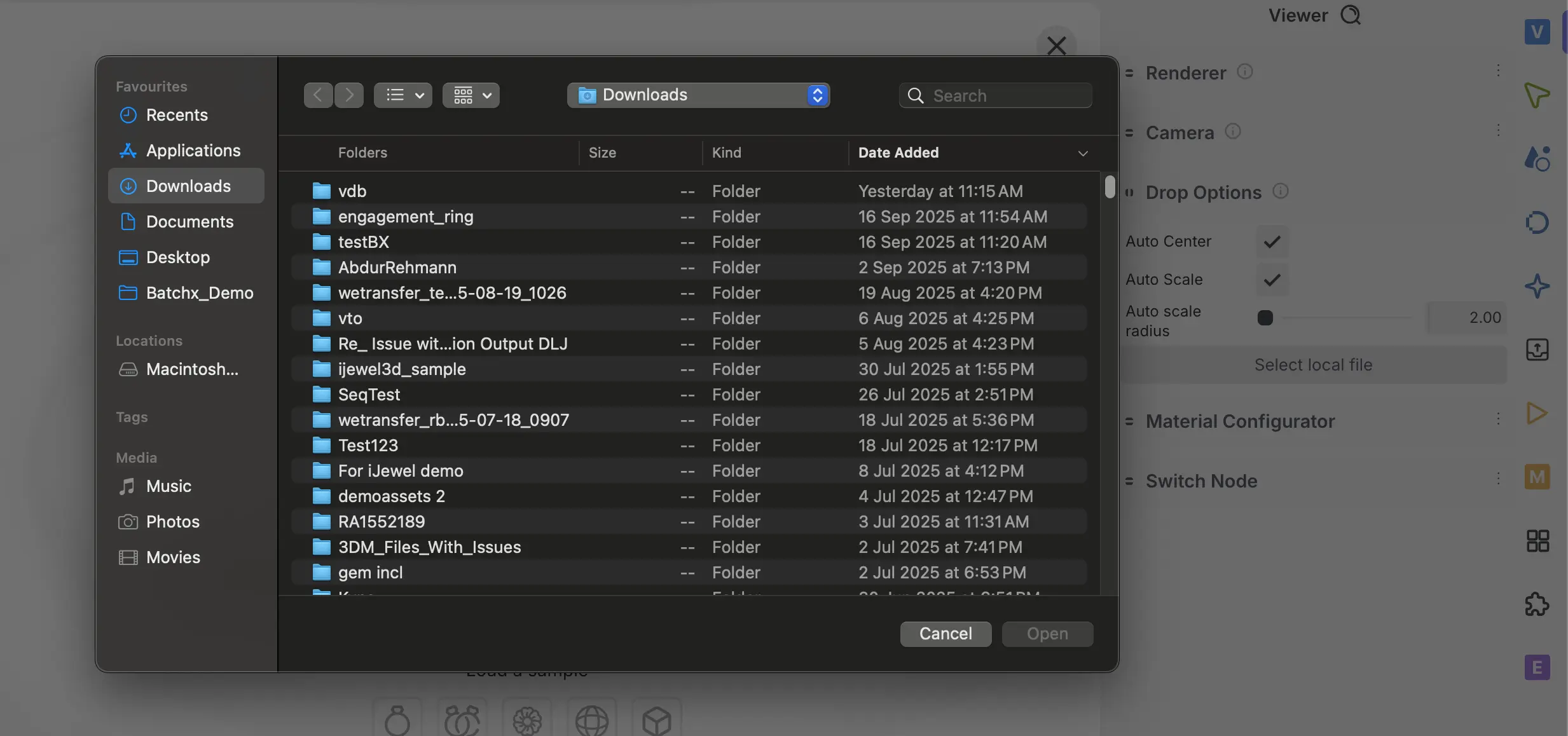
Click the Import File button in the toolbar to open a file dialog and select the file(s) from your computer.
TIP
- You can drag & drop multiple files at once to import them together.
- Drop a folder or zipped folder with multiple 3D files — Playground will automatically process its contents (including subfolders).
- For OBJ + MTL files, make sure both are dropped together to correctly apply material data.
Drop Options
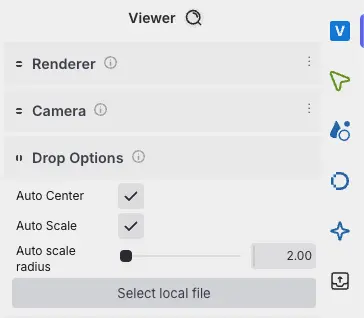
Before importing, you can configure how models are placed in the scene. These settings are located in Viewer → Drop Options.
TIP
Keep Auto Scale + Auto Center turned ON when importing single models. This ensures that even off-center or incorrectly scaled models are normalized for an optimal starting view.
Turn OFF Auto Scale / Auto Center if you want to preserve the original size and relative position of your models. For example, if you import two separate files (e.g., the shank and the head of a ring), enabling Auto Scale / Auto Center may rescale or reposition them incorrectly, resulting in misalignment.
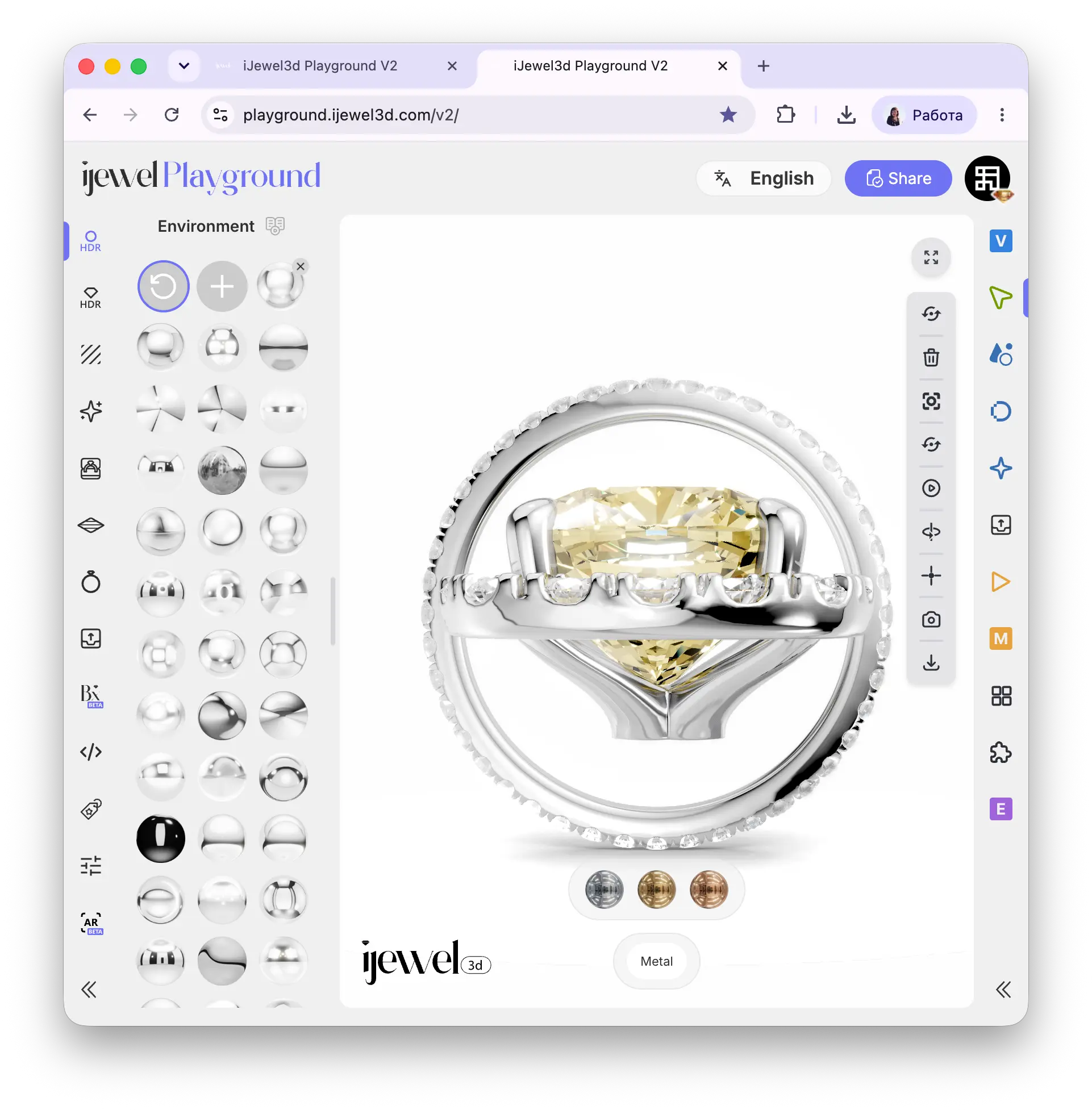
Sample Models
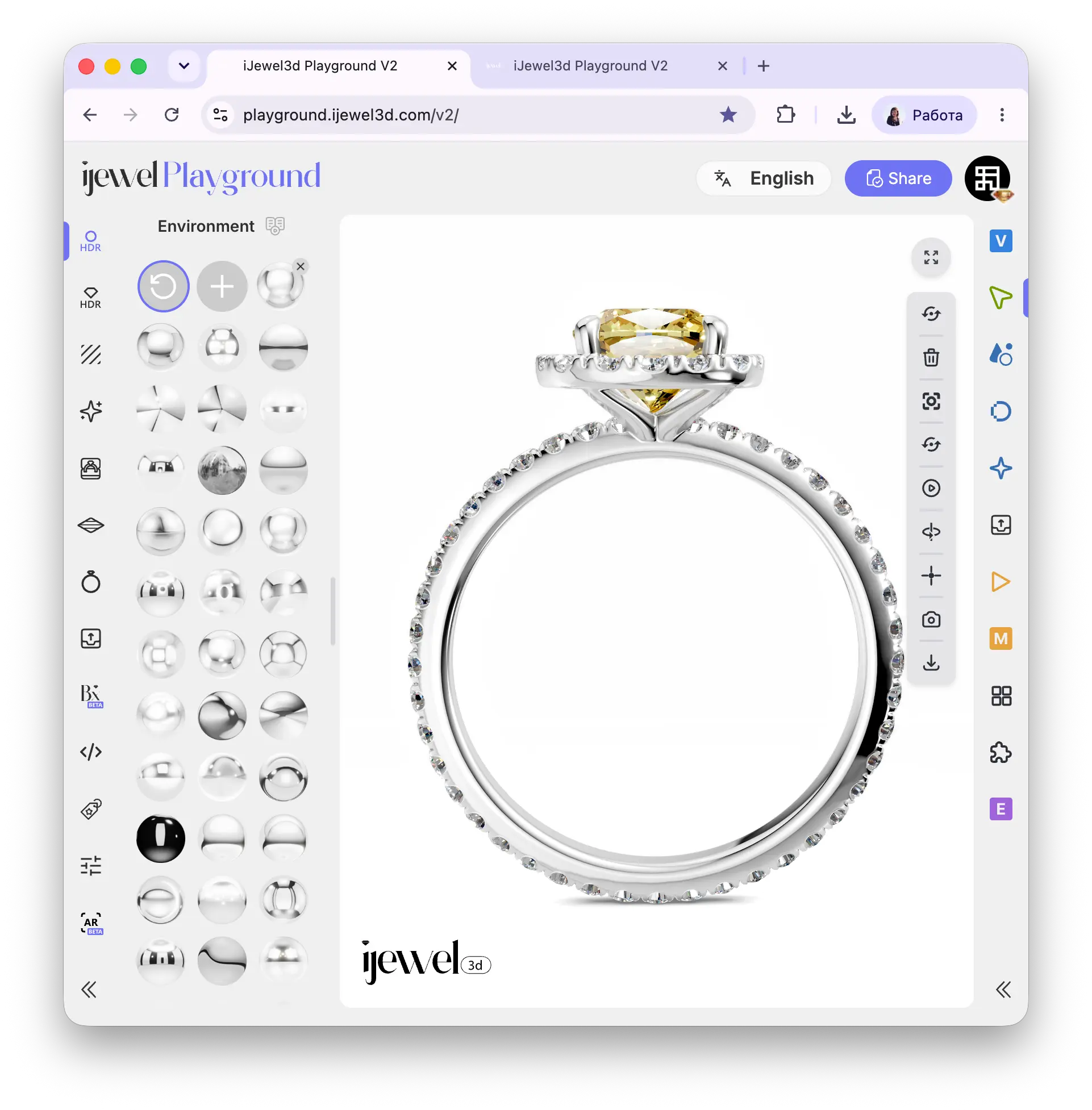
Playground provides a few built-in sample models for quick testing. Perfect for exploring workflows before importing your own designs.
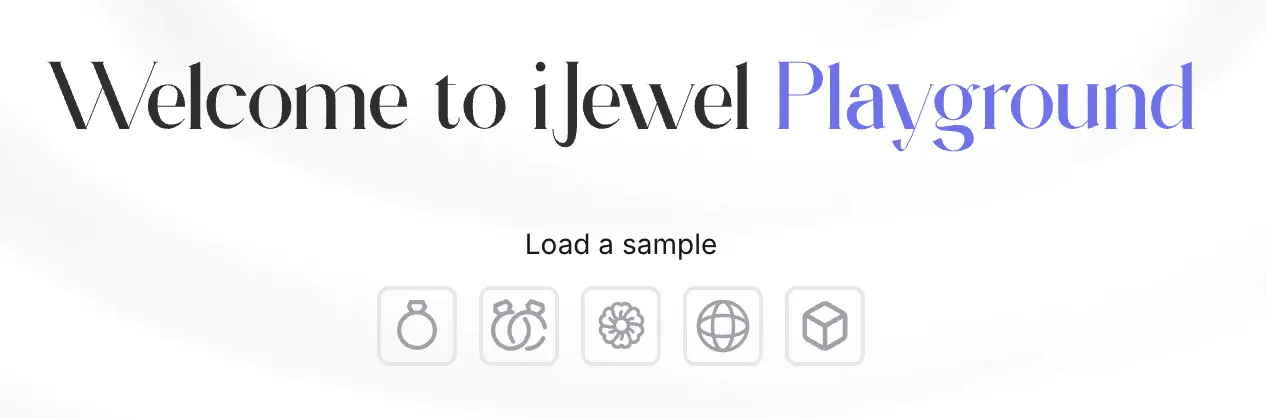
See the Quick Start guide for more details.
Import Options for Jewelry
Once a jewelry model is imported, Playground will prompt you with a few options to help you get started faster.
1. Default Materials
Based on the layer/material names assigned in the imported file, Playground will attempt to assign default materials automatically. Click Yes to apply the suggested materials. 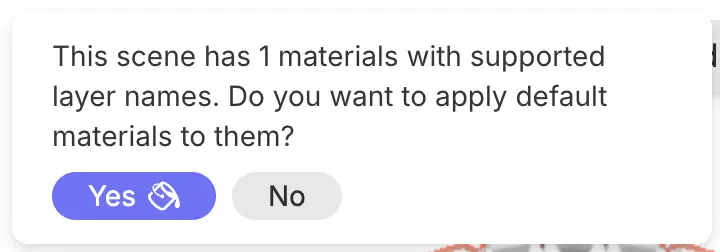
Default Material Mapping
Metal 01,Metal 02, ... → Assigned default Metal materialsGem 01,Gem 02, ... → Assigned default Gem materials
2. HDR Map for Gem/Metal
If a model has both gem/diamond and metal materials, Playground will prompt you to apply a separate HDR environment map for each category. 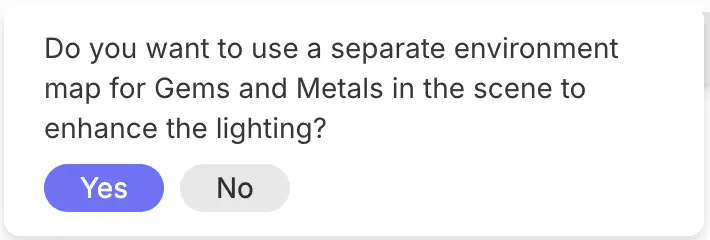
Recommendation
It is generally recommended to use a separate HDR environment map for gems/diamonds and metals. This allows finer control over the look and realism of your jewelry.
3. Default Material Configurator
If default layers are assigned for metals and/or gems/diamonds, Playground will prompt you to create a material configurator — enabling interactive switching of gem and metal materials in the embedded viewer. 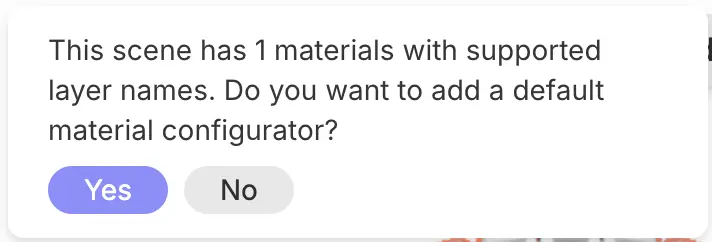
Editing Configurator
The default configurator can be edited later if you wish to change materials or modify the configurator settings. See Material Configurator for details.
INFO
These Import Options appear as pop-up prompts immediately after adding a new model, before it is fully loaded into the Scene Hierarchy.
Related Pages
- Import Materials — Load saved PBR and diamond material presets
- Import Scene Settings — Apply complete scene configurations
- FAQ: Importing Models — Common questions about importing