
Bloom
Bloom adds a glow effect around bright areas of the render, simulating how intense light bleeds in a camera lens.
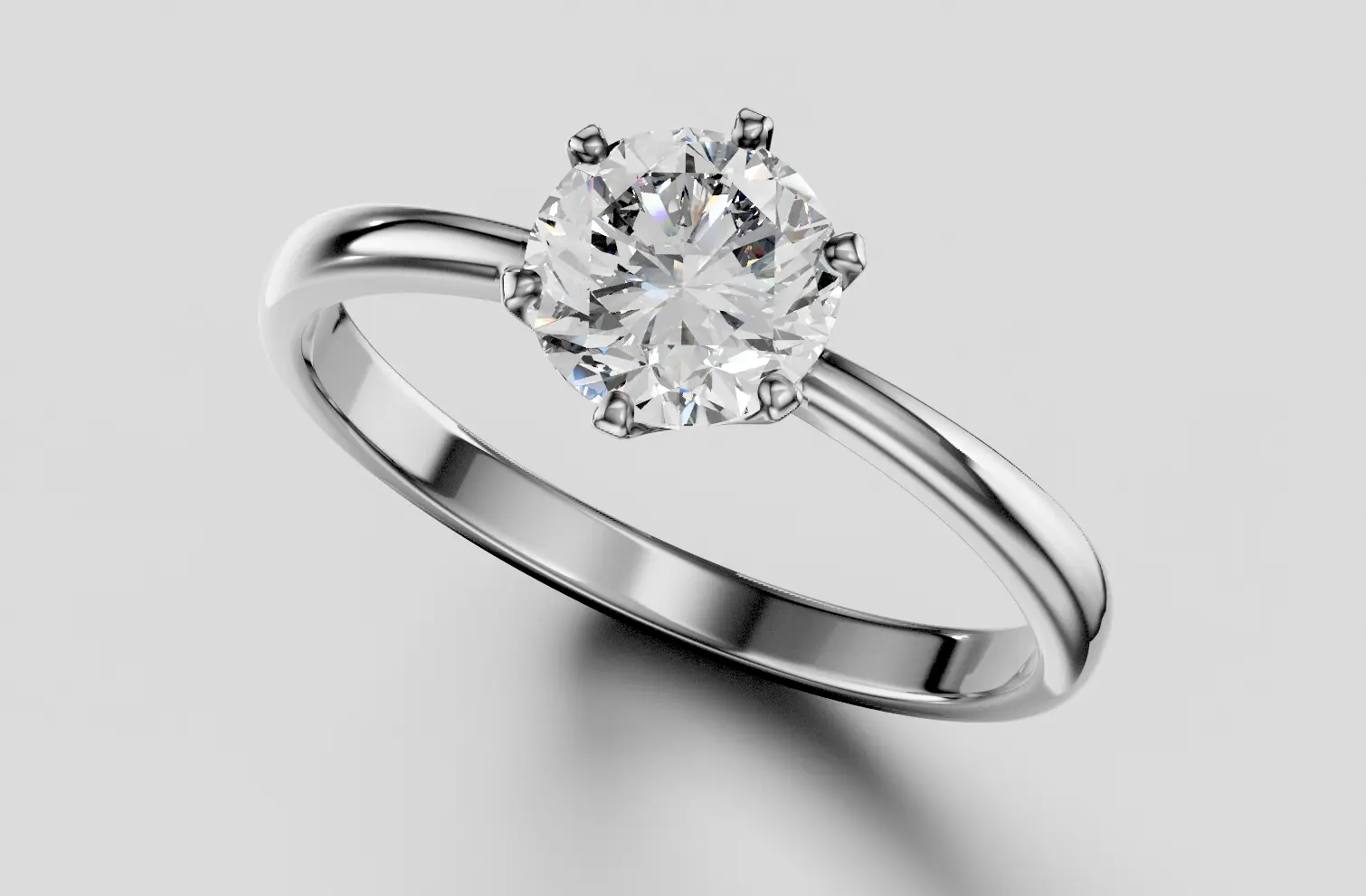
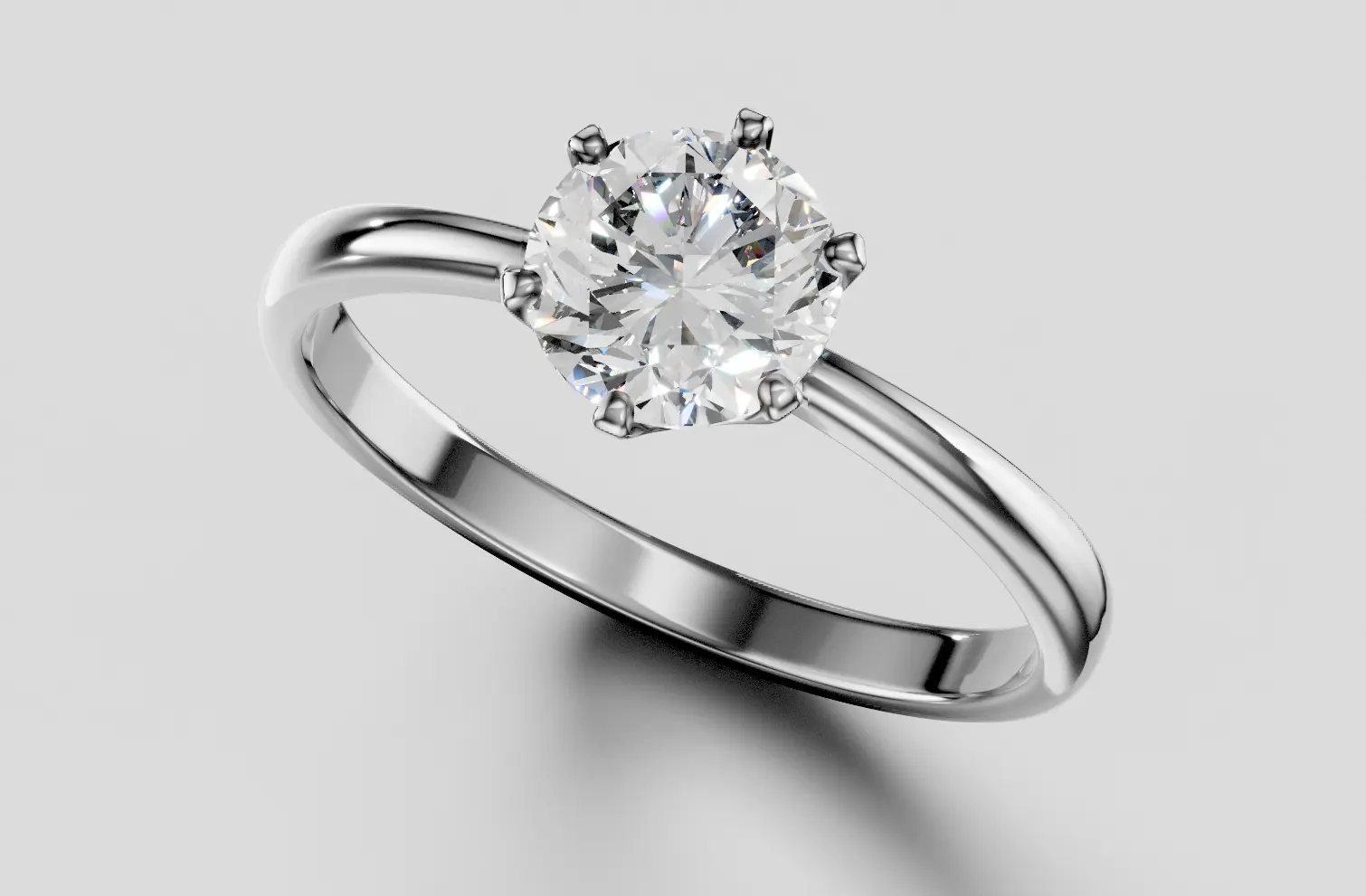
This effect is especially powerful for diamond and gemstone jewelry — it makes bright reflections and sparkles appear to radiate light, just like they do in real photography. Use it to enhance the brilliance of stones, create dramatic hero shots, or add a luxurious feel to your renders. A subtle bloom can make the difference between a flat-looking render and one that feels alive with light.
Where to Find It
This section is located on the right panel, inside the  Post Processing tab, in the Bloom section.
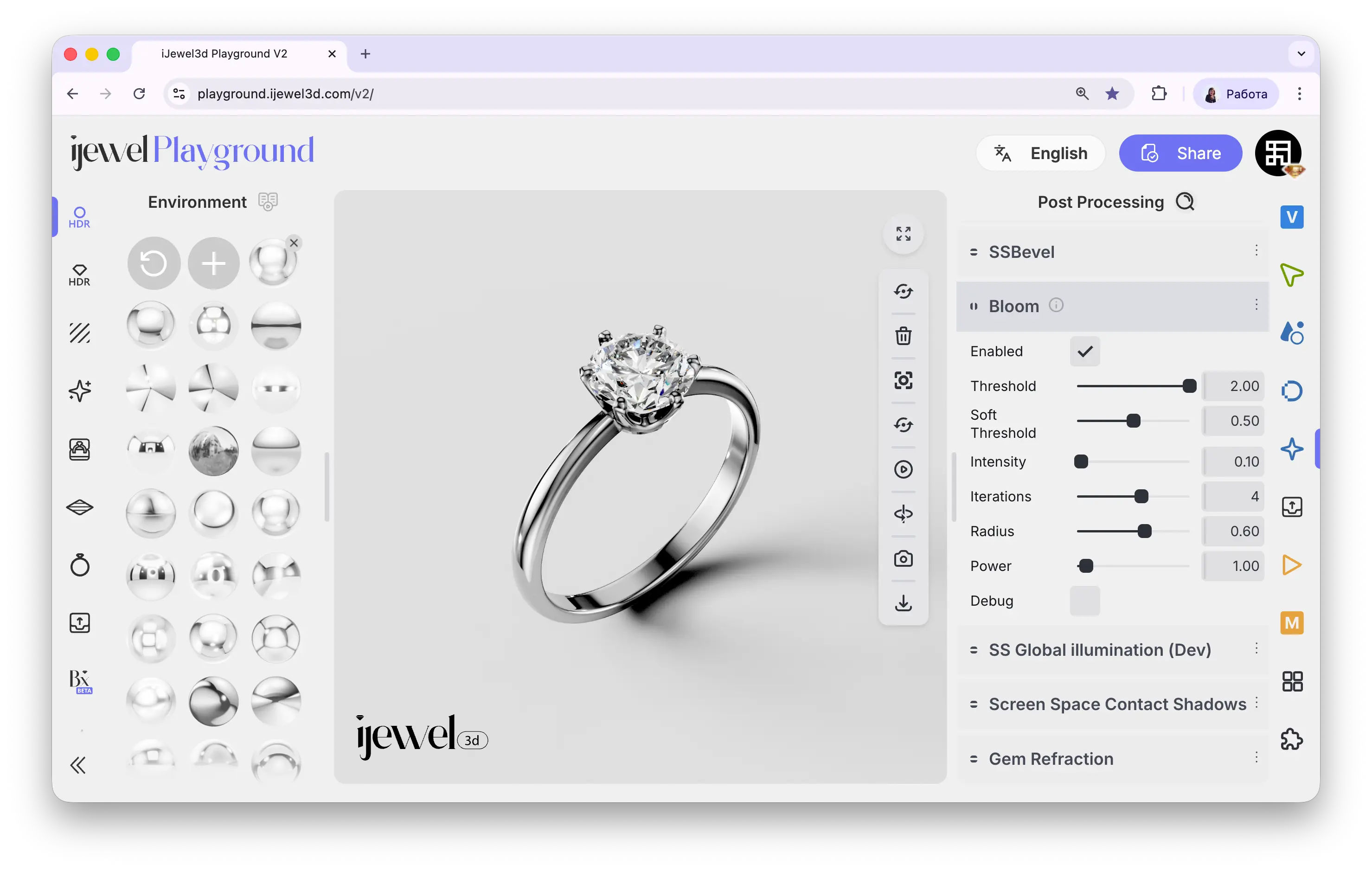
Before / After
Settings
Using Debug Mode
Enable Debug to see exactly where bloom is appearing — the screen goes black and only glowing areas are shown. Adjust Intensity, Radius, and Threshold until the bloom looks right, then disable Debug to see the final result.
Related Pages
- Depth of Field — Selective focus with background blur
- Tonemapping — Exposure and color grading
- Screen Space Reflections (SSR) — Real-time reflections