
Look Up Tables (LUT)
LUT (Look Up Table) lets you apply custom color grading presets to your render. You can create a .cube LUT file in Photoshop (or any other color grading software) with your preferred adjustments — curves, levels, color balance, contrast — and then import it into Playground to apply that same look to your jewelry renders. This is a powerful way to achieve a consistent, cinematic color style across all your exports.
Where to Find It
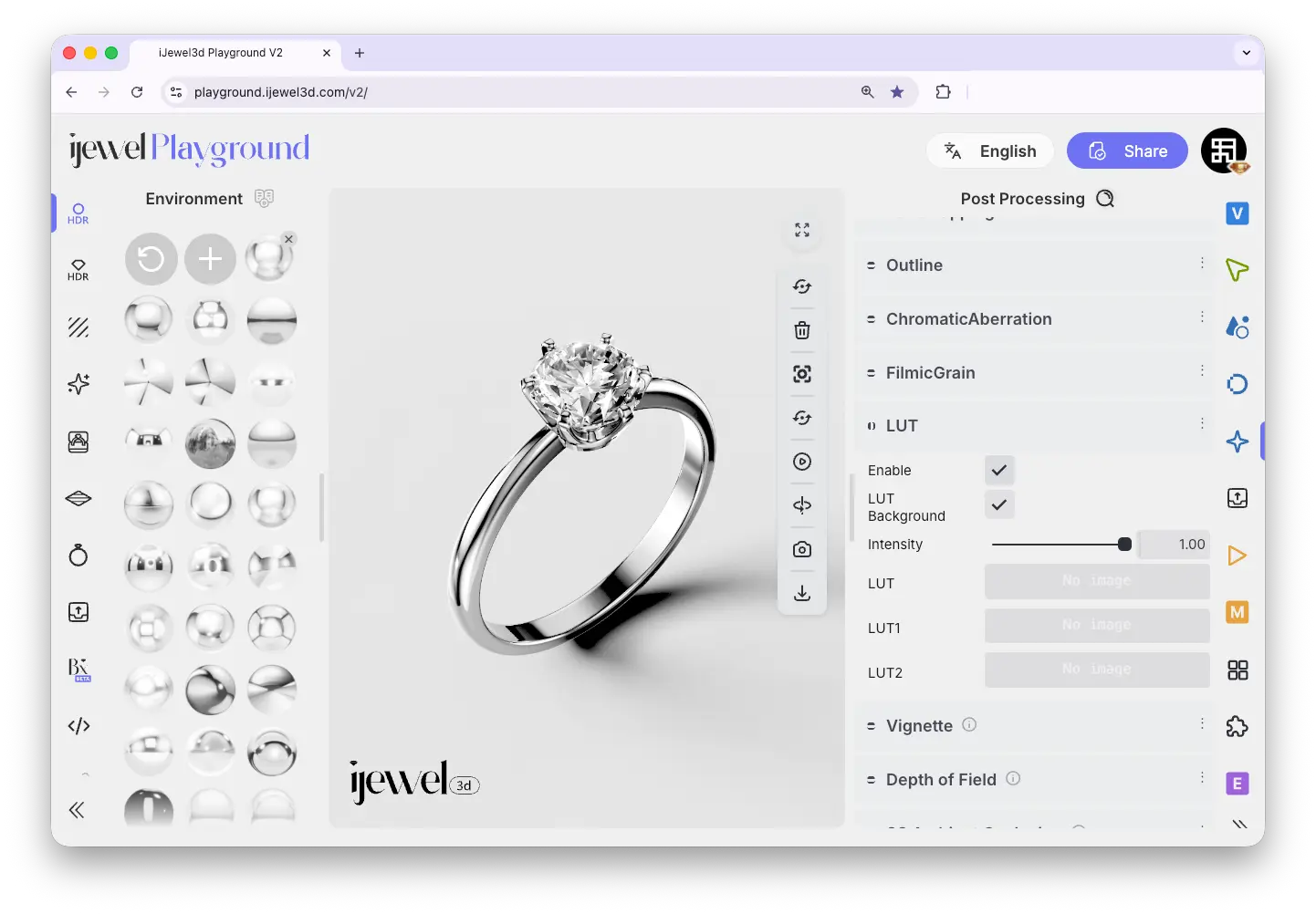
This section is located on the right panel, inside the  Post Processing tab, in the Look Up Tables (LUT) section.
How It Works
- Export a snapshot of your scene from Playground
- Open it in Photoshop and adjust curves, levels, filters — any color grading you want
- Save the adjustments as a
.cubeLUT file - Import the
.cubefile into Playground via the LUT section - The color grading is applied to the entire render in real time
You can apply LUTs globally or to specific parts of the scene (metals, diamonds, ground) using the separate LUT input slots.
Settings
Enable
Checkbox — toggles the LUT effect on or off
LUT Background
Checkbox — when enabled, the LUT is also applied to the background. When disabled, only the 3D model is color-graded
Intensity
Slider — controls the strength of the LUT effect. At 1.0 the LUT is fully applied, at 0 it has no effect. Use intermediate values to blend between the original and graded look
LUT
Input — the main LUT slot. Upload a .cube file to apply your color grading preset to the entire render
LUT 1
Input — additional LUT slot for applying a different color grading to specific materials
LUT 2
Input — additional LUT slot for applying a different color grading to specific materials
Video Tutorial
Tutorial: How to Create and Apply Custom LUTs in iJewel Playground
Related Pages
- Tonemapping — Exposure, contrast, saturation, and background clipping
- Filmic Grain — Analog film grain effect
- Chromatic Aberration — Lens color fringing effect
- Export Images — Image export settings