
Outline
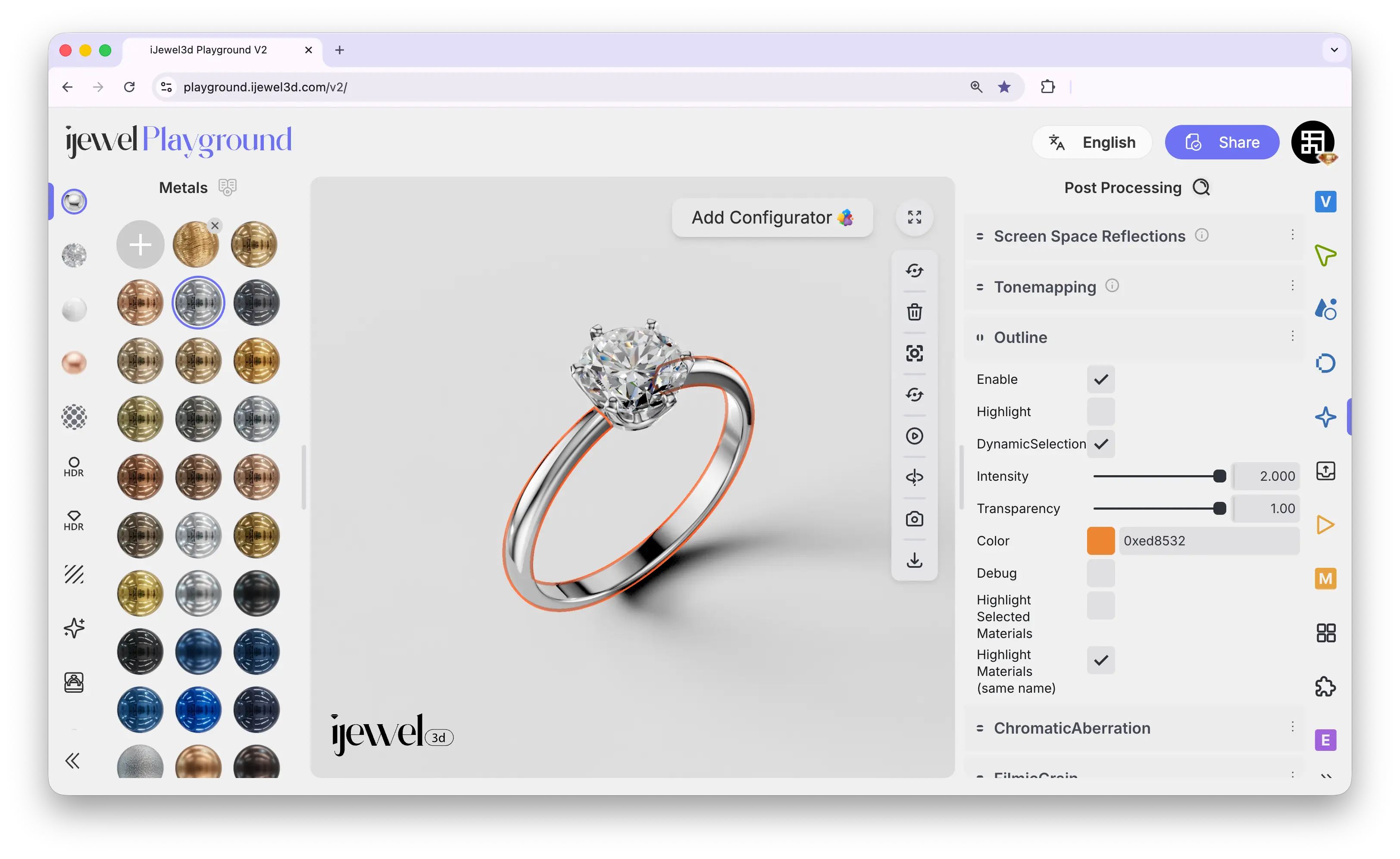
Outline controls the selection highlight that appears around objects when you click on them in the viewport. By default, clicking an object draws a colored border around it. Here you can change the outline color, intensity, or disable it entirely.
Where to Find It
This section is located on the right panel, inside the  Post Processing tab, in the Outline section.
How It Works
When you select an object in the viewport, Playground draws a colored outline along its edges so you can see what is selected. If you disable the outline, selecting still works — you just won't see the colored border.
Settings
Enable
Checkbox — toggles the outline on or off. When disabled, objects are still selectable but without the colored border
Highlight
Checkbox — when enabled, the entire area of the selected object is filled with the outline color, not just the border. Use Transparency to control how visible this fill is
Intensity
Slider — controls how strong/visible the outline color is. Default 2.00
Transparency
Slider — controls the opacity of the highlight fill when Highlight is enabled. Lower values make the fill more see-through. Default 1.00
Color
Color picker — choose the outline color. Change this if you prefer a different selection color for your workflow. Default is orange (0xf36c00)
TIP
If the default orange outline is hard to see against your scene, try switching to a brighter color like white or cyan.
Related Pages
- Picking — Selecting objects in the viewport
- Transform Controls — Move, rotate, and scale selected objects
- Screen Space Reflections — SSR post-processing effect
- Tonemapping — Color grading and background clipping