Skip to content

Lights

The Lights section allows you to add additional light sources to your scene beyond the default environment map (HDRI). While the HDRI map provides the main lighting for realistic jewelry rendering, extra lights can be used to add highlights, colored accents, or dramatic shadow effects.

Where to Find It

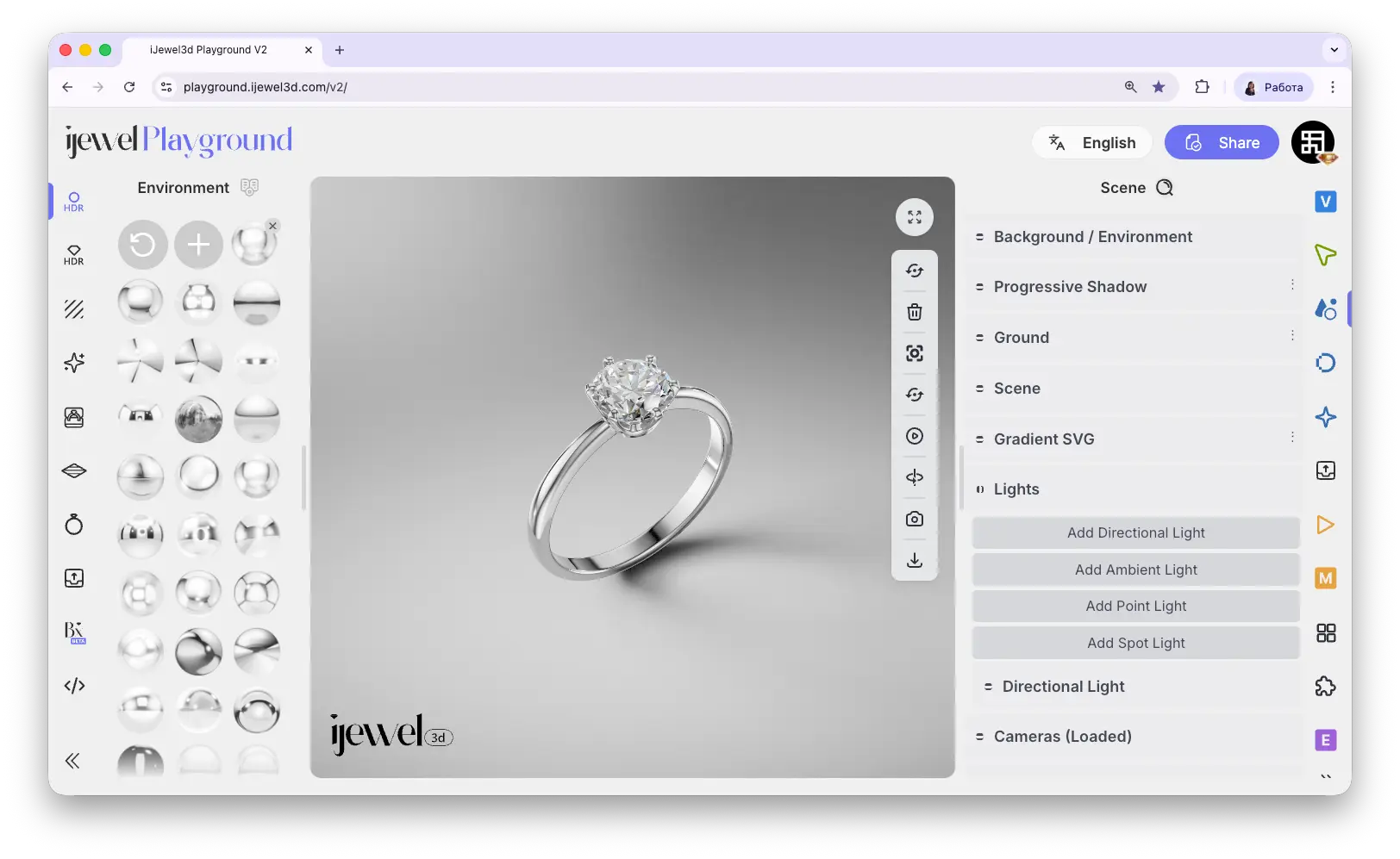
This section is located on the right panel, inside the SceneScene tab, in the Lights section.

Lights section with four add buttons

The section provides four buttons to add different types of lights:

Add Directional Light
Parallel light rays from a specific direction — like sunlight. Best for consistent shadows
Add Ambient Light
Uniform light that illuminates all objects equally from all directions — fills in dark areas without casting shadows
Add Point Light
Light that emits from a single point in all directions — like a light bulb. Useful for localized highlights
Add Spot Light
Cone-shaped light that emits from a point in a specific direction — like a flashlight or stage spotlight

You can add multiple lights of the same type — for example, clicking Add Directional Light twice will create two separate directional lights, each with its own settings.


Directional Light

A directional light simulates a distant light source where all rays are parallel, similar to sunlight. Once added, a Directional Light section appears below the buttons with the following settings:

Enabled
Checkbox — turn the light on or off without removing it
Color
Color picker — sets the color of the light
Intensity
Slider — controls the brightness of the light
Rotation
Three inputs (X, Y, Z) — controls the direction the light points
Position
Three inputs (X, Y, Z) — position of the light in the scene
Shadow Enabled
Checkbox — enable or disable shadow casting from this light
Shadow Map Size
Controls the resolution of the shadow map — higher values produce sharper shadows
Shadow Bias
Slider — adjusts shadow bias to reduce shadow acne artifacts
Shadow Normal Bias
Slider — normal-based bias for further artifact reduction
Shadow Radius
Slider — controls the softness of the shadow edges
Shadow First Doom
Advanced shadow rendering parameter

Ambient Light

An ambient light illuminates all objects in the scene equally from all directions. It does not cast shadows and has no position or direction — it simply raises the overall brightness level.
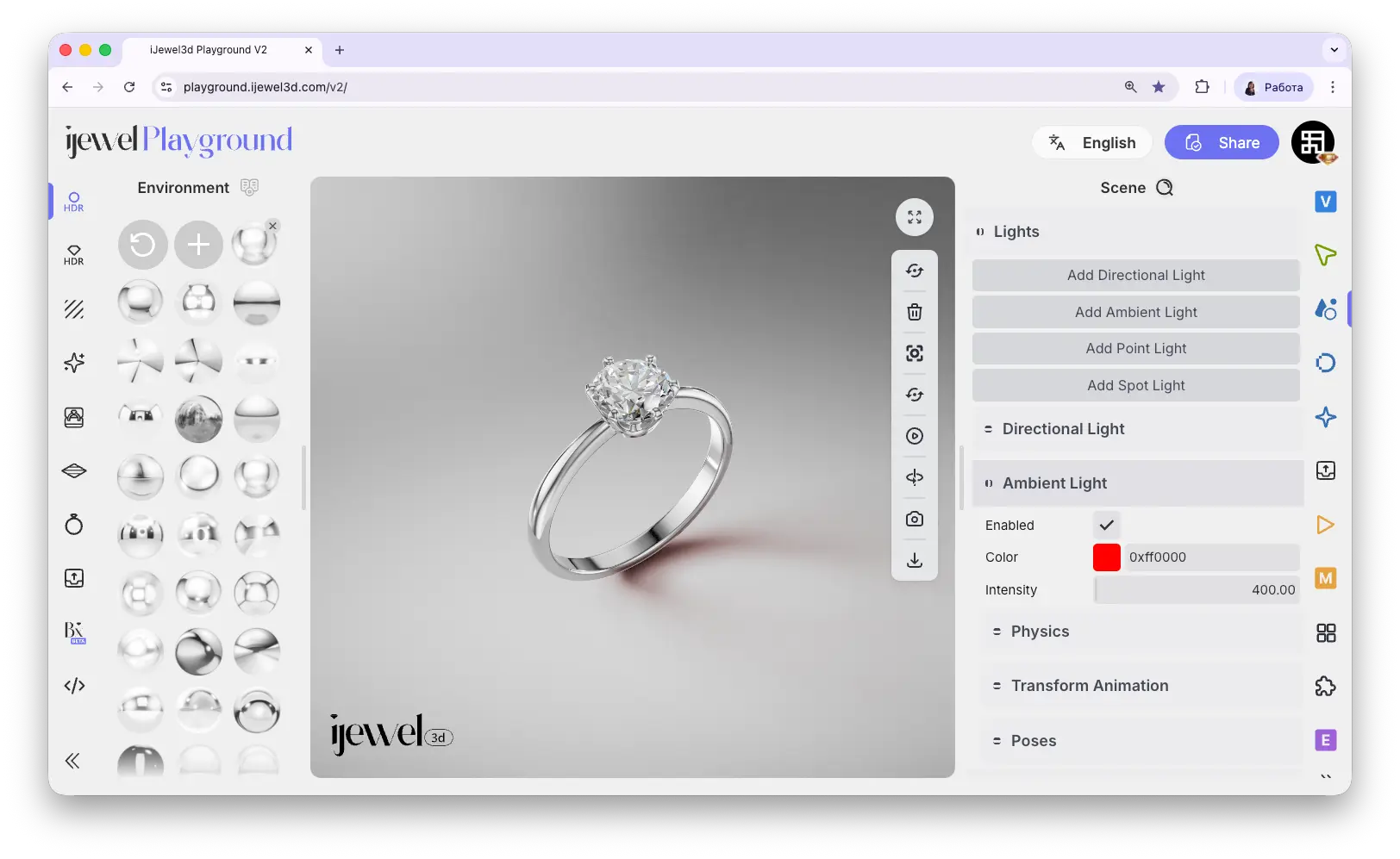
Ambient Light settings

Enabled
Checkbox — turn the light on or off
Color
Color picker — sets the color of the ambient light
Intensity
Slider — controls the brightness of the ambient light

Point Light

A point light emits from a single point in all directions, similar to a light bulb. The light intensity decreases with distance from the source.
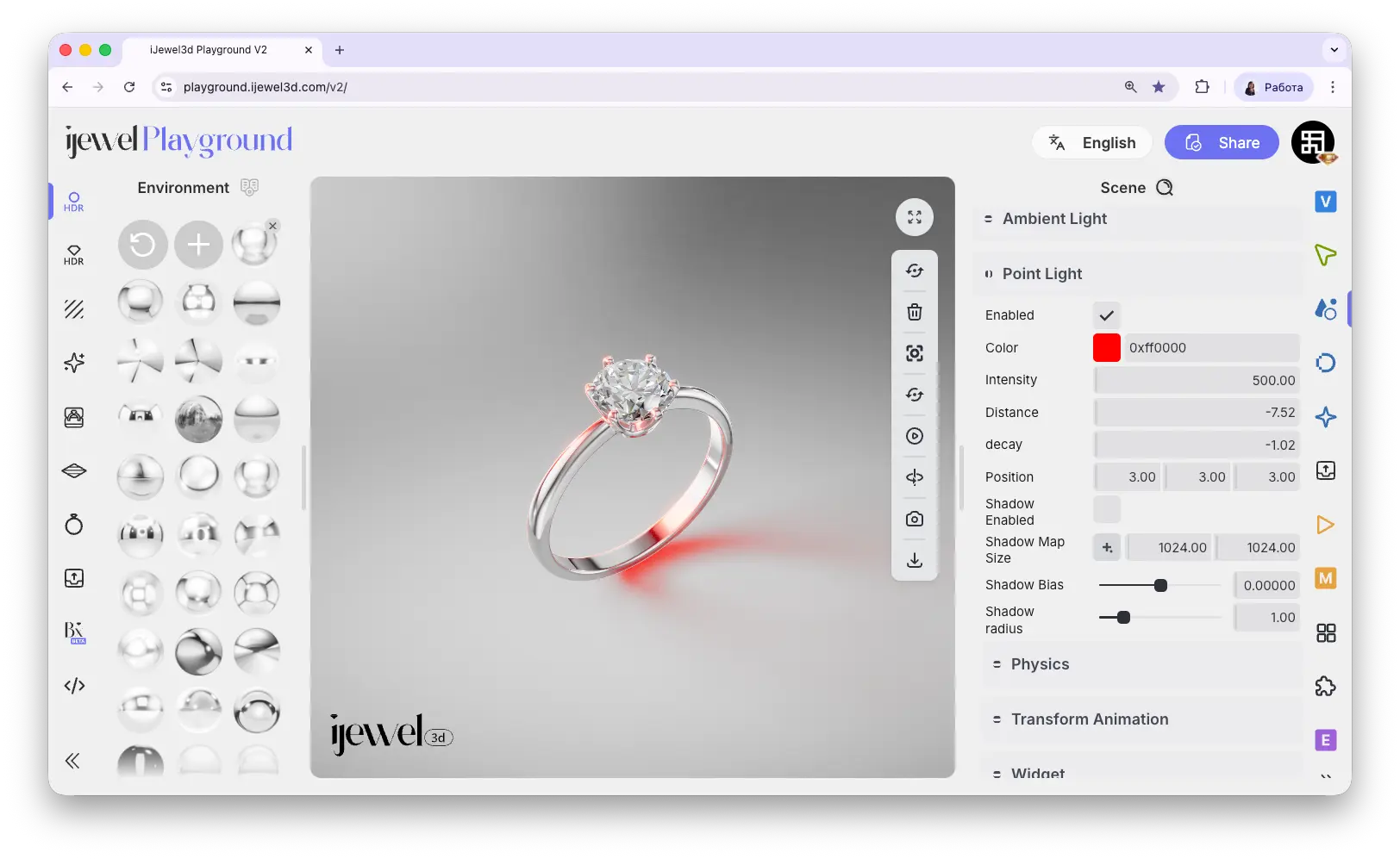
Point Light settings

Enabled
Checkbox — turn the light on or off
Color
Color picker — sets the color of the light
Intensity
Slider — controls the brightness of the light
Distance
Slider — maximum distance the light reaches. Objects beyond this distance are not illuminated
Decay
Slider — how quickly the light dims with distance. Higher values make the light fall off faster
Position
Three inputs (X, Y, Z) — position of the light in the scene
Shadow Enabled
Checkbox — enable or disable shadow casting
Shadow Map Size
Three inputs — resolution of the shadow map
Shadow Bias
Slider — adjusts shadow bias to reduce artifacts
Shadow Radius
Slider — controls the softness of the shadow edges

Spot Light

A spot light emits a cone of light from a point toward a target direction, like a flashlight or stage spotlight. The cone width and edge softness can be controlled.
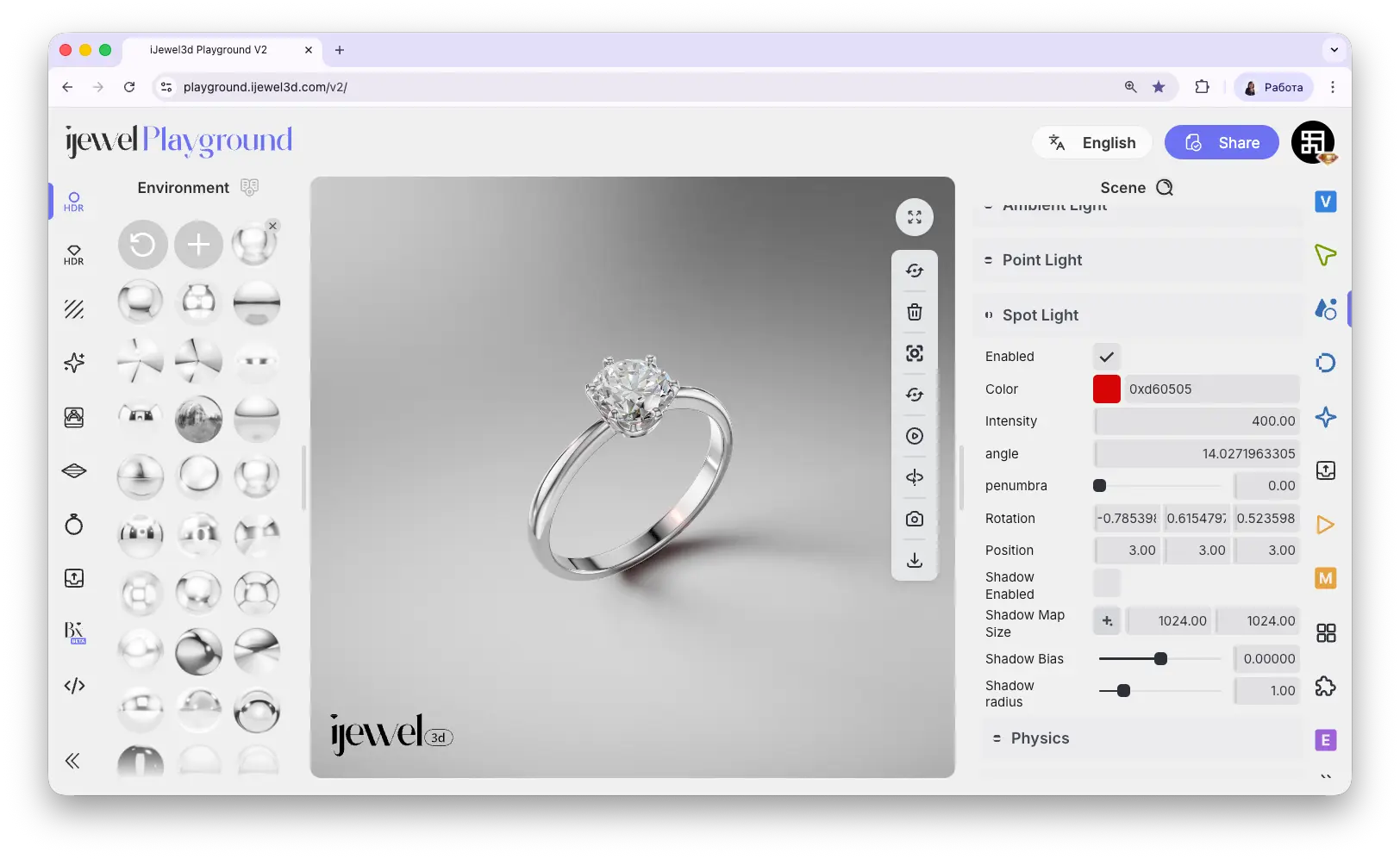
Spot Light settings

Enabled
Checkbox — turn the light on or off
Color
Color picker — sets the color of the light
Intensity
Slider — controls the brightness of the light
Angle
Slider — controls the width of the spotlight cone in degrees
Penumbra
Slider — controls the softness of the spotlight edge. Higher values create a gradual fade at the cone edges
Rotation
Three inputs (X, Y, Z) — controls the direction the spotlight points
Position
Three inputs (X, Y, Z) — position of the light in the scene
Shadow Enabled
Checkbox — enable or disable shadow casting
Shadow Map Size
Two inputs — resolution of the shadow map
Shadow Bias
Slider — adjusts shadow bias to reduce artifacts
Shadow Radius
Slider — controls the softness of the shadow edges