
Import Materials
iJewel Playground allows you to import your own custom materials and use them alongside the built-in material library. The supported formats are .pmat (PBR Material) and .dmat (Diamond Material).
Supported Formats
| Format | Description |
|---|---|
.pmat | PBR material file — used for metals, ceramics, pearls, etc. |
.dmat | Diamond material file — used for diamonds and other gemstones |
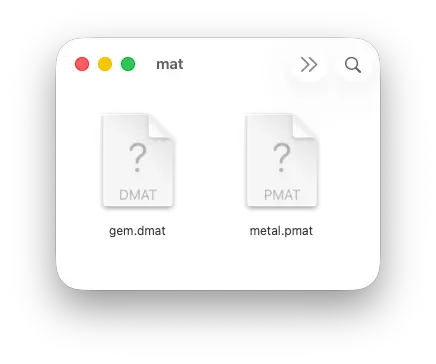
Two Ways to Import Materials
There are two ways to add a custom material in Playground: apply directly to an object or add to the material library for reuse across projects.
Method 1 — Apply Directly to an Object
Use this method when you want to quickly apply a material to a specific object without saving it to the library.
- Select an object on the canvas
- Drag and drop your
.pmator.dmatfile onto the 3D canvas - A popup will appear asking: "Apply material to the selected object?" — click Yes or No
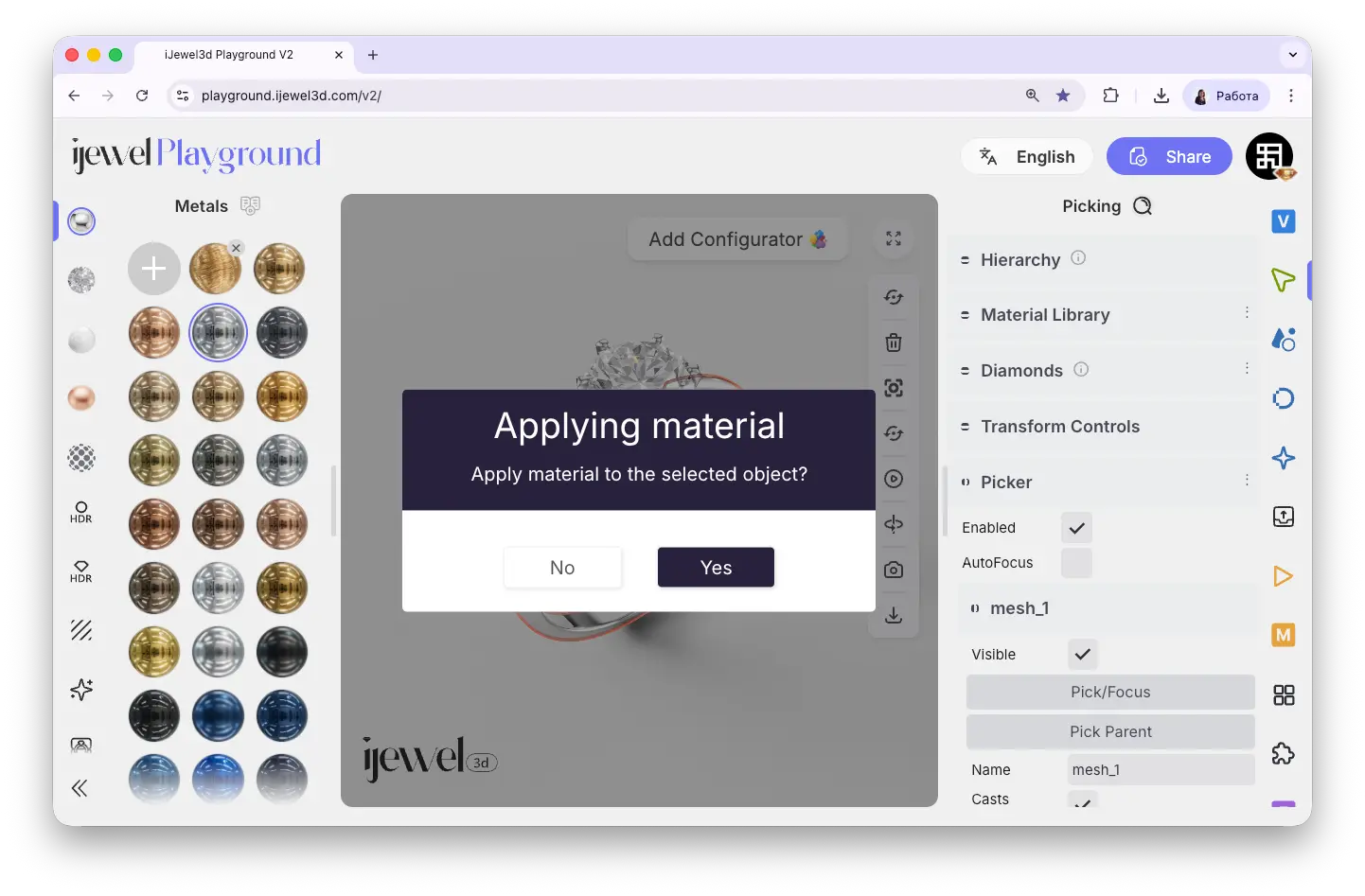
- A second popup will appear asking: "Apply to all objects using this material?" — click Yes or No
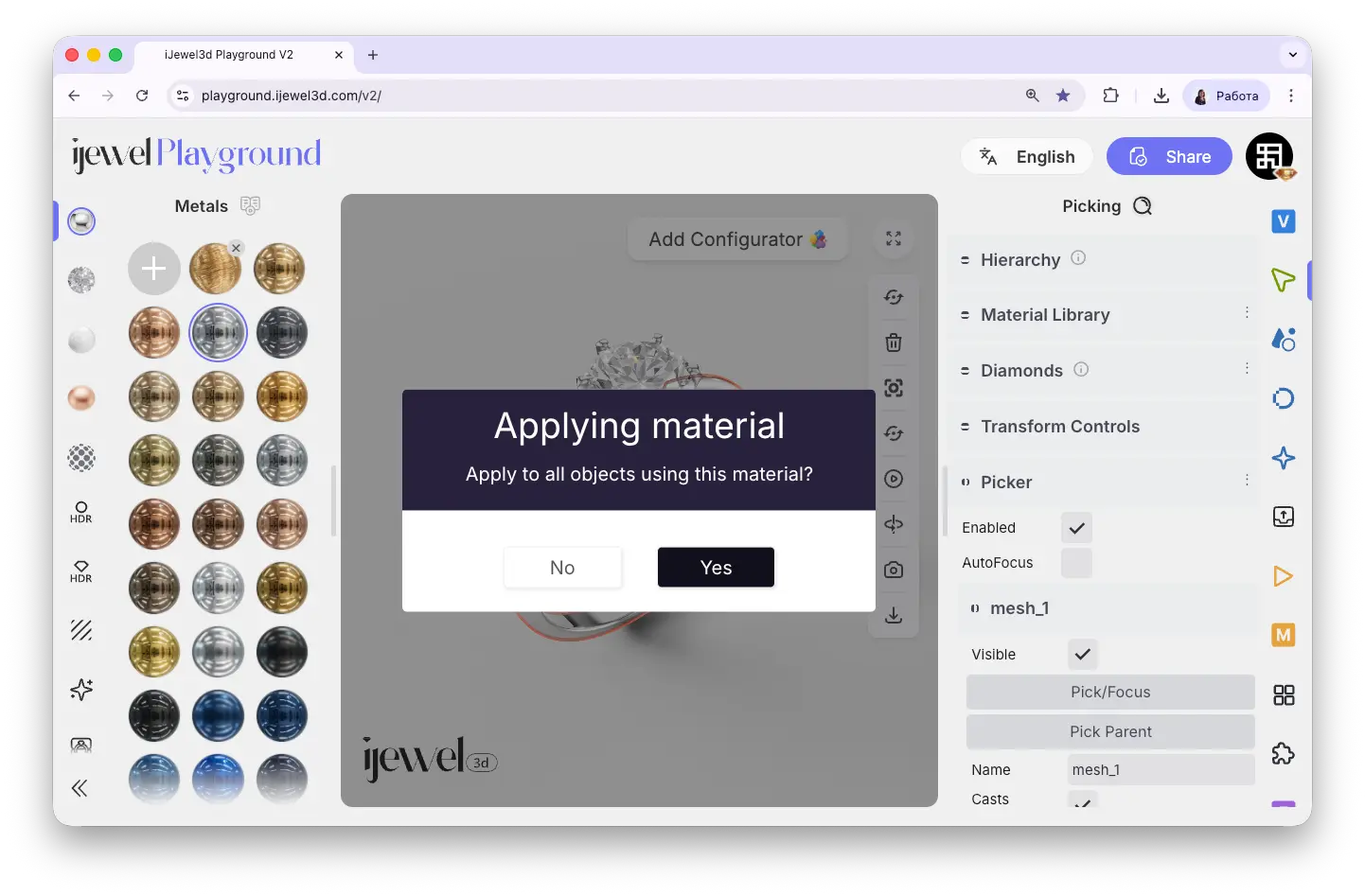
Selective Material Application
These two popups give you precise control over where the material is applied. By answering Yes to the first and No to the second, you can apply the material only to the selected object — even if other objects in the scene share the same original material. This effectively separates the material, allowing different objects to have different looks.
Method 2 — Add to Material Library
Use this method when you want to save a material for reuse across multiple projects. Once added, the material stays in your library and is available anytime.
- Select an object on the canvas — this opens the material library in the left panel
- Navigate to the appropriate material category (Metals, Gems, Ceramics, Pearls, or Other)
- Click the circle with a plus icon at the very beginning of the material list
- Choose the
.pmator.dmatfile you want to upload - The material will appear in the library with an automatically generated preview thumbnail

To apply the material, simply click on its icon in the library — it will be applied to the currently selected object. To remove a material from the library, click the cross icon at the top-right corner of its thumbnail.
TIP
Materials added to the library are persistent — you can use them in other projects without needing to import them again.
Premium & Advance
Saving custom materials to the library requires a paid plan. Premium allows up to 5 saved materials, and Advance allows up to 100. See pricing details for more information.
Related Pages
- UI Overview — Learn about the interface layout, panels, and navigation
- Importing 3D Models — How to bring your 3D designs into Playground
- UI Overview — Material Library — Browse the built-in material categories
- UI Overview — Material Configurator — Create interactive material switching for your clients
- Import Scene Settings — Import
.vjsonand.jsonscene configuration files - Export Models — Export your scene as
.glb, including materials and settings - Export Materials — Export
.pmatand.dmatmaterial files - Export Scene Settings — Export
.vjsonand.jsonscene configuration files