
Material Configurator
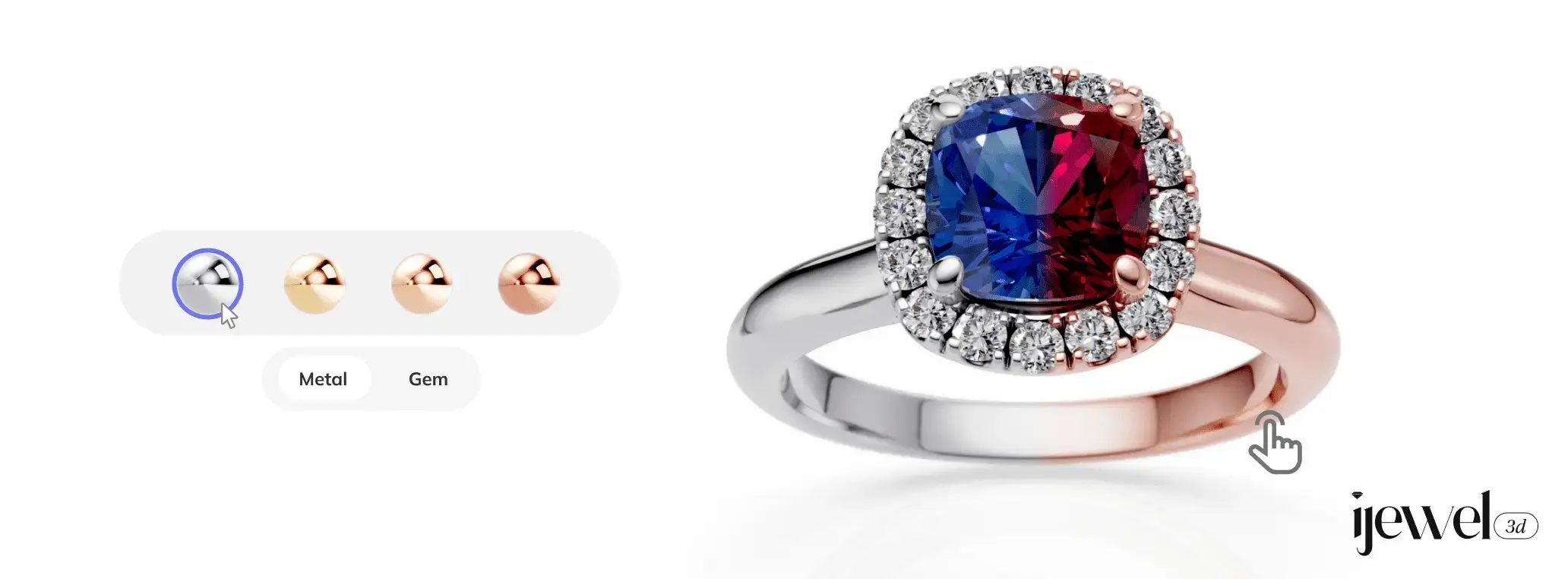
The Material Configurator lets you create interactive material variations for your 3D model. When embedded in the iJewel Viewer, your customers can switch between different metals, gemstone colors, ceramics, pearls, and any other materials — directly on your product page.
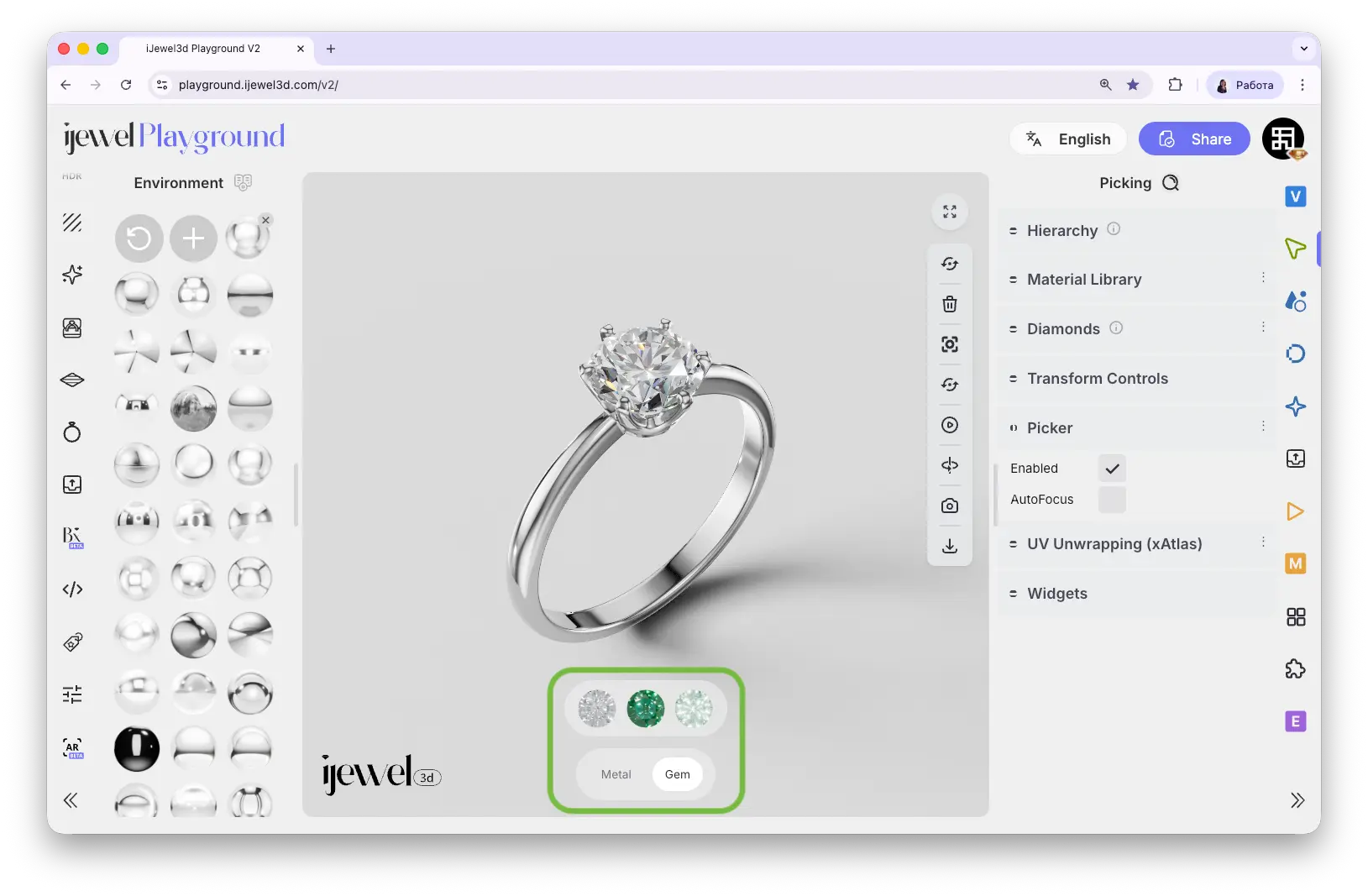
When you add a configurator, a UI bar appears at the bottom of the canvas. The lower bar shows the configuration name (e.g., "Metal"), and the upper bar displays the available material variants as clickable thumbnails.
Adding a Material Configurator — Step by Step
Step 1: Select the Object
Click on the object in the canvas that you want to add material variations to. The object will be highlighted.
Step 2: Open the Configurator
At the top of the canvas, click the Add Configurator button. A material library panel will appear with tabs for different categories (Metals, Gems, Ceramics, Pearls, Other).
Step 3: Choose Materials
Click on any material to add it as a variant — it will instantly appear in the configurator bar at the bottom of the canvas. You can add as many variants as you want — there is no limit. Click on a selected material again to remove it.
Step 4: Done
The configuration name is automatically taken from the material name of the selected object. You can now click on different variants in the bottom bar to preview how each material looks on your model.
Adding Gem Variations
The process works the same for gemstones. Select a gem object, click Add Configurator, and the library will automatically open to the Gems tab (since the selected object already has a Diamond Material). Choose your gem variants the same way.
Adding Custom Materials
If you've created a custom material in the PBR Materials or Diamond Materials editor (for example, a specific color or texture), you can add it as a variant too:
- Make sure your object is still selected
- Make all the material changes you need in the Picking panel
- At the bottom of the canvas, click the + button (Add Current Material) — the last button in the configurator bar
This adds your current custom material as a new variant.
Editing the Configuration Name
The configuration name appears in the lower bar on the canvas (e.g., "Metal", "Gem"). To change it:
- Enter Edit mode — either click the Edit Configurator button at the top of the canvas (after selecting the object), or right-click on the configuration name and choose Edit
- Change the name in the input field at the top of the material library panel
Editing Variant Names
Each material variant has a name that appears as a tooltip on hover. To rename a variant:
- Hover over the variant thumbnail in the configurator bar
- A tooltip with the variant name will appear — move your cursor to the right side of the tooltip
- Click the pencil icon to edit the name
Removing a Material Variant
There are two ways to remove a variant from the configurator:
Method 1 — Right-click on the variant thumbnail in the configurator bar and click Delete
Method 2 — Enter Edit mode and click on the material in the library to deselect it
Deleting an Entire Configuration
To remove the entire configurator from an object:
Right Panel Controls
You can also manage the configurator from the right panel. Select an object and go to the Configurator tab to find the Material Configurator section.
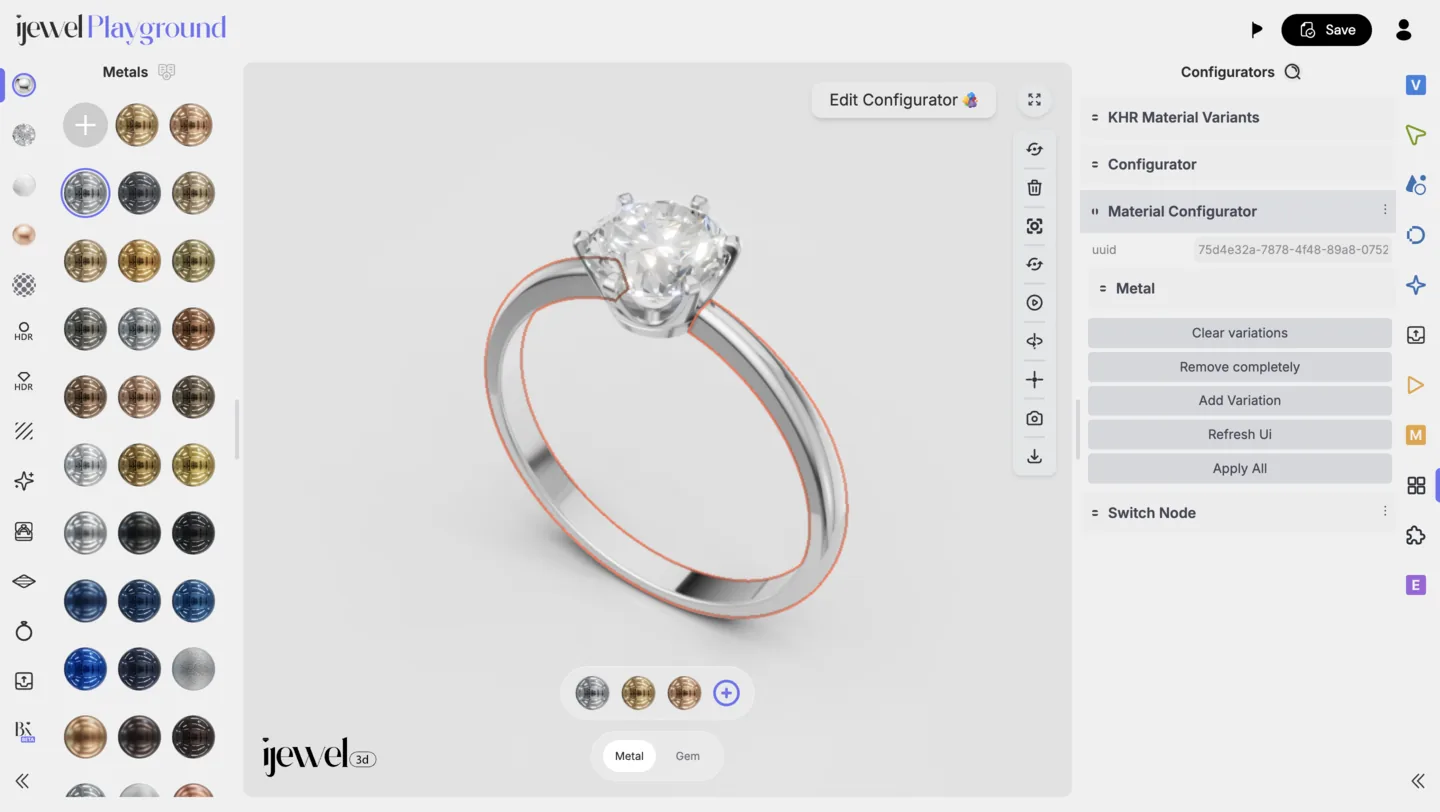
The right panel provides additional buttons:
- Clear Variations — Removes all material variations from the selected configurator
- Remove Completely — Deletes the entire configurator from the object
- Add Variation — Adds the material currently applied to the object (the one you edited in the Picking panel) as a new variant
- Refresh UI — Refreshes the configurator UI on the canvas
- Apply All — Applies changes to all configurator entries
Downloading & Importing Configurations
Download a Configuration Preset
To save your configurator setup for reuse across other scenes:
- Go to the Configurator tab on the right panel
- Find the Material Configurator section
- Click the three dots (⋯) next to the section title
- Click Download Preset
A .json file will be downloaded to your computer containing all your material configurations.
Import a Configuration Preset
To apply a saved configuration to a new scene:
- Open the new scene in Playground
- Drag and drop the
.jsonfile into the canvas
The configurator will automatically apply to objects that have matching material names. This is why it's important to keep consistent material names across your models.
Material names must match
The configurator links to objects by their material name (the name field in PBR Materials or Diamond Materials). If you rename a material after creating a configurator, the link will break and the configurator will stop working. Always set your material names before creating configurations.
Video Tutorial
Transfer Configurator Between Projects
Related Pages
- PBR Materials — Physical material editor for metals, ceramics, and surfaces
- Diamond Materials — Diamond material editor for gemstones
- Material Presets — Browse the built-in material library
- Export Scene Settings — Export full scene settings including configurator data
- Import Scene Settings — Import scene configurations
- FAQ: Materials & Diamonds — Common questions about materials