
Screen Space Reflections (SSR)
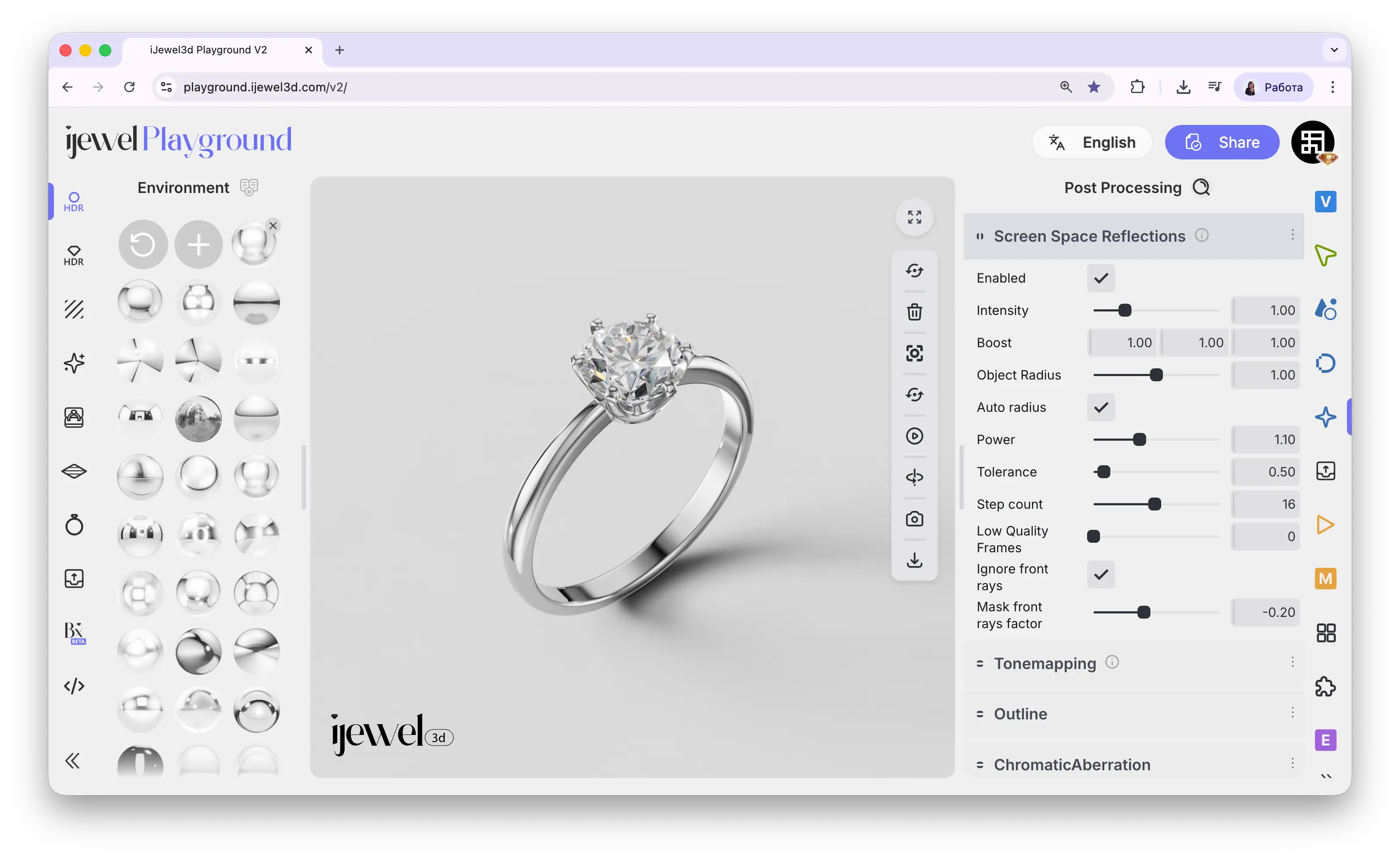
Screen Space Reflections adds real-time reflections of the surrounding environment onto your 3D objects. This is especially visible on metallic surfaces — polished gold, silver, and platinum will reflect the ground, nearby objects, and the environment, making the render look more realistic and grounded.
Where to Find It
This section is located on the right panel, inside the  Post Processing tab. It is the first section at the top.
INFO
SSR can only reflect what is currently visible on screen. Off-screen objects fall back to environment map reflections.
Settings
Enabled
Checkbox — toggles SSR on or off
Intensity
Slider — overall strength of reflections. Default 1.00
Boost
Three values (RGB) — per-channel reflection intensity boost. Default 1.00 / 1.00 / 1.00
Object Radius
Slider — maximum ray travel distance. Default 1.00
Auto Radius
Checkbox — automatically calculates optimal radius based on scene size. Recommended to keep enabled
Power
Slider — reflection falloff curve. Higher = sharper falloff at grazing angles. Default 1.10
Tolerance
Slider — depth matching precision. Higher = fewer gaps but potential artifacts. Default 0.50
Step Count
Slider — ray marching steps. More steps = more accurate but slower. Default 16
Low Quality Frames
Slider — number of lower-quality frames during camera movement for better responsiveness. Default 0
Ignore Front Rays
Checkbox — ignores camera-facing rays to prevent self-reflection artifacts. Enabled by default
Mask Front Rays Factor
Slider — masking strength for front-facing rays. Default -0.20
TIP
Default values work well for most jewelry. For stronger ground reflections on polished bands, increase Intensity to 1.2–1.5. If reflections have gaps, increase Step Count to 24–32.
Related Pages
- Tonemapping — Exposure, contrast, saturation, and background clipping
- Background / Environment — HDRI environment maps and reflections
- Renderer Settings — Resolution and quality configuration
- FAQ: Rendering & Performance — Common rendering questions