
Renderer Settings
The Renderer Settings control the rendering quality and resolution of the 3D viewport, as well as the output quality for exported images and videos. Adjusting these settings lets you balance between real-time performance while designing and maximum quality for final renders.
Where to Find It
This section is located on the right panel, inside the  Viewer tab, in the Renderer section at the top.
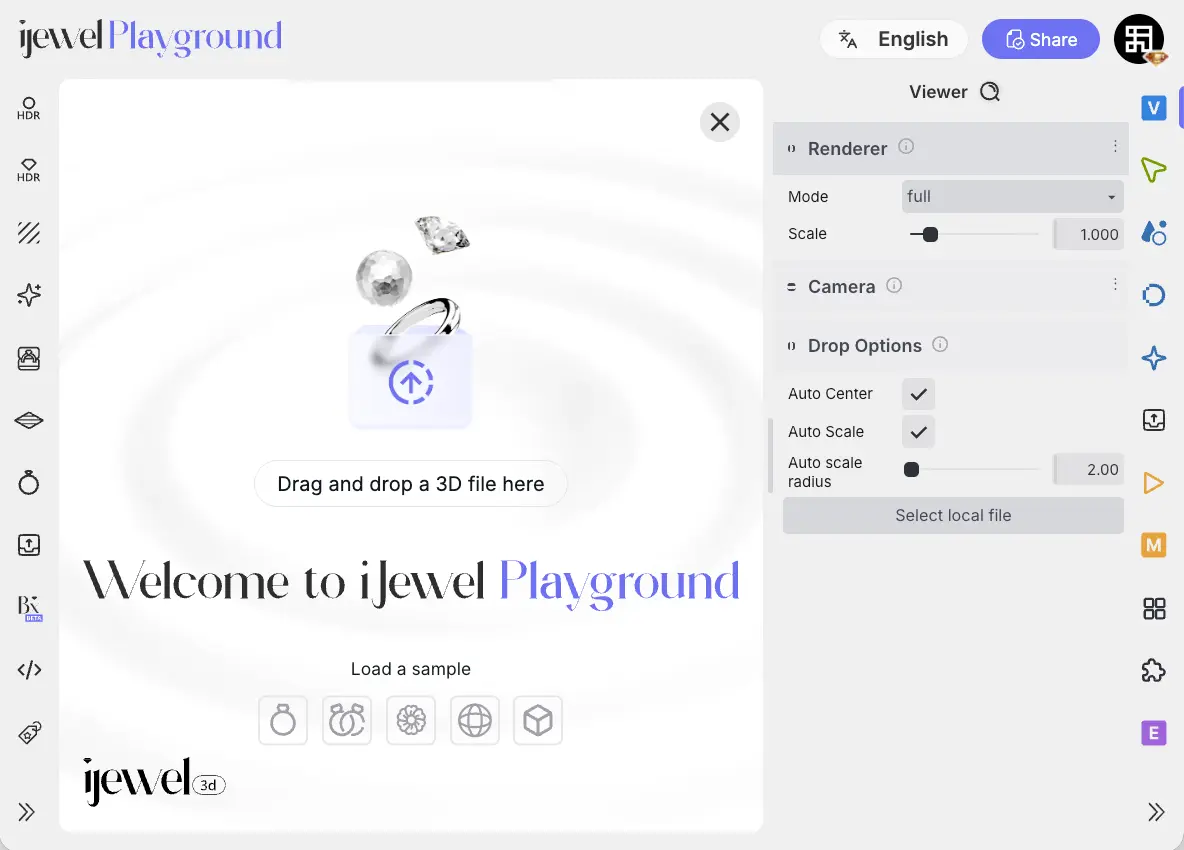
Settings
1.000). Increasing the value enhances both the real-time viewing quality and the resolution of exported images and videos. Higher values produce sharper, more detailed renders — ideal for close-up jewelry shots where every facet mattersPerformance Note
Higher scale values require more GPU processing power. If you experience lag during real-time viewing, keep the scale at 1.000 while working and increase it only before exporting.
Recommended Workflow
While designing — you can set the scale to 2.000 on most desktop computers — modern browsers handle it well. On lower-end devices, keep it at 1.000 for smooth performance.
Before exporting — increase the scale to 3.000 or 4.000 for the sharpest results. On lower-end devices, 2.000 is a good minimum. If you're unsure about your device's capabilities, start with 1.000 and increase gradually.
Export — use the Export Images or Export Videos features to download your high-resolution renders.
Related Pages
- Scene Basics — Overview of all scene components
- Export Images — Export high-resolution renders
- Export Videos — Export animated video renders
- UI Overview — Full interface layout including panels