
PBR Materials
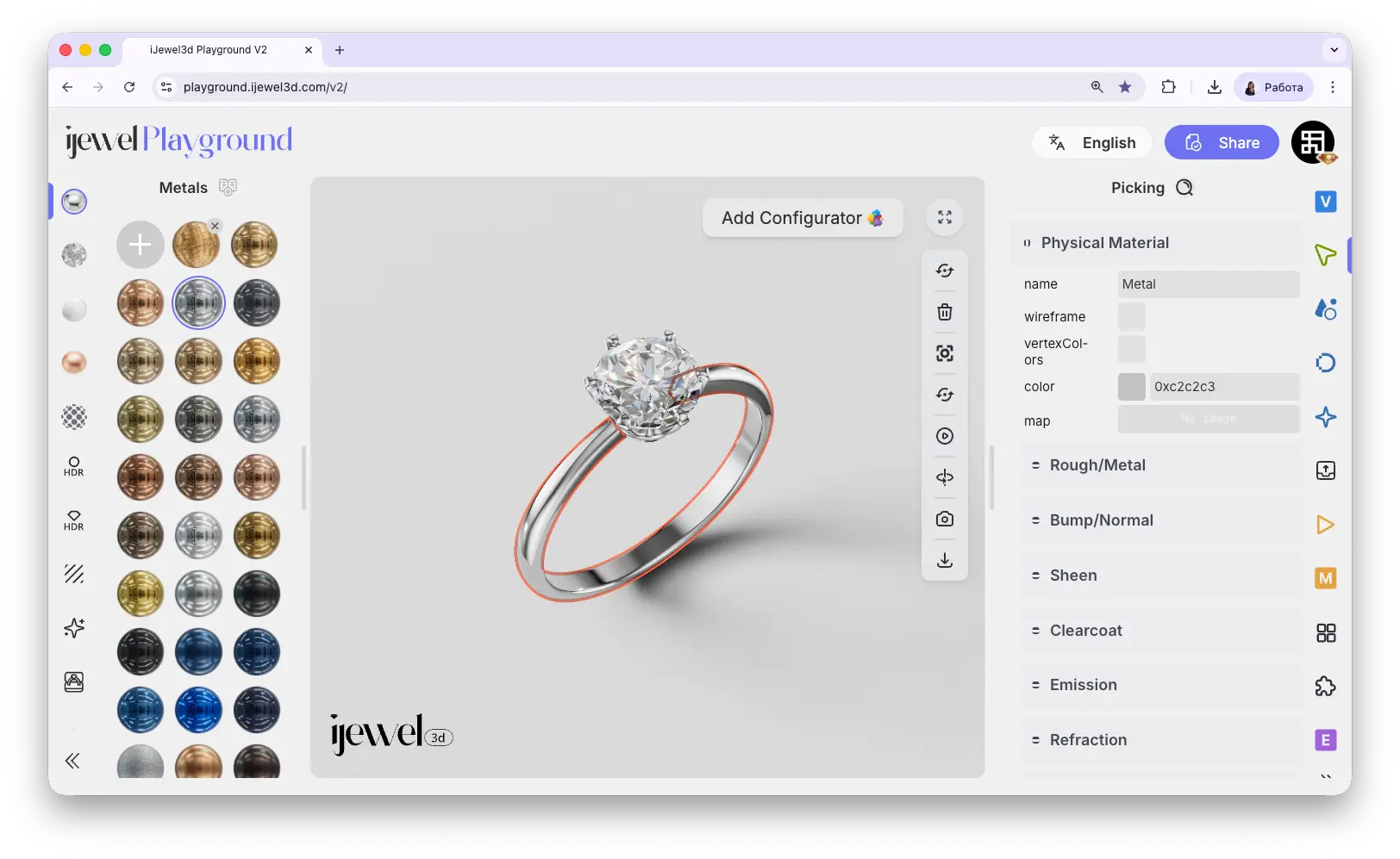
Physical Materials (PBR) control how surfaces look in your scene — their color, reflectivity, roughness, transparency, and more. This is the most detailed material editor in iJewel Playground and it uses a physically-based rendering model to produce realistic results.
Every metal, stone setting, enamel, ceramic, or glass surface in your jewelry model is controlled through this panel.
How to Open
- Click on any object in the canvas to select it
- Go to the
 Picking tab on the right panel
 - The Picker will show the material name, and the Physical Material section will open below with all its settings
Merging Materials
You can rename a material in the name field. If you select a different object and rename its material to the same name, both objects will share the same material — any change to one will apply to both. This is useful when applying library presets to multiple objects at once.
Physical Material
These are the top-level settings that appear when you expand the Physical Material section.
0x followed by 6 hex digits (e.g., 0xe5b377 for gold) — keep the 0x prefix and change only the last 6 characters
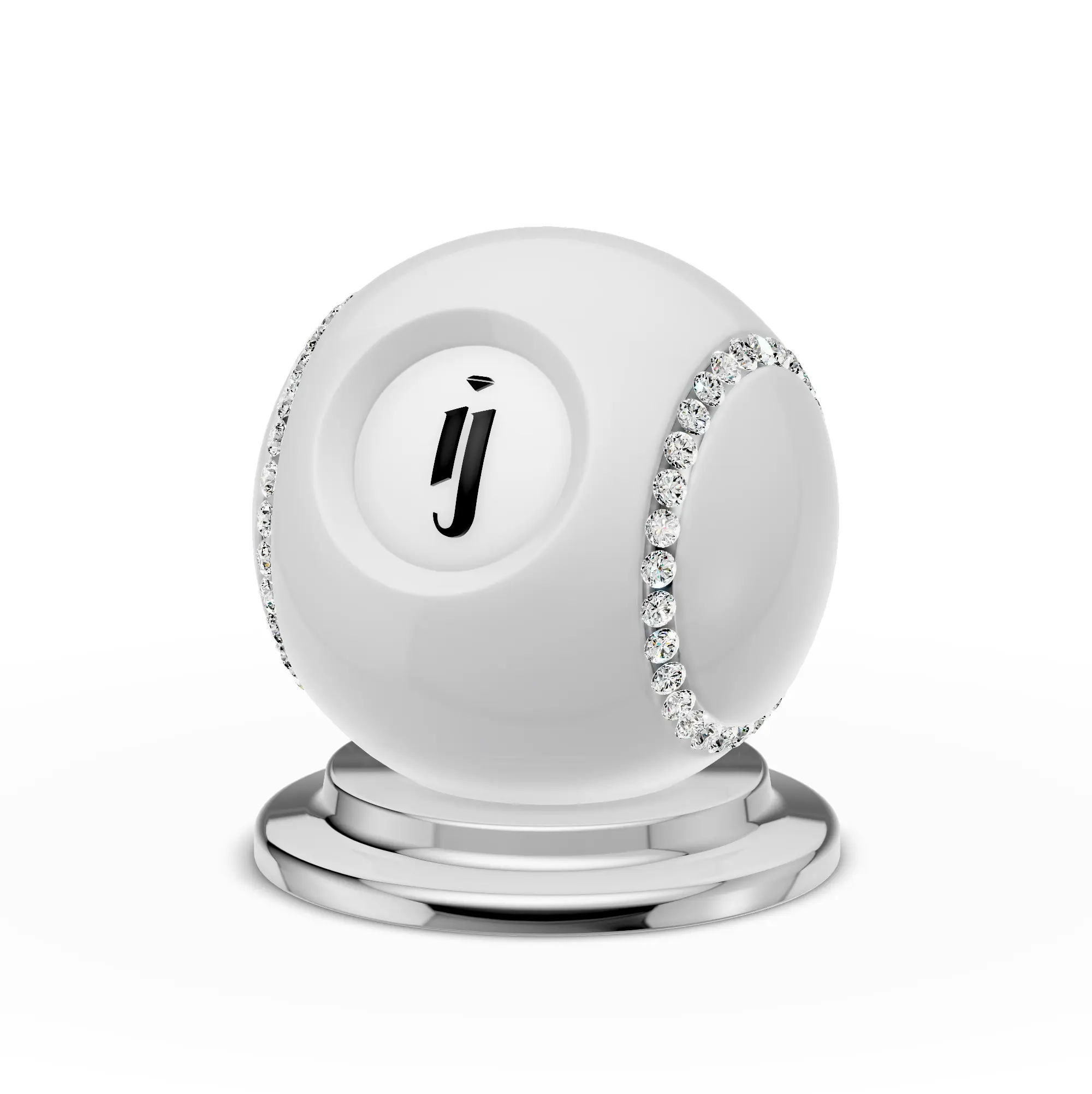
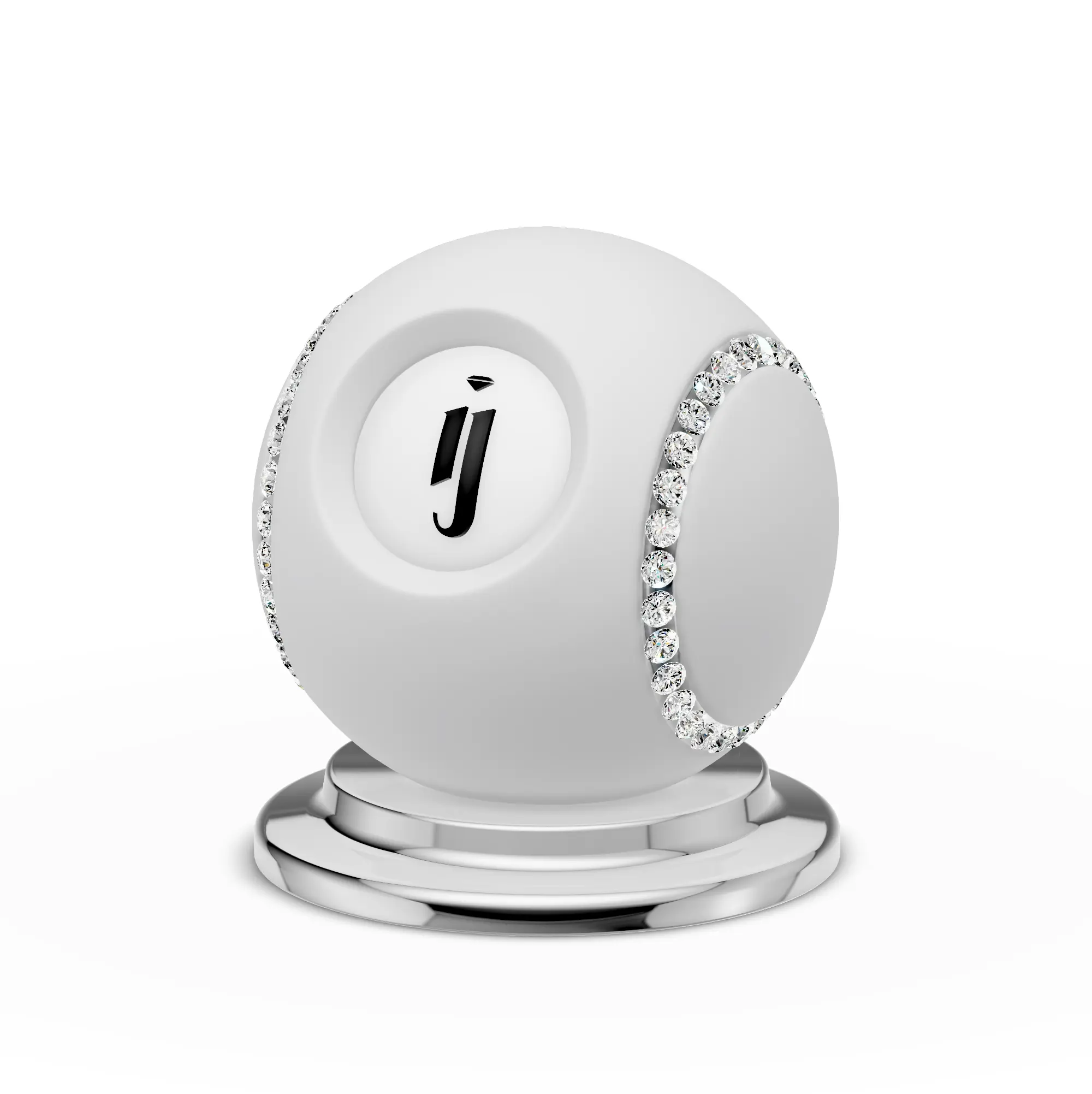
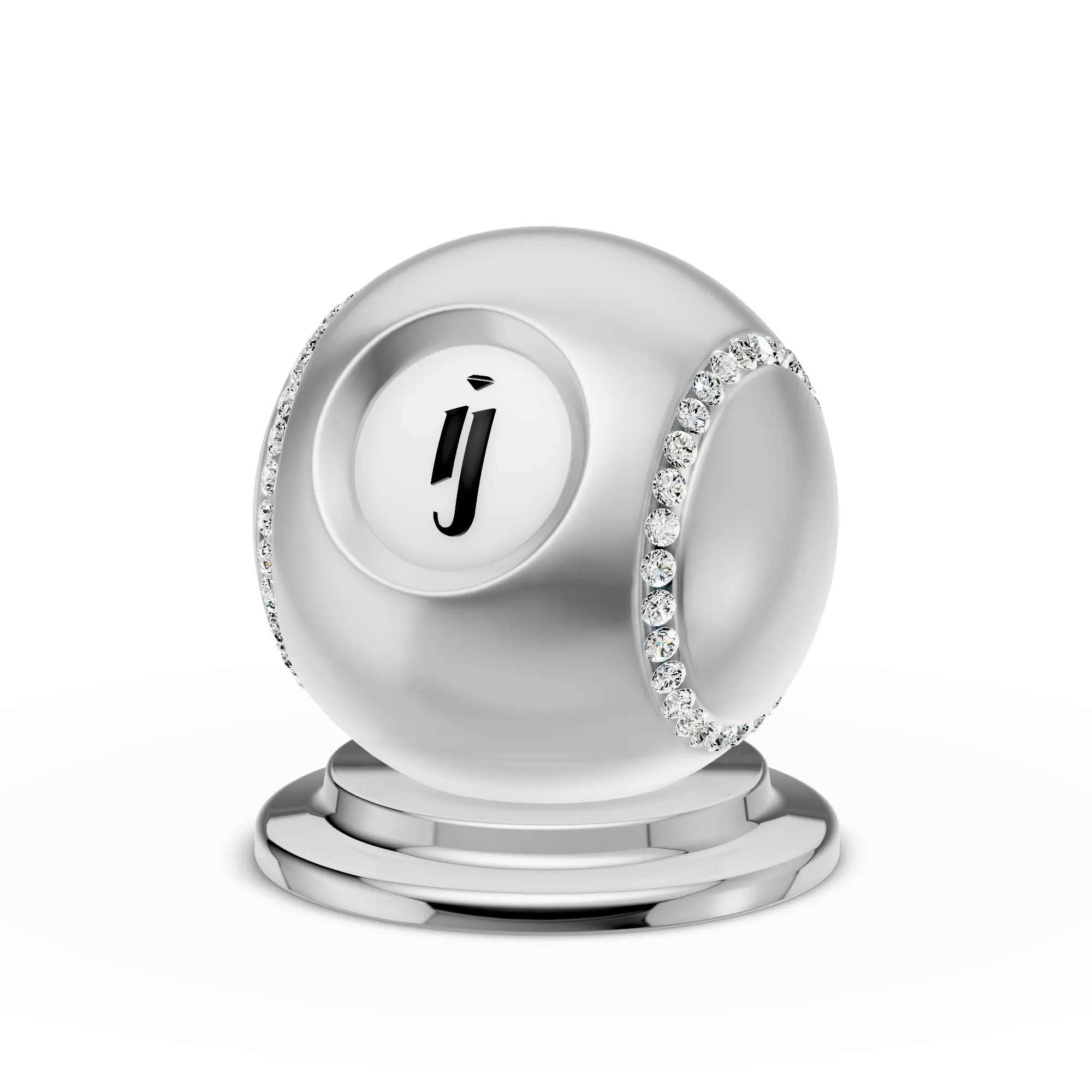
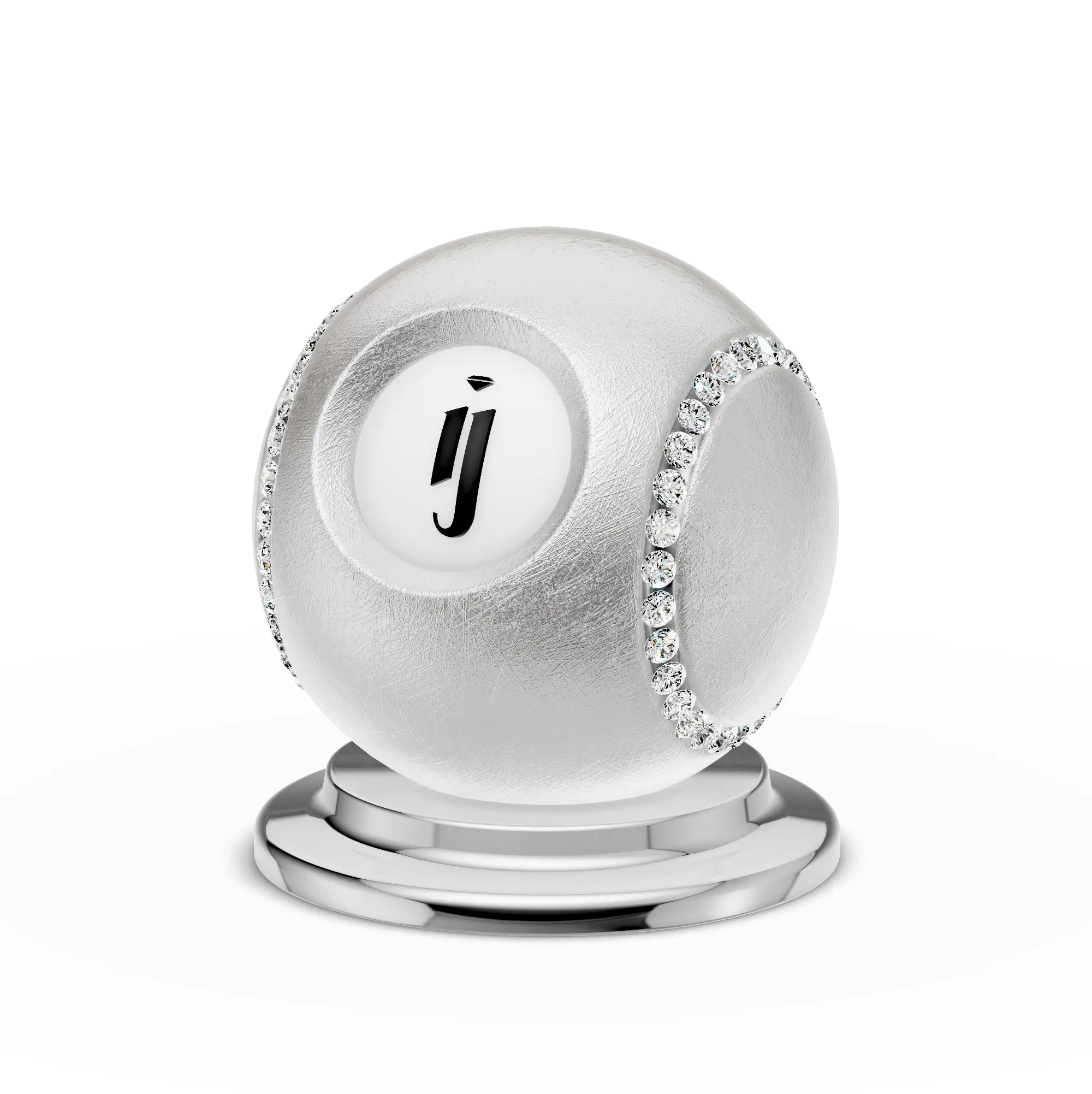
Rough/Metal
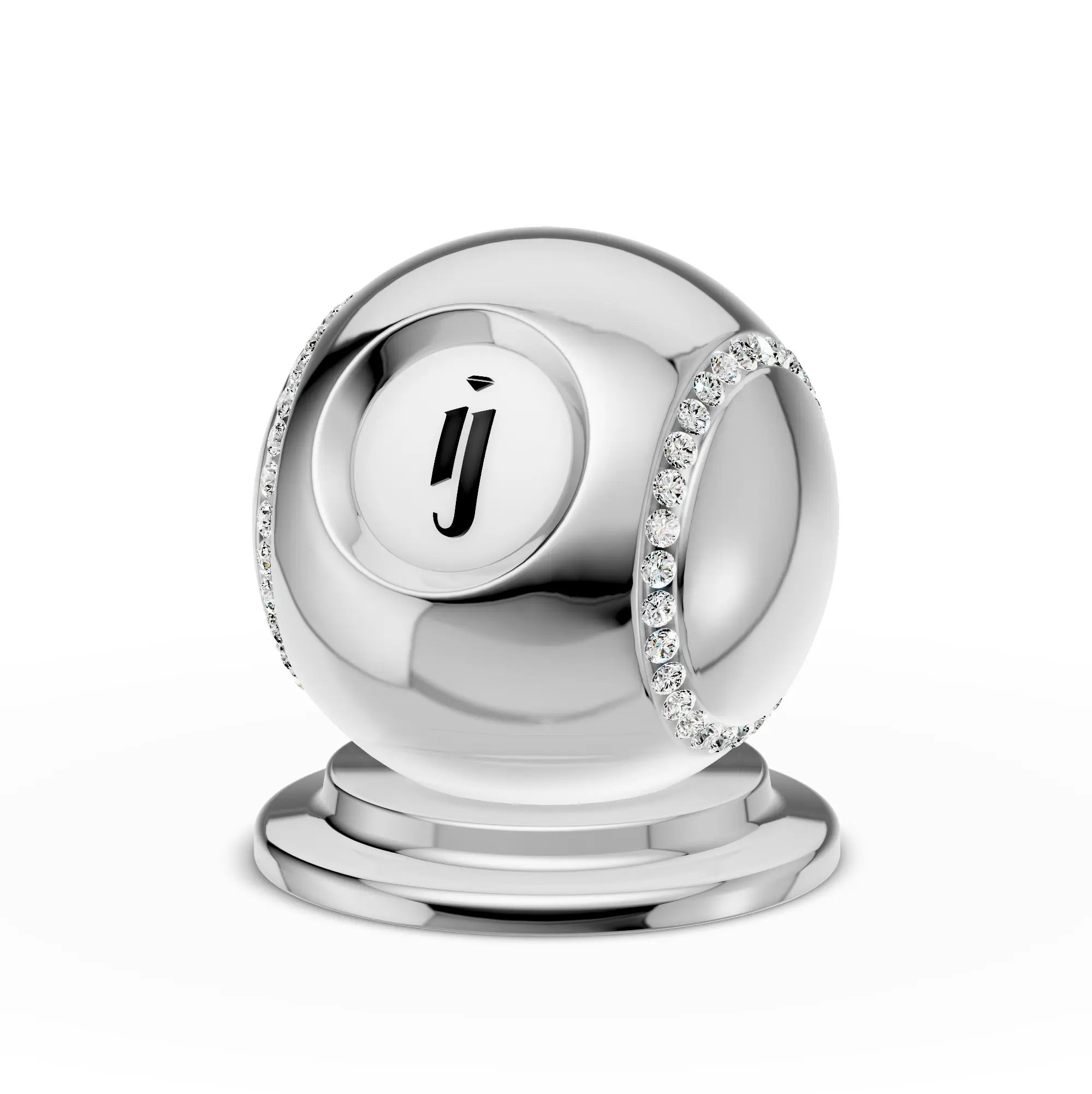
Controls how reflective and metallic the surface appears. Together with color, this defines the overall look of your material.
0 = mirror-like, 1 = completely matte1 = fully metallic (gold, silver), 0 = non-metallic (ceramic, plastic)Map Samplers
Whenever you add a texture map, a Sampler section appears below it with controls for scale, offset, and repeat. If you are using Triplanar mapping, you can ignore the Sampler — Triplanar handles texture placement automatically.

Bump/Normal
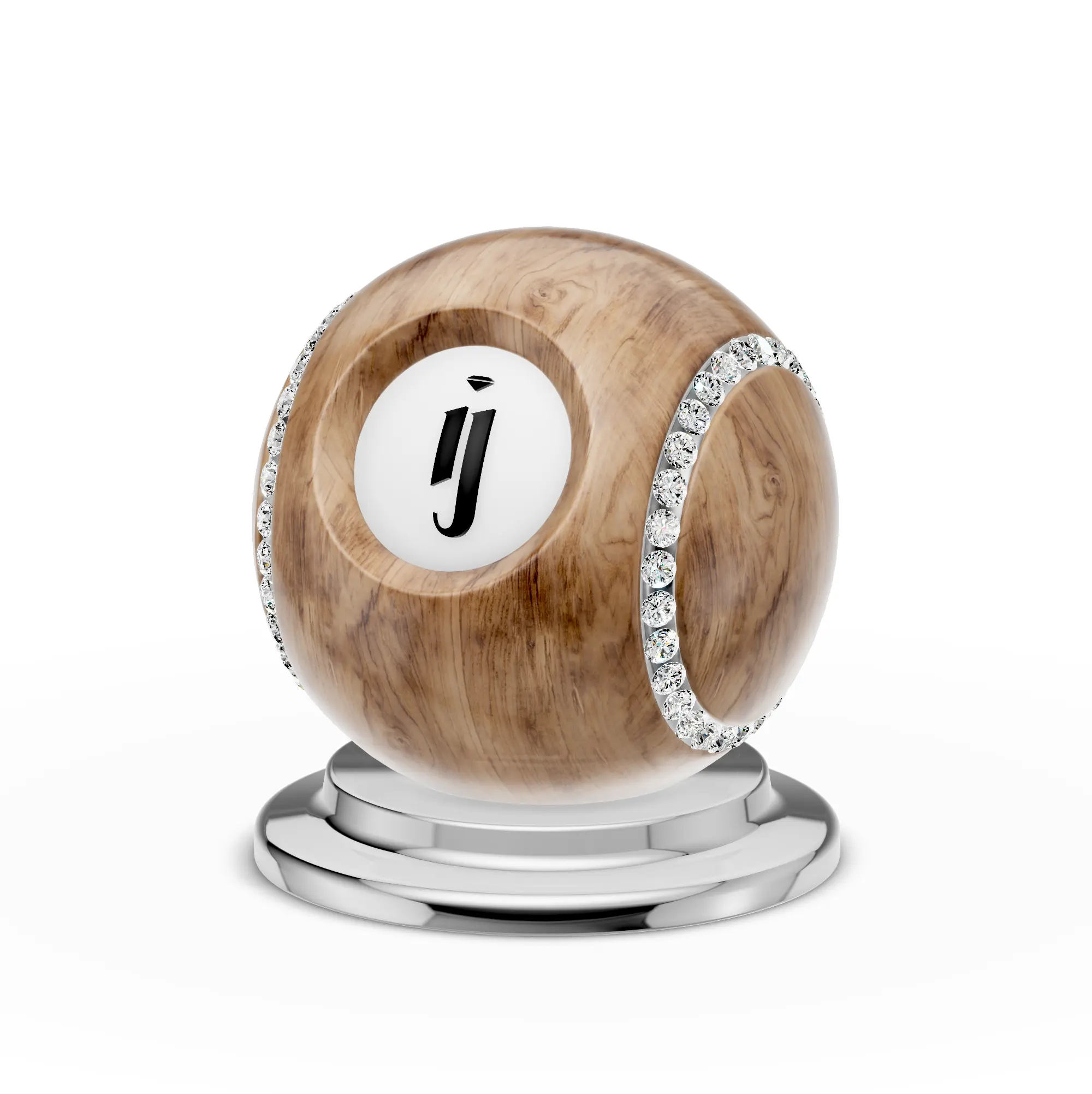
Adds surface detail without changing the actual geometry. Bump maps use black-and-white images to create the illusion of height. Normal maps use specialized purple-tinted images for more precise surface detail.
Sheen
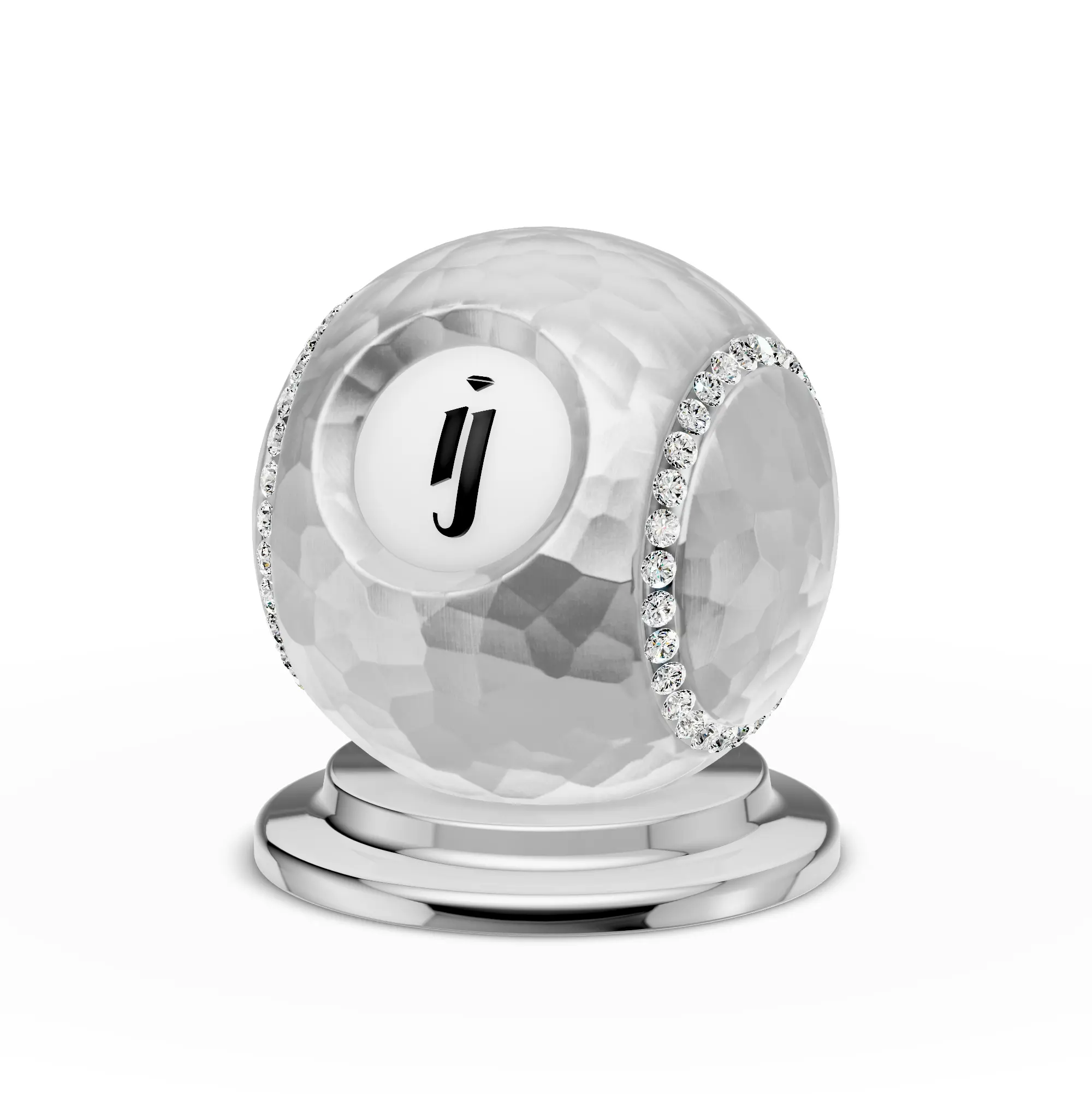
Adds a soft, fabric-like sheen to the surface edges. Can create interesting velvet or silk effects.
Clearcoat
Adds a secondary reflective layer on top of the base material — like a glossy varnish. Commonly used for ceramic, marble, and lacquered surfaces.
0 = off, 1 = full reflective coating

Emission
Makes the material glow by emitting light. Useful for decorative elements, LED accents, or artistic effects.
Refraction
Controls transparency and light refraction through the material. Used for glass, crystal, and other see-through surfaces.
1 = fully transparent, 0 = opaque
Blending
Controls transparency and visibility of the material. Opacity and transparent are the most commonly used settings here.
1.0 = fully visible, 0 = invisibleAO/Lightmap
Ambient Occlusion and Light Maps add pre-baked shadow and lighting detail. Mostly used for ground planes and background surfaces.
Iridescence
Creates a rainbow-like color shifting effect that changes depending on the viewing angle — similar to oil on water or the sheen on certain pearls and shells. Some pearl presets in the library (e.g., "Pearl Green") use this for their color-shifting effect.
Environment
Override the global environment map for this specific material. This lets you use a different HDRI lighting setup for one material while the rest of the scene uses the default.
General Settings
Download pmat
Exports the current material as a .pmat file. You can save your custom material settings and reuse them later or share them with others.
LUT
Apply a per-material Look Up Table for color grading. This works the same way as the global LUT post-processing effect, but applies only to this specific material.
Anisotropy
Creates directional reflections — like the elongated highlights you see on brushed metal.
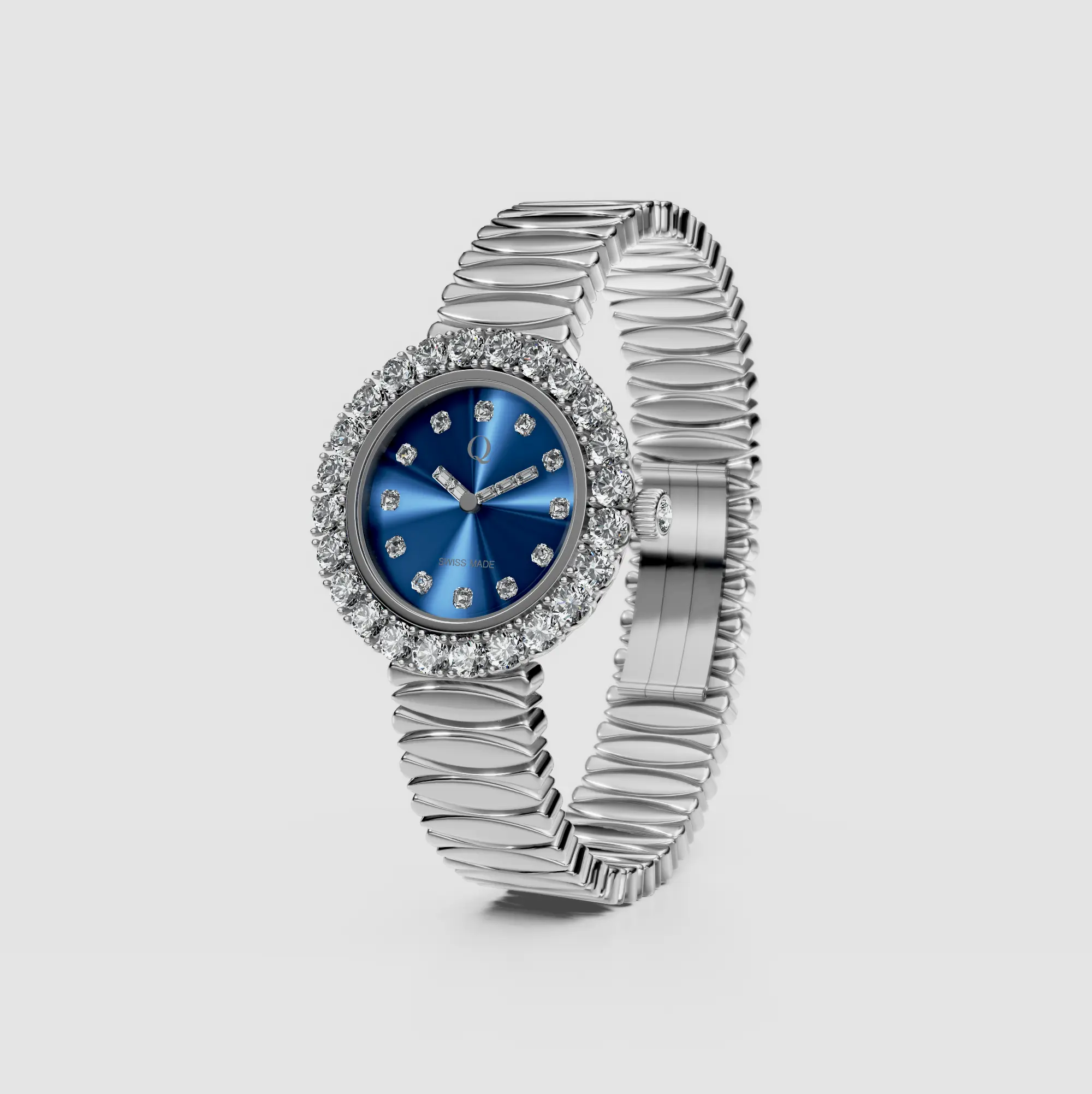
0 = uniform, 1 = fully stretchedTriplanar
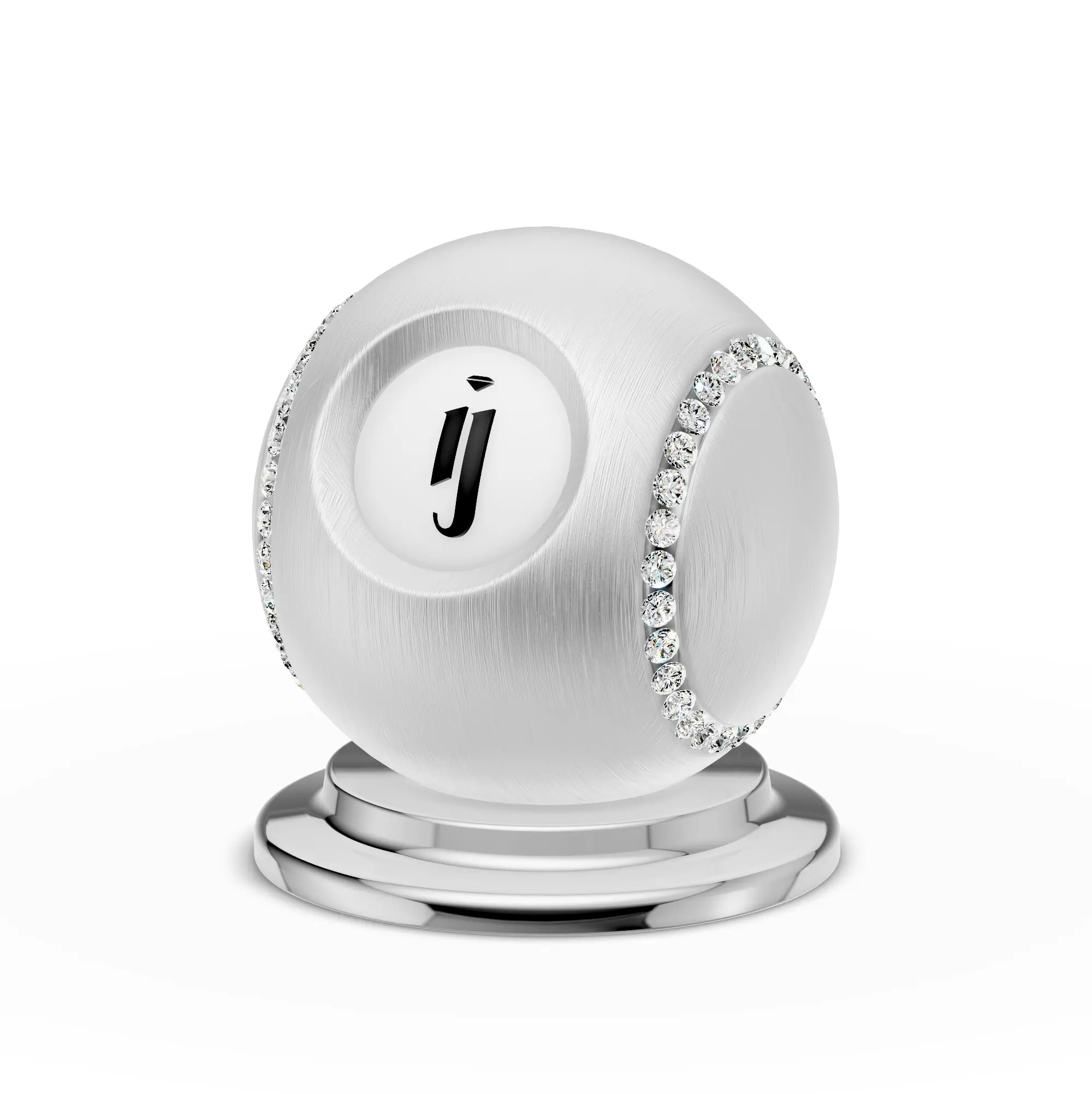
Automatically projects textures onto a model from three directions (X, Y, Z) without requiring UV unwrapping. This is the solution when your model has no UVs — just enable Triplanar, and seamless textures will wrap correctly.
ThinFilmLayer
Adds a subtle thin film interference effect, creating a slightly paler or tinted look on the surface.
FragmentClipping
Advanced section for clipping parts of the material rendering at the fragment level.
Flat Material
Renders the material without any lighting calculations — a flat, unlit appearance.
SparkleBump (NoiseBump)
Generates a procedural sparkle/noise bump pattern on the surface. For best results, use ready-made sparkle materials from the preset library rather than configuring this manually.
CustomBumpMap
Custom bump map settings for additional surface detail control.
ClearcoatTint
Adds a subtle color tint to the clearcoat layer.
SSBevel (Dev)
Per-material Screen Space Bevel control. This can also be configured globally from the Screen Space Bevel post-processing settings.
Bloom
Per-material Bloom toggle. Allows you to enable or disable the Bloom post-processing effect for this specific material.
LayeredMaterial
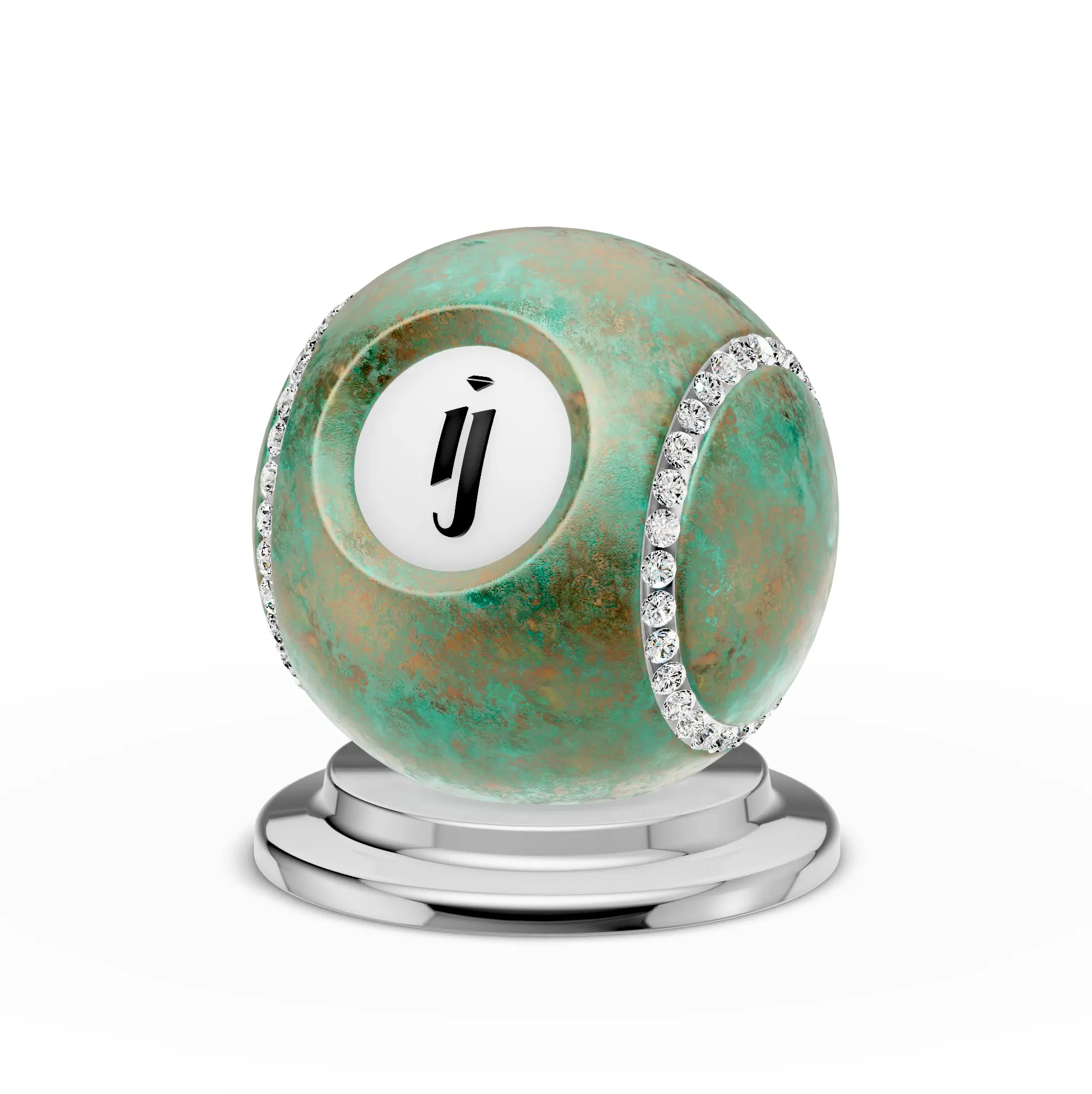
Creates a beautiful two-tone effect where a second color appears in surface crevices and recesses. Commonly used for oxidized bronze, oxidized copper, patina, and antique finishes — the secondary color naturally accumulates in the grooves and hard-to-reach areas of the model.

Auto UV Mapping
Automatic UV unwrapping for the model. Enable this if you want the system to generate UVs automatically.
Object Actions
These buttons appear at the bottom of the Picking panel and affect the selected object.
- Remove Material — Strips the material from the selected object
- Duplicate Object — Creates a copy of the selected object
- Wrap in Parent — Wraps the selected object inside a new parent group
- Delete Object — Permanently removes the selected object from the scene
WARNING
Delete Object is irreversible. There is no undo — the object and its data will be permanently removed.
Physics
Per-object physics body settings. See the Physics page for global physics configuration.
Transform Animation
Per-object transform animation settings for position, rotation, and scale keyframes.
Video Tutorial
Related Pages
- Material Presets — Browse and apply ready-made material presets from the library
- Diamond Materials — Material settings specific to gemstones and diamonds
- FAQ: Materials & Diamonds — Common questions about materials
- Look Up Tables (LUT) — Global LUT post-processing
- Screen Space Bevel — Global SSBevel post-processing
- Bloom — Global Bloom post-processing