
Background / Environment
The Background / Environment section controls the visual backdrop and lighting environment of your scene. Here you can set a background color, add a background image, load HDRI environment maps for realistic reflections, and adjust intensity and rotation.
Where to Find It
This section is located on the right panel, inside the  Scene tab. It is the first section at the top.
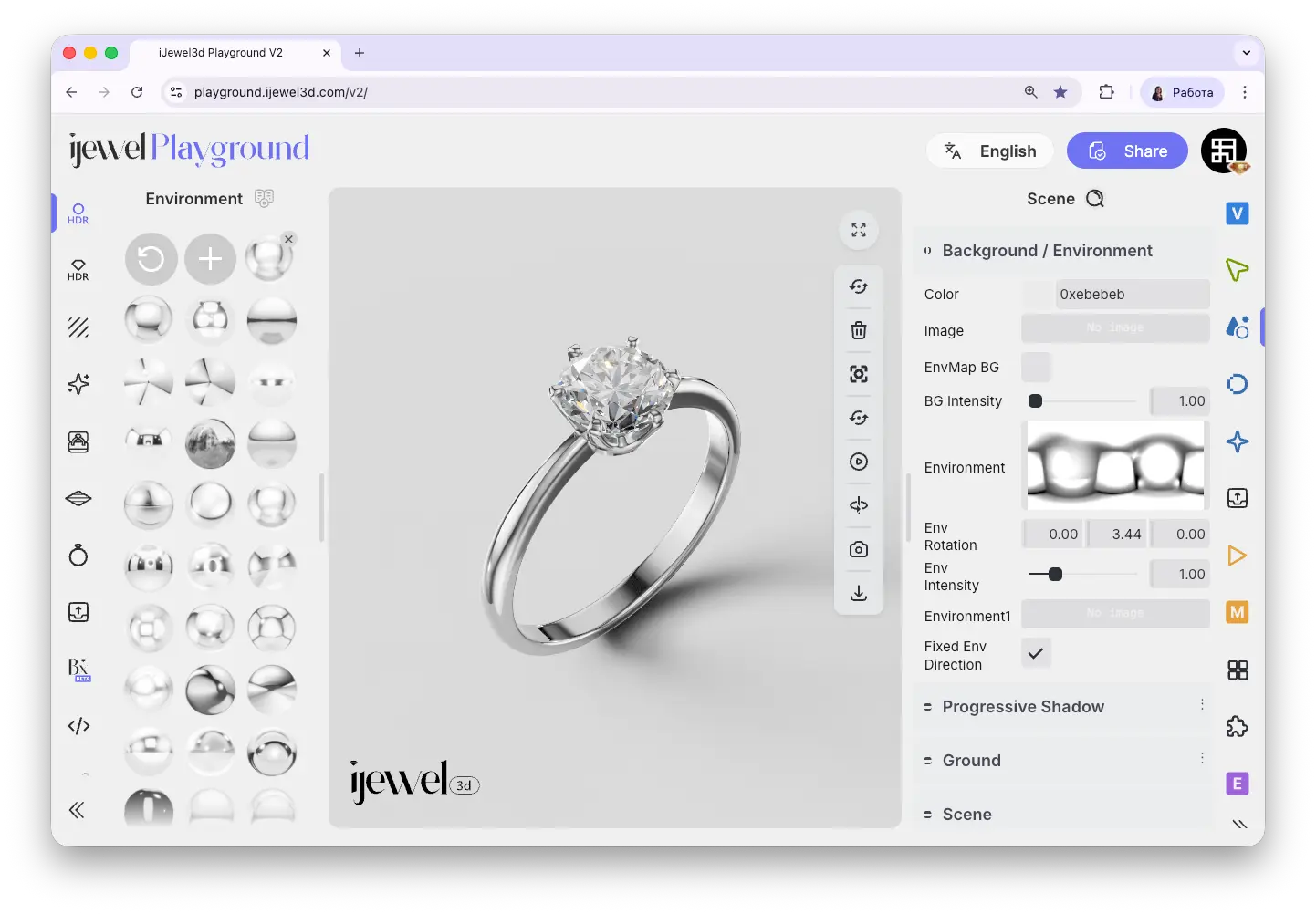
Background
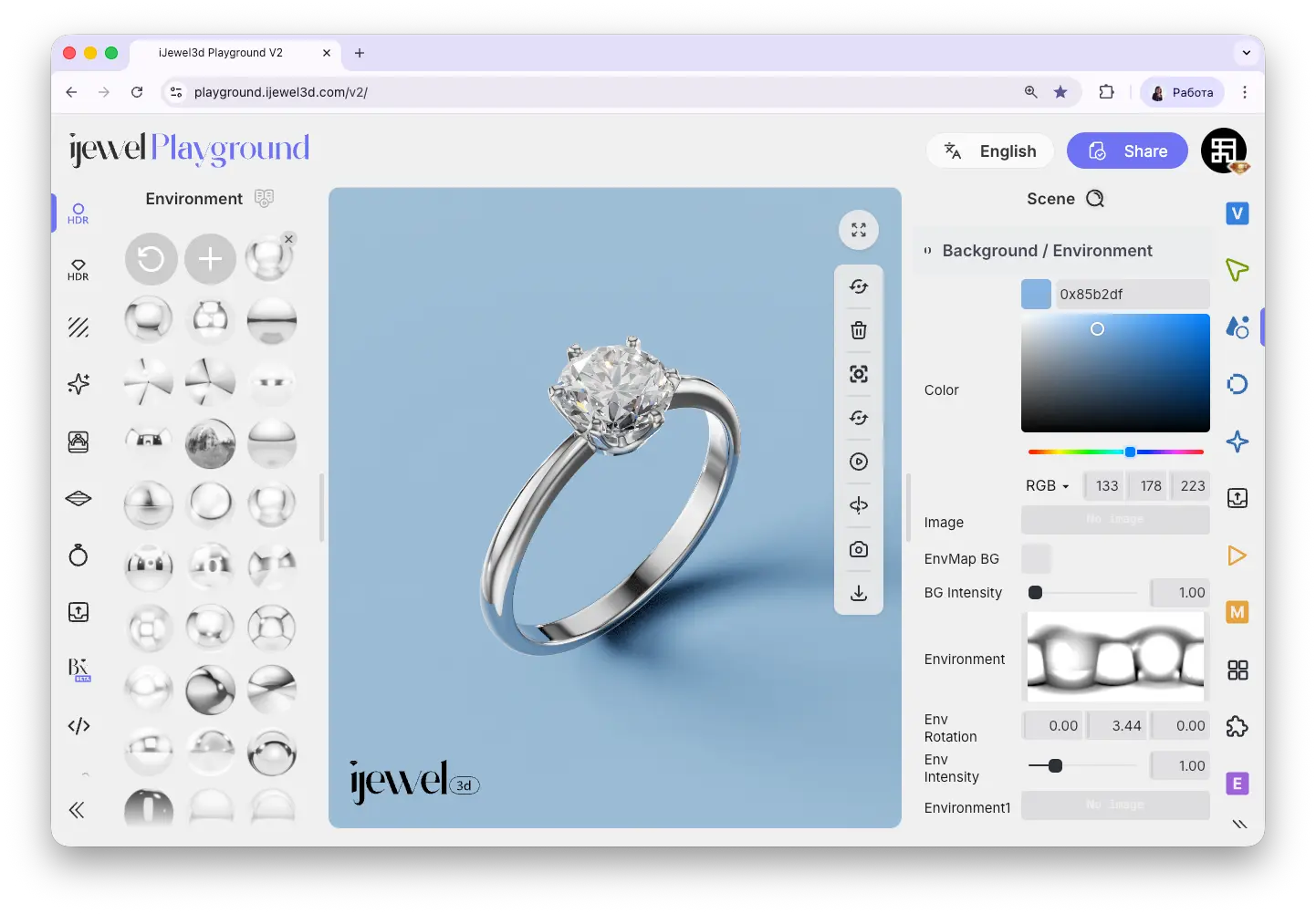
Color
Choose a background color for your scene using the color picker. This color is visible behind your 3D model and in renders.
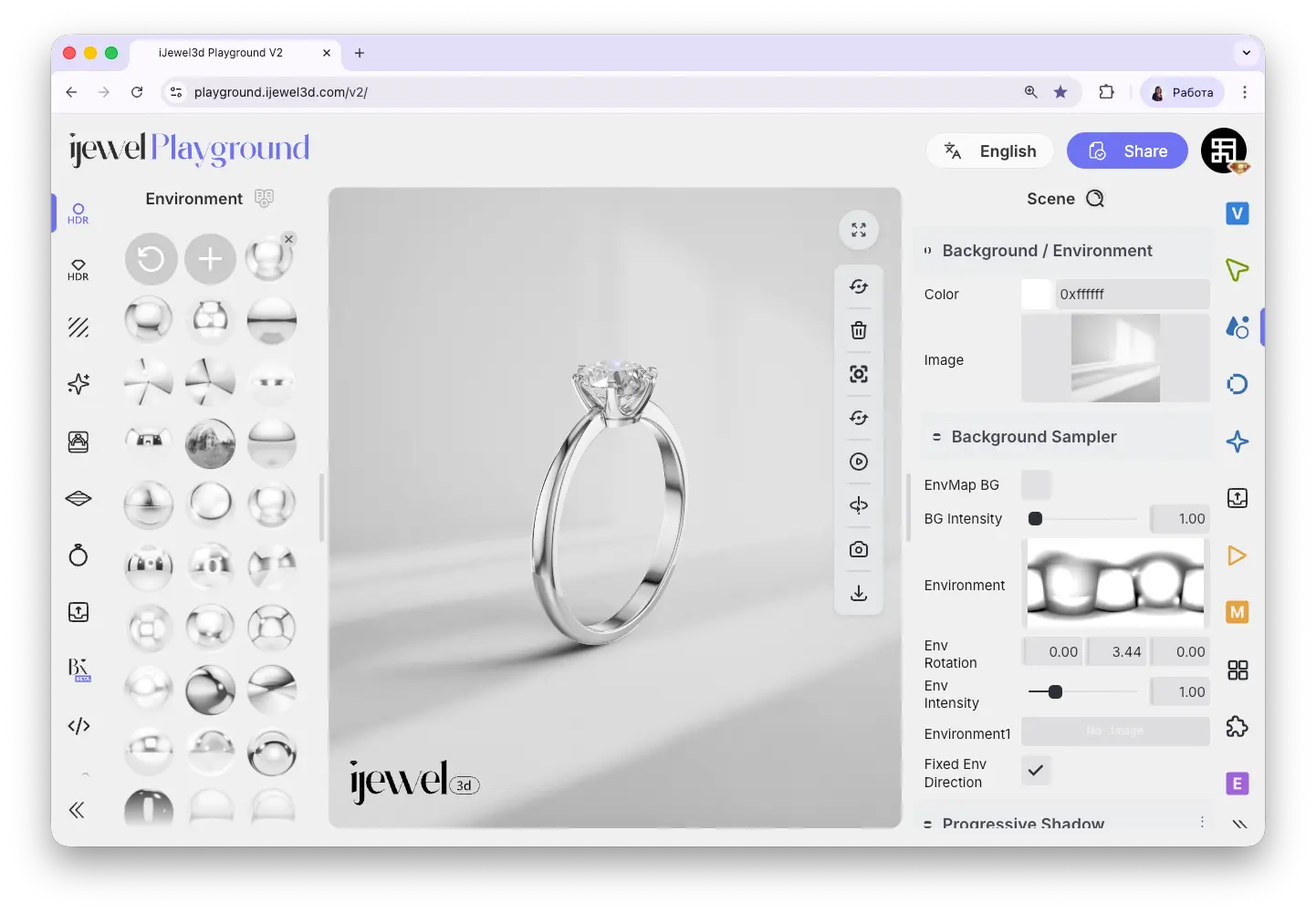
Image
Upload a custom background image from your computer. This image will be displayed behind the 3D model instead of the solid color.
Env Map BG
When enabled, the Environment Map (HDRI) is also used as the background image. This creates a seamless look where the reflections on the model match the visible background.
Bg Intensity
Controls the brightness of the background. Increase to make the background brighter, decrease to darken it. This only affects the visual background — not the lighting on the model.
Environment Map (HDRI)
The Environment Map is an HDRI image that wraps around the entire scene and provides realistic lighting and reflections on your model. This is the primary light source for PBR materials — metals, ceramics, and pearls all react to the environment map. Changing the HDRI map dramatically changes how your model looks — different maps produce completely different reflections, highlights, and overall mood.
You can load a custom HDRI map by uploading it in this section, or choose from the large library of ready-made HDRI presets on the left panel. The library includes many presets specifically optimized for jewelry rendering — the first preset is designed for metals.
TIP
For creating custom HDRI maps, you can use the iJewel HDRI Editor — a dedicated tool for building environment lighting setups from scratch.
Environment Settings
TIP
Env Rotation and Env Intensity are duplicated in the Advanced Settings on the left panel for quick access. Changing the value in one place updates it in the other automatically.
Video Tutorials
Tutorial: How to Make Pure White and Transparent Background
Tutorial: How to Change Background & Ground Color
Related Pages
- Scene Settings — Overview of all Scene tab sections
- Ground — Ground plane, shadows, material, and blending
- Scene Basics — Overview of working with 3D objects
- UI Overview — Full interface layout including panels
- Import Scene Settings — Import
.vjsonand.jsonscene configuration files - Export Scene Settings — Export your scene settings for backup or sharing
- Renderer Settings — Configure render quality and scale