
Picking
The Picking tab is your main workspace for interacting with individual objects in the scene. When you select an object — either by clicking on it in the viewport or through the Scene Hierarchy — the Picking tab shows everything related to that object: its name, visibility, transform properties, material, and more.
Where to Find It
The Picking tab is located on the right panel. Click the  Picking icon to open it.
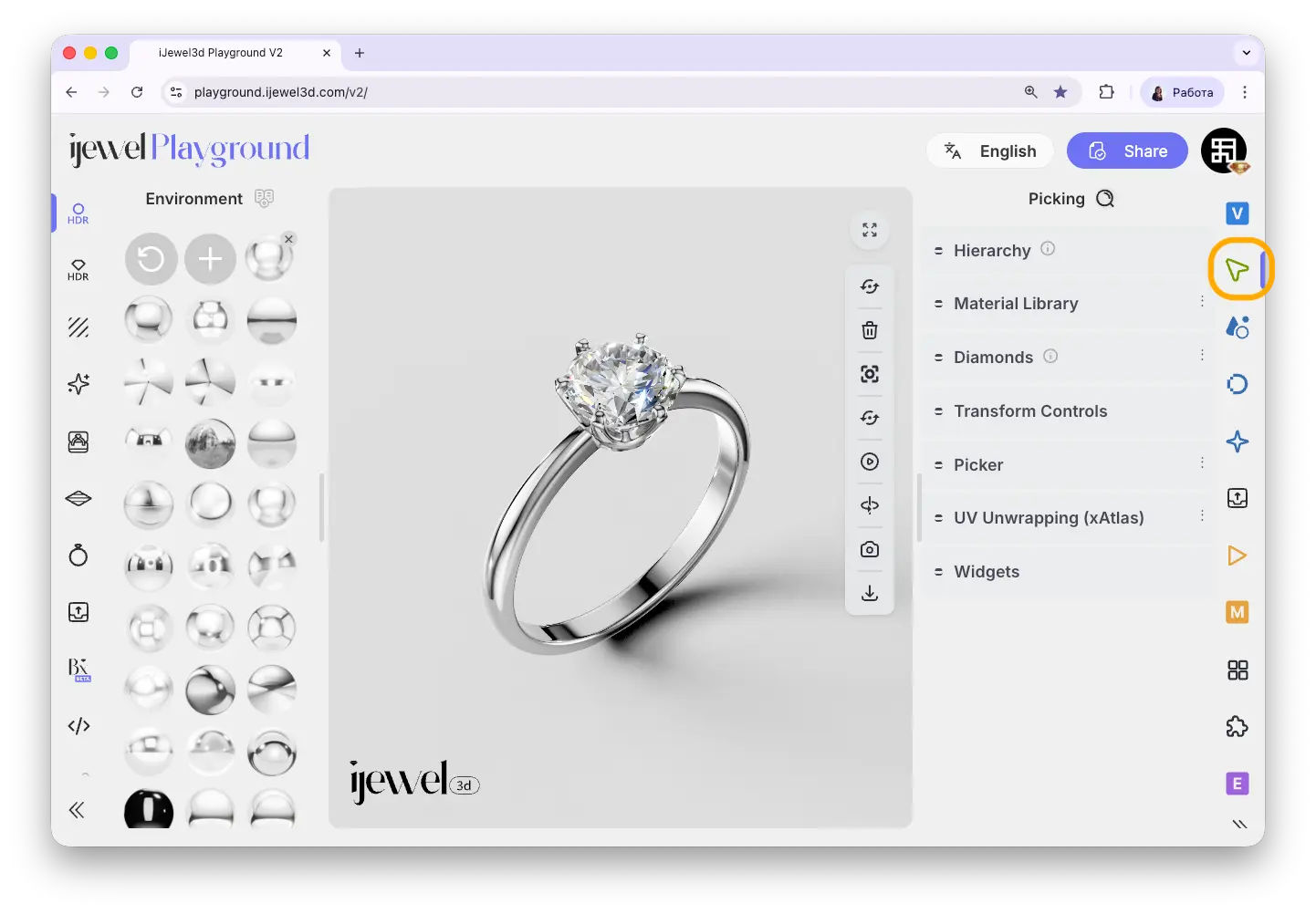
The tab contains the following sections:
Diamonds
The Diamonds section manages the HDRI environment map used specifically for diamond and gemstone rendering. Diamonds require a separate environment map to produce realistic light dispersion and brilliance effects.
Here you can adjust the Environment Rotation to change the angle of light reflections in your diamonds. You can also add a second or third environment map — this is useful when you want different diamonds in the same scene to use different HDRI maps for unique visual results.
The Diamonds section also contains action buttons that change depending on the selected object's current material type:
When a regular object is selected (Physical Material):
When a diamond object is selected (Diamond Material):
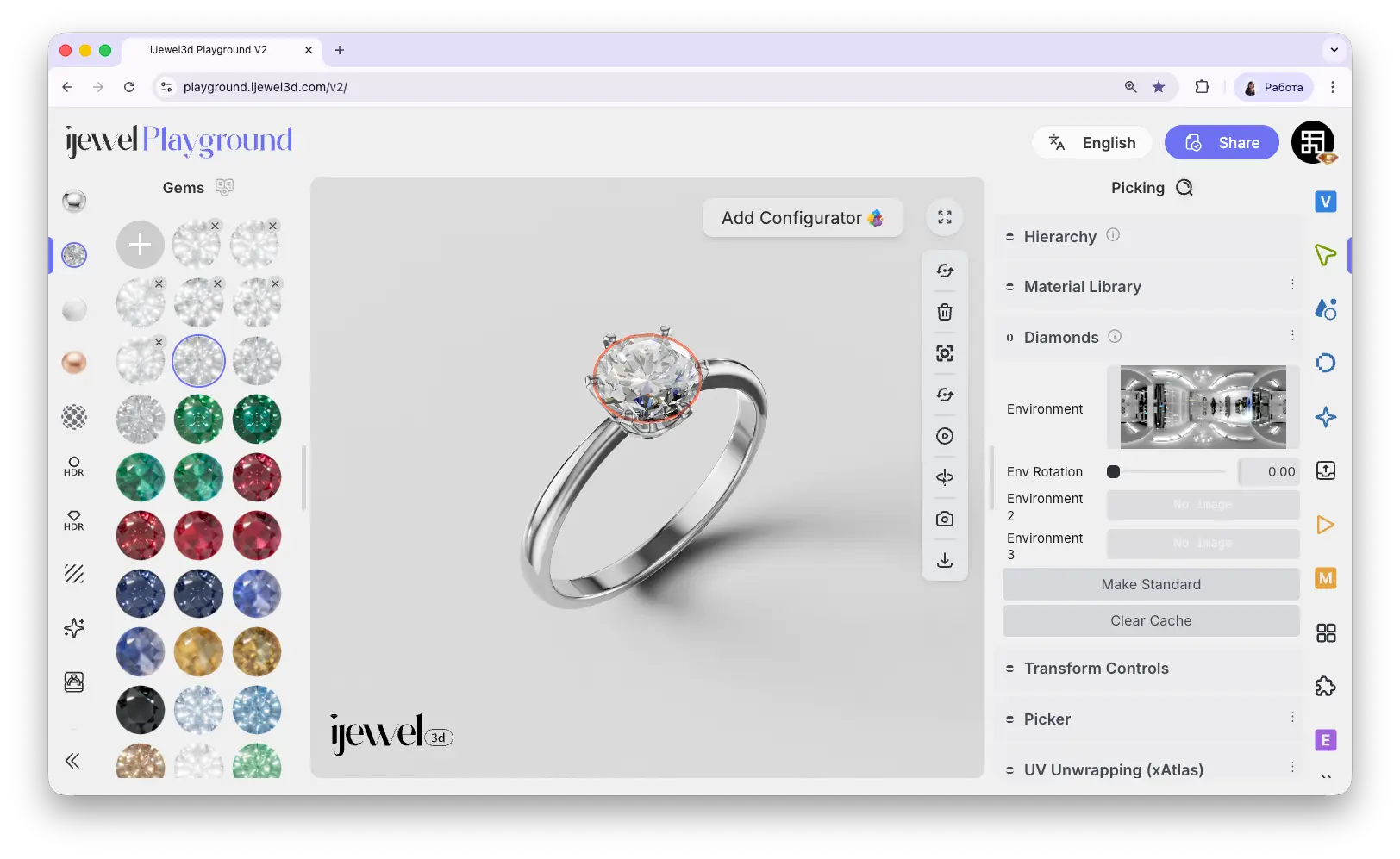
Once converted with Make Diamond, the Picker will display Diamond Material instead of Physical Material under the selected mesh, with its own set of properties tailored for gemstone rendering.
INFO
Diamond Material editing will be covered on a dedicated page. See Diamond Materials for more information. You can also import custom .dmat materials and export diamond materials from your scene.
Picker
The Picker is the core section of the Picking tab. It has two global settings at the top:
When you select an object, a section with the object's name (e.g., mesh_1) appears inside the Picker. This section contains all the properties described below.
Visibility & Navigation
Rendering & Shadow
Transform
The transform properties let you position, rotate, and scale the selected object numerically. You can type exact values for precise control.
TIP
For visual, interactive transformations (drag to move/rotate/scale in the viewport), use Transform Controls — also available in the Picking tab.
Quick Actions
Rotate Model
Quick rotation buttons that rotate the object by 90° on each axis:
Useful for quickly reorienting models that were exported in a different coordinate system.
Geometry
Displays information about the object's geometry, including a unique uuid and name. Also provides utility actions:
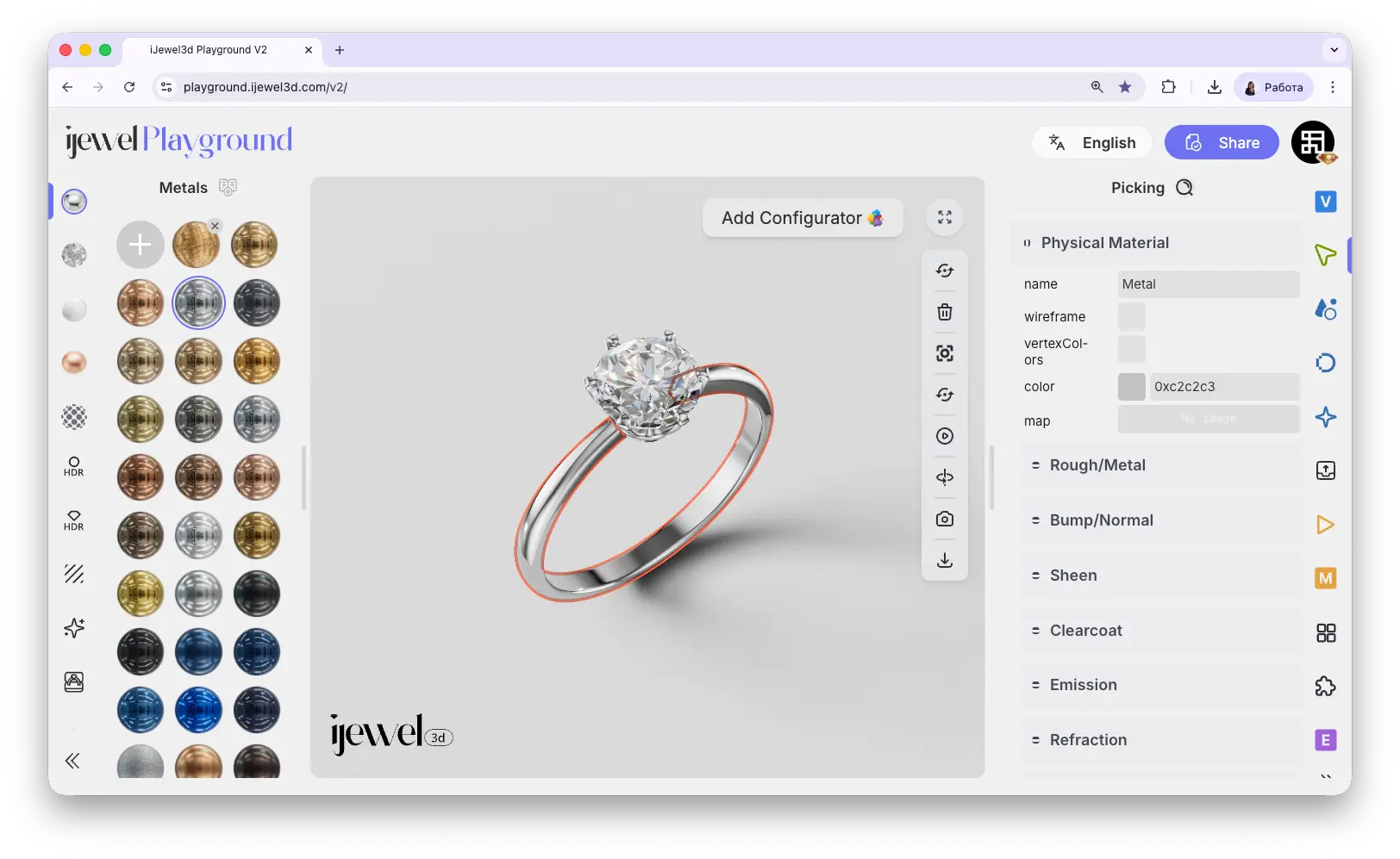
Physical Material
The Physical Material section shows the PBR material currently assigned to the selected object. It contains subsections for editing all material properties: color, map, Rough/Metal, Bump/Normal, Sheen, Clearcoat, and more.
INFO
Detailed material editing will be covered on a dedicated page. See PBR Materials for more information. You can also import custom .pmat materials and export materials from your scene.
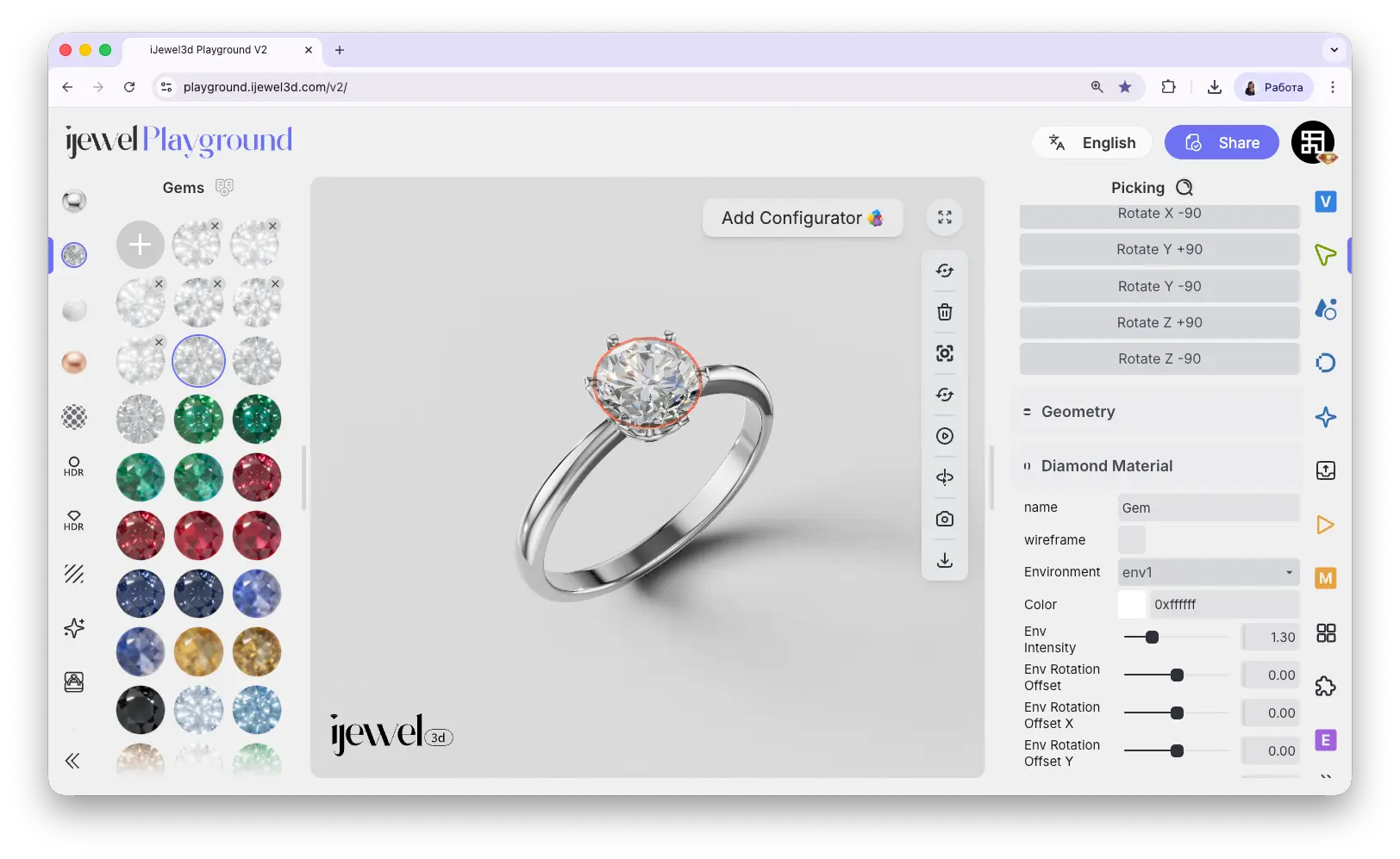
Diamond Material
If the selected object is a diamond (converted via Make Diamond), this section appears instead of Physical Material. It contains diamond-specific properties for controlling dispersion, brilliance, and other gemstone rendering settings.
INFO
Detailed diamond material editing will be covered on a dedicated page. See Diamond Materials for more information.
Object Actions
Below the Physical Material section, there are four action buttons for managing the selected object:
Physics
Physics simulation settings for the selected object. This section allows you to configure physical behavior for interactive scenes.
Transform Animation
Settings for animating the object's position, rotation, and scale over time. Used for creating keyframe-based transform animations.
Related Pages
- Scene Hierarchy — Browse and manage all objects in the scene tree
- UI Overview — Full interface layout including the right panel
- Import Materials — Import
.pmatand.dmatmaterial files - Export Materials — Export materials for reuse in other projects
- Transform Controls — Move, rotate, and scale objects visually
- PBR Materials — Detailed material editing guide
- Diamond Materials — Working with diamond and gemstone materials