
Scrollable Camera Views Preview (Dev)
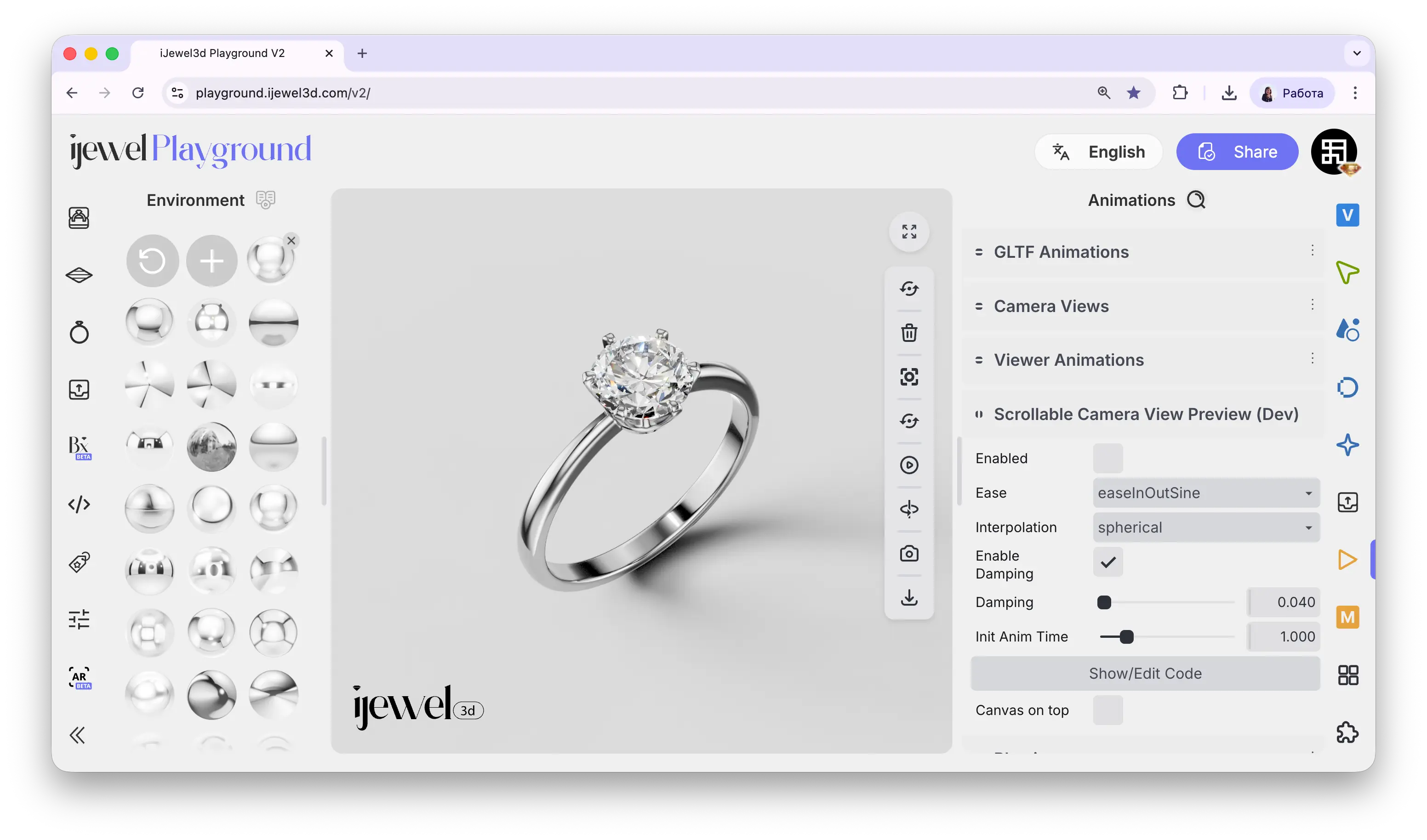
Scrollable Camera Views Preview controls how the camera behaves when the user scrolls the page. Instead of clicking buttons to transition between views, the camera position is tied directly to the scroll position — as the user scrolls down, the camera smoothly moves through all saved Camera Views.
This is especially useful for product landing pages where you want the 3D model to animate cinematically as the visitor scrolls through the page content.
Where to Find It
This section is located on the right panel, inside the  Animations tab, in the Scrollable Camera Views Preview section.
Settings
Enabled
checkbox
Toggles scroll-driven camera control on or off
Ease
select
Easing function that controls how the camera accelerates and decelerates. Default: easeInOutSine for smooth, natural motion
Interpolation
select
Camera path interpolation method. Spherical moves the camera along an arc around the object, preserving distance and preventing the camera from clipping through models
Enable Damping
checkbox
Adds inertia to the camera movement. When enabled, the camera doesn't stop instantly after scrolling — it smoothly glides to its final position
Damping
slider
Damping coefficient (default:
0.040). Lower values create a smoother, more "buttery" glide after scrolling stops. Higher values make the camera respond more immediatelyInit Anim Time
slider
Duration (in seconds) of the initial animation when the page first loads or the scene first appears (default:
1.000)Canvas on Top
checkbox
When enabled, the 3D canvas renders above other page elements. Useful for debugging layer overlap issues
Related Pages
- Camera Views — Save the camera positions that this feature scrolls through
- Viewer Animations — Create dynamic scenes with combined visual effects
- Animations — Overview of all animation sections