
Velocity Buffer (TAA)
The Velocity Buffer is an advanced extension of Temporal AA that uses per-pixel motion vectors to improve anti-aliasing quality during camera movement and object animation. When enabled, the renderer tracks how each pixel has moved between frames, allowing Temporal AA to correctly reproject previous frame data and avoid ghosting artifacts.
Where to Find It
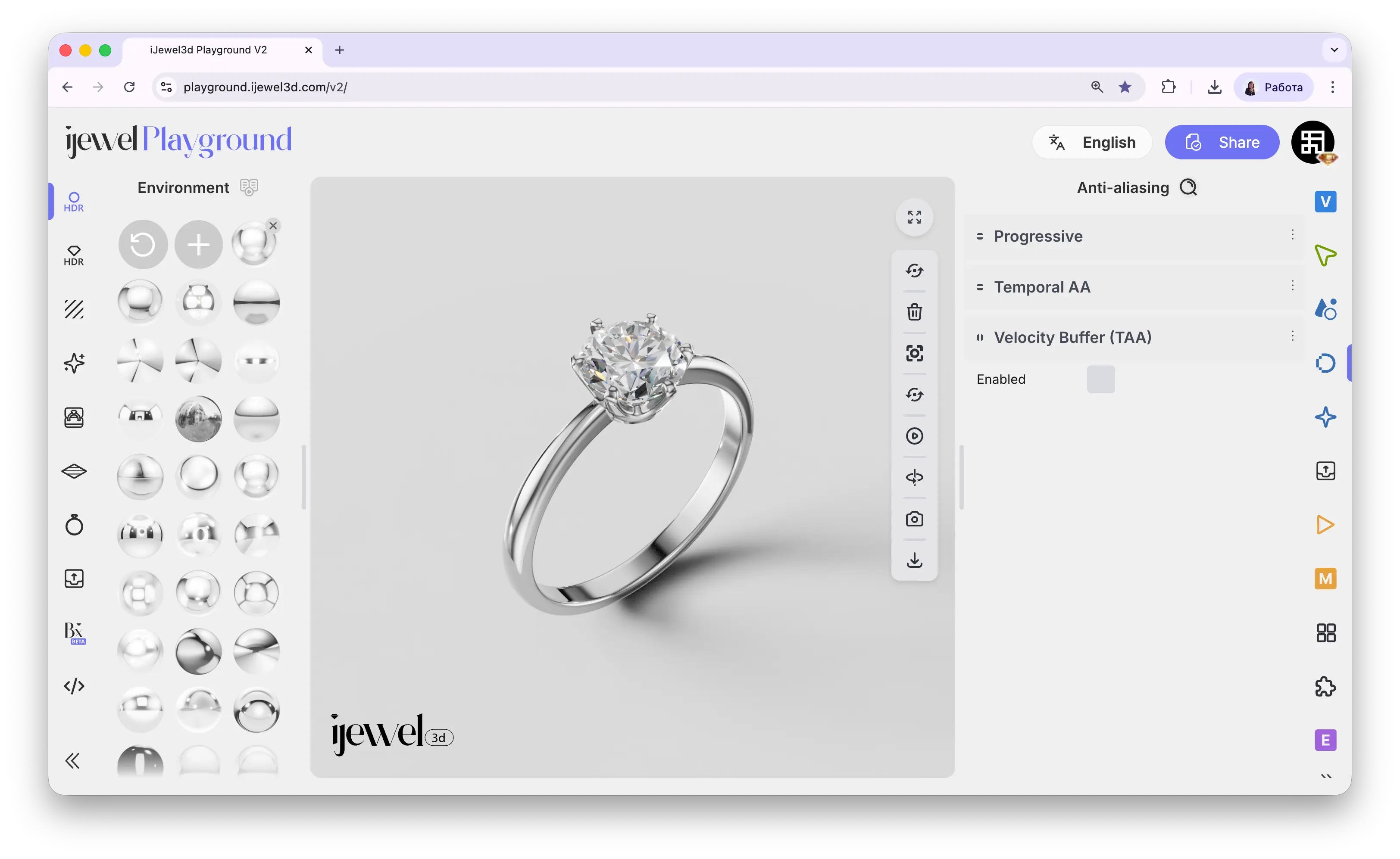
This section is located on the right panel, inside the  Anti-aliasing tab, in the Velocity Buffer (TAA) section.
How It Works
Without a velocity buffer, Temporal AA assumes that each pixel in the current frame corresponds to the same screen position in the previous frame. This works well when the scene is still, but during camera rotation or object animation, pixels shift — and the old frame data at that position is no longer valid. This mismatch causes ghosting (faint trails behind moving edges).
The Velocity Buffer solves this by computing a motion vector for every pixel — a 2D offset describing where that pixel was in the previous frame. Temporal AA then uses these vectors to look up the correct historical data, producing clean anti-aliasing even during motion.
Settings
When to Enable It
The Velocity Buffer adds a small amount of GPU overhead because it renders an extra pass per frame. For most jewelry rendering workflows, here's when to use it:
Enable When
- You're recording turntable videos or camera path animations — the velocity buffer prevents ghosting on edges as the camera moves
- You have animated objects in the scene (e.g., a pendant swing, rotating display stand)
- You notice ghosting or trailing artifacts on edges during camera rotation with Temporal AA enabled
Can Be Left Disabled When
- You're only working with still images — Progressive handles anti-aliasing for stills, and no motion occurs
- Your scene has no animations and you're fine with minor ghosting during viewport interaction
- You're on a lower-end GPU and want to save performance for other effects
Velocity Buffer + Temporal AA
The Velocity Buffer is not a standalone anti-aliasing method — it enhances Temporal AA by providing motion data. For it to have any effect, Temporal AA must also be enabled. If Temporal AA is disabled, enabling the Velocity Buffer alone will have no visible impact.
The typical setup for animated scenes is:
- Temporal AA → Enabled (with default Feedback values)
- Velocity Buffer (TAA) → Enabled
- Progressive → Frame count 4–8 (for each video frame to converge quickly)
This combination gives you smooth, ghost-free anti-aliasing during animation with minimal render overhead.
Related Pages
- Anti-aliasing — Overview of all anti-aliasing sections
- Progressive — Multi-frame accumulation for still images
- Temporal AA — Real-time temporal anti-aliasing
- Export Videos — Video export settings