
Temporal AA
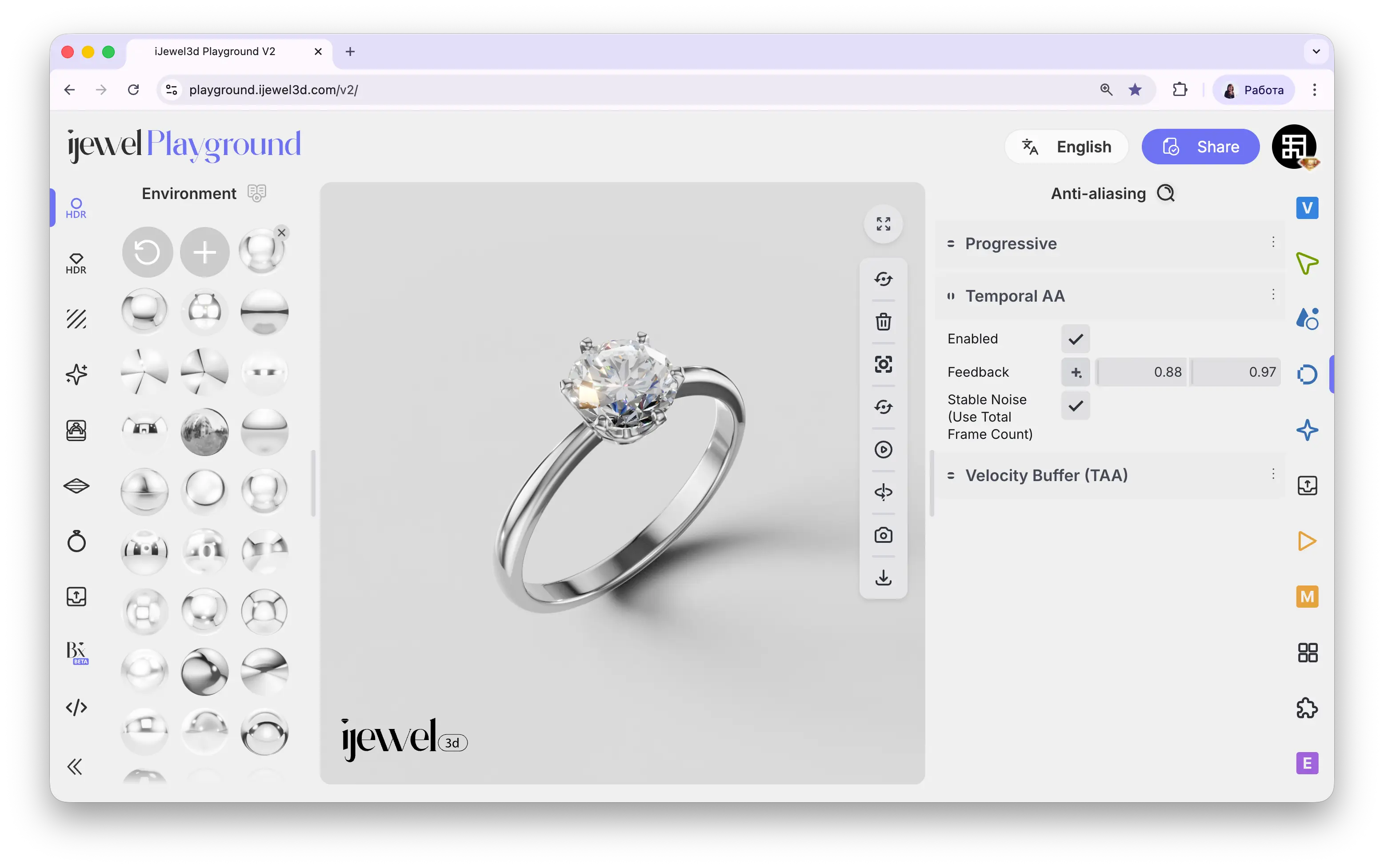
Temporal Anti-Aliasing (TAA) is a real-time anti-aliasing technique that blends the current frame with previous frames to smooth out edges and reduce flickering. Unlike Progressive (which accumulates many frames while the scene is still), Temporal AA works continuously — even while you rotate, zoom, or play animations — making it the primary anti-aliasing method for interactive use and video recording.
Where to Find It
This section is located on the right panel, inside the  Anti-aliasing tab, in the Temporal AA section.
How It Works
Each rendered frame is compared to the previous frame. Pixels that haven't changed much are blended together (using the Feedback values), which smooths out aliasing and reduces temporal flickering — the shimmering you sometimes see on thin edges or detailed geometry when the camera moves.
The trade-off is ghosting: if the feedback is too high, moving objects can leave faint trails because the renderer holds on to old frame data too long. The Feedback parameters let you control this balance.
Settings
(Use Total Frame Count)
Feedback Values Explained
The two Feedback numbers work together to balance smoothness and responsiveness:
Default Values
The defaults (0.88 / 0.97) are well-tuned for jewelry rendering. In most cases, you don't need to change them. Only adjust if you notice ghosting on animated objects (lower the values) or flickering on still surfaces (raise the values).
When to Use Temporal AA
Temporal AA is most useful when:
- You're interacting with the scene (rotating, zooming) and want smooth edges in real time
- You're recording video — Temporal AA provides frame-to-frame smoothing that Progressive can't offer during animation
- You're working with screen-space effects (SSR, SSAO, SSGI) that produce per-frame noise — TAA smooths this noise over time
- You want a responsive viewport without waiting for Progressive to converge
Temporal AA + Progressive
These two methods are complementary. Progressive accumulates frames when the scene is still; Temporal AA blends frames in real time during motion. For the best quality, keep both enabled — Progressive handles the final still render, and Temporal AA handles everything in between.
Related Pages
- Anti-aliasing — Overview of all anti-aliasing sections
- Progressive — Multi-frame accumulation for still images
- Velocity Buffer (TAA) — Motion-aware anti-aliasing
- Export Videos — Video export settings