
Vignette
Vignette darkens or tints the edges of the render, drawing the viewer's eye toward the center of the image. This is one of the most commonly used cinematic effects — it subtly frames the jewelry and keeps the focus on the product.
Use it for lifestyle-style product shots, social media content, or any render where you want a polished, editorial look. With the color picker, you can go beyond the classic dark vignette — try warm tones for a golden-hour feel, or cool tones for a modern, icy aesthetic.
Where to Find It
This section is located on the right panel, inside the  Post Processing tab, in the Vignette section.
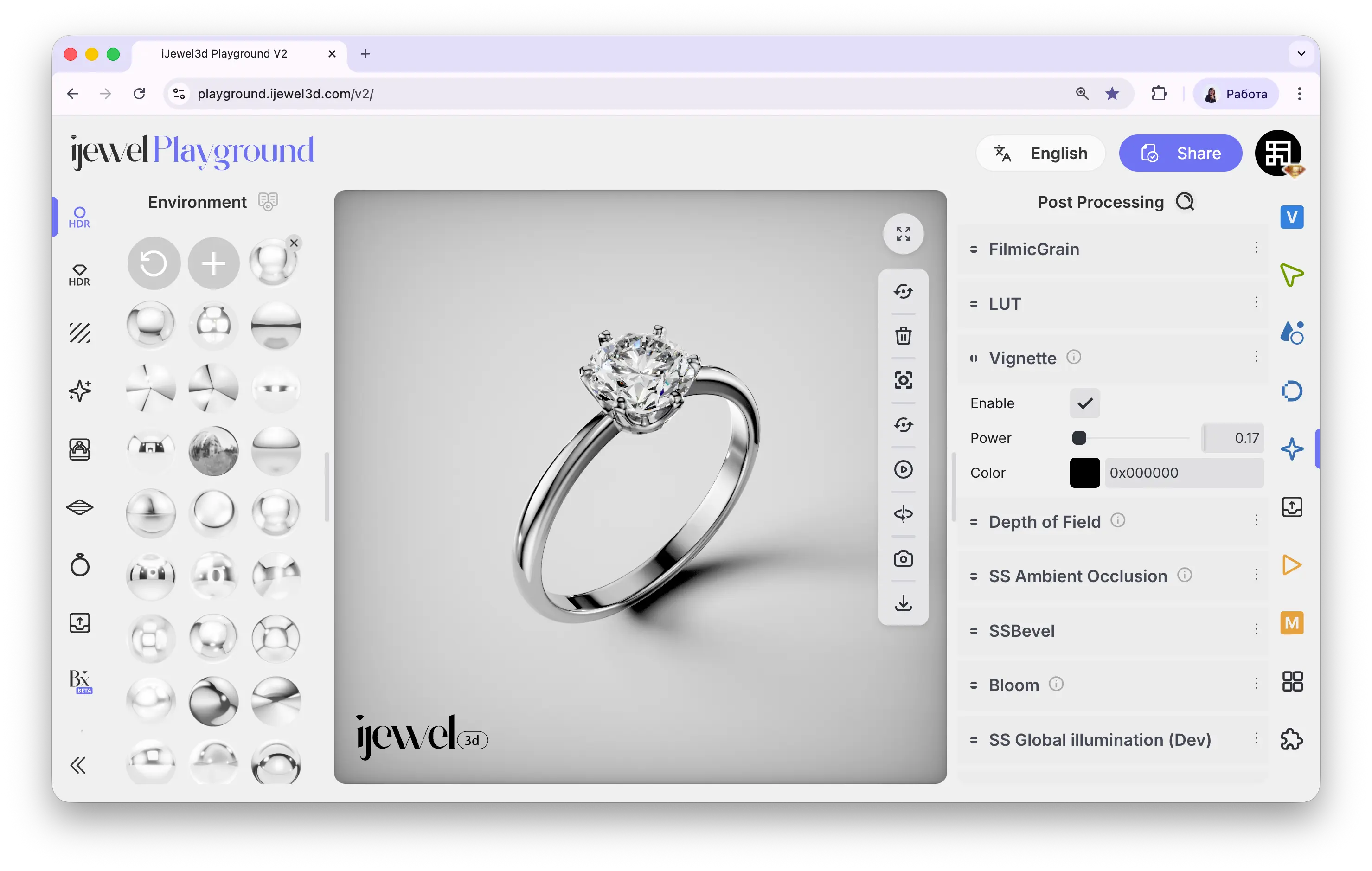
Settings
Enable
Checkbox — toggles the vignette effect on or off
Power
Slider — controls the strength and spread of the vignette. Higher values create a more pronounced darkening at the edges
Color
Color picker — sets the vignette color. Default is black, but you can choose any color for a stylized look
Related Pages
- Tonemapping — Exposure, contrast, and color grading
- Filmic Grain — Analog film grain effect
- Chromatic Aberration — Lens color fringing effect