
Gradient SVG
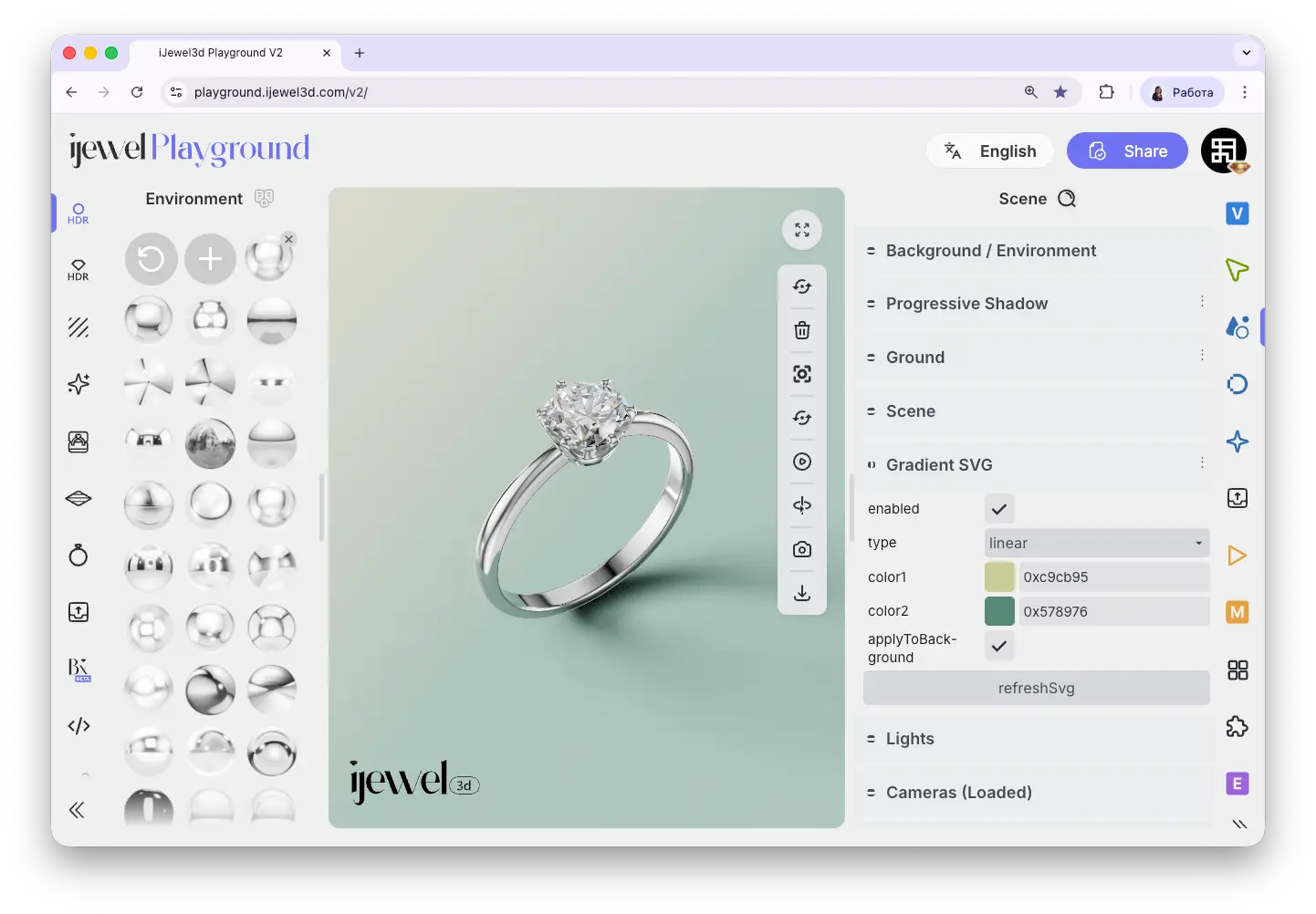
The Gradient SVG section lets you create custom gradient backgrounds directly inside iJewel Playground. You choose two colors, adjust the gradient type and angle, and the result is applied as an SVG image to the scene background. This is a quick way to create professional-looking gradient backdrops without any external tools.
Where to Find It
This section is located on the right panel, inside the  Scene tab, in the Gradient SVG section.
How It Works
The Gradient SVG tool generates an SVG gradient image and places it into the Image slot in the Background / Environment section. When you enable Apply to Background, any changes you make to the gradient are immediately visible in the viewport.
To see your gradient in real time, make sure the Apply to Background checkbox at the bottom of the section is checked. All changes to colors, angle, and positions will update the background automatically.
Settings
Removing the Gradient
The gradient is stored as an SVG image in the Background / Environment → Image section. To remove it:
- Open the Background / Environment section (the first section in the Scene tab)
- Go to the Image subsection
- Click on the image thumbnail and select the rectangular image placeholder from the menu to clear it
This will remove the SVG gradient from the background and return to the default background color.
Video Tutorial
Tutorial: How to Change Background & Ground Color
Related Pages
- Scene Settings — Overview of all Scene tab sections
- Background / Environment — Background color, HDRI maps, and environment settings
- Export Images — Export your renders including gradient backgrounds
- UI Overview — Full interface layout including panels