
Chromatic Aberration
Chromatic Aberration adds a subtle color fringing effect around the edges of the image, simulating the way real camera lenses separate light into RGB channels. This gives the render a more photographic, cinematic feel — especially noticeable at the edges of the frame.
Where to Find It
This section is located on the right panel, inside the  Post Processing tab, in the Chromatic Aberration section.
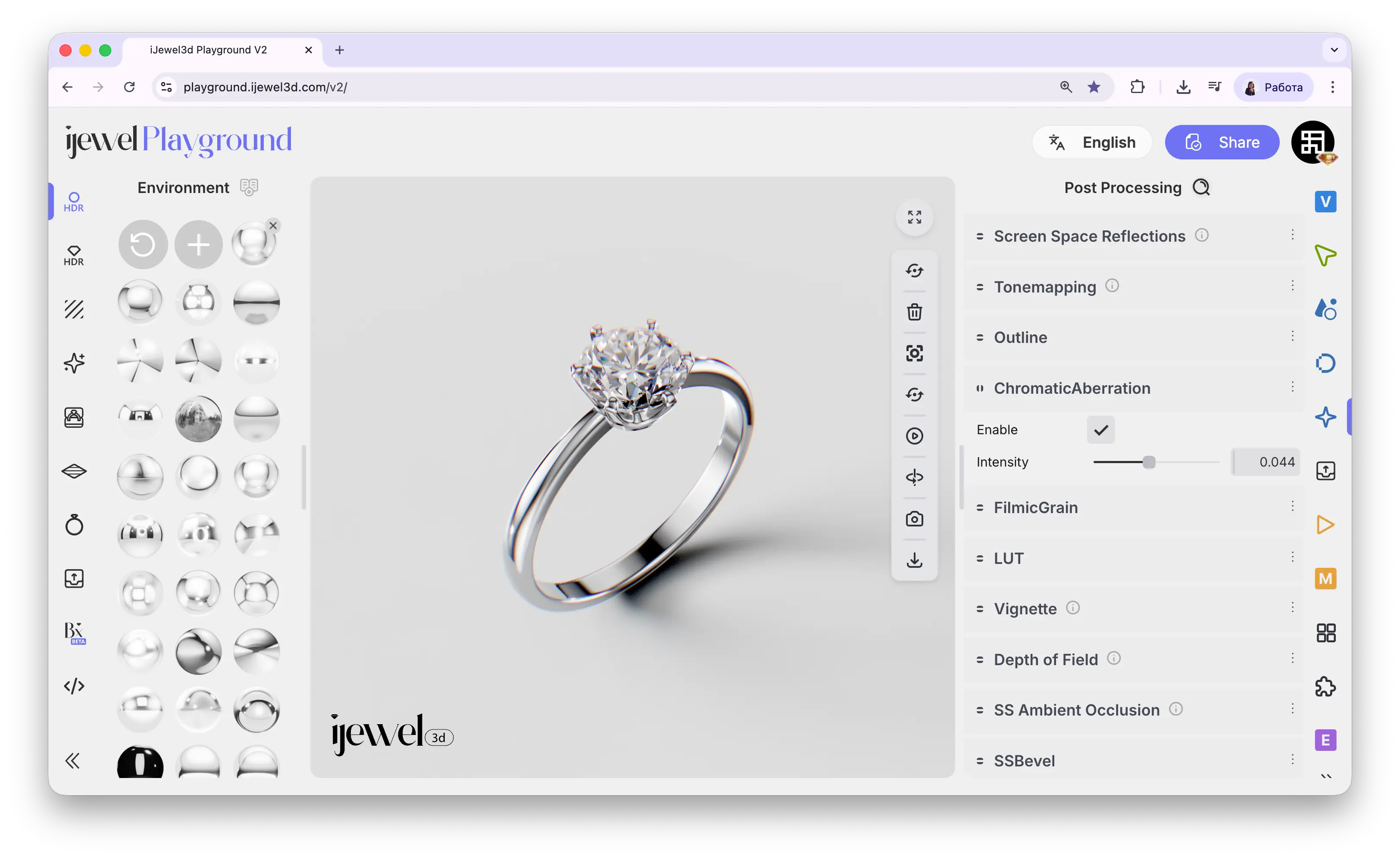
Settings
Enable
Checkbox — toggles the chromatic aberration effect on or off
Intensity
Slider — controls the strength of the color fringing. Keep it low (around 0.05–0.15) for a subtle photographic touch. Higher values create a more dramatic, stylized effect. Default 0.10
TIP
A little goes a long way — values around 0.05–0.10 add a subtle realism without making the image look distorted. This effect is most visible at the edges of the frame and on high-contrast areas like diamond facets against a dark background.
Related Pages
- Tonemapping — Color grading and background clipping
- Screen Space Reflections — SSR post-processing effect
- Outline — Selection highlight settings
- Export Images — Image export settings