
Start Generating Images and Videos
After exporting the scene settings from the previous step, you can now start using BatchX. If you haven't downloaded BatchX yet, start your free trial here.
After launching BatchX, this is how the initial screen will look like
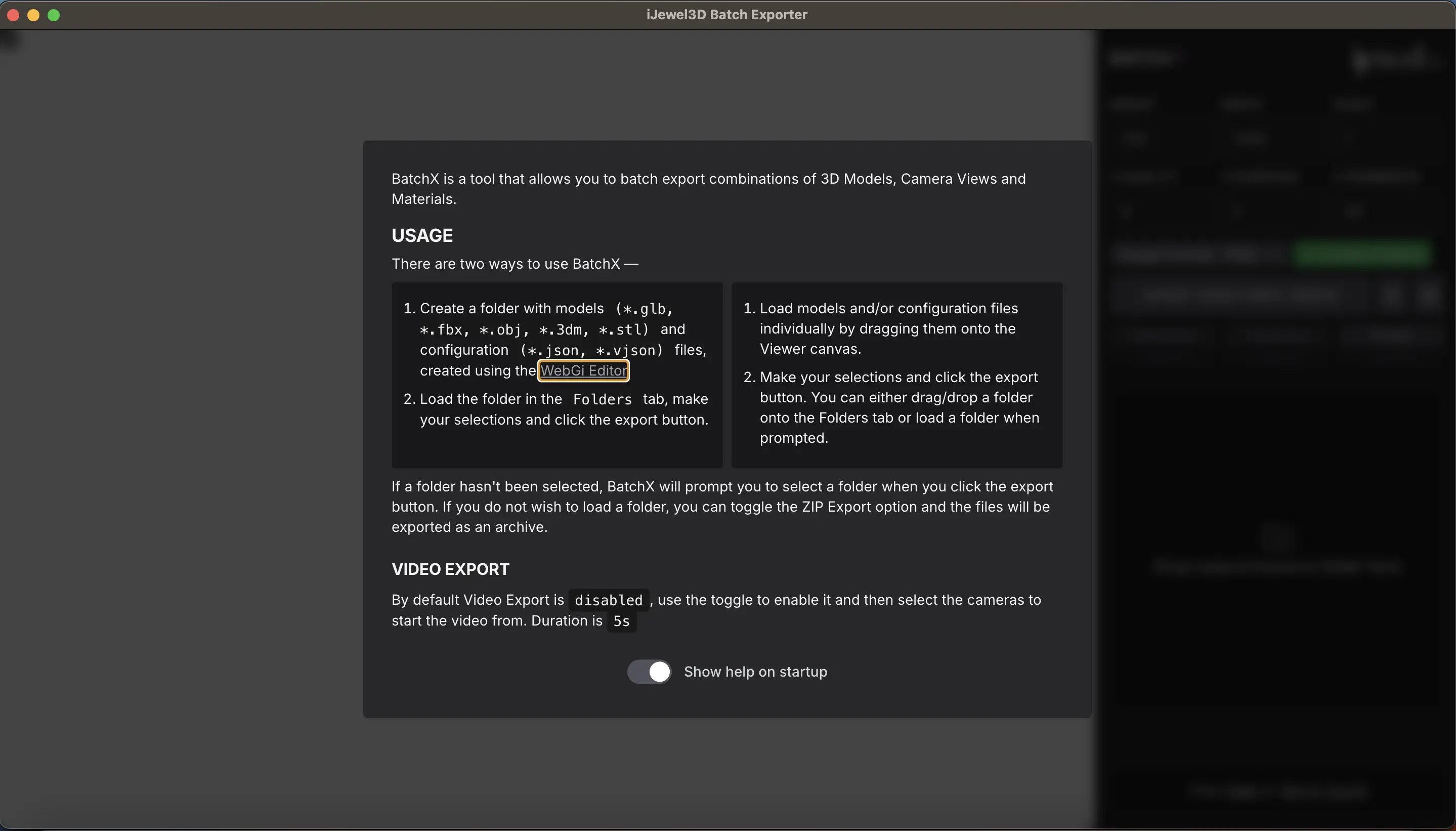
Follow the next couple of steps to start your batch renders
Create folder
Create a local folder and drop all your 3d files, and the prepared scene setting vjson file. Make sure that you have only one scene setting vjson file in this folder, as BatchX will pick up only one file for the settings.
Drag and drop the local folder in the dedicated area: 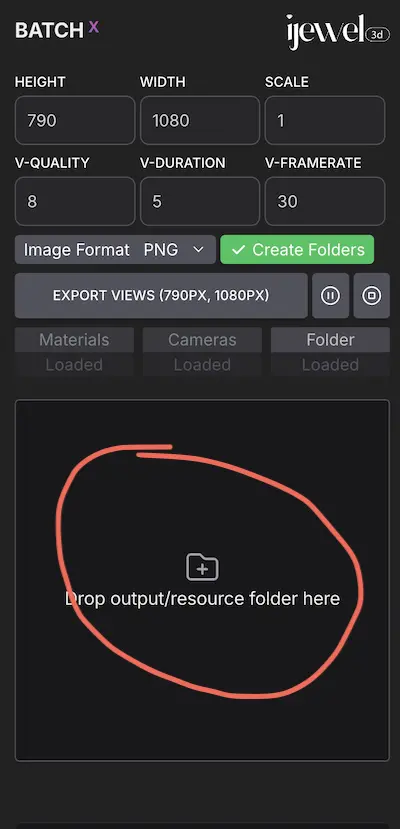
Start Batch render
Now press the "EXPORT VIEWS" button to start the batch rendering!
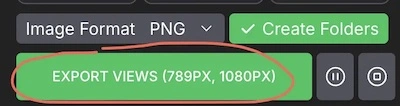 BatchX will start the media rendering, and dump the results in an "output" folder created within the source folder.
BatchX Settings
General settings
HEIGHT - Height of the render canvas
WIDTH - Width of the render canvas
SCALE - Scale factor to mutiply the media resolution
V-QUALITY - Video quality. Default is 8, which should give good quality. max allowed value is 32.
V-DURATION - Video duration in seconds. max allowed value is 20.
V-FRAMERATE - Video framerate. max allowed value is 60.
Image Format - Image format. Can be one of png/jpg/webp
Create Folders - Option to create subfolders for each 3d file
INFO
To create images of 4000x4000, you can give height and width of 1000, and a scale value of 4. Too high scale values might result in lower performance/increased render times, depending upon the device you are rendering on.
Tabs
Folders
All 3d files present in the folders are shown here. You can also search files by names, and enable/disable batch rendering on specific files. 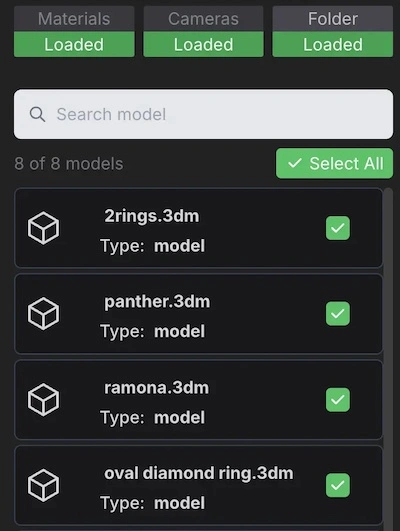
Camera Views
All the camera views present in the scene settings are shown here. You can enable/disable, image/video generation by clicking on the specific item. Additionaly it is possible rename a view, and add an additional camera view for your batch rendering. 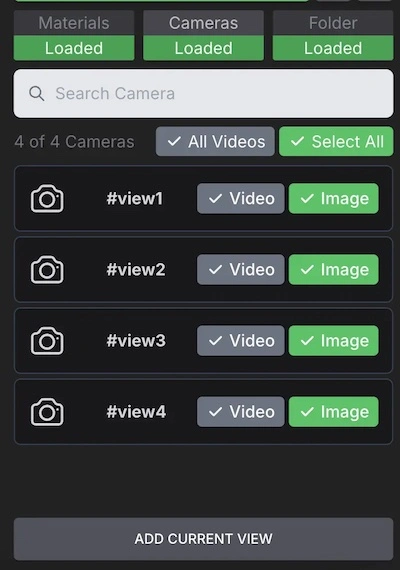
Materials
All the materials and material variations are listed here. You can search materials by name and filter out materials for which you dont want to create the renders. 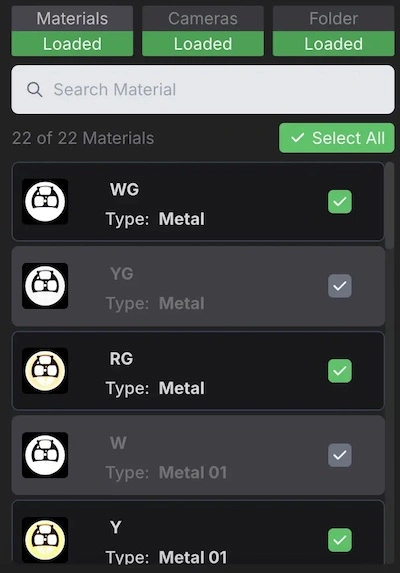
TIP
Its best to use the 3dm file format for the 3d files, with consistent layer names. This will save you a lot of time
Batch Renderer in Playground
The Batch Renderer tab in iJewel Playground renders the views and materials of one model in your browser.
File names. Each file gets the name of the camera view, then the names of the materials: <view name>_<material 1>_<material 2>. To change the view name, click the pencil on the view card. With Export Selected Material on, only the current materials are rendered, and the file name is the view name.
The same camera views on every model. Click Download Configuration to save the views as a file. Open the next model and drop that file on the viewer. The views match when each model has the same position and orientation.
Ground Pose
This tab puts the ring upright on the ground and points the camera at its front. A ground view has three values: Distance, Latitude and Longitude, measured from the model. Click Add ground view to add a view. Each file gets the same ground views.
Ground views are made in BatchX. The views from the Playground Pose tab stay in Playground.
If the ring is upside down in the ground view, rotate it 180 degrees in your CAD program and export it again.
Troubleshooting
If BatchX stops, shows an empty screen, or does not make the renders, do these checks in sequence:
- Use the latest BatchX. Download it from batchx.ijewel3d.com.
- Export the scene settings again. After an update of BatchX or iJewel Playground, export a new
.vjsonfile from Playground. See Prepare Scene Settings. - Check the camera views. The
.vjsonmust contain the camera views that you want. With no camera views, BatchX renders only one default view. - Check the material configurations. Each layer needs a minimum of one material configuration in the
.vjson. With no material configurations, BatchX makes no renders. - Check the layer names. The layer names in the 3D files must be the same as in the scene settings, with the same spelling and no spaces before or after the name.
If the problem continues, send one 3D file and the .vjson file to contact@ijewel3d.com.
Video Tutorials
To go through the entire process in detail, check out the following playlist.
Watch the complete playlist on Youtube - https://www.youtube.com/watch?v=97Nu5WGWdNs&list=PLIWKi7kUUJPgoGuQUCOIeAuk9xPuuMZQh