
Physics
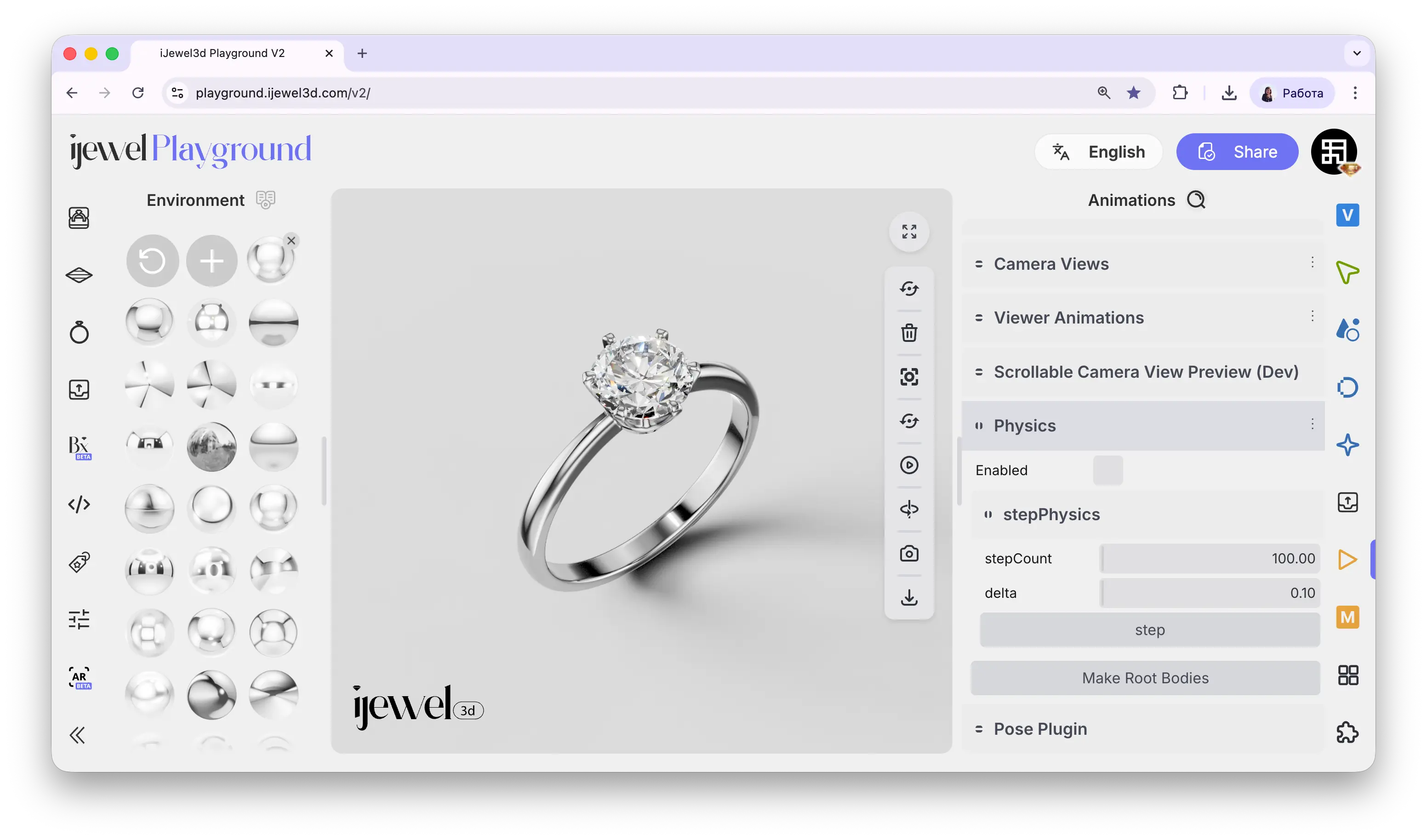
The Physics section controls the physics engine for your scene. It enables gravity, collisions, and inertia for objects, making interactions with jewelry and scene elements feel realistic and dynamic.
A common use case in iJewel is gyroscope-driven motion — when a customer tilts their phone, the physics engine "pushes" objects in the scene. Pendants start swinging, stones catch the light from different angles, and the jewelry feels like it's physically in the viewer's hands.
Where to Find It
This section is located on the right panel, inside the  Animations tab, in the Physics section.
Settings
Enabled
checkbox
Global physics toggle. When disabled, all objects remain static. When enabled, physics laws apply — objects with mass can fall, collide, and respond to forces
Step Count
input
Number of physics calculations per frame (default:
100). Higher values produce more accurate simulations but increase CPU loadDelta
input
Time step for each physics calculation (default:
0.10). Controls how fast time flows in the physics simulationAction Buttons
StepMake Root Bodies
- Step — Manually advances the physics simulation by one step. Useful for debugging to see exactly where objects will move next
- Make Root Bodies — Automatically creates physics bodies for the root objects of your model. This turns regular 3D objects into physical entities with mass that can collide and interact with each other
Related Pages
- Viewer Animations — Create dynamic scenes with combined visual effects
- Animations — Overview of all animation sections
- Camera Views — Save camera positions and animate transitions