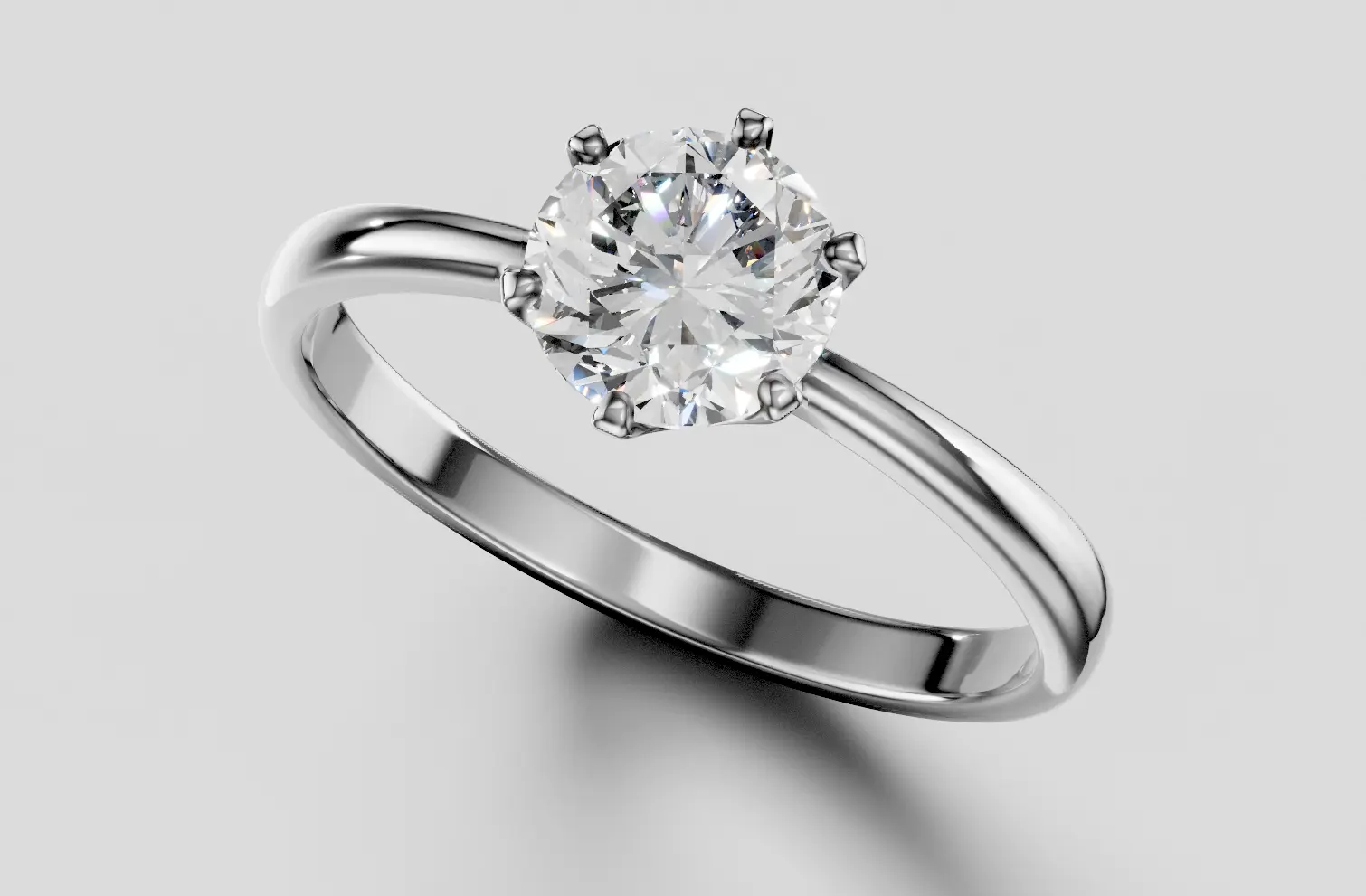
Design Your Wedding Band
{price ? `$${price.totalUsd.toFixed(2)}` : 'Loading...'}
 A complete, runnable example project containing this component is available on GitHub: https://github.com/maanHimself/ijewel-viewer-react-example
### 1. Update `package.json`
Add the following lines to your `dependencies`:
``` json
{
"dependencies": {
// ... other dependencies
"@ijewel3d/mini-viewer": "https://releases.ijewel3d.com/libs/web/ijewel3d-mini-viewer-0.6.17.tgz",
"@types/webgi": "https://releases.ijewel3d.com/libs/webgi-v0/bundle-types-0.22.0.tgz"
}
}
```
### 2. Install Dependencies
``` Bash
npm install
```
### 3. Add WebGI Script
Add the WebGI script before your React app bundle loads.
```html
```
### 4. Usage
Import the `ViewerComponent` from the library and use it in your React application. Provide the necessary props to load your model.
``` typescript
import { ViewerComponent } from "@ijewel3d/mini-viewer";
import { useEffect, useState } from "react";
import type { ViewerApp } from "webgi";
function App() {
const [modelId,] = useState("Ep9bWZIlTSG6_8DH7QDc1w"); // Replace with your actual model ID
const [viewer , setViewer] = useState
A complete, runnable example project containing this component is available on GitHub: https://github.com/maanHimself/ijewel-viewer-react-example
### 1. Update `package.json`
Add the following lines to your `dependencies`:
``` json
{
"dependencies": {
// ... other dependencies
"@ijewel3d/mini-viewer": "https://releases.ijewel3d.com/libs/web/ijewel3d-mini-viewer-0.6.17.tgz",
"@types/webgi": "https://releases.ijewel3d.com/libs/webgi-v0/bundle-types-0.22.0.tgz"
}
}
```
### 2. Install Dependencies
``` Bash
npm install
```
### 3. Add WebGI Script
Add the WebGI script before your React app bundle loads.
```html
```
### 4. Usage
Import the `ViewerComponent` from the library and use it in your React application. Provide the necessary props to load your model.
``` typescript
import { ViewerComponent } from "@ijewel3d/mini-viewer";
import { useEffect, useState } from "react";
import type { ViewerApp } from "webgi";
function App() {
const [modelId,] = useState("Ep9bWZIlTSG6_8DH7QDc1w"); // Replace with your actual model ID
const [viewer , setViewer] = useState :::details NextJS Example
```typescript
useEffect(() => {
const webgiScript = document.createElement("script");
webgiScript.src = "https://releases.ijewel3d.com/libs/webgi-v0/bundle-0.22.0.js";
webgiScript.async = true;
webgiScript.onload = () => {
const script = document.createElement("script");
script.src = "https://releases.ijewel3d.com/libs/mini-viewer/0.6.8/bundle.nowebgi.iife.js";
script.async = true;
script.onload = () => {
//set it to true during development to bypass cors.
const useProxy = false;
const baseName = 'yourBaseName';
const basePath = "https://assets." + baseName + ".ijewel3d.com";
const proxyUrl = useProxy ? "https://cors-proxy.r2cache.com/" : "";
// @ts-ignore
ijewelViewer.setupIjewelDriveViewer({
basePath: proxyUrl + basePath,
ijewelViewerOptions: {
showCard: true,
showLogo: true,
},
}, document.getElementById("wrapper"));
};
document.body.appendChild(script);
};
document.body.appendChild(webgiScript);
}, []);
```
:::
## Parameters
| Parameter | Type | Description | Default |
|--------------------------|--------------|-------------------------------------------------------------------------------------------------------------------------------------|---------------|
| `basePath` | string | The base URL path where your assets are stored. | N/A |
| `model` (Optional) | string | The relative path to the 3D model file inside your iJewel Drive. For instance, if your model is located in a folder named `3dFolder` and the file is called `model.glb`, you would specify the path as `/3dFolder/model.glb`. This path is relative to the `basePath` provided in the configuration. It can be left undefined and the model will be taken from the query parameter `path` inside your iJewel Drive. | N/A |
| `target` | HTMLElement | (Optional) The HTML element where the viewer will be rendered. | null |
| `ijewelViewerOptions` | object | An object with viewer options such as showLogo, logoScale, etc. | N/A |
| `useMetaConfig` | boolean | Whether to use the saved meta configuration file for the 3d model. | true |
| `useFolderConfig` | boolean | Whether to use the parent folder configuration file. | false |
| `useDefaultConfig` | boolean | Whether to use the main default configuration file. | true |
## Setting the Model Path via URL Query Parameter
You can use the query parameter `path` to tell the viewer which model to load. The path to the model should be in Base64 format and relative to the root folder in your iJewel Drive.
For example:
```
www.yourwebsite.com/?path=L3Rlc3QvcmluZy5nbGI
```
In this example, the Base64-encoded string `L3Rlc3QvcmluZy5nbGI` decodes to `/test/ring.glb`, which is the path to the 3D model, once you initilize iJewel Viewer, it will refer to this path to know which model to load.
:::details
Alternatively, you can directly set the model path using the model property in the `setupIjewelDriveViewer` method. This provides a flexible way to specify the model path either through the URL or within your JavaScript code.
:::
:::info
Once you call `setupIjewelDriveViewer` with the correct model path, it will take care of loading the specified 3D model along with all its associated settings. This includes any predefined configurations, materials, and environment settings that have been saved with the model. This seamless integration ensures consistency and ease of access to your models. You can edit your models directly in the drive, save your changes, and see those updates reflected instantly on your website.
:::
## Cross-Origin Resource Sharing (CORS)
CORS is setup on the iJewel Drive to make sure only you can host the models on your domain.
When connecting to your iJewel Drive and loading models, you may encounter Cross-Origin Resource Sharing (CORS) errors in the console. These issues arise because your domain hadn't been whitelisted, please reach to us so we can configure our servers to allow CORS for your domain.
::: tip
For development and staging, a CORS-proxy can be used. Check the pre-configured sample in your iJewel Drive instance on how to use it. Note that this would disable the caching of the files on the CDN and adds a rate limit to the number of requests along with some other checks. Therefore, make sure to disable the flag when using in production to make the viewer running smoothly.
:::
---
# Tutorial - Embed iJewel3D Drive in your website
::: danger Warning
This page is exclusively for iJewel Drive instances created before March 2025.
For new accounts and instances, check the page at [Connect to iJewel Drive](../tutorial-embed-drive.md).
:::
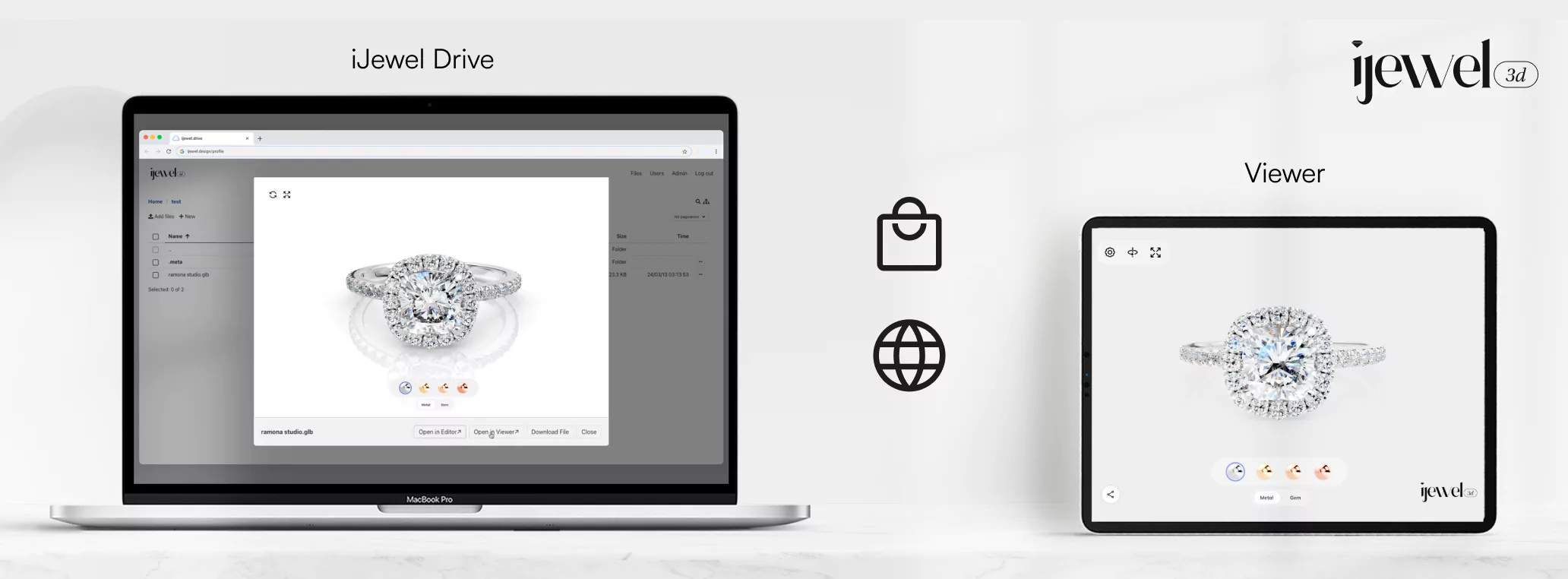
A step by step tutorial on how to embed 3D Models hosting in your iJewel Drive instance to your website.
## Step 1: Set the Base Path and Container Element
Use the following HTML code to embed the 3D viewer:
- Replace `baseName` with your actual base name in the code.
- Identify where to specify the container HTML element. Set this element to embed the viewer correctly.
for more information about the code refer [Connect to iJewel Drive](./connect-to-drive)
```html
:::details NextJS Example
```typescript
useEffect(() => {
const webgiScript = document.createElement("script");
webgiScript.src = "https://releases.ijewel3d.com/libs/webgi-v0/bundle-0.22.0.js";
webgiScript.async = true;
webgiScript.onload = () => {
const script = document.createElement("script");
script.src = "https://releases.ijewel3d.com/libs/mini-viewer/0.6.8/bundle.nowebgi.iife.js";
script.async = true;
script.onload = () => {
//set it to true during development to bypass cors.
const useProxy = false;
const baseName = 'yourBaseName';
const basePath = "https://assets." + baseName + ".ijewel3d.com";
const proxyUrl = useProxy ? "https://cors-proxy.r2cache.com/" : "";
// @ts-ignore
ijewelViewer.setupIjewelDriveViewer({
basePath: proxyUrl + basePath,
ijewelViewerOptions: {
showCard: true,
showLogo: true,
},
}, document.getElementById("wrapper"));
};
document.body.appendChild(script);
};
document.body.appendChild(webgiScript);
}, []);
```
:::
## Parameters
| Parameter | Type | Description | Default |
|--------------------------|--------------|-------------------------------------------------------------------------------------------------------------------------------------|---------------|
| `basePath` | string | The base URL path where your assets are stored. | N/A |
| `model` (Optional) | string | The relative path to the 3D model file inside your iJewel Drive. For instance, if your model is located in a folder named `3dFolder` and the file is called `model.glb`, you would specify the path as `/3dFolder/model.glb`. This path is relative to the `basePath` provided in the configuration. It can be left undefined and the model will be taken from the query parameter `path` inside your iJewel Drive. | N/A |
| `target` | HTMLElement | (Optional) The HTML element where the viewer will be rendered. | null |
| `ijewelViewerOptions` | object | An object with viewer options such as showLogo, logoScale, etc. | N/A |
| `useMetaConfig` | boolean | Whether to use the saved meta configuration file for the 3d model. | true |
| `useFolderConfig` | boolean | Whether to use the parent folder configuration file. | false |
| `useDefaultConfig` | boolean | Whether to use the main default configuration file. | true |
## Setting the Model Path via URL Query Parameter
You can use the query parameter `path` to tell the viewer which model to load. The path to the model should be in Base64 format and relative to the root folder in your iJewel Drive.
For example:
```
www.yourwebsite.com/?path=L3Rlc3QvcmluZy5nbGI
```
In this example, the Base64-encoded string `L3Rlc3QvcmluZy5nbGI` decodes to `/test/ring.glb`, which is the path to the 3D model, once you initilize iJewel Viewer, it will refer to this path to know which model to load.
:::details
Alternatively, you can directly set the model path using the model property in the `setupIjewelDriveViewer` method. This provides a flexible way to specify the model path either through the URL or within your JavaScript code.
:::
:::info
Once you call `setupIjewelDriveViewer` with the correct model path, it will take care of loading the specified 3D model along with all its associated settings. This includes any predefined configurations, materials, and environment settings that have been saved with the model. This seamless integration ensures consistency and ease of access to your models. You can edit your models directly in the drive, save your changes, and see those updates reflected instantly on your website.
:::
## Cross-Origin Resource Sharing (CORS)
CORS is setup on the iJewel Drive to make sure only you can host the models on your domain.
When connecting to your iJewel Drive and loading models, you may encounter Cross-Origin Resource Sharing (CORS) errors in the console. These issues arise because your domain hadn't been whitelisted, please reach to us so we can configure our servers to allow CORS for your domain.
::: tip
For development and staging, a CORS-proxy can be used. Check the pre-configured sample in your iJewel Drive instance on how to use it. Note that this would disable the caching of the files on the CDN and adds a rate limit to the number of requests along with some other checks. Therefore, make sure to disable the flag when using in production to make the viewer running smoothly.
:::
---
# Tutorial - Embed iJewel3D Drive in your website
::: danger Warning
This page is exclusively for iJewel Drive instances created before March 2025.
For new accounts and instances, check the page at [Connect to iJewel Drive](../tutorial-embed-drive.md).
:::

A step by step tutorial on how to embed 3D Models hosting in your iJewel Drive instance to your website.
## Step 1: Set the Base Path and Container Element
Use the following HTML code to embed the 3D viewer:
- Replace `baseName` with your actual base name in the code.
- Identify where to specify the container HTML element. Set this element to embed the viewer correctly.
for more information about the code refer [Connect to iJewel Drive](./connect-to-drive)
```html


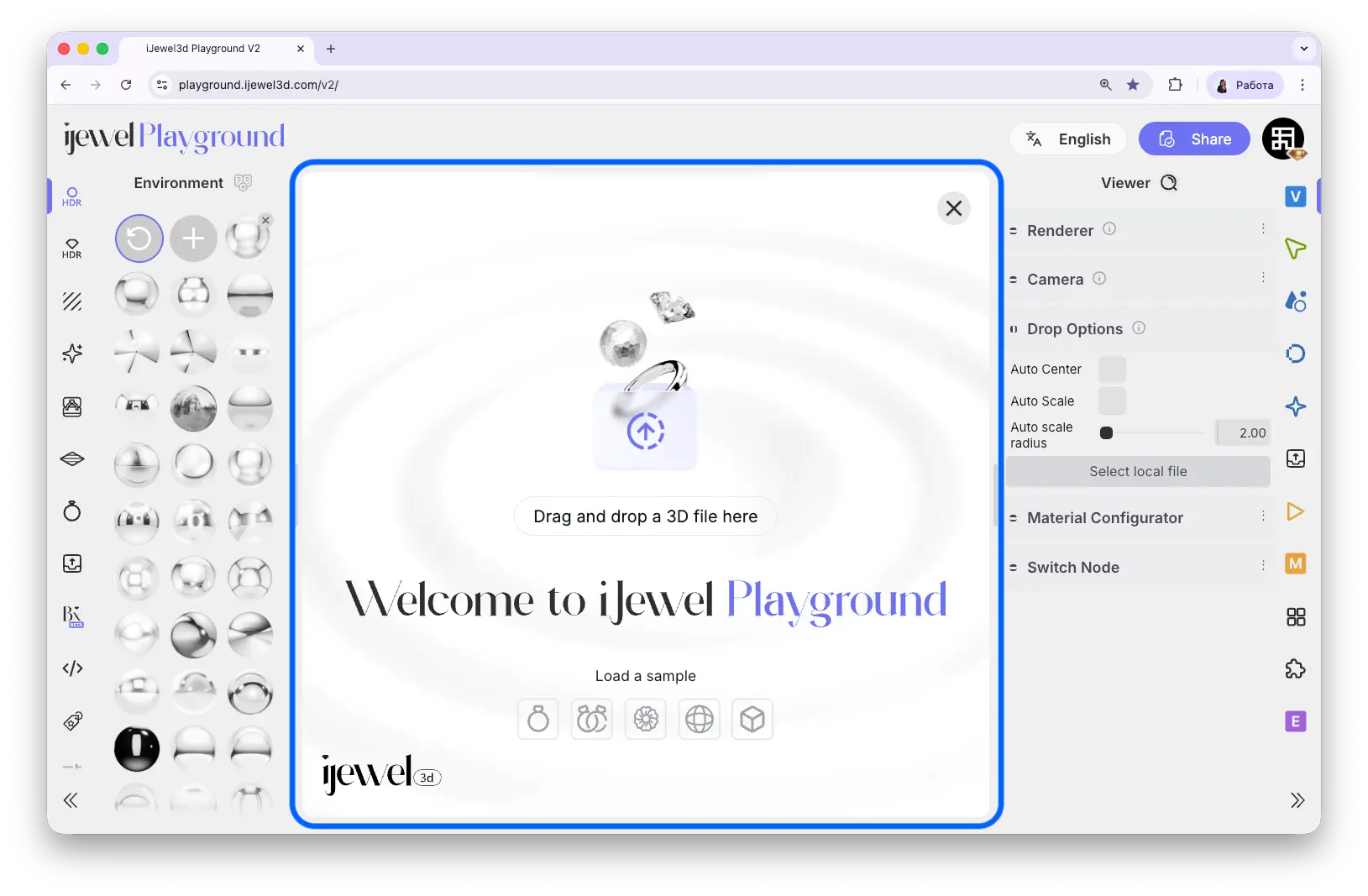 ### 2. Browse & Select
Click the **Import File** button in the toolbar to open a file dialog and select the file(s) from your computer.
### 2. Browse & Select
Click the **Import File** button in the toolbar to open a file dialog and select the file(s) from your computer.
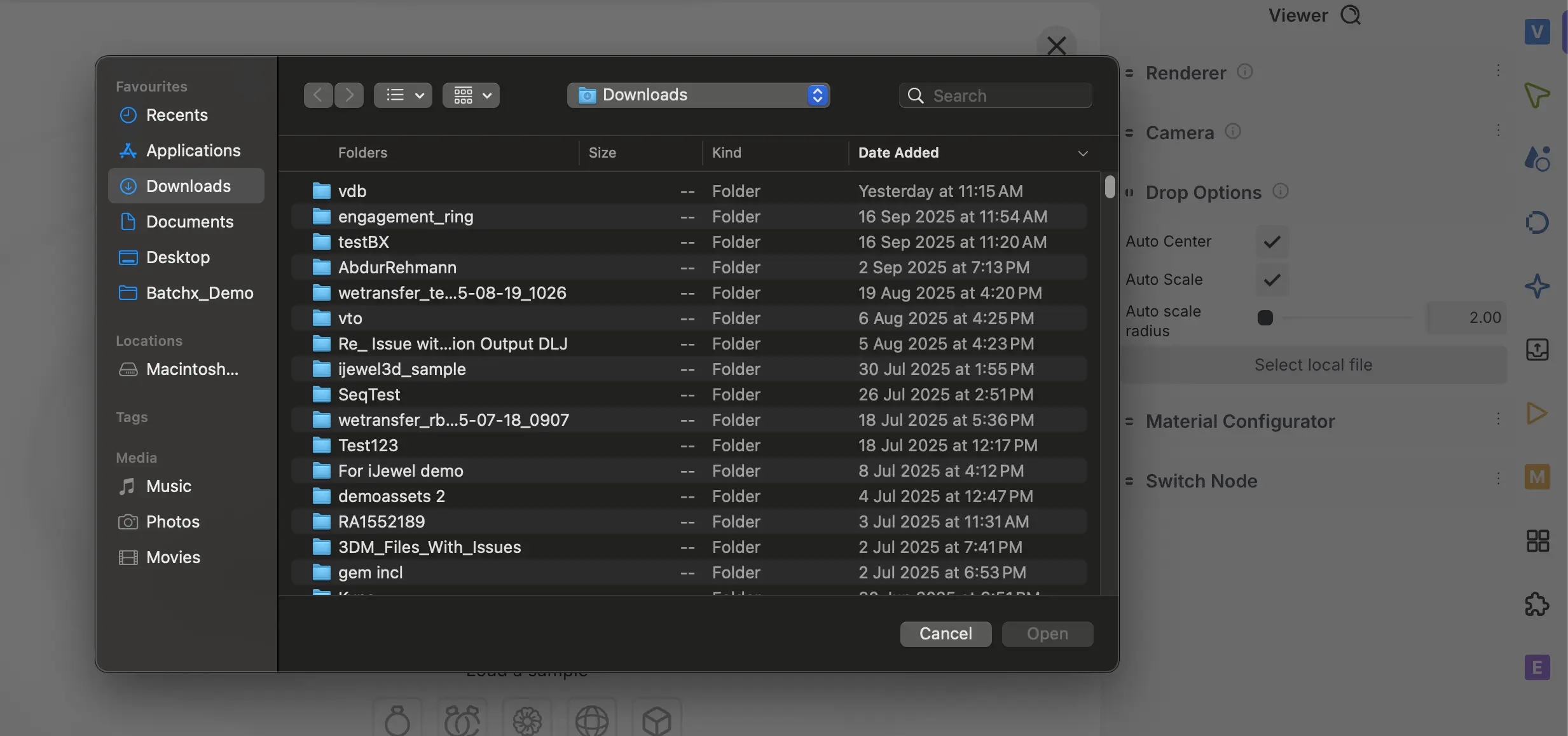 ::: tip
- You can **drag & drop multiple files** at once to import them together.
- Drop a **folder or zipped folder** with multiple 3D files — Playground will automatically process its contents (including subfolders).
- For **OBJ + MTL** files, make sure both are dropped together to correctly apply material data.
:::
---
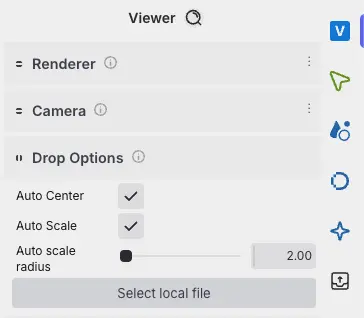
## Drop Options
Before importing, you can configure how models are placed in the scene. These settings are located in **Viewer → Drop Options**.
::: tip
- You can **drag & drop multiple files** at once to import them together.
- Drop a **folder or zipped folder** with multiple 3D files — Playground will automatically process its contents (including subfolders).
- For **OBJ + MTL** files, make sure both are dropped together to correctly apply material data.
:::
---
## Drop Options
Before importing, you can configure how models are placed in the scene. These settings are located in **Viewer → Drop Options**.
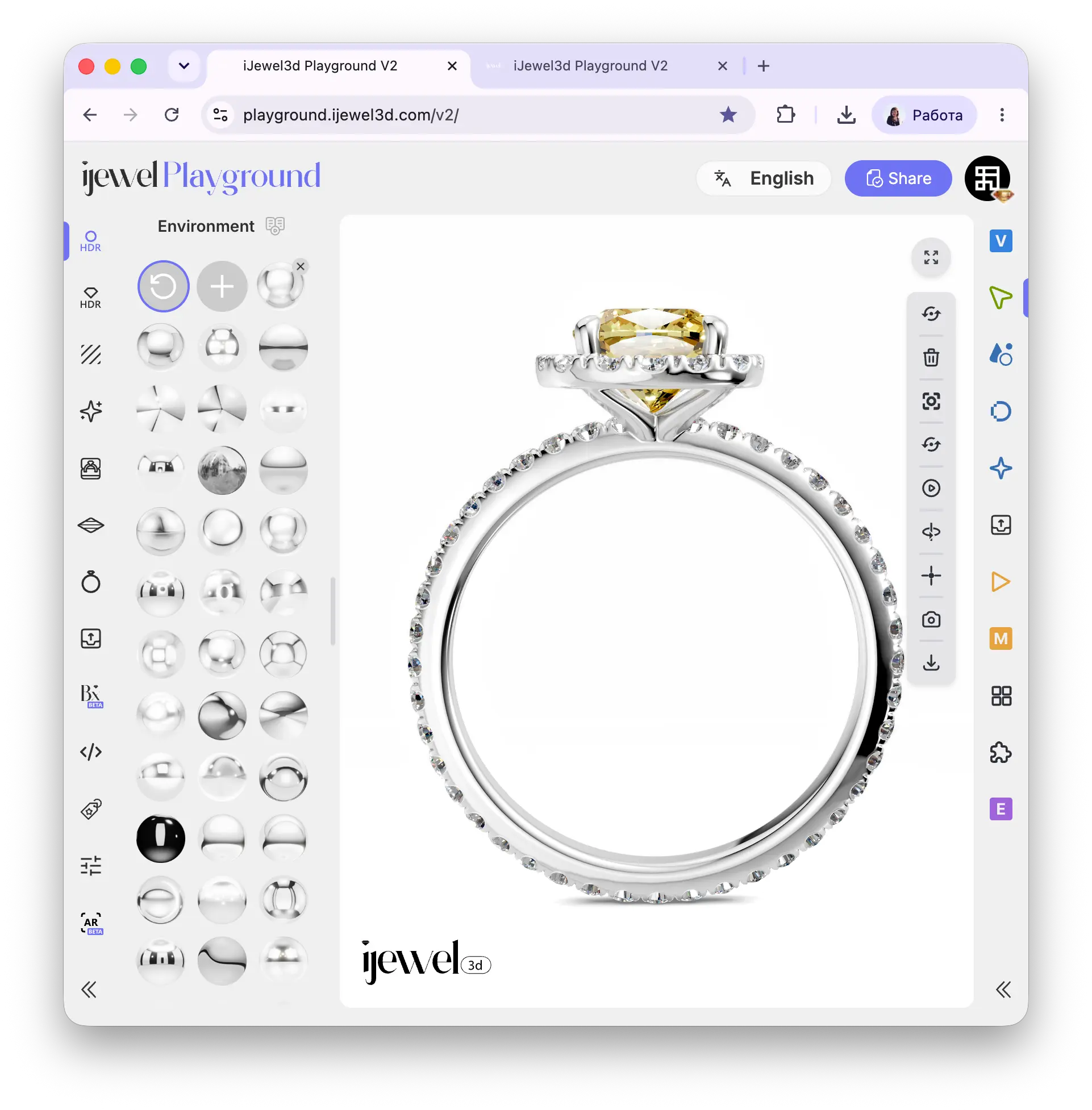
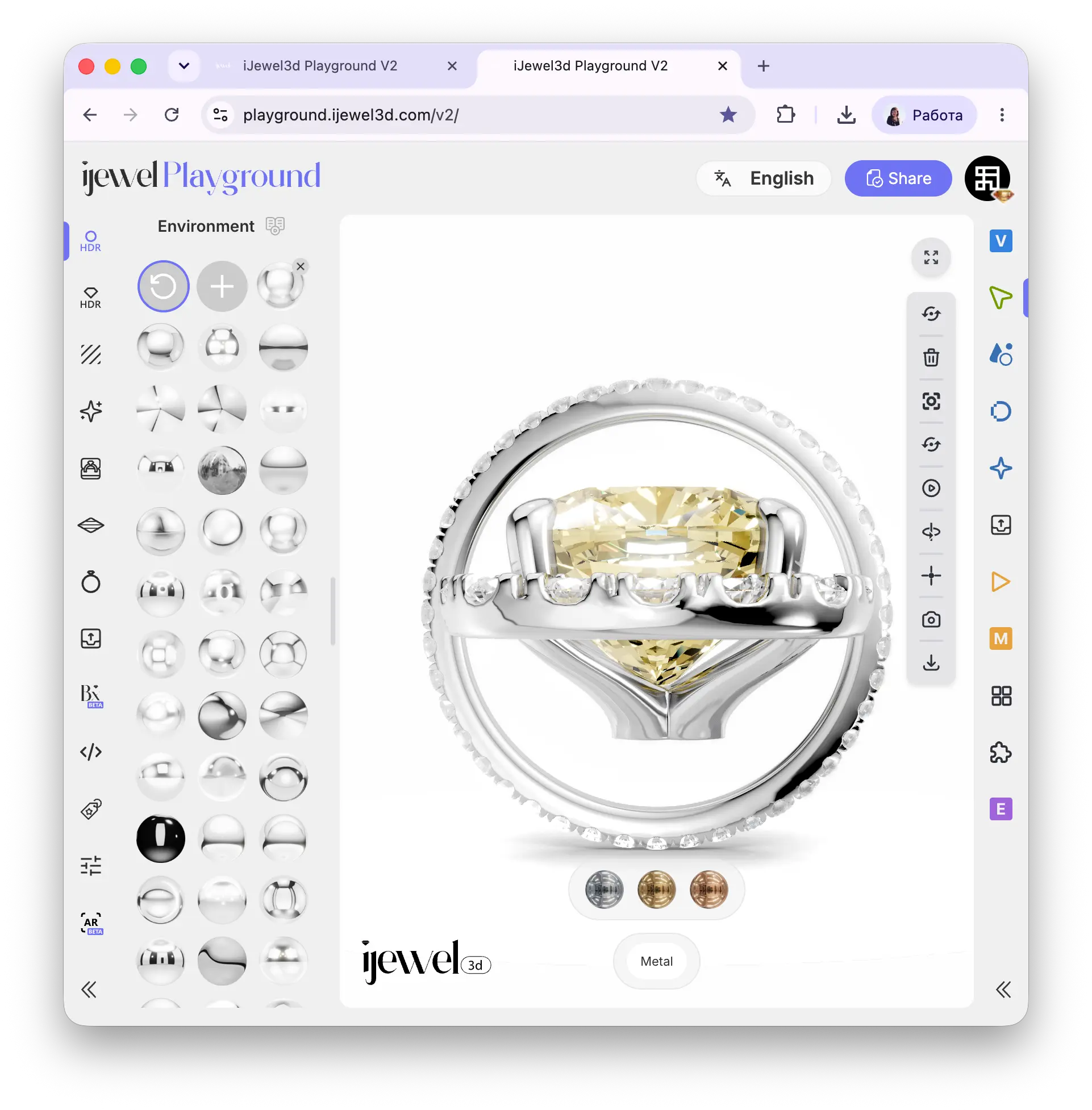
 See the [Quick Start](./quick-start) guide for more details.
---
## Import Options for Jewelry
Once a jewelry model is imported, Playground will prompt you with a few options to help you get started faster.
### 1. Default Materials
Based on the **layer/material names** assigned in the imported file, Playground will attempt to assign default materials automatically. Click **Yes** to apply the suggested materials.
See the [Quick Start](./quick-start) guide for more details.
---
## Import Options for Jewelry
Once a jewelry model is imported, Playground will prompt you with a few options to help you get started faster.
### 1. Default Materials
Based on the **layer/material names** assigned in the imported file, Playground will attempt to assign default materials automatically. Click **Yes** to apply the suggested materials.
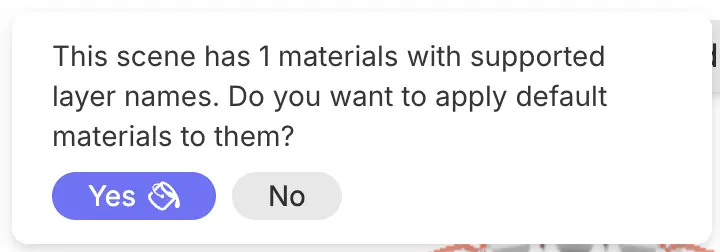 ::: info Default Material Mapping
- `Metal 01`, `Metal 02`, ... → Assigned default **Metal** materials
- `Gem 01`, `Gem 02`, ... → Assigned default **Gem** materials
:::
---
### 2. HDR Map for Gem/Metal
If a model has both **gem/diamond** and **metal** materials, Playground will prompt you to apply a **separate HDR environment map** for each category.
::: info Default Material Mapping
- `Metal 01`, `Metal 02`, ... → Assigned default **Metal** materials
- `Gem 01`, `Gem 02`, ... → Assigned default **Gem** materials
:::
---
### 2. HDR Map for Gem/Metal
If a model has both **gem/diamond** and **metal** materials, Playground will prompt you to apply a **separate HDR environment map** for each category.
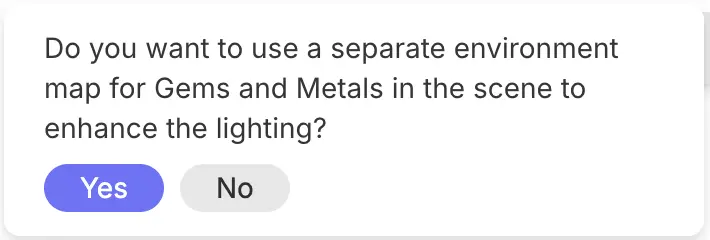 ::: tip Recommendation
It is generally recommended to use a **separate HDR environment map** for gems/diamonds and metals. This allows finer control over the look and realism of your jewelry.
:::
---
### 3. Default Material Configurator
If default layers are assigned for **metals** and/or **gems/diamonds**, Playground will prompt you to create a **material configurator** — enabling interactive switching of gem and metal materials in the embedded viewer.
::: tip Recommendation
It is generally recommended to use a **separate HDR environment map** for gems/diamonds and metals. This allows finer control over the look and realism of your jewelry.
:::
---
### 3. Default Material Configurator
If default layers are assigned for **metals** and/or **gems/diamonds**, Playground will prompt you to create a **material configurator** — enabling interactive switching of gem and metal materials in the embedded viewer.
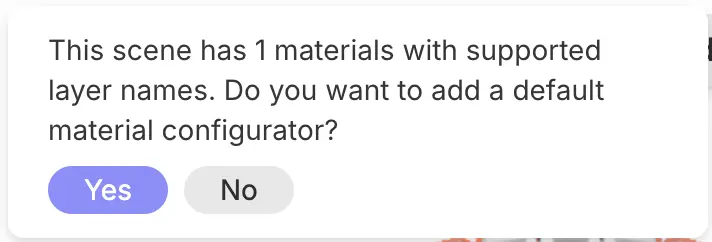 ::: tip Editing Configurator
The default configurator can be **edited later** if you wish to change materials or modify the configurator settings. See [Material Configurator](./material-configurator) for details.
:::
::: info
These **Import Options** appear as pop-up prompts immediately after adding a new model, before it is fully loaded into the **Scene Hierarchy**.
:::
---
## Related Pages
- **[Import Materials](./import-materials)** — Load saved PBR and diamond material presets
- **[Import Scene Settings](./import-scene-settings)** — Apply complete scene configurations
- **[FAQ: Importing Models](./faq-import)** — Common questions about importing
---
# Import Materials
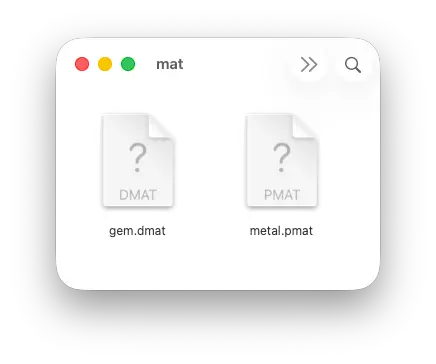
iJewel Playground allows you to import your own custom materials and use them alongside the built-in material library. The supported formats are **`.pmat`** (PBR Material) and **`.dmat`** (Diamond Material).
## Supported Formats
| Format | Description |
|---|---|
| `.pmat` | PBR material file — used for metals, ceramics, pearls, etc. |
| `.dmat` | Diamond material file — used for diamonds and other gemstones |
## Two Ways to Import Materials
There are two ways to add a custom material in Playground: **apply directly to an object** or **add to the material library** for reuse across projects.
---
### Method 1 — Apply Directly to an Object
Use this method when you want to quickly apply a material to a specific object without saving it to the library.
1. **[Select an object](./ui-overview#selecting-objects)** on the canvas
2. **Drag and drop** your `.pmat` or `.dmat` file onto the 3D canvas
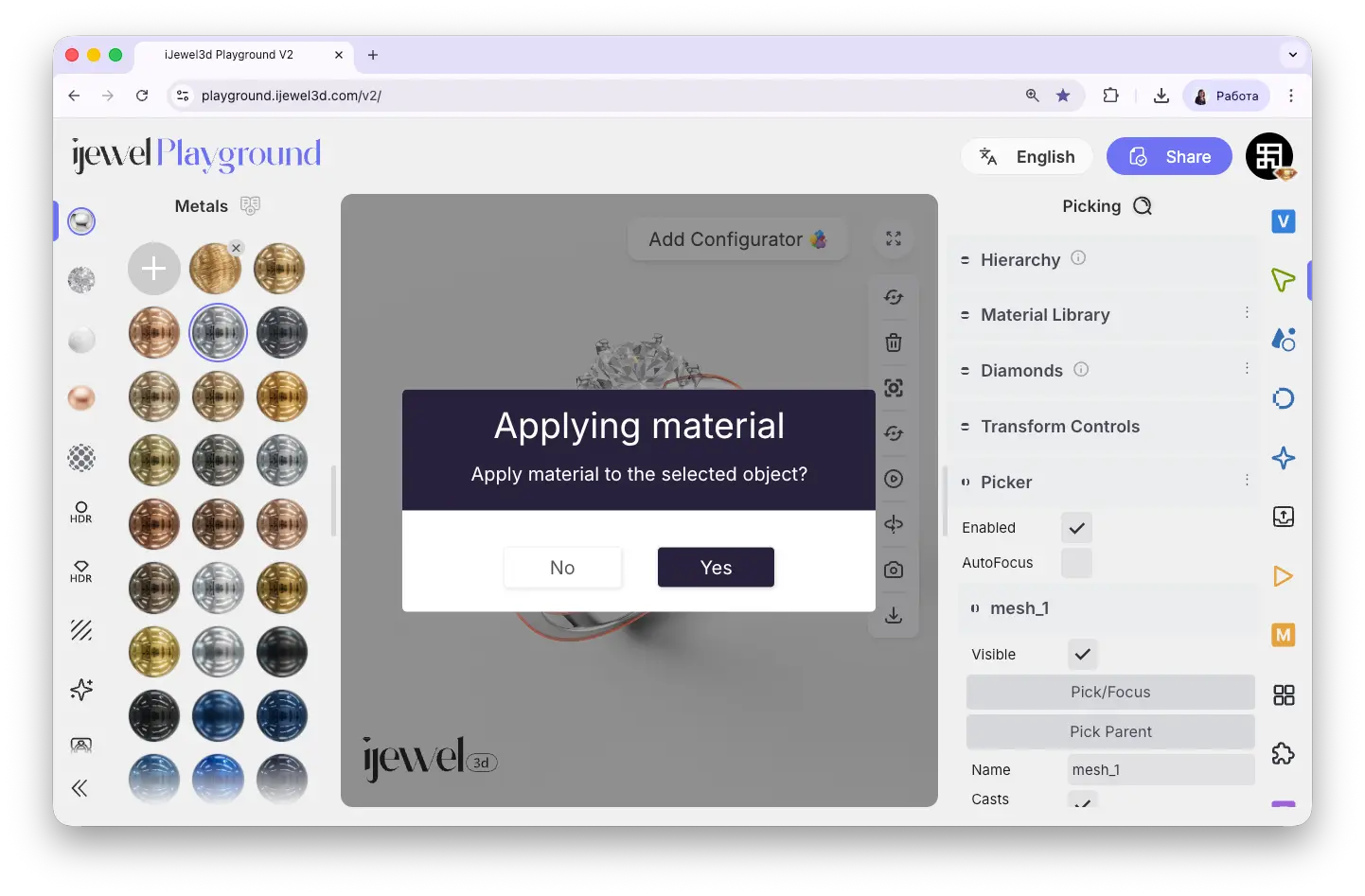
3. A popup will appear asking: **"Apply material to the selected object?"** — click **Yes** or **No**
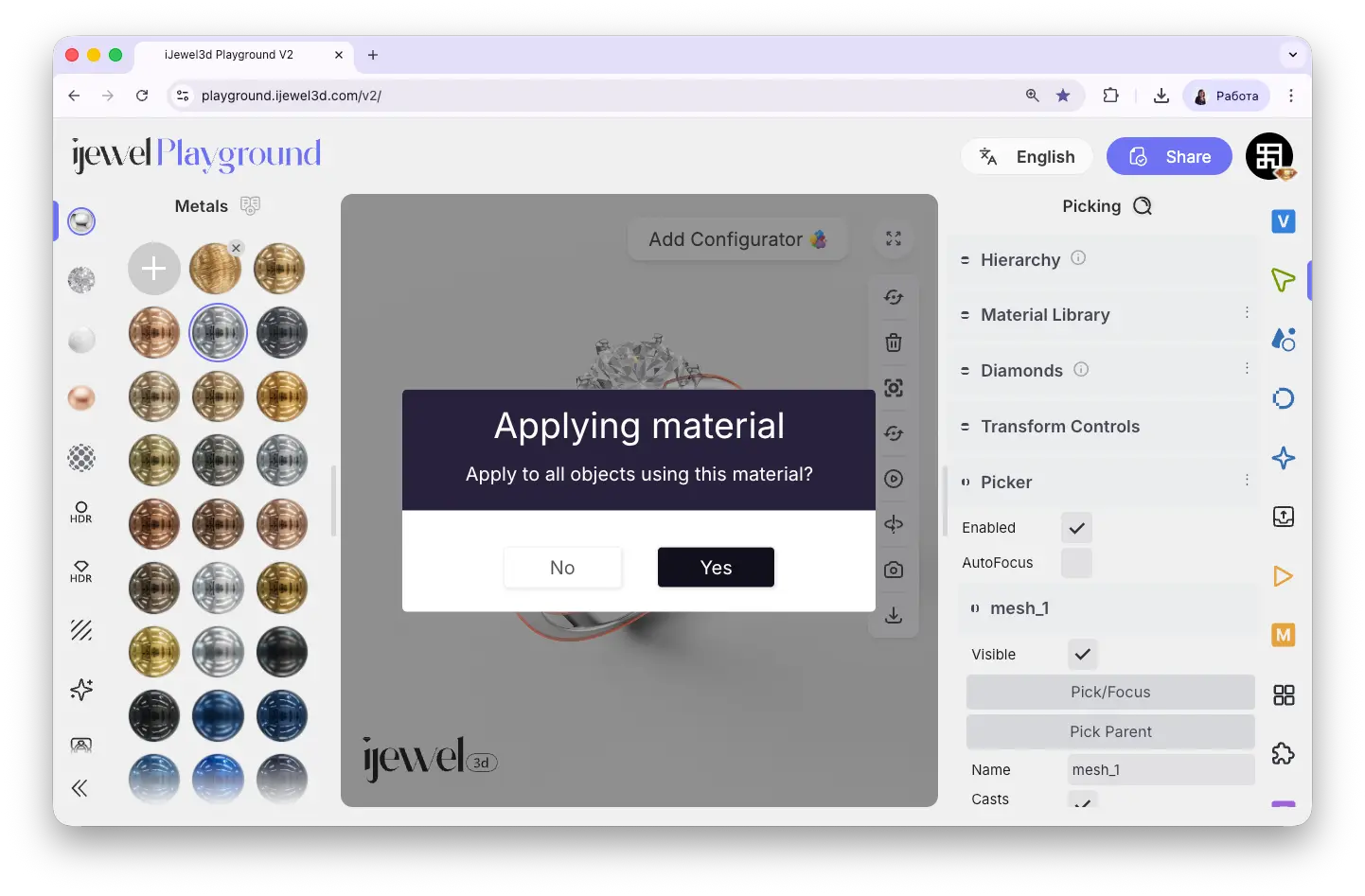
4. A second popup will appear asking: **"Apply to all objects using this material?"** — click **Yes** or **No**
::: tip Selective Material Application
These two popups give you precise control over where the material is applied. By answering **Yes** to the first and **No** to the second, you can apply the material **only to the selected object** — even if other objects in the scene share the same original material. This effectively separates the material, allowing different objects to have different looks.
:::
---
### Method 2 — Add to Material Library
Use this method when you want to save a material for reuse across multiple projects. Once added, the material stays in your library and is available anytime.
1. **[Select an object](./ui-overview#selecting-objects)** on the canvas — this opens the material library in the left panel
2. Navigate to the appropriate material category (Metals, Gems, Ceramics, Pearls, or Other)
3. Click the **circle with a plus icon** at the very beginning of the material list
4. Choose the `.pmat` or `.dmat` file you want to upload
5. The material will appear in the library with an **automatically generated preview** thumbnail
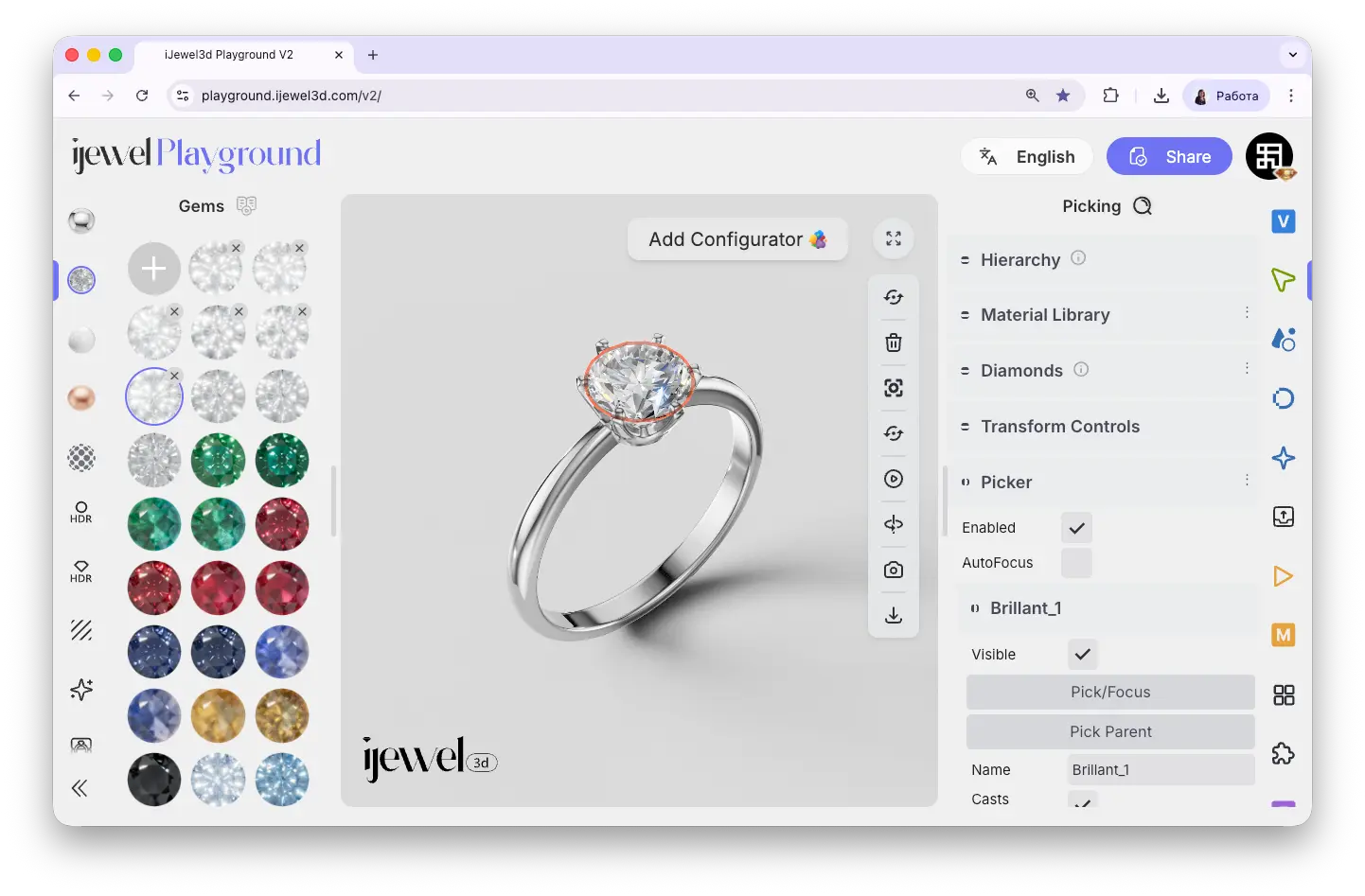
To apply the material, simply **click on its icon** in the library — it will be applied to the currently selected object. To remove a material from the library, click the **cross icon** at the top-right corner of its thumbnail.
::: tip
Materials added to the library are persistent — you can use them in other projects without needing to import them again.
:::
::: warning Premium & Advance
Saving custom materials to the library requires a paid plan. **Premium** allows up to **5 saved materials**, and **Advance** allows up to **100**. See [pricing details](https://ijewel.design/pricing) for more information.
:::
---
## Related Pages
- **[UI Overview](./ui-overview)** — Learn about the interface layout, panels, and navigation
- **[Importing 3D Models](./import-models)** — How to bring your 3D designs into Playground
- **[UI Overview — Material Library](./ui-overview#left-panel-—-material-library)** — Browse the built-in material categories
- **[UI Overview — Material Configurator](./ui-overview#material-configurator-canvas)** — Create interactive material switching for your clients
- **[Import Scene Settings](./import-scene-settings)** — Import `.vjson` and `.json` scene configuration files
- **[Export Models](./export-models)** — Export your scene as `.glb`, including materials and settings
- **[Export Materials](./export-materials)** — Export `.pmat` and `.dmat` material files
- **[Export Scene Settings](./export-scene-settings)** — Export `.vjson` and `.json` scene configuration files
---
# Import Scene Settings
iJewel Playground allows you to import scene settings files to quickly apply preconfigured environments, lighting, post-processing, and more. This is especially useful when you want to reuse a look you've already perfected or share setups between projects.
## Supported Formats
| Format | Description |
|---|---|
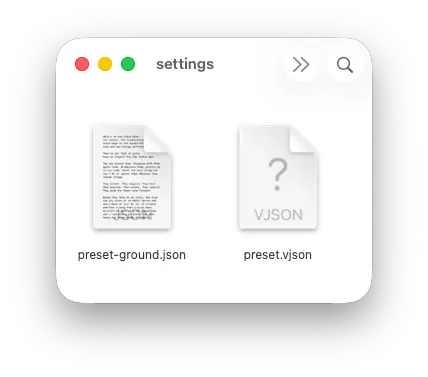
| `.vjson` | Complete scene configuration — contains all settings: HDR maps, background, ground, post-processing, tonemapping, camera, and more |
| `.json` | Partial settings — contains only specific settings, for example only ground or only tonemapping |
::: info What's inside a .vjson file?
A `.vjson` file is a full snapshot of your scene configuration. It includes everything: environment HDR maps, background color/gradient, ground settings, light positions, post-processing effects (bloom, SSAO, SSR, etc.), tonemapping, anti-aliasing, and camera parameters. Importing one instantly recreates the entire look of a scene.
:::
---
## Two Ways to Import Settings
There are two ways to use settings files: **apply directly to the current scene** or **save to the preset library** for reuse.
---
### Method 1 — Apply Directly to the Current Scene
Use this method when you want to quickly load settings into your active scene.
1. Open your project in Playground
2. **Drag and drop** your `.vjson` or `.json` file onto the 3D canvas
3. The settings are **applied immediately** — you will see the scene update in real-time
::: tip
This is the fastest way to switch between different scene looks. Just drag a different `.vjson` file to instantly change the entire atmosphere of your scene.
:::
---
### Method 2 — Save to Scene Presets Library
Use this method when you want to save a `.vjson` file for reuse across multiple projects. Once added, the preset stays in your library and is available anytime.
1. Open the [left panel](./ui-overview#left-panel-—-presets-quick-settings) and go to the **Scene Presets** tab: Scene PresetsGround tab on the left panel and click the plus icon, just like with Scene Presets. Other partial `.json` files (tonemapping, etc.) can only be applied via drag & drop.
:::
---
## Related Pages
- **[UI Overview](./ui-overview)** — Learn about the interface layout and panels
- **[UI Overview — Left Panel](./ui-overview#left-panel-—-presets-quick-settings)** — Scene Presets and other quick settings
- **[Import Materials](./import-materials)** — Import custom `.pmat` and `.dmat` files
- **[Importing 3D Models](./import-models)** — Bring your 3D designs into Playground
- **[Renderer Settings](./renderer-settings)** — Configure render quality and scale
- **[Export Models](./export-models)** — Export your scene as `.glb`, including settings
- **[Export Scene Settings](./export-scene-settings)** — Export `.vjson` and `.json` scene configuration files
---
# Coming Soon...
---
# Exporting
Everything you create in Playground can be exported. Download 3D models, save custom materials for reuse, back up your scene settings, render high-resolution images and videos, or share an interactive 3D viewer link with your clients.
---
## 3D
Export your full scene as a file.
---
## Materials
Save individual materials for reuse.
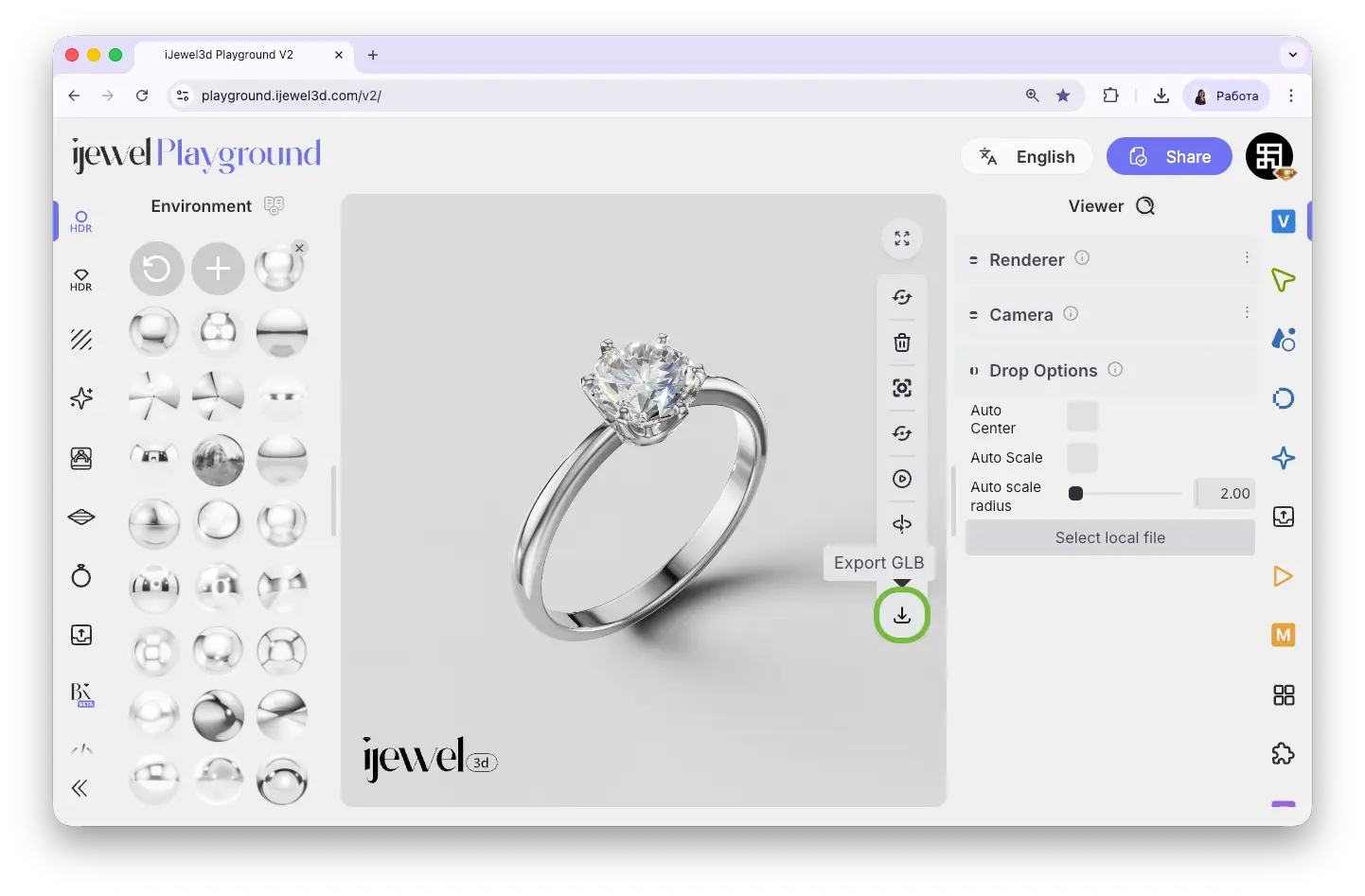
Export GLB button on the [canvas toolbar](./ui-overview#canvas-toolbar) — this immediately downloads your scene as a `.glb` file with current settings.
---
### Method 2 — Left Panel Export
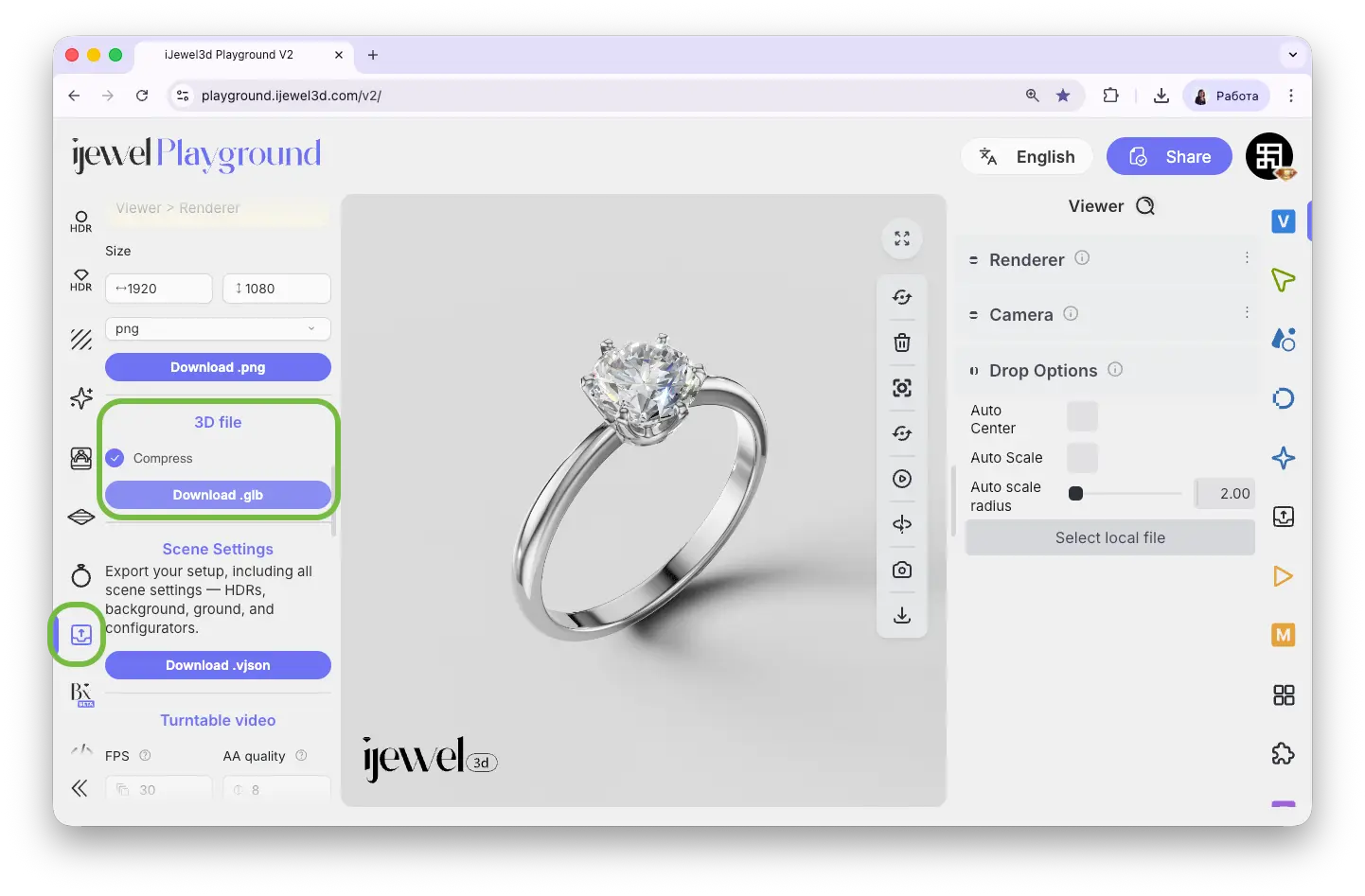
For a quick export with the option to enable compression:
1. Open the Export tab on the [left panel](./ui-overview#left-panel-—-presets-quick-settings)
2. Enable **Compress** if you want to reduce the file size (uses DRACO compression)
3. Click **Download .glb**
::: tip
Use the left panel export when you need a smaller file for web embedding or sharing. DRACO compression significantly reduces file size with minimal quality loss.
:::
---
### Method 3 — Right Panel (Advanced Export)
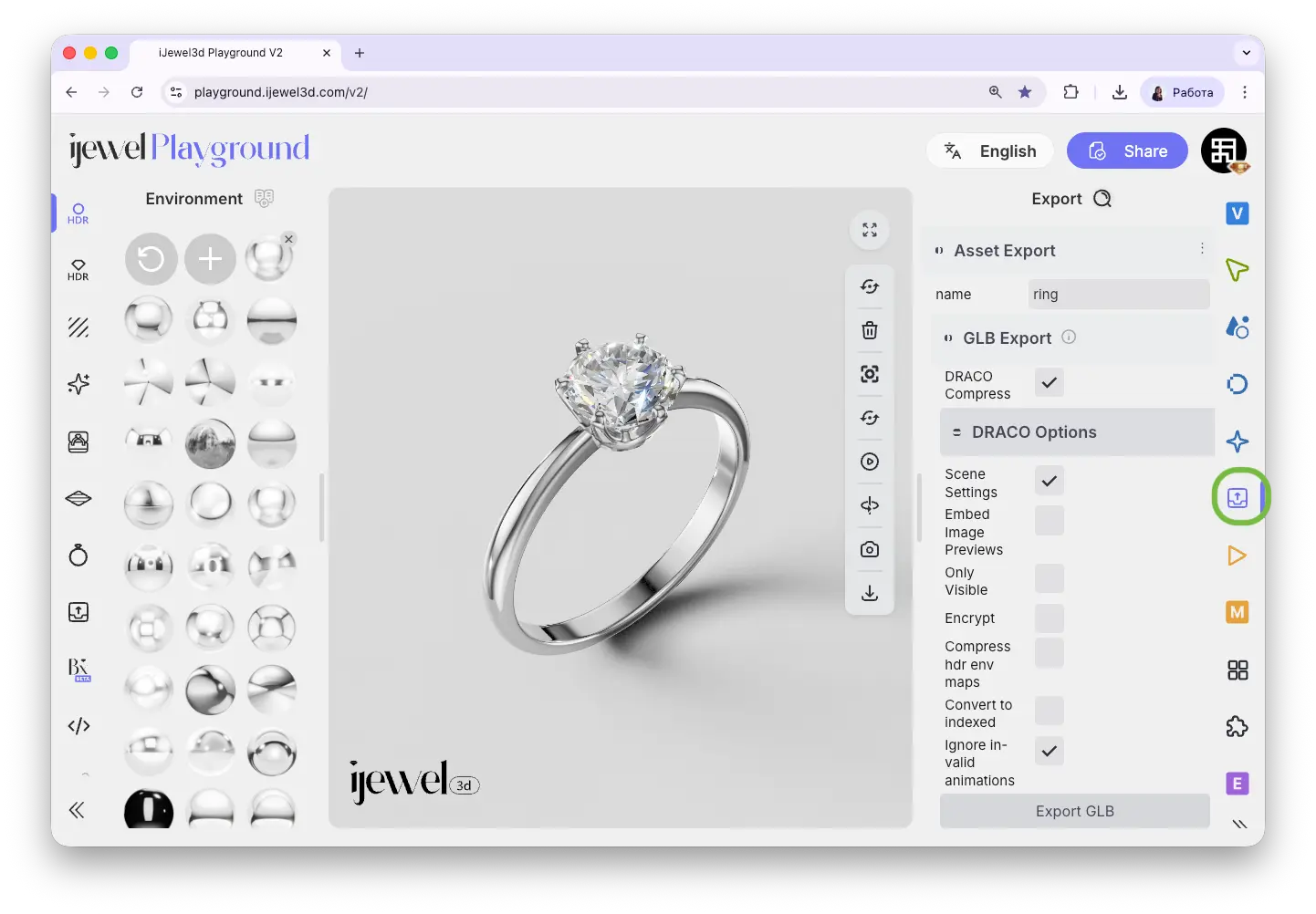
For full control over what's included in the exported file, use the **Asset Export** section on the [right panel](./ui-overview#right-panel-—-professional-tools):
1. Open the Export tab on the right panel
2. Go to the **Asset Export → GLB Export** section
3. Enter a **file name** at the top
4. Configure export options (see below)
5. Click **Export GLB**
#### Export Options
::: tip Editing Configurator
The default configurator can be **edited later** if you wish to change materials or modify the configurator settings. See [Material Configurator](./material-configurator) for details.
:::
::: info
These **Import Options** appear as pop-up prompts immediately after adding a new model, before it is fully loaded into the **Scene Hierarchy**.
:::
---
## Related Pages
- **[Import Materials](./import-materials)** — Load saved PBR and diamond material presets
- **[Import Scene Settings](./import-scene-settings)** — Apply complete scene configurations
- **[FAQ: Importing Models](./faq-import)** — Common questions about importing
---
# Import Materials
iJewel Playground allows you to import your own custom materials and use them alongside the built-in material library. The supported formats are **`.pmat`** (PBR Material) and **`.dmat`** (Diamond Material).
## Supported Formats
| Format | Description |
|---|---|
| `.pmat` | PBR material file — used for metals, ceramics, pearls, etc. |
| `.dmat` | Diamond material file — used for diamonds and other gemstones |

## Two Ways to Import Materials
There are two ways to add a custom material in Playground: **apply directly to an object** or **add to the material library** for reuse across projects.
---
### Method 1 — Apply Directly to an Object
Use this method when you want to quickly apply a material to a specific object without saving it to the library.
1. **[Select an object](./ui-overview#selecting-objects)** on the canvas
2. **Drag and drop** your `.pmat` or `.dmat` file onto the 3D canvas
3. A popup will appear asking: **"Apply material to the selected object?"** — click **Yes** or **No**

4. A second popup will appear asking: **"Apply to all objects using this material?"** — click **Yes** or **No**

::: tip Selective Material Application
These two popups give you precise control over where the material is applied. By answering **Yes** to the first and **No** to the second, you can apply the material **only to the selected object** — even if other objects in the scene share the same original material. This effectively separates the material, allowing different objects to have different looks.
:::
---
### Method 2 — Add to Material Library
Use this method when you want to save a material for reuse across multiple projects. Once added, the material stays in your library and is available anytime.
1. **[Select an object](./ui-overview#selecting-objects)** on the canvas — this opens the material library in the left panel
2. Navigate to the appropriate material category (Metals, Gems, Ceramics, Pearls, or Other)
3. Click the **circle with a plus icon** at the very beginning of the material list
4. Choose the `.pmat` or `.dmat` file you want to upload
5. The material will appear in the library with an **automatically generated preview** thumbnail

To apply the material, simply **click on its icon** in the library — it will be applied to the currently selected object. To remove a material from the library, click the **cross icon** at the top-right corner of its thumbnail.
::: tip
Materials added to the library are persistent — you can use them in other projects without needing to import them again.
:::
::: warning Premium & Advance
Saving custom materials to the library requires a paid plan. **Premium** allows up to **5 saved materials**, and **Advance** allows up to **100**. See [pricing details](https://ijewel.design/pricing) for more information.
:::
---
## Related Pages
- **[UI Overview](./ui-overview)** — Learn about the interface layout, panels, and navigation
- **[Importing 3D Models](./import-models)** — How to bring your 3D designs into Playground
- **[UI Overview — Material Library](./ui-overview#left-panel-—-material-library)** — Browse the built-in material categories
- **[UI Overview — Material Configurator](./ui-overview#material-configurator-canvas)** — Create interactive material switching for your clients
- **[Import Scene Settings](./import-scene-settings)** — Import `.vjson` and `.json` scene configuration files
- **[Export Models](./export-models)** — Export your scene as `.glb`, including materials and settings
- **[Export Materials](./export-materials)** — Export `.pmat` and `.dmat` material files
- **[Export Scene Settings](./export-scene-settings)** — Export `.vjson` and `.json` scene configuration files
---
# Import Scene Settings
iJewel Playground allows you to import scene settings files to quickly apply preconfigured environments, lighting, post-processing, and more. This is especially useful when you want to reuse a look you've already perfected or share setups between projects.
## Supported Formats
| Format | Description |
|---|---|
| `.vjson` | Complete scene configuration — contains all settings: HDR maps, background, ground, post-processing, tonemapping, camera, and more |
| `.json` | Partial settings — contains only specific settings, for example only ground or only tonemapping |

::: info What's inside a .vjson file?
A `.vjson` file is a full snapshot of your scene configuration. It includes everything: environment HDR maps, background color/gradient, ground settings, light positions, post-processing effects (bloom, SSAO, SSR, etc.), tonemapping, anti-aliasing, and camera parameters. Importing one instantly recreates the entire look of a scene.
:::
---
## Two Ways to Import Settings
There are two ways to use settings files: **apply directly to the current scene** or **save to the preset library** for reuse.
---
### Method 1 — Apply Directly to the Current Scene
Use this method when you want to quickly load settings into your active scene.
1. Open your project in Playground
2. **Drag and drop** your `.vjson` or `.json` file onto the 3D canvas
3. The settings are **applied immediately** — you will see the scene update in real-time
::: tip
This is the fastest way to switch between different scene looks. Just drag a different `.vjson` file to instantly change the entire atmosphere of your scene.
:::
---
### Method 2 — Save to Scene Presets Library
Use this method when you want to save a `.vjson` file for reuse across multiple projects. Once added, the preset stays in your library and is available anytime.
1. Open the [left panel](./ui-overview#left-panel-—-presets-quick-settings) and go to the **Scene Presets** tab: Scene PresetsGround tab on the left panel and click the plus icon, just like with Scene Presets. Other partial `.json` files (tonemapping, etc.) can only be applied via drag & drop.
:::

---
## Related Pages
- **[UI Overview](./ui-overview)** — Learn about the interface layout and panels
- **[UI Overview — Left Panel](./ui-overview#left-panel-—-presets-quick-settings)** — Scene Presets and other quick settings
- **[Import Materials](./import-materials)** — Import custom `.pmat` and `.dmat` files
- **[Importing 3D Models](./import-models)** — Bring your 3D designs into Playground
- **[Renderer Settings](./renderer-settings)** — Configure render quality and scale
- **[Export Models](./export-models)** — Export your scene as `.glb`, including settings
- **[Export Scene Settings](./export-scene-settings)** — Export `.vjson` and `.json` scene configuration files
---
# Coming Soon...
---
# Exporting
Everything you create in Playground can be exported. Download 3D models, save custom materials for reuse, back up your scene settings, render high-resolution images and videos, or share an interactive 3D viewer link with your clients.
---
## 3D
Export your full scene as a file.
---
## Materials
Save individual materials for reuse.
Export GLB button on the [canvas toolbar](./ui-overview#canvas-toolbar) — this immediately downloads your scene as a `.glb` file with current settings.

---
### Method 2 — Left Panel Export
For a quick export with the option to enable compression:
1. Open the Export tab on the [left panel](./ui-overview#left-panel-—-presets-quick-settings)
2. Enable **Compress** if you want to reduce the file size (uses DRACO compression)
3. Click **Download .glb**

::: tip
Use the left panel export when you need a smaller file for web embedding or sharing. DRACO compression significantly reduces file size with minimal quality loss.
:::
---
### Method 3 — Right Panel (Advanced Export)
For full control over what's included in the exported file, use the **Asset Export** section on the [right panel](./ui-overview#right-panel-—-professional-tools):
1. Open the Export tab on the right panel
2. Go to the **Asset Export → GLB Export** section
3. Enter a **file name** at the top
4. Configure export options (see below)
5. Click **Export GLB**

#### Export Options
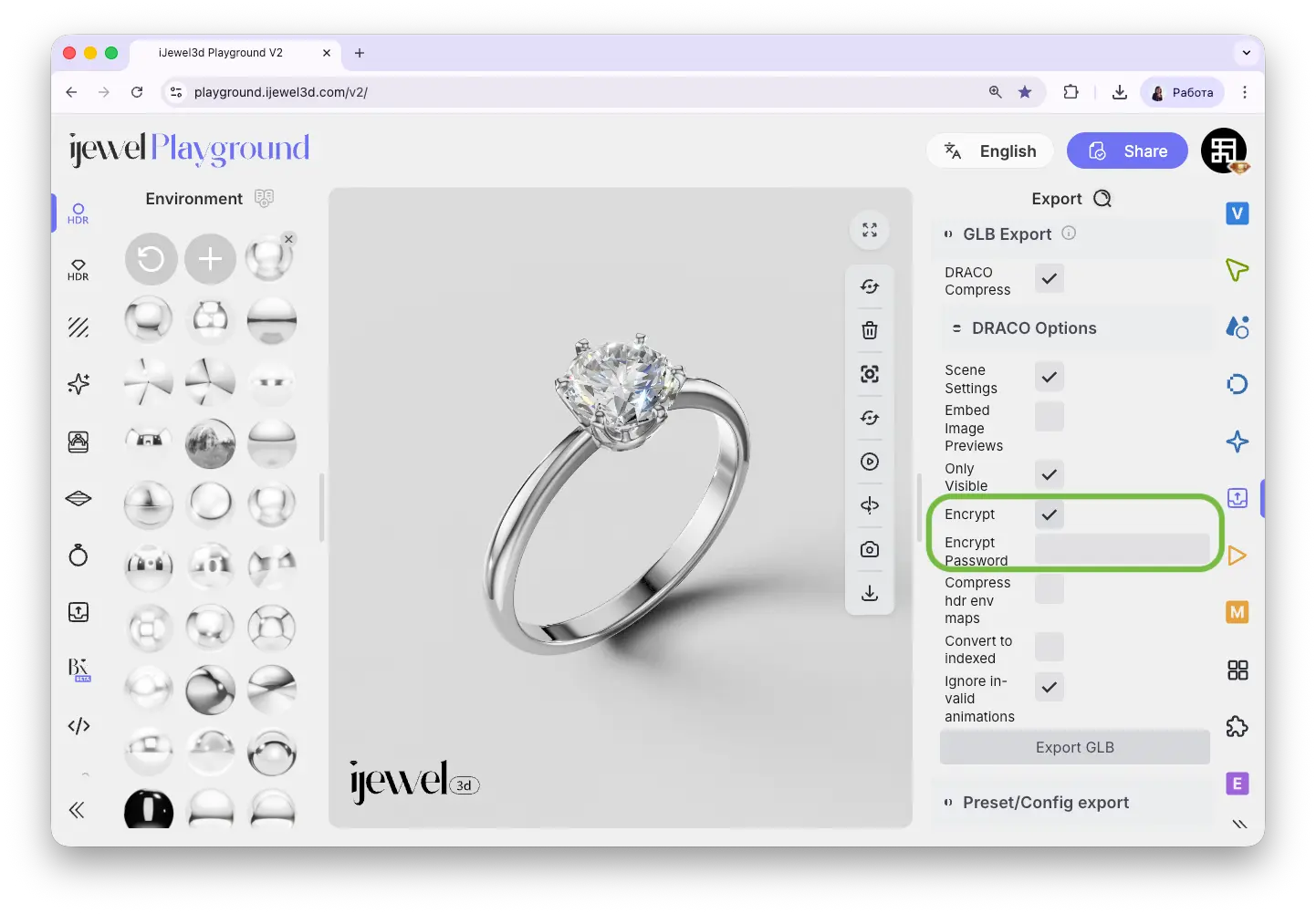
Jewelry designs are often unique and commercially valuable. The Encrypt option lets you protect your GLB files with a password — anyone trying to open the file will need to enter it first. This adds an extra layer of security when sharing files with clients, manufacturers, or partners.
Picking tab on the [right panel](./ui-overview#right-panel-—-professional-tools)
3. In the **Picker** section, find the **Physical Material** settings
4. Scroll down to the bottom
5. Click **Download .pmat**
---
## Exporting a Diamond Material (.dmat)
To export a diamond material:
1. **[Select the object](./ui-overview#selecting-objects)** that has the diamond material
2. Open the Picking tab on the [right panel](./ui-overview#right-panel-—-professional-tools)
3. In the **Picker** section, find the **Diamond Material** settings
4. Scroll down to the bottom
5. Click **Download .dmat**
---
## Related Pages
- **[Import Materials](./import-materials)** — Import `.pmat` and `.dmat` files back into Playground
- **[UI Overview](./ui-overview)** — Interface layout, panels, and navigation
- **[Export Models](./export-models)** — Export your full scene as a `.glb` file
- **[Export Scene Settings](./export-scene-settings)** — Export `.vjson` and `.json` scene configuration files
- **[Custom PBR Materials](./coming-soon)** — Create your own PBR materials from scratch
- **[Custom Diamond Materials](./coming-soon)** — Create your own diamond materials
---
# Export Scene Settings
iJewel Playground allows you to export your scene settings as standalone files. This is useful for backing up your scene look, transferring configurations between projects, or sharing presets with colleagues.
## Export Formats
| Format | Description |
|---|---|
| `.vjson` | Complete scene configuration — all settings: HDR maps, background, ground, post-processing, tonemapping, material configurators, and more |
| `.json` | Individual setting — only a specific plugin or parameter (e.g., ground, tonemapping, camera) |
---
## Exporting All Scene Settings (.vjson)
There are two ways to export a complete `.vjson` file with all your scene settings.
### Method 1 — Left Panel (Quick Export)
The fastest way to export all scene settings:
1. Open the Export tab on the [left panel](./ui-overview#left-panel-—-presets-quick-settings)
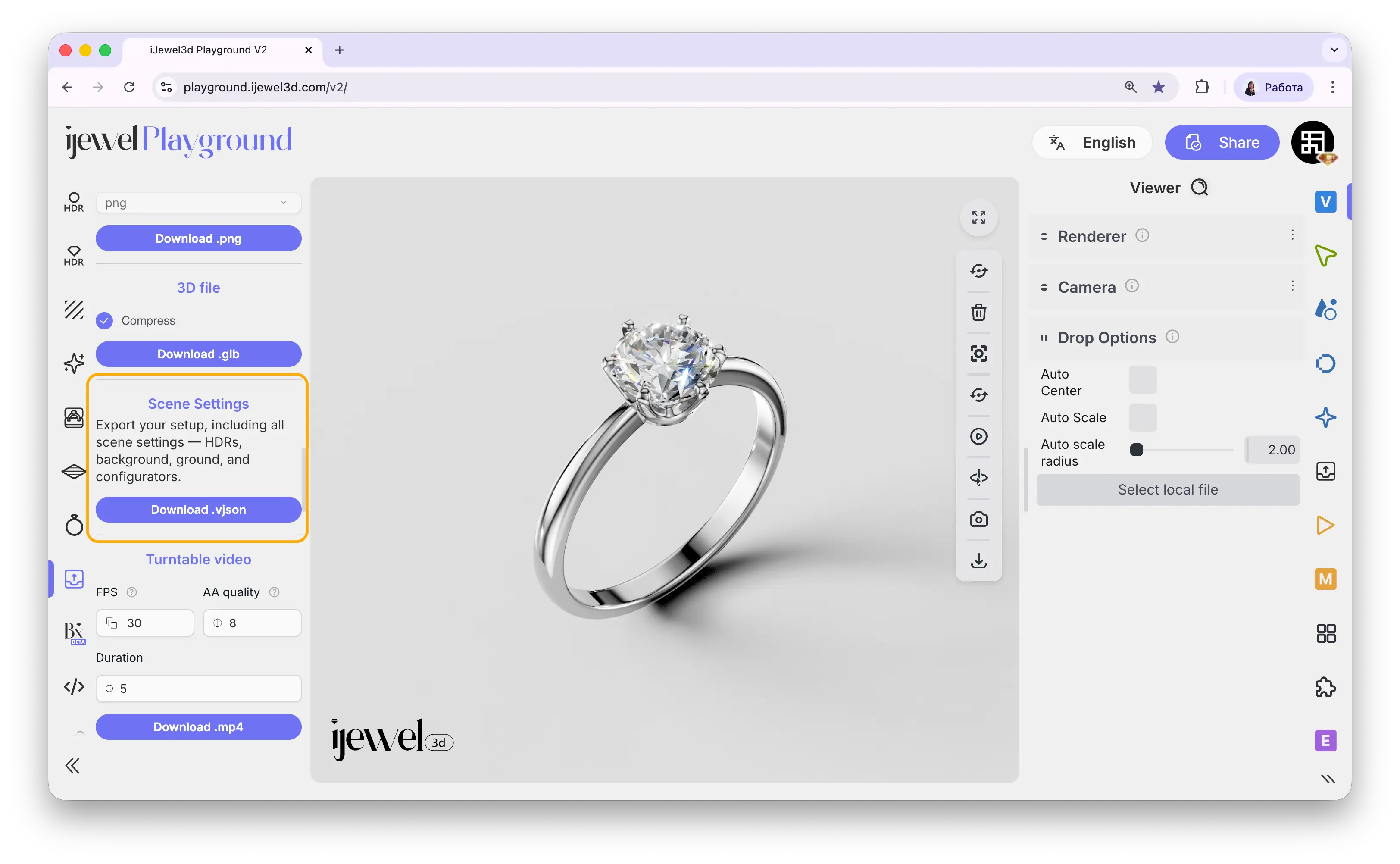
2. Find the **Scene Settings** section
3. Click **Download VJSON**
This saves all settings currently applied in your scene — background, ground, shadows, tonemapping, post-processing, material configurators, and everything else — as a single `.vjson` file.
---
### Method 2 — Right Panel (Advanced Export)
For more control over exactly what to include in the exported file:
1. Open the Export tab on the [right panel](./ui-overview#right-panel-—-professional-tools)
2. Go to the **Asset Export** section
3. Open **Preset Config Export**
4. Click **Plugins** to see the full list of what can be included or excluded
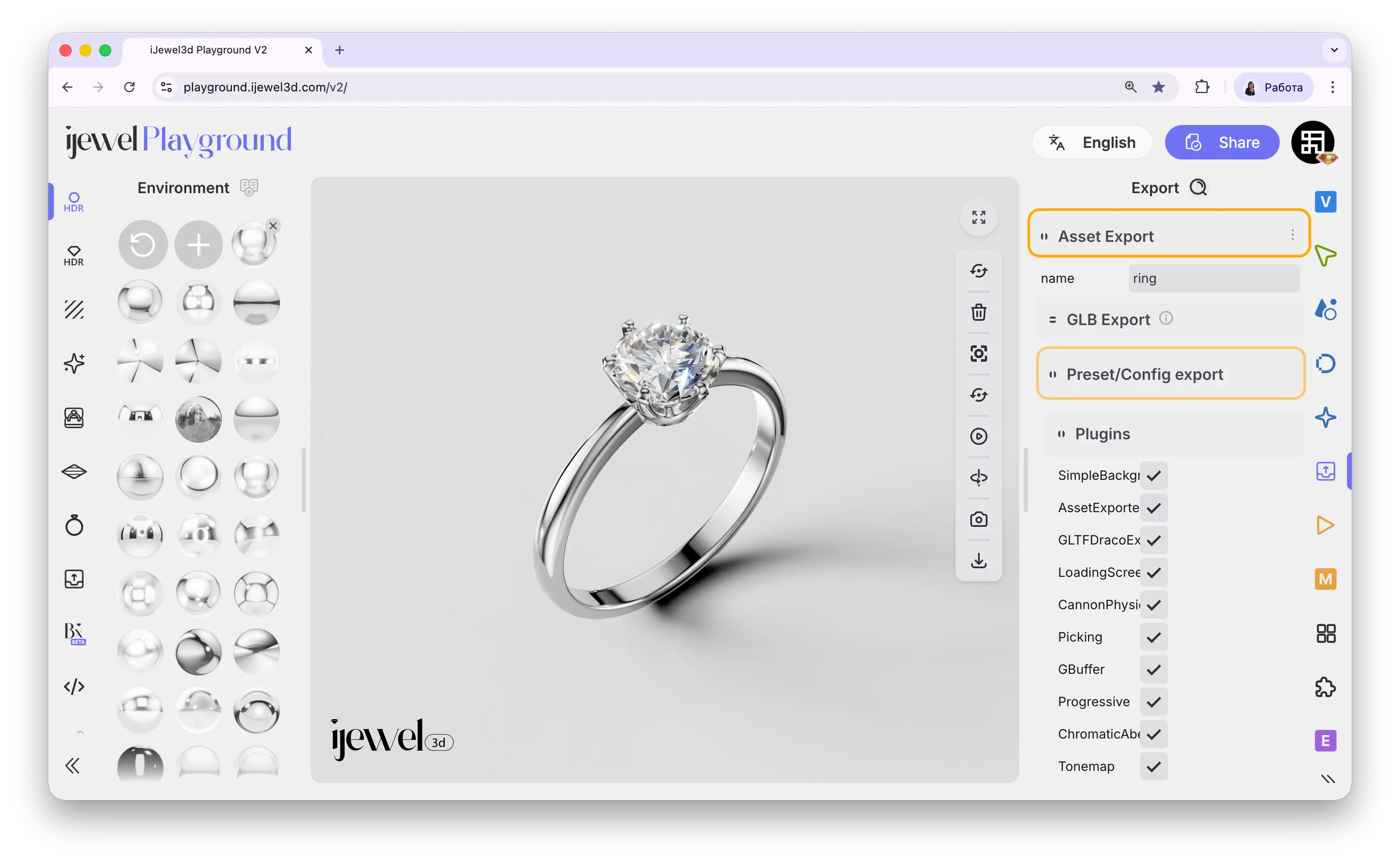
Here you can individually toggle which settings to include in the `.vjson` export. For example, you can exclude material configurators, remove a specific HDR map, or keep only the post-processing settings — giving you full control over what goes into the file.
#### Quick Actions
Scene for ground settings, or Post Processing for effects)
2. Find the specific setting (e.g., Ground, Tonemapping, SSR, etc.)
3. Click the **three dots** (⋮) next to the setting name
4. Select **Download preset** from the menu
5. The `.json` file with that specific setting will be downloaded
### What can be exported as individual .json?
You can export presets for almost any setting in the right panel, including:
- **Scene:** Ground, Progressive Shadow, Background
- **Post Processing:** Screen Space Reflection (SSR), Tonemapping, Bloom, Depth of Field, SSAO, SSBevel, Vignette
- **Viewer:** Renderer settings, Camera settings
- **Anti-aliasing:** TAA, Progressive AA
::: tip
Individual `.json` presets can be imported back by drag & drop onto the canvas. Ground `.json` files can also be [saved to the library](./import-scene-settings#method-2-—-save-to-scene-presets-library) for quick reuse.
:::
---
## Related Pages
- **[Import Scene Settings](./import-scene-settings)** — Import `.vjson` and `.json` files back into Playground
- **[UI Overview](./ui-overview)** — Interface layout and panels
- **[Export Models](./export-models)** — Export your scene as a `.glb` file
- **[Export Materials](./export-materials)** — Export `.pmat` and `.dmat` material files
- **[Renderer Settings](./renderer-settings)** — Configure render quality and scale
---
# Export Images
iJewel Playground makes it easy to save high-resolution images of your jewelry renders in multiple formats. There are two ways to export images — a quick method and an advanced method.
## Quick Export (Camera Icon)
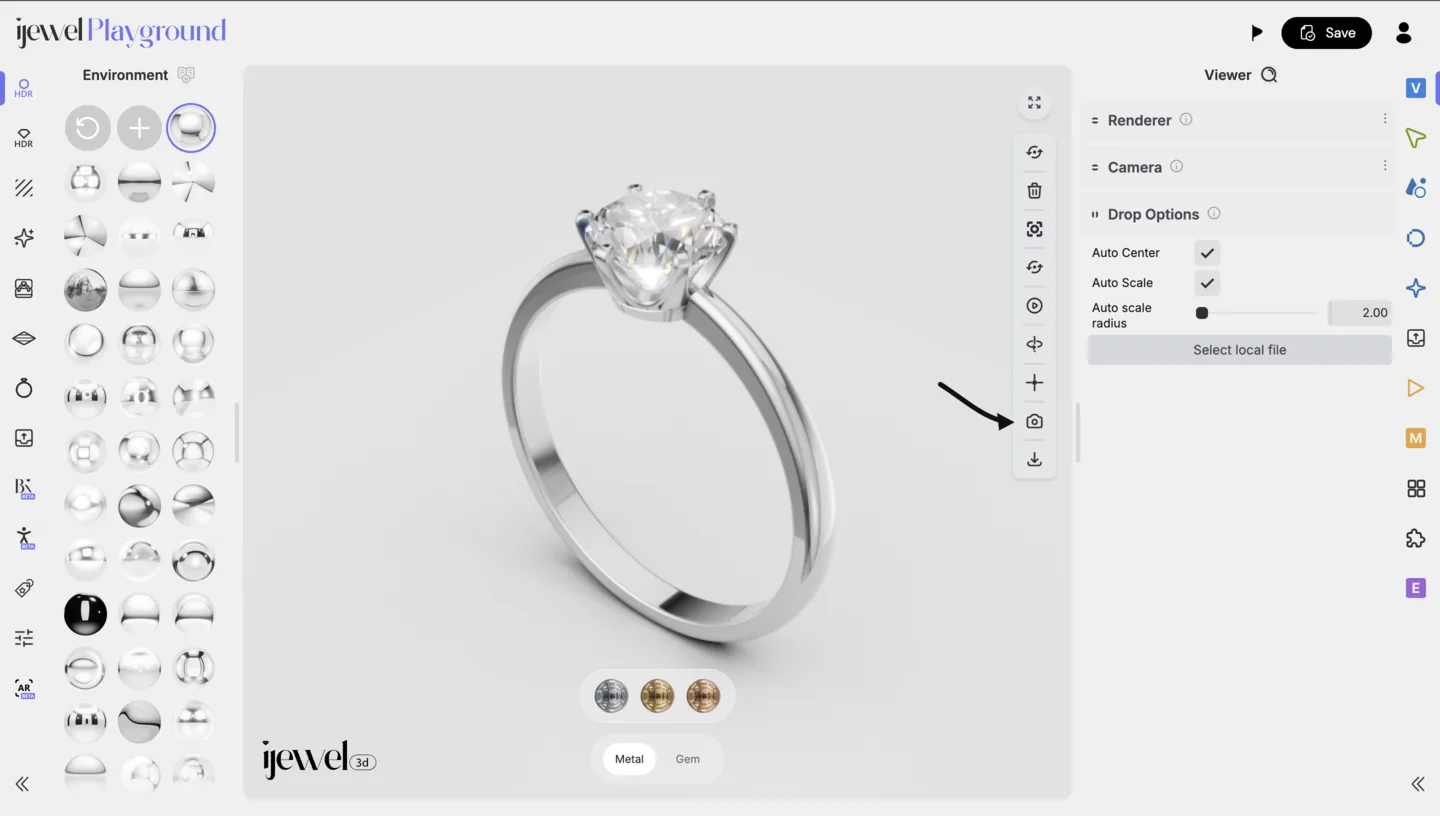
The fastest way to capture an image is using the **camera icon** in the floating Quick Actions panel on the canvas.
- Click the **camera icon** to instantly save a **PNG** snapshot of your current view.
 ::: tip
This is perfect for quick captures during your design process. The image is saved at the current canvas resolution — make sure to adjust your [Renderer Settings](./renderer-settings.md) first if you need higher quality.
:::
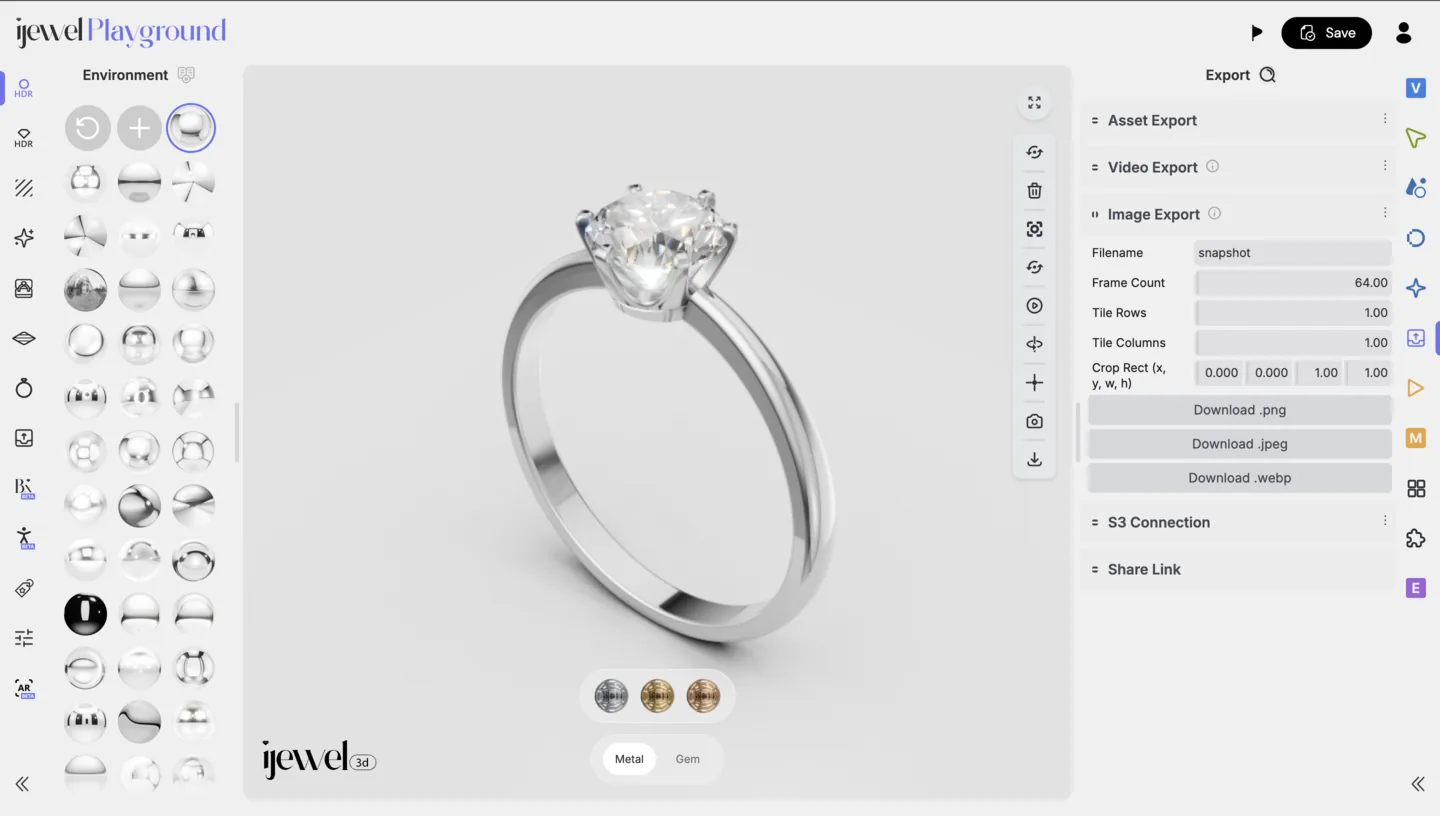
## Advanced Export (Export Tab)
For more control over format, resolution, and file naming, use the **Export Tab** in the Editor UI Panel.
### Steps
1. Open the **Export** tab in the right-side Editor UI Panel.
2. Choose your desired format:
- **PNG** — Lossless quality, supports transparency. Best for product images.
- **JPEG** — Smaller file size, no transparency. Good for web and social media.
- **WEBP** — Modern format with excellent compression. Ideal for websites and e-commerce.
3. Enter a **file name** for your export.
4. Click **Download**.
::: tip
This is perfect for quick captures during your design process. The image is saved at the current canvas resolution — make sure to adjust your [Renderer Settings](./renderer-settings.md) first if you need higher quality.
:::
## Advanced Export (Export Tab)
For more control over format, resolution, and file naming, use the **Export Tab** in the Editor UI Panel.
### Steps
1. Open the **Export** tab in the right-side Editor UI Panel.
2. Choose your desired format:
- **PNG** — Lossless quality, supports transparency. Best for product images.
- **JPEG** — Smaller file size, no transparency. Good for web and social media.
- **WEBP** — Modern format with excellent compression. Ideal for websites and e-commerce.
3. Enter a **file name** for your export.
4. Click **Download**.
 ## Export from the Left Menu
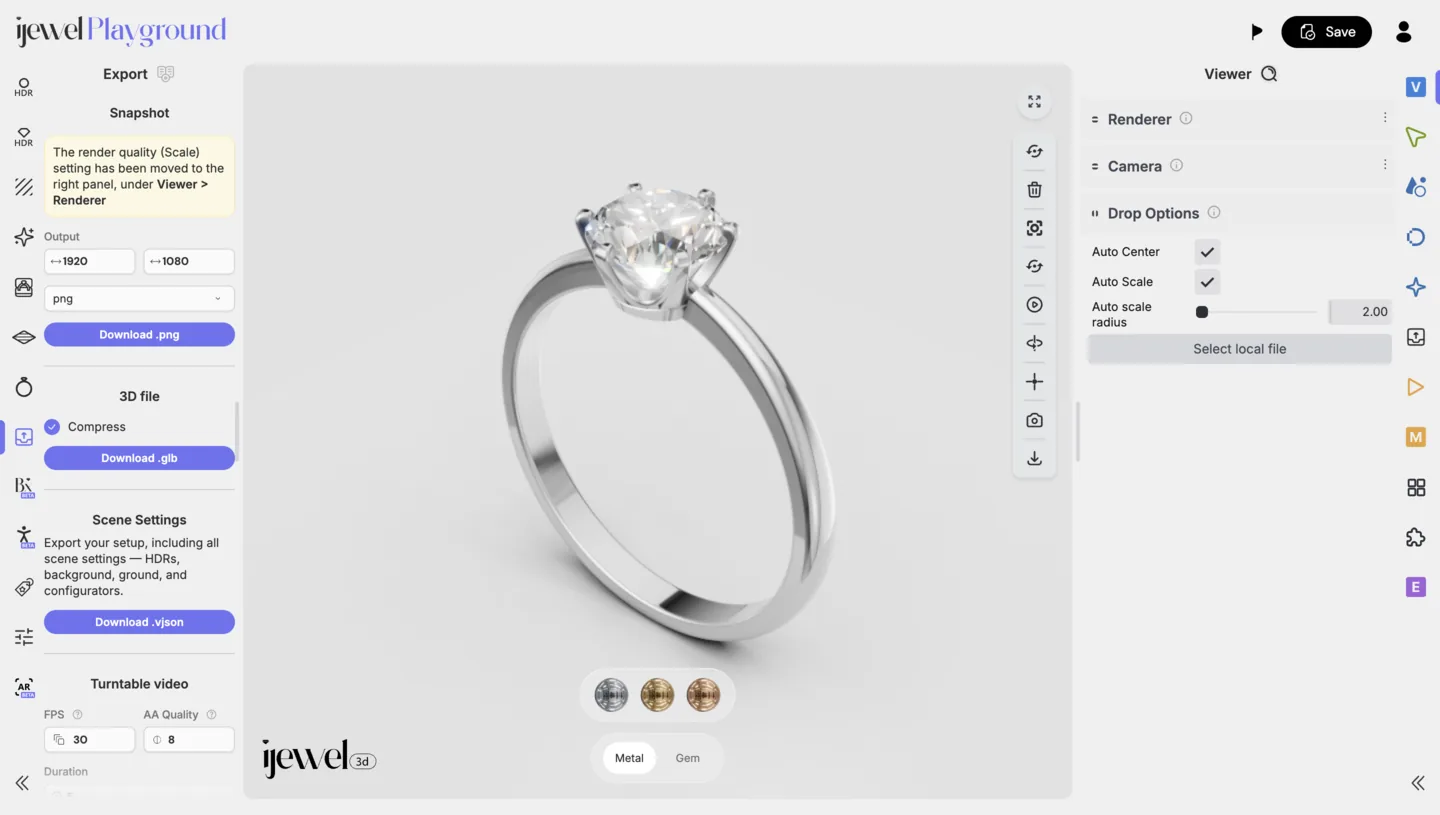
You can also export images from the **left-side Presets Panel**:
1. Set the desired **width** and **height** for your output resolution.
2. Select the output **format** (PNG, JPEG, or WEBP).
3. Click **Download**.
## Export from the Left Menu
You can also export images from the **left-side Presets Panel**:
1. Set the desired **width** and **height** for your output resolution.
2. Select the output **format** (PNG, JPEG, or WEBP).
3. Click **Download**.
 ::: tip Higher Quality Exports
For the best quality exports, increase the **width and height** values before downloading. This produces sharper images suitable for print, catalogs, or high-DPI displays.
:::
## Transparent Background
To export an image with a transparent background (PNG format only), you need to configure several settings before exporting:
1. Go to [Background / Environment](./background-environment) and set the **Background Color** alpha channel to `0` (fully transparent)
2. Go to [Ground](./ground) and uncheck **Visible** to hide the ground plane
3. Disable [Progressive Shadow](./progressive-shadow) if it is enabled
4. Choose **PNG** as the export format (JPEG and WEBP do not support transparency)
5. Export the image
::: tip
This is especially useful for e-commerce product listings and marketing materials where you need the jewelry on a clean, transparent background that can be composited onto any backdrop.
:::
---
## Recommended Settings by Use Case
| Use Case | Format | Suggested Resolution |
|---|---|---|
| E-commerce product listing | PNG or WEBP | 1000×1000 px or higher |
| Social media | JPEG or WEBP | 1080×1080 px |
| Print catalog | PNG | 2000×2000 px or higher |
| Website banner | WEBP | 1920×600 px |
---
# Export Videos
iJewel Playground allows you to record and export videos of your jewelry models — perfect for product showcases, social media, and e-commerce listings. You can create turntable animations, camera path recordings, and 360° spins.
## Turntable Video (Left Menu)
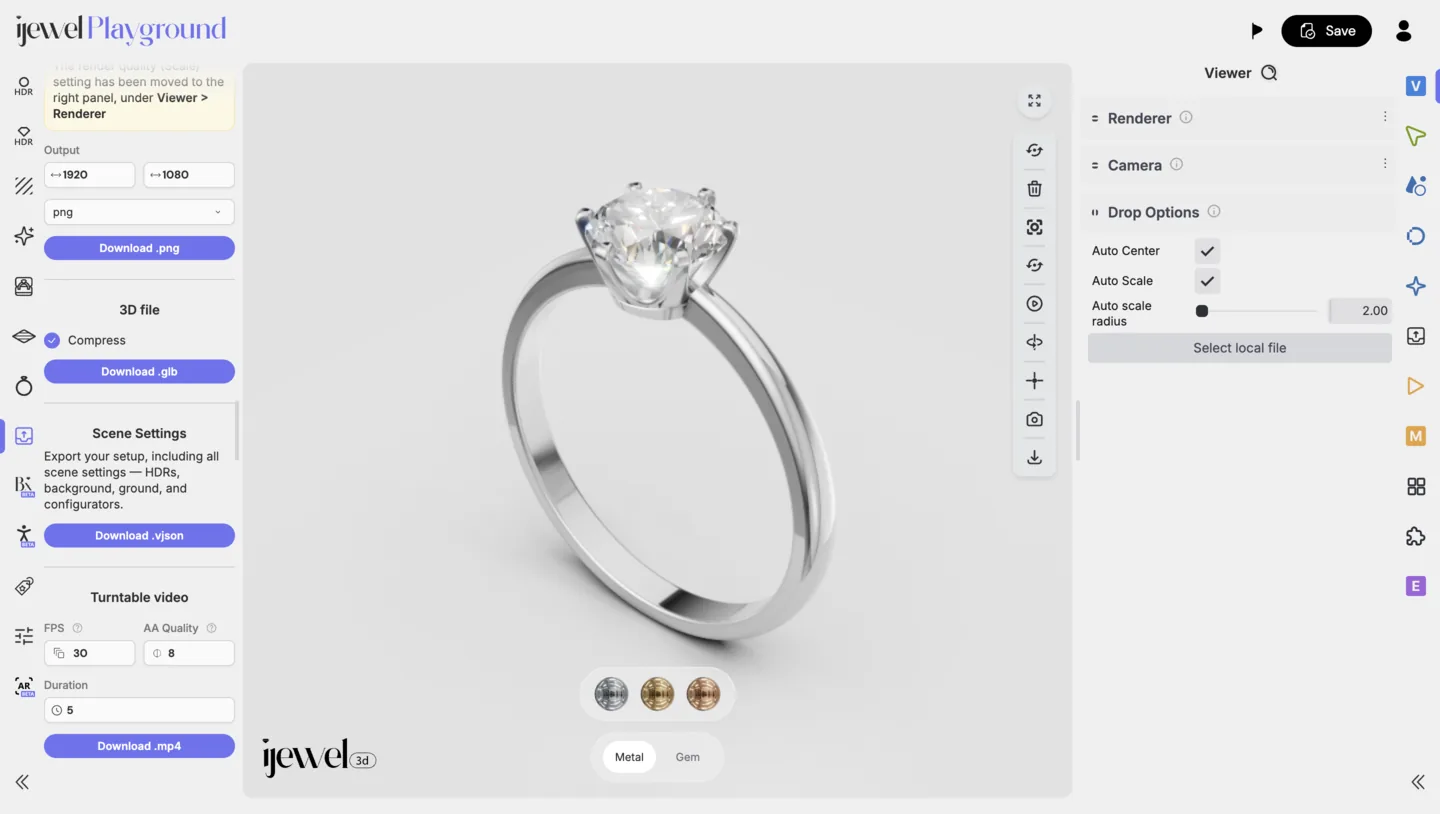
The left-side Presets Panel provides a quick way to export turntable videos.
### Steps
1. Set the **resolution** (width and height) for your video output.
2. Configure the **FPS** (frames per second) — higher FPS results in smoother playback.
3. Set the **duration** of the video.
4. Click **Download**.
The rendering process will begin, indicated by a **red border on the canvas**.
::: tip Higher Quality Exports
For the best quality exports, increase the **width and height** values before downloading. This produces sharper images suitable for print, catalogs, or high-DPI displays.
:::
## Transparent Background
To export an image with a transparent background (PNG format only), you need to configure several settings before exporting:
1. Go to [Background / Environment](./background-environment) and set the **Background Color** alpha channel to `0` (fully transparent)
2. Go to [Ground](./ground) and uncheck **Visible** to hide the ground plane
3. Disable [Progressive Shadow](./progressive-shadow) if it is enabled
4. Choose **PNG** as the export format (JPEG and WEBP do not support transparency)
5. Export the image
::: tip
This is especially useful for e-commerce product listings and marketing materials where you need the jewelry on a clean, transparent background that can be composited onto any backdrop.
:::
---
## Recommended Settings by Use Case
| Use Case | Format | Suggested Resolution |
|---|---|---|
| E-commerce product listing | PNG or WEBP | 1000×1000 px or higher |
| Social media | JPEG or WEBP | 1080×1080 px |
| Print catalog | PNG | 2000×2000 px or higher |
| Website banner | WEBP | 1920×600 px |
---
# Export Videos
iJewel Playground allows you to record and export videos of your jewelry models — perfect for product showcases, social media, and e-commerce listings. You can create turntable animations, camera path recordings, and 360° spins.
## Turntable Video (Left Menu)
The left-side Presets Panel provides a quick way to export turntable videos.
### Steps
1. Set the **resolution** (width and height) for your video output.
2. Configure the **FPS** (frames per second) — higher FPS results in smoother playback.
3. Set the **duration** of the video.
4. Click **Download**.
The rendering process will begin, indicated by a **red border on the canvas**.
 ::: warning
Keep the browser tab open until the rendering process is complete. Closing or switching away from the tab may interrupt the export.
:::
## Advanced Recording (Right Panel)
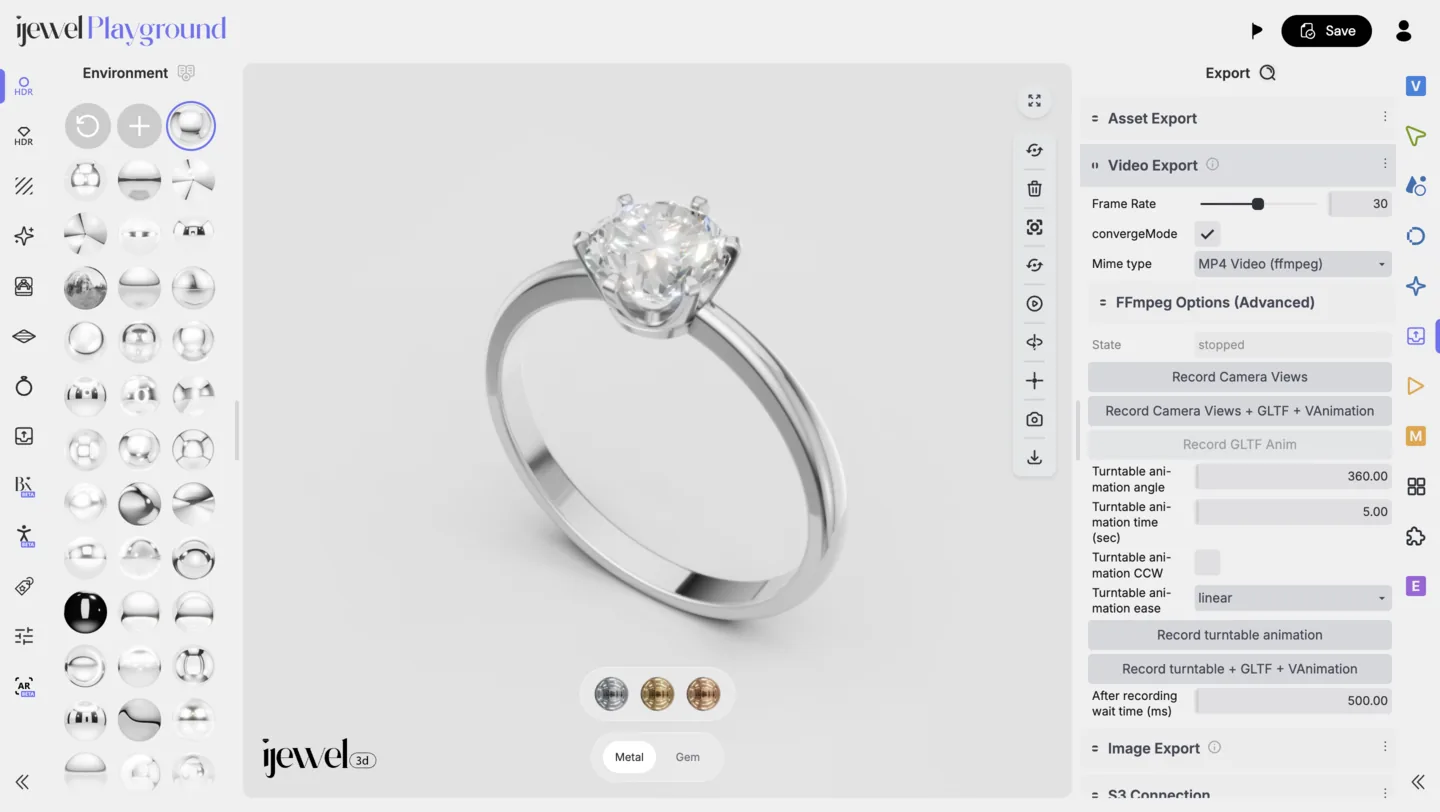
The **Export** section in the right-side Editor UI Panel offers multiple recording modes for different types of video output.
### Recording Modes
| Mode | Description |
|---|---|
| **Standard Recording** | Records whatever is happening on the canvas in real time — ideal for custom interactions and walkthroughs. |
| **Camera Views** | Records a sequence based on your saved camera view positions. |
| **360° Animation** | Automatically rotates the model clockwise for a full 360° turntable video. |
| **360° Animation (CCW)** | Same as above, but rotates counterclockwise. |
::: warning
Keep the browser tab open until the rendering process is complete. Closing or switching away from the tab may interrupt the export.
:::
## Advanced Recording (Right Panel)
The **Export** section in the right-side Editor UI Panel offers multiple recording modes for different types of video output.
### Recording Modes
| Mode | Description |
|---|---|
| **Standard Recording** | Records whatever is happening on the canvas in real time — ideal for custom interactions and walkthroughs. |
| **Camera Views** | Records a sequence based on your saved camera view positions. |
| **360° Animation** | Automatically rotates the model clockwise for a full 360° turntable video. |
| **360° Animation (CCW)** | Same as above, but rotates counterclockwise. |
 ### Steps
1. Open the **Export** tab in the Editor UI Panel.
2. Select your desired **recording mode**.
3. Customize your settings:
- **Resolution** — Output width and height in pixels.
- **FPS** — Frames per second (24 or 30 recommended for smooth playback).
- **Duration** — Length of the video in seconds.
4. Click **Record**.
5. Wait for the recording to finish — a **red indicator** will appear on the canvas during the process.
::: tip
For e-commerce and social media, a **360° animation** at 5–10 seconds duration with 30 FPS is a great starting point. It gives customers a complete view of the product in a short, engaging clip.
:::
::: tip Video file too large?
See [Reducing the Video File Size](#reducing-the-video-file-size) below - a few settings can shrink a 33 MB export to under 1 MB.
:::
## Recommended Settings by Use Case
| Use Case | Mode | FPS | Duration |
|---|---|---|---|
| Product listing | 360° Animation | 30 | 5–8 sec |
| Social media reel | 360° Animation | 30 | 5–15 sec |
| Client presentation | Camera Views | 24–30 | 10–20 sec |
| Custom walkthrough | Standard Recording | 30 | As needed |
## Reducing the Video File Size
Is your exported video too large? The compression settings are located on the [right panel](./ui-overview#right-panel-—-professional-tools), inside the Export tab: set **Mime type** to *MP4 Video (ffmpeg)* and expand **FFmpeg Options (Advanced)** - highlighted below.
### Steps
1. Open the **Export** tab in the Editor UI Panel.
2. Select your desired **recording mode**.
3. Customize your settings:
- **Resolution** — Output width and height in pixels.
- **FPS** — Frames per second (24 or 30 recommended for smooth playback).
- **Duration** — Length of the video in seconds.
4. Click **Record**.
5. Wait for the recording to finish — a **red indicator** will appear on the canvas during the process.
::: tip
For e-commerce and social media, a **360° animation** at 5–10 seconds duration with 30 FPS is a great starting point. It gives customers a complete view of the product in a short, engaging clip.
:::
::: tip Video file too large?
See [Reducing the Video File Size](#reducing-the-video-file-size) below - a few settings can shrink a 33 MB export to under 1 MB.
:::
## Recommended Settings by Use Case
| Use Case | Mode | FPS | Duration |
|---|---|---|---|
| Product listing | 360° Animation | 30 | 5–8 sec |
| Social media reel | 360° Animation | 30 | 5–15 sec |
| Client presentation | Camera Views | 24–30 | 10–20 sec |
| Custom walkthrough | Standard Recording | 30 | As needed |
## Reducing the Video File Size
Is your exported video too large? The compression settings are located on the [right panel](./ui-overview#right-panel-—-professional-tools), inside the Export tab: set **Mime type** to *MP4 Video (ffmpeg)* and expand **FFmpeg Options (Advanced)** - highlighted below.
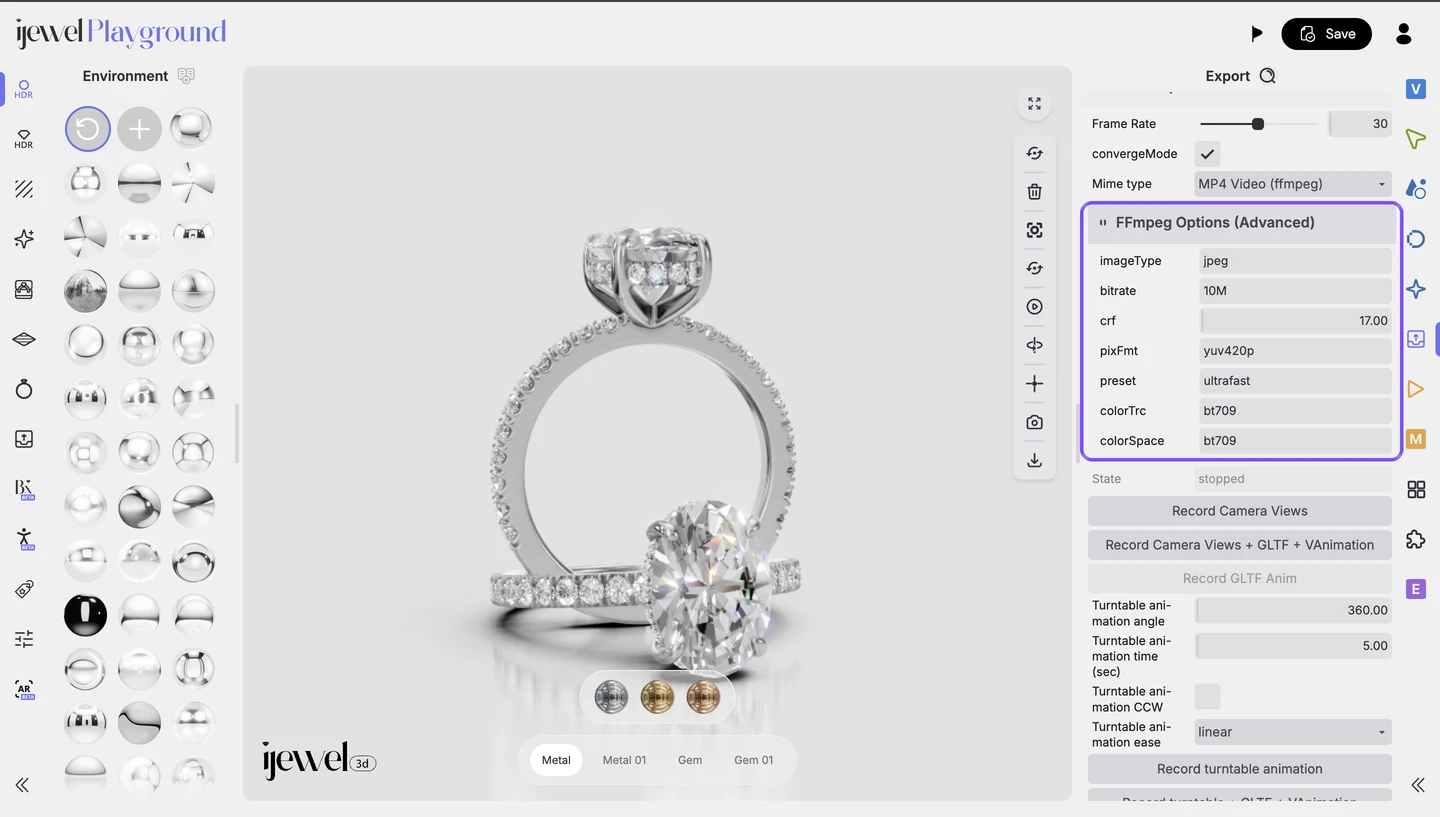 The two settings that matter for file size are **crf** and **preset**. Raise the crf (higher = smaller file) and set the preset to `veryfast` - this alone can shrink a 30+ MB export to a fraction of its size.
Pick your goal:
| Goal | Settings | Approx. size (10-sec video) |
|---|---|---|
| Best quality (larger file) | crf `18`, preset `veryfast` | ~4.5 MB |
| Balanced (recommended for web) | crf `23`, preset `veryfast` | ~2 MB |
| Smallest file | crf `28`, preset `veryfast` | ~1 MB |
Exact sizes vary with the scene, the resolution, and the duration. If the file is still too large, keep raising the crf (it goes up to `51`) and lower the export resolution.
What each option does:
| Option | What it does |
|---|---|
| **imageType** | The format of the frames captured from the canvas before they are encoded into the video (`jpeg`, `png`, or `webp`). |
| **bitrate** | A fixed target for the amount of data per second of video. When active, it makes the output size predictable. |
| **crf** | Constant Rate Factor, the quality control. Lower values give better quality, higher values give stronger compression. Range `0`–`51`. |
| **pixFmt** | The pixel format of the encoded video. `yuv420p` is compatible with all common browsers and players. |
| **preset** | The encoding speed vs. compression trade-off. Faster presets encode quicker but compress less thoroughly. |
| **colorTrc** / **colorSpace** | Color metadata written into the video, so the exported colors match what you see in the viewer. |
Every scene is different, so feel free to play around: export a short test clip, check the size and quality, and adjust the crf up or down until you are happy with the result.
---
# Scene Basics
A scene in iJewel Playground consists of your 3D model together with everything that defines how it looks — background, lighting, ground, shadows, camera, and materials. Understanding these building blocks helps you create professional jewelry visualizations.
## What Makes Up a Scene
Every scene has three core components:
**3D Objects** — your imported jewelry model, organized as a [hierarchy](./hierarchy) of mesh nodes (containing actual geometry) and transform nodes (containing position, rotation, scale). Multiple meshes can share the same material, and objects can be nested inside parent groups.
**Materials** — define the visual appearance of each object. By default, Playground assigns a Physical (PBR) Material for realistic rendering. You can convert objects to Diamond Material for gemstones. See [Picking → Physical Material](./picking#physical-material) and [Picking → Diamond Material](./picking#diamond-material).
**Scene Settings** — everything else: background color, environment maps, ground, shadows, post-processing, lighting, and camera configuration. These are managed primarily through the Scene tab on the right panel.
---
## Scene Tab Sections
The Scene tab on the right panel contains the following sections:
Scene tab on the right panel.
---
## Scene Tab Sections
The Scene tab on the right panel contains the following sections:
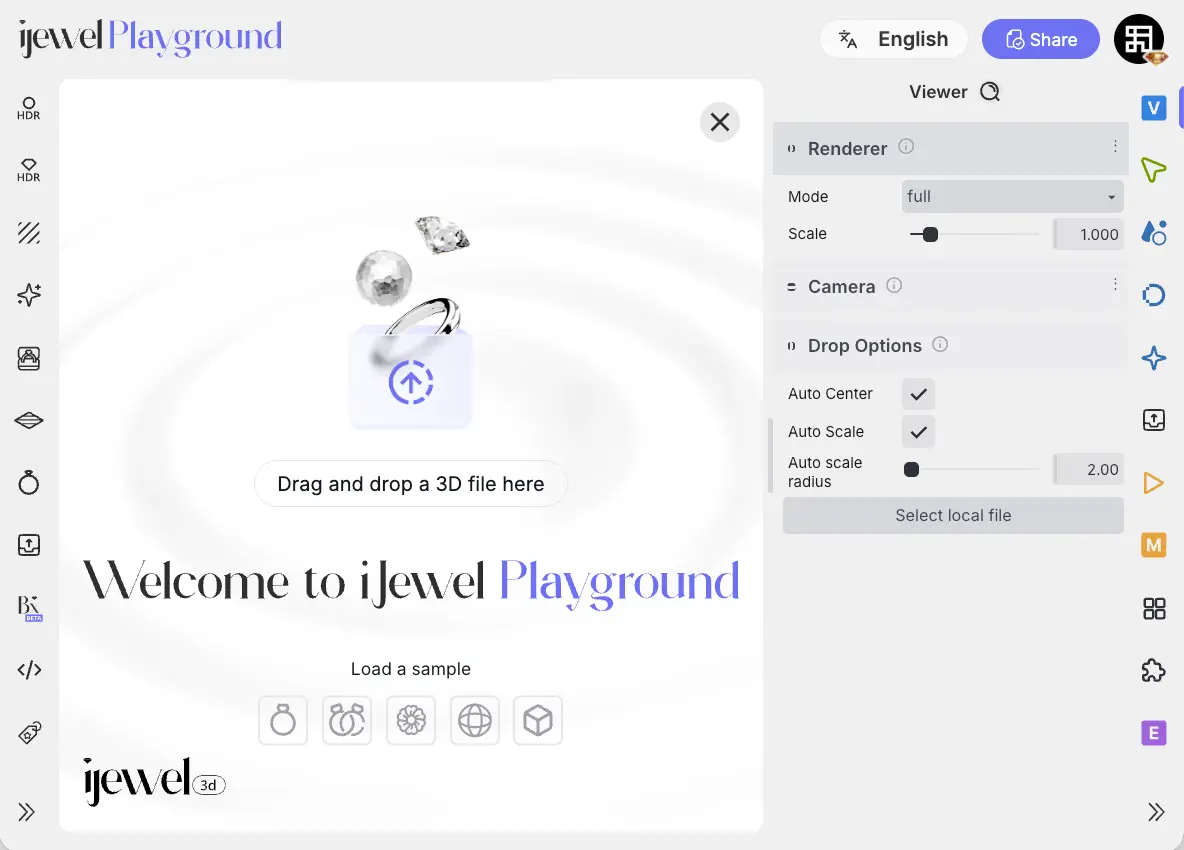
Viewer tab, in the **Renderer** section at the top.
---
## Settings
The two settings that matter for file size are **crf** and **preset**. Raise the crf (higher = smaller file) and set the preset to `veryfast` - this alone can shrink a 30+ MB export to a fraction of its size.
Pick your goal:
| Goal | Settings | Approx. size (10-sec video) |
|---|---|---|
| Best quality (larger file) | crf `18`, preset `veryfast` | ~4.5 MB |
| Balanced (recommended for web) | crf `23`, preset `veryfast` | ~2 MB |
| Smallest file | crf `28`, preset `veryfast` | ~1 MB |
Exact sizes vary with the scene, the resolution, and the duration. If the file is still too large, keep raising the crf (it goes up to `51`) and lower the export resolution.
What each option does:
| Option | What it does |
|---|---|
| **imageType** | The format of the frames captured from the canvas before they are encoded into the video (`jpeg`, `png`, or `webp`). |
| **bitrate** | A fixed target for the amount of data per second of video. When active, it makes the output size predictable. |
| **crf** | Constant Rate Factor, the quality control. Lower values give better quality, higher values give stronger compression. Range `0`–`51`. |
| **pixFmt** | The pixel format of the encoded video. `yuv420p` is compatible with all common browsers and players. |
| **preset** | The encoding speed vs. compression trade-off. Faster presets encode quicker but compress less thoroughly. |
| **colorTrc** / **colorSpace** | Color metadata written into the video, so the exported colors match what you see in the viewer. |
Every scene is different, so feel free to play around: export a short test clip, check the size and quality, and adjust the crf up or down until you are happy with the result.
---
# Scene Basics
A scene in iJewel Playground consists of your 3D model together with everything that defines how it looks — background, lighting, ground, shadows, camera, and materials. Understanding these building blocks helps you create professional jewelry visualizations.
## What Makes Up a Scene
Every scene has three core components:
**3D Objects** — your imported jewelry model, organized as a [hierarchy](./hierarchy) of mesh nodes (containing actual geometry) and transform nodes (containing position, rotation, scale). Multiple meshes can share the same material, and objects can be nested inside parent groups.
**Materials** — define the visual appearance of each object. By default, Playground assigns a Physical (PBR) Material for realistic rendering. You can convert objects to Diamond Material for gemstones. See [Picking → Physical Material](./picking#physical-material) and [Picking → Diamond Material](./picking#diamond-material).
**Scene Settings** — everything else: background color, environment maps, ground, shadows, post-processing, lighting, and camera configuration. These are managed primarily through the Scene tab on the right panel.
---
## Scene Tab Sections
The Scene tab on the right panel contains the following sections:
Scene tab on the right panel.
---
## Scene Tab Sections
The Scene tab on the right panel contains the following sections:
Viewer tab, in the **Renderer** section at the top.

---
## Settings
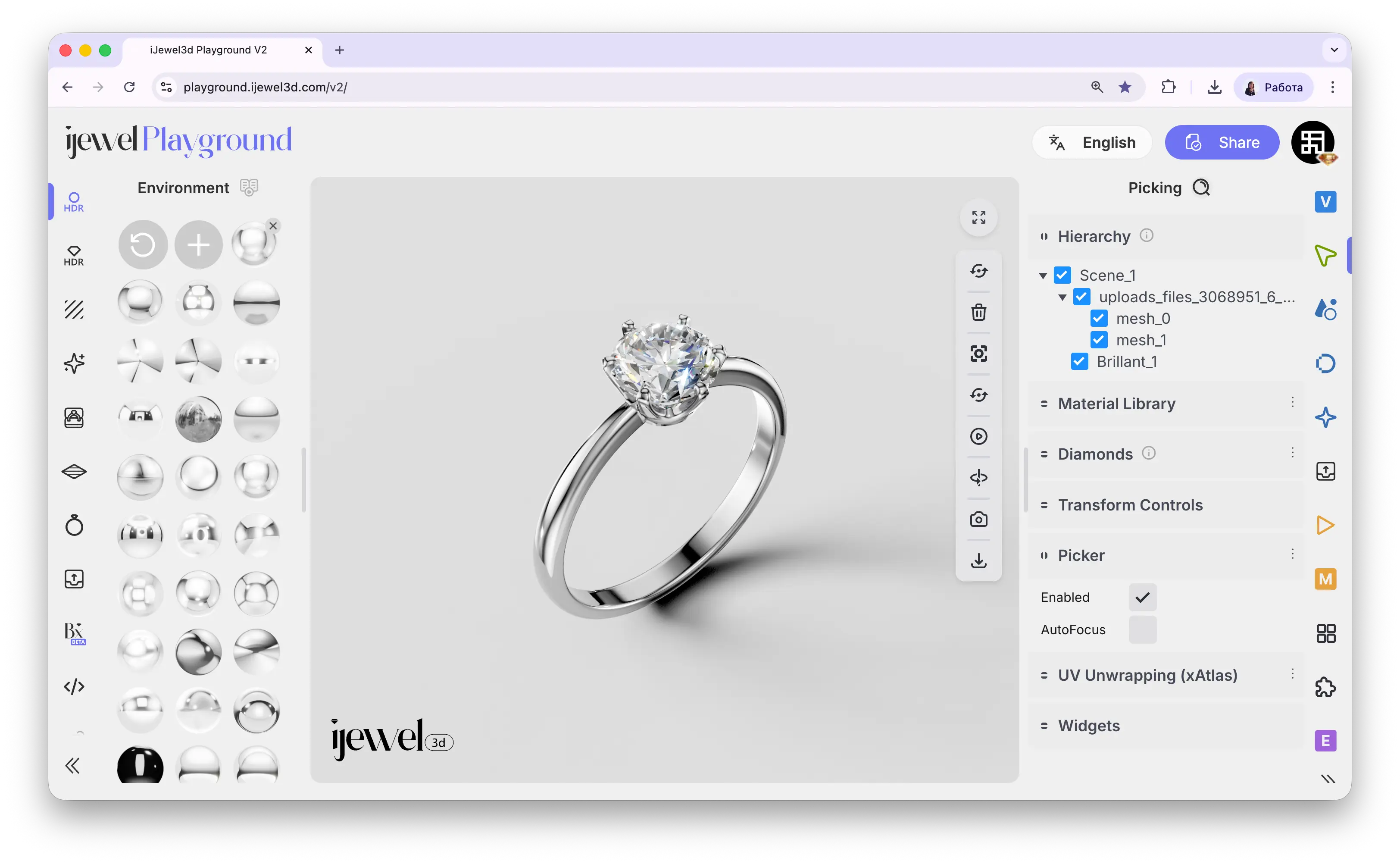
1.000). Increasing the value enhances both the real-time viewing quality and the resolution of exported images and videos. Higher values produce sharper, more detailed renders — ideal for close-up jewelry shots where every facet mattersPicking tab. It is the first section you see when you open this tab.
Click on the **Hierarchy** section header to expand the full tree view of your scene.
---
## Selecting Objects
Clicking on an **object name** in the hierarchy selects that object in the scene. The selected object will be highlighted in the 3D viewport, and its properties will become available for editing.
This is particularly useful when:
- An object is **hard to click** in the viewport because it's small or hidden behind other objects
- You need to select a **parent group** rather than an individual mesh
- You want to quickly navigate between different parts of a complex model
::: tip
You can also select objects by clicking directly on them in the 3D viewport. See [Selecting Objects](./ui-overview#selecting-objects) for more details.
:::
---
## Hiding and Showing Objects
Each object in the hierarchy has a **checkbox** next to its name. Toggling this checkbox controls the object's visibility:
- **Checked** — the object is visible in the scene
- **Unchecked** — the object is hidden from the scene
Picking icon to open it.
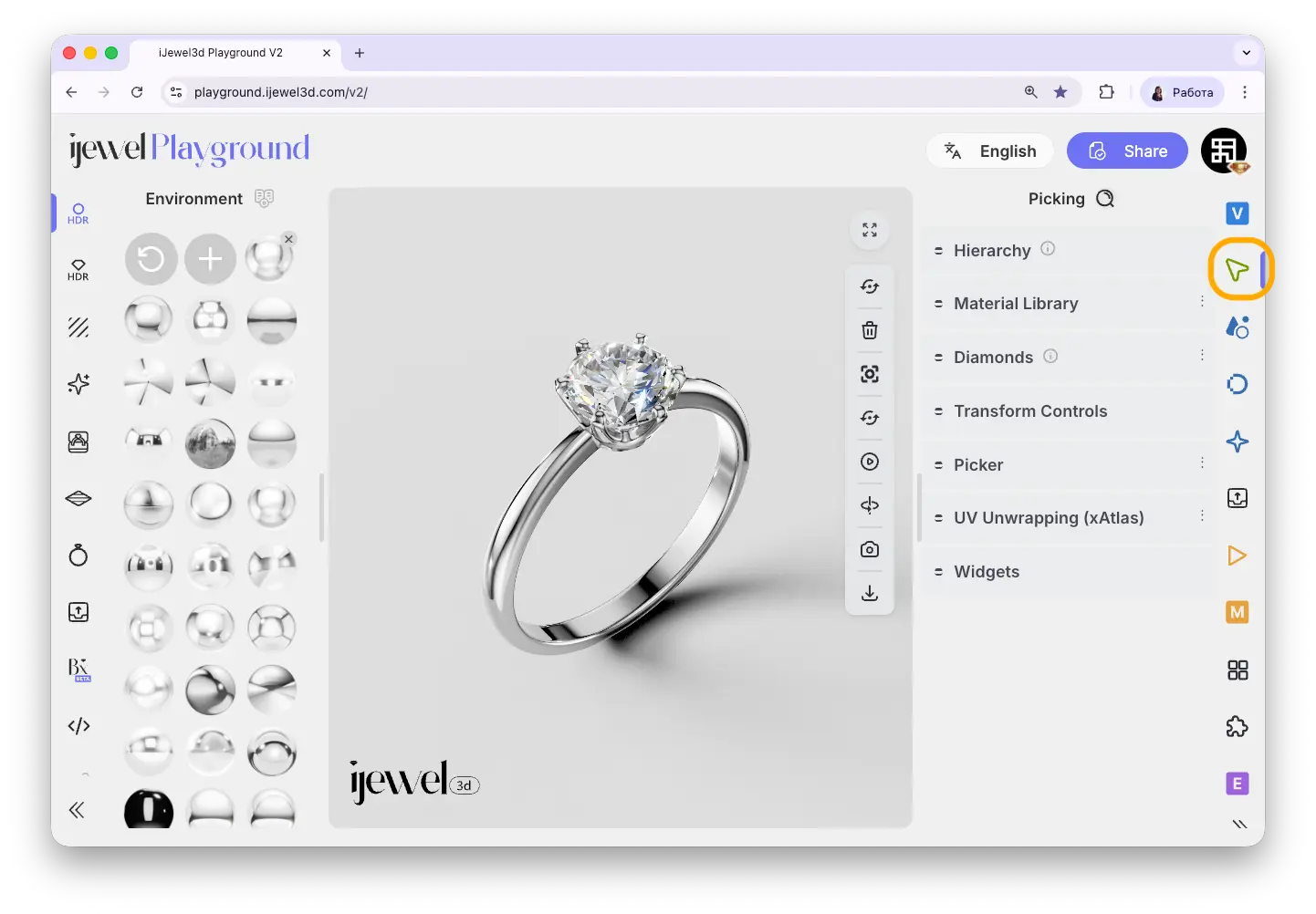
The tab contains the following sections:
Picking tab, in the **Transform Controls** section.
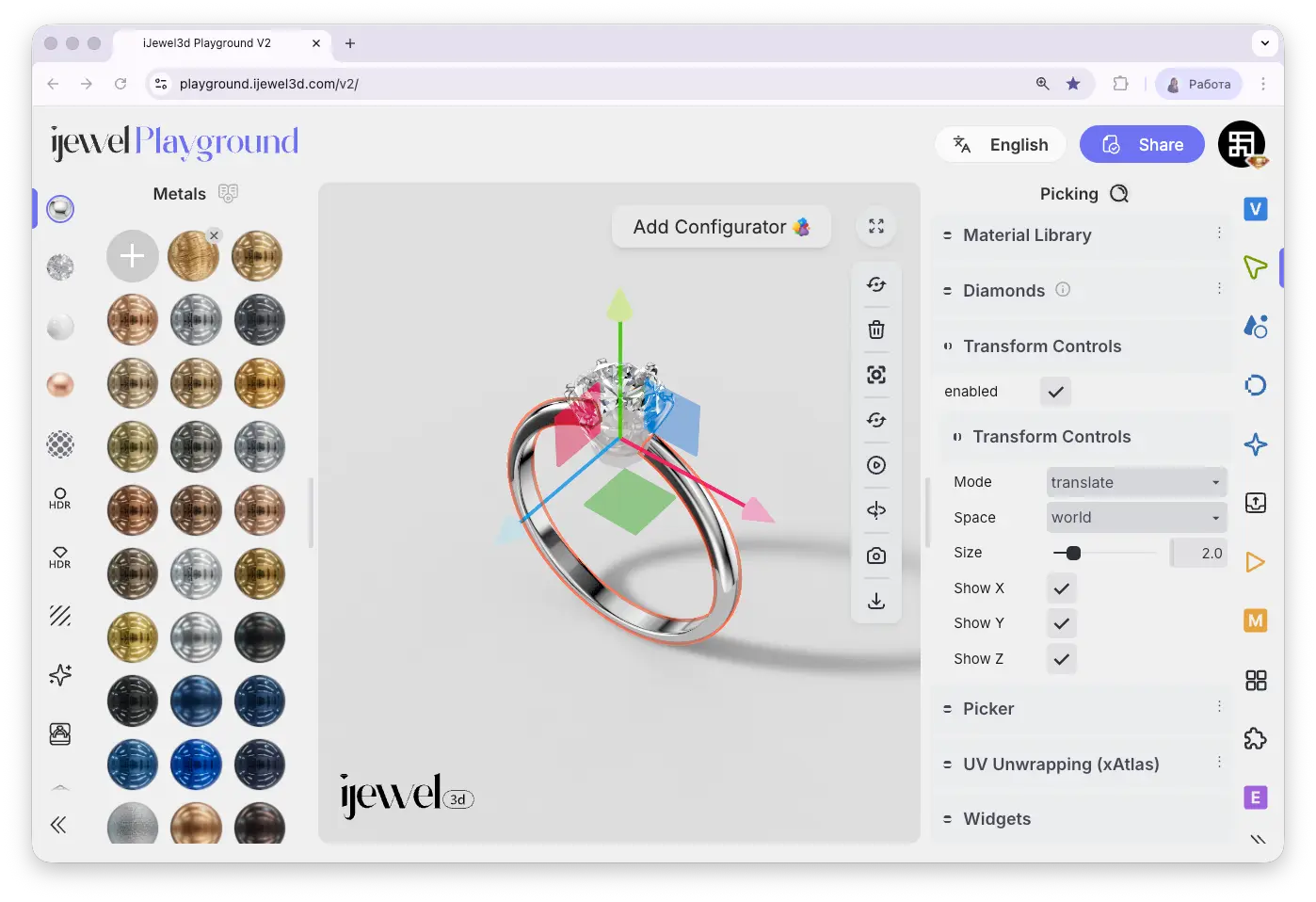
---
## How to Enable
1. Open the **Picking** tab on the right panel
2. Find the **Transform Controls** section
3. Check the **Enable** checkbox
4. Select any object in the scene
Once enabled and an object is selected, a 3D gizmo with colored arrows will appear on the object in the viewport. You can click and drag these arrows to transform the object.
To disable Transform Controls, simply uncheck the **Enable** checkbox — the gizmo will disappear from the viewport.
---
## Settings
Scene tab on the [right panel](./ui-overview#right-panel-—-professional-tools).
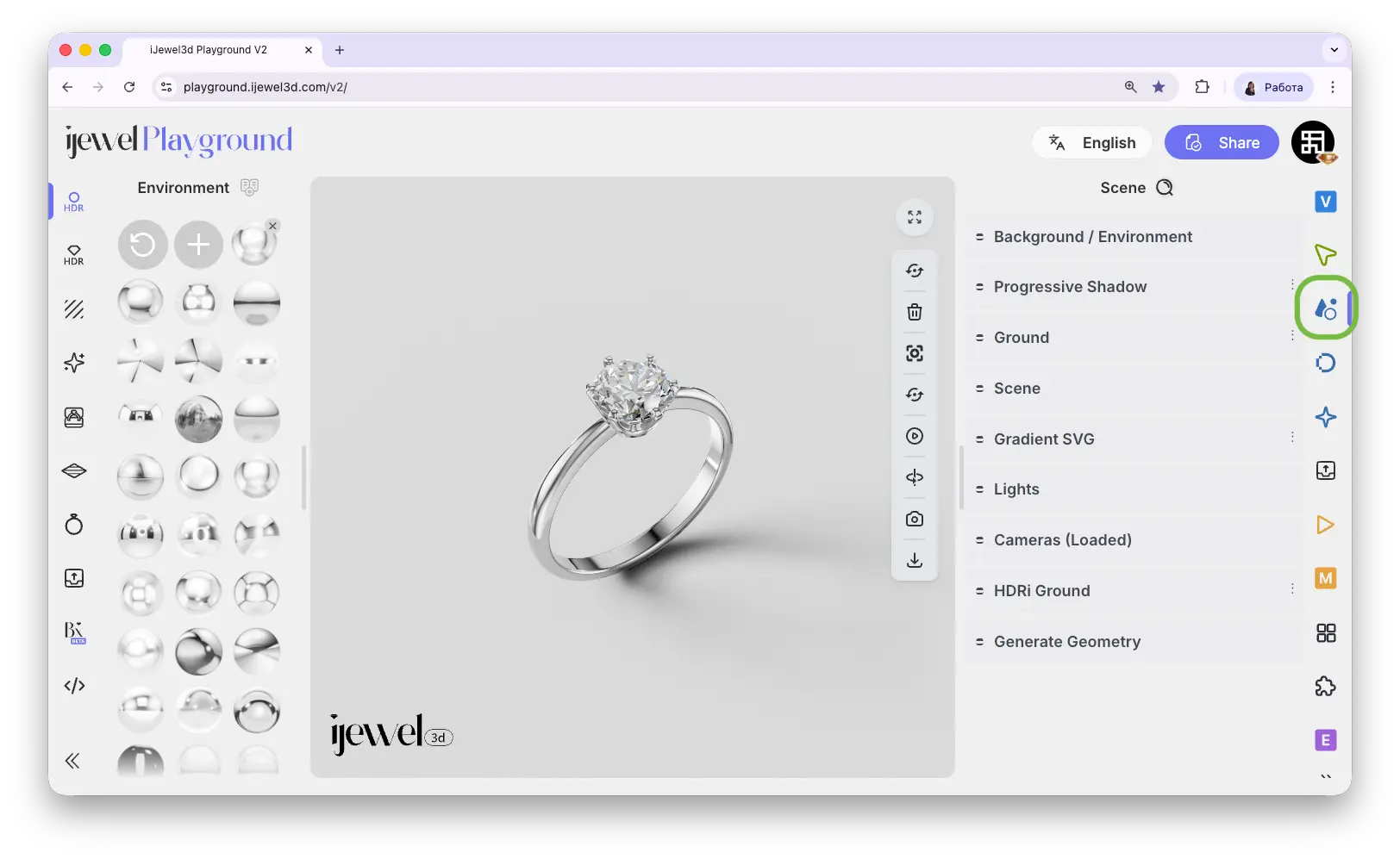
---
## Scene Tab Sections
Scene tab. It is the first section at the top.
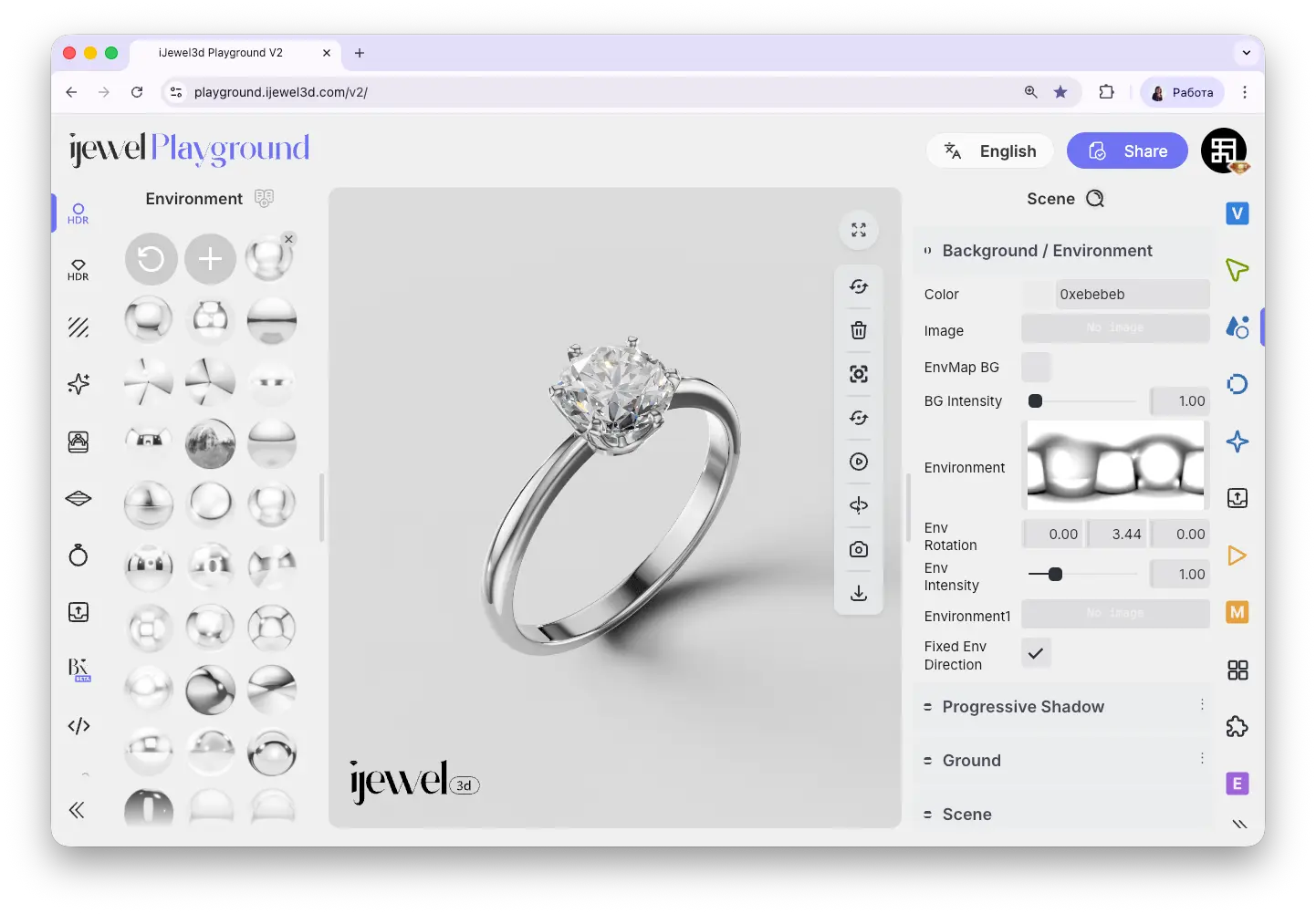
---
## Background
### Color
Choose a background color for your scene using the color picker. This color is visible behind your 3D model and in renders.
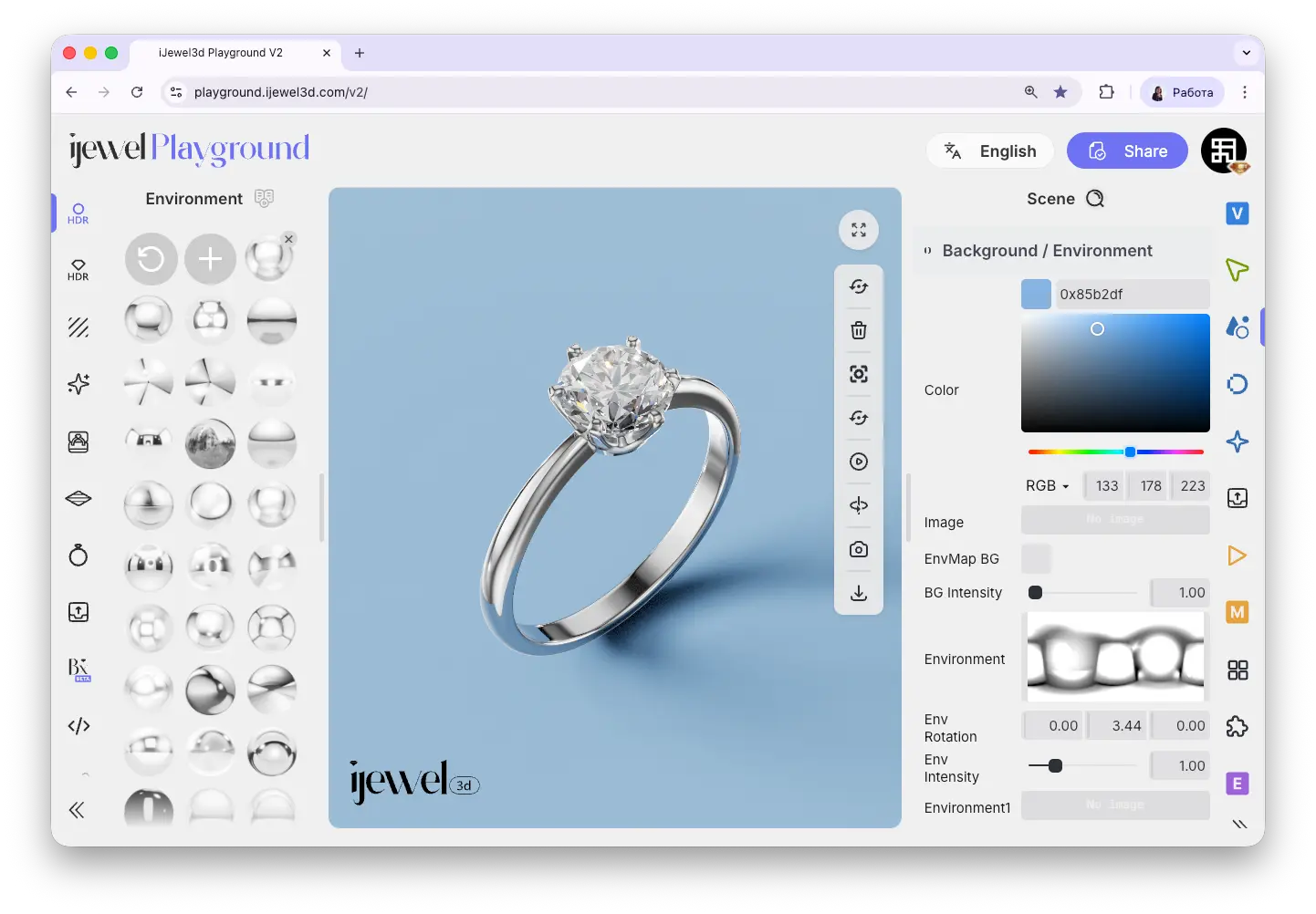
### Image
Upload a custom background image from your computer. This image will be displayed behind the 3D model instead of the solid color.
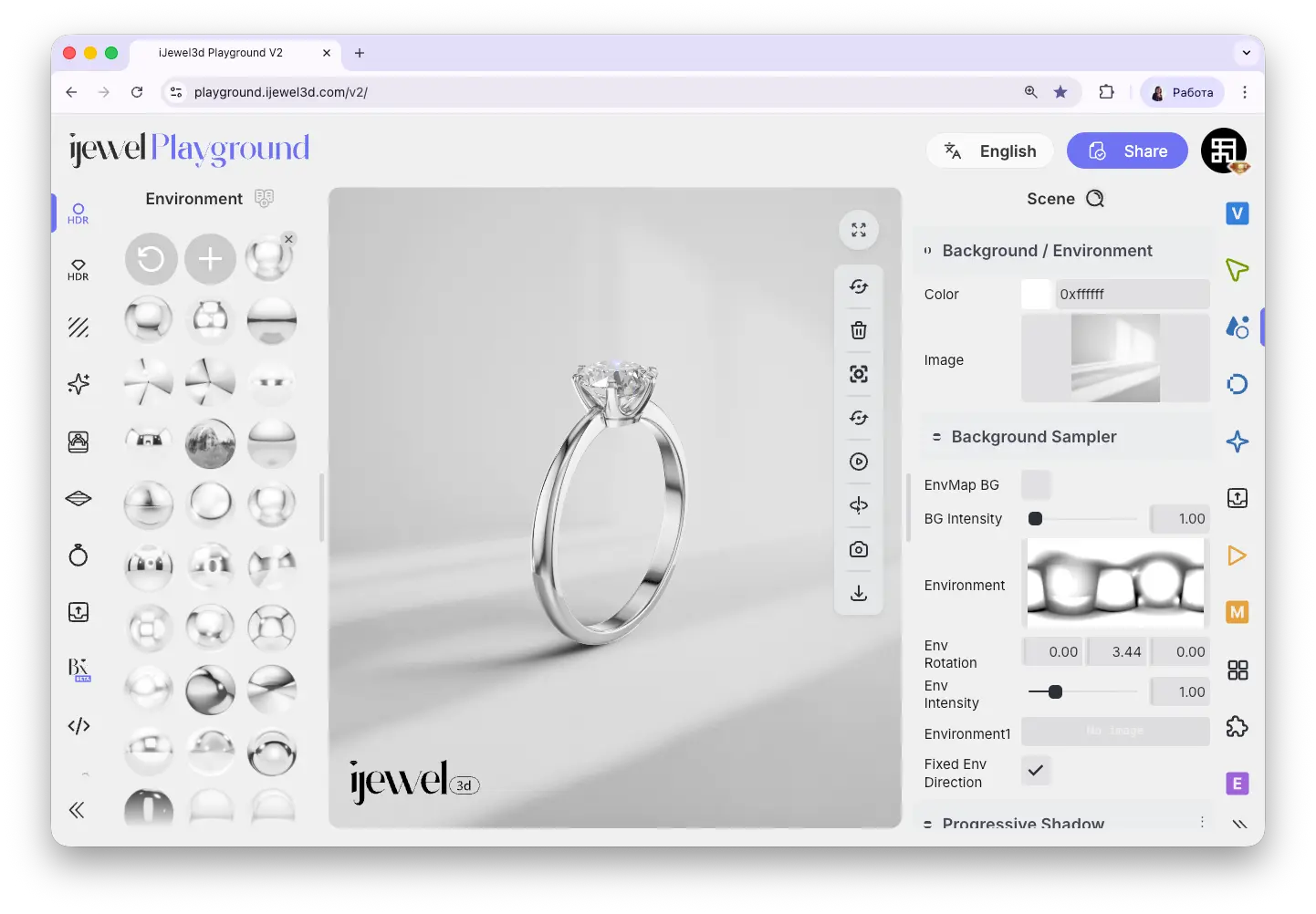
### Env Map BG
When enabled, the Environment Map (HDRI) is also used as the background image. This creates a seamless look where the reflections on the model match the visible background.
### Bg Intensity
Controls the brightness of the background. Increase to make the background brighter, decrease to darken it. This only affects the visual background — not the lighting on the model.
---
## Environment Map (HDRI)
The Environment Map is an HDRI image that wraps around the entire scene and provides realistic lighting and reflections on your model. This is the primary light source for PBR materials — metals, ceramics, and pearls all react to the environment map. **Changing the HDRI map dramatically changes how your model looks** — different maps produce completely different reflections, highlights, and overall mood.
You can load a custom HDRI map by uploading it in this section, or choose from the large library of ready-made HDRI presets on the [left panel](./ui-overview#left-panel-—-presets-quick-settings). The library includes many presets specifically optimized for jewelry rendering — the first preset is designed for metals.
::: tip
For creating custom HDRI maps, you can use the [iJewel HDRI Editor](https://editor.hdrmap.com/#) — a dedicated tool for building environment lighting setups from scratch.
:::
---
## Environment Settings
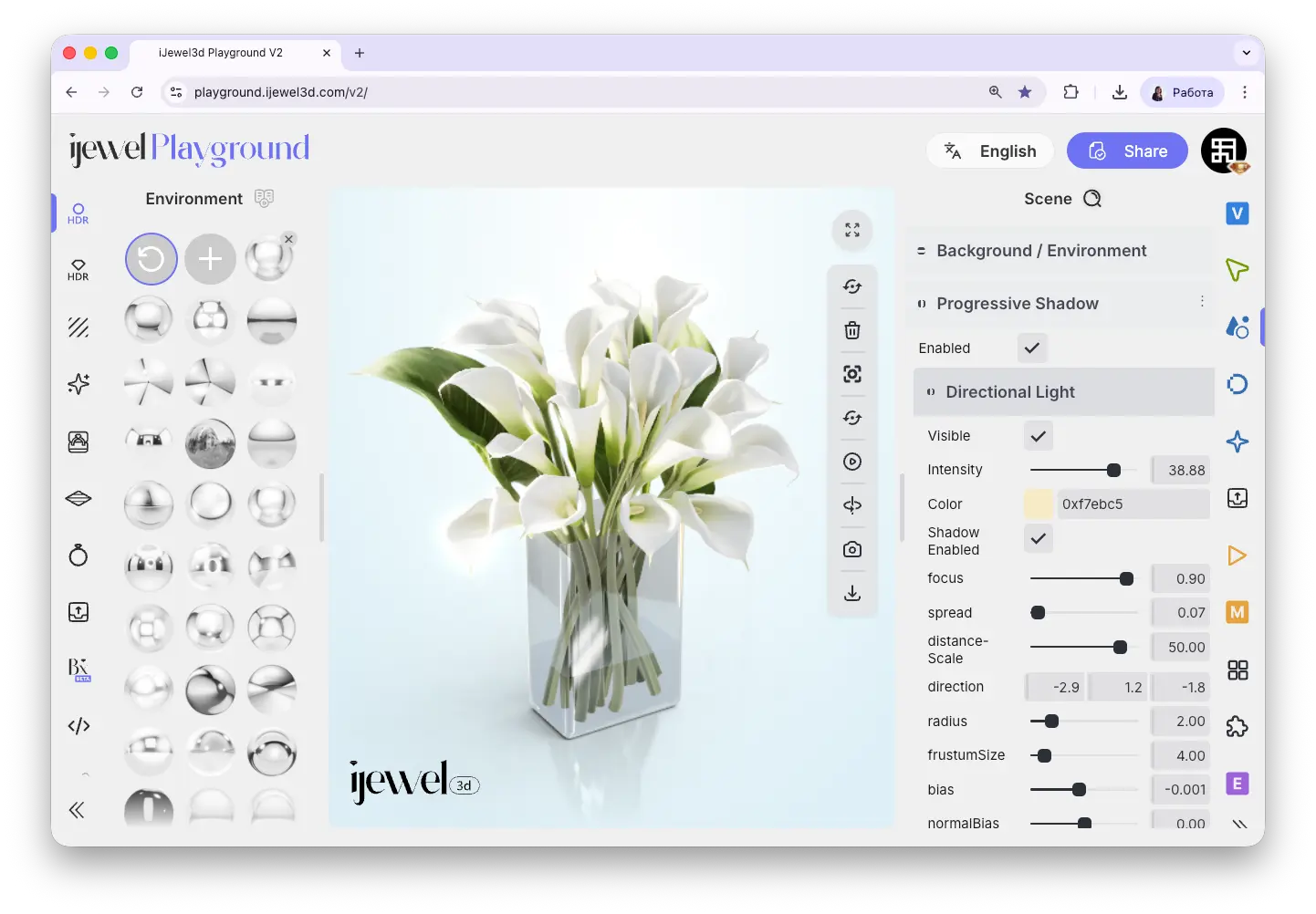
Scene tab, in the **Progressive Shadow** section.
---
## Enabling Progressive Shadow
Check the **Enable** checkbox to activate the Progressive Shadow. A directional light will be created in the scene, and a shadow will appear beneath your model. Uncheck to disable.
---
## Directional Light Settings
Once enabled, you can configure the directional light that casts the shadow:
### Visibility & Intensity
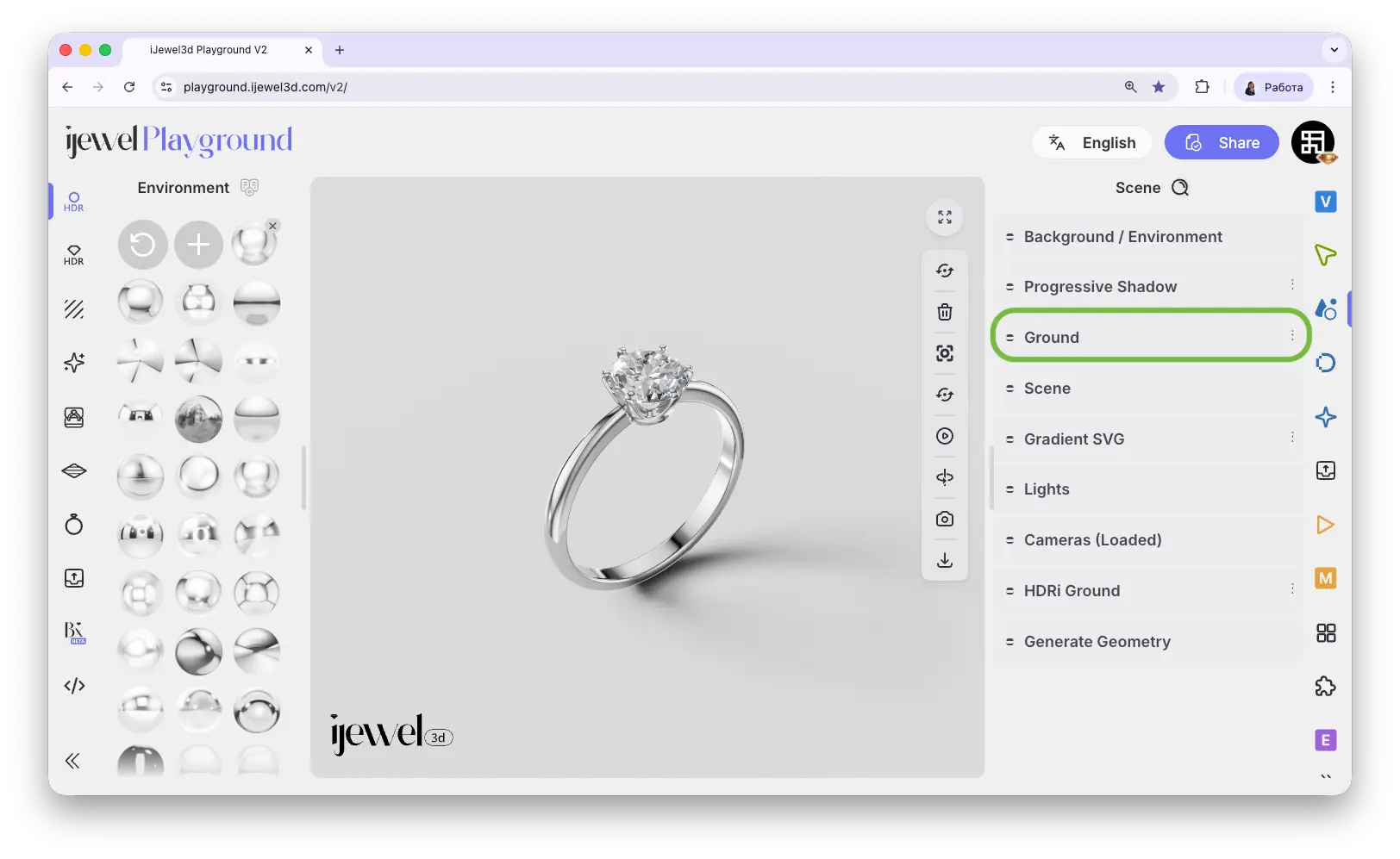
Scene tab, in the **Ground** section (the third section from the top).
---
## Visible
Check or uncheck the **Visible** checkbox to show or hide the ground plane. When disabled, the model appears to float — useful for pendants, earrings, or any jewelry that should look suspended rather than resting on a surface.
---
## Ground Settings
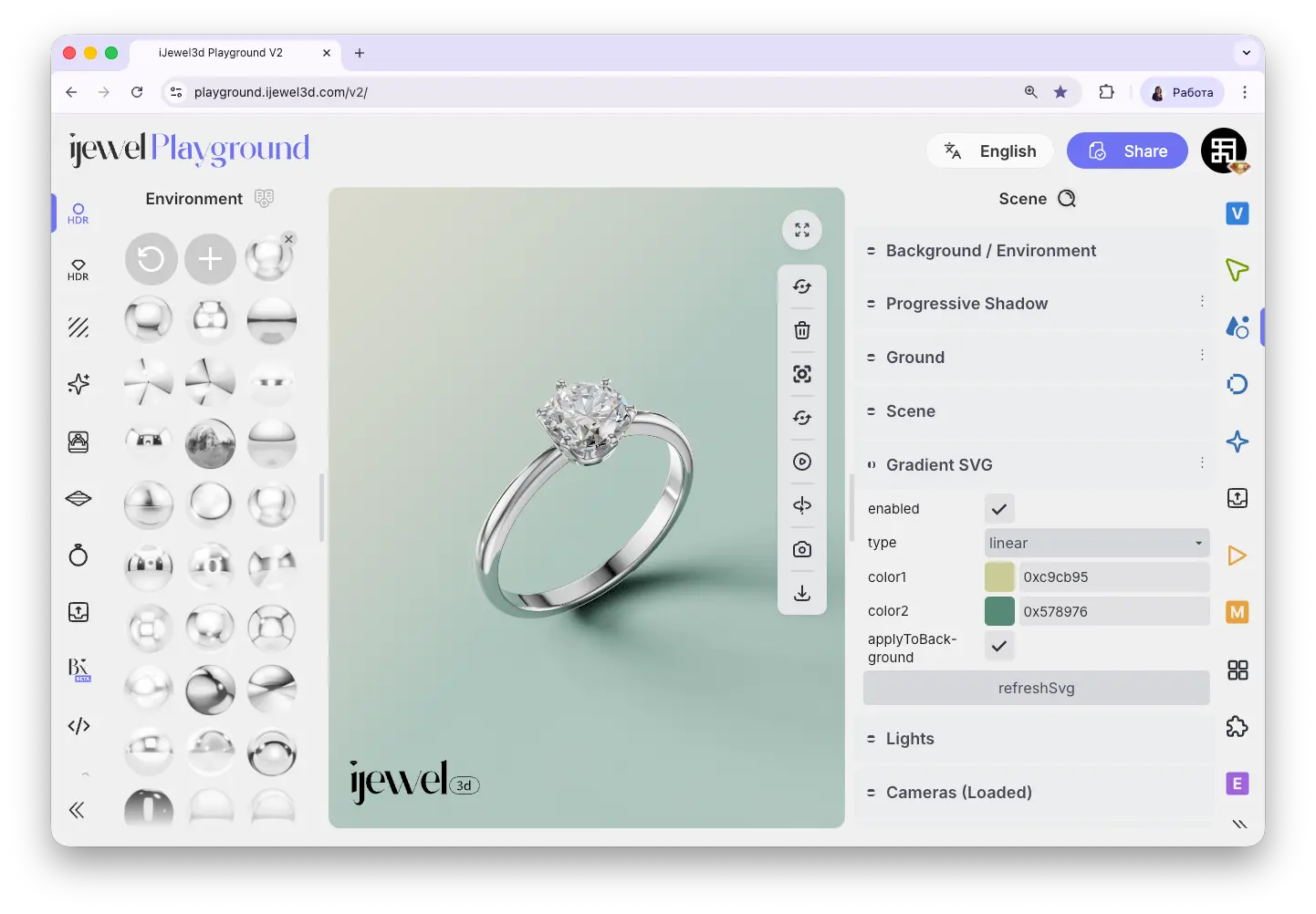
Scene tab, in the **Gradient SVG** section.
---
## How It Works
The Gradient SVG tool generates an SVG gradient image and places it into the **Image** slot in the [Background / Environment](./background-environment) section. When you enable **Apply to Background**, any changes you make to the gradient are immediately visible in the viewport.
To see your gradient in real time, make sure the **Apply to Background** checkbox at the bottom of the section is checked. All changes to colors, angle, and positions will update the background automatically.
---
## Settings
Scene tab, in the **HDRi Ground** section.
::: info
HDRi Ground uses whatever HDRI map is currently loaded in the [Background / Environment](./background-environment) section. If no HDRI map is set, enabling HDRi Ground will have no visible effect.
:::
---
## Enabled
Check or uncheck the **Enabled** checkbox to toggle the HDRi Ground on or off. When enabled, the HDRI environment map wraps around the scene as a sphere, and the ground becomes part of that sphere — creating a seamless environment where the background and floor are one continuous image.
---
## Settings
Scene tab, in the **Generate Geometry** section.
---
## Available Shapes
The section provides six buttons, each generating a different primitive shape:
Scene tab, in the **Cameras (Loaded)** section.
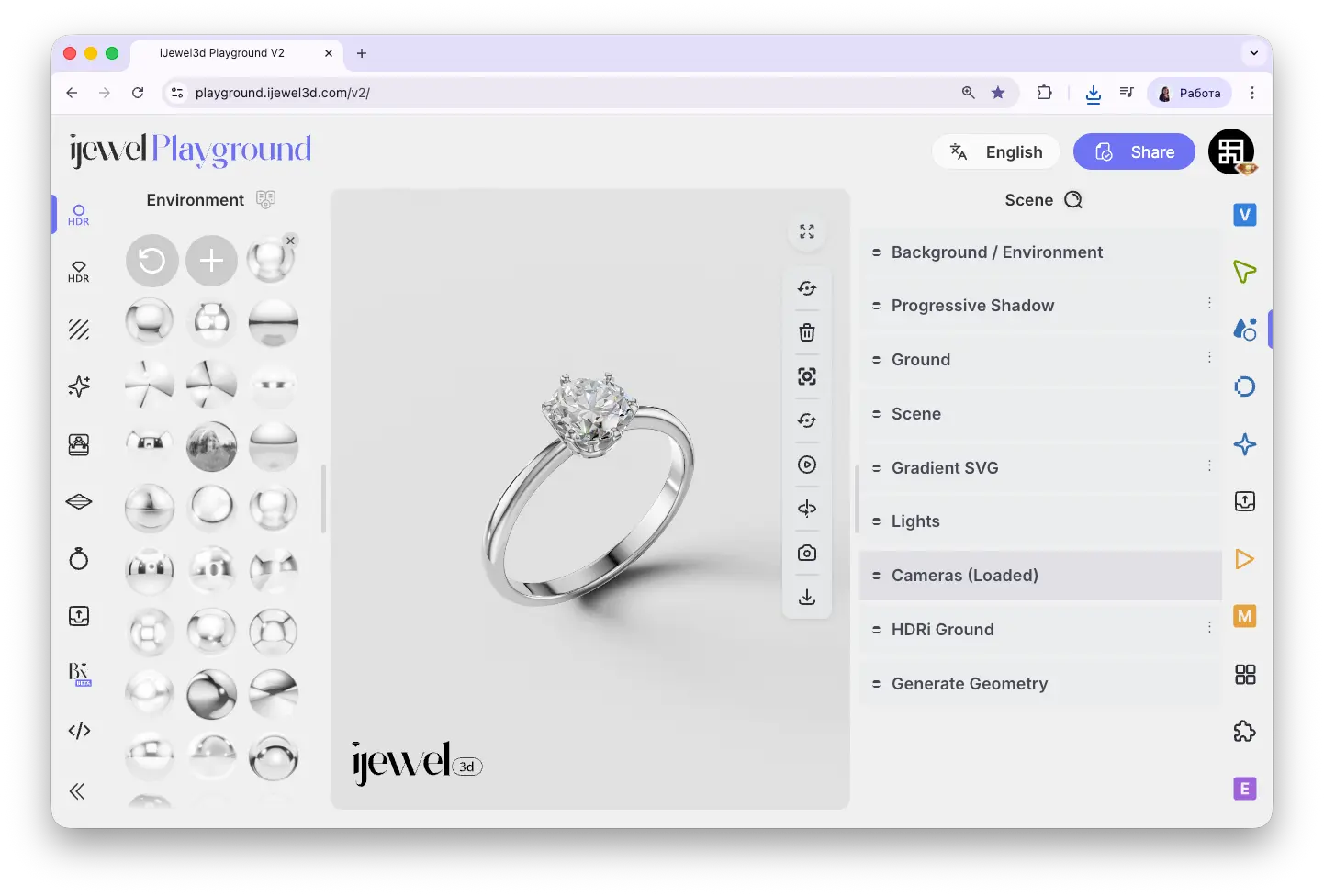
::: info
This section will be empty if your model file does not contain any cameras. To use loaded cameras, you need to export cameras from your 3D software together with the model.
:::
---
## How It Works
By default, iJewel Playground uses its own viewport camera — the one that lets you orbit, zoom, and pan around the model freely. When you load a model that contains a camera, it appears as an object in this section. You can then **activate** that camera to switch from the default viewport to the imported camera's point of view.
### Tutorial: Creating a Camera Path and Rendering It in Playground
This tutorial walks through the full workflow for camera animations: you start by creating a camera path in **Blender** — setting up keyframes, defining the movement curve, and configuring the animation timeline. Then you export the scene (model + camera) as a `.glb` file and import it into **iJewel Playground**. Once loaded, you activate the imported camera and use the export tools to render the final video directly in the browser.
---
## Camera Properties
When you expand a loaded camera, it shows properties similar to a regular object:
Scene tab, in the **Cameras (Loaded)** section.

::: info
This section will be empty if your model file does not contain any cameras. To use loaded cameras, you need to export cameras from your 3D software together with the model.
:::
---
## How It Works
By default, iJewel Playground uses its own viewport camera — the one that lets you orbit, zoom, and pan around the model freely. When you load a model that contains a camera, it appears as an object in this section. You can then **activate** that camera to switch from the default viewport to the imported camera's point of view.
### Tutorial: Creating a Camera Path and Rendering It in Playground
This tutorial walks through the full workflow for camera animations: you start by creating a camera path in **Blender** — setting up keyframes, defining the movement curve, and configuring the animation timeline. Then you export the scene (model + camera) as a `.glb` file and import it into **iJewel Playground**. Once loaded, you activate the imported camera and use the export tools to render the final video directly in the browser.
---
## Camera Properties
When you expand a loaded camera, it shows properties similar to a regular object:
Scene tab, in the **Lights** section.
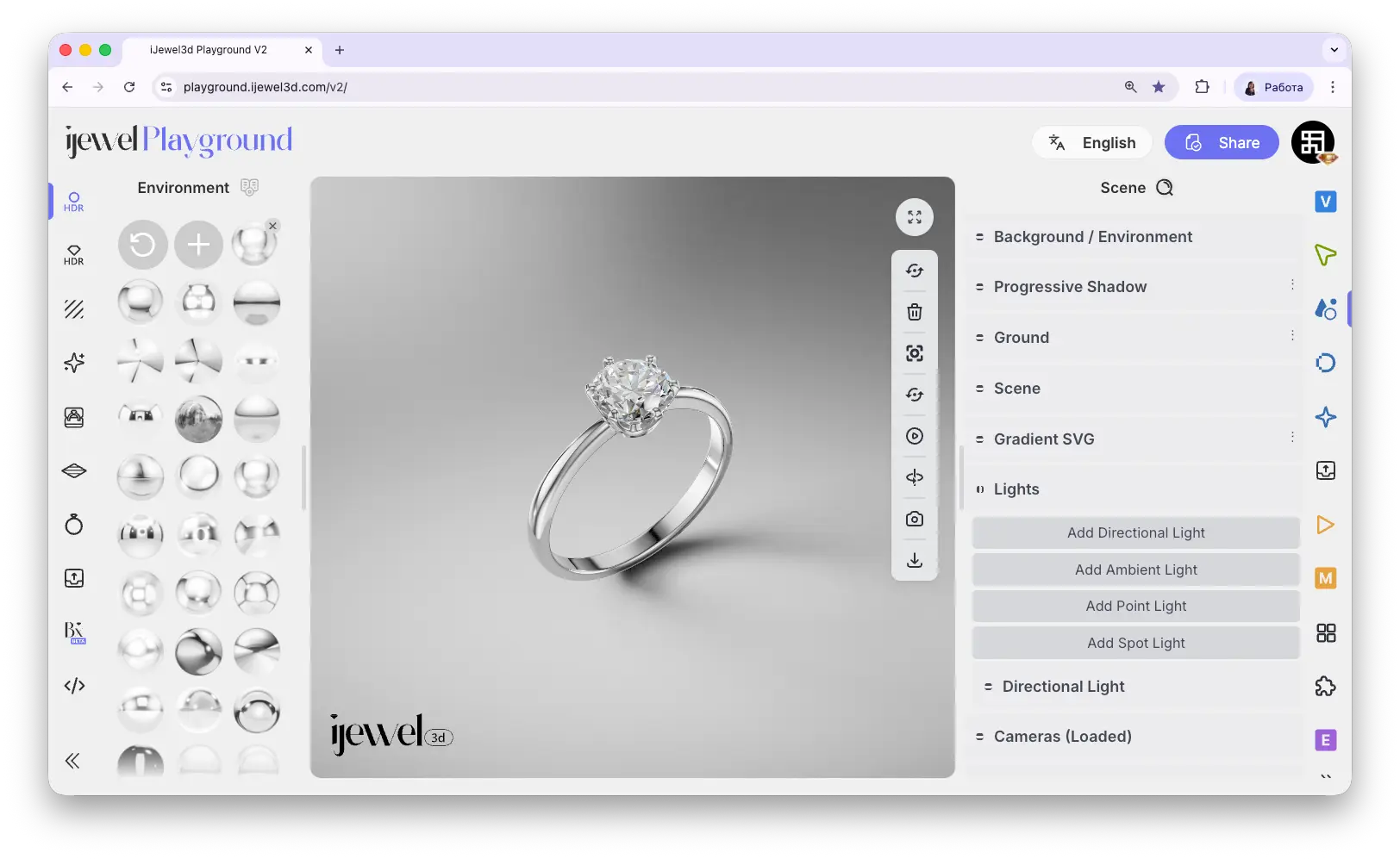
The section provides four buttons to add different types of lights:
Scene tab, in the **Lights** section.

The section provides four buttons to add different types of lights:
Anti-aliasing tab.
---
## How the Three Sections Work Together
Each anti-aliasing method targets a specific use case:
Anti-aliasing tab, in the **Progressive** section.
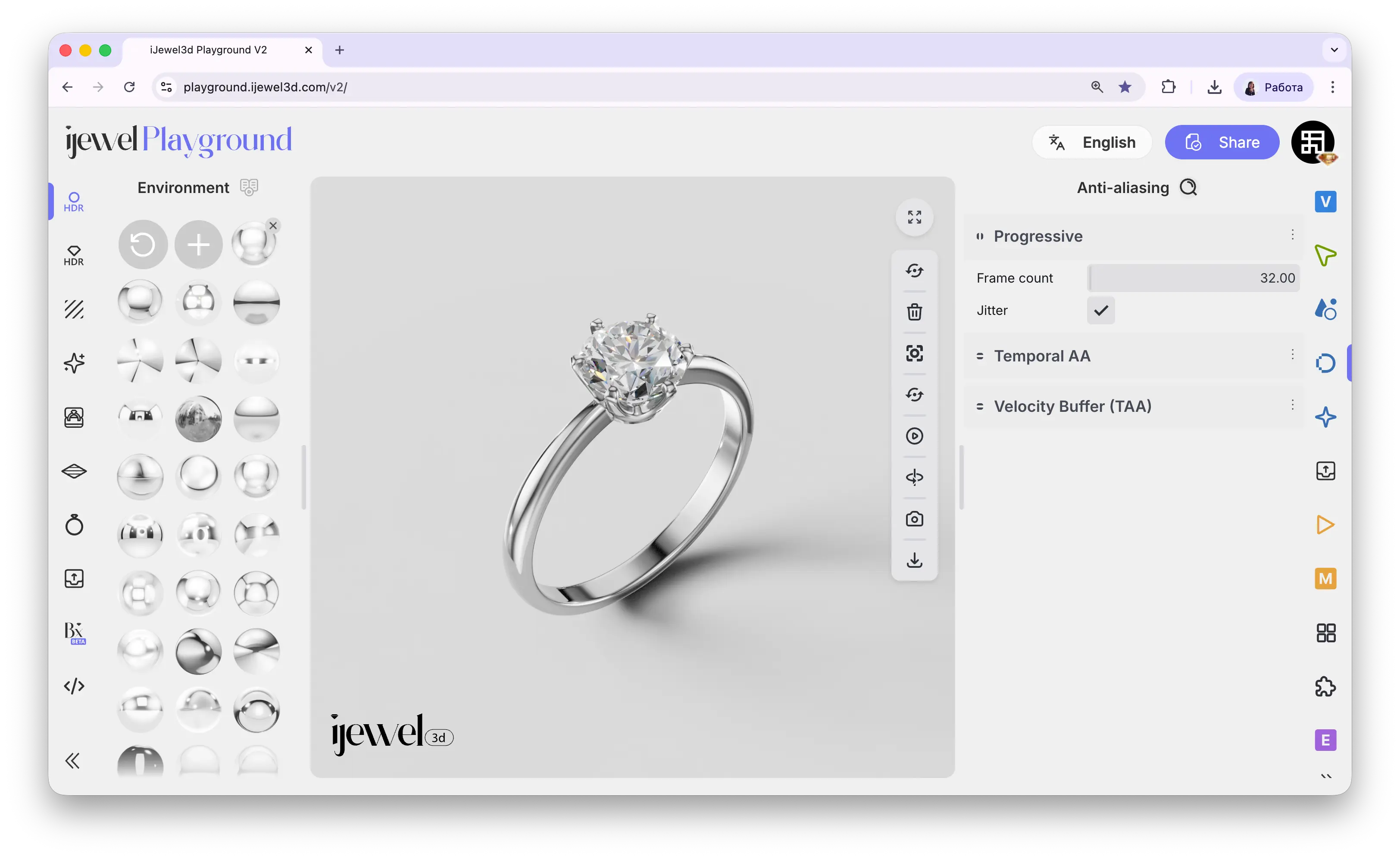 ---
## How It Works
When the scene is idle (no camera movement, no animation playing), Playground begins accumulating frames in the background. You'll notice the image gradually becomes sharper and smoother over a few seconds — this is the progressive render converging. Once the set number of frames has been reached, the image is fully resolved.
Any interaction (rotating, zooming, panning) resets the accumulation and it starts over. This is normal — Progressive is designed for the **final still result**, not for real-time interaction.
---
## Settings
Anti-aliasing tab, in the **Temporal AA** section.
---
## How It Works
When the scene is idle (no camera movement, no animation playing), Playground begins accumulating frames in the background. You'll notice the image gradually becomes sharper and smoother over a few seconds — this is the progressive render converging. Once the set number of frames has been reached, the image is fully resolved.
Any interaction (rotating, zooming, panning) resets the accumulation and it starts over. This is normal — Progressive is designed for the **final still result**, not for real-time interaction.
---
## Settings
Anti-aliasing tab, in the **Temporal AA** section.
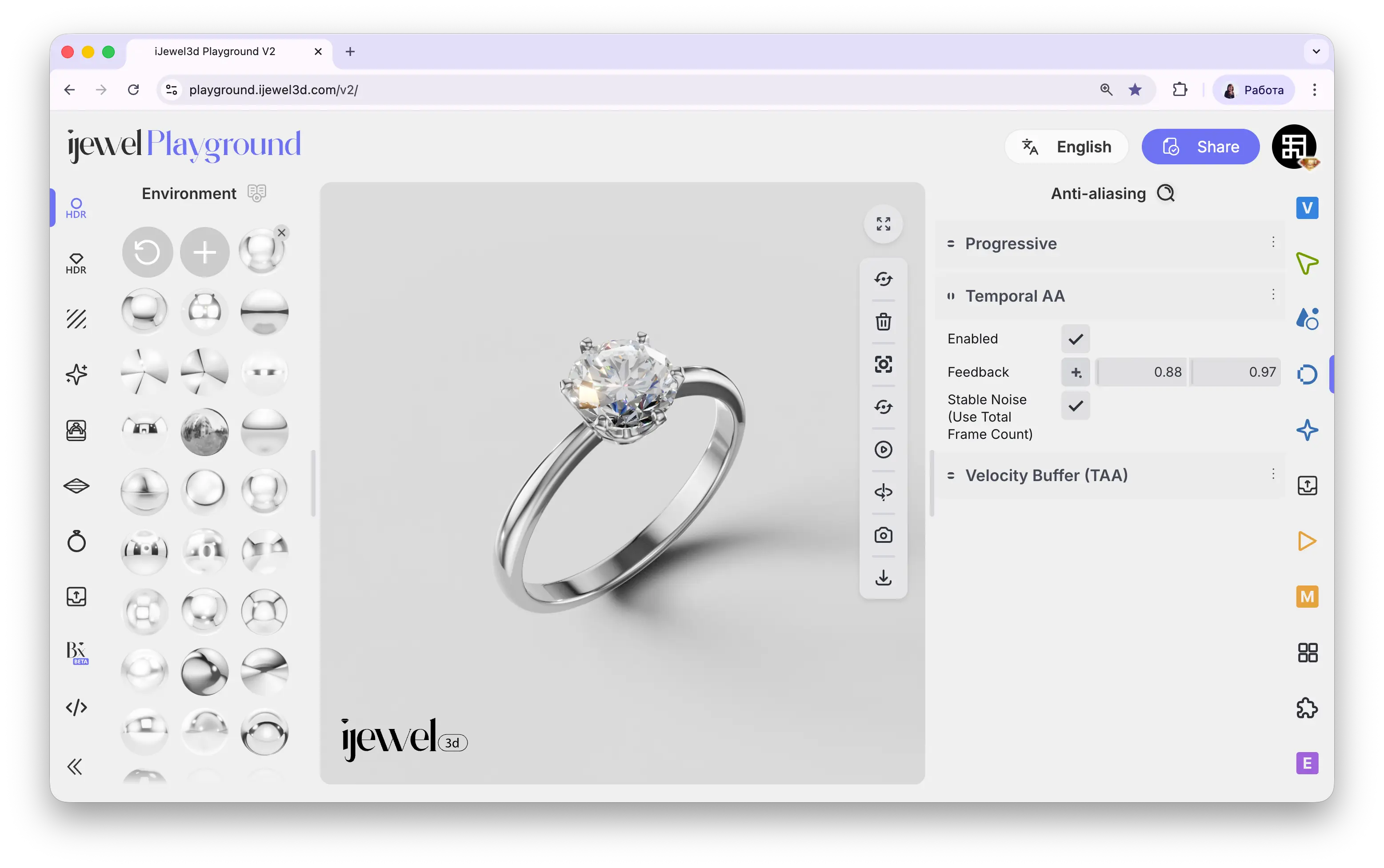 ---
## How It Works
Each rendered frame is compared to the previous frame. Pixels that haven't changed much are blended together (using the **Feedback** values), which smooths out aliasing and reduces temporal flickering — the shimmering you sometimes see on thin edges or detailed geometry when the camera moves.
The trade-off is **ghosting**: if the feedback is too high, moving objects can leave faint trails because the renderer holds on to old frame data too long. The Feedback parameters let you control this balance.
---
## Settings
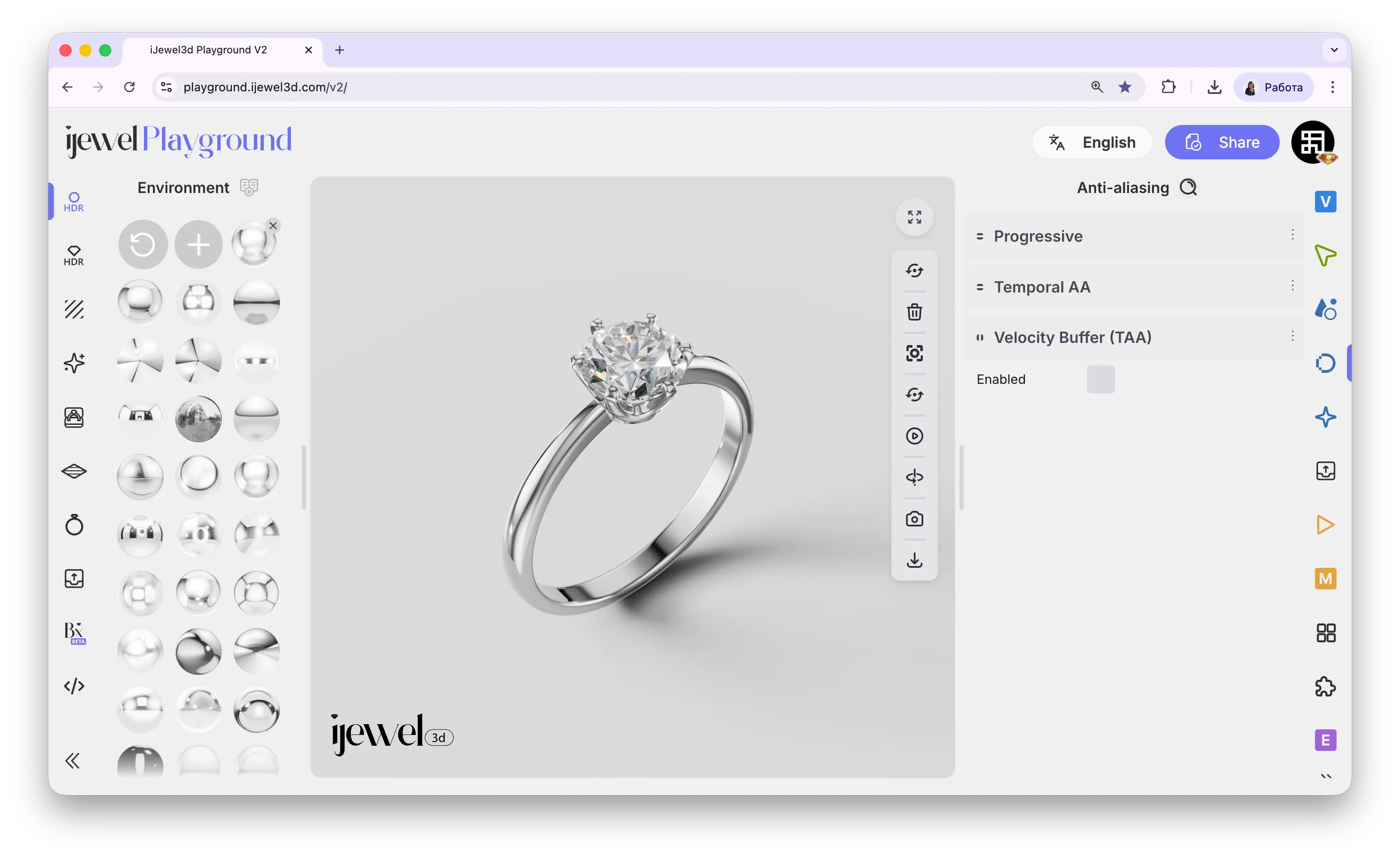
Anti-aliasing tab, in the **Velocity Buffer (TAA)** section.
---
## How It Works
Each rendered frame is compared to the previous frame. Pixels that haven't changed much are blended together (using the **Feedback** values), which smooths out aliasing and reduces temporal flickering — the shimmering you sometimes see on thin edges or detailed geometry when the camera moves.
The trade-off is **ghosting**: if the feedback is too high, moving objects can leave faint trails because the renderer holds on to old frame data too long. The Feedback parameters let you control this balance.
---
## Settings
Anti-aliasing tab, in the **Velocity Buffer (TAA)** section.
 ---
## How It Works
Without a velocity buffer, Temporal AA assumes that each pixel in the current frame corresponds to the same screen position in the previous frame. This works well when the scene is still, but during camera rotation or object animation, pixels shift — and the old frame data at that position is no longer valid. This mismatch causes **ghosting** (faint trails behind moving edges).
The Velocity Buffer solves this by computing a **motion vector** for every pixel — a 2D offset describing where that pixel was in the previous frame. Temporal AA then uses these vectors to look up the correct historical data, producing clean anti-aliasing even during motion.
---
## Settings
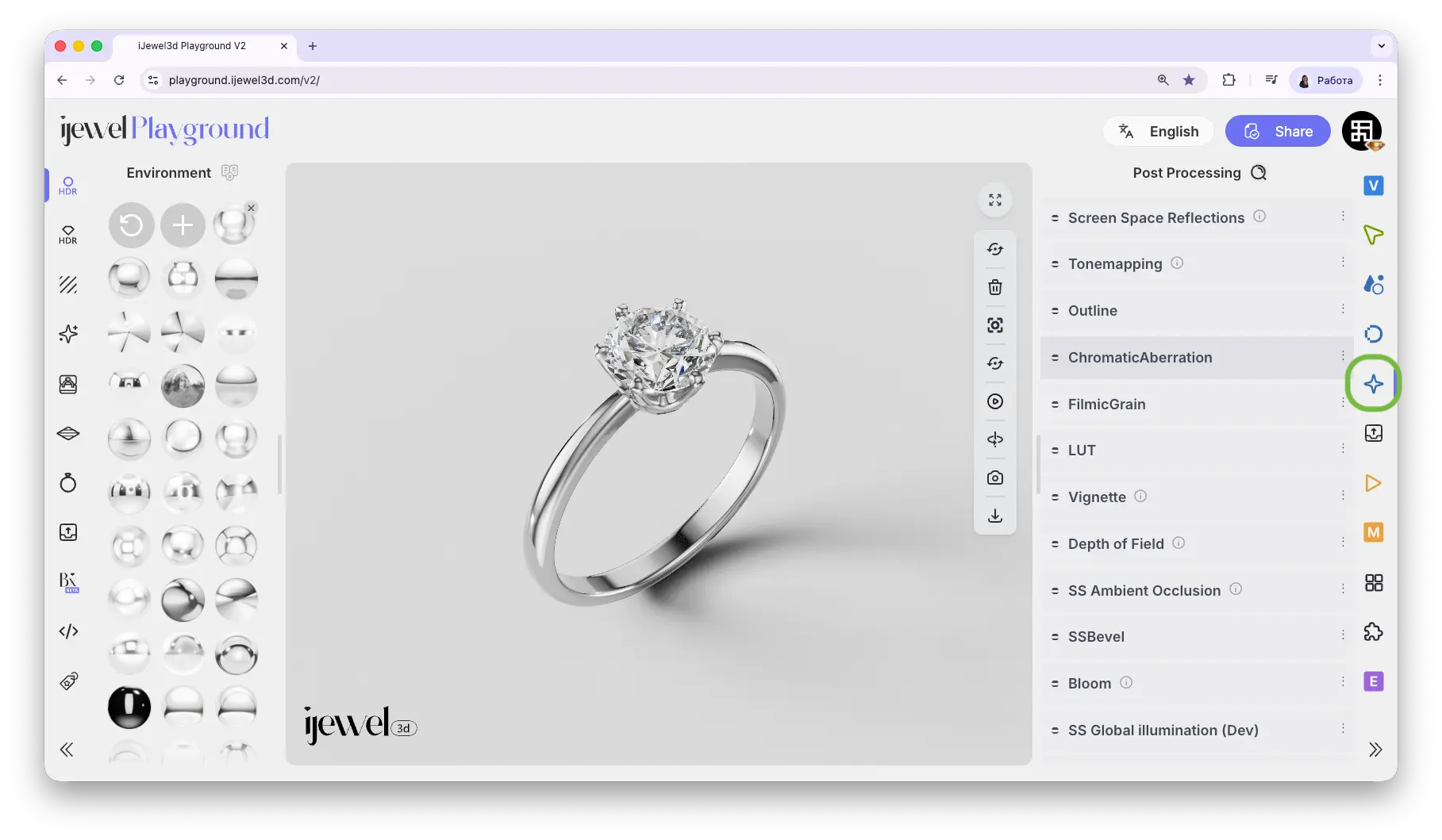
Post Processing tab.
---
## How It Works
Without a velocity buffer, Temporal AA assumes that each pixel in the current frame corresponds to the same screen position in the previous frame. This works well when the scene is still, but during camera rotation or object animation, pixels shift — and the old frame data at that position is no longer valid. This mismatch causes **ghosting** (faint trails behind moving edges).
The Velocity Buffer solves this by computing a **motion vector** for every pixel — a 2D offset describing where that pixel was in the previous frame. Temporal AA then uses these vectors to look up the correct historical data, producing clean anti-aliasing even during motion.
---
## Settings
Post Processing tab.
 ---
## Sections
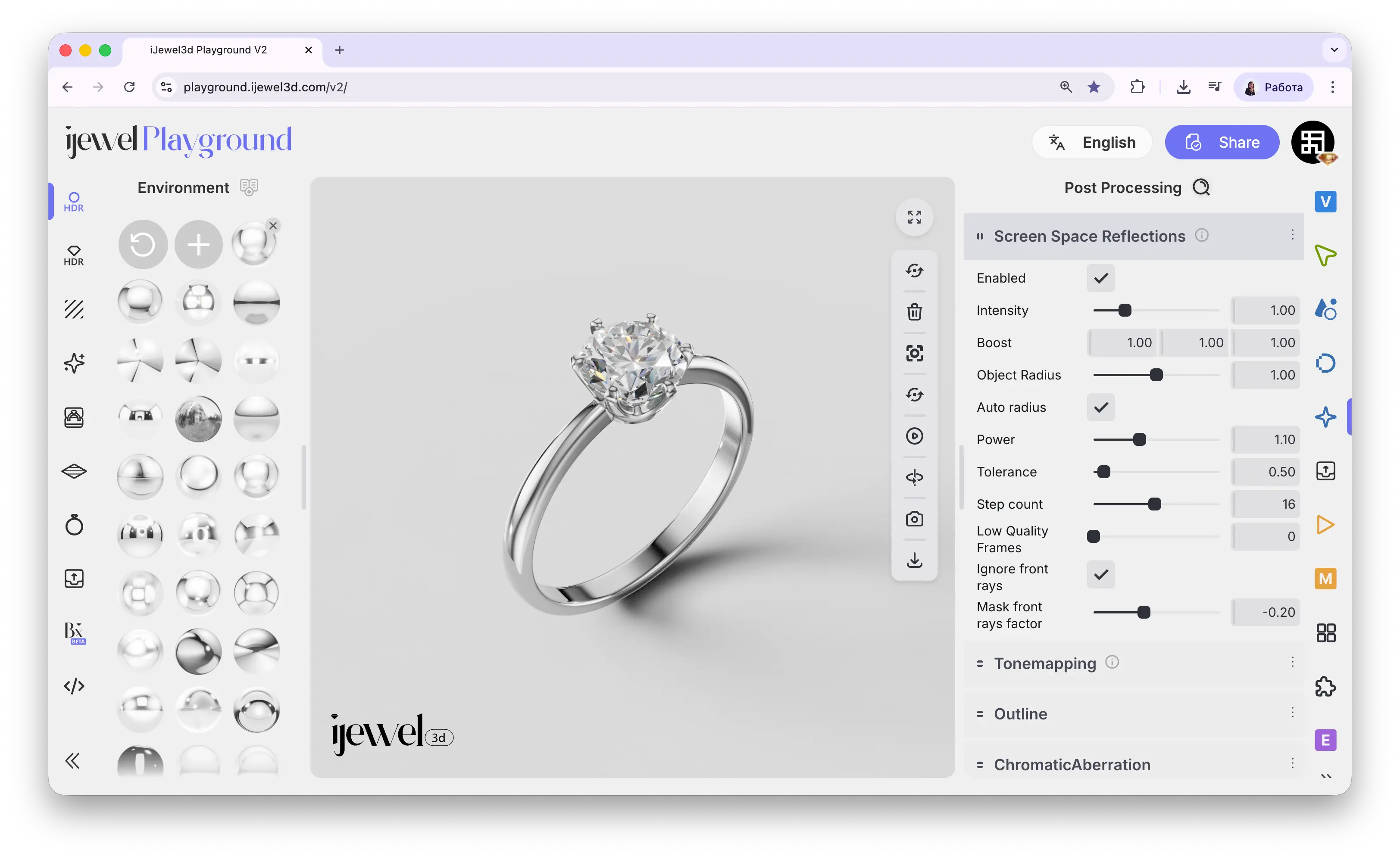
Post Processing tab. It is the first section at the top.
---
## Sections
Post Processing tab. It is the first section at the top.
 ::: info
SSR can only reflect what is currently visible on screen. Off-screen objects fall back to environment map reflections.
:::
---
## Settings
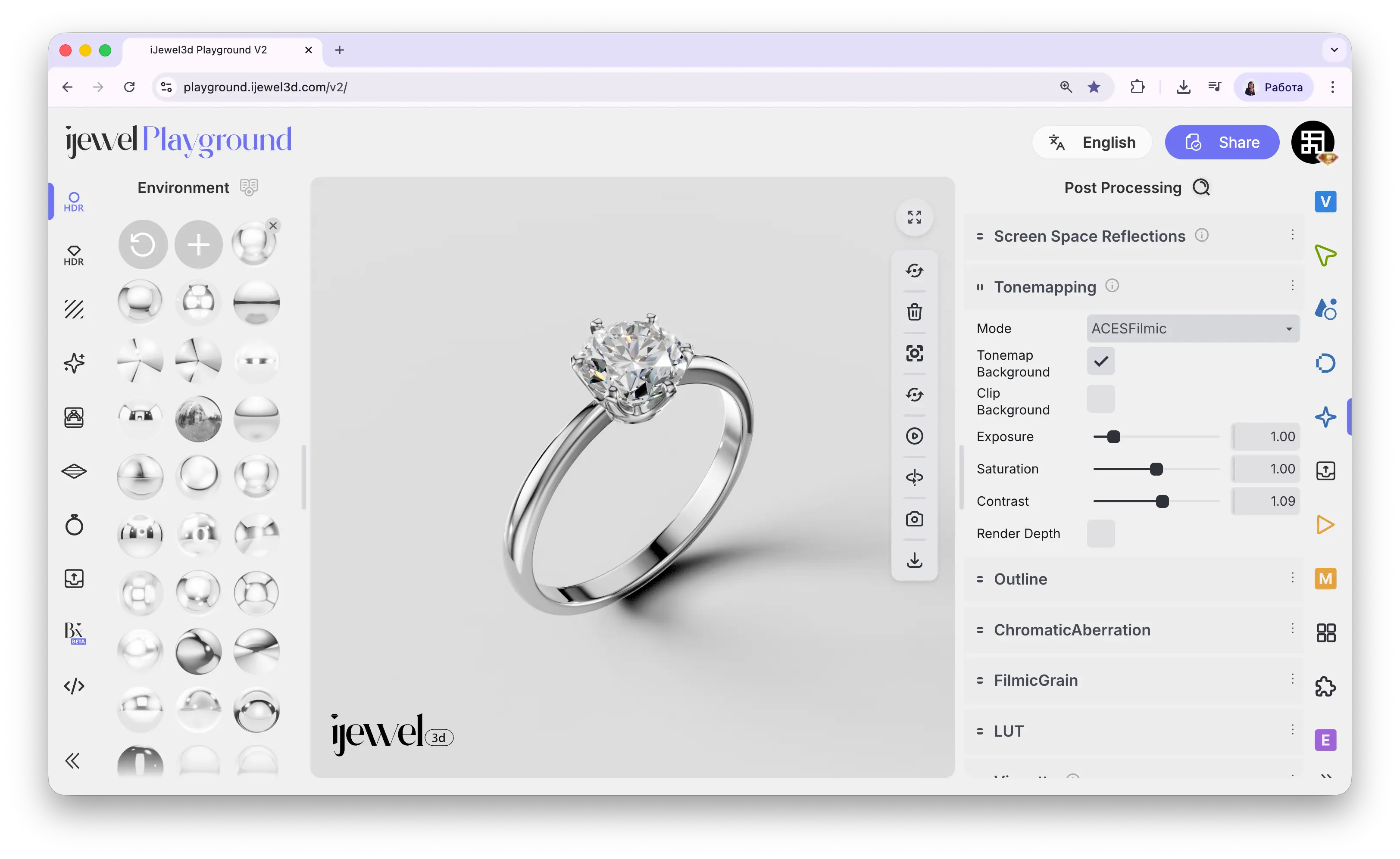
Post Processing tab, in the **Tonemapping** section.
::: info
SSR can only reflect what is currently visible on screen. Off-screen objects fall back to environment map reflections.
:::
---
## Settings
Post Processing tab, in the **Tonemapping** section.
 ---
## Mode
The **Mode** dropdown selects the tonemapping algorithm. Each mode produces a different color response.
Post Processing tab, in the **Outline** section.
---
## Mode
The **Mode** dropdown selects the tonemapping algorithm. Each mode produces a different color response.
Post Processing tab, in the **Outline** section.
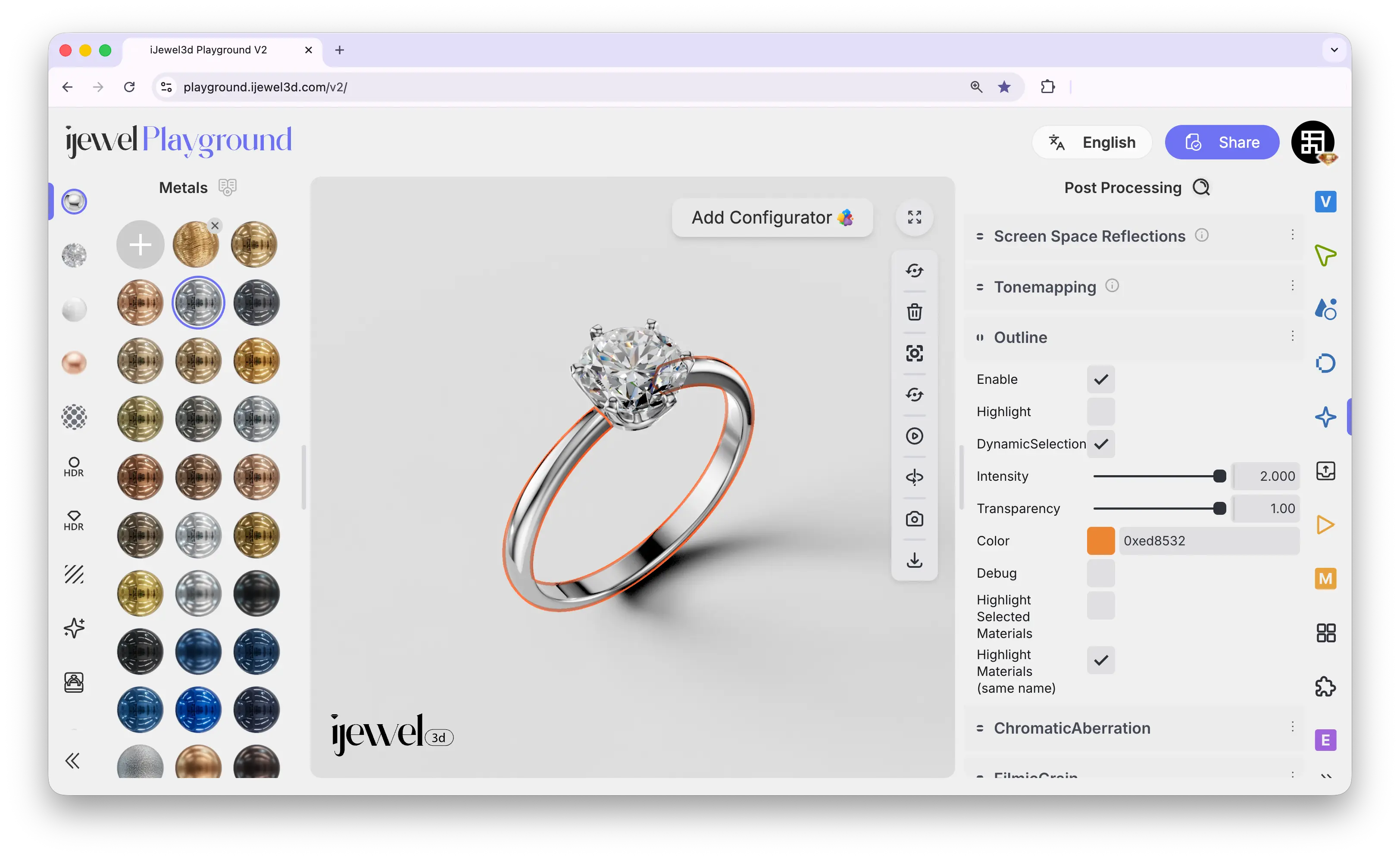 ---
## How It Works
When you select an object in the viewport, Playground draws a colored outline along its edges so you can see what is selected. If you **disable** the outline, selecting still works — you just won't see the colored border.
---
## Settings
Post Processing tab, in the **Chromatic Aberration** section.
---
## How It Works
When you select an object in the viewport, Playground draws a colored outline along its edges so you can see what is selected. If you **disable** the outline, selecting still works — you just won't see the colored border.
---
## Settings
Post Processing tab, in the **Chromatic Aberration** section.
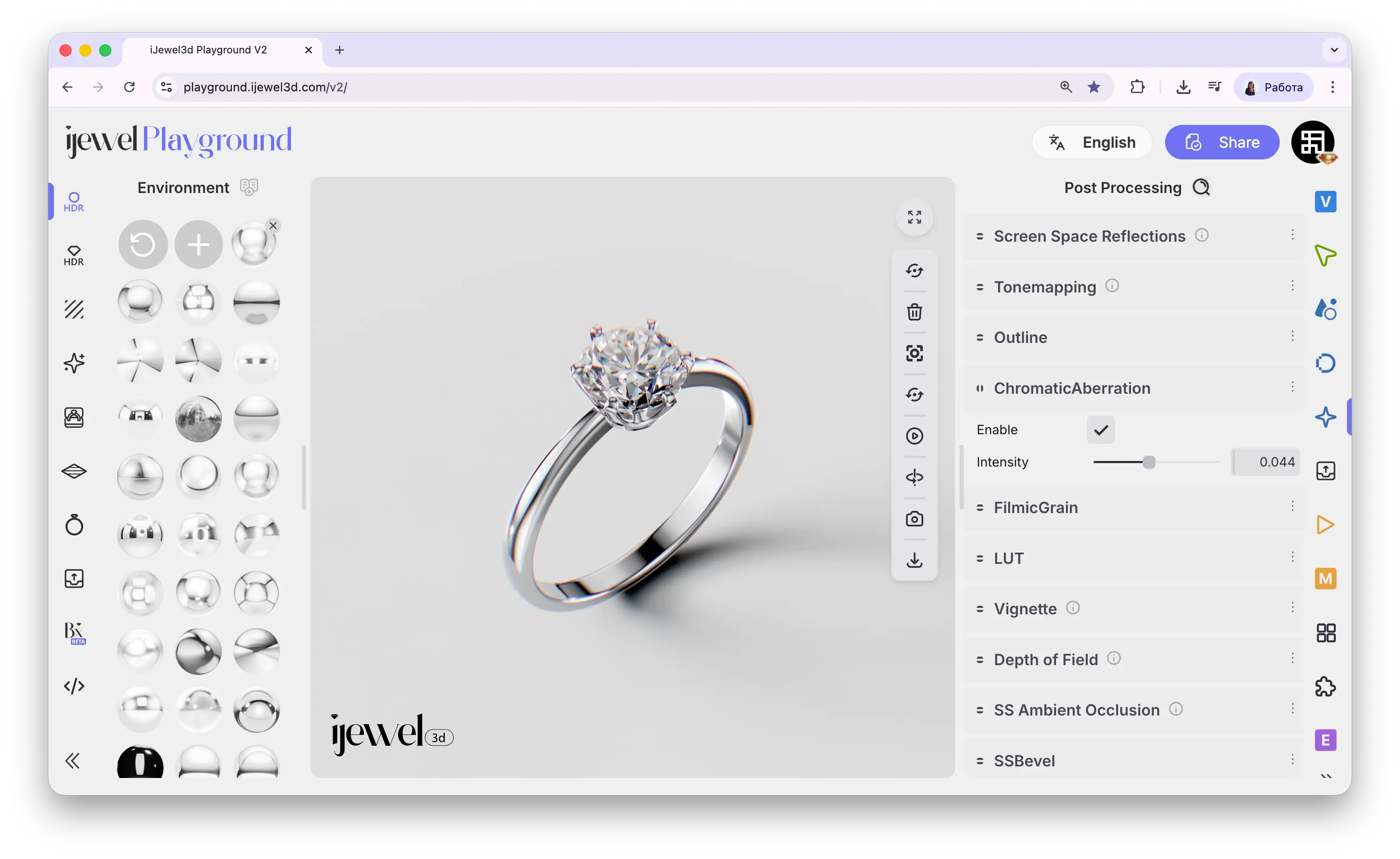 ---
## Settings
Post Processing tab, in the **Filmic Grain** section.
---
## Settings
Post Processing tab, in the **Filmic Grain** section.
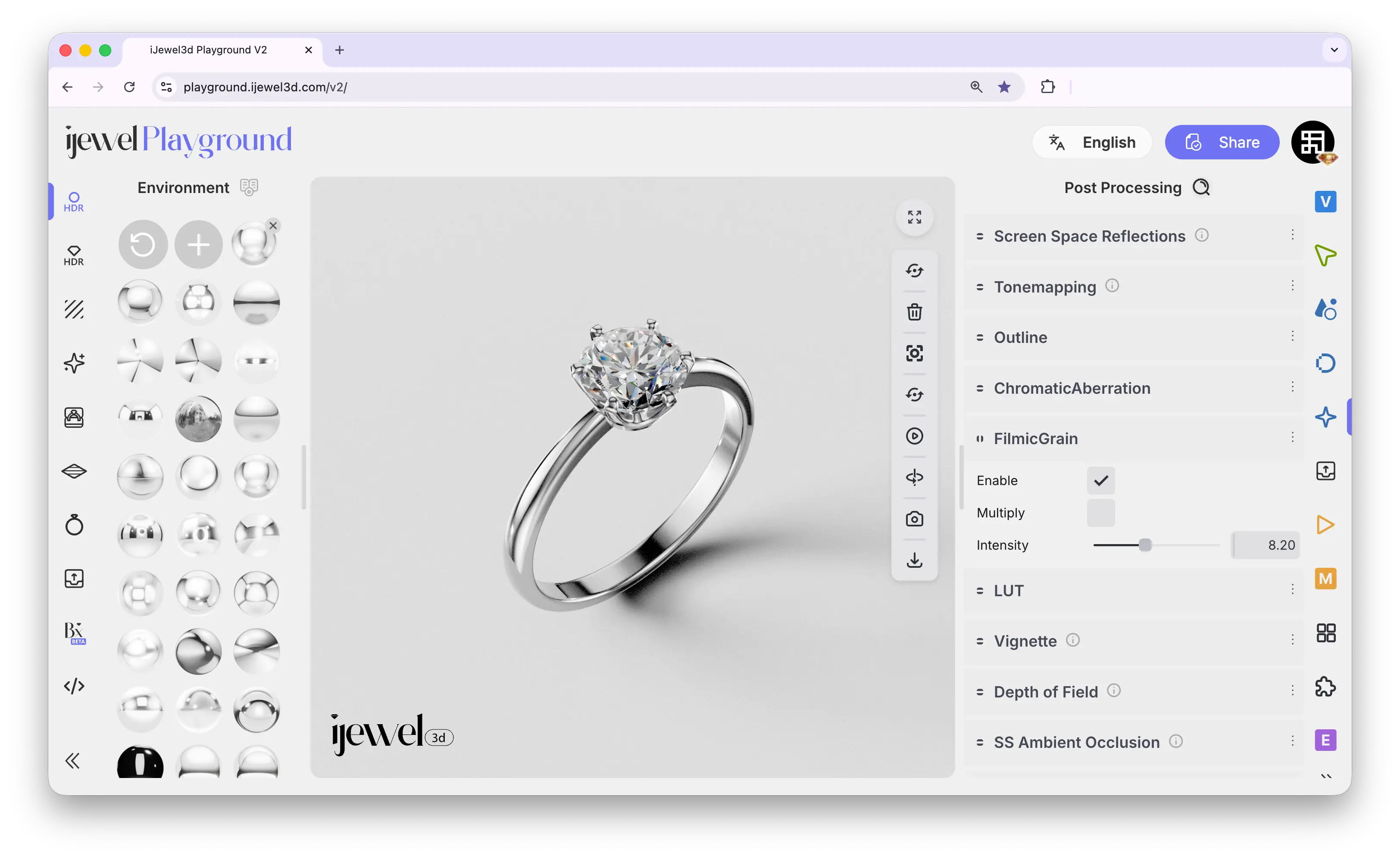 ---
## Settings
Post Processing tab, in the **Look Up Tables (LUT)** section.
---
## Settings
Post Processing tab, in the **Look Up Tables (LUT)** section.
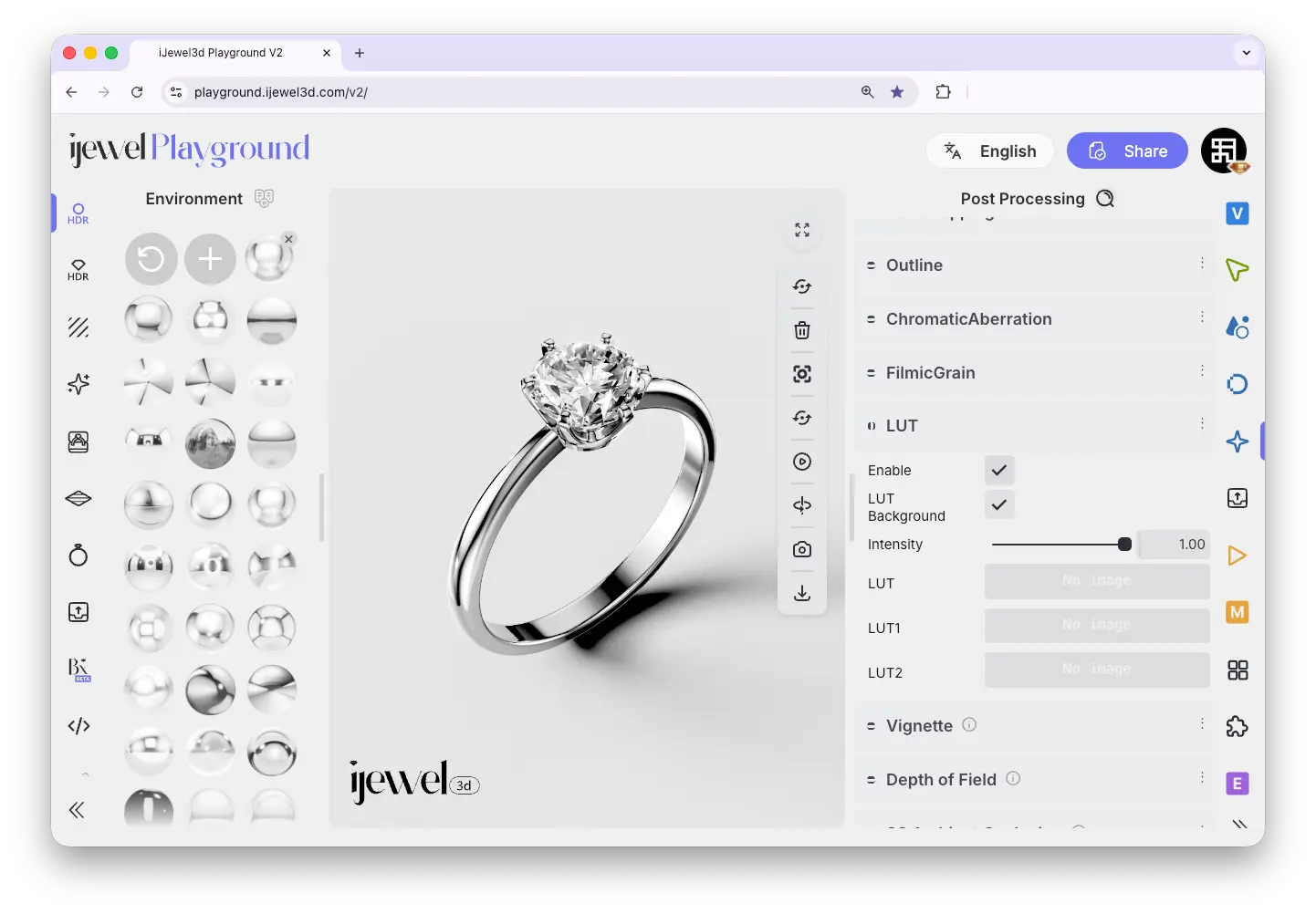 ---
## How It Works
1. Export a snapshot of your scene from Playground
2. Open it in Photoshop and adjust curves, levels, filters — any color grading you want
3. Save the adjustments as a `.cube` LUT file
4. Import the `.cube` file into Playground via the LUT section
5. The color grading is applied to the entire render in real time
You can apply LUTs globally or to specific parts of the scene (metals, diamonds, ground) using the separate LUT input slots.
---
## Settings
Post Processing tab, in the **Vignette** section.
---
## How It Works
1. Export a snapshot of your scene from Playground
2. Open it in Photoshop and adjust curves, levels, filters — any color grading you want
3. Save the adjustments as a `.cube` LUT file
4. Import the `.cube` file into Playground via the LUT section
5. The color grading is applied to the entire render in real time
You can apply LUTs globally or to specific parts of the scene (metals, diamonds, ground) using the separate LUT input slots.
---
## Settings
Post Processing tab, in the **Vignette** section.
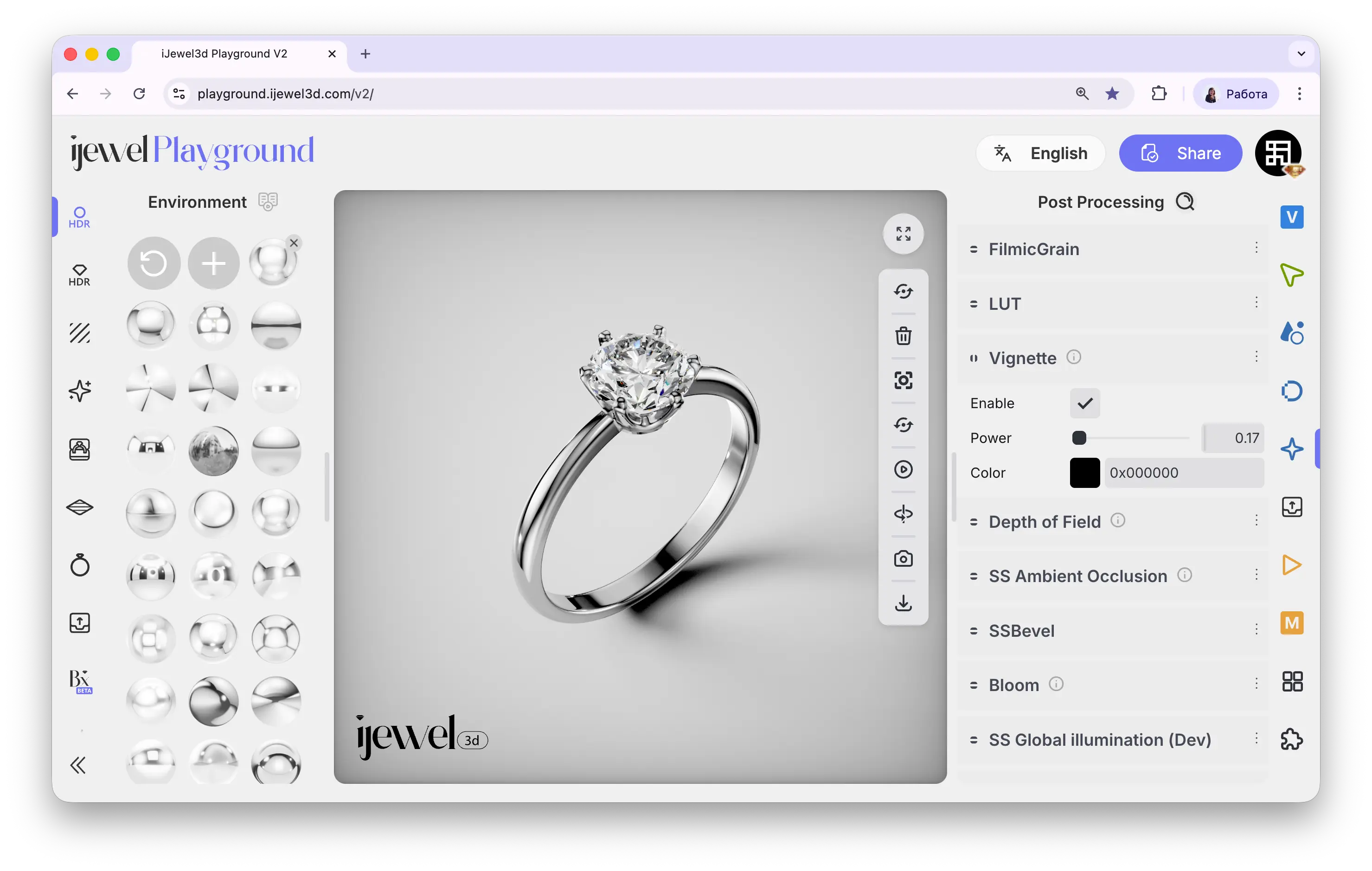 ---
## Settings
Post Processing tab, in the **Depth of Field** section.
---
## Settings
Post Processing tab, in the **Depth of Field** section.
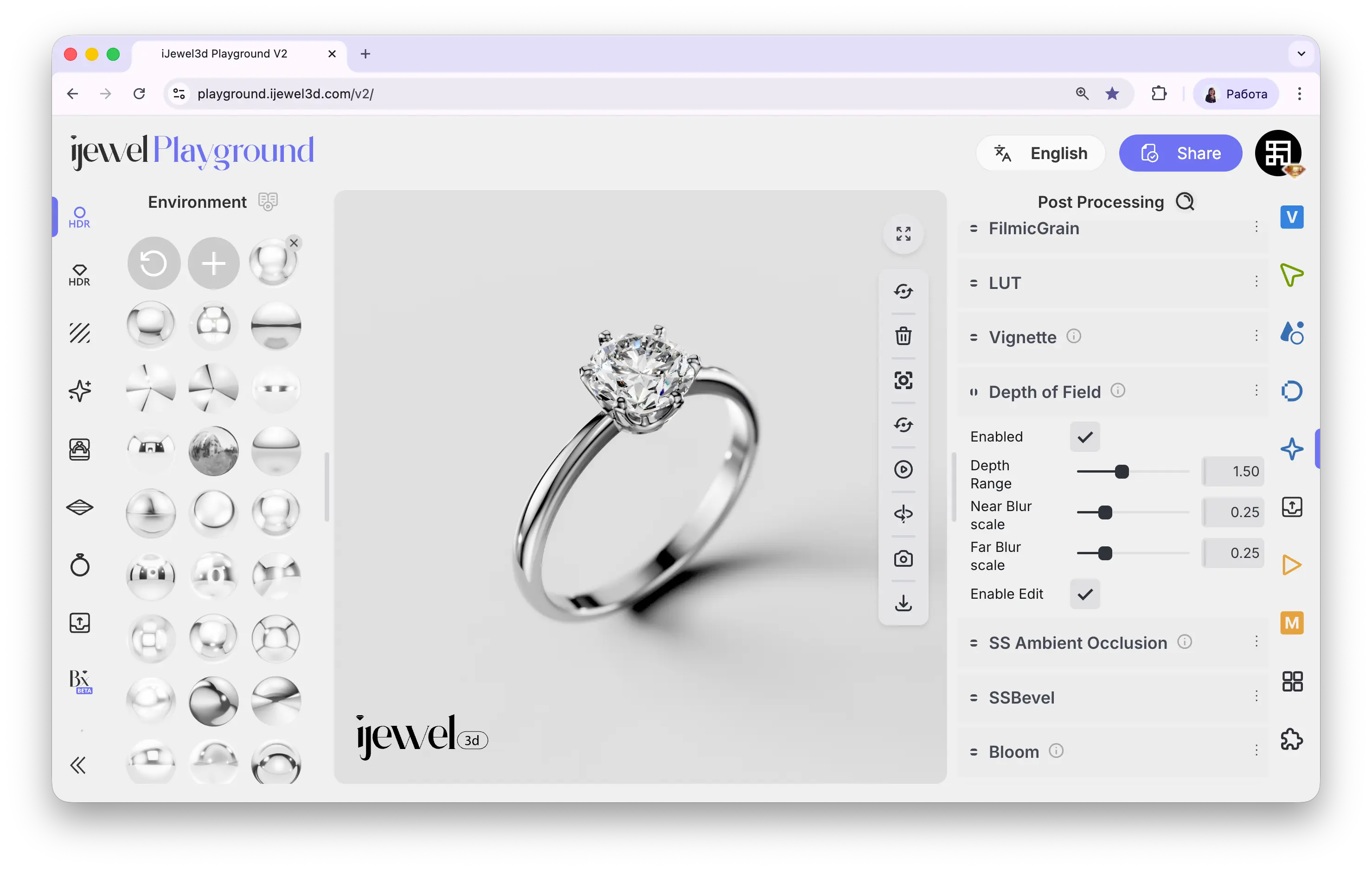 ---
## How to Set the Focus Point
1. Enable **Enable Edit** checkbox in the Depth of Field section
2. Click directly on the object in the canvas where you want the focus to be — the focal point is set automatically
3. Once the focus is set, disable **Enable Edit** to return to normal object selection on the canvas
---
## Settings
Post Processing tab, in the **SS Ambient Occlusion** section.
---
## How to Set the Focus Point
1. Enable **Enable Edit** checkbox in the Depth of Field section
2. Click directly on the object in the canvas where you want the focus to be — the focal point is set automatically
3. Once the focus is set, disable **Enable Edit** to return to normal object selection on the canvas
---
## Settings
Post Processing tab, in the **SS Ambient Occlusion** section.
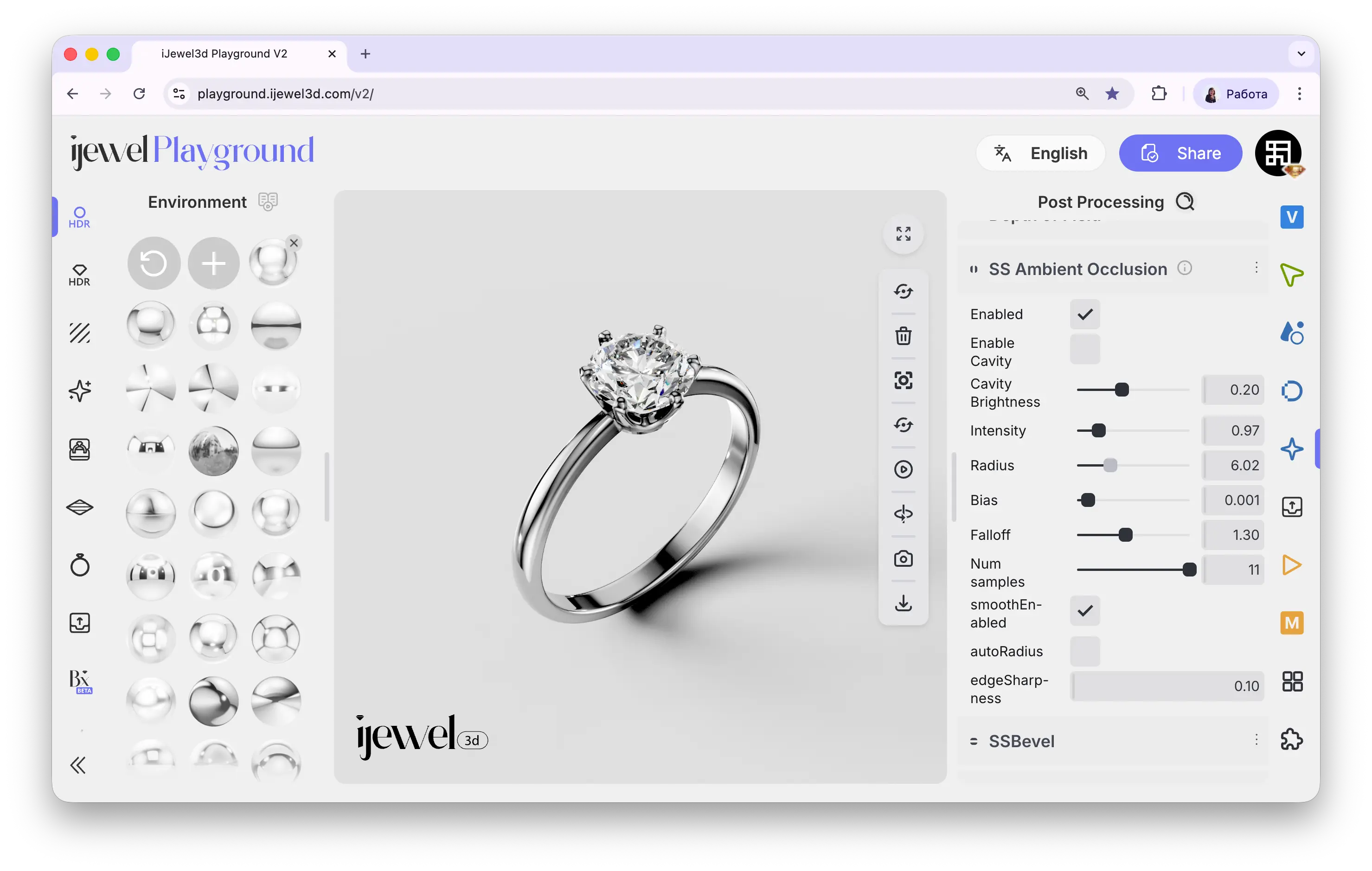 ---
## Settings
Post Processing tab, in the **Screen Space Bevel** section.
---
## Settings
Post Processing tab, in the **Screen Space Bevel** section.
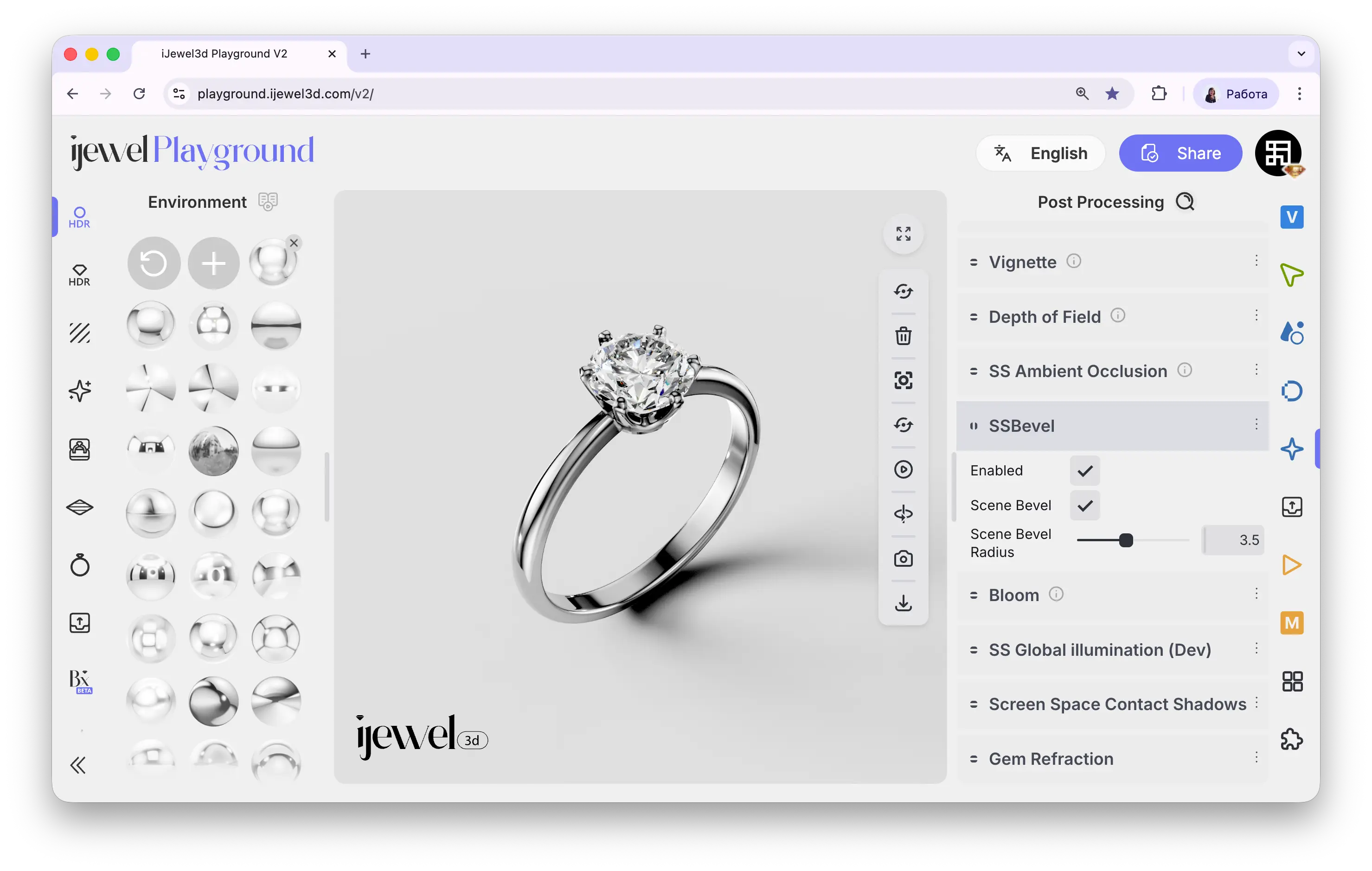 ### Before / After
---
## Settings
Post Processing tab, in the **Bloom** section.
### Before / After
---
## Settings
Post Processing tab, in the **Bloom** section.
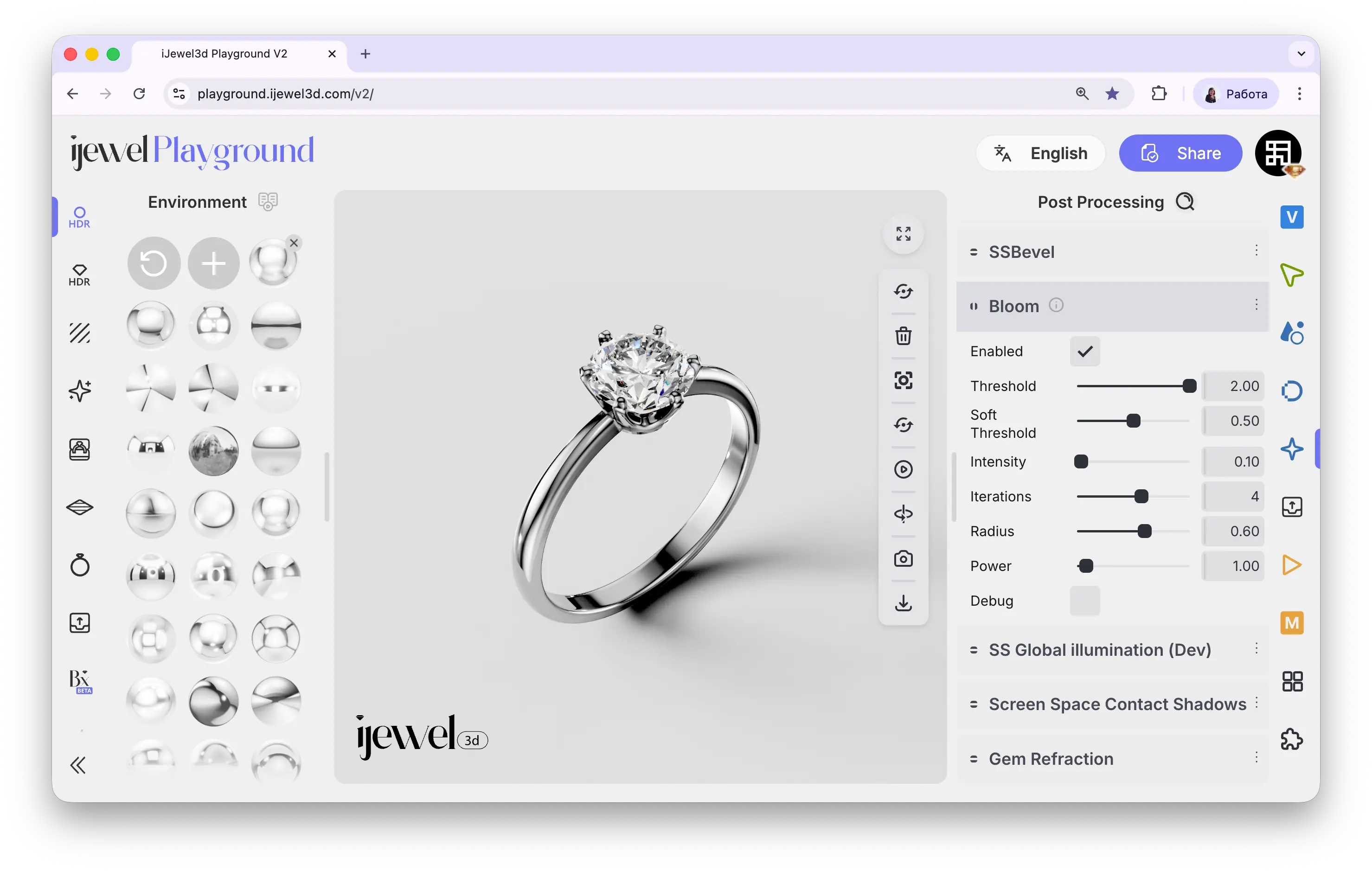 ### Before / After
---
## Settings
Post Processing tab, in the **SS Global Illumination** section.
### Before / After
---
## Settings
Post Processing tab, in the **SS Global Illumination** section.
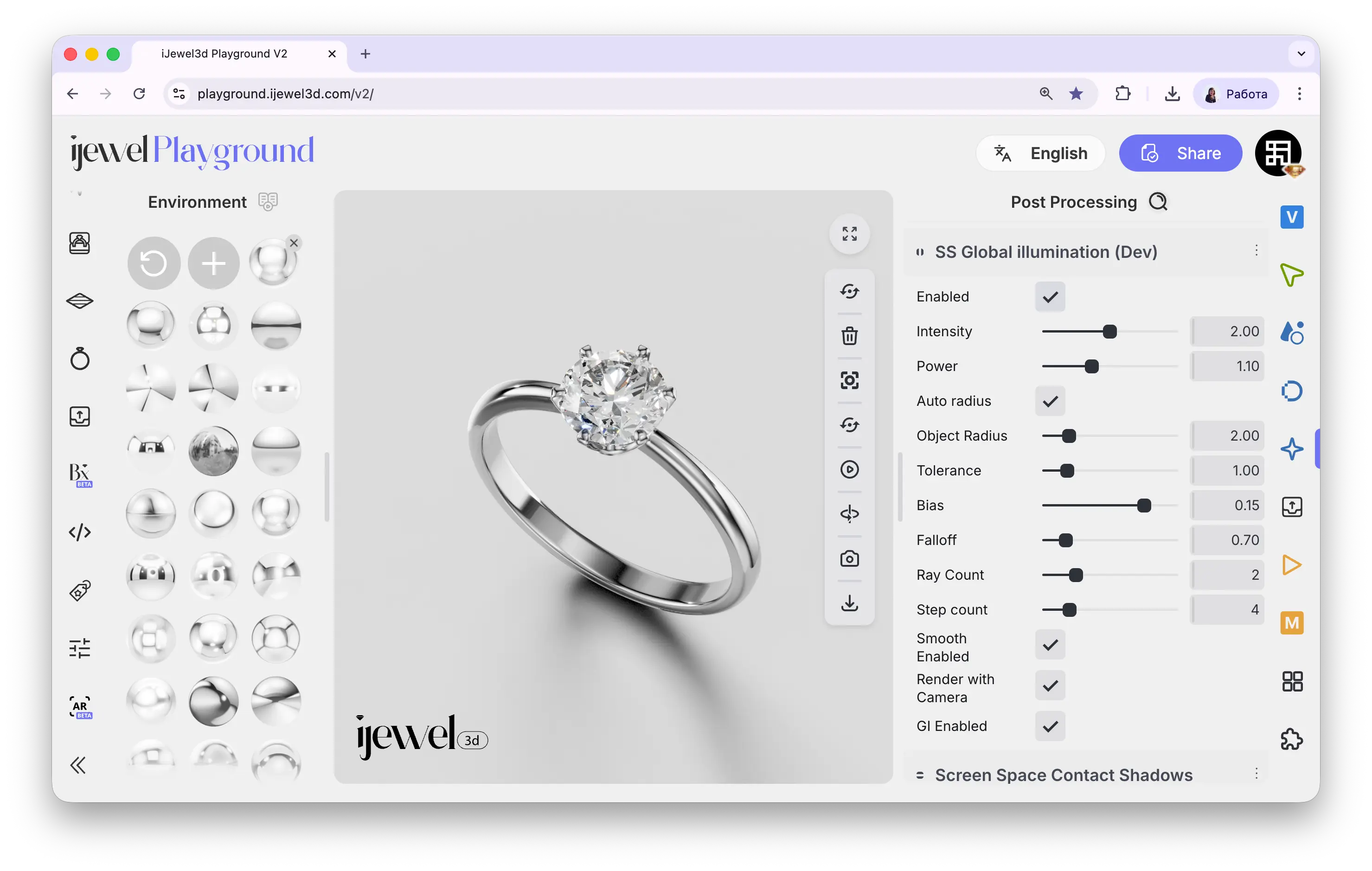 ---
## Settings
Post Processing tab, in the **Screen Space Contact Shadows** section.
---
## Settings
Post Processing tab, in the **Screen Space Contact Shadows** section.
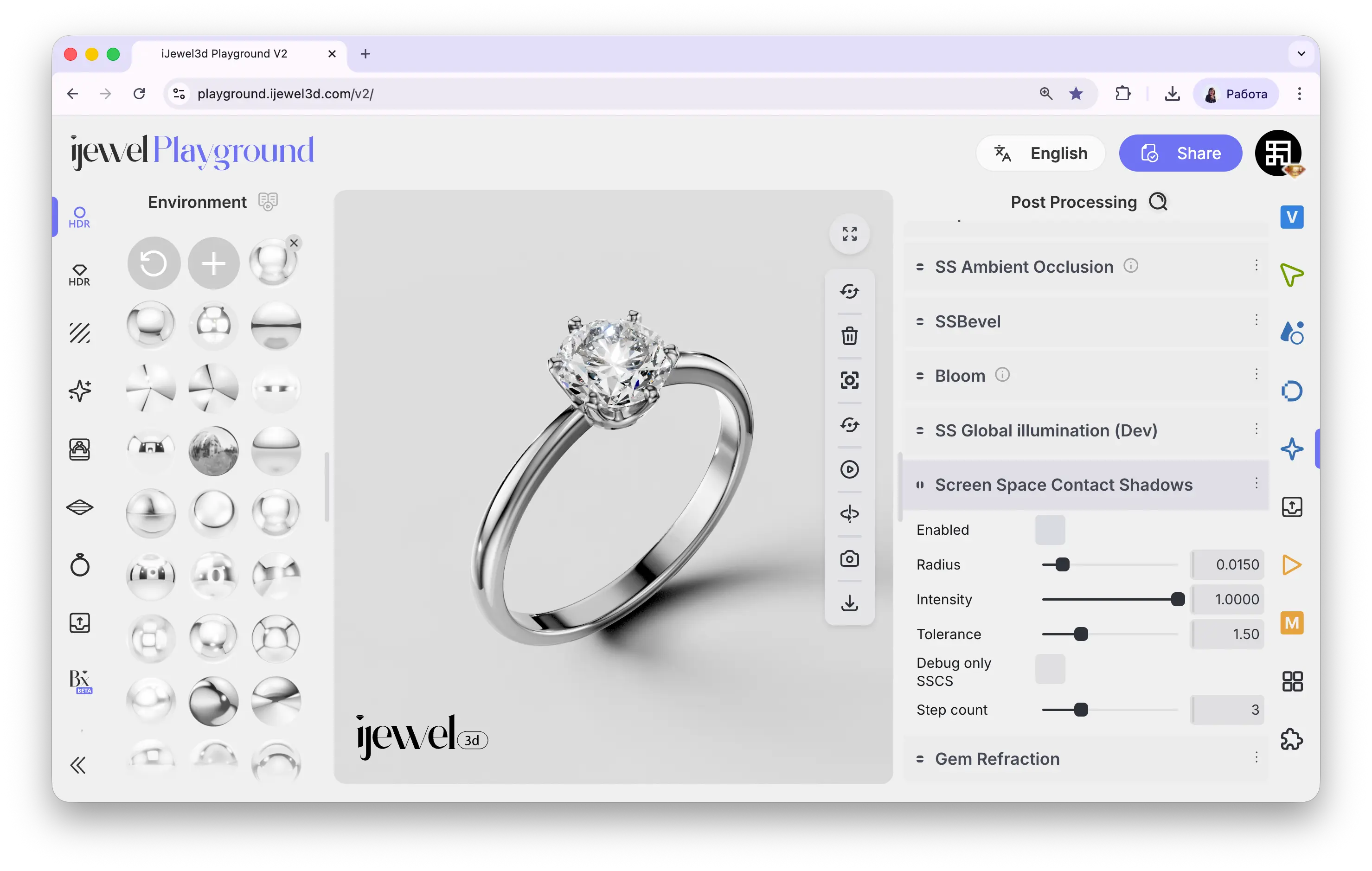 ---
## Settings
---
## Settings
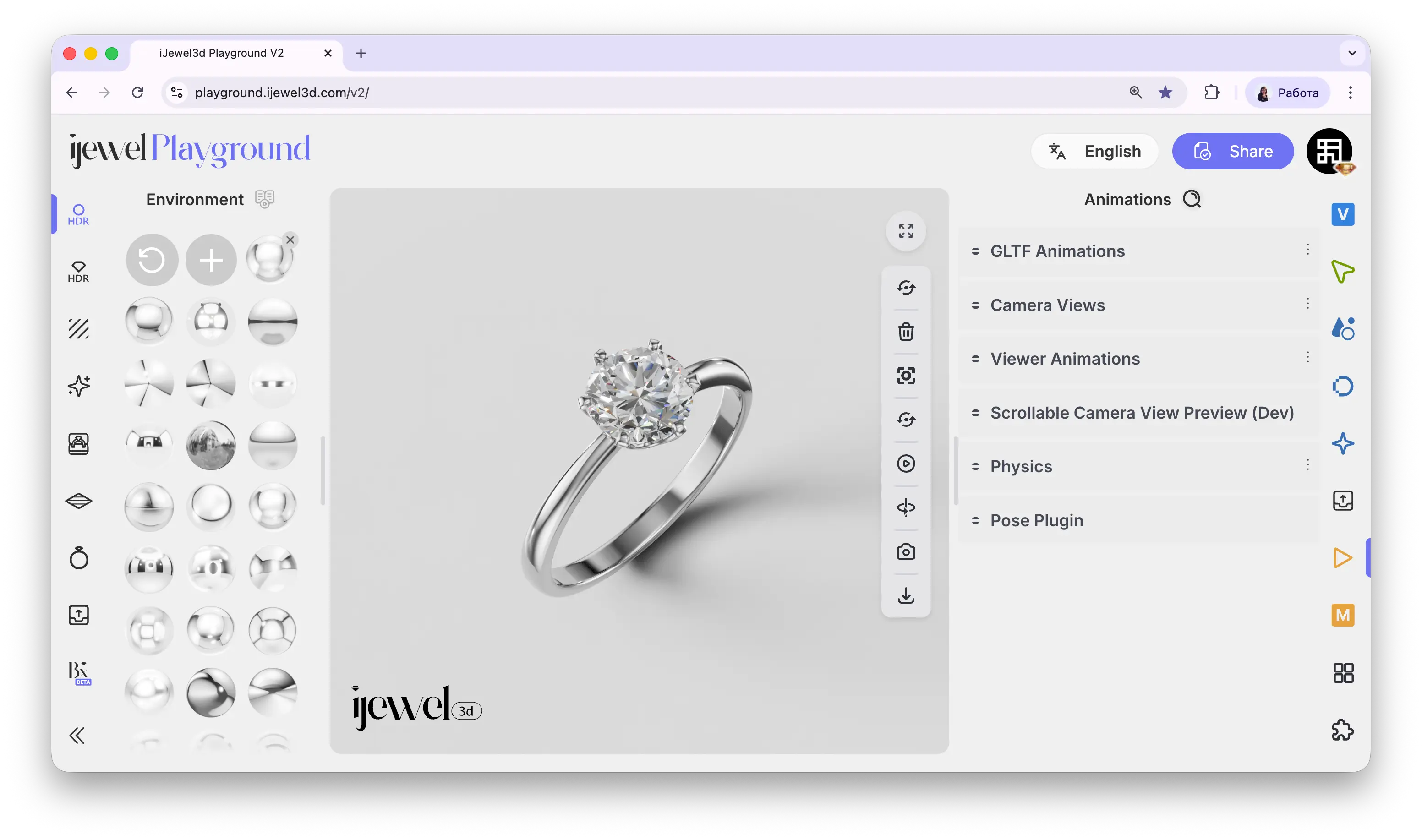 The Animations tab provides tools for controlling all types of motion in your scene — imported glTF animation playback, camera path transitions, scroll-driven interactions, physics simulations, and object posing.
## Where to Find It
This section is located on the [right panel](./ui-overview#right-panel-—-professional-tools), accessible via the Animations tab.
---
## Sections
Animations tab, in the **glTF Animation** section.
You can also start and stop the animation using the Play glTF Animation button on the top toolbar.
The Animations tab provides tools for controlling all types of motion in your scene — imported glTF animation playback, camera path transitions, scroll-driven interactions, physics simulations, and object posing.
## Where to Find It
This section is located on the [right panel](./ui-overview#right-panel-—-professional-tools), accessible via the Animations tab.
---
## Sections
Animations tab, in the **glTF Animation** section.
You can also start and stop the animation using the Play glTF Animation button on the top toolbar.
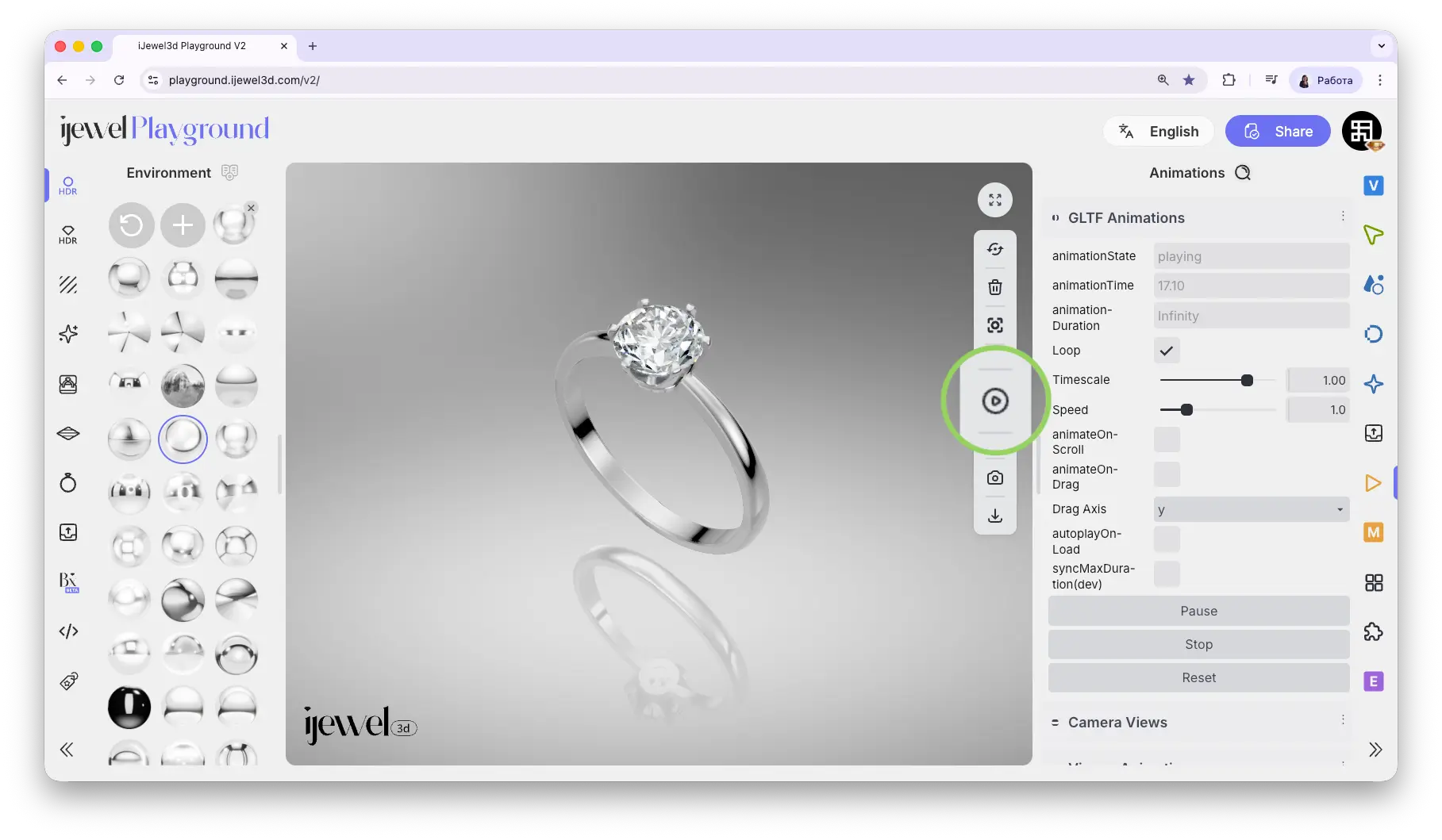 ---
## Settings
Animations tab, in the **Camera Views** section.
You can also use the Loop Camera Views button on the top toolbar to start looping through all saved positions.
---
## How to Create Camera Views — Step by Step
### Step 1: Position Your Camera
Navigate in the canvas to find the angle you want to save. You can rotate the model by dragging, zoom in/out with scroll, and hold **Shift + drag** to pan left/right. For more details on canvas navigation, see [UI Overview](./ui-overview).
### Step 2: Save the Position
In the Camera Views section, click the **Add Current View** button. A new entry called "Camera View" will appear at the top of the list. This saves the exact camera position, target, and orientation.
### Step 3: Review the Saved View
Click on the saved view to expand it. You will see the stored coordinates (Position, Target, Quaternion, Up), plus Duration, Name, and three action buttons: **Focus View**, **Delete View**, and **Update View**.
Click **Focus View** to fly the camera to this saved position. The transition speed depends on the **Duration** setting — if you want an instant jump with no animation, set Duration to **0**.
### Step 4: Add More Views
Rotate your model to a new angle (for example, a top-down view) and click **Add Current View** again. A second Camera View entry will appear. Repeat this for as many views as you need — front, side, top, close-up on a detail, etc.
### Step 5: Animate Between Views
Click the **Animate All Views** button in the main settings. The camera will smoothly transition through all saved positions in order.
To fine-tune the animation, adjust these key settings:
- **Duration** — increase for slower, more cinematic transitions
- **Ease** — controls the acceleration curve. **easeInOutSine** is the most popular choice for smooth, natural motion
- **Interpolation** — **Spherical** is the most commonly used for camera movements
- **Loop All Views** — enable to loop continuously, so the last view transitions back to the first
---
## Use Cases
**Single view as a home position** — If you want your product page to always start from a specific angle, save just one Camera View. Users can rotate the model freely, and the scene can always snap back to this starting position.
**Multiple views for product showcase** — Create 3–4 or more Camera Views to highlight different details of your jewelry: front face, top-down, side profile, close-up on the setting. Use **Animate All Views** or **Loop All Views** to present them as a guided tour.
---
## Per-View Buttons
---
## Settings
Animations tab, in the **Camera Views** section.
You can also use the Loop Camera Views button on the top toolbar to start looping through all saved positions.
---
## How to Create Camera Views — Step by Step
### Step 1: Position Your Camera
Navigate in the canvas to find the angle you want to save. You can rotate the model by dragging, zoom in/out with scroll, and hold **Shift + drag** to pan left/right. For more details on canvas navigation, see [UI Overview](./ui-overview).
### Step 2: Save the Position
In the Camera Views section, click the **Add Current View** button. A new entry called "Camera View" will appear at the top of the list. This saves the exact camera position, target, and orientation.
### Step 3: Review the Saved View
Click on the saved view to expand it. You will see the stored coordinates (Position, Target, Quaternion, Up), plus Duration, Name, and three action buttons: **Focus View**, **Delete View**, and **Update View**.
Click **Focus View** to fly the camera to this saved position. The transition speed depends on the **Duration** setting — if you want an instant jump with no animation, set Duration to **0**.
### Step 4: Add More Views
Rotate your model to a new angle (for example, a top-down view) and click **Add Current View** again. A second Camera View entry will appear. Repeat this for as many views as you need — front, side, top, close-up on a detail, etc.
### Step 5: Animate Between Views
Click the **Animate All Views** button in the main settings. The camera will smoothly transition through all saved positions in order.
To fine-tune the animation, adjust these key settings:
- **Duration** — increase for slower, more cinematic transitions
- **Ease** — controls the acceleration curve. **easeInOutSine** is the most popular choice for smooth, natural motion
- **Interpolation** — **Spherical** is the most commonly used for camera movements
- **Loop All Views** — enable to loop continuously, so the last view transitions back to the first
---
## Use Cases
**Single view as a home position** — If you want your product page to always start from a specific angle, save just one Camera View. Users can rotate the model freely, and the scene can always snap back to this starting position.
**Multiple views for product showcase** — Create 3–4 or more Camera Views to highlight different details of your jewelry: front face, top-down, side profile, close-up on the setting. Use **Animate All Views** or **Loop All Views** to present them as a guided tour.
---
## Per-View Buttons
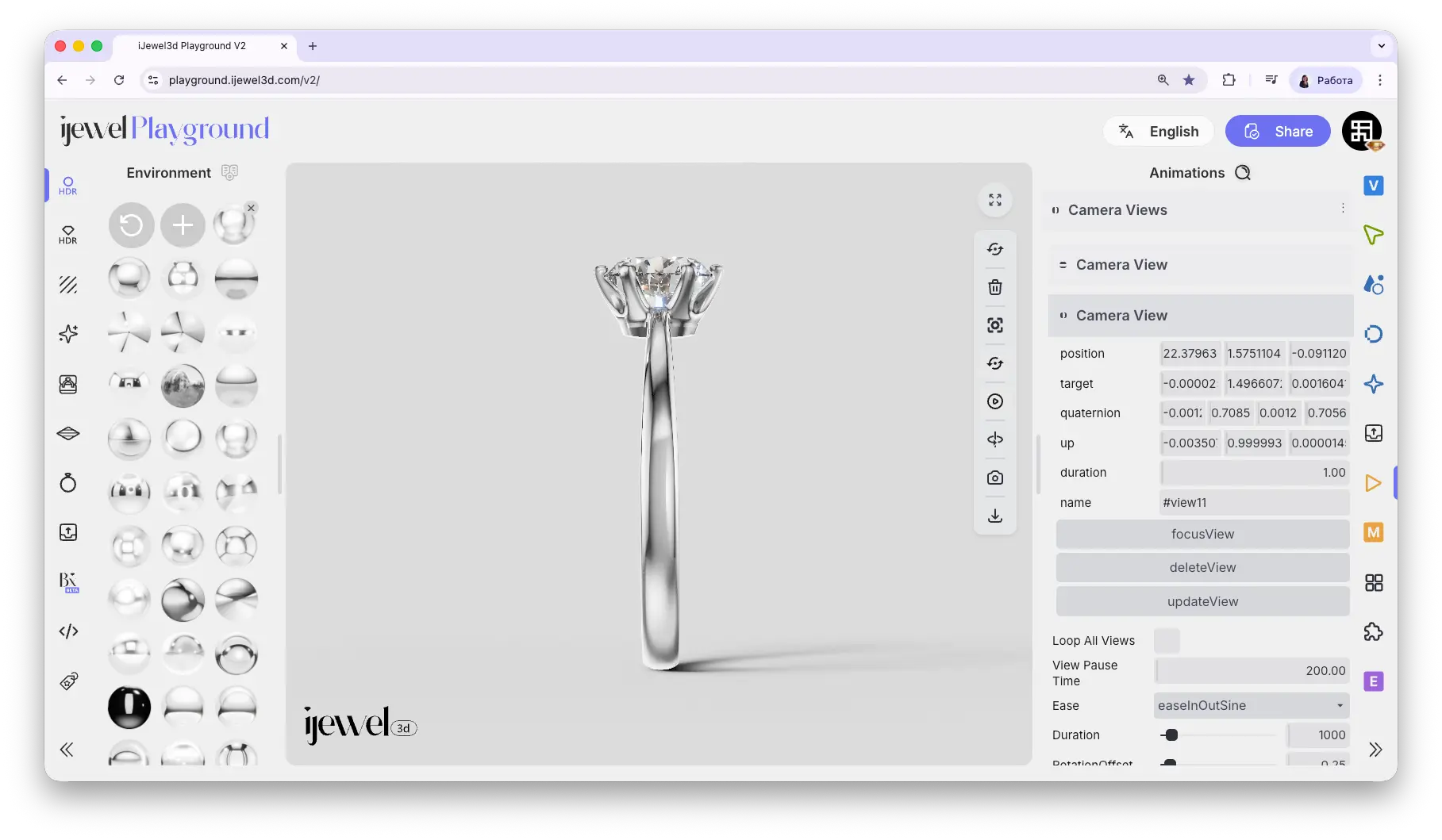 Each saved Camera View has three action buttons:
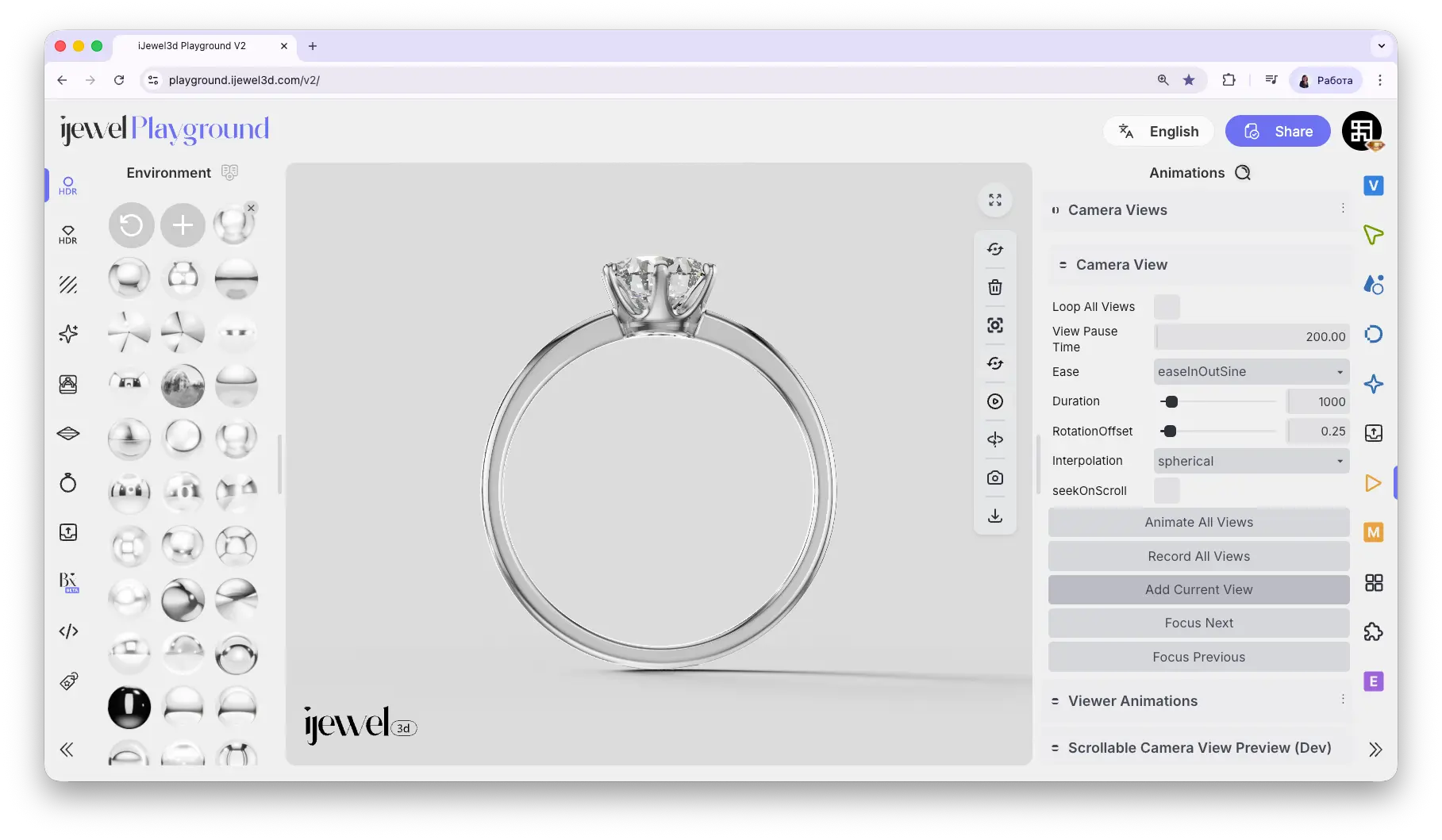
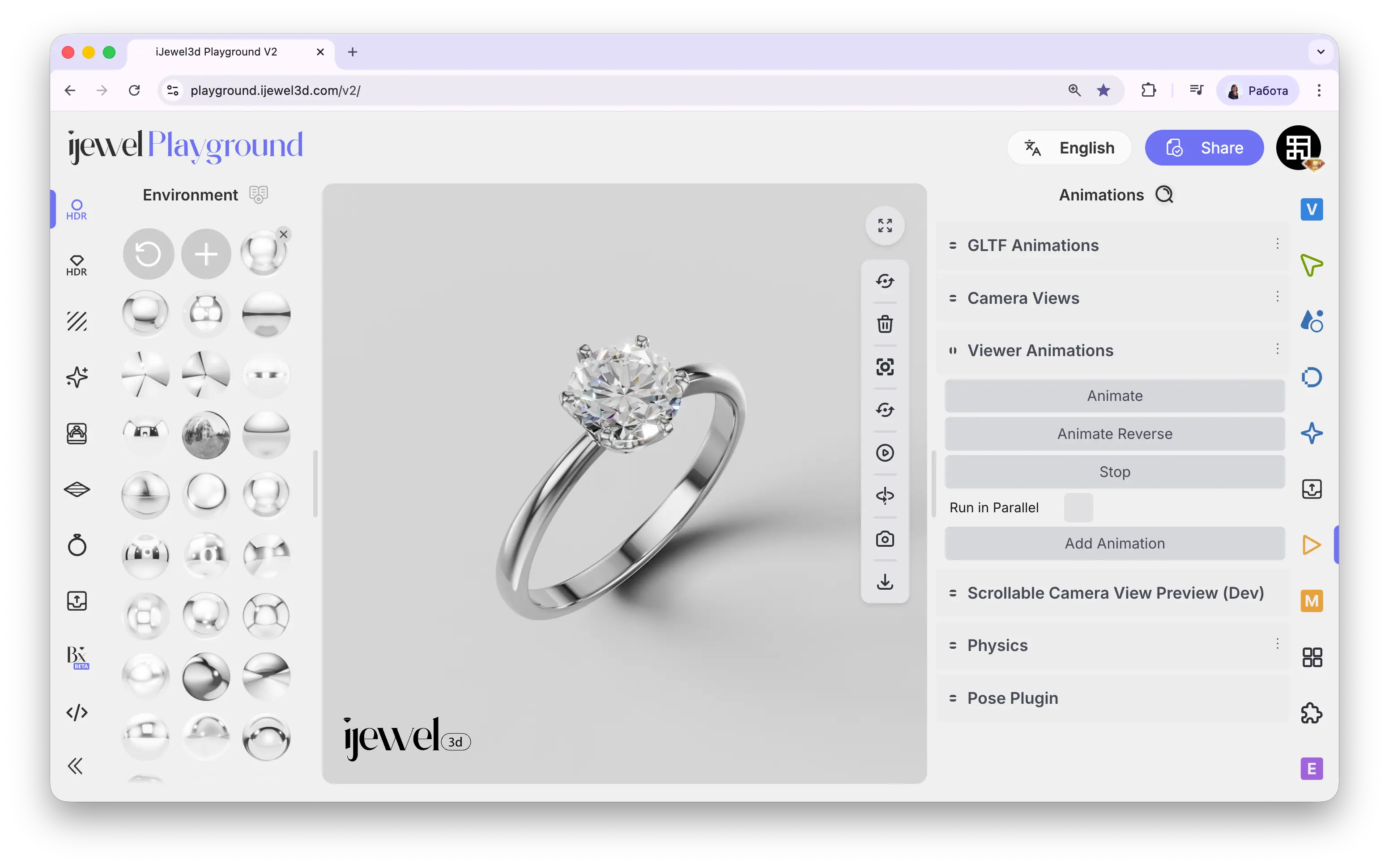 Viewer Animations lets you create dynamic, cinematic scenes by combining multiple visual effects into a single animation sequence. You can animate environment rotation, background color, lighting intensity, post-processing effects, and camera properties — all at the same time or in a carefully timed sequence.
This is one of the most powerful tools for creating professional jewelry presentations. By layering a few animation blocks — spinning the environment for moving reflections on metal, rotating the diamond light map for sparkle, and shifting the background color — you can turn a static 3D model into a living, cinematic preview.
You can also use these animations as **animated product images** — for example, when a customer hovers over your ring on a product page, the static thumbnail can transition into a looping video that showcases sparkling diamonds and moving reflections. Record the animation using [Export Videos](./export-videos) and embed it as a hover-triggered video on your website.
## Where to Find It
This section is located on the [right panel](./ui-overview#right-panel-—-professional-tools), inside the Animations tab, in the **Viewer Animations** section.
---
## How to Create an Animation — Step by Step
### Step 1: Add a New Animation Block
In the Viewer Animations section, click the **Add Animation** button at the bottom of the panel. A new collapsible tab labeled "Animation" will appear.
### Step 2: Choose a Property
Expand the new animation tab and select the property you want to animate from the **Property** dropdown. For example, choose **Environment Rotation** to make reflections move across your jewelry's metal surface.
### Step 3: Configure the Settings
Set your desired values:
- **From / To** — the start and end values for the animation (for colors, use the color pickers)
- **Duration** — animation length in milliseconds (e.g., `3000` = 3 seconds)
- **Ease** — the speed curve (e.g., `easeInOutSine` for a smooth start and finish)
- **Repeat Type** — what happens when the animation ends (Loop, Mirror, or Reverse)
Make sure the **updateScene** and **updateViewer** checkboxes are enabled — without them, the animation will not be visible.
### Step 4: Play the Animation
Click the **Animate** button at the top of the panel to start the animation. You should see the effect in real time on your model.
### Step 5: Add More Effects
Repeat Steps 1–3 to add more animation blocks. For example, add a second block for **Diamond Env Map Rotation** and a third for **Background Color**. Enable **Run in Parallel** to play them all at the same time.
---
## Popular Animation Examples
Here are four commonly used animations for jewelry presentations.
### Diamond Env Map Rotation
The signature jewelry animation. Rotates the environment map only for Diamond materials, making the gemstone facets sparkle and shift with light. Combine this with Environment Rotation for the most realistic result — the metal and the stone animate independently.
### Environment Rotation
Rotates the HDRI map around your model, making reflections glide across polished metal surfaces. Set **From** to `0` and **To** to `6.28` for a full 360° loop. Use **Mirror** repeat type for a seamless back-and-forth motion.
### Background Color
Smoothly transitions the scene background between two colors — for example, from warm ivory to cool grey. This creates a subtle atmospheric shift that enhances the cinematic feel of your presentation.
### Tonemap Exposure
Dynamically adjusts the exposure level of the final image. This can simulate a "reveal" effect — starting dim and fading up to full brightness, or creating a dramatic spotlight moment.
---
## Pro Tip: The Perfect Jewelry Preview
To create a professional, cinematic product preview, set up three animation blocks:
1. **Diamond Env Map Rotation** — for sparkling gemstone fire
2. **Environment Rotation** — for moving reflections on metal
3. **Background Color** — for a soft atmospheric color shift
Enable **Run in Parallel**, set all three to the same **Duration** (e.g., `5000` ms), and use **Mirror** as the Repeat Type. Your scene will come to life with smooth, looping motion that showcases your jewelry from its best angle.
---
## Video Tutorial
This tutorial covers both Camera Views and Viewer Animations in one walkthrough:
### iJewel3D Video Rendering — Camera Paths & Animated Lightmaps
---
## Master Controls & Animation List
Viewer Animations lets you create dynamic, cinematic scenes by combining multiple visual effects into a single animation sequence. You can animate environment rotation, background color, lighting intensity, post-processing effects, and camera properties — all at the same time or in a carefully timed sequence.
This is one of the most powerful tools for creating professional jewelry presentations. By layering a few animation blocks — spinning the environment for moving reflections on metal, rotating the diamond light map for sparkle, and shifting the background color — you can turn a static 3D model into a living, cinematic preview.
You can also use these animations as **animated product images** — for example, when a customer hovers over your ring on a product page, the static thumbnail can transition into a looping video that showcases sparkling diamonds and moving reflections. Record the animation using [Export Videos](./export-videos) and embed it as a hover-triggered video on your website.
## Where to Find It
This section is located on the [right panel](./ui-overview#right-panel-—-professional-tools), inside the Animations tab, in the **Viewer Animations** section.
---
## How to Create an Animation — Step by Step
### Step 1: Add a New Animation Block
In the Viewer Animations section, click the **Add Animation** button at the bottom of the panel. A new collapsible tab labeled "Animation" will appear.
### Step 2: Choose a Property
Expand the new animation tab and select the property you want to animate from the **Property** dropdown. For example, choose **Environment Rotation** to make reflections move across your jewelry's metal surface.
### Step 3: Configure the Settings
Set your desired values:
- **From / To** — the start and end values for the animation (for colors, use the color pickers)
- **Duration** — animation length in milliseconds (e.g., `3000` = 3 seconds)
- **Ease** — the speed curve (e.g., `easeInOutSine` for a smooth start and finish)
- **Repeat Type** — what happens when the animation ends (Loop, Mirror, or Reverse)
Make sure the **updateScene** and **updateViewer** checkboxes are enabled — without them, the animation will not be visible.
### Step 4: Play the Animation
Click the **Animate** button at the top of the panel to start the animation. You should see the effect in real time on your model.
### Step 5: Add More Effects
Repeat Steps 1–3 to add more animation blocks. For example, add a second block for **Diamond Env Map Rotation** and a third for **Background Color**. Enable **Run in Parallel** to play them all at the same time.
---
## Popular Animation Examples
Here are four commonly used animations for jewelry presentations.
### Diamond Env Map Rotation
The signature jewelry animation. Rotates the environment map only for Diamond materials, making the gemstone facets sparkle and shift with light. Combine this with Environment Rotation for the most realistic result — the metal and the stone animate independently.
### Environment Rotation
Rotates the HDRI map around your model, making reflections glide across polished metal surfaces. Set **From** to `0` and **To** to `6.28` for a full 360° loop. Use **Mirror** repeat type for a seamless back-and-forth motion.
### Background Color
Smoothly transitions the scene background between two colors — for example, from warm ivory to cool grey. This creates a subtle atmospheric shift that enhances the cinematic feel of your presentation.
### Tonemap Exposure
Dynamically adjusts the exposure level of the final image. This can simulate a "reveal" effect — starting dim and fading up to full brightness, or creating a dramatic spotlight moment.
---
## Pro Tip: The Perfect Jewelry Preview
To create a professional, cinematic product preview, set up three animation blocks:
1. **Diamond Env Map Rotation** — for sparkling gemstone fire
2. **Environment Rotation** — for moving reflections on metal
3. **Background Color** — for a soft atmospheric color shift
Enable **Run in Parallel**, set all three to the same **Duration** (e.g., `5000` ms), and use **Mirror** as the Repeat Type. Your scene will come to life with smooth, looping motion that showcases your jewelry from its best angle.
---
## Video Tutorial
This tutorial covers both Camera Views and Viewer Animations in one walkthrough:
### iJewel3D Video Rendering — Camera Paths & Animated Lightmaps
---
## Master Controls & Animation List
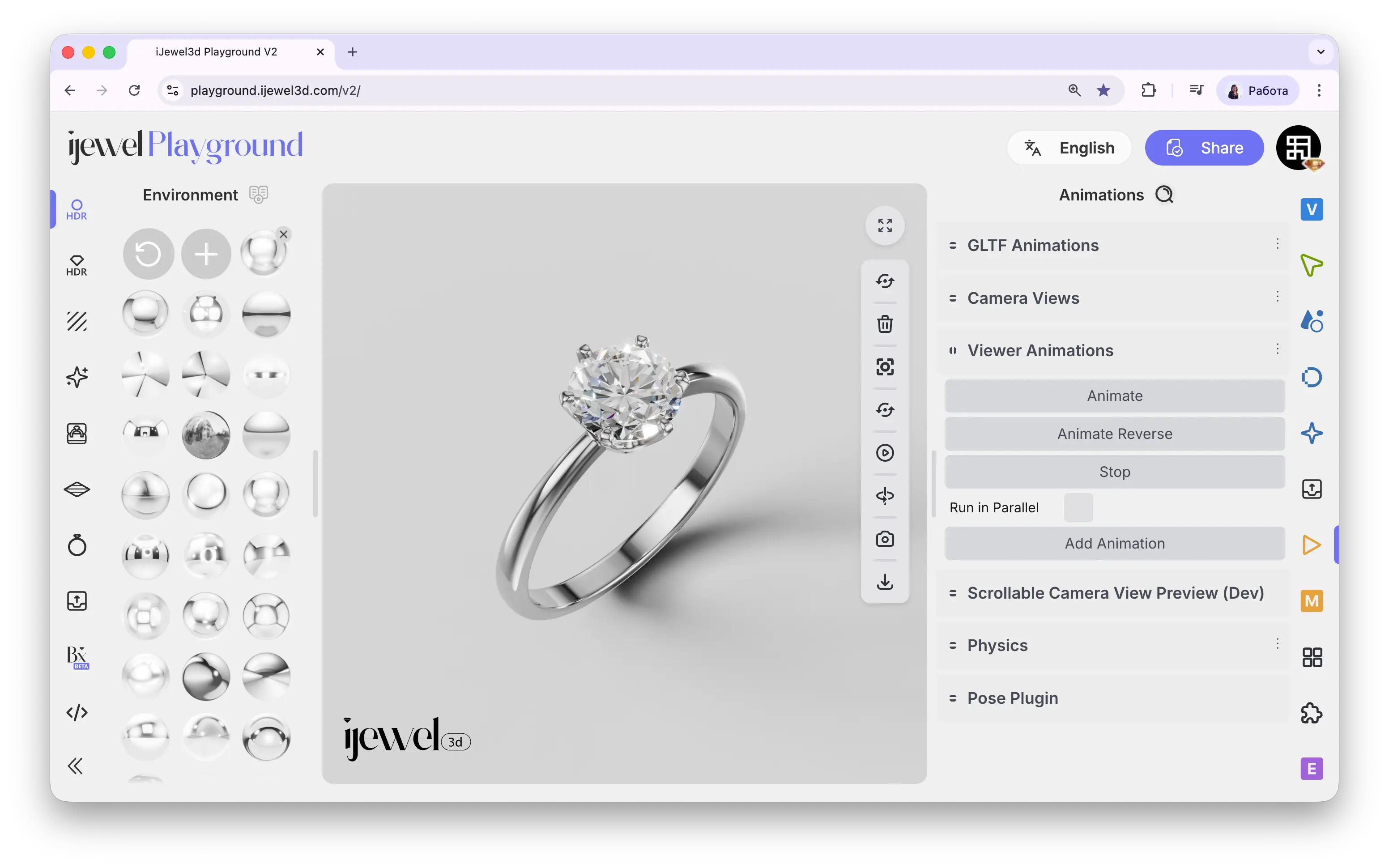 The buttons at the top of the panel control all animation blocks simultaneously:
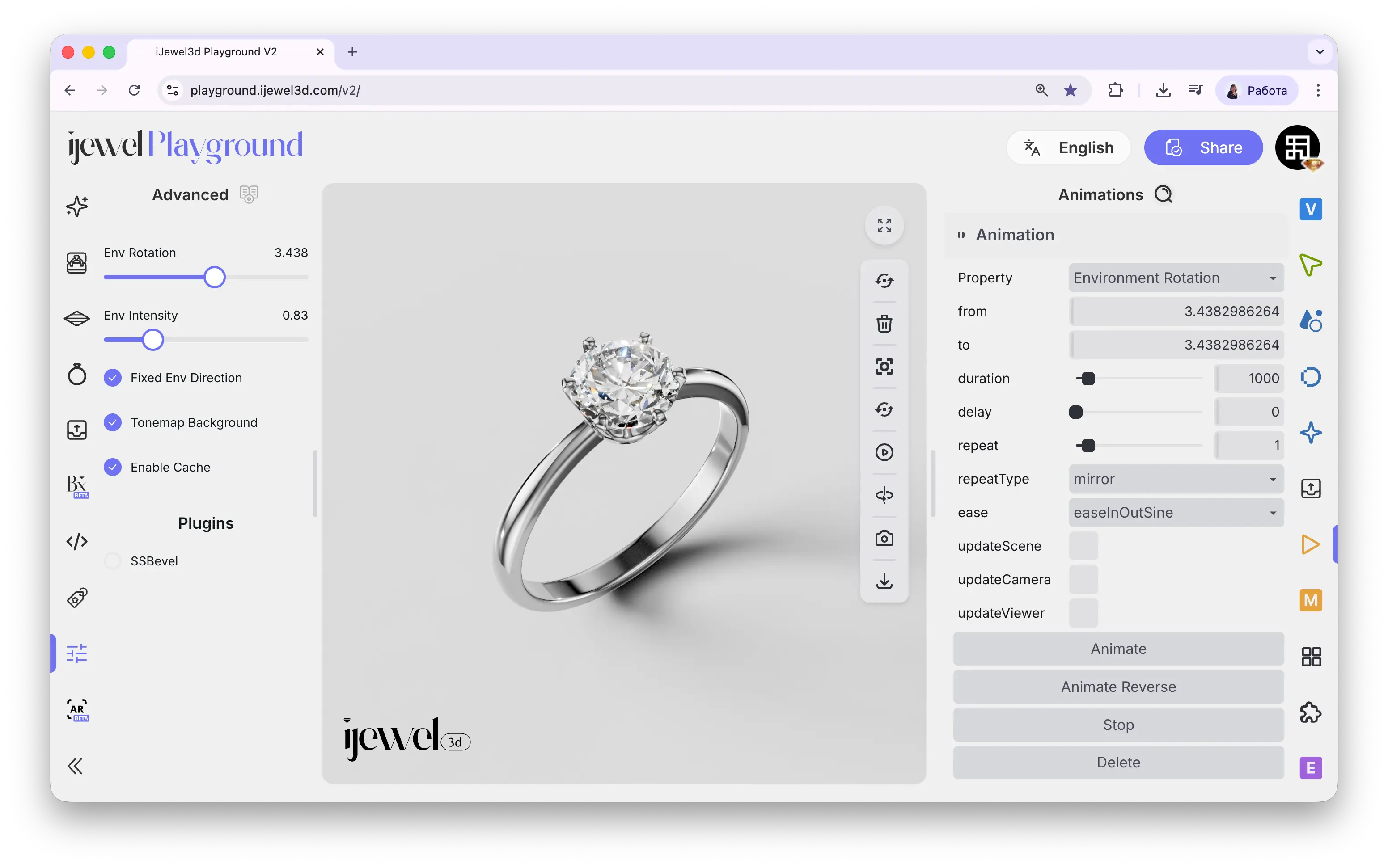 Each animation block contains the following parameters:
3000 = 3 seconds)0 to 6.28 for a full 360° rotation0 to 6.28 for a full rotation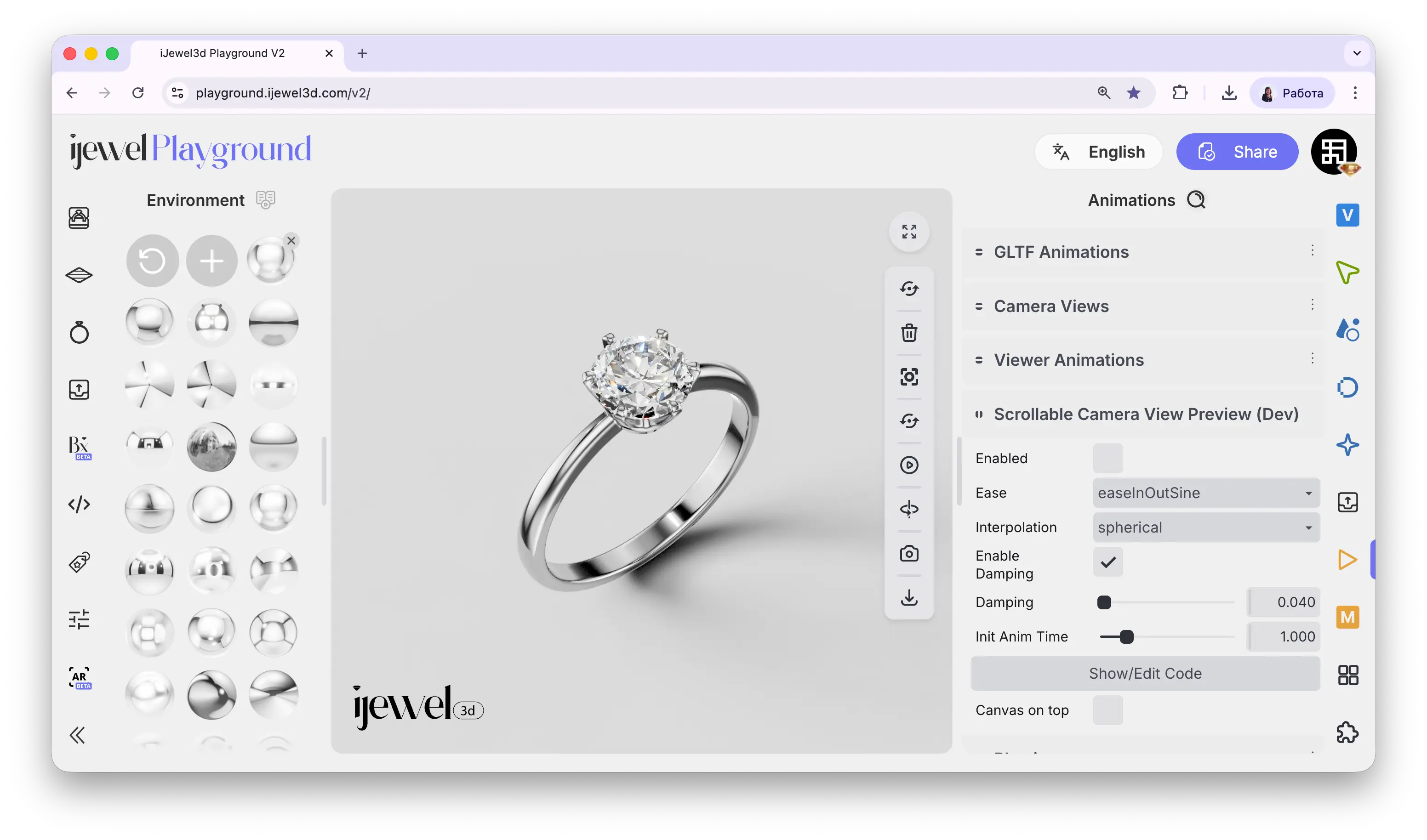 Scrollable Camera Views Preview controls how the camera behaves when the user scrolls the page. Instead of clicking buttons to transition between views, the camera position is tied directly to the scroll position — as the user scrolls down, the camera smoothly moves through all saved [Camera Views](./camera-views).
This is especially useful for product landing pages where you want the 3D model to animate cinematically as the visitor scrolls through the page content.
## Where to Find It
This section is located on the [right panel](./ui-overview#right-panel-—-professional-tools), inside the Animations tab, in the **Scrollable Camera Views Preview** section.
---
## Settings
Scrollable Camera Views Preview controls how the camera behaves when the user scrolls the page. Instead of clicking buttons to transition between views, the camera position is tied directly to the scroll position — as the user scrolls down, the camera smoothly moves through all saved [Camera Views](./camera-views).
This is especially useful for product landing pages where you want the 3D model to animate cinematically as the visitor scrolls through the page content.
## Where to Find It
This section is located on the [right panel](./ui-overview#right-panel-—-professional-tools), inside the Animations tab, in the **Scrollable Camera Views Preview** section.
---
## Settings
0.040). Lower values create a smoother, more "buttery" glide after scrolling stops. Higher values make the camera respond more immediately1.000)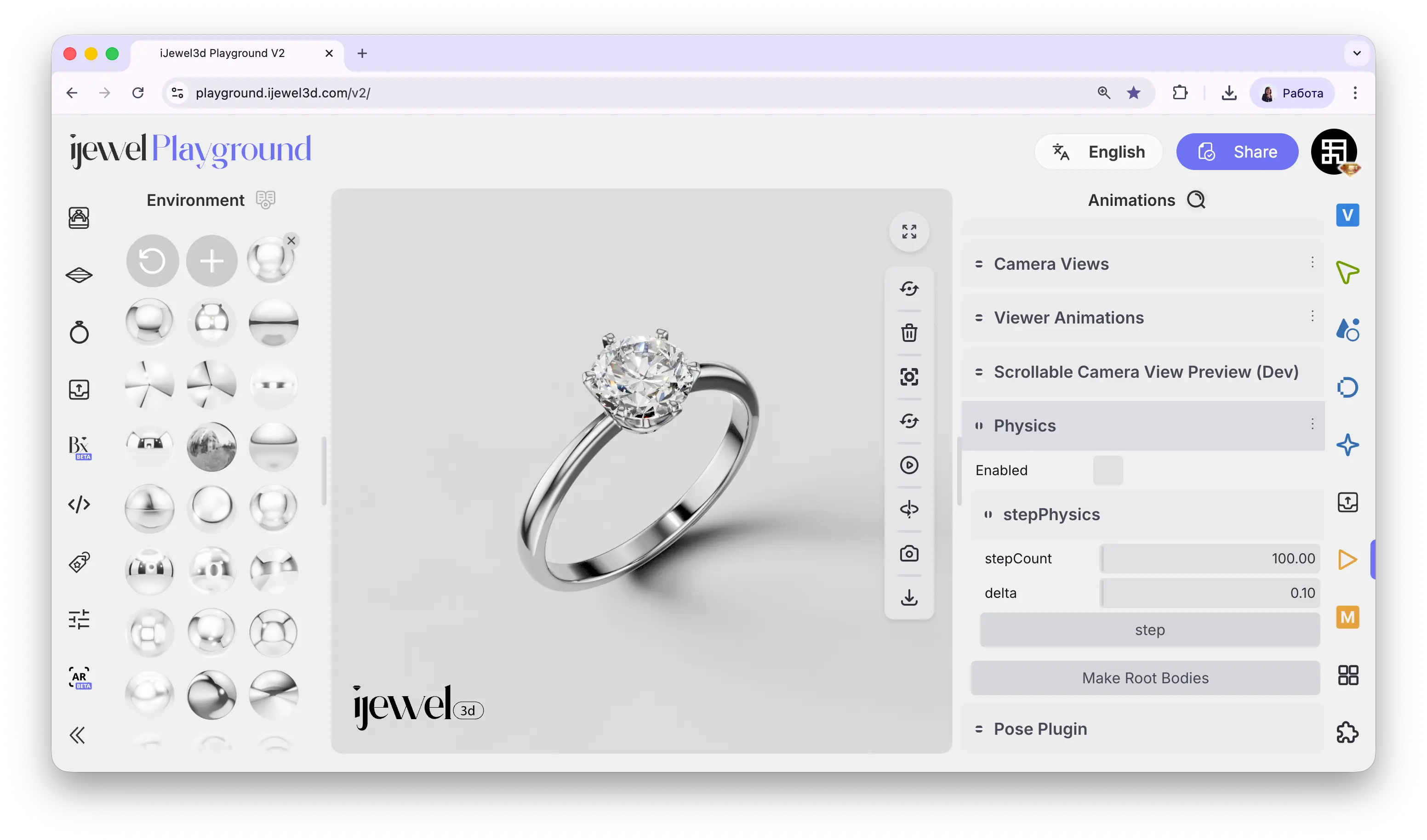 The Physics section controls the physics engine for your scene. It enables gravity, collisions, and inertia for objects, making interactions with jewelry and scene elements feel realistic and dynamic.
A common use case in iJewel is **gyroscope-driven motion** — when a customer tilts their phone, the physics engine "pushes" objects in the scene. Pendants start swinging, stones catch the light from different angles, and the jewelry feels like it's physically in the viewer's hands.
## Where to Find It
This section is located on the [right panel](./ui-overview#right-panel-—-professional-tools), inside the Animations tab, in the **Physics** section.
---
## Settings
The Physics section controls the physics engine for your scene. It enables gravity, collisions, and inertia for objects, making interactions with jewelry and scene elements feel realistic and dynamic.
A common use case in iJewel is **gyroscope-driven motion** — when a customer tilts their phone, the physics engine "pushes" objects in the scene. Pendants start swinging, stones catch the light from different angles, and the jewelry feels like it's physically in the viewer's hands.
## Where to Find It
This section is located on the [right panel](./ui-overview#right-panel-—-professional-tools), inside the Animations tab, in the **Physics** section.
---
## Settings
100). Higher values produce more accurate simulations but increase CPU load0.10). Controls how fast time flows in the physics simulation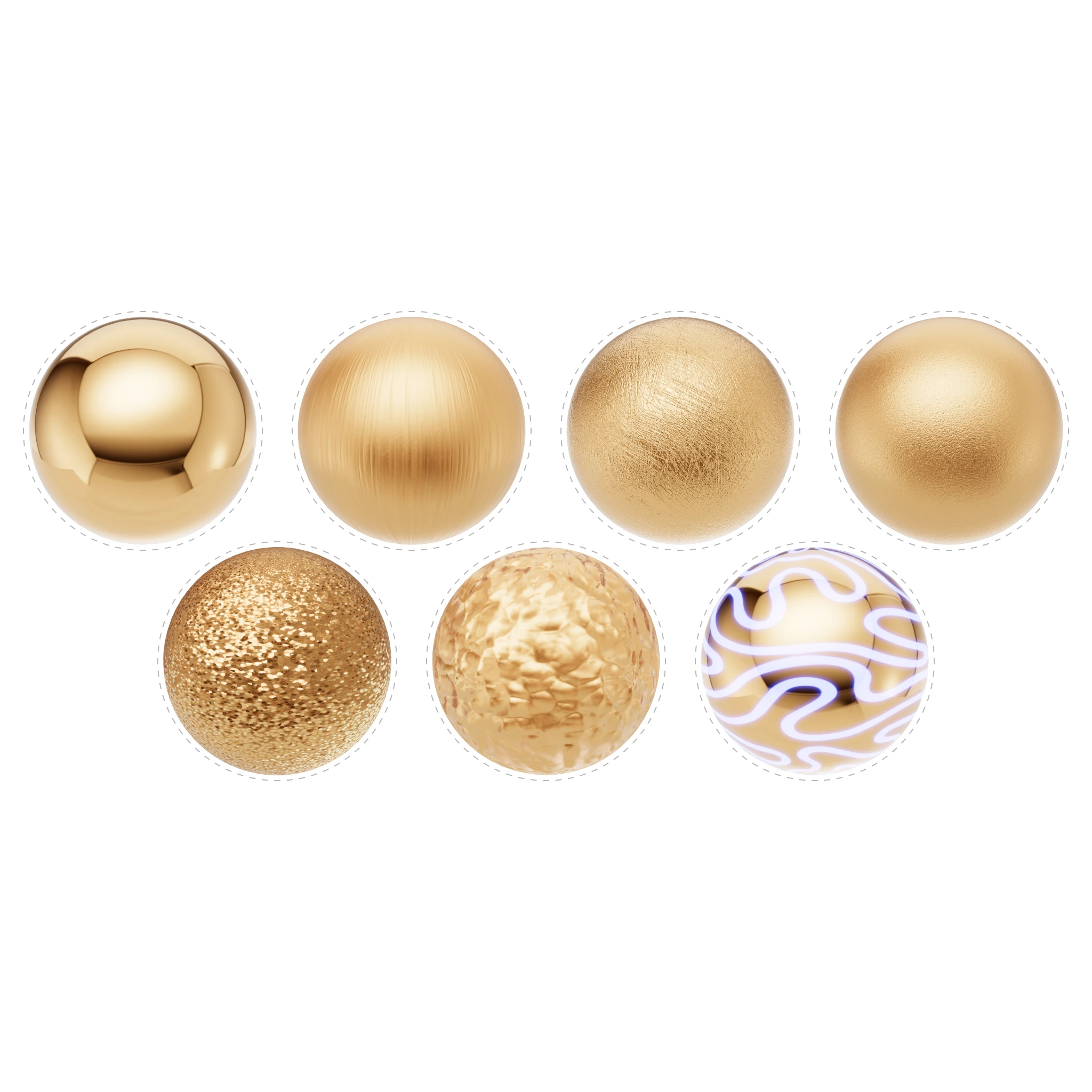 Materials define how every surface in your scene looks — the color, reflectivity, roughness, and transparency of metals, gemstones, ceramics, pearls, and more. iJewel Playground uses two specialized material types: **Physical Material (PBR)** for opaque surfaces like metals and ceramics, and **Diamond Material** for gemstones with ray-traced refraction and sparkle.
You can start from scratch by adjusting every parameter manually, or use one of the 300+ ready-made presets from the built-in library to get professional results instantly.
## Where to Find It
Materials can be accessed in two ways:
1. **Left panel — Material Presets** — Click on any object in the canvas, then browse the preset library tabs (Metals, Gems, Ceramics, Pearls, Other) to apply a preset with one click
2. **Right panel — Picking** — Select an object in the canvas while in Picking mode to open its full material editor (Physical Material or Diamond Material)
---
## Sections
Materials define how every surface in your scene looks — the color, reflectivity, roughness, and transparency of metals, gemstones, ceramics, pearls, and more. iJewel Playground uses two specialized material types: **Physical Material (PBR)** for opaque surfaces like metals and ceramics, and **Diamond Material** for gemstones with ray-traced refraction and sparkle.
You can start from scratch by adjusting every parameter manually, or use one of the 300+ ready-made presets from the built-in library to get professional results instantly.
## Where to Find It
Materials can be accessed in two ways:
1. **Left panel — Material Presets** — Click on any object in the canvas, then browse the preset library tabs (Metals, Gems, Ceramics, Pearls, Other) to apply a preset with one click
2. **Right panel — Picking** — Select an object in the canvas while in Picking mode to open its full material editor (Physical Material or Diamond Material)
---
## Sections
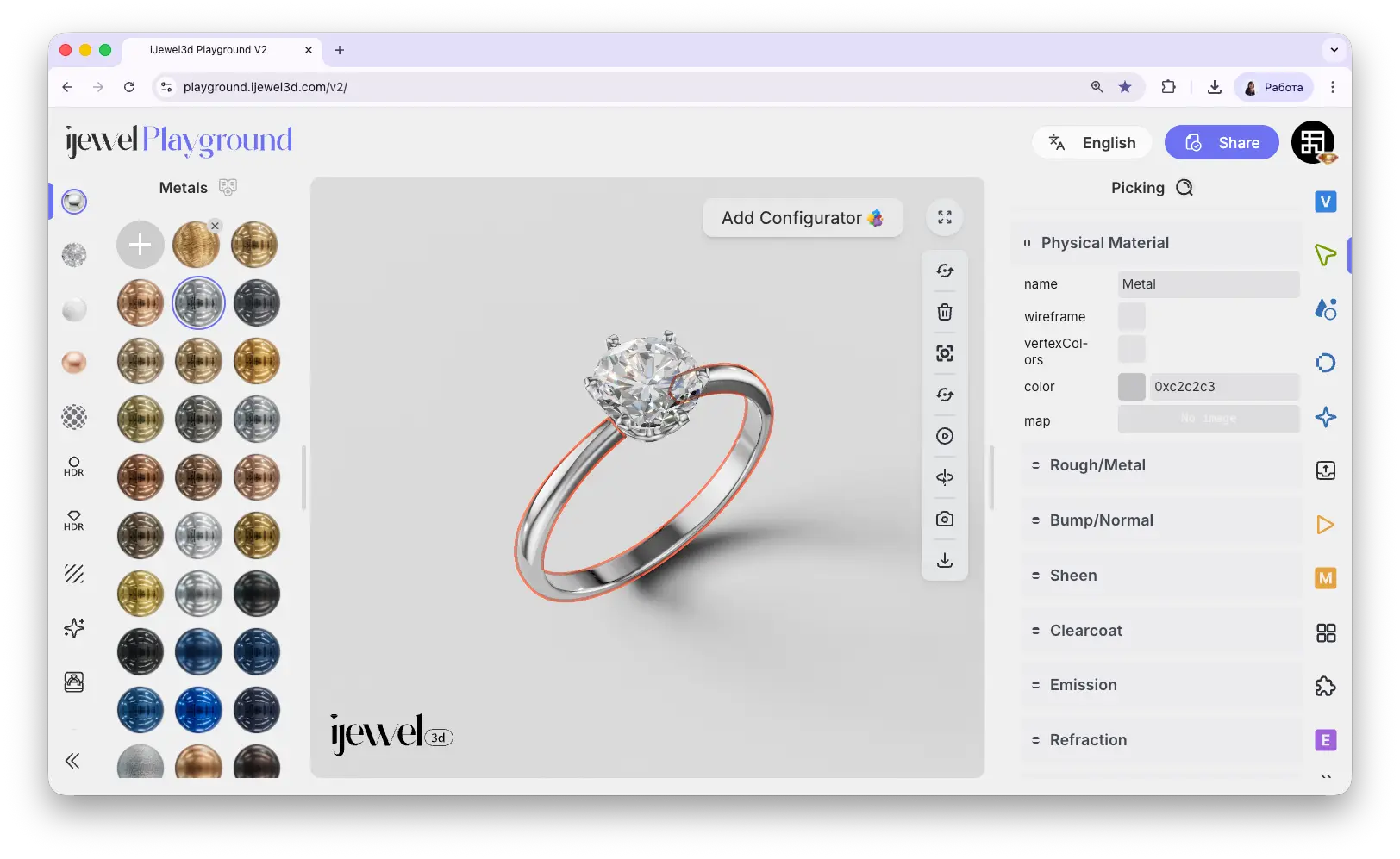 Physical Materials (PBR) control how surfaces look in your scene — their color, reflectivity, roughness, transparency, and more. This is the most detailed material editor in iJewel Playground and it uses a physically-based rendering model to produce realistic results.
Every metal, stone setting, enamel, ceramic, or glass surface in your jewelry model is controlled through this panel.
## How to Open
1. Click on any object in the canvas to select it
2. Go to the Picking tab on the [right panel](./ui-overview#right-panel-—-professional-tools)
3. The Picker will show the material name, and the **Physical Material** section will open below with all its settings
::: tip Merging Materials
You can rename a material in the **name** field. If you select a different object and rename its material to the **same name**, both objects will share the same material — any change to one will apply to both. This is useful when applying library presets to multiple objects at once.
:::
---
## Physical Material
These are the top-level settings that appear when you expand the Physical Material section.
Physical Materials (PBR) control how surfaces look in your scene — their color, reflectivity, roughness, transparency, and more. This is the most detailed material editor in iJewel Playground and it uses a physically-based rendering model to produce realistic results.
Every metal, stone setting, enamel, ceramic, or glass surface in your jewelry model is controlled through this panel.
## How to Open
1. Click on any object in the canvas to select it
2. Go to the Picking tab on the [right panel](./ui-overview#right-panel-—-professional-tools)
3. The Picker will show the material name, and the **Physical Material** section will open below with all its settings
::: tip Merging Materials
You can rename a material in the **name** field. If you select a different object and rename its material to the **same name**, both objects will share the same material — any change to one will apply to both. This is useful when applying library presets to multiple objects at once.
:::
---
## Physical Material
These are the top-level settings that appear when you expand the Physical Material section.
0x followed by 6 hex digits (e.g., 0xe5b377 for gold) — keep the 0x prefix and change only the last 6 characters
0 = mirror-like, 1 = completely matte1 = fully metallic (gold, silver), 0 = non-metallic (ceramic, plastic)
0 = off, 1 = full reflective coating
1 = fully transparent, 0 = opaque
1.0 = fully visible, 0 = invisible
0 = uniform, 1 = fully stretched
 Picking tab on the [right panel](./ui-overview#right-panel-—-professional-tools)
3. The Picker will show the material name, and the **Diamond Material** section will open below with all its settings
If your object does not have a Diamond Material yet, you can assign one in two ways:
1. **From the Gems library** — Open the Gems tab on the left panel and select any gem preset to apply it to the selected object
2. **From Picking → Diamonds** — Go to the Picking panel, find the **Diamonds** section, and click **Make Diamond**. This converts the Physical Material on the selected object into a Diamond Material
Picking tab on the [right panel](./ui-overview#right-panel-—-professional-tools)
3. The Picker will show the material name, and the **Diamond Material** section will open below with all its settings
If your object does not have a Diamond Material yet, you can assign one in two ways:
1. **From the Gems library** — Open the Gems tab on the left panel and select any gem preset to apply it to the selected object
2. **From Picking → Diamonds** — Go to the Picking panel, find the **Diamonds** section, and click **Make Diamond**. This converts the Physical Material on the selected object into a Diamond Material
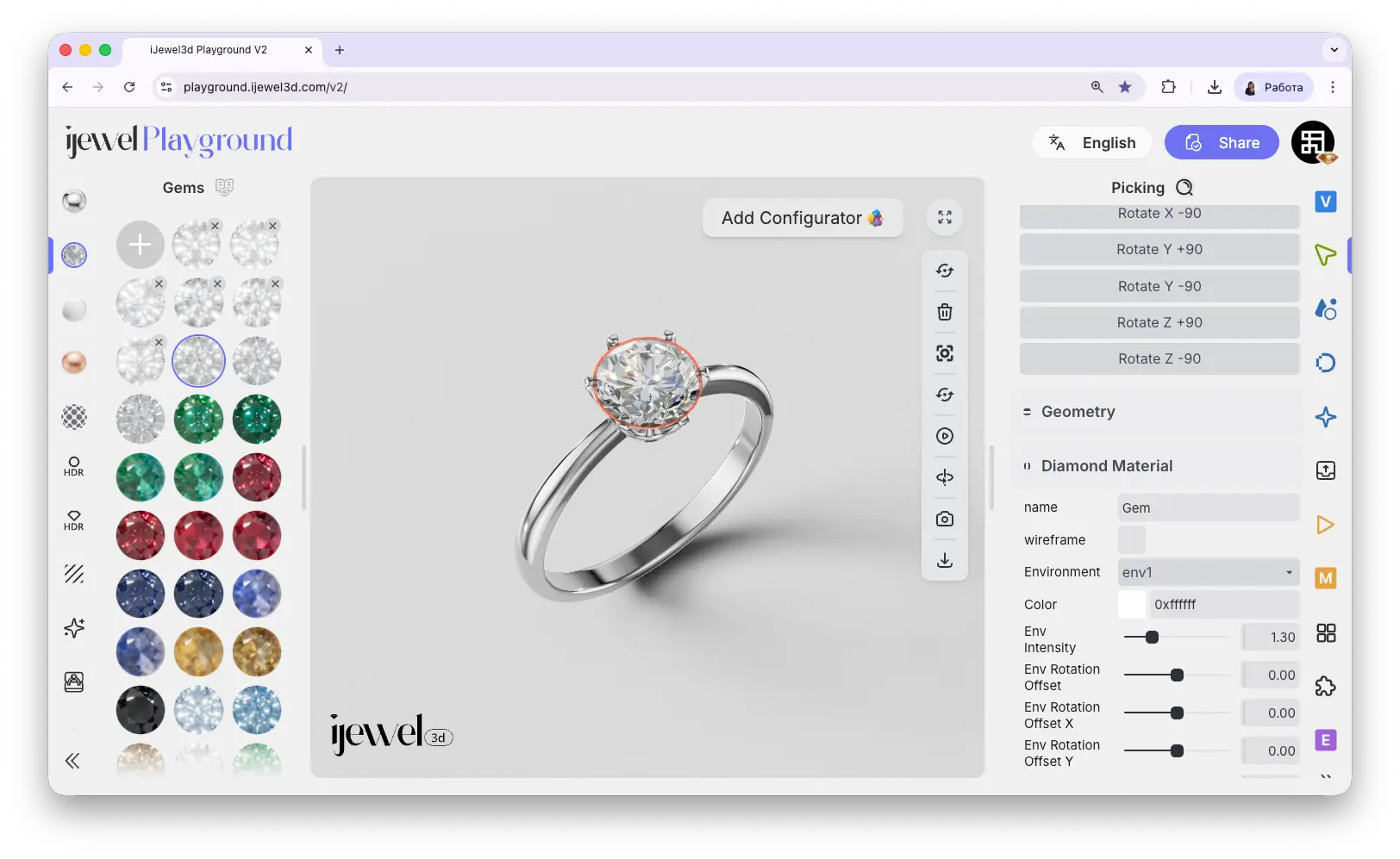 ---
## Diamond Material
---
## Diamond Material
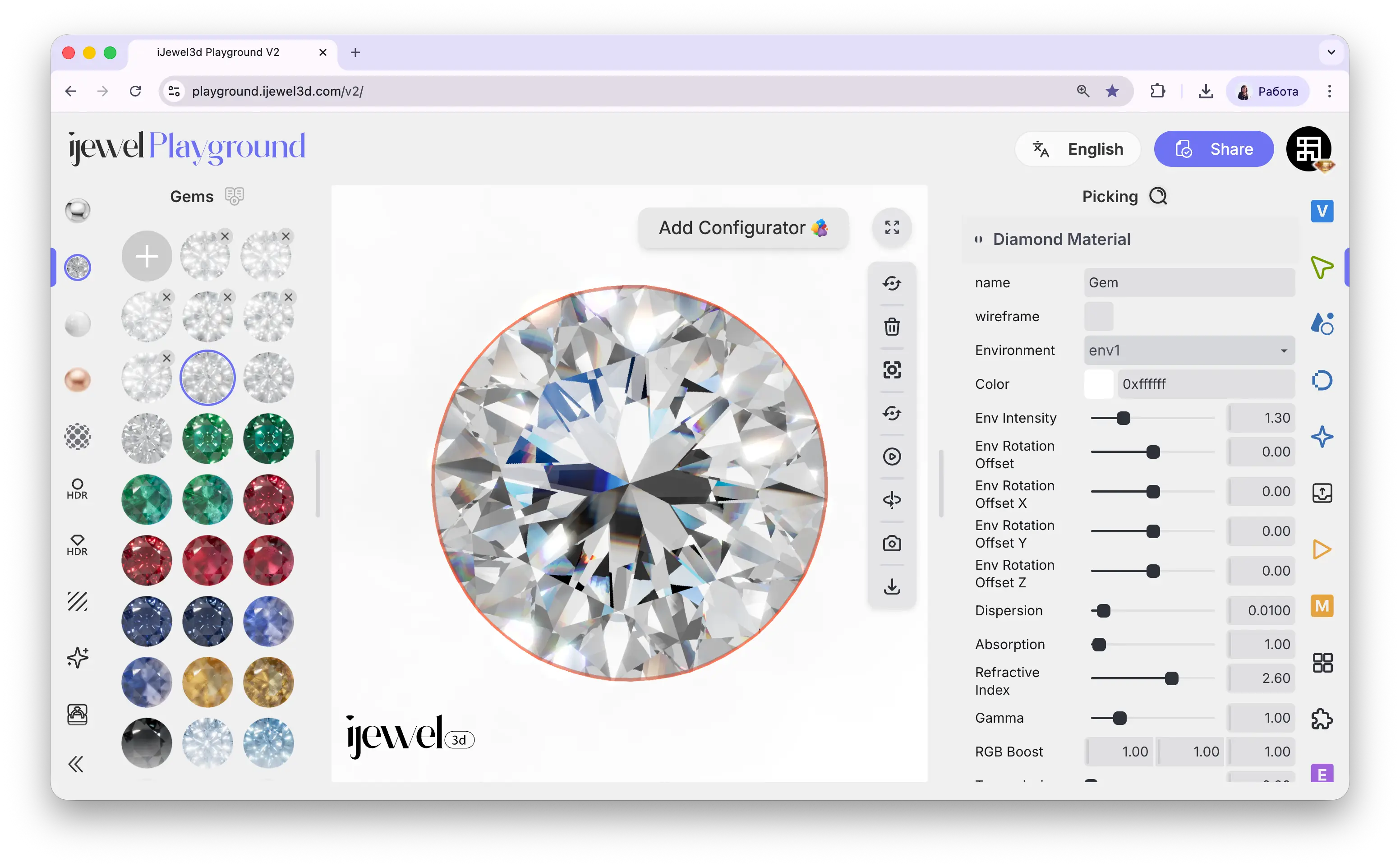
0xffffff) for a classic diamond, or any color for colored gemstones like emerald, sapphire, or ruby
1.30. Increase for a brighter, more vivid stone; decrease for a subtler look
2.60. Lower values create a shallower, less brilliant look. Increase or decrease depending on the stone shape and cut — unusual or custom cuts may need adjustment1.00. Increase to boost contrast and make colors more vivid, decrease for a softer look
4–5. Increase up to 16 for more realistic results on certain cuts
 ---
## Flat Material
Renders the gemstone without any lighting calculations — a flat, unlit appearance.
---
## Bloom
Per-material Bloom toggle. Allows you to enable or disable the [Bloom](./bloom) post-processing effect for this specific gemstone.
---
## Inclusions
---
## Flat Material
Renders the gemstone without any lighting calculations — a flat, unlit appearance.
---
## Bloom
Per-material Bloom toggle. Allows you to enable or disable the [Bloom](./bloom) post-processing effect for this specific gemstone.
---
## Inclusions
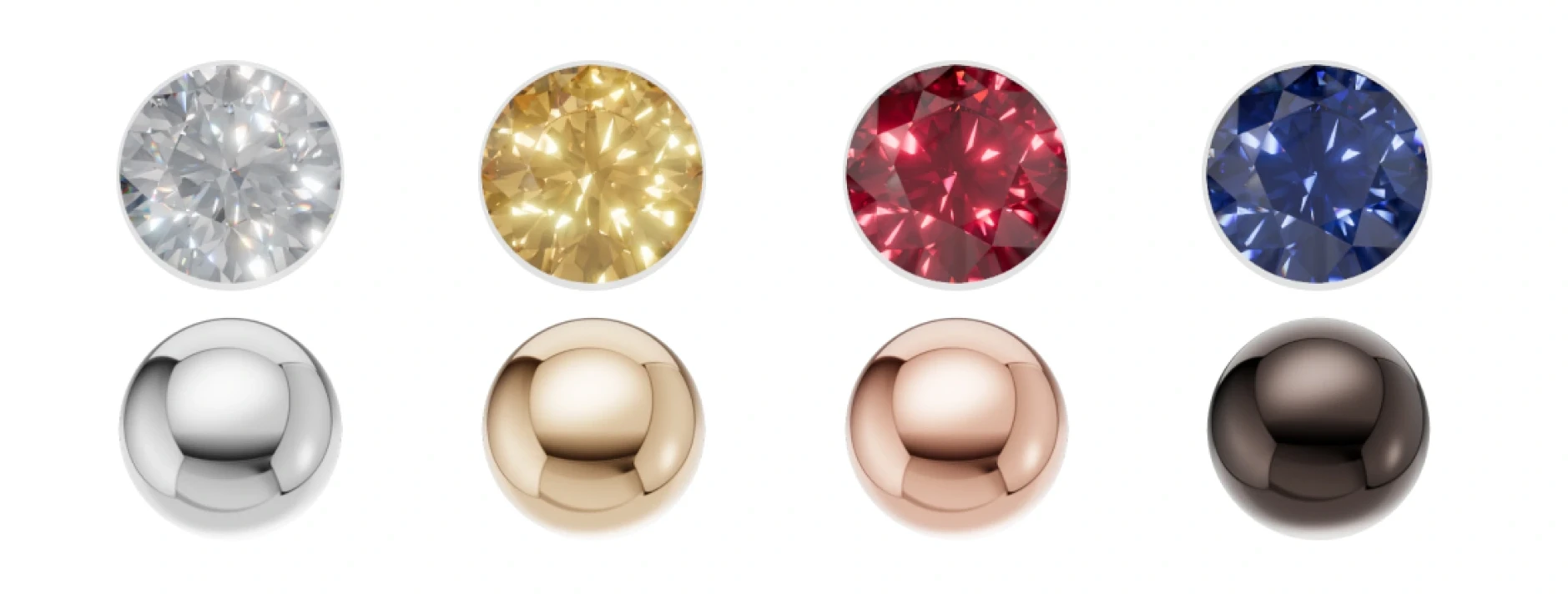 iJewel Playground includes a library of 300+ ready-made materials that you can apply to any object with a single click. The presets are professionally configured and cover the most common jewelry materials — from yellow and white gold to emeralds, sapphires, pearls, and ceramics.
## How to Use
1. Click on any object in the canvas to select it
2. On the left panel, browse the material categories using the tabs at the top
3. Click on any preset thumbnail to apply it instantly to the selected object
## Categories
The library is organized into five tabs:
iJewel Playground includes a library of 300+ ready-made materials that you can apply to any object with a single click. The presets are professionally configured and cover the most common jewelry materials — from yellow and white gold to emeralds, sapphires, pearls, and ceramics.
## How to Use
1. Click on any object in the canvas to select it
2. On the left panel, browse the material categories using the tabs at the top
3. Click on any preset thumbnail to apply it instantly to the selected object
## Categories
The library is organized into five tabs:
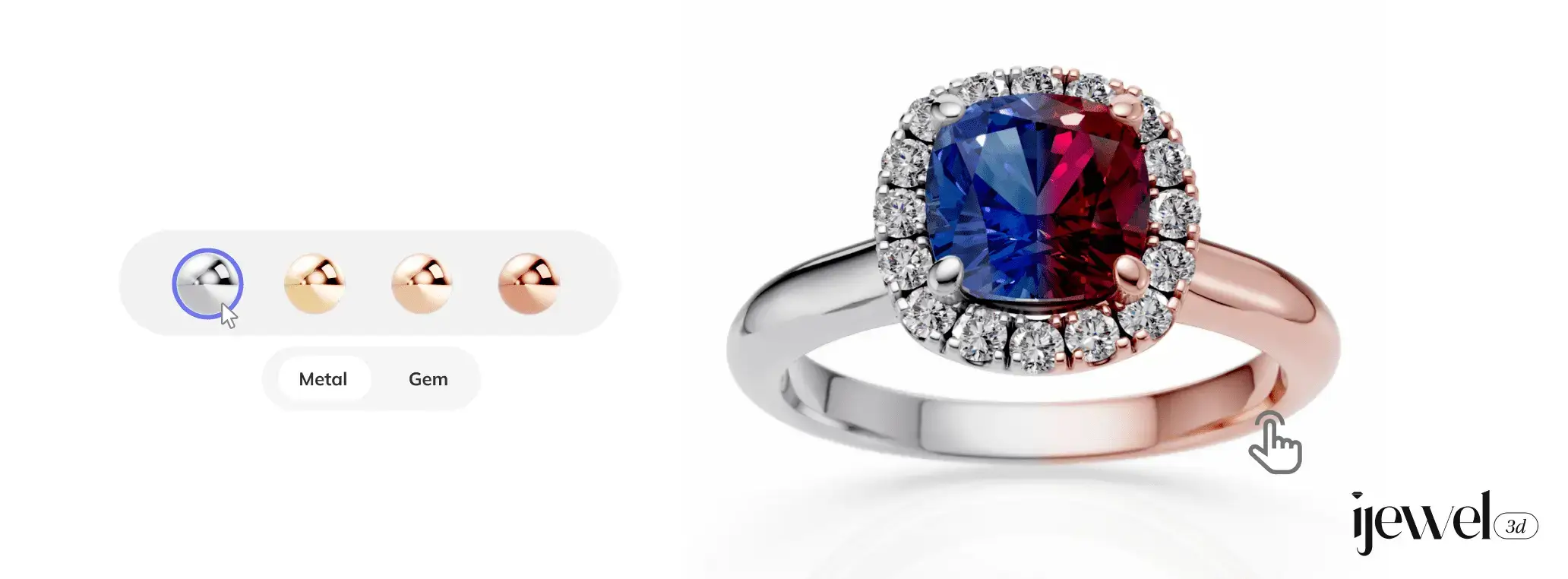 The Material Configurator lets you create interactive material variations for your 3D model. When embedded in the [iJewel Viewer](../viewer/introduction), your customers can switch between different metals, gemstone colors, ceramics, pearls, and any other materials — directly on your product page.
When you add a configurator, a UI bar appears at the bottom of the canvas. The lower bar shows the configuration name (e.g., "Metal"), and the upper bar displays the available material variants as clickable thumbnails.
The Material Configurator lets you create interactive material variations for your 3D model. When embedded in the [iJewel Viewer](../viewer/introduction), your customers can switch between different metals, gemstone colors, ceramics, pearls, and any other materials — directly on your product page.
When you add a configurator, a UI bar appears at the bottom of the canvas. The lower bar shows the configuration name (e.g., "Metal"), and the upper bar displays the available material variants as clickable thumbnails.
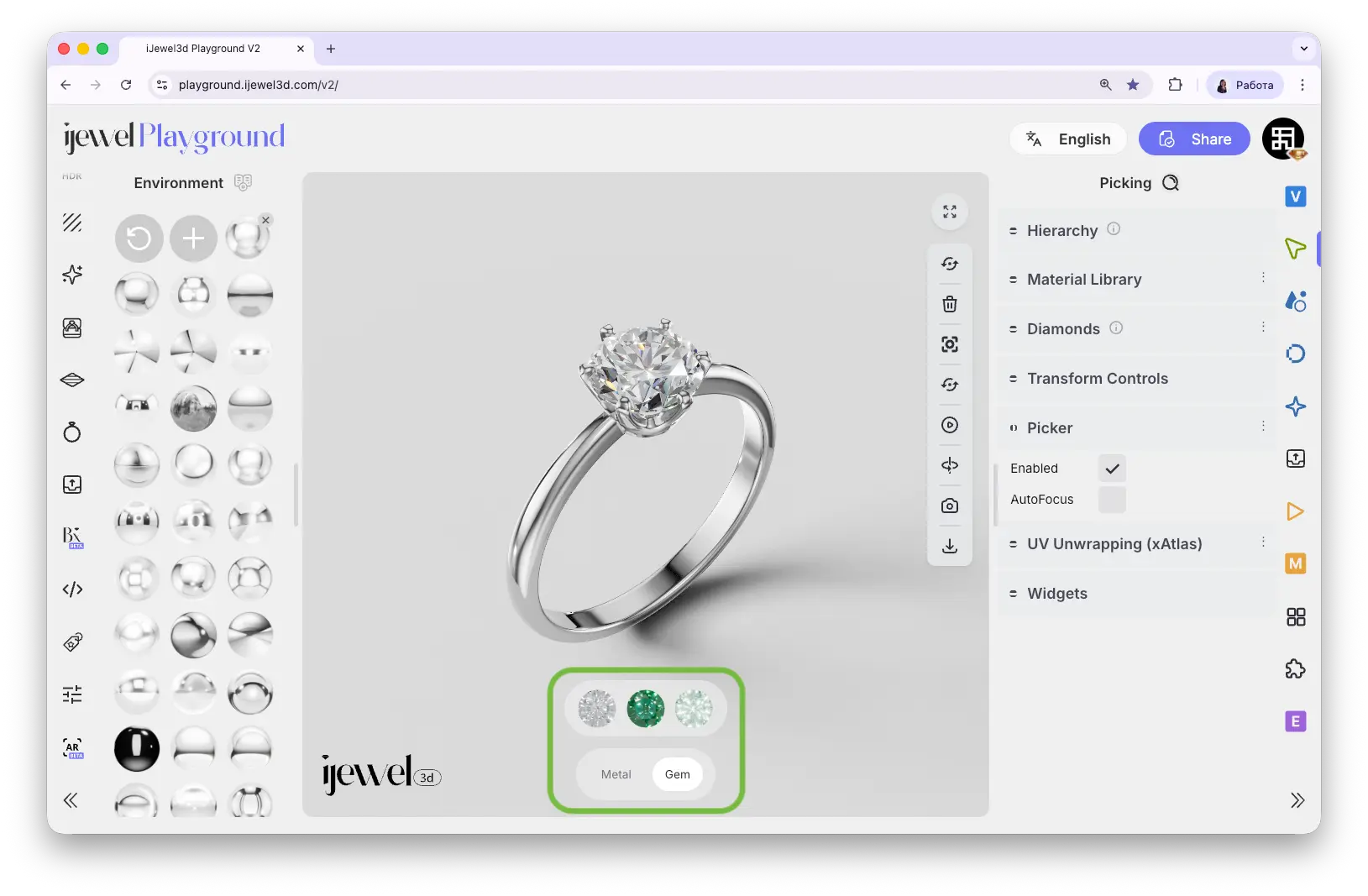 ---
## Adding a Material Configurator — Step by Step
### Step 1: Select the Object
Click on the object in the canvas that you want to add material variations to. The object will be highlighted.
### Step 2: Open the Configurator
At the top of the canvas, click the **Add Configurator** button. A material library panel will appear with tabs for different categories (Metals, Gems, Ceramics, Pearls, Other).
### Step 3: Choose Materials
Click on any material to add it as a variant — it will instantly appear in the configurator bar at the bottom of the canvas. You can add as many variants as you want — there is no limit. Click on a selected material again to remove it.
### Step 4: Done
The configuration name is automatically taken from the material name of the selected object. You can now click on different variants in the bottom bar to preview how each material looks on your model.
---
## Adding Gem Variations
The process works the same for gemstones. Select a gem object, click **Add Configurator**, and the library will automatically open to the **Gems** tab (since the selected object already has a [Diamond Material](./diamond-materials)). Choose your gem variants the same way.
---
## Adding Custom Materials
If you've created a custom material in the [PBR Materials](./pbr-materials) or [Diamond Materials](./diamond-materials) editor (for example, a specific color or texture), you can add it as a variant too:
1. Make sure your object is still selected
2. Make all the material changes you need in the Picking panel
3. At the bottom of the canvas, click the **+** button (Add Current Material) — the last button in the configurator bar
This adds your current custom material as a new variant.
---
## Editing the Configuration Name
The configuration name appears in the lower bar on the canvas (e.g., "Metal", "Gem"). To change it:
1. Enter Edit mode — either click the **Edit Configurator** button at the top of the canvas (after selecting the object), or right-click on the configuration name and choose **Edit**
2. Change the name in the input field at the top of the material library panel
---
## Editing Variant Names
Each material variant has a name that appears as a tooltip on hover. To rename a variant:
1. Hover over the variant thumbnail in the configurator bar
2. A tooltip with the variant name will appear — move your cursor to the right side of the tooltip
3. Click the **pencil icon** to edit the name
---
## Removing a Material Variant
There are two ways to remove a variant from the configurator:
**Method 1** — Right-click on the variant thumbnail in the configurator bar and click **Delete**
**Method 2** — Enter Edit mode and click on the material in the library to deselect it
---
## Deleting an Entire Configuration
To remove the entire configurator from an object:
---
## Right Panel Controls
You can also manage the configurator from the right panel. Select an object and go to the **Configurator** tab to find the **Material Configurator** section.
---
## Adding a Material Configurator — Step by Step
### Step 1: Select the Object
Click on the object in the canvas that you want to add material variations to. The object will be highlighted.
### Step 2: Open the Configurator
At the top of the canvas, click the **Add Configurator** button. A material library panel will appear with tabs for different categories (Metals, Gems, Ceramics, Pearls, Other).
### Step 3: Choose Materials
Click on any material to add it as a variant — it will instantly appear in the configurator bar at the bottom of the canvas. You can add as many variants as you want — there is no limit. Click on a selected material again to remove it.
### Step 4: Done
The configuration name is automatically taken from the material name of the selected object. You can now click on different variants in the bottom bar to preview how each material looks on your model.
---
## Adding Gem Variations
The process works the same for gemstones. Select a gem object, click **Add Configurator**, and the library will automatically open to the **Gems** tab (since the selected object already has a [Diamond Material](./diamond-materials)). Choose your gem variants the same way.
---
## Adding Custom Materials
If you've created a custom material in the [PBR Materials](./pbr-materials) or [Diamond Materials](./diamond-materials) editor (for example, a specific color or texture), you can add it as a variant too:
1. Make sure your object is still selected
2. Make all the material changes you need in the Picking panel
3. At the bottom of the canvas, click the **+** button (Add Current Material) — the last button in the configurator bar
This adds your current custom material as a new variant.
---
## Editing the Configuration Name
The configuration name appears in the lower bar on the canvas (e.g., "Metal", "Gem"). To change it:
1. Enter Edit mode — either click the **Edit Configurator** button at the top of the canvas (after selecting the object), or right-click on the configuration name and choose **Edit**
2. Change the name in the input field at the top of the material library panel
---
## Editing Variant Names
Each material variant has a name that appears as a tooltip on hover. To rename a variant:
1. Hover over the variant thumbnail in the configurator bar
2. A tooltip with the variant name will appear — move your cursor to the right side of the tooltip
3. Click the **pencil icon** to edit the name
---
## Removing a Material Variant
There are two ways to remove a variant from the configurator:
**Method 1** — Right-click on the variant thumbnail in the configurator bar and click **Delete**
**Method 2** — Enter Edit mode and click on the material in the library to deselect it
---
## Deleting an Entire Configuration
To remove the entire configurator from an object:
---
## Right Panel Controls
You can also manage the configurator from the right panel. Select an object and go to the **Configurator** tab to find the **Material Configurator** section.
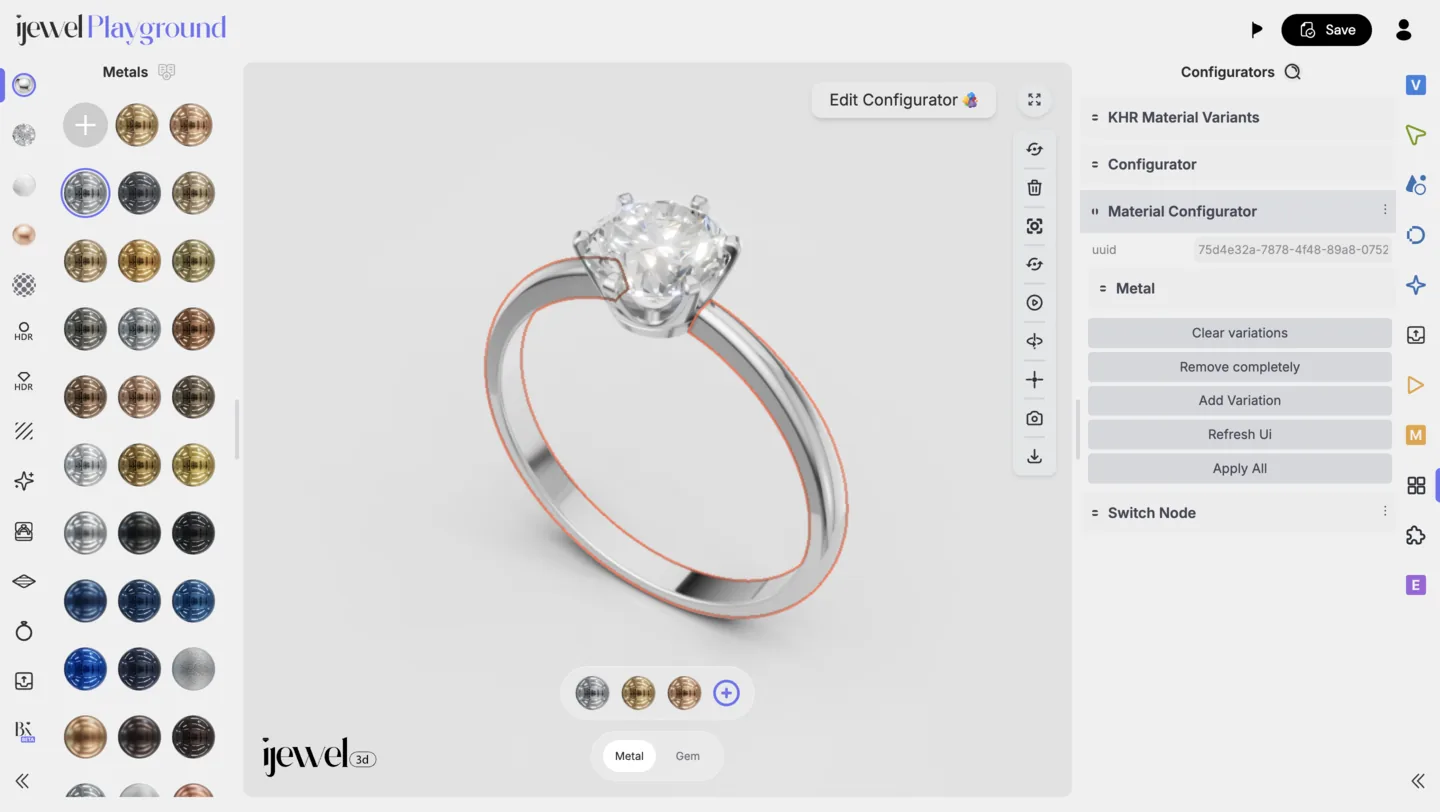 The right panel provides additional buttons:
The Material Configurator lets you create interactive material variations for your 3D model. When embedded in the [iJewel Viewer](../viewer/introduction), your customers can switch between different metals, gemstone colors, ceramics, pearls, and any other materials — directly on your product page.
When you add a configurator, a UI bar appears at the bottom of the canvas. The lower bar shows the configuration name (e.g., "Metal"), and the upper bar displays the available material variants as clickable thumbnails.
---
## Adding a Material Configurator — Step by Step
### Step 1: Select the Object
Click on the object in the canvas that you want to add material variations to. The object will be highlighted.
### Step 2: Open the Configurator
At the top of the canvas, click the **Add Configurator** button. A material library panel will appear with tabs for different categories (Metals, Gems, Ceramics, Pearls, Other).
### Step 3: Choose Materials
Click on any material to add it as a variant — it will instantly appear in the configurator bar at the bottom of the canvas. You can add as many variants as you want — there is no limit. Click on a selected material again to remove it.
### Step 4: Done
The configuration name is automatically taken from the material name of the selected object. You can now click on different variants in the bottom bar to preview how each material looks on your model.
---
## Adding Gem Variations
The process works the same for gemstones. Select a gem object, click **Add Configurator**, and the library will automatically open to the **Gems** tab (since the selected object already has a [Diamond Material](./diamond-materials)). Choose your gem variants the same way.
---
## Adding Custom Materials
If you've created a custom material in the [PBR Materials](./pbr-materials) or [Diamond Materials](./diamond-materials) editor (for example, a specific color or texture), you can add it as a variant too:
1. Make sure your object is still selected
2. Make all the material changes you need in the Picking panel
3. At the bottom of the canvas, click the **+** button (Add Current Material) — the last button in the configurator bar
This adds your current custom material as a new variant.
---
## Editing the Configuration Name
The configuration name appears in the lower bar on the canvas (e.g., "Metal", "Gem"). To change it:
1. Enter Edit mode — either click the **Edit Configurator** button at the top of the canvas (after selecting the object), or right-click on the configuration name and choose **Edit**
2. Change the name in the input field at the top of the material library panel
---
## Editing Variant Names
Each material variant has a name that appears as a tooltip on hover. To rename a variant:
1. Hover over the variant thumbnail in the configurator bar
2. A tooltip with the variant name will appear — move your cursor to the right side of the tooltip
3. Click the **pencil icon** to edit the name
---
## Removing a Material Variant
There are two ways to remove a variant from the configurator:
**Method 1** — Right-click on the variant thumbnail in the configurator bar and click **Delete**
**Method 2** — Enter Edit mode and click on the material in the library to deselect it
---
## Deleting an Entire Configuration
To remove the entire configurator from an object:
---
## Right Panel Controls
You can also manage the configurator from the right panel. Select an object and go to the **Configurator** tab to find the **Material Configurator** section.
The right panel provides additional buttons:
The Material Configurator lets you create interactive material variations for your 3D model. When embedded in the [iJewel Viewer](../viewer/introduction), your customers can switch between different metals, gemstone colors, ceramics, pearls, and any other materials — directly on your product page.
When you add a configurator, a UI bar appears at the bottom of the canvas. The lower bar shows the configuration name (e.g., "Metal"), and the upper bar displays the available material variants as clickable thumbnails.
---
## Adding a Material Configurator — Step by Step
### Step 1: Select the Object
Click on the object in the canvas that you want to add material variations to. The object will be highlighted.
### Step 2: Open the Configurator
At the top of the canvas, click the **Add Configurator** button. A material library panel will appear with tabs for different categories (Metals, Gems, Ceramics, Pearls, Other).
### Step 3: Choose Materials
Click on any material to add it as a variant — it will instantly appear in the configurator bar at the bottom of the canvas. You can add as many variants as you want — there is no limit. Click on a selected material again to remove it.
### Step 4: Done
The configuration name is automatically taken from the material name of the selected object. You can now click on different variants in the bottom bar to preview how each material looks on your model.
---
## Adding Gem Variations
The process works the same for gemstones. Select a gem object, click **Add Configurator**, and the library will automatically open to the **Gems** tab (since the selected object already has a [Diamond Material](./diamond-materials)). Choose your gem variants the same way.
---
## Adding Custom Materials
If you've created a custom material in the [PBR Materials](./pbr-materials) or [Diamond Materials](./diamond-materials) editor (for example, a specific color or texture), you can add it as a variant too:
1. Make sure your object is still selected
2. Make all the material changes you need in the Picking panel
3. At the bottom of the canvas, click the **+** button (Add Current Material) — the last button in the configurator bar
This adds your current custom material as a new variant.
---
## Editing the Configuration Name
The configuration name appears in the lower bar on the canvas (e.g., "Metal", "Gem"). To change it:
1. Enter Edit mode — either click the **Edit Configurator** button at the top of the canvas (after selecting the object), or right-click on the configuration name and choose **Edit**
2. Change the name in the input field at the top of the material library panel
---
## Editing Variant Names
Each material variant has a name that appears as a tooltip on hover. To rename a variant:
1. Hover over the variant thumbnail in the configurator bar
2. A tooltip with the variant name will appear — move your cursor to the right side of the tooltip
3. Click the **pencil icon** to edit the name
---
## Removing a Material Variant
There are two ways to remove a variant from the configurator:
**Method 1** — Right-click on the variant thumbnail in the configurator bar and click **Delete**
**Method 2** — Enter Edit mode and click on the material in the library to deselect it
---
## Deleting an Entire Configuration
To remove the entire configurator from an object:
---
## Right Panel Controls
You can also manage the configurator from the right panel. Select an object and go to the **Configurator** tab to find the **Material Configurator** section.
The right panel provides additional buttons:
The right panel provides additional buttons:
The Material Configurator lets you create interactive material variations for your 3D model. When embedded in the [iJewel Viewer](../viewer/introduction), your customers can switch between different metals, gemstone colors, ceramics, pearls, and any other materials — directly on your product page.
When you add a configurator, a UI bar appears at the bottom of the canvas. The lower bar shows the configuration name (e.g., "Metal"), and the upper bar displays the available material variants as clickable thumbnails.
---
## Adding a Material Configurator — Step by Step
### Step 1: Select the Object
Click on the object in the canvas that you want to add material variations to. The object will be highlighted.
### Step 2: Open the Configurator
At the top of the canvas, click the **Add Configurator** button. A material library panel will appear with tabs for different categories (Metals, Gems, Ceramics, Pearls, Other).
### Step 3: Choose Materials
Click on any material to add it as a variant — it will instantly appear in the configurator bar at the bottom of the canvas. You can add as many variants as you want — there is no limit. Click on a selected material again to remove it.
### Step 4: Done
The configuration name is automatically taken from the material name of the selected object. You can now click on different variants in the bottom bar to preview how each material looks on your model.
---
## Adding Gem Variations
The process works the same for gemstones. Select a gem object, click **Add Configurator**, and the library will automatically open to the **Gems** tab (since the selected object already has a [Diamond Material](./diamond-materials)). Choose your gem variants the same way.
---
## Adding Custom Materials
If you've created a custom material in the [PBR Materials](./pbr-materials) or [Diamond Materials](./diamond-materials) editor (for example, a specific color or texture), you can add it as a variant too:
1. Make sure your object is still selected
2. Make all the material changes you need in the Picking panel
3. At the bottom of the canvas, click the **+** button (Add Current Material) — the last button in the configurator bar
This adds your current custom material as a new variant.
---
## Editing the Configuration Name
The configuration name appears in the lower bar on the canvas (e.g., "Metal", "Gem"). To change it:
1. Enter Edit mode — either click the **Edit Configurator** button at the top of the canvas (after selecting the object), or right-click on the configuration name and choose **Edit**
2. Change the name in the input field at the top of the material library panel
---
## Editing Variant Names
Each material variant has a name that appears as a tooltip on hover. To rename a variant:
1. Hover over the variant thumbnail in the configurator bar
2. A tooltip with the variant name will appear — move your cursor to the right side of the tooltip
3. Click the **pencil icon** to edit the name
---
## Removing a Material Variant
There are two ways to remove a variant from the configurator:
**Method 1** — Right-click on the variant thumbnail in the configurator bar and click **Delete**
**Method 2** — Enter Edit mode and click on the material in the library to deselect it
---
## Deleting an Entire Configuration
To remove the entire configurator from an object:
---
## Right Panel Controls
You can also manage the configurator from the right panel. Select an object and go to the **Configurator** tab to find the **Material Configurator** section.
The right panel provides additional buttons:
The Material Configurator lets you create interactive material variations for your 3D model. When embedded in the [iJewel Viewer](../viewer/introduction), your customers can switch between different metals, gemstone colors, ceramics, pearls, and any other materials — directly on your product page.
When you add a configurator, a UI bar appears at the bottom of the canvas. The lower bar shows the configuration name (e.g., "Metal"), and the upper bar displays the available material variants as clickable thumbnails.
---
## Adding a Material Configurator — Step by Step
### Step 1: Select the Object
Click on the object in the canvas that you want to add material variations to. The object will be highlighted.
### Step 2: Open the Configurator
At the top of the canvas, click the **Add Configurator** button. A material library panel will appear with tabs for different categories (Metals, Gems, Ceramics, Pearls, Other).
### Step 3: Choose Materials
Click on any material to add it as a variant — it will instantly appear in the configurator bar at the bottom of the canvas. You can add as many variants as you want — there is no limit. Click on a selected material again to remove it.
### Step 4: Done
The configuration name is automatically taken from the material name of the selected object. You can now click on different variants in the bottom bar to preview how each material looks on your model.
---
## Adding Gem Variations
The process works the same for gemstones. Select a gem object, click **Add Configurator**, and the library will automatically open to the **Gems** tab (since the selected object already has a [Diamond Material](./diamond-materials)). Choose your gem variants the same way.
---
## Adding Custom Materials
If you've created a custom material in the [PBR Materials](./pbr-materials) or [Diamond Materials](./diamond-materials) editor (for example, a specific color or texture), you can add it as a variant too:
1. Make sure your object is still selected
2. Make all the material changes you need in the Picking panel
3. At the bottom of the canvas, click the **+** button (Add Current Material) — the last button in the configurator bar
This adds your current custom material as a new variant.
---
## Editing the Configuration Name
The configuration name appears in the lower bar on the canvas (e.g., "Metal", "Gem"). To change it:
1. Enter Edit mode — either click the **Edit Configurator** button at the top of the canvas (after selecting the object), or right-click on the configuration name and choose **Edit**
2. Change the name in the input field at the top of the material library panel
---
## Editing Variant Names
Each material variant has a name that appears as a tooltip on hover. To rename a variant:
1. Hover over the variant thumbnail in the configurator bar
2. A tooltip with the variant name will appear — move your cursor to the right side of the tooltip
3. Click the **pencil icon** to edit the name
---
## Removing a Material Variant
There are two ways to remove a variant from the configurator:
**Method 1** — Right-click on the variant thumbnail in the configurator bar and click **Delete**
**Method 2** — Enter Edit mode and click on the material in the library to deselect it
---
## Deleting an Entire Configuration
To remove the entire configurator from an object:
---
## Right Panel Controls
You can also manage the configurator from the right panel. Select an object and go to the **Configurator** tab to find the **Material Configurator** section.
The right panel provides additional buttons:
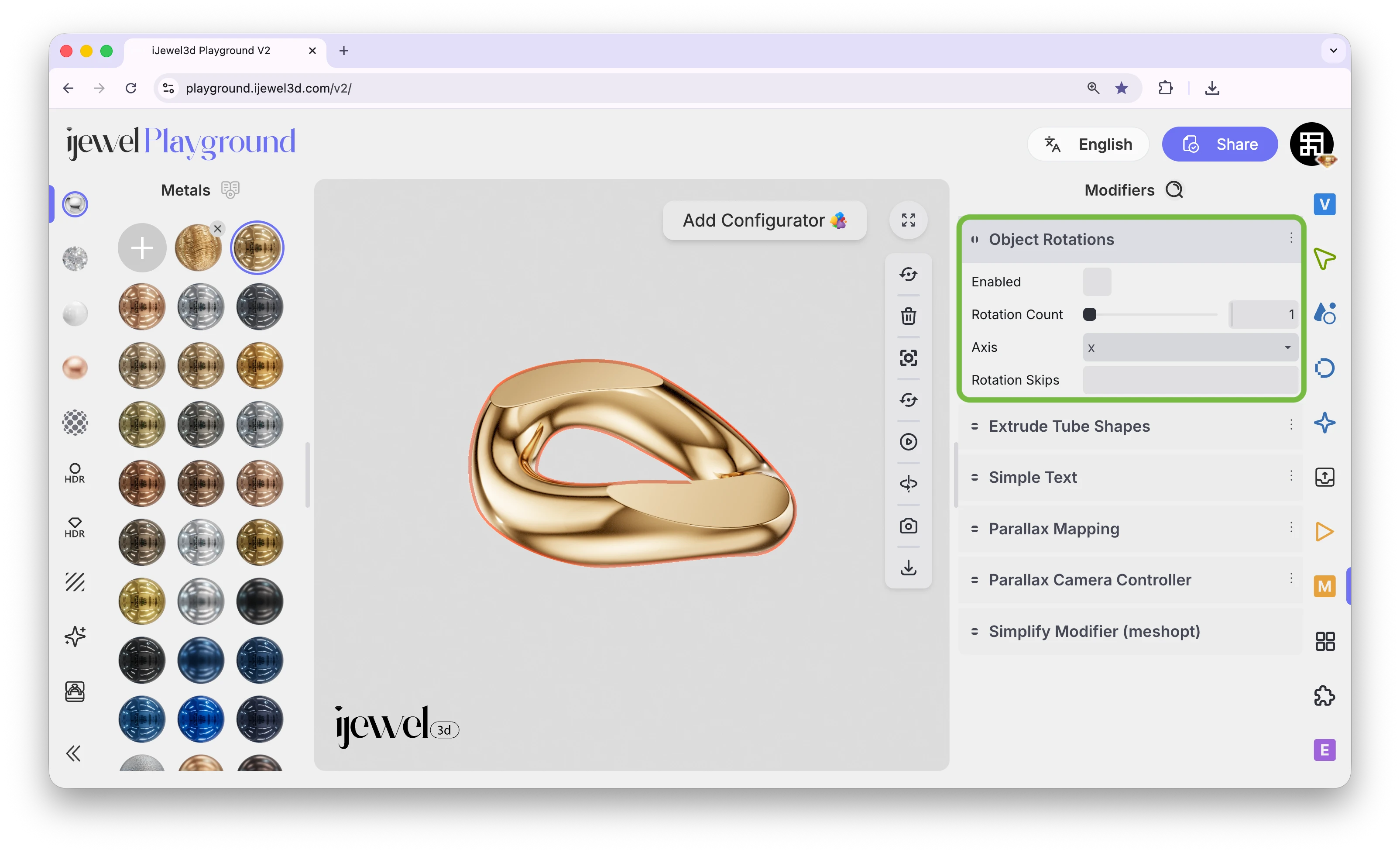 The Object Rotation modifier duplicates an object around a circle using instanced copies. Because it creates instances (not full copies), your scene stays lightweight and fast — even with dozens of duplicates. This is especially useful for creating chain links, repeating gemstone patterns, halo settings, and other circular arrangements common in jewelry design.
## Where to Find It
This section is located on the [right panel](./ui-overview#right-panel-—-professional-tools), inside the Picking tab, in the **Modifiers** section. Select an object in the canvas to see the modifier controls.
---
## Settings
The Object Rotation modifier duplicates an object around a circle using instanced copies. Because it creates instances (not full copies), your scene stays lightweight and fast — even with dozens of duplicates. This is especially useful for creating chain links, repeating gemstone patterns, halo settings, and other circular arrangements common in jewelry design.
## Where to Find It
This section is located on the [right panel](./ui-overview#right-panel-—-professional-tools), inside the Picking tab, in the **Modifiers** section. Select an object in the canvas to see the modifier controls.
---
## Settings
0,1,3,5,7). Skipped positions will be empty, allowing you to create patterns with gaps. Instance numbering starts at 0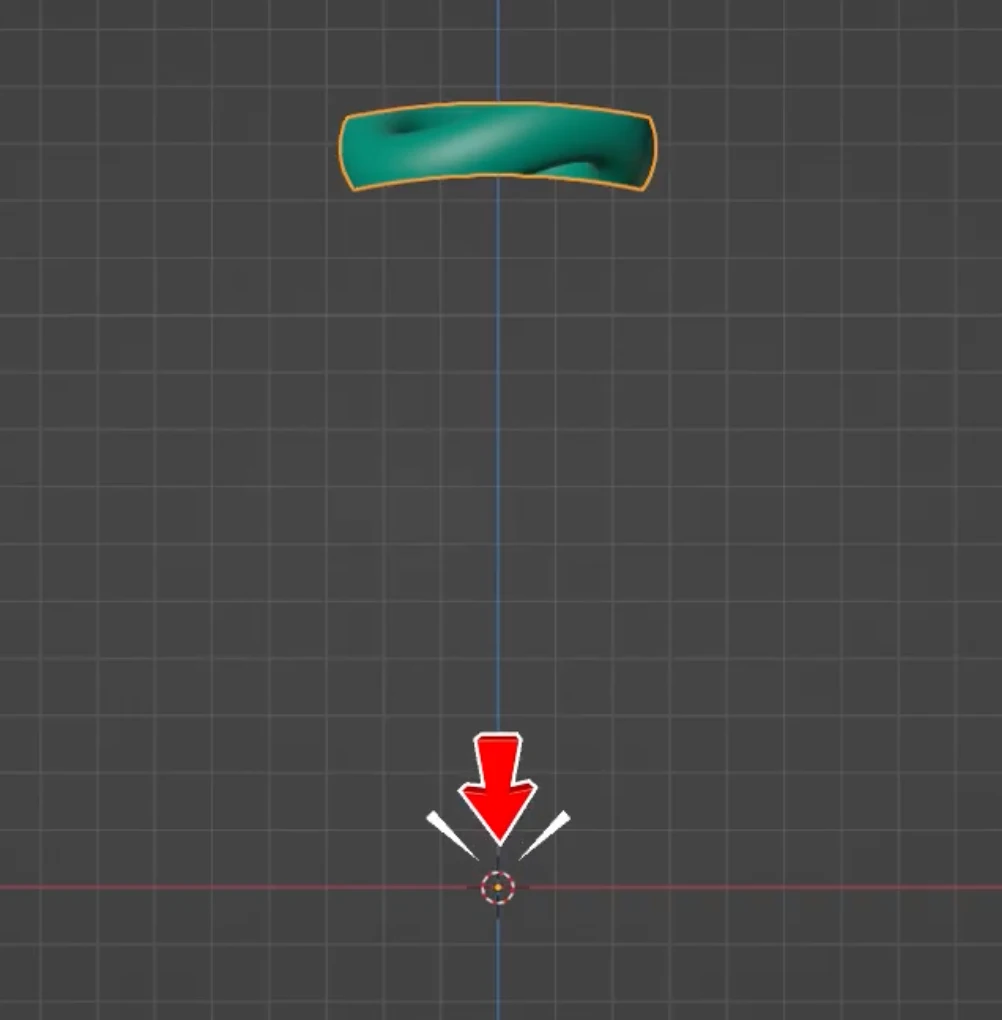 Picking tab, find the **Hierarchy** section, and click on the parent object's name in the hierarchy tree. This selects the parent along with all child objects beneath it.
### Step 2: Set the Rotation Count
Enable the modifier and set the **Rotation Count** to the total number of positions you need.
### Step 3: Use Rotation Skip
In the **Rotation Skip** field, enter the instance numbers you want to hide, separated by commas. For example, if you have 30 total positions and want diamonds only at even-numbered positions, enter all the odd numbers: `1,3,5,7,9,11,13,15,17,19,21,23,25,27,29`. Instance numbering starts at `0`.
The skipped instances will be removed, creating a pattern where only certain positions show the full parent-child group.
---
## Video Tutorial
### Object Rotation Modifier
---
## Related Pages
- **[Scene Basics](./scene)** — Overview of working with 3D objects
- **[Scene Hierarchy](./hierarchy)** — Understanding parent-child relationships
- **[Transform Controls](./transform-controls)** — Moving, rotating, and scaling objects
- **[PBR Materials](./pbr-materials)** — Physical material editor for metals and surfaces
- **[Diamond Materials](./diamond-materials)** — Diamond material editor for gemstones
---
# Modifiers — Object Rotation
The Object Rotation modifier duplicates an object around a circle using instanced copies. Because it creates instances (not full copies), your scene stays lightweight and fast — even with dozens of duplicates. This is especially useful for creating chain links, repeating gemstone patterns, halo settings, and other circular arrangements common in jewelry design.
## Where to Find It
This section is located on the [right panel](./ui-overview#right-panel-—-professional-tools), inside the Picking tab, in the **Modifiers** section. Select an object in the canvas to see the modifier controls.
---
## Settings
Picking tab, find the **Hierarchy** section, and click on the parent object's name in the hierarchy tree. This selects the parent along with all child objects beneath it.
### Step 2: Set the Rotation Count
Enable the modifier and set the **Rotation Count** to the total number of positions you need.
### Step 3: Use Rotation Skip
In the **Rotation Skip** field, enter the instance numbers you want to hide, separated by commas. For example, if you have 30 total positions and want diamonds only at even-numbered positions, enter all the odd numbers: `1,3,5,7,9,11,13,15,17,19,21,23,25,27,29`. Instance numbering starts at `0`.
The skipped instances will be removed, creating a pattern where only certain positions show the full parent-child group.
---
## Video Tutorial
### Object Rotation Modifier
---
## Related Pages
- **[Scene Basics](./scene)** — Overview of working with 3D objects
- **[Scene Hierarchy](./hierarchy)** — Understanding parent-child relationships
- **[Transform Controls](./transform-controls)** — Moving, rotating, and scaling objects
- **[PBR Materials](./pbr-materials)** — Physical material editor for metals and surfaces
- **[Diamond Materials](./diamond-materials)** — Diamond material editor for gemstones
---
# Modifiers — Object Rotation
The Object Rotation modifier duplicates an object around a circle using instanced copies. Because it creates instances (not full copies), your scene stays lightweight and fast — even with dozens of duplicates. This is especially useful for creating chain links, repeating gemstone patterns, halo settings, and other circular arrangements common in jewelry design.
## Where to Find It
This section is located on the [right panel](./ui-overview#right-panel-—-professional-tools), inside the Picking tab, in the **Modifiers** section. Select an object in the canvas to see the modifier controls.
---
## Settings
0,1,3,5,7). Skipped positions will be empty, allowing you to create patterns with gaps. Instance numbering starts at 0
Picking tab, find the **Hierarchy** section, and click on the parent object's name in the hierarchy tree. This selects the parent along with all child objects beneath it.
### Step 2: Set the Rotation Count
Enable the modifier and set the **Rotation Count** to the total number of positions you need.
### Step 3: Use Rotation Skip
In the **Rotation Skip** field, enter the instance numbers you want to hide, separated by commas. For example, if you have 30 total positions and want diamonds only at even-numbered positions, enter all the odd numbers: `1,3,5,7,9,11,13,15,17,19,21,23,25,27,29`. Instance numbering starts at `0`.
The skipped instances will be removed, creating a pattern where only certain positions show the full parent-child group.
---
## Video Tutorial
### Object Rotation Modifier
---
## Related Pages
- **[Scene Basics](./scene)** — Overview of working with 3D objects
- **[Scene Hierarchy](./hierarchy)** — Understanding parent-child relationships
- **[Transform Controls](./transform-controls)** — Moving, rotating, and scaling objects
- **[PBR Materials](./pbr-materials)** — Physical material editor for metals and surfaces
- **[Diamond Materials](./diamond-materials)** — Diamond material editor for gemstones
---
# Rainbow Diamond Coloring
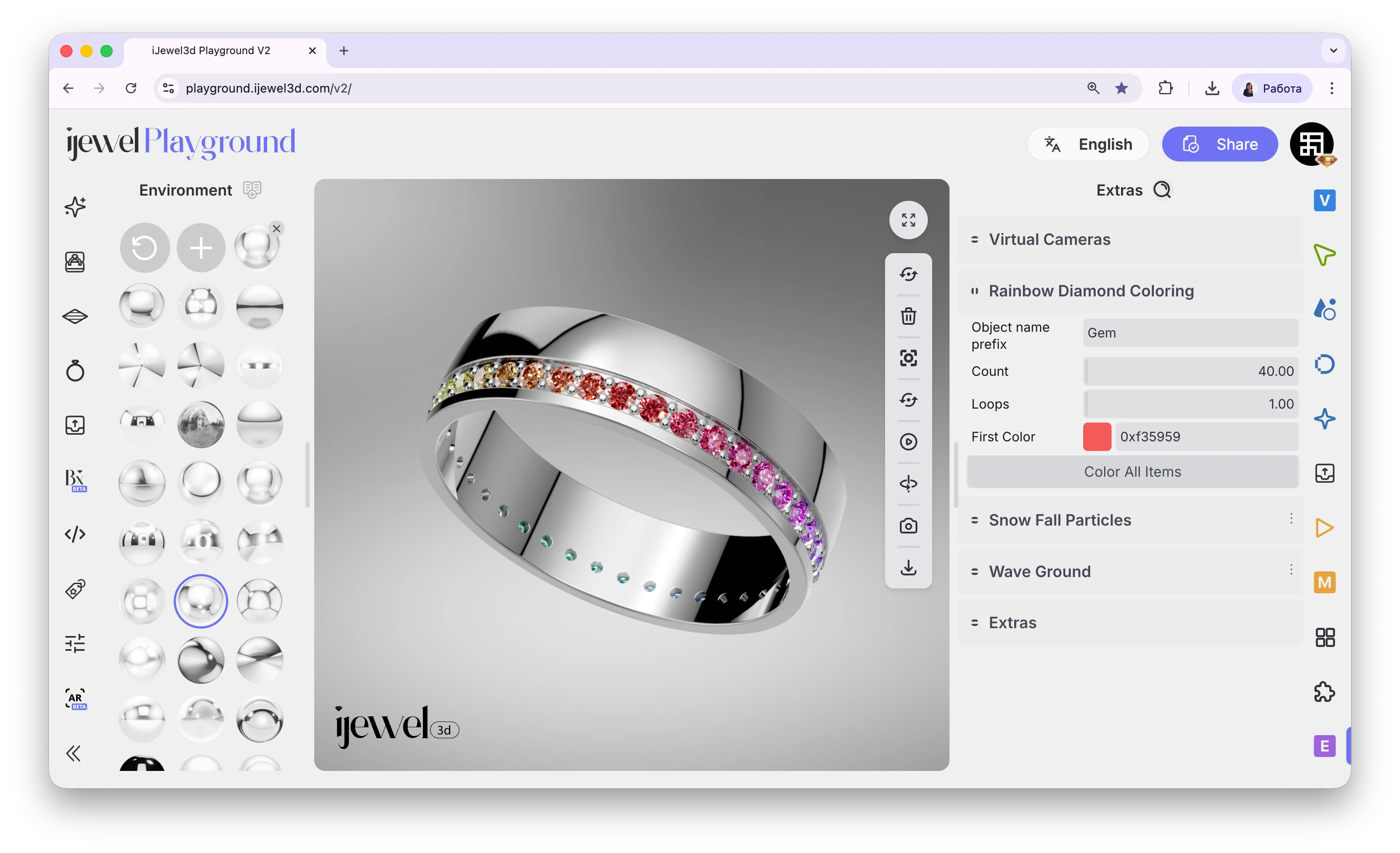 Rainbow Diamond Coloring creates a smooth, seamless color gradient across a series of diamonds. The gradient loops perfectly — the first color flows into the last without any visible break, producing a beautiful infinite rainbow effect. This feature is located in the **Extras** tab on the right panel.
---
## Step-by-Step Guide
### Step 1: Prepare Your Model
Before using this feature, your diamonds must be named correctly in your 3D software. Each diamond should have a consistent name prefix followed by a sequential number — for example:
`gem001`, `gem002`, `gem003`, … `gem040`
The numbering must be sequential so the gradient follows the correct order around the model. This is the only preparation needed — once the names are in order, you're ready to go.
### Step 2: Apply a Diamond Material
Select one of the gem objects in the canvas and apply a [Diamond Material](./diamond-materials) to it. Make sure all the diamonds in the sequence share the same material layer.
### Step 3: Open the Extras Tab
Go to the Extras tab on the right panel and find the **Rainbow Diamond Coloring** section.
### Step 4: Set the Object Name Prefix
In the **Object Name Prefix** field, enter only the name part without the numbers. For example, if your diamonds are named `gem001` through `gem040`, type just `gem`.
### Step 5: Set the Count
In the **Count** field, enter the total number of diamonds in your sequence. For example, `40` if you have `gem001` to `gem040`.
### Step 6: Set the Loops
In the **Loops** field, choose how many times the color gradient should repeat across the full sequence. For example, `1` loop means one full rainbow cycle across all diamonds, `2` loops means the gradient repeats twice.
### Step 7: Choose the Starting Color
Click on the color picker and select the starting color for your gradient. The gradient will automatically generate a full rainbow cycle starting from this color. Red is a common choice for a classic rainbow effect.
### Step 8: Apply
Click the **Color All Items** button. The rainbow gradient will instantly be applied across all your diamonds in sequence.
---
## Settings
Rainbow Diamond Coloring creates a smooth, seamless color gradient across a series of diamonds. The gradient loops perfectly — the first color flows into the last without any visible break, producing a beautiful infinite rainbow effect. This feature is located in the **Extras** tab on the right panel.
---
## Step-by-Step Guide
### Step 1: Prepare Your Model
Before using this feature, your diamonds must be named correctly in your 3D software. Each diamond should have a consistent name prefix followed by a sequential number — for example:
`gem001`, `gem002`, `gem003`, … `gem040`
The numbering must be sequential so the gradient follows the correct order around the model. This is the only preparation needed — once the names are in order, you're ready to go.
### Step 2: Apply a Diamond Material
Select one of the gem objects in the canvas and apply a [Diamond Material](./diamond-materials) to it. Make sure all the diamonds in the sequence share the same material layer.
### Step 3: Open the Extras Tab
Go to the Extras tab on the right panel and find the **Rainbow Diamond Coloring** section.
### Step 4: Set the Object Name Prefix
In the **Object Name Prefix** field, enter only the name part without the numbers. For example, if your diamonds are named `gem001` through `gem040`, type just `gem`.
### Step 5: Set the Count
In the **Count** field, enter the total number of diamonds in your sequence. For example, `40` if you have `gem001` to `gem040`.
### Step 6: Set the Loops
In the **Loops** field, choose how many times the color gradient should repeat across the full sequence. For example, `1` loop means one full rainbow cycle across all diamonds, `2` loops means the gradient repeats twice.
### Step 7: Choose the Starting Color
Click on the color picker and select the starting color for your gradient. The gradient will automatically generate a full rainbow cycle starting from this color. Red is a common choice for a classic rainbow effect.
### Step 8: Apply
Click the **Color All Items** button. The rainbow gradient will instantly be applied across all your diamonds in sequence.
---
## Settings
gem for gem001–gem040)1 produces a single seamless rainbow, higher values create a tighter repeating patternExtras tab, in the **Snow Fall Particles** section.
---
## Settings
Extras tab, in the **Wave Ground** section.
---
## Settings
Plugins tab, in the **Rhino 3dm Loader** section. This section is always visible, but its settings are used when working with `.3dm` files imported from Rhino.
---
## Settings
 ::: info Availability
OnBody is in Beta. It is available in the iJewel Platform editor as the **OnBody** tab in the left panel.
:::
## Before you start
- Open a ring model in the editor.
- The ring must have a clear inner opening. Auto Fit uses this opening to calculate the fit, the same as Try-On.
- If you already configured Try-On for this project, OnBody reuses that fit.
## Step 1: Fit the ring
When you open the **OnBody** tab for the first time, the **Fit & Placement** section opens.
These are the same controls as the Try-On setup:
1. Select **Enter Setup**.
2. Select **Auto Fit** to size and orient the ring automatically.
3. If necessary, adjust **Model Size**, **Position**, and **Rotation** manually.
Use the **Rotate Model** buttons to turn the ring 90° around the X, Y, or Z axis.
Use the **Front**, **Top**, and **Side** viewpoint buttons to check the alignment from each axis.
4. Select **Exit Setup**.
The fit is saved with the project. You do not have to repeat this step for each image.
::: info Availability
OnBody is in Beta. It is available in the iJewel Platform editor as the **OnBody** tab in the left panel.
:::
## Before you start
- Open a ring model in the editor.
- The ring must have a clear inner opening. Auto Fit uses this opening to calculate the fit, the same as Try-On.
- If you already configured Try-On for this project, OnBody reuses that fit.
## Step 1: Fit the ring
When you open the **OnBody** tab for the first time, the **Fit & Placement** section opens.
These are the same controls as the Try-On setup:
1. Select **Enter Setup**.
2. Select **Auto Fit** to size and orient the ring automatically.
3. If necessary, adjust **Model Size**, **Position**, and **Rotation** manually.
Use the **Rotate Model** buttons to turn the ring 90° around the X, Y, or Z axis.
Use the **Front**, **Top**, and **Side** viewpoint buttons to check the alignment from each axis.
4. Select **Exit Setup**.
The fit is saved with the project. You do not have to repeat this step for each image.
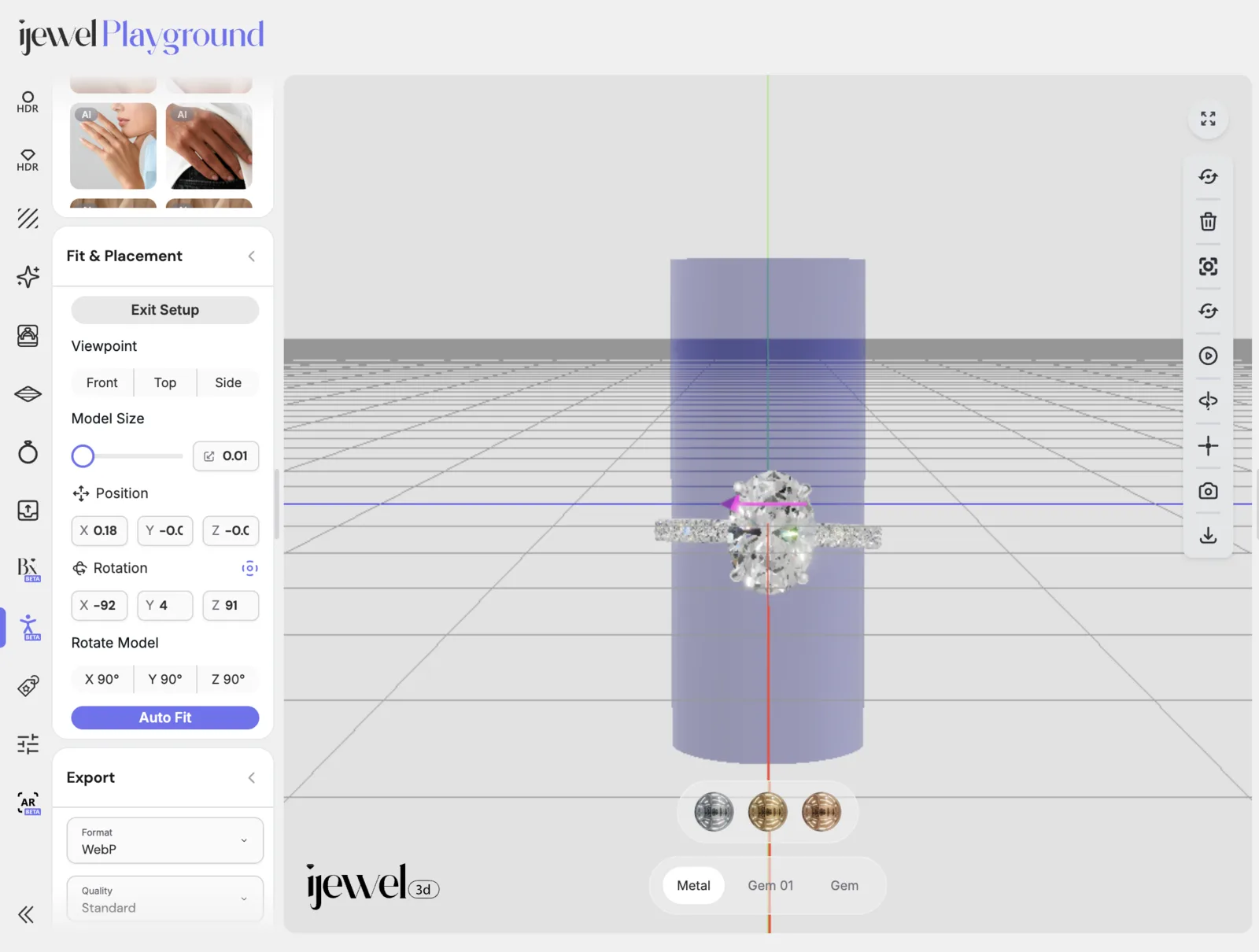 ## Step 2: Enable OnBody
Turn on the **Enable OnBody** switch at the top of the tab.
The ring appears on the default hand image, or on the image you selected last.
The **Library** and **Export** sections open automatically.
## Step 3: Choose a hand image
The **Library** section holds the hand images:
- **Search** filters the images by name.
- The **All**, **Photos**, and **AI** tabs separate photographed hands from AI-generated hands. AI images carry an **AI** badge.
- Select an image to render the ring on it.
## Step 2: Enable OnBody
Turn on the **Enable OnBody** switch at the top of the tab.
The ring appears on the default hand image, or on the image you selected last.
The **Library** and **Export** sections open automatically.
## Step 3: Choose a hand image
The **Library** section holds the hand images:
- **Search** filters the images by name.
- The **All**, **Photos**, and **AI** tabs separate photographed hands from AI-generated hands. AI images carry an **AI** badge.
- Select an image to render the ring on it.
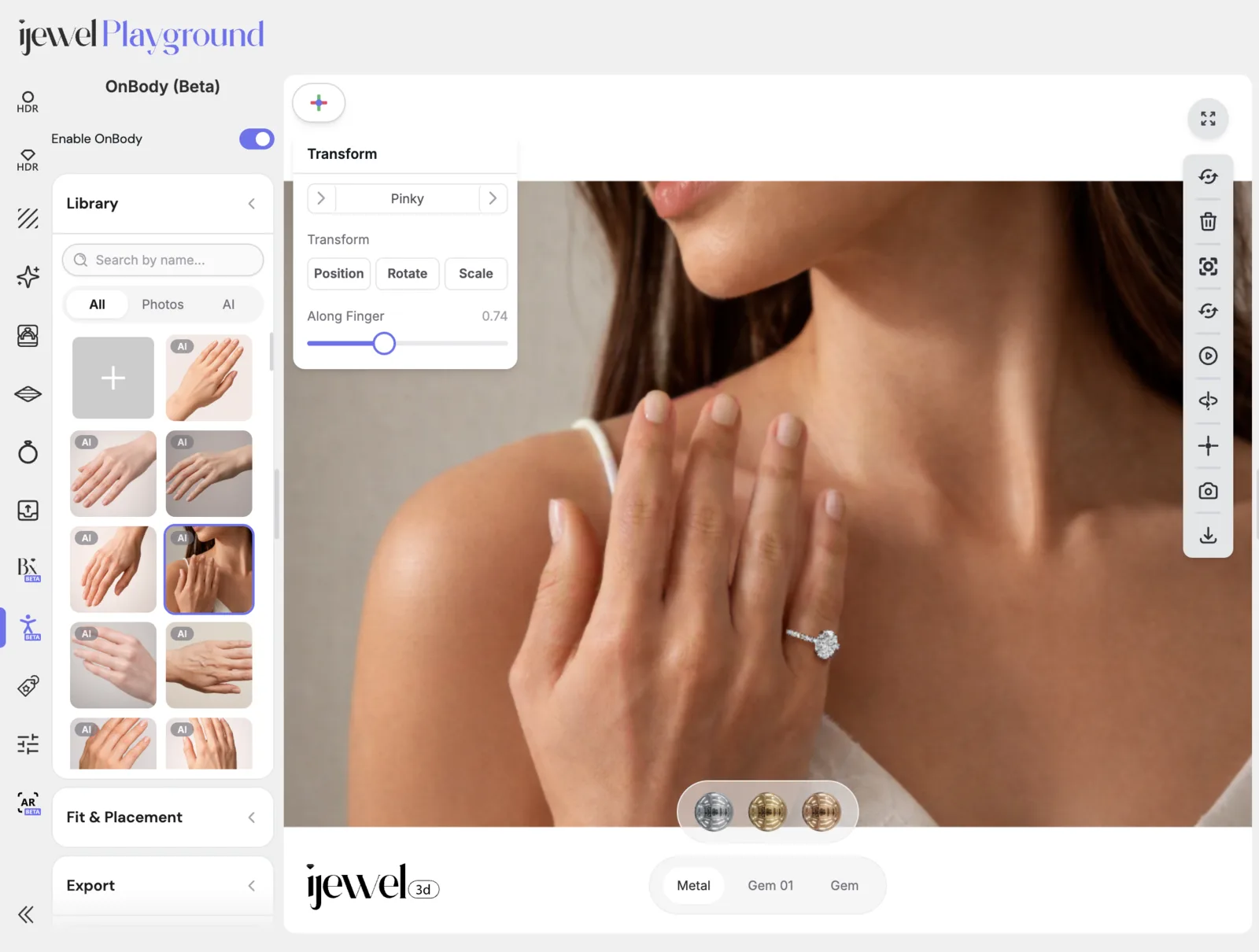 ### Upload your own hand image
Select the upload tile to add your own photo.
For the best result, use a photo with the fingers spread and a plain background.
Uploaded images are stored in your account and appear in the library for all your projects.
- Uploading needs a paid plan. On a free plan, the upload tile shows an upgrade prompt.
- The file must be smaller than 5 MB. Files over 2 MB upload, but the editor shows a warning.
- To delete an uploaded image, deselect it first. A selected image cannot be deleted.
## Step 4: Adjust the placement
While OnBody runs, a floating **Transform** button appears in the viewport.
It opens the placement controls:
| Control | Function |
| --- | --- |
| **Switch Hand** | Moves the ring to the other hand. Shown only when the photo contains more than one hand. |
| Finger selector | Steps through Thumb, Index, Middle, Ring, and Pinky. The default is the ring finger. |
| **Position / Rotate / Scale** | Activates a drag transform on the ring in the image. Select the active mode again to turn it off. |
| **Along Finger** | Slides the ring along the finger, from the base toward the tip. |
## Step 5: Tune the scene
The **Scene Settings** section controls how the ring sits in the photo:
- **Shadow Presets**: **Right**, **Left**, **Top**, and **Soft** set the direction and elevation of the contact shadow in one click.
- **Shadow**: turn the contact shadow on or off, and set its **Colour**, **Intensity**, **Step Size**, and **Bias**.
- **Light**: turn the ambient occlusion on or off, and set its **Intensity** and **Radius**. It darkens the skin around the ring for a grounded look.
Match the shadow direction to the light in the photo. For most photos, the **Soft** preset is a good start.
### Upload your own hand image
Select the upload tile to add your own photo.
For the best result, use a photo with the fingers spread and a plain background.
Uploaded images are stored in your account and appear in the library for all your projects.
- Uploading needs a paid plan. On a free plan, the upload tile shows an upgrade prompt.
- The file must be smaller than 5 MB. Files over 2 MB upload, but the editor shows a warning.
- To delete an uploaded image, deselect it first. A selected image cannot be deleted.
## Step 4: Adjust the placement
While OnBody runs, a floating **Transform** button appears in the viewport.
It opens the placement controls:
| Control | Function |
| --- | --- |
| **Switch Hand** | Moves the ring to the other hand. Shown only when the photo contains more than one hand. |
| Finger selector | Steps through Thumb, Index, Middle, Ring, and Pinky. The default is the ring finger. |
| **Position / Rotate / Scale** | Activates a drag transform on the ring in the image. Select the active mode again to turn it off. |
| **Along Finger** | Slides the ring along the finger, from the base toward the tip. |
## Step 5: Tune the scene
The **Scene Settings** section controls how the ring sits in the photo:
- **Shadow Presets**: **Right**, **Left**, **Top**, and **Soft** set the direction and elevation of the contact shadow in one click.
- **Shadow**: turn the contact shadow on or off, and set its **Colour**, **Intensity**, **Step Size**, and **Bias**.
- **Light**: turn the ambient occlusion on or off, and set its **Intensity** and **Radius**. It darkens the skin around the ring for a grounded look.
Match the shadow direction to the light in the photo. For most photos, the **Soft** preset is a good start.
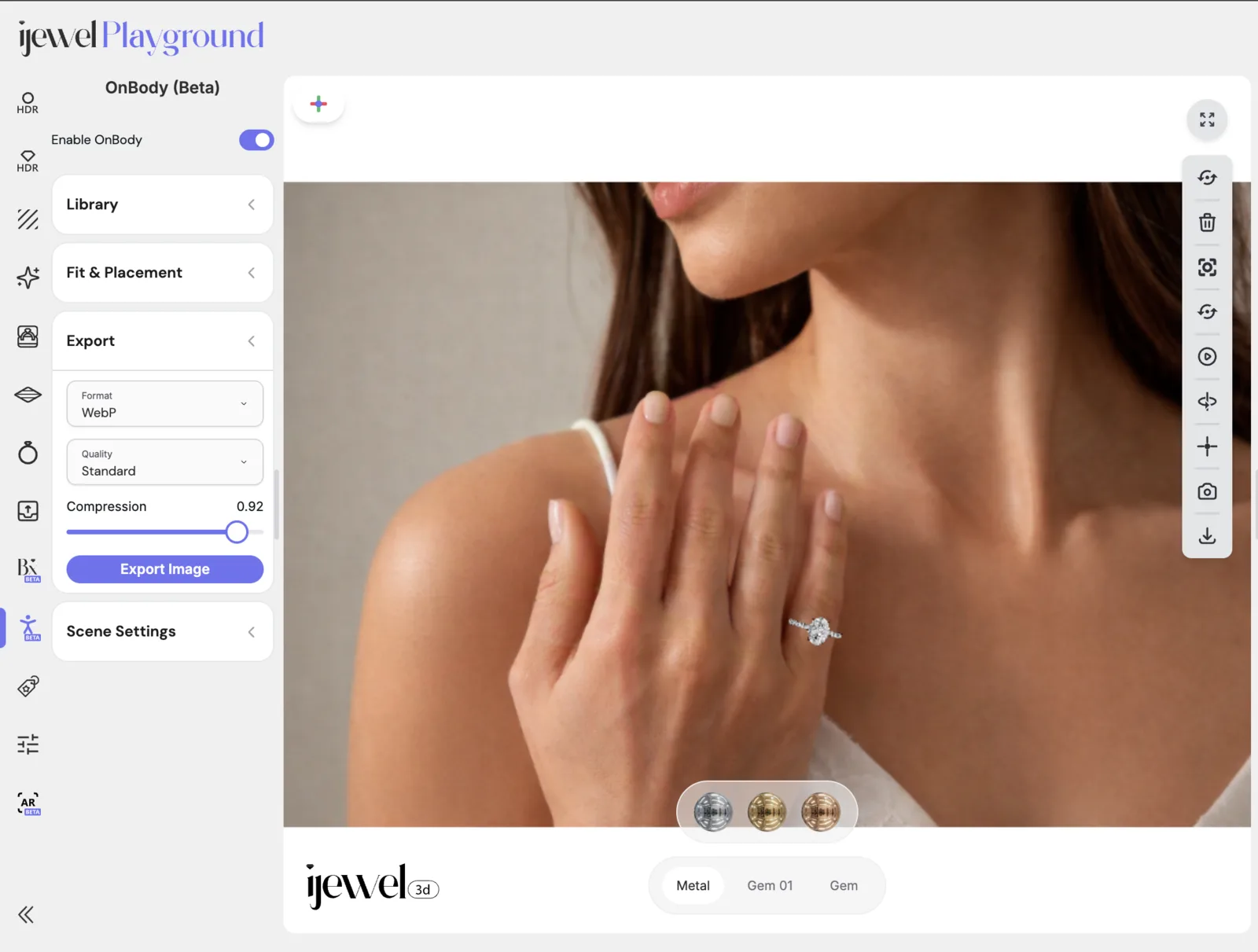 ## Saving
The selected hand image and the ring fit are saved with the project.
When you turn OnBody off and on again, the same image returns.
A saved project reopens in OnBody mode when it was saved while OnBody ran.
## Troubleshooting
| Problem | Solution |
| --- | --- |
| The ring sits on the wrong finger. | Open **Transform** and step the finger selector to the correct finger. |
| The ring is too large or too small. | Open **Fit & Placement**, enter Setup, and run **Auto Fit** again. Note: opening this section exits the OnBody preview. |
| **Switch Hand** does not appear. | The control appears only when the photo shows two or more hands. Use an image with both hands visible. |
| The ring floats above the skin. | Increase the **Light** intensity, or lower the **Along Finger** value. |
| An uploaded image cannot be deleted. | Select another image first, then delete the uploaded one. |
---
# RingTryonPlugin API Reference
`RingTryonPlugin` is the try-on engine. It takes over the WebGi viewer while running: it opens the camera, tracks the user's hand, and places the loaded ring model on the chosen finger with matching occlusion, shadows and reflections.
It is a standard WebGi plugin, so everything you already know about plugins applies - `addPlugin`, `getPlugin`, `fromJSON` / `toJSON`, `addEventListener`.
```javascript
const tryon = await viewer.addPlugin(ij_vto.RingTryonPlugin);
await tryon.start();
```
::: info Where the plugin comes from
The plugin lives on the `ij_vto` global from the `web-vto` bundle, not on
WebGi. See [Load the libraries](./advanced.md#load-the-libraries) for the script
tags and required order.
:::
## Adding the plugin
#### `viewer.addPlugin(ij_vto.RingTryonPlugin, options?)`
| Option | Type | Default | Description |
|---|---|---|---|
| `preload` | `boolean` | `true` | Start downloading the hand-tracking model and WASM runtime as soon as the plugin is added, instead of on the first `start()`. Makes starting feel instant, at the cost of a background download every page view. |
```javascript
// Defer the download until the user actually presses the try-on button.
const tryon = await viewer.addPlugin(ij_vto.RingTryonPlugin, { preload: false });
```
#### `RingTryonPlugin.preload()`
Static. Warms the same assets without adding the plugin - useful to trigger on hover or when a product page scrolls into view.
```javascript
ij_vto.RingTryonPlugin.preload();
```
#### `RingTryonPlugin.PluginType`
Static. The string `"RingTryonPlugin"`, for `viewer.getPluginByType(...)` and for the `type` field when calling `fromJSON`.
## Lifecycle
#### `async start()`
Starts try-on. Prompts the user for camera access, initialises hand tracking, and switches the viewer from turntable mode into the live camera view.
Must be called from a user gesture - browsers only grant camera access in response to a click or tap.
```javascript
startButton.onclick = () => tryon.start();
```
#### `async stop(force = false)`
Stops try-on, releases the camera and restores the viewer to its normal 3D state. Pass `force: true` to tear down even if the plugin is mid-start.
#### `get running: boolean`
`true` between a successful `start()` and the matching `stop()`. Use it to drive a toggle button.
#### `async pause()` / `async resume()` / `async togglePause()`
Freezes the camera feed while keeping try-on active, so the user can inspect a still frame, then resumes the live view. Cheaper than a full stop/start cycle.
#### `get paused: boolean`
Whether the feed is currently frozen.
## Camera
#### `async flipCamera()`
Switches between the front (`user`) and rear (`environment`) camera. On devices with only one camera this is a no-op - check `paused`/`running` before offering the control.
#### `selectNextCamera()`
Cycles through every camera the browser reports, rather than just flipping the facing mode. Falls back to `flipCamera()` when the device list can't be resolved. Useful on desktops with several webcams.
#### `async setVideoSize(x: number, y: number)`
Requests a specific camera resolution. Lower values reduce tracking cost on weak devices.
#### `videoScale: number`
Zoom applied to the camera feed itself. Default `1.35`.
#### `cameraZoom: number`
Zoom applied to the 3D camera. Default `1`.
## Placement
#### `finger: number | string`
Which finger the ring sits on. Accepts a `Finger` index (`0`–`4`) or a name - any string containing `thumb`, `index`, `middle`, `ring` or `pinky` (case-insensitive). Anything unrecognised falls back to the ring finger.
```javascript
tryon.finger = "index";
tryon.finger = 3; // ring finger
tryon.finger = (tryon.finger + 1) % 5; // cycle
```
::: warning Set it after `start()`
The setter needs a loaded model and a live hand tracker, so it silently does nothing before `start()` resolves. Apply your default finger straight after starting, not while wiring up the page.
:::
Reading it back always returns the numeric index:
| Index | Finger |
|---|---|
| `0` | Thumb |
| `1` | Index |
| `2` | Middle |
| `3` | Ring (default) |
| `4` | Pinky |
The default can also be baked into the model - set `finger` in the model's `userData` in the editor and the plugin picks it up on load.
#### `getJewelryScreenPosition()`
Returns the ring's current anchor as `{ x, y }` in canvas CSS pixels, or `null` if it isn't on screen. Use it to pin your own HTML overlay - a size label or a tooltip - to the ring as it moves.
```javascript
const pos = tryon.getJewelryScreenPosition();
if (pos) {
label.style.transform = `translate(${pos.x}px, ${pos.y}px)`;
}
```
#### `resetInteractionZoom()`
Cancels the automatic zoom-in that happens after the hand has been tracked steadily, returning to the default framing.
## Setup mode
Setup mode is the authoring tool used to position a model on a reference finger. It is normally driven from the editor UI, but is available programmatically.
## Saving
The selected hand image and the ring fit are saved with the project.
When you turn OnBody off and on again, the same image returns.
A saved project reopens in OnBody mode when it was saved while OnBody ran.
## Troubleshooting
| Problem | Solution |
| --- | --- |
| The ring sits on the wrong finger. | Open **Transform** and step the finger selector to the correct finger. |
| The ring is too large or too small. | Open **Fit & Placement**, enter Setup, and run **Auto Fit** again. Note: opening this section exits the OnBody preview. |
| **Switch Hand** does not appear. | The control appears only when the photo shows two or more hands. Use an image with both hands visible. |
| The ring floats above the skin. | Increase the **Light** intensity, or lower the **Along Finger** value. |
| An uploaded image cannot be deleted. | Select another image first, then delete the uploaded one. |
---
# RingTryonPlugin API Reference
`RingTryonPlugin` is the try-on engine. It takes over the WebGi viewer while running: it opens the camera, tracks the user's hand, and places the loaded ring model on the chosen finger with matching occlusion, shadows and reflections.
It is a standard WebGi plugin, so everything you already know about plugins applies - `addPlugin`, `getPlugin`, `fromJSON` / `toJSON`, `addEventListener`.
```javascript
const tryon = await viewer.addPlugin(ij_vto.RingTryonPlugin);
await tryon.start();
```
::: info Where the plugin comes from
The plugin lives on the `ij_vto` global from the `web-vto` bundle, not on
WebGi. See [Load the libraries](./advanced.md#load-the-libraries) for the script
tags and required order.
:::
## Adding the plugin
#### `viewer.addPlugin(ij_vto.RingTryonPlugin, options?)`
| Option | Type | Default | Description |
|---|---|---|---|
| `preload` | `boolean` | `true` | Start downloading the hand-tracking model and WASM runtime as soon as the plugin is added, instead of on the first `start()`. Makes starting feel instant, at the cost of a background download every page view. |
```javascript
// Defer the download until the user actually presses the try-on button.
const tryon = await viewer.addPlugin(ij_vto.RingTryonPlugin, { preload: false });
```
#### `RingTryonPlugin.preload()`
Static. Warms the same assets without adding the plugin - useful to trigger on hover or when a product page scrolls into view.
```javascript
ij_vto.RingTryonPlugin.preload();
```
#### `RingTryonPlugin.PluginType`
Static. The string `"RingTryonPlugin"`, for `viewer.getPluginByType(...)` and for the `type` field when calling `fromJSON`.
## Lifecycle
#### `async start()`
Starts try-on. Prompts the user for camera access, initialises hand tracking, and switches the viewer from turntable mode into the live camera view.
Must be called from a user gesture - browsers only grant camera access in response to a click or tap.
```javascript
startButton.onclick = () => tryon.start();
```
#### `async stop(force = false)`
Stops try-on, releases the camera and restores the viewer to its normal 3D state. Pass `force: true` to tear down even if the plugin is mid-start.
#### `get running: boolean`
`true` between a successful `start()` and the matching `stop()`. Use it to drive a toggle button.
#### `async pause()` / `async resume()` / `async togglePause()`
Freezes the camera feed while keeping try-on active, so the user can inspect a still frame, then resumes the live view. Cheaper than a full stop/start cycle.
#### `get paused: boolean`
Whether the feed is currently frozen.
## Camera
#### `async flipCamera()`
Switches between the front (`user`) and rear (`environment`) camera. On devices with only one camera this is a no-op - check `paused`/`running` before offering the control.
#### `selectNextCamera()`
Cycles through every camera the browser reports, rather than just flipping the facing mode. Falls back to `flipCamera()` when the device list can't be resolved. Useful on desktops with several webcams.
#### `async setVideoSize(x: number, y: number)`
Requests a specific camera resolution. Lower values reduce tracking cost on weak devices.
#### `videoScale: number`
Zoom applied to the camera feed itself. Default `1.35`.
#### `cameraZoom: number`
Zoom applied to the 3D camera. Default `1`.
## Placement
#### `finger: number | string`
Which finger the ring sits on. Accepts a `Finger` index (`0`–`4`) or a name - any string containing `thumb`, `index`, `middle`, `ring` or `pinky` (case-insensitive). Anything unrecognised falls back to the ring finger.
```javascript
tryon.finger = "index";
tryon.finger = 3; // ring finger
tryon.finger = (tryon.finger + 1) % 5; // cycle
```
::: warning Set it after `start()`
The setter needs a loaded model and a live hand tracker, so it silently does nothing before `start()` resolves. Apply your default finger straight after starting, not while wiring up the page.
:::
Reading it back always returns the numeric index:
| Index | Finger |
|---|---|
| `0` | Thumb |
| `1` | Index |
| `2` | Middle |
| `3` | Ring (default) |
| `4` | Pinky |
The default can also be baked into the model - set `finger` in the model's `userData` in the editor and the plugin picks it up on load.
#### `getJewelryScreenPosition()`
Returns the ring's current anchor as `{ x, y }` in canvas CSS pixels, or `null` if it isn't on screen. Use it to pin your own HTML overlay - a size label or a tooltip - to the ring as it moves.
```javascript
const pos = tryon.getJewelryScreenPosition();
if (pos) {
label.style.transform = `translate(${pos.x}px, ${pos.y}px)`;
}
```
#### `resetInteractionZoom()`
Cancels the automatic zoom-in that happens after the hand has been tracked steadily, returning to the default framing.
## Setup mode
Setup mode is the authoring tool used to position a model on a reference finger. It is normally driven from the editor UI, but is available programmatically.
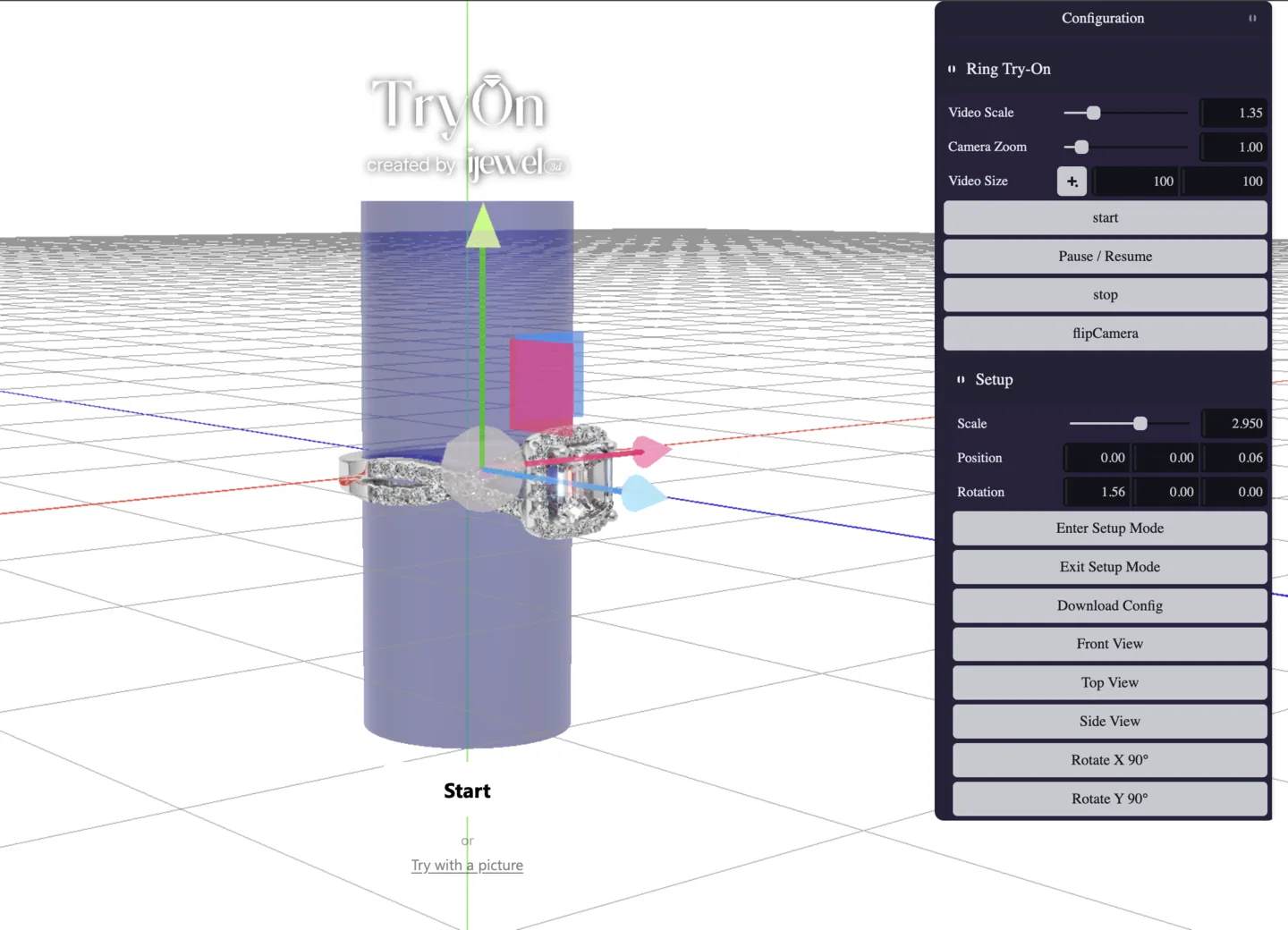 #### `enterSetupMode(options?): boolean`
Suspends try-on and shows the reference finger cylinder, the center-line plane and a transform gizmo. Returns `false` if the plugin is currently running or starting.
| Option | Type | Default | Description |
|---|---|---|---|
| `showGizmos` | `boolean` | `true` | Show and enable the transform gizmo. Set it to `false` to create the gizmo hidden and disabled; it reappears on the next transform-mode change. |
#### `exitSetupMode(): boolean`
Leaves setup mode and restores the camera position saved on entry.
#### `inSetupMode: boolean`
Whether setup mode is currently active.
See [Prepare a Try-On Project](./prepare-model.md) for the full authoring workflow, including exporting the resulting JSON.
### Prepare a configurator ring
A Ring Configurator or Wedding Band Builder builds its ring at runtime, so hand
the assembled ring to the plugin before setup mode or `start()`:
```javascript
const session = ijewelViewer.prepareConfiguratorTryon(
viewerApp,
tryon
);
if (!tryon.enterSetupMode()) {
session.restore();
throw new Error("Try-On setup mode could not be opened.");
}
tryon.setup.autoFit();
```
Calling `tryon.exitSetupMode()` restores the complete configurator. Pass a
`ringId` when a Wedding Band Builder has several rings. See
[Configurator Try-On Helpers](../viewer/viewer-class.md#configurator-try-on-helpers)
for ring choices and the custom runtime flow.
## Configuration
Placement and visual settings live on grouped config objects. Every field is serialized, so `toJSON()` / `fromJSON()` round-trip them - this is exactly how the settings authored in the editor reach the plugin at runtime.
```javascript
// Apply settings authored in the editor.
tryon.fromJSON({ ...tryonConfig, type: ij_vto.RingTryonPlugin.PluginType });
// Or set individual values.
tryon.setup.modelScaleFactor = 1.1;
tryon.contactShadow.intensity = 0.45;
```
For a configurator, call
[`prepareConfiguratorTryon()`](../viewer/viewer-class#configurator-try-on-helpers)
after `fromJSON()` and before `start()`.
### `setup` - model placement
| Property | Type | Default | Description |
|---|---|---|---|
| `modelScaleFactor` | `number` | `1` | Uniform scale applied to the model. |
| `modelPosition` | `Vector3` | `(0,0,0)` | Position offset. |
| `modelRotation` | `Vector3` | `(0,0,0)` | Rotation offset in **radians**. |
These three are also mirrored directly on the plugin as `modelScaleFactor`, `modelPosition` and `modelRotation`.
::: warning Radians here, degrees in `tracking`
`setup.modelRotation` is applied straight to the model's Euler rotation, so it is in radians - the editor converts for display. The separate [`tracking.offsetRotation`](#tracking-advanced-tuning) *is* in degrees. Use `MathUtils.degToRad()` when you have a degree value for `modelRotation`.
:::
### `contactShadow` - shadow where the ring meets the finger
| Property | Type | Default | Description |
|---|---|---|---|
| `enabled` | `boolean` | `true` | Draw the contact shadow. |
| `intensity` | `number` | `0.6` | Shadow strength. |
| `distance` | `number` | `0.15` | How far the shadow reaches from the ring. |
| `smoothness` | `number` | `0.55` | Softness of the shadow edge. |
| `angle` | `number` | `0` | Light direction in screen space, in degrees. `0` puts the light above. |
| `elevation` | `number` | `70` | Light elevation toward the camera, in degrees. `90` is head-on, casting no visible shadow. |
| `skinWarmth` | `number` | `0.1` | Warm halo bleeding into the shadow, approximating light scattering in skin. |
| `color` | `Color \| string` | black | Tint added inside the shadow. |
### `ssao` - ambient occlusion and skin shading
| Property | Type | Default | Description |
|---|---|---|---|
| `enabled` | `boolean` | `false` | Enable ambient occlusion. |
| `intensity` | `number` | `0.2` | Occlusion strength. |
| `radius` | `number` | `1.07` | Sampling radius. |
| `falloff` | `number` | `0.33` | How quickly occlusion fades with distance. |
| `smoothEnabled` | `boolean` | `true` | Blur the occlusion result. |
### `ssr` - screen-space reflections
| Property | Type | Default | Description |
|---|---|---|---|
| `enabled` | `boolean` | `true` | Reflect the hand and surroundings in the metal. |
| `intensity` | `number` | `1.5` | Reflection strength. |
| `radius` | `number` | `2` | Ray-march radius. |
| `tolerance` | `number` | `5` | Depth tolerance when matching a reflection hit. |
### `environmentReflection`
| Property | Type | Default | Description |
|---|---|---|---|
| `enabled` | `boolean` | `true` | Apply the scene environment map to the ring while in try-on. |
| `scale` | `number` | `1.67` | Environment scale. |
| `stretch` | `number` | `2.675` | Environment stretch. |
### `motionBlur`
| Property | Type | Default | Description |
|---|---|---|---|
| `enabled` | `boolean` | `false` | Blur the ring along its motion as the hand moves. |
| `intensity` | `number` | `1.5` | Blur strength. |
| `edgeSmear` | `number` | `0.2` | How far the blur smears past the ring's edges. |
### `interactionZoom`
After the hand has been tracked steadily for a moment, the view zooms in on the ring automatically.
| Property | Type | Default | Description |
|---|---|---|---|
| `enabled` | `boolean` | `true` | Enable the automatic zoom. |
| `targetScale` | `number` | `1.5` | Zoom level to settle at. |
| `delayMs` | `number` | `1000` | Delay before the zoom starts. |
| `durationMs` | `number` | `1250` | Length of the zoom animation. |
### `tracking` - advanced tuning
Defaults suit most catalogues; change these only when a model consistently sits wrong.
| Property | Type | Default | Description |
|---|---|---|---|
| `minHandDistance` | `number` | `10` | Hide the ring when the hand is farther than this. |
| `snappiness` | `number` | `0.9` | Tracking responsiveness. `0` is heavily smoothed, `1` is instant and jittery. |
| `locationOffset` | `number` | `0.65` | Where along the finger segment the ring sits. |
| `offsetScale` | `number` | `1` | Multiplier on the detected finger width - effectively ring size. |
| `offsetPosition` | `Vector3` | `(0,0,0)` | Extra position offset applied every frame. |
| `offsetRotation` | `Vector3` | `(0,0,0)` | Extra rotation offset in degrees, mirrored for the left hand. |
| `zOffset` | `number` | `-3.25` | Depth offset from the finger surface. |
| `worldZFactor` | `number` | `1` | Scaling applied along the depth axis. |
## Events
Standard WebGi events - subscribe with `addEventListener(type, handler)`.
| Event | Detail | Fired when |
|---|---|---|
| `start` | `{}` | `start()` was called and initialisation has begun. |
| `initializationProgress` | `{ progress }` | Loading progress, `0`–`1`. Drive your own progress bar with this. |
| `initialized` | `{}` | Tracking is live and the ring is ready to appear. |
| `interaction` | `{}` | The hand has been tracked steadily - this is what triggers the automatic zoom. |
| `stop` | `{}` | Try-on has stopped and the camera is released. |
| `error` | `{ reason, error, isCameraError? }` | Something failed. See below. |
### Handling errors
```javascript
tryon.addEventListener("error", ({ detail }) => {
if (detail.isCameraError) {
showMessage("We couldn't access your camera.");
} else {
showMessage("Try-on couldn't start. Please try again.");
}
console.error(detail.reason, detail.error);
});
```
`detail.reason` is one of:
| Reason | Meaning |
|---|---|
| `startupFailed` | Initialisation threw - not camera-related. |
| `noSupport` | The browser has no webcam API. |
| `permissionDenied` | The user declined camera access. |
| `notFoundError` | No camera matches the requested constraints. |
| `notReadableError` | The camera is in use by another application. |
| `overconstrainedError` | The camera can't satisfy the requested settings. |
| `abortError` | Camera access was aborted. |
| `invalidStateError` | The page was inactive when access was requested. |
| `securityError` | Camera access is blocked by browser or page security settings. |
| `typeError` | The camera request was rejected as invalid. |
| `mediaDevicesError` | Any other failure starting the camera. |
Camera reasons arrive with `isCameraError: true`. [`TryonUIPlugin`](./tryon-ui-plugin.md) already renders a message for each of these - add your own handler only if you want different behaviour.
## `canRunVTO()`
A standalone pre-flight check, exported alongside the plugin. Call it before showing a try-on button so users on unsupported hardware never hit a dead end. It creates and discards a throwaway WebGL context, so it's cheap enough to call on page load.
```javascript
const result = ij_vto.canRunVTO();
if (!result.ok) {
tryOnButton.remove();
console.warn("Try-on unavailable:", result.reason, result.details);
} else if (result.warning) {
console.warn(result.warning); // runs, but may be slow
}
```
### Result
| Field | Type | Description |
|---|---|---|
| `ok` | `boolean` | Whether try-on should be offered. |
| `reason` | `string?` | Present when `ok` is `false`. One of `no_webgl2`, `weak_or_software_renderer`, `insufficient_cores`, `insufficient_memory`. |
| `warning` | `string?` | Present when try-on will run but performance may suffer - for example an integrated GPU on Chrome for Windows. |
| `details` | `object` | What was measured: `webgl2`, `renderer`, `vendor`, `cores`, `memoryGB`. Worth logging for support. |
### Options
| Option | Type | Default | Description |
|---|---|---|---|
| `minCores` | `number` | `4` | Minimum CPU cores. A reported `0` (browser withheld it) never fails the check. |
| `minMemoryGB` | `number` | `4` | Minimum device memory in GB, treated the same way. |
| `weakRendererPatterns` | `RegExp[]` | built-in list | Renderer strings to reject - software rasterisers and known-weak GPUs. |
| `powerPreference` | `string` | `"high-performance"` | Power preference used for the probe context. |
```javascript
// Be stricter than the defaults.
const result = ij_vto.canRunVTO({ minCores: 6, minMemoryGB: 8 });
```
---
# TryonUIPlugin API Reference
`TryonUIPlugin` is the ready-made overlay for the try-on session. It listens to [`RingTryonPlugin`](./ring-tryon-plugin.md) and renders three things over the canvas:
- a **loading box** with a title, optional subheader, optional logo and a progress bar, shown while hand tracking initialises;
- a **hand prompt** - an outlined hand and a line of copy - once try-on is live but no hand has been detected yet;
- **error messages** for every camera and startup failure the plugin can report.
Using it is optional. Everything it does can be built from the plugin's [events](./ring-tryon-plugin.md#events), but it saves you writing loading and error states for a dozen camera failure modes.
#### `enterSetupMode(options?): boolean`
Suspends try-on and shows the reference finger cylinder, the center-line plane and a transform gizmo. Returns `false` if the plugin is currently running or starting.
| Option | Type | Default | Description |
|---|---|---|---|
| `showGizmos` | `boolean` | `true` | Show and enable the transform gizmo. Set it to `false` to create the gizmo hidden and disabled; it reappears on the next transform-mode change. |
#### `exitSetupMode(): boolean`
Leaves setup mode and restores the camera position saved on entry.
#### `inSetupMode: boolean`
Whether setup mode is currently active.
See [Prepare a Try-On Project](./prepare-model.md) for the full authoring workflow, including exporting the resulting JSON.
### Prepare a configurator ring
A Ring Configurator or Wedding Band Builder builds its ring at runtime, so hand
the assembled ring to the plugin before setup mode or `start()`:
```javascript
const session = ijewelViewer.prepareConfiguratorTryon(
viewerApp,
tryon
);
if (!tryon.enterSetupMode()) {
session.restore();
throw new Error("Try-On setup mode could not be opened.");
}
tryon.setup.autoFit();
```
Calling `tryon.exitSetupMode()` restores the complete configurator. Pass a
`ringId` when a Wedding Band Builder has several rings. See
[Configurator Try-On Helpers](../viewer/viewer-class.md#configurator-try-on-helpers)
for ring choices and the custom runtime flow.
## Configuration
Placement and visual settings live on grouped config objects. Every field is serialized, so `toJSON()` / `fromJSON()` round-trip them - this is exactly how the settings authored in the editor reach the plugin at runtime.
```javascript
// Apply settings authored in the editor.
tryon.fromJSON({ ...tryonConfig, type: ij_vto.RingTryonPlugin.PluginType });
// Or set individual values.
tryon.setup.modelScaleFactor = 1.1;
tryon.contactShadow.intensity = 0.45;
```
For a configurator, call
[`prepareConfiguratorTryon()`](../viewer/viewer-class#configurator-try-on-helpers)
after `fromJSON()` and before `start()`.
### `setup` - model placement
| Property | Type | Default | Description |
|---|---|---|---|
| `modelScaleFactor` | `number` | `1` | Uniform scale applied to the model. |
| `modelPosition` | `Vector3` | `(0,0,0)` | Position offset. |
| `modelRotation` | `Vector3` | `(0,0,0)` | Rotation offset in **radians**. |
These three are also mirrored directly on the plugin as `modelScaleFactor`, `modelPosition` and `modelRotation`.
::: warning Radians here, degrees in `tracking`
`setup.modelRotation` is applied straight to the model's Euler rotation, so it is in radians - the editor converts for display. The separate [`tracking.offsetRotation`](#tracking-advanced-tuning) *is* in degrees. Use `MathUtils.degToRad()` when you have a degree value for `modelRotation`.
:::
### `contactShadow` - shadow where the ring meets the finger
| Property | Type | Default | Description |
|---|---|---|---|
| `enabled` | `boolean` | `true` | Draw the contact shadow. |
| `intensity` | `number` | `0.6` | Shadow strength. |
| `distance` | `number` | `0.15` | How far the shadow reaches from the ring. |
| `smoothness` | `number` | `0.55` | Softness of the shadow edge. |
| `angle` | `number` | `0` | Light direction in screen space, in degrees. `0` puts the light above. |
| `elevation` | `number` | `70` | Light elevation toward the camera, in degrees. `90` is head-on, casting no visible shadow. |
| `skinWarmth` | `number` | `0.1` | Warm halo bleeding into the shadow, approximating light scattering in skin. |
| `color` | `Color \| string` | black | Tint added inside the shadow. |
### `ssao` - ambient occlusion and skin shading
| Property | Type | Default | Description |
|---|---|---|---|
| `enabled` | `boolean` | `false` | Enable ambient occlusion. |
| `intensity` | `number` | `0.2` | Occlusion strength. |
| `radius` | `number` | `1.07` | Sampling radius. |
| `falloff` | `number` | `0.33` | How quickly occlusion fades with distance. |
| `smoothEnabled` | `boolean` | `true` | Blur the occlusion result. |
### `ssr` - screen-space reflections
| Property | Type | Default | Description |
|---|---|---|---|
| `enabled` | `boolean` | `true` | Reflect the hand and surroundings in the metal. |
| `intensity` | `number` | `1.5` | Reflection strength. |
| `radius` | `number` | `2` | Ray-march radius. |
| `tolerance` | `number` | `5` | Depth tolerance when matching a reflection hit. |
### `environmentReflection`
| Property | Type | Default | Description |
|---|---|---|---|
| `enabled` | `boolean` | `true` | Apply the scene environment map to the ring while in try-on. |
| `scale` | `number` | `1.67` | Environment scale. |
| `stretch` | `number` | `2.675` | Environment stretch. |
### `motionBlur`
| Property | Type | Default | Description |
|---|---|---|---|
| `enabled` | `boolean` | `false` | Blur the ring along its motion as the hand moves. |
| `intensity` | `number` | `1.5` | Blur strength. |
| `edgeSmear` | `number` | `0.2` | How far the blur smears past the ring's edges. |
### `interactionZoom`
After the hand has been tracked steadily for a moment, the view zooms in on the ring automatically.
| Property | Type | Default | Description |
|---|---|---|---|
| `enabled` | `boolean` | `true` | Enable the automatic zoom. |
| `targetScale` | `number` | `1.5` | Zoom level to settle at. |
| `delayMs` | `number` | `1000` | Delay before the zoom starts. |
| `durationMs` | `number` | `1250` | Length of the zoom animation. |
### `tracking` - advanced tuning
Defaults suit most catalogues; change these only when a model consistently sits wrong.
| Property | Type | Default | Description |
|---|---|---|---|
| `minHandDistance` | `number` | `10` | Hide the ring when the hand is farther than this. |
| `snappiness` | `number` | `0.9` | Tracking responsiveness. `0` is heavily smoothed, `1` is instant and jittery. |
| `locationOffset` | `number` | `0.65` | Where along the finger segment the ring sits. |
| `offsetScale` | `number` | `1` | Multiplier on the detected finger width - effectively ring size. |
| `offsetPosition` | `Vector3` | `(0,0,0)` | Extra position offset applied every frame. |
| `offsetRotation` | `Vector3` | `(0,0,0)` | Extra rotation offset in degrees, mirrored for the left hand. |
| `zOffset` | `number` | `-3.25` | Depth offset from the finger surface. |
| `worldZFactor` | `number` | `1` | Scaling applied along the depth axis. |
## Events
Standard WebGi events - subscribe with `addEventListener(type, handler)`.
| Event | Detail | Fired when |
|---|---|---|
| `start` | `{}` | `start()` was called and initialisation has begun. |
| `initializationProgress` | `{ progress }` | Loading progress, `0`–`1`. Drive your own progress bar with this. |
| `initialized` | `{}` | Tracking is live and the ring is ready to appear. |
| `interaction` | `{}` | The hand has been tracked steadily - this is what triggers the automatic zoom. |
| `stop` | `{}` | Try-on has stopped and the camera is released. |
| `error` | `{ reason, error, isCameraError? }` | Something failed. See below. |
### Handling errors
```javascript
tryon.addEventListener("error", ({ detail }) => {
if (detail.isCameraError) {
showMessage("We couldn't access your camera.");
} else {
showMessage("Try-on couldn't start. Please try again.");
}
console.error(detail.reason, detail.error);
});
```
`detail.reason` is one of:
| Reason | Meaning |
|---|---|
| `startupFailed` | Initialisation threw - not camera-related. |
| `noSupport` | The browser has no webcam API. |
| `permissionDenied` | The user declined camera access. |
| `notFoundError` | No camera matches the requested constraints. |
| `notReadableError` | The camera is in use by another application. |
| `overconstrainedError` | The camera can't satisfy the requested settings. |
| `abortError` | Camera access was aborted. |
| `invalidStateError` | The page was inactive when access was requested. |
| `securityError` | Camera access is blocked by browser or page security settings. |
| `typeError` | The camera request was rejected as invalid. |
| `mediaDevicesError` | Any other failure starting the camera. |
Camera reasons arrive with `isCameraError: true`. [`TryonUIPlugin`](./tryon-ui-plugin.md) already renders a message for each of these - add your own handler only if you want different behaviour.
## `canRunVTO()`
A standalone pre-flight check, exported alongside the plugin. Call it before showing a try-on button so users on unsupported hardware never hit a dead end. It creates and discards a throwaway WebGL context, so it's cheap enough to call on page load.
```javascript
const result = ij_vto.canRunVTO();
if (!result.ok) {
tryOnButton.remove();
console.warn("Try-on unavailable:", result.reason, result.details);
} else if (result.warning) {
console.warn(result.warning); // runs, but may be slow
}
```
### Result
| Field | Type | Description |
|---|---|---|
| `ok` | `boolean` | Whether try-on should be offered. |
| `reason` | `string?` | Present when `ok` is `false`. One of `no_webgl2`, `weak_or_software_renderer`, `insufficient_cores`, `insufficient_memory`. |
| `warning` | `string?` | Present when try-on will run but performance may suffer - for example an integrated GPU on Chrome for Windows. |
| `details` | `object` | What was measured: `webgl2`, `renderer`, `vendor`, `cores`, `memoryGB`. Worth logging for support. |
### Options
| Option | Type | Default | Description |
|---|---|---|---|
| `minCores` | `number` | `4` | Minimum CPU cores. A reported `0` (browser withheld it) never fails the check. |
| `minMemoryGB` | `number` | `4` | Minimum device memory in GB, treated the same way. |
| `weakRendererPatterns` | `RegExp[]` | built-in list | Renderer strings to reject - software rasterisers and known-weak GPUs. |
| `powerPreference` | `string` | `"high-performance"` | Power preference used for the probe context. |
```javascript
// Be stricter than the defaults.
const result = ij_vto.canRunVTO({ minCores: 6, minMemoryGB: 8 });
```
---
# TryonUIPlugin API Reference
`TryonUIPlugin` is the ready-made overlay for the try-on session. It listens to [`RingTryonPlugin`](./ring-tryon-plugin.md) and renders three things over the canvas:
- a **loading box** with a title, optional subheader, optional logo and a progress bar, shown while hand tracking initialises;
- a **hand prompt** - an outlined hand and a line of copy - once try-on is live but no hand has been detected yet;
- **error messages** for every camera and startup failure the plugin can report.
Using it is optional. Everything it does can be built from the plugin's [events](./ring-tryon-plugin.md#events), but it saves you writing loading and error states for a dozen camera failure modes.
 ```javascript
const tryon = await viewer.addPlugin(ij_vto.RingTryonPlugin);
await viewer.addPlugin(ij_vto.TryonUIPlugin);
```
::: warning Add it after the try-on plugin
`TryonUIPlugin` looks for a try-on plugin on the viewer when it is added, and throws if there isn't one. Always add `RingTryonPlugin` first.
:::
::: info Alias
The plugin is exported both as `ij_vto.TryonUIPlugin` and as `ij_vto.RingTryonUIPlugin`. They are the same class - the second name exists for older integrations.
:::
## Configuring
Pass a config to the constructor, or update it later with `configure()`. Both take a deep-partial object that is merged onto the defaults, so you only specify what you want to change.
```javascript
await viewer.addPlugin(new ij_vto.TryonUIPlugin({
loading: {
title: "Preparing your try-on",
subText: null, // hide the subheader
logo: "https://example.com/logo.svg",
align: "center",
background: "#111",
textColor: "#fff",
progressColor: "linear-gradient(90deg, #c9a227, #f0d878)",
},
handPrompt: {
text: "Show the back of your hand",
},
}));
```
#### `configure(partial)`
Merges a partial config onto the current one and re-applies it to the live DOM immediately - safe to call while try-on is running.
```javascript
const ui = viewer.getPlugin(ij_vto.TryonUIPlugin);
// Switch to a different message mid-session.
ui.configure({ handPrompt: { text: "Move your hand a little closer" } });
```
#### `config`
The full, resolved config object. Read it to inspect current values; mutate through `configure()` so changes reach the DOM.
#### `enabled: boolean`
Set to `false` to suppress the whole overlay without removing the plugin.
## `loading`
The box shown while hand tracking initialises.
| Property | Type | Default | Description |
|---|---|---|---|
| `enabled` | `boolean` | `true` | Render the loading box at all. Set to `false` if you show your own loading state. |
| `title` | `string` | `"Loading..."` | Main heading. |
| `subText` | `string \| null` | `"Loading models..."` | Subheader. `null` or `''` hides it. |
| `logo` | `string \| null` | `null` | Logo above the title. Either an image URL / data-URI, or a raw SVG or HTML string. |
| `size` | `'card' \| 'half' \| 'full'` | `'card'` | Preset box size - a centered card, roughly half the container, or a full-canvas overlay. |
| `width` | `string \| null` | `null` | Explicit CSS width, e.g. `'320px'` or `'60vw'`. Takes precedence over `size`. |
| `align` | `'start' \| 'center' \| 'end'` | `'start'` | Horizontal alignment of logo, title and subheader. |
| `background` | `string` | white, near-opaque | Any valid CSS `background` value. |
| `textColor` | `string` | `'#000000'` | Title colour. |
| `subTextColor` | `string` | `'#4a4a4a'` | Subheader colour. |
| `showProgressBar` | `boolean` | `true` | Show the progress bar. |
| `progressColor` | `string` | dark gradient | CSS colour or gradient for the progress fill. |
```javascript
// Full-bleed dark loading screen with a logo and no subheader.
ui.configure({
loading: {
size: "full",
align: "center",
background: "#0b0b0b",
textColor: "#ffffff",
subText: null,
logo: "https://example.com/logo-light.svg",
},
});
```
## `handPrompt`
The overlay shown once try-on is live but no hand has been detected yet.
| Property | Type | Default | Description |
|---|---|---|---|
| `enabled` | `boolean` | `true` | Show the prompt. |
| `text` | `string \| null` | `"Show your hand to start"` | Prompt copy. `null` or `''` leaves just the outline. |
| `showHandOutline` | `boolean` | `true` | Draw the outlined hand graphic. |
| `handSvg` | `string` | built-in outline | Replace the outline with your own SVG markup. |
| `color` | `string` | near-white | Colour of the prompt text. |
#### `showHandPrompt()` / `hideHandPrompt()`
Show or hide the prompt imperatively. `showHandPrompt()` respects `handPrompt.enabled` and does nothing when the prompt is disabled.
```javascript
// Text-only prompt, no outline.
ui.configure({
handPrompt: { showHandOutline: false, text: "Hold your hand up to the camera" },
});
```
## `messages`
Every user-facing string the plugin can display. Override any subset - for translation, or to match your store's tone.
| Property | Description |
|---|---|
| `initialization` | Loading title (mirrors `loading.title`). |
| `initializationSubText` | Loading subheader. |
| `error.noSupport` | The browser has no webcam API. |
| `error.permissionDenied` | The user declined camera access. |
| `error.startupFailed` | Initialisation failed for a non-camera reason. |
| `error.mediaDevicesError` | Generic camera start failure. |
| `error.runtimeError` | Try-on failed while already running. |
| `error.abortError` | Camera access was aborted. |
| `error.invalidStateError` | The page was inactive when access was requested. |
| `error.notFoundError` | No camera matched the requested constraints. |
| `error.notReadableError` | The camera is in use by another application. |
| `error.overconstrainedError` | The camera can't satisfy the requested settings. |
| `error.securityError` | Camera access is blocked by security settings. |
| `error.typeError` | The camera request was rejected as invalid. |
| `error.unknown` | Fallback for unrecognised failures. |
| `error.unknownCameraError` | Fallback for unrecognised camera failures. |
```javascript
// Localise the strings users are most likely to see.
ui.configure({
messages: {
initialization: "Chargement…",
initializationSubText: "Préparation de l'essayage virtuel.",
error: {
permissionDenied: "Vous avez refusé l'accès à la caméra. Autorisez-le puis réessayez.",
notReadableError: "Votre caméra est utilisée par une autre application.",
},
},
});
```
## Full example
```javascript
const tryon = await viewer.addPlugin(ij_vto.RingTryonPlugin);
const ui = await viewer.addPlugin(new ij_vto.TryonUIPlugin({
loading: {
title: "Preparing your try-on",
subText: "This takes a few seconds the first time.",
logo: "https://example.com/logo.svg",
size: "full",
align: "center",
background: "#0b0b0b",
textColor: "#ffffff",
subTextColor: "#a0a0a0",
progressColor: "linear-gradient(90deg, #c9a227, #f0d878)",
},
handPrompt: {
text: "Show the back of your hand",
color: "#ffffff",
},
}));
await tryon.start();
```
---
# Changelog for @ijewel3d/web-vto
## [0.3.3] - 2026-09-15
### Fixed
- Hand detection now works on phones with an Adreno 8xx GPU, such as the Galaxy S25 Ultra. MediaPipe's GPU delegate returns no hands on these GPUs, so hand detection uses the CPU delegate there. All other devices keep the GPU delegate (IJ-249).
## [0.3.2] - 2026-09-07
### Fixed
- AR Setup no longer darkens editor backgrounds. The AR color conversion now applies only while an AR background is active.
## [0.3.1] - 2026-09-01
### Fixed
- Camera stop now restores the canvas scale. The canvas stayed mirrored after the rear camera stopped.
## [0.3.0] - 2026-08-02
### Added
- On-device engine ported from Pyodide/Python to TypeScript: ~15 MB smaller download.
- Ribbon edge fit.
- Depth-normalization fallback when edges are missing, flagged as `depthNormFallback`.
- `pauseRendering` hook so inference no longer contends with the render loop.
## [0.2.9] - 2026-07-20
### Added
- Wristwear: Onbody front-end loading and support.
## [0.2.8] - 2026-07-13
### Added
- Onbody front-end loading and support.
### Changed
- Move onbody handling from back-end to on-device engine.
## [0.2.7] - 2026-06-18
### Added
- `TryonUIPlugin` (`RingTryonUIPlugin`) is now fully configurable via a `TryonUIConfig` object — pass it to the constructor (`new RingTryonUIPlugin({ ... })`) or update it at runtime with `uiPlugin.configure({ ... })`, which re-applies to the live DOM.
- Loading box: `enabled` (disable entirely), `title`, `subText` (`null`/`''` hides the subheader), `logo` (image URL/data-URI or raw SVG/HTML), `size` (`'card' | 'half' | 'full'`), `width` (custom CSS override), `align` (`'start' | 'center' | 'end'` for logo/title/subheader), `background`, `textColor`, `subTextColor`, `showProgressBar`, `progressColor`.
- Hand prompt: `enabled` (show/hide the "show your hand" overlay), `text` (`null`/`''` for outline only), `showHandOutline`, `handSvg` (override the outline markup), `color`.
- Customizable `messages` strings (initialization, save error, and all camera/error messages).
- `TryonUIPlugin.showHandPrompt()` / `hideHandPrompt()` to imperatively control the hand-prompt overlay.
### Changed
- `TryonUIPlugin` no longer hardcodes loading text, logo, box size/background, alignment, hand SVG, or prompt text — all driven by config (existing defaults preserved when no config is passed).
## [0.2.6] - 2026-06-18
### Added
- Try-on save-image UI with a smoother image-saving animation (ultra mode).
### Changed
- Ultra-mode save: crop size now sized relative to the ring's bounding-sphere radius.
- Fade shader: ring distance fade-out with more smoothness; reduced finger fade occlusion factor and increased circle fade factor.
### Fixed
- Ultra-resolution save mode artifacts.
- Fade shader circle fade-out being incorrect during zoom.
- Ring non-uniform rotation depending on aspect ratio.
- Reset on window resize.
## [0.2.5] - 2026-06-12
### Added
- High-resolution image export using camera.setViewOffset(): Super-sampled ring crop composited onto the original.
- Downloading/loading image bake files for importing accurate onbody image data (for using try-on backend data such as finger edges, finger width, depth rotation, occlusion mask)
- `maxSize` option to `saveImage` for ultra-mode output.
### Fixed
- SSAO options not properly resetting when entering and then exiting the try-on.
## [0.2.4] - 2026-06-10
### Added
- `shadowColor` for SSS contact shadows.
### Fixed
- apply/restore zoom in `_setCameraSettings()`
## [0.2.3] - 2026-06-04
### Added
- `enterSetupMode({ showGizmos: false })`: enter setup mode with the transform gizmo created but hidden/disabled. Calling `setTransformMode()` re-shows it.
### Fixed
- Auto-fit: original child transforms now restored when fit fails (no inner boundary or validation failure) instead of leaving them zeroed.
- Setup mode: camera position is now saved on enter and restored on exit.
- Image-mode transform gizmo could disappear after resize/render-scale changes; now detaches on resize so the next update rebinds it.
## [0.2.2] - 2026-05-29
### Fixed
- Set webcam state throwing error if camera background plugin is not set.
## [0.2.1] - 2026-05-29
### Fixed
- Setting video scale changed video aspect ratio unexpectedly.
## [0.2.0] - 2026-05-28 - Try-On Backend Integration
### Added
- Try-on backend: comprehensive server-side pipeline for ring placement: edge detection,
depth-based yaw/pitch, finger-width estimation, per-finger visibility scoring, and
health warmup, roll + many more misc additions. Opt in via `backendUrl` config or the `?backend` query parameter.
- Improvements for the wristwear try-on: wrist velocity calculations and motion-prediction features in `MPHand` and `MPBody` for more stable wristwear tracking.
### Fixed
- Ring landmarks no longer fade when try-on backend is in use.
- Ring position and finger width mismatch when using backend predictions.
- `offsetRotation` was incorrectly displacing ring position.
- Incorrect transform where only the ring model was scaled, not the full setup.
- Ring alignment now uses a single reference edge for consistent placement.
- Fist pitch correction when backend is active.
- Occluded ring finger now shows an explicit error instead of silently failing.
- Cylinder occluder size reduced in image mode to prevent over-occlusion.
- Auto-fit placement accuracy after the onbody-depth merge.
- Share button now downloads via `getImageBlob()` with a proper filename.
- Various setup mode issues and toolbar regressions.
## [0.1.11] - 2026-05-04
### Added
- Setup mode: shift key snapping override for transform controls.
- Setup mode: reset functionality for all transform modes.
- Setup mode: transform mode selector and auto-fit controls exposed in viewer setup (`index.ts`, `watch-index.ts`).
- Watch occluder estimator: new `WatchOccluderDepthPass` for top-down depth map approach; greatly improves occluder accuracy for rings auto-fit as well.
- Wrist velocity calculations and motion-prediction features in `MPHand` and `MPBody` for more stable wristwear tracking.
### Changed
- Wristwear placement now uses `TrackingConfig` offsets (consistent with ring try-on).
- Pose landmarker: reduced smoothing for faster response; disabled for back camera to save resources.
- Pose landmarker: slightly faster convergence for still poses.
- Default `videoScale` changed from 1.0 to 1.35.
- Wrist width calculation in `HandAnalyzer` refined for better size estimation.
- SSAO power no longer influences SSS gamma (separated concerns); SSS parameters tuned for wristwear.
- Watch occluder estimation rewrote using circle-fitting for improved auto-centering and scaling.
### Fixed
- Severe animation lag in `TryonUIPlugin` animations.
- Incorrect wristwear yaw when hand deviates radially/ulnarly while the arm remains still.
- `borderColor` / `borderImage` not applied in wristwear image mode.
- Inconsistent relative wristwear placement across frames.
- Transform gizmo rendering artifacts caused by `FadeShaderExtension`.
- Watch occluder losing its material after estimation.
- Camera depth alignment in setup mode auto-fit.
## [0.1.10] - 2026-05-01
### Fixed
- `TryonUIPlugin` failing to attach in obfuscated builds; reverted plugin lookup to use `PluginType` strings instead of mangled class names.
## [0.1.9] - 2026-05-01
### Added
- `canRunVTO()` pre-flight helper exported from the lib. Returns WebGL2/GPU/device capability check plus an optional `warning` for Chrome/Windows on integrated GPUs.
### Removed
- License/key system removed from `BaseTryonPlugin`; licensing is now handled solely by the underlying webgi runtime.
## [0.1.8] - 2026-04-21
### Fixed
- Fix race condition in `stop` method by setting `_running` to `false` right away.
## [0.1.7] - 2026-04-16
### Added
- `getImageBlob(type?, quality?)` method to retrieve the current try-on image as a `Blob` (auto-cropped in image mode).
- `saveImage` now accepts a file format/MIME type parameter.
- Vertical border support in image mode.
- Crop image in image mode when saving it.
### Changed
- `startWithImage` and `setImage` now accept any `CanvasImageSource` (not just `HTMLImageElement`).
- Hand analyzer resets on window resize to prevent stale tracking state.
## [0.1.6] - 2026-04-09
### Added
- Side fade-out at cylinder edges in live try-on mode to prevent floating shadow artifacts.
### Changed
- Unified SSAO and contact shadows into a single SSS computation pipeline — both now drive the same warm-skin shading path independently.
- Improved orbit-normal line smoothing (`irregularSmoothing`) with a refined distance mapping function.
- Refactored `SSSFingerCylinderShadow`: eliminated duplicated material/uniform/extension blocks; added `updateRingTransform()` for a single-call per-frame update.
- Removed SSS wrap strength and saturation boost config parameters; simplified shader accordingly.
### Fixed
- Contact shadow Z-fighting artifacts between shadow cylinder and sphere end-caps.
- SSAO warm-shading had no effect when contact shadows were disabled; AO now correctly activates the full SSS colour path.
## [0.1.5] - 2026-04-07
### Added
- Pose-based wristwear try-on integration for more independent wrist transform.
- Screen-space contact shadows (SSCS) for more realistic shadow rendering.
- Alternating tracking and model inference for better performance.
- Preliminary API documentation.
### Fixed
- Fix try-on running always in "IMAGE" mode.
- Fix shadow rendering in wrist wear try-on.
- Fix static image resize, fade shader, and default transform controls.
- Fix borderColor and borderImage styling.
- Fix camera moving in image mode.
### Changed
- Adjust wristwear size and snappiness.
- Use average landmarks for body tracking.
- UI clean-ups and code refactoring.
## [0.1.4] - 2026-03-11
### Fixed
- Jewelry object visible in the first frame after entering try-on mode.
## [0.1.3] - 2026-03-11
### Fixed
- Inconsistent AO setting.
## [0.1.2] - 2026-03-08
### Fixed
- Video scale not applied correctly.
- Quaternion filters improved.
## [0.1.1] - 2026-03-08
### Fixed
- Video texture lagging behind during zoom on invisible elements.
- Error messages being to short.
- Restore older hand tracking smoothing functions in MPHand to address degraded tracking.
## [0.1.0] - 2026-03-06
### Added
- WristwearTryonPlugin: Add a watch and bracelet try-on.
- Major refactoring of the codebase.
- Refactor to support future try-on plugins.
- Automatic zoom in on interaction (closer zoom of 1.5 for better experience).
### Fixed
- UX improvements: preloading, polling in-store try-on plugin.
- Fix occlusion for bigger jewelry like the billion dollar ring demo ring.
- Various improvements for artifacts in fade shader and motion blur.
## [0.0.41] - 2026-03-01
### Added
- `preferBackCamera` option on RingTryonPlugin to allow selecting the back (environment) camera on start.
## [0.0.40] - 2026-02-16
### Fixed
- Support for larger rings (e.g. billion dollar ring demo ring) with proper occlusion (faded and SSR occluders) and shadow SSAO.
- Less visual occlusion artifacts for poses like fist.
- Ring try-on UI: no specific error message for most common error (camera permission denied) shown.
- Enable quaternion filters for smoothing rotation flickering which was especially noticeable for larger rings like the billion dollar ring demo one.
- Fix strong display artifacts when entering AR mode due to interpolation with unclamped tonemapped output color.
## [0.0.39] - 2026-01-16
### Added
- A static preload function to the RingTryonPlugin.
## [0.0.38] - 2025-12-26
### Fixed
- Disable DollyFov in camera settings.
## [0.0.37] - 2025-10-02
### Fixed
- In-store: Shader crash when using segmentation.
- In-store: Address not selecting the correct camera.
### Changed
- In-store: More proper syncing of MP and Leap.
## [0.0.36] - 2025-08-29
### Changed
- Demo page: css changes, changed 3d model.
- minDistance change in `RingTryonConfig`
## [0.0.35] - 2025-08-27
### Changed
- Demo page: check for 'edit' query parameter to show UIConfig for TryOn.
- Removed setup mode UI
- static variables for mediapipe libraries
## [0.0.34] - 2025-08-15
### Fixed
- Minor fix: proper button display in demo when try-on start failed.
## [0.0.33] - 2025-08-15
### Changed
- Demo page: setup mode UI, try-on buttons only showing when try-on running.
### Fixed
- Setup mode UI: proper updating in scene when config changed.
## [0.0.32] - 2025-08-06
### Changed
- Update demo link and WebGi version to 0.15.2.
## [0.0.31] - 2025-08-03
### Changed
- Disable motion blur by default.
- Update WebGi version to 0.15.0.
### Fix
- Add backwards compatibility for motion blur and WebGi pre-0.11.0.
- Resolved issues with ring fading and hiding for certain hand poses.
## [0.0.30] - 2025-08-03
### Changed
- Refactored configuration system for improved structure and maintainability.
- Improved motion blur effect; cleaned up and refactored related code.
- Removed `lil-gui` dependency; moved GLSL code to separate files; improved code obfuscation workflow.
### Fixed
- Addressed an issue where the asset was not being hidden entirely, causing an outline to be visible.
- Camera near/far planes are now constant to address a performance issue and to prevent possible clipping artifacts.
## [0.0.29] - 2025-06-17
### Fixed
- Fix camera near/far based clipping at close range.
## [0.0.28] - 2025-06-17
### Fixed
- Revert web camera background plugin to recent version. Fix scene background reset issue introduced by reverting.
## [0.0.27] - 2025-06-06
### Fixed
- Check first for video full HD resolution.
## [0.0.26] - 2025-06-06
### Fixed
- Reverted to old web camera plugin for now.
## [0.0.25] - 2025-06-06
### Fixed
- Reverted to old web camera plugin for now.
## [0.0.24] - 2025-06-06
### Fixed
- Applied custom configs and checking for in-store plugin.
### Added
- Check for in-store availability in index.ts
## [0.0.23] - 2025-06-02
### Fixed
- Revert some scene config (SSR, SSAO).
## [0.0.22] - 2025-06-01
### Fixed
- Instore build deployment.
## [0.0.21] - 2025-05-31
### Fixed
- Integrate latest development changes.
- Deprecate segmenter hand analyzing. Finger width detection is now based on landmarks.
- Adjust config and smoothing.
## [0.0.20-dev.10] - 2025-05-30
### Fixed
- Setup mode cylinder.
## [0.0.20-dev.9] - 2025-05-15
### Added
- Deployment
---
# Ring Configurator in iJewel3D
iJewel3D Ring Configurator is a powerful tool that lets you create interactive, customizable ring configurators for your jewelry business. By combining modular ring components (heads and shanks), customers can explore hundreds of ring variations in real-time 3D choosing diamond shapes, carat sizes, shank styles, and materials.
Whether you want to embed a configurator on your website, share it directly with customers, or self-host it on your own server, Ring Configurator makes it simple.
### How It Works
Ring Configurator uses a modular approach: instead of modeling every ring variation, you create separate **Head** and **Shank** components that iJewel combines dynamically. This means fewer 3D files to manage and endless possibilities for your customers.
## Getting Started
Follow these three steps to set up your Ring Configurator:
### [1. Prepare 3D Models](./prepare-components)
Learn how to prepare your ring components, assign proper layers, and set up anchor points for automatic alignment.
[](./prepare-components)
**What you'll learn:**
- Separating rings into Head and Shank components
- Creating variations (prong counts, diamond shapes, shank styles)
- Setting up anchor-based auto placement
- Naming conventions and layer assignment in Rhino
### [2. Set Up in iJewel3D Platform](./ring-configurator-in-ijewel3d)
Upload your components to the iJewel3D platform and configure your Ring Configurator with variations, materials, and settings.
[](./ring-configurator-in-ijewel3d)
**What you'll learn:**
- Uploading and syncing 3D files
- Configuring head and shank variations
- Setting up materials and finishes
- Organizing your component library
### [3. Share, Embed, or Self-Host](./using-ring-configurator)
Deploy your Ring Configurator to reach customers embed it on your website, share direct links, or use templates for self-hosting.
[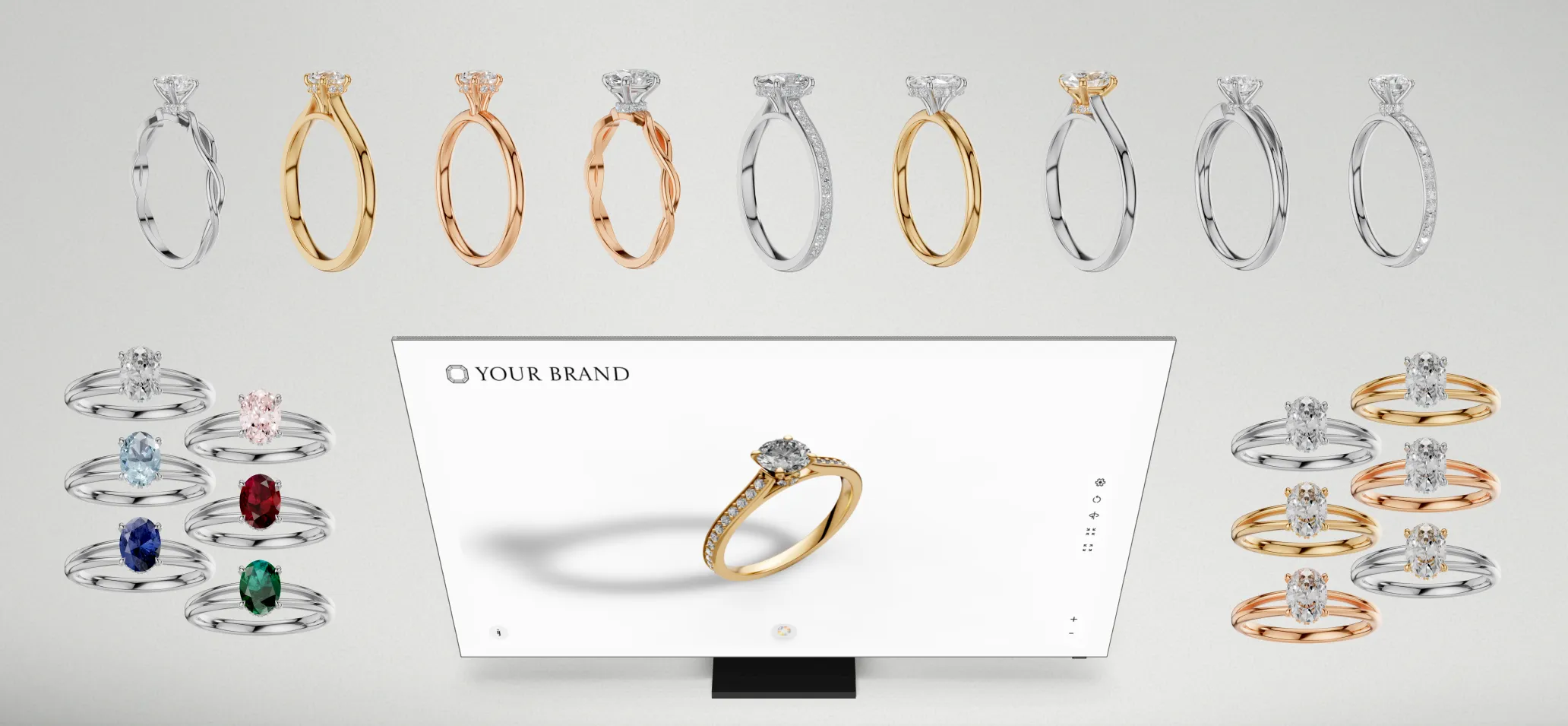](./using-ring-configurator)
**What you'll learn:**
- Embedding the configurator on your website
- Sharing direct links with customers
- Using ready-made templates
- Self-hosting options for full control
---
# Prepare Ring Components
When building rings in iJewel, you don't need to model every variation from scratch. By separating a ring into **Head** and **Shank** components, you can dynamically combine them inside iJewel to generate dozens or even hundreds of unique ring designs from a small set of files.
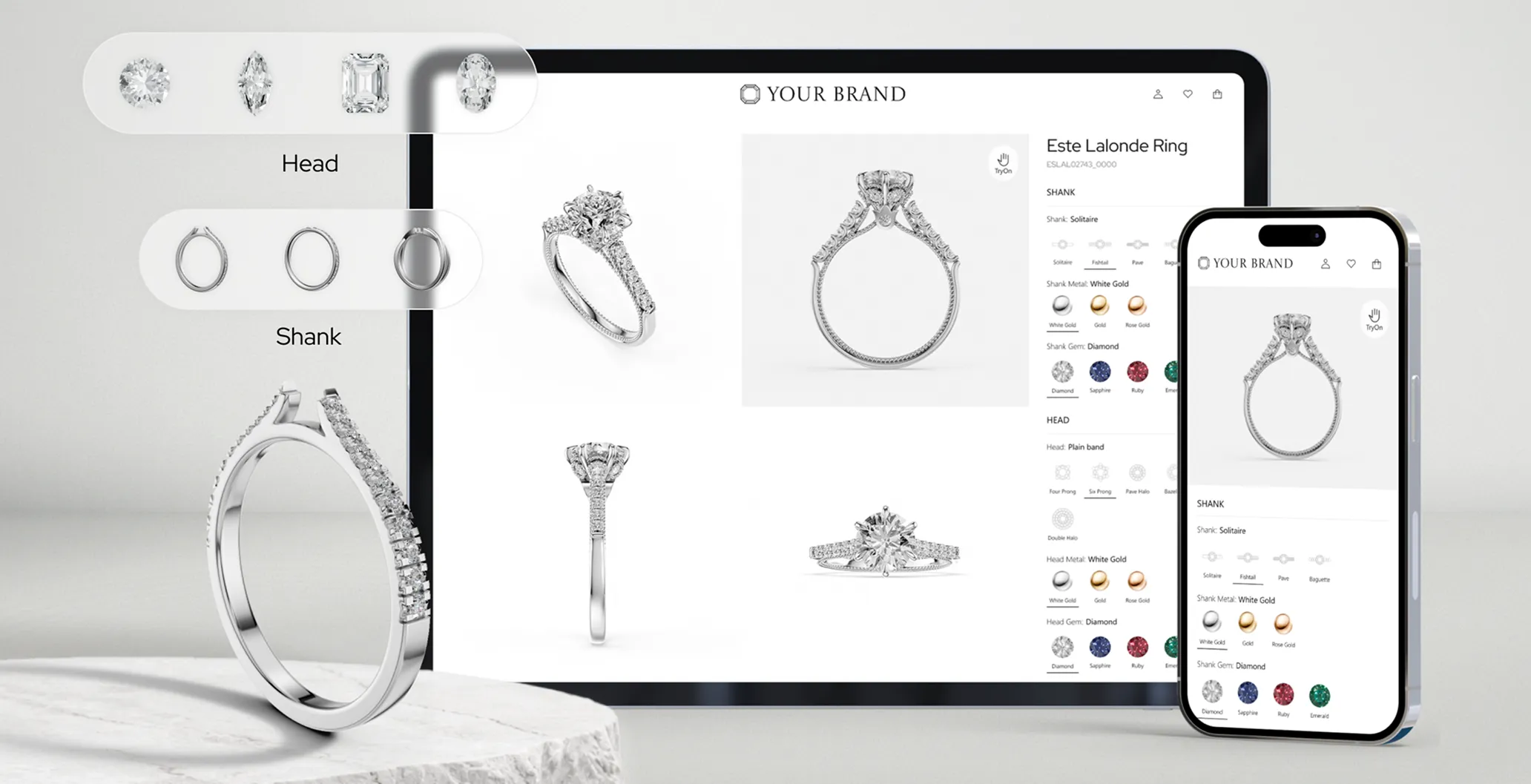
### Why Separate Components?
| Benefit | Description |
|---------|-------------|
| **Mix and Match** | Combine any head with any shank |
| **Fewer Models** | Reduce total files needed |
| **Easy Updates** | Add new variations without remodeling the entire ring |
## Creating Variations
Each component should have multiple variations to maximize configurability.
### Head Variations
| Property | Examples |
|----------|----------|
| **Prong Count** | 4-prong, 5-prong, 6-prong |
| **Diamond Shape** | Round, Princess, Pear, Oval, Marquise |
| **Carat Size** | 0.5 ct, 1 ct, 2 ct, 3 ct |
### Shank Variations
| Style | Description |
|-------|-------------|
| **Plain** | Simple, smooth band |
| **Pave** | Small diamonds set into the band |
| **Channel** | Diamonds set in a channel groove |
| **Split Shank** | Band splits near the head |
| **Cathedral** | Arched supports rising to meet the head |
By combining these, iJewel can automatically generate dozens or hundreds of ring combinations from a small set of files.
## Two Methods for Creating Components
These guidelines work with any modelling software, but examples here use **Rhino** and **MatrixGold**, as they are most commonly used in the jewelry industry.
### Method 1: Pre-Positioned Components
In this method:
- Each Head and Shank is modeled separately
- They are positioned correctly relative to each other in 3D space
- When combined, they already form a complete ring
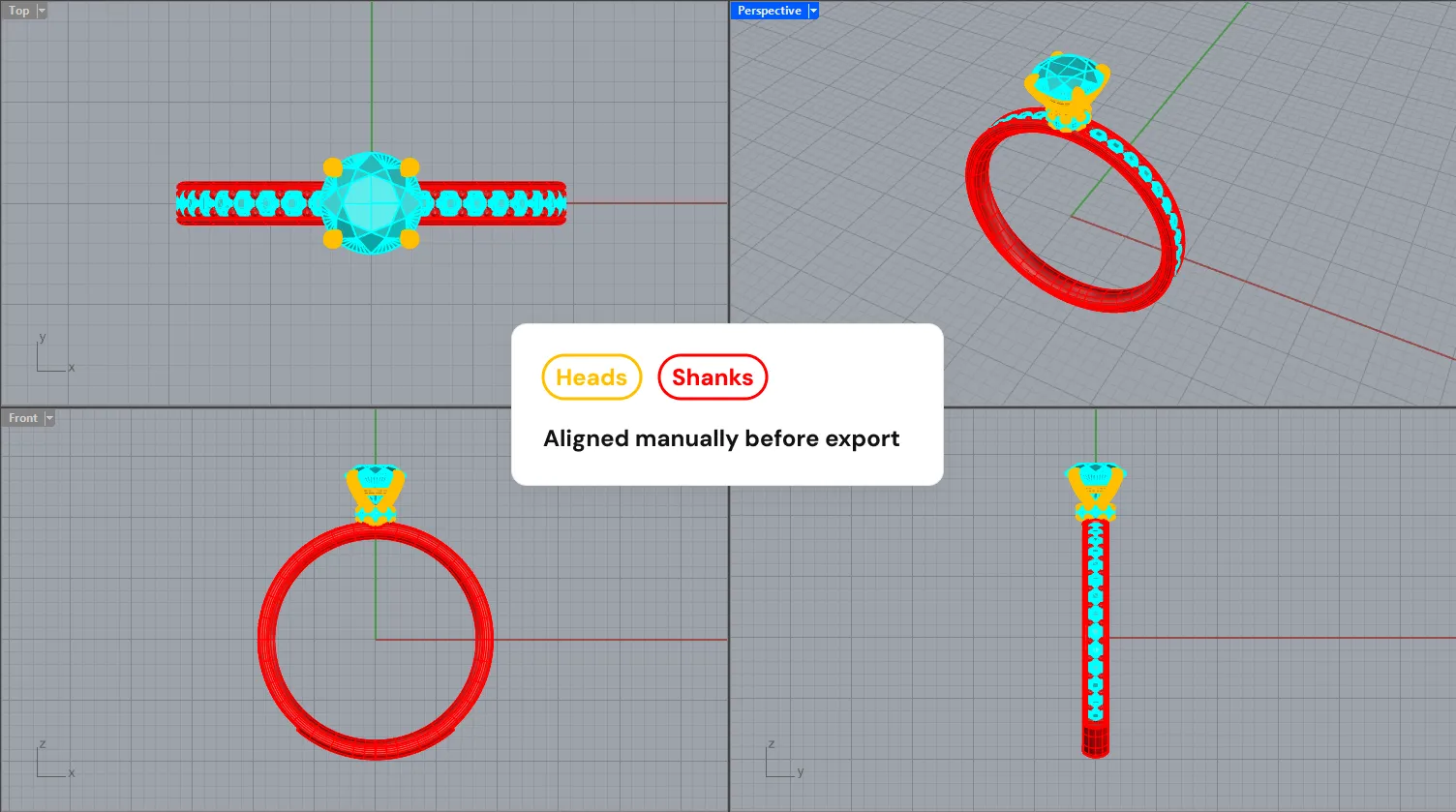
::: tip When to Use
- Fixed designs with limited variations
- Simple setups
- When exact manual positioning is preferred
:::
---
### Method 2: Anchor-Based Auto Placement (Recommended)
In this method, exact positioning is handled by iJewel automatically using an **anchor object**.
#### Steps (Rhino Example)
1. Create a cube or simple shape (anchor object)
2. Place it on top of the shank, exactly where the head should sit
3. Assign the anchor object to a layer named `placeholder:head` likewise it can be anything which you want to place it over `placeholder:
```javascript
const tryon = await viewer.addPlugin(ij_vto.RingTryonPlugin);
await viewer.addPlugin(ij_vto.TryonUIPlugin);
```
::: warning Add it after the try-on plugin
`TryonUIPlugin` looks for a try-on plugin on the viewer when it is added, and throws if there isn't one. Always add `RingTryonPlugin` first.
:::
::: info Alias
The plugin is exported both as `ij_vto.TryonUIPlugin` and as `ij_vto.RingTryonUIPlugin`. They are the same class - the second name exists for older integrations.
:::
## Configuring
Pass a config to the constructor, or update it later with `configure()`. Both take a deep-partial object that is merged onto the defaults, so you only specify what you want to change.
```javascript
await viewer.addPlugin(new ij_vto.TryonUIPlugin({
loading: {
title: "Preparing your try-on",
subText: null, // hide the subheader
logo: "https://example.com/logo.svg",
align: "center",
background: "#111",
textColor: "#fff",
progressColor: "linear-gradient(90deg, #c9a227, #f0d878)",
},
handPrompt: {
text: "Show the back of your hand",
},
}));
```
#### `configure(partial)`
Merges a partial config onto the current one and re-applies it to the live DOM immediately - safe to call while try-on is running.
```javascript
const ui = viewer.getPlugin(ij_vto.TryonUIPlugin);
// Switch to a different message mid-session.
ui.configure({ handPrompt: { text: "Move your hand a little closer" } });
```
#### `config`
The full, resolved config object. Read it to inspect current values; mutate through `configure()` so changes reach the DOM.
#### `enabled: boolean`
Set to `false` to suppress the whole overlay without removing the plugin.
## `loading`
The box shown while hand tracking initialises.
| Property | Type | Default | Description |
|---|---|---|---|
| `enabled` | `boolean` | `true` | Render the loading box at all. Set to `false` if you show your own loading state. |
| `title` | `string` | `"Loading..."` | Main heading. |
| `subText` | `string \| null` | `"Loading models..."` | Subheader. `null` or `''` hides it. |
| `logo` | `string \| null` | `null` | Logo above the title. Either an image URL / data-URI, or a raw SVG or HTML string. |
| `size` | `'card' \| 'half' \| 'full'` | `'card'` | Preset box size - a centered card, roughly half the container, or a full-canvas overlay. |
| `width` | `string \| null` | `null` | Explicit CSS width, e.g. `'320px'` or `'60vw'`. Takes precedence over `size`. |
| `align` | `'start' \| 'center' \| 'end'` | `'start'` | Horizontal alignment of logo, title and subheader. |
| `background` | `string` | white, near-opaque | Any valid CSS `background` value. |
| `textColor` | `string` | `'#000000'` | Title colour. |
| `subTextColor` | `string` | `'#4a4a4a'` | Subheader colour. |
| `showProgressBar` | `boolean` | `true` | Show the progress bar. |
| `progressColor` | `string` | dark gradient | CSS colour or gradient for the progress fill. |
```javascript
// Full-bleed dark loading screen with a logo and no subheader.
ui.configure({
loading: {
size: "full",
align: "center",
background: "#0b0b0b",
textColor: "#ffffff",
subText: null,
logo: "https://example.com/logo-light.svg",
},
});
```
## `handPrompt`
The overlay shown once try-on is live but no hand has been detected yet.
| Property | Type | Default | Description |
|---|---|---|---|
| `enabled` | `boolean` | `true` | Show the prompt. |
| `text` | `string \| null` | `"Show your hand to start"` | Prompt copy. `null` or `''` leaves just the outline. |
| `showHandOutline` | `boolean` | `true` | Draw the outlined hand graphic. |
| `handSvg` | `string` | built-in outline | Replace the outline with your own SVG markup. |
| `color` | `string` | near-white | Colour of the prompt text. |
#### `showHandPrompt()` / `hideHandPrompt()`
Show or hide the prompt imperatively. `showHandPrompt()` respects `handPrompt.enabled` and does nothing when the prompt is disabled.
```javascript
// Text-only prompt, no outline.
ui.configure({
handPrompt: { showHandOutline: false, text: "Hold your hand up to the camera" },
});
```
## `messages`
Every user-facing string the plugin can display. Override any subset - for translation, or to match your store's tone.
| Property | Description |
|---|---|
| `initialization` | Loading title (mirrors `loading.title`). |
| `initializationSubText` | Loading subheader. |
| `error.noSupport` | The browser has no webcam API. |
| `error.permissionDenied` | The user declined camera access. |
| `error.startupFailed` | Initialisation failed for a non-camera reason. |
| `error.mediaDevicesError` | Generic camera start failure. |
| `error.runtimeError` | Try-on failed while already running. |
| `error.abortError` | Camera access was aborted. |
| `error.invalidStateError` | The page was inactive when access was requested. |
| `error.notFoundError` | No camera matched the requested constraints. |
| `error.notReadableError` | The camera is in use by another application. |
| `error.overconstrainedError` | The camera can't satisfy the requested settings. |
| `error.securityError` | Camera access is blocked by security settings. |
| `error.typeError` | The camera request was rejected as invalid. |
| `error.unknown` | Fallback for unrecognised failures. |
| `error.unknownCameraError` | Fallback for unrecognised camera failures. |
```javascript
// Localise the strings users are most likely to see.
ui.configure({
messages: {
initialization: "Chargement…",
initializationSubText: "Préparation de l'essayage virtuel.",
error: {
permissionDenied: "Vous avez refusé l'accès à la caméra. Autorisez-le puis réessayez.",
notReadableError: "Votre caméra est utilisée par une autre application.",
},
},
});
```
## Full example
```javascript
const tryon = await viewer.addPlugin(ij_vto.RingTryonPlugin);
const ui = await viewer.addPlugin(new ij_vto.TryonUIPlugin({
loading: {
title: "Preparing your try-on",
subText: "This takes a few seconds the first time.",
logo: "https://example.com/logo.svg",
size: "full",
align: "center",
background: "#0b0b0b",
textColor: "#ffffff",
subTextColor: "#a0a0a0",
progressColor: "linear-gradient(90deg, #c9a227, #f0d878)",
},
handPrompt: {
text: "Show the back of your hand",
color: "#ffffff",
},
}));
await tryon.start();
```
---
# Changelog for @ijewel3d/web-vto
## [0.3.3] - 2026-09-15
### Fixed
- Hand detection now works on phones with an Adreno 8xx GPU, such as the Galaxy S25 Ultra. MediaPipe's GPU delegate returns no hands on these GPUs, so hand detection uses the CPU delegate there. All other devices keep the GPU delegate (IJ-249).
## [0.3.2] - 2026-09-07
### Fixed
- AR Setup no longer darkens editor backgrounds. The AR color conversion now applies only while an AR background is active.
## [0.3.1] - 2026-09-01
### Fixed
- Camera stop now restores the canvas scale. The canvas stayed mirrored after the rear camera stopped.
## [0.3.0] - 2026-08-02
### Added
- On-device engine ported from Pyodide/Python to TypeScript: ~15 MB smaller download.
- Ribbon edge fit.
- Depth-normalization fallback when edges are missing, flagged as `depthNormFallback`.
- `pauseRendering` hook so inference no longer contends with the render loop.
## [0.2.9] - 2026-07-20
### Added
- Wristwear: Onbody front-end loading and support.
## [0.2.8] - 2026-07-13
### Added
- Onbody front-end loading and support.
### Changed
- Move onbody handling from back-end to on-device engine.
## [0.2.7] - 2026-06-18
### Added
- `TryonUIPlugin` (`RingTryonUIPlugin`) is now fully configurable via a `TryonUIConfig` object — pass it to the constructor (`new RingTryonUIPlugin({ ... })`) or update it at runtime with `uiPlugin.configure({ ... })`, which re-applies to the live DOM.
- Loading box: `enabled` (disable entirely), `title`, `subText` (`null`/`''` hides the subheader), `logo` (image URL/data-URI or raw SVG/HTML), `size` (`'card' | 'half' | 'full'`), `width` (custom CSS override), `align` (`'start' | 'center' | 'end'` for logo/title/subheader), `background`, `textColor`, `subTextColor`, `showProgressBar`, `progressColor`.
- Hand prompt: `enabled` (show/hide the "show your hand" overlay), `text` (`null`/`''` for outline only), `showHandOutline`, `handSvg` (override the outline markup), `color`.
- Customizable `messages` strings (initialization, save error, and all camera/error messages).
- `TryonUIPlugin.showHandPrompt()` / `hideHandPrompt()` to imperatively control the hand-prompt overlay.
### Changed
- `TryonUIPlugin` no longer hardcodes loading text, logo, box size/background, alignment, hand SVG, or prompt text — all driven by config (existing defaults preserved when no config is passed).
## [0.2.6] - 2026-06-18
### Added
- Try-on save-image UI with a smoother image-saving animation (ultra mode).
### Changed
- Ultra-mode save: crop size now sized relative to the ring's bounding-sphere radius.
- Fade shader: ring distance fade-out with more smoothness; reduced finger fade occlusion factor and increased circle fade factor.
### Fixed
- Ultra-resolution save mode artifacts.
- Fade shader circle fade-out being incorrect during zoom.
- Ring non-uniform rotation depending on aspect ratio.
- Reset on window resize.
## [0.2.5] - 2026-06-12
### Added
- High-resolution image export using camera.setViewOffset(): Super-sampled ring crop composited onto the original.
- Downloading/loading image bake files for importing accurate onbody image data (for using try-on backend data such as finger edges, finger width, depth rotation, occlusion mask)
- `maxSize` option to `saveImage` for ultra-mode output.
### Fixed
- SSAO options not properly resetting when entering and then exiting the try-on.
## [0.2.4] - 2026-06-10
### Added
- `shadowColor` for SSS contact shadows.
### Fixed
- apply/restore zoom in `_setCameraSettings()`
## [0.2.3] - 2026-06-04
### Added
- `enterSetupMode({ showGizmos: false })`: enter setup mode with the transform gizmo created but hidden/disabled. Calling `setTransformMode()` re-shows it.
### Fixed
- Auto-fit: original child transforms now restored when fit fails (no inner boundary or validation failure) instead of leaving them zeroed.
- Setup mode: camera position is now saved on enter and restored on exit.
- Image-mode transform gizmo could disappear after resize/render-scale changes; now detaches on resize so the next update rebinds it.
## [0.2.2] - 2026-05-29
### Fixed
- Set webcam state throwing error if camera background plugin is not set.
## [0.2.1] - 2026-05-29
### Fixed
- Setting video scale changed video aspect ratio unexpectedly.
## [0.2.0] - 2026-05-28 - Try-On Backend Integration
### Added
- Try-on backend: comprehensive server-side pipeline for ring placement: edge detection,
depth-based yaw/pitch, finger-width estimation, per-finger visibility scoring, and
health warmup, roll + many more misc additions. Opt in via `backendUrl` config or the `?backend` query parameter.
- Improvements for the wristwear try-on: wrist velocity calculations and motion-prediction features in `MPHand` and `MPBody` for more stable wristwear tracking.
### Fixed
- Ring landmarks no longer fade when try-on backend is in use.
- Ring position and finger width mismatch when using backend predictions.
- `offsetRotation` was incorrectly displacing ring position.
- Incorrect transform where only the ring model was scaled, not the full setup.
- Ring alignment now uses a single reference edge for consistent placement.
- Fist pitch correction when backend is active.
- Occluded ring finger now shows an explicit error instead of silently failing.
- Cylinder occluder size reduced in image mode to prevent over-occlusion.
- Auto-fit placement accuracy after the onbody-depth merge.
- Share button now downloads via `getImageBlob()` with a proper filename.
- Various setup mode issues and toolbar regressions.
## [0.1.11] - 2026-05-04
### Added
- Setup mode: shift key snapping override for transform controls.
- Setup mode: reset functionality for all transform modes.
- Setup mode: transform mode selector and auto-fit controls exposed in viewer setup (`index.ts`, `watch-index.ts`).
- Watch occluder estimator: new `WatchOccluderDepthPass` for top-down depth map approach; greatly improves occluder accuracy for rings auto-fit as well.
- Wrist velocity calculations and motion-prediction features in `MPHand` and `MPBody` for more stable wristwear tracking.
### Changed
- Wristwear placement now uses `TrackingConfig` offsets (consistent with ring try-on).
- Pose landmarker: reduced smoothing for faster response; disabled for back camera to save resources.
- Pose landmarker: slightly faster convergence for still poses.
- Default `videoScale` changed from 1.0 to 1.35.
- Wrist width calculation in `HandAnalyzer` refined for better size estimation.
- SSAO power no longer influences SSS gamma (separated concerns); SSS parameters tuned for wristwear.
- Watch occluder estimation rewrote using circle-fitting for improved auto-centering and scaling.
### Fixed
- Severe animation lag in `TryonUIPlugin` animations.
- Incorrect wristwear yaw when hand deviates radially/ulnarly while the arm remains still.
- `borderColor` / `borderImage` not applied in wristwear image mode.
- Inconsistent relative wristwear placement across frames.
- Transform gizmo rendering artifacts caused by `FadeShaderExtension`.
- Watch occluder losing its material after estimation.
- Camera depth alignment in setup mode auto-fit.
## [0.1.10] - 2026-05-01
### Fixed
- `TryonUIPlugin` failing to attach in obfuscated builds; reverted plugin lookup to use `PluginType` strings instead of mangled class names.
## [0.1.9] - 2026-05-01
### Added
- `canRunVTO()` pre-flight helper exported from the lib. Returns WebGL2/GPU/device capability check plus an optional `warning` for Chrome/Windows on integrated GPUs.
### Removed
- License/key system removed from `BaseTryonPlugin`; licensing is now handled solely by the underlying webgi runtime.
## [0.1.8] - 2026-04-21
### Fixed
- Fix race condition in `stop` method by setting `_running` to `false` right away.
## [0.1.7] - 2026-04-16
### Added
- `getImageBlob(type?, quality?)` method to retrieve the current try-on image as a `Blob` (auto-cropped in image mode).
- `saveImage` now accepts a file format/MIME type parameter.
- Vertical border support in image mode.
- Crop image in image mode when saving it.
### Changed
- `startWithImage` and `setImage` now accept any `CanvasImageSource` (not just `HTMLImageElement`).
- Hand analyzer resets on window resize to prevent stale tracking state.
## [0.1.6] - 2026-04-09
### Added
- Side fade-out at cylinder edges in live try-on mode to prevent floating shadow artifacts.
### Changed
- Unified SSAO and contact shadows into a single SSS computation pipeline — both now drive the same warm-skin shading path independently.
- Improved orbit-normal line smoothing (`irregularSmoothing`) with a refined distance mapping function.
- Refactored `SSSFingerCylinderShadow`: eliminated duplicated material/uniform/extension blocks; added `updateRingTransform()` for a single-call per-frame update.
- Removed SSS wrap strength and saturation boost config parameters; simplified shader accordingly.
### Fixed
- Contact shadow Z-fighting artifacts between shadow cylinder and sphere end-caps.
- SSAO warm-shading had no effect when contact shadows were disabled; AO now correctly activates the full SSS colour path.
## [0.1.5] - 2026-04-07
### Added
- Pose-based wristwear try-on integration for more independent wrist transform.
- Screen-space contact shadows (SSCS) for more realistic shadow rendering.
- Alternating tracking and model inference for better performance.
- Preliminary API documentation.
### Fixed
- Fix try-on running always in "IMAGE" mode.
- Fix shadow rendering in wrist wear try-on.
- Fix static image resize, fade shader, and default transform controls.
- Fix borderColor and borderImage styling.
- Fix camera moving in image mode.
### Changed
- Adjust wristwear size and snappiness.
- Use average landmarks for body tracking.
- UI clean-ups and code refactoring.
## [0.1.4] - 2026-03-11
### Fixed
- Jewelry object visible in the first frame after entering try-on mode.
## [0.1.3] - 2026-03-11
### Fixed
- Inconsistent AO setting.
## [0.1.2] - 2026-03-08
### Fixed
- Video scale not applied correctly.
- Quaternion filters improved.
## [0.1.1] - 2026-03-08
### Fixed
- Video texture lagging behind during zoom on invisible elements.
- Error messages being to short.
- Restore older hand tracking smoothing functions in MPHand to address degraded tracking.
## [0.1.0] - 2026-03-06
### Added
- WristwearTryonPlugin: Add a watch and bracelet try-on.
- Major refactoring of the codebase.
- Refactor to support future try-on plugins.
- Automatic zoom in on interaction (closer zoom of 1.5 for better experience).
### Fixed
- UX improvements: preloading, polling in-store try-on plugin.
- Fix occlusion for bigger jewelry like the billion dollar ring demo ring.
- Various improvements for artifacts in fade shader and motion blur.
## [0.0.41] - 2026-03-01
### Added
- `preferBackCamera` option on RingTryonPlugin to allow selecting the back (environment) camera on start.
## [0.0.40] - 2026-02-16
### Fixed
- Support for larger rings (e.g. billion dollar ring demo ring) with proper occlusion (faded and SSR occluders) and shadow SSAO.
- Less visual occlusion artifacts for poses like fist.
- Ring try-on UI: no specific error message for most common error (camera permission denied) shown.
- Enable quaternion filters for smoothing rotation flickering which was especially noticeable for larger rings like the billion dollar ring demo one.
- Fix strong display artifacts when entering AR mode due to interpolation with unclamped tonemapped output color.
## [0.0.39] - 2026-01-16
### Added
- A static preload function to the RingTryonPlugin.
## [0.0.38] - 2025-12-26
### Fixed
- Disable DollyFov in camera settings.
## [0.0.37] - 2025-10-02
### Fixed
- In-store: Shader crash when using segmentation.
- In-store: Address not selecting the correct camera.
### Changed
- In-store: More proper syncing of MP and Leap.
## [0.0.36] - 2025-08-29
### Changed
- Demo page: css changes, changed 3d model.
- minDistance change in `RingTryonConfig`
## [0.0.35] - 2025-08-27
### Changed
- Demo page: check for 'edit' query parameter to show UIConfig for TryOn.
- Removed setup mode UI
- static variables for mediapipe libraries
## [0.0.34] - 2025-08-15
### Fixed
- Minor fix: proper button display in demo when try-on start failed.
## [0.0.33] - 2025-08-15
### Changed
- Demo page: setup mode UI, try-on buttons only showing when try-on running.
### Fixed
- Setup mode UI: proper updating in scene when config changed.
## [0.0.32] - 2025-08-06
### Changed
- Update demo link and WebGi version to 0.15.2.
## [0.0.31] - 2025-08-03
### Changed
- Disable motion blur by default.
- Update WebGi version to 0.15.0.
### Fix
- Add backwards compatibility for motion blur and WebGi pre-0.11.0.
- Resolved issues with ring fading and hiding for certain hand poses.
## [0.0.30] - 2025-08-03
### Changed
- Refactored configuration system for improved structure and maintainability.
- Improved motion blur effect; cleaned up and refactored related code.
- Removed `lil-gui` dependency; moved GLSL code to separate files; improved code obfuscation workflow.
### Fixed
- Addressed an issue where the asset was not being hidden entirely, causing an outline to be visible.
- Camera near/far planes are now constant to address a performance issue and to prevent possible clipping artifacts.
## [0.0.29] - 2025-06-17
### Fixed
- Fix camera near/far based clipping at close range.
## [0.0.28] - 2025-06-17
### Fixed
- Revert web camera background plugin to recent version. Fix scene background reset issue introduced by reverting.
## [0.0.27] - 2025-06-06
### Fixed
- Check first for video full HD resolution.
## [0.0.26] - 2025-06-06
### Fixed
- Reverted to old web camera plugin for now.
## [0.0.25] - 2025-06-06
### Fixed
- Reverted to old web camera plugin for now.
## [0.0.24] - 2025-06-06
### Fixed
- Applied custom configs and checking for in-store plugin.
### Added
- Check for in-store availability in index.ts
## [0.0.23] - 2025-06-02
### Fixed
- Revert some scene config (SSR, SSAO).
## [0.0.22] - 2025-06-01
### Fixed
- Instore build deployment.
## [0.0.21] - 2025-05-31
### Fixed
- Integrate latest development changes.
- Deprecate segmenter hand analyzing. Finger width detection is now based on landmarks.
- Adjust config and smoothing.
## [0.0.20-dev.10] - 2025-05-30
### Fixed
- Setup mode cylinder.
## [0.0.20-dev.9] - 2025-05-15
### Added
- Deployment
---
# Ring Configurator in iJewel3D

iJewel3D Ring Configurator is a powerful tool that lets you create interactive, customizable ring configurators for your jewelry business. By combining modular ring components (heads and shanks), customers can explore hundreds of ring variations in real-time 3D choosing diamond shapes, carat sizes, shank styles, and materials.
Whether you want to embed a configurator on your website, share it directly with customers, or self-host it on your own server, Ring Configurator makes it simple.
### How It Works
Ring Configurator uses a modular approach: instead of modeling every ring variation, you create separate **Head** and **Shank** components that iJewel combines dynamically. This means fewer 3D files to manage and endless possibilities for your customers.
## Getting Started
Follow these three steps to set up your Ring Configurator:
### [1. Prepare 3D Models](./prepare-components)
Learn how to prepare your ring components, assign proper layers, and set up anchor points for automatic alignment.
[](./prepare-components)
**What you'll learn:**
- Separating rings into Head and Shank components
- Creating variations (prong counts, diamond shapes, shank styles)
- Setting up anchor-based auto placement
- Naming conventions and layer assignment in Rhino
### [2. Set Up in iJewel3D Platform](./ring-configurator-in-ijewel3d)
Upload your components to the iJewel3D platform and configure your Ring Configurator with variations, materials, and settings.
[](./ring-configurator-in-ijewel3d)
**What you'll learn:**
- Uploading and syncing 3D files
- Configuring head and shank variations
- Setting up materials and finishes
- Organizing your component library
### [3. Share, Embed, or Self-Host](./using-ring-configurator)
Deploy your Ring Configurator to reach customers embed it on your website, share direct links, or use templates for self-hosting.
[](./using-ring-configurator)
**What you'll learn:**
- Embedding the configurator on your website
- Sharing direct links with customers
- Using ready-made templates
- Self-hosting options for full control
---
# Prepare Ring Components
When building rings in iJewel, you don't need to model every variation from scratch. By separating a ring into **Head** and **Shank** components, you can dynamically combine them inside iJewel to generate dozens or even hundreds of unique ring designs from a small set of files.

### Why Separate Components?
| Benefit | Description |
|---------|-------------|
| **Mix and Match** | Combine any head with any shank |
| **Fewer Models** | Reduce total files needed |
| **Easy Updates** | Add new variations without remodeling the entire ring |
## Creating Variations
Each component should have multiple variations to maximize configurability.
### Head Variations
| Property | Examples |
|----------|----------|
| **Prong Count** | 4-prong, 5-prong, 6-prong |
| **Diamond Shape** | Round, Princess, Pear, Oval, Marquise |
| **Carat Size** | 0.5 ct, 1 ct, 2 ct, 3 ct |
### Shank Variations
| Style | Description |
|-------|-------------|
| **Plain** | Simple, smooth band |
| **Pave** | Small diamonds set into the band |
| **Channel** | Diamonds set in a channel groove |
| **Split Shank** | Band splits near the head |
| **Cathedral** | Arched supports rising to meet the head |
By combining these, iJewel can automatically generate dozens or hundreds of ring combinations from a small set of files.
## Two Methods for Creating Components
These guidelines work with any modelling software, but examples here use **Rhino** and **MatrixGold**, as they are most commonly used in the jewelry industry.
### Method 1: Pre-Positioned Components
In this method:
- Each Head and Shank is modeled separately
- They are positioned correctly relative to each other in 3D space
- When combined, they already form a complete ring

::: tip When to Use
- Fixed designs with limited variations
- Simple setups
- When exact manual positioning is preferred
:::
---
### Method 2: Anchor-Based Auto Placement (Recommended)
In this method, exact positioning is handled by iJewel automatically using an **anchor object**.
#### Steps (Rhino Example)
1. Create a cube or simple shape (anchor object)
2. Place it on top of the shank, exactly where the head should sit
3. Assign the anchor object to a layer named `placeholder:head` likewise it can be anything which you want to place it over `placeholder: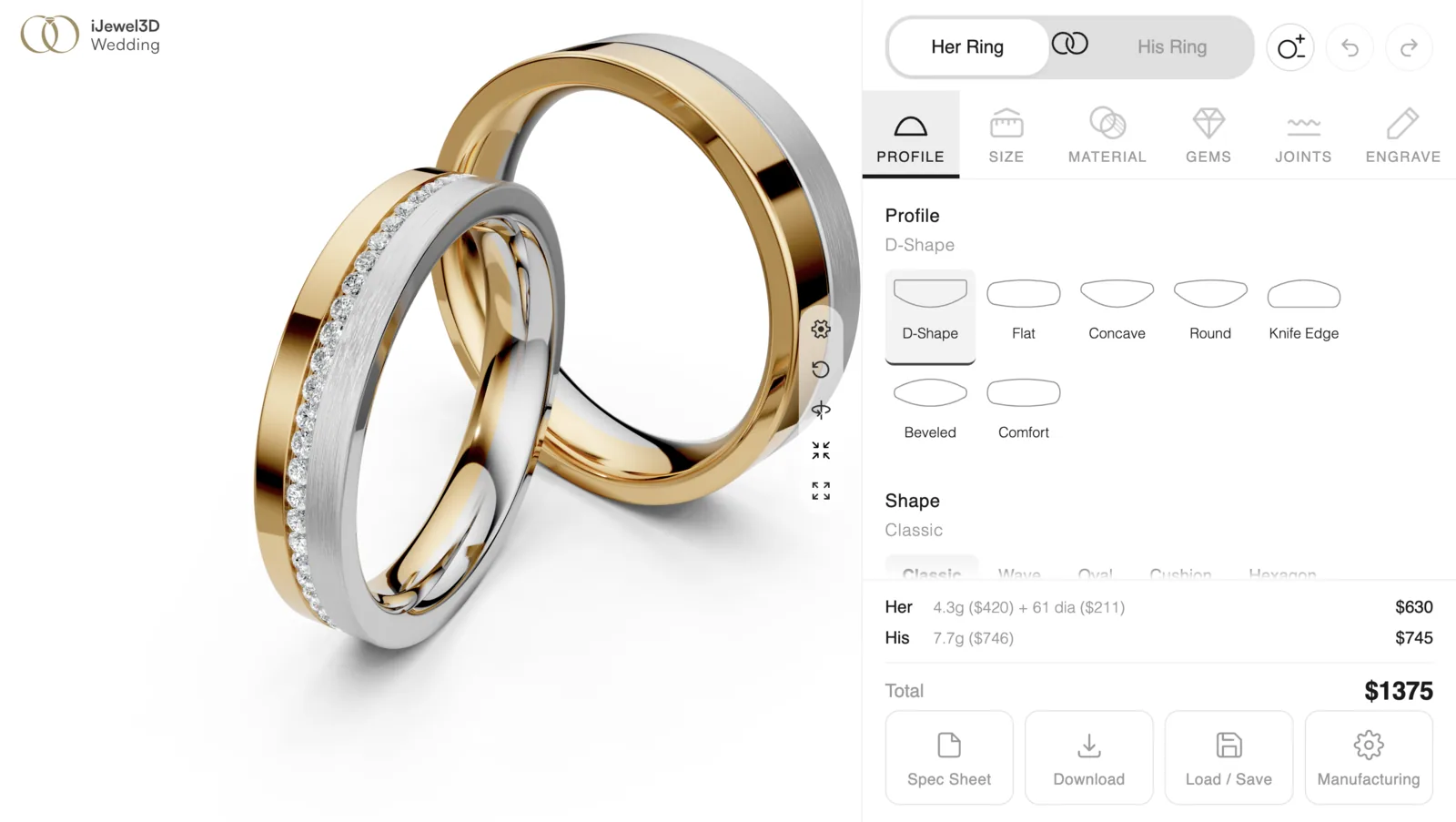 ## Three Pillars
### Photorealistic 3D in the Browser
Customers see a real time 3D model with physically accurate materials, lighting, and reflections. White gold looks like white gold. A hammered finish catches light differently than polished. Material properties are tuned to match real metal alloys.
### Parametric Design, No 3D Models to Manage
Every ring is built from parameters, not pre made files. The current Drive
starter provides 7 profile shapes, 3 metals, 7 finishes, 3 partition modes, 4
diamond settings, and continuous width/height dimensions. You can replace or
extend those catalogs in your project, and the engine generates the selected
geometry on demand.
### From Screen to CNC
Every design your customers create can be exported as a detailed specification sheet: profile cross section, exact dimensions in millimeters, ring size (US/EU/UK), metal composition, diamond count and carat weight, and pricing breakdown. Ready for your CAD team or CNC machine.
## Who Is This For?
| | |
|---|---|
| **Jewelry Brands** | Offer a premium, interactive wedding band experience on your website. Your customers design their own rings with real time photorealistic preview. |
| **Online Retailers** | Drop a configurator into your Shopify, WooCommerce, or Magento store. Customers configure, see the price, and add to cart, all without leaving your site. |
| **Luxury Jewellers** | Build a fully custom interface that matches your brand identity. Use the headless SDK to control every pixel while the engine handles the 3D. |
| **Manufacturers** | Customers design. You manufacture. The spec sheet bridges the gap: accurate dimensions and materials, ready for production. |
## What Makes It Different
| Traditional Configurators | Wedding Band Builder |
|---|---|
| Pre rendered image swaps | Real time 3D geometry generation |
| Fixed catalog of options | Parametric: every combination is unique |
| Separate pricing spreadsheets | Volume based pricing from actual 3D geometry |
| Desktop-only or app-required | Web based, mobile ready, AR capable |
| Generic white label UI | Fully customizable SDK with theming |
| Single pricing model | Western markup, Indian making charges, Gulf per-gram |
## Get Started
Want runnable code first? Open the
[Wedding Band starter templates](./templates), where every example includes
both a live page and its GitHub source.
## Three Pillars
### Photorealistic 3D in the Browser
Customers see a real time 3D model with physically accurate materials, lighting, and reflections. White gold looks like white gold. A hammered finish catches light differently than polished. Material properties are tuned to match real metal alloys.
### Parametric Design, No 3D Models to Manage
Every ring is built from parameters, not pre made files. The current Drive
starter provides 7 profile shapes, 3 metals, 7 finishes, 3 partition modes, 4
diamond settings, and continuous width/height dimensions. You can replace or
extend those catalogs in your project, and the engine generates the selected
geometry on demand.
### From Screen to CNC
Every design your customers create can be exported as a detailed specification sheet: profile cross section, exact dimensions in millimeters, ring size (US/EU/UK), metal composition, diamond count and carat weight, and pricing breakdown. Ready for your CAD team or CNC machine.
## Who Is This For?
| | |
|---|---|
| **Jewelry Brands** | Offer a premium, interactive wedding band experience on your website. Your customers design their own rings with real time photorealistic preview. |
| **Online Retailers** | Drop a configurator into your Shopify, WooCommerce, or Magento store. Customers configure, see the price, and add to cart, all without leaving your site. |
| **Luxury Jewellers** | Build a fully custom interface that matches your brand identity. Use the headless SDK to control every pixel while the engine handles the 3D. |
| **Manufacturers** | Customers design. You manufacture. The spec sheet bridges the gap: accurate dimensions and materials, ready for production. |
## What Makes It Different
| Traditional Configurators | Wedding Band Builder |
|---|---|
| Pre rendered image swaps | Real time 3D geometry generation |
| Fixed catalog of options | Parametric: every combination is unique |
| Separate pricing spreadsheets | Volume based pricing from actual 3D geometry |
| Desktop-only or app-required | Web based, mobile ready, AR capable |
| Generic white label UI | Fully customizable SDK with theming |
| Single pricing model | Western markup, Indian making charges, Gulf per-gram |
## Get Started
Want runnable code first? Open the
[Wedding Band starter templates](./templates), where every example includes
both a live page and its GitHub source.
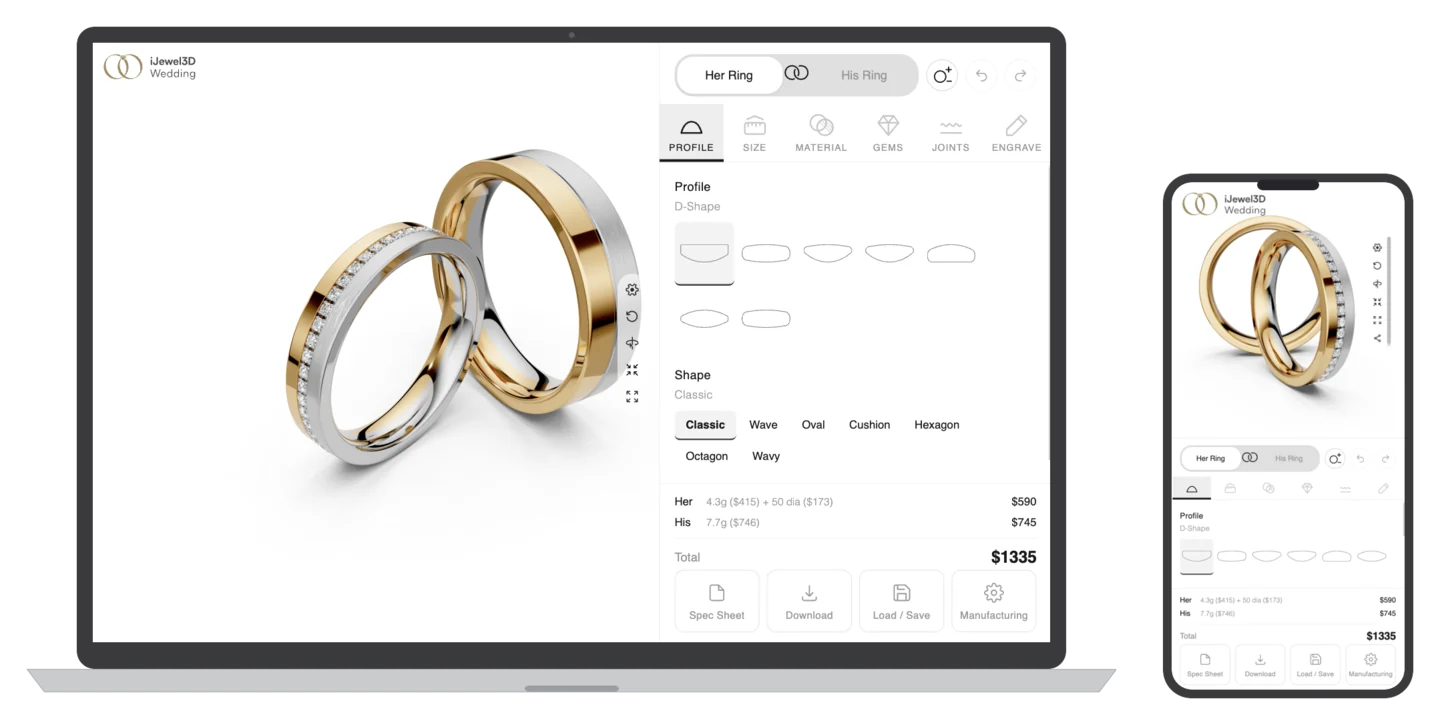 ### AR Try On
Customers can preview their designed ring on their hand using camera-based live
hand tracking. This gives a sense of scale and appearance before purchasing.
### Spec Sheets for Manufacturing
Every design produces a precise specification sheet: profile cross section diagram, dimensions in millimeters, ring size across three international systems, metal composition, diamond count and carat weight, and complete pricing breakdown. Your CAD team or CNC machine gets exactly what was designed on screen.
### His & Her Paired Band Configuration
Customers design both bands together. Linked mode keeps both rings in sync: change the metal on one, both update. Independent mode lets each band be unique. The pricing shows individual and combined totals.
### Global Pricing
Not every jeweller prices the same way. The engine supports:
- **Western model**: markup multiplier (1.5×–2.5×) covering all costs
- **Indian model**: explicit making charges (8–35% of metal cost)
- **Gulf model**: per-gram making charges ($5–$50/gram)
Per-metal pricing (white gold costs more than yellow due to palladium), finish surcharges, diamond setting labor costs, and configurable rounding are all built in.
### Physically Based Rendering
The 3D engine uses PBR materials with image-based lighting and real time gem refraction. White gold has the reflectance of a palladium alloy. A hammered finish displaces the surface geometry. Diamonds refract light through computed facets. This isn't a texture swap on a generic 3D model.
### No Vendor Lock In
Your configuration data is JSON. Export it, store it, migrate it. The headless API means your frontend is yours: your team or agency builds and maintains the UI without depending on a third party for every change. Switch hosting, switch CMS, switch developer. The data and the integration stay portable.
### Works With Any Manufacturer
The spec sheet is manufacturer-independent. It outputs profile cross sections, exact dimensions in millimeters, ring size across three international systems, metal composition, and diamond specs. Send it to any workshop, any CAD team, any CNC machine.
### Your Brand, Your Design
Use the built-in UI with one of 11 theme presets, or build your own interface from scratch using the headless SDK. The configurator is a white label engine. Your customers see your brand, not ours. No billable hours to a vendor for branding changes or layout updates.
### Mobile Optimized
The 3D engine is optimized for mobile GPUs. Touch gestures such as pinch to
zoom and swipe to rotate work natively. On compatible devices, camera Try-On
lets customers preview the ring on their hand in current Safari on iOS and
Chrome on Android.
### Predictable Costs
One-time onboarding plus an annual subscription. No opaque project pricing, no change orders for every UI tweak. You know what you'll pay.
### Dedicated Onboarding
Setup assistance is included. Documentation, email support, and a partner network for integrations. You're not left to figure it out from a wiki.
### Ecommerce Ready
Drop in integrations for the platforms your business already uses:
| Platform | Integration |
|---|---|
| **Shopify** | Liquid section, iframe embed, add-to-cart bridge |
| **WooCommerce** | Shortcode or custom product template |
| **Magento** | Custom block with Storefront API |
| **BigCommerce** | Stencil theme template |
| **Wix** | HTML embed with Velo integration |
Or integrate directly with any website using a `
```
Best for: custom websites, React/Vue/Angular apps, full API access.
→ [Full script tag guide](./integration-direct) · [Framework examples](./frameworks/vanilla)
## What's Next?
Choose your path based on what you need:
| I want to... | Go to |
|---|---|
| Customize the look and feel | [Theming & Branding](./theming) |
| Build my own UI from scratch | [Custom UI (Headless)](./integration-headless) |
| Set up pricing | [Pricing Engine](./pricing) |
| Add to Shopify / WooCommerce / etc. | [E-Commerce Platforms](./ecommerce/shopify) |
| See the full API | [API Reference](./api-reference) |
| Understand the measurement system | [Ring Measurements Guide](./measurement-guide) |
---
# Wedding Band Starter Templates
Use these maintained examples as implementation starting points. Every row
includes a live GitHub Pages build and the exact source currently published
from the `main` branch of
[`iJewelTemplates`](https://github.com/ijewel3d/iJewelTemplates).
| Template | Use it when | Live | Code |
| --- | --- | --- | --- |
| Built-in Wedding Band UI | You want to load a complete Wedding Band project and use the standard iJewel3D interface. | [Open live](https://ijewel3d.github.io/iJewelTemplates/wedding-band/wedding-band.html) | [View HTML](https://github.com/ijewel3d/iJewelTemplates/blob/main/wedding-band/wedding-band.html) |
| Published Drive project | You have a public Drive file ID and want the smallest `loadModelById` example. | [Open live](https://ijewel3d.github.io/iJewelTemplates/wedding-band/wedding-band-default.html) | [View HTML](https://github.com/ijewel3d/iJewelTemplates/blob/main/wedding-band/wedding-band-default.html) |
| Custom UI | You want same-page controller access and a fully custom storefront interface. | [Open live](https://ijewel3d.github.io/iJewelTemplates/wedding-band/custom-ui/index.html) | [Browse source](https://github.com/ijewel3d/iJewelTemplates/tree/main/wedding-band/custom-ui) |
| iframe host integration | You want custom host-page controls around a published Drive embed using `postMessage`. | [Open live](https://ijewel3d.github.io/iJewelTemplates/wedding-band/iframe-demo/index.html) | [Browse source](https://github.com/ijewel3d/iJewelTemplates/tree/main/wedding-band/iframe-demo) |
The folder-based examples depend on their adjacent JavaScript, CSS, JSON, and
image assets, so copy the whole folder rather than only `index.html`.
::: info Release baseline
The documentation examples use Mini Viewer `0.6.18`, which adds configurator
Try-On on top of the material variants, outside and inside material features,
and Modern Metals layout from `0.6.17`. The linked templates are maintained in
a separate repository and may still show an earlier pinned version. Check the
script URL in the source you copy and use `0.6.18` or later when the project
offers Try-On.
The hosted iframe uses the Viewer version deployed by `ijewel3d.com`.
:::
::: warning Hosted iframe version requirement
The iframe host controls require the `ijewel3d.com` embedded application to be
deployed with Mini Viewer `0.6.11` or newer. If the rings render inside the
iframe but the host remains on **Loading iframe…**, the hosted application is
still serving an older Viewer. Update that deployment or use the self-hosted
iframe viewer from the [iframe guide](./integration-iframe).
:::
## Choose the right starting point
- Start with **Published Drive project** when your Wedding Band configurator
already exists in iJewel Drive. Replace its `fileId` and `instance`. If it
does not exist yet, start with [Create a Project](./drive-setup).
- Start with **Built-in Wedding Band UI** when you are loading a complete
project JSON and want the standard controls.
- Start with **Custom UI** when your controls and viewer run on the same page.
The implementation reads catalogs from the controller instead of hard-coding
profile, material, variant, finish, and diamond choices.
- Start with **iframe host integration** when the viewer and host page have
different origins or when a CMS owns the outer page.
## Before production
1. Replace demo project URLs, Drive file IDs, instance names, prices, and cart
behavior with your own values.
2. Compare the template's pinned SDK URL with the version required by this
documentation. Configurator Try-On requires Mini Viewer `0.6.18` or later.
3. For iframe integrations, restrict `postMessage` to the exact viewer origin.
4. Serve the page over HTTPS and retain `allow="camera"` if Try-On runs inside
an iframe.
5. Test desktop and mobile layouts with the actual catalog and project size.
Continue with [Assets Setup](./assets-setup) to prepare your own profiles,
materials, icons, and models, or go directly to the
[integration guides](./deployment).
---
# Setting Up Assets on iJewel Platform
Before deploying your Wedding Band Builder, you need to configure all the building blocks on the iJewel platform. This page covers each asset type and how to prepare it.
When these assets are ready, [Create a Project](./drive-setup)
shows the complete creation flow, the generated folder structure, exact Sync
rules, version migration, and which configuration fields Sync preserves.
## 2D Profiles
Profiles are **2D cross section curves** that define the shape of the wedding band. The builder extrudes these curves along a circular torus path to generate the 3D ring geometry in real time.
The platform includes several built-in profiles:
| Profile | Description |
|---------|-------------|
| D-Shape | Classic rounded exterior, flat interior |
| Flat | Flat exterior and interior |
| Comfort | Rounded on both exterior and interior |
| Knife Edge | Pointed peak on the exterior |
| Beveled | Angled flat facets on the exterior |
| Concave | Inward-curving exterior surface |
| Round | Fully circular cross section |
**Custom profiles** can be uploaded as `.3dm` (Rhino) files containing a single closed 2D curve. The curve defines the cross section shape, which the builder then extrudes and scales based on the user's width and thickness settings.
Custom profile upload needs the **Silver** plan or above. The profiles in the
table above are the built-in library, available on every plan. See
[Create a Project](./drive-setup) for the upload steps.
::: warning
The 2D profile curve must be drawn in accurate millimeter dimensions. The engine uses the curve's actual size as the base measurement for width and thickness. If your profile is drawn at the wrong scale, all dimensions, weight calculations, and pricing will be incorrect.
:::
## Material Library
The material library models the real combinations your catalog offers instead
of assuming a complete metal-by-finish grid:
```text
base material → variant/quality → finish PMAT
```
Examples include Yellow Gold → 14k/18k/22k → Polished/Brush/Hammered,
Carbon → pattern 1/pattern 2 → a single default PMAT, and Wood → species → a
single default PMAT.
The standard Drive folder layout is:
```text
materials/
### AR Try On
Customers can preview their designed ring on their hand using camera-based live
hand tracking. This gives a sense of scale and appearance before purchasing.
### Spec Sheets for Manufacturing
Every design produces a precise specification sheet: profile cross section diagram, dimensions in millimeters, ring size across three international systems, metal composition, diamond count and carat weight, and complete pricing breakdown. Your CAD team or CNC machine gets exactly what was designed on screen.
### His & Her Paired Band Configuration
Customers design both bands together. Linked mode keeps both rings in sync: change the metal on one, both update. Independent mode lets each band be unique. The pricing shows individual and combined totals.
### Global Pricing
Not every jeweller prices the same way. The engine supports:
- **Western model**: markup multiplier (1.5×–2.5×) covering all costs
- **Indian model**: explicit making charges (8–35% of metal cost)
- **Gulf model**: per-gram making charges ($5–$50/gram)
Per-metal pricing (white gold costs more than yellow due to palladium), finish surcharges, diamond setting labor costs, and configurable rounding are all built in.
### Physically Based Rendering
The 3D engine uses PBR materials with image-based lighting and real time gem refraction. White gold has the reflectance of a palladium alloy. A hammered finish displaces the surface geometry. Diamonds refract light through computed facets. This isn't a texture swap on a generic 3D model.
### No Vendor Lock In
Your configuration data is JSON. Export it, store it, migrate it. The headless API means your frontend is yours: your team or agency builds and maintains the UI without depending on a third party for every change. Switch hosting, switch CMS, switch developer. The data and the integration stay portable.
### Works With Any Manufacturer
The spec sheet is manufacturer-independent. It outputs profile cross sections, exact dimensions in millimeters, ring size across three international systems, metal composition, and diamond specs. Send it to any workshop, any CAD team, any CNC machine.
### Your Brand, Your Design
Use the built-in UI with one of 11 theme presets, or build your own interface from scratch using the headless SDK. The configurator is a white label engine. Your customers see your brand, not ours. No billable hours to a vendor for branding changes or layout updates.
### Mobile Optimized
The 3D engine is optimized for mobile GPUs. Touch gestures such as pinch to
zoom and swipe to rotate work natively. On compatible devices, camera Try-On
lets customers preview the ring on their hand in current Safari on iOS and
Chrome on Android.
### Predictable Costs
One-time onboarding plus an annual subscription. No opaque project pricing, no change orders for every UI tweak. You know what you'll pay.
### Dedicated Onboarding
Setup assistance is included. Documentation, email support, and a partner network for integrations. You're not left to figure it out from a wiki.
### Ecommerce Ready
Drop in integrations for the platforms your business already uses:
| Platform | Integration |
|---|---|
| **Shopify** | Liquid section, iframe embed, add-to-cart bridge |
| **WooCommerce** | Shortcode or custom product template |
| **Magento** | Custom block with Storefront API |
| **BigCommerce** | Stencil theme template |
| **Wix** | HTML embed with Velo integration |
Or integrate directly with any website using a `
```
Best for: custom websites, React/Vue/Angular apps, full API access.
→ [Full script tag guide](./integration-direct) · [Framework examples](./frameworks/vanilla)
## What's Next?
Choose your path based on what you need:
| I want to... | Go to |
|---|---|
| Customize the look and feel | [Theming & Branding](./theming) |
| Build my own UI from scratch | [Custom UI (Headless)](./integration-headless) |
| Set up pricing | [Pricing Engine](./pricing) |
| Add to Shopify / WooCommerce / etc. | [E-Commerce Platforms](./ecommerce/shopify) |
| See the full API | [API Reference](./api-reference) |
| Understand the measurement system | [Ring Measurements Guide](./measurement-guide) |
---
# Wedding Band Starter Templates
Use these maintained examples as implementation starting points. Every row
includes a live GitHub Pages build and the exact source currently published
from the `main` branch of
[`iJewelTemplates`](https://github.com/ijewel3d/iJewelTemplates).
| Template | Use it when | Live | Code |
| --- | --- | --- | --- |
| Built-in Wedding Band UI | You want to load a complete Wedding Band project and use the standard iJewel3D interface. | [Open live](https://ijewel3d.github.io/iJewelTemplates/wedding-band/wedding-band.html) | [View HTML](https://github.com/ijewel3d/iJewelTemplates/blob/main/wedding-band/wedding-band.html) |
| Published Drive project | You have a public Drive file ID and want the smallest `loadModelById` example. | [Open live](https://ijewel3d.github.io/iJewelTemplates/wedding-band/wedding-band-default.html) | [View HTML](https://github.com/ijewel3d/iJewelTemplates/blob/main/wedding-band/wedding-band-default.html) |
| Custom UI | You want same-page controller access and a fully custom storefront interface. | [Open live](https://ijewel3d.github.io/iJewelTemplates/wedding-band/custom-ui/index.html) | [Browse source](https://github.com/ijewel3d/iJewelTemplates/tree/main/wedding-band/custom-ui) |
| iframe host integration | You want custom host-page controls around a published Drive embed using `postMessage`. | [Open live](https://ijewel3d.github.io/iJewelTemplates/wedding-band/iframe-demo/index.html) | [Browse source](https://github.com/ijewel3d/iJewelTemplates/tree/main/wedding-band/iframe-demo) |
The folder-based examples depend on their adjacent JavaScript, CSS, JSON, and
image assets, so copy the whole folder rather than only `index.html`.
::: info Release baseline
The documentation examples use Mini Viewer `0.6.18`, which adds configurator
Try-On on top of the material variants, outside and inside material features,
and Modern Metals layout from `0.6.17`. The linked templates are maintained in
a separate repository and may still show an earlier pinned version. Check the
script URL in the source you copy and use `0.6.18` or later when the project
offers Try-On.
The hosted iframe uses the Viewer version deployed by `ijewel3d.com`.
:::
::: warning Hosted iframe version requirement
The iframe host controls require the `ijewel3d.com` embedded application to be
deployed with Mini Viewer `0.6.11` or newer. If the rings render inside the
iframe but the host remains on **Loading iframe…**, the hosted application is
still serving an older Viewer. Update that deployment or use the self-hosted
iframe viewer from the [iframe guide](./integration-iframe).
:::
## Choose the right starting point
- Start with **Published Drive project** when your Wedding Band configurator
already exists in iJewel Drive. Replace its `fileId` and `instance`. If it
does not exist yet, start with [Create a Project](./drive-setup).
- Start with **Built-in Wedding Band UI** when you are loading a complete
project JSON and want the standard controls.
- Start with **Custom UI** when your controls and viewer run on the same page.
The implementation reads catalogs from the controller instead of hard-coding
profile, material, variant, finish, and diamond choices.
- Start with **iframe host integration** when the viewer and host page have
different origins or when a CMS owns the outer page.
## Before production
1. Replace demo project URLs, Drive file IDs, instance names, prices, and cart
behavior with your own values.
2. Compare the template's pinned SDK URL with the version required by this
documentation. Configurator Try-On requires Mini Viewer `0.6.18` or later.
3. For iframe integrations, restrict `postMessage` to the exact viewer origin.
4. Serve the page over HTTPS and retain `allow="camera"` if Try-On runs inside
an iframe.
5. Test desktop and mobile layouts with the actual catalog and project size.
Continue with [Assets Setup](./assets-setup) to prepare your own profiles,
materials, icons, and models, or go directly to the
[integration guides](./deployment).
---
# Setting Up Assets on iJewel Platform
Before deploying your Wedding Band Builder, you need to configure all the building blocks on the iJewel platform. This page covers each asset type and how to prepare it.
When these assets are ready, [Create a Project](./drive-setup)
shows the complete creation flow, the generated folder structure, exact Sync
rules, version migration, and which configuration fields Sync preserves.
## 2D Profiles
Profiles are **2D cross section curves** that define the shape of the wedding band. The builder extrudes these curves along a circular torus path to generate the 3D ring geometry in real time.
The platform includes several built-in profiles:
| Profile | Description |
|---------|-------------|
| D-Shape | Classic rounded exterior, flat interior |
| Flat | Flat exterior and interior |
| Comfort | Rounded on both exterior and interior |
| Knife Edge | Pointed peak on the exterior |
| Beveled | Angled flat facets on the exterior |
| Concave | Inward-curving exterior surface |
| Round | Fully circular cross section |
**Custom profiles** can be uploaded as `.3dm` (Rhino) files containing a single closed 2D curve. The curve defines the cross section shape, which the builder then extrudes and scales based on the user's width and thickness settings.
Custom profile upload needs the **Silver** plan or above. The profiles in the
table above are the built-in library, available on every plan. See
[Create a Project](./drive-setup) for the upload steps.
::: warning
The 2D profile curve must be drawn in accurate millimeter dimensions. The engine uses the curve's actual size as the base measurement for width and thickness. If your profile is drawn at the wrong scale, all dimensions, weight calculations, and pricing will be incorrect.
:::
## Material Library
The material library models the real combinations your catalog offers instead
of assuming a complete metal-by-finish grid:
```text
base material → variant/quality → finish PMAT
```
Examples include Yellow Gold → 14k/18k/22k → Polished/Brush/Hammered,
Carbon → pattern 1/pattern 2 → a single default PMAT, and Wood → species → a
single default PMAT.
The standard Drive folder layout is:
```text
materials/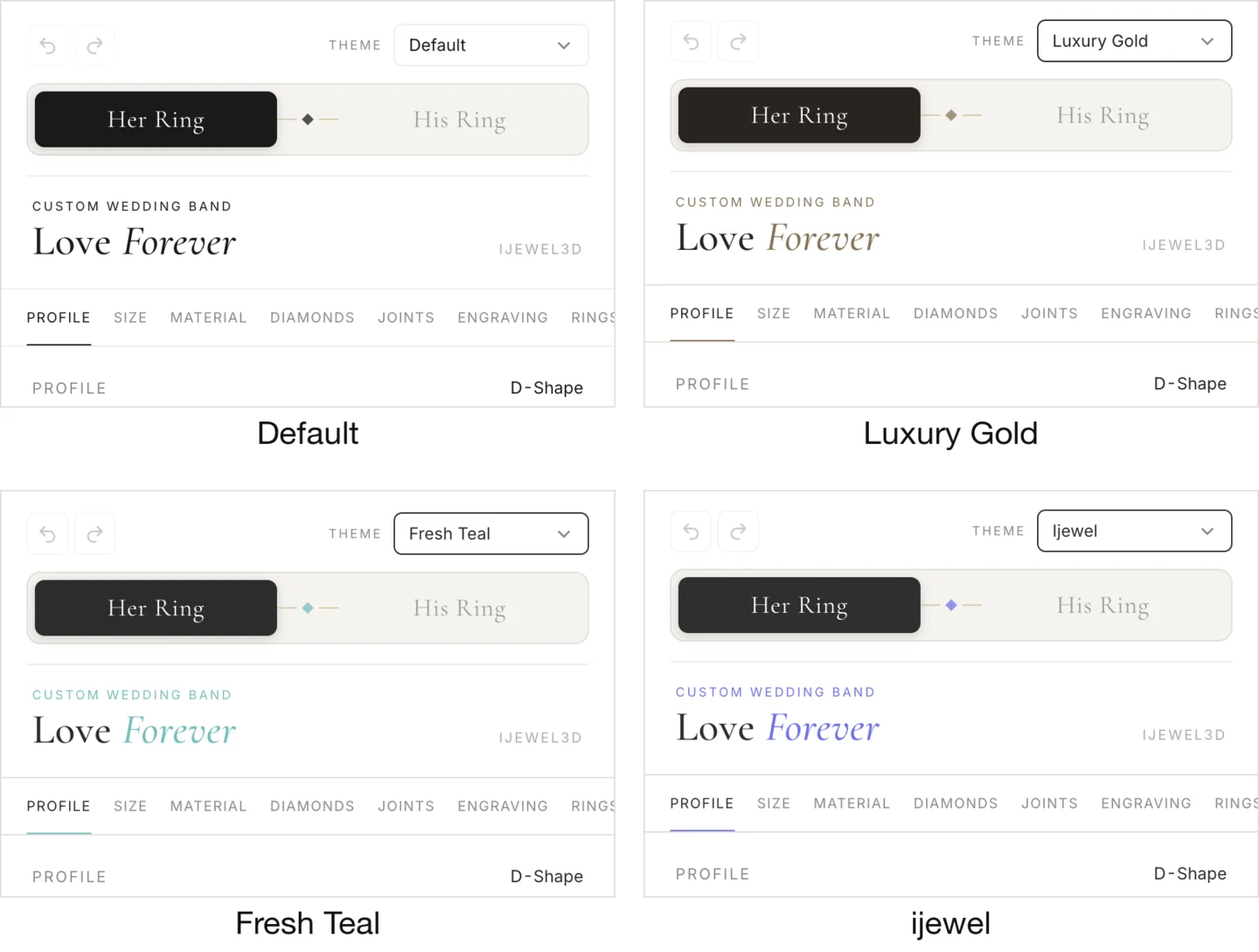 Available presets: `default`, `luxury-gold`, `modern-minimal`, `dark`, `rose-elegant`, `coral-modern`, `fresh-teal`, `minimal-blue`, `warm-beige`, `classic-gold`, `ijewel`. See [Theming & Branding](./theming) for full customization options.
## Framework Examples
| Framework | What You Get | Example |
|-----------|-------------|---------|
| **Vanilla JS** | Plain HTML/JS, no build step | [View example](./frameworks/vanilla) |
| **React** | Component + hooks, headless variant | [View example](./frameworks/react) |
| **Vue 3** | Composable + SFC, headless variant | [View example](./frameworks/vue) |
| **Next.js** | Client component, App Router + Pages Router | [View example](./frameworks/nextjs) |
| **Angular** | Service + Component, RxJS observables | [View example](./frameworks/angular) |
| **Svelte** | Component with slots, headless variant | [View example](./frameworks/svelte) |
## Error Handling
```javascript
api.events.on('error', (err) => {
console.error(`[${err.source}] ${err.message}`);
});
```
## Multiple Viewers
You can have multiple viewers on one page. Each gets its own API instance:
```javascript
const viewer1 = new ijewelViewer.Viewer(root1, project1, options);
const viewer2 = new ijewelViewer.Viewer(root2, project2, options);
```
Available presets: `default`, `luxury-gold`, `modern-minimal`, `dark`, `rose-elegant`, `coral-modern`, `fresh-teal`, `minimal-blue`, `warm-beige`, `classic-gold`, `ijewel`. See [Theming & Branding](./theming) for full customization options.
## Framework Examples
| Framework | What You Get | Example |
|-----------|-------------|---------|
| **Vanilla JS** | Plain HTML/JS, no build step | [View example](./frameworks/vanilla) |
| **React** | Component + hooks, headless variant | [View example](./frameworks/react) |
| **Vue 3** | Composable + SFC, headless variant | [View example](./frameworks/vue) |
| **Next.js** | Client component, App Router + Pages Router | [View example](./frameworks/nextjs) |
| **Angular** | Service + Component, RxJS observables | [View example](./frameworks/angular) |
| **Svelte** | Component with slots, headless variant | [View example](./frameworks/svelte) |
## Error Handling
```javascript
api.events.on('error', (err) => {
console.error(`[${err.source}] ${err.message}`);
});
```
## Multiple Viewers
You can have multiple viewers on one page. Each gets its own API instance:
```javascript
const viewer1 = new ijewelViewer.Viewer(root1, project1, options);
const viewer2 = new ijewelViewer.Viewer(root2, project2, options);
```
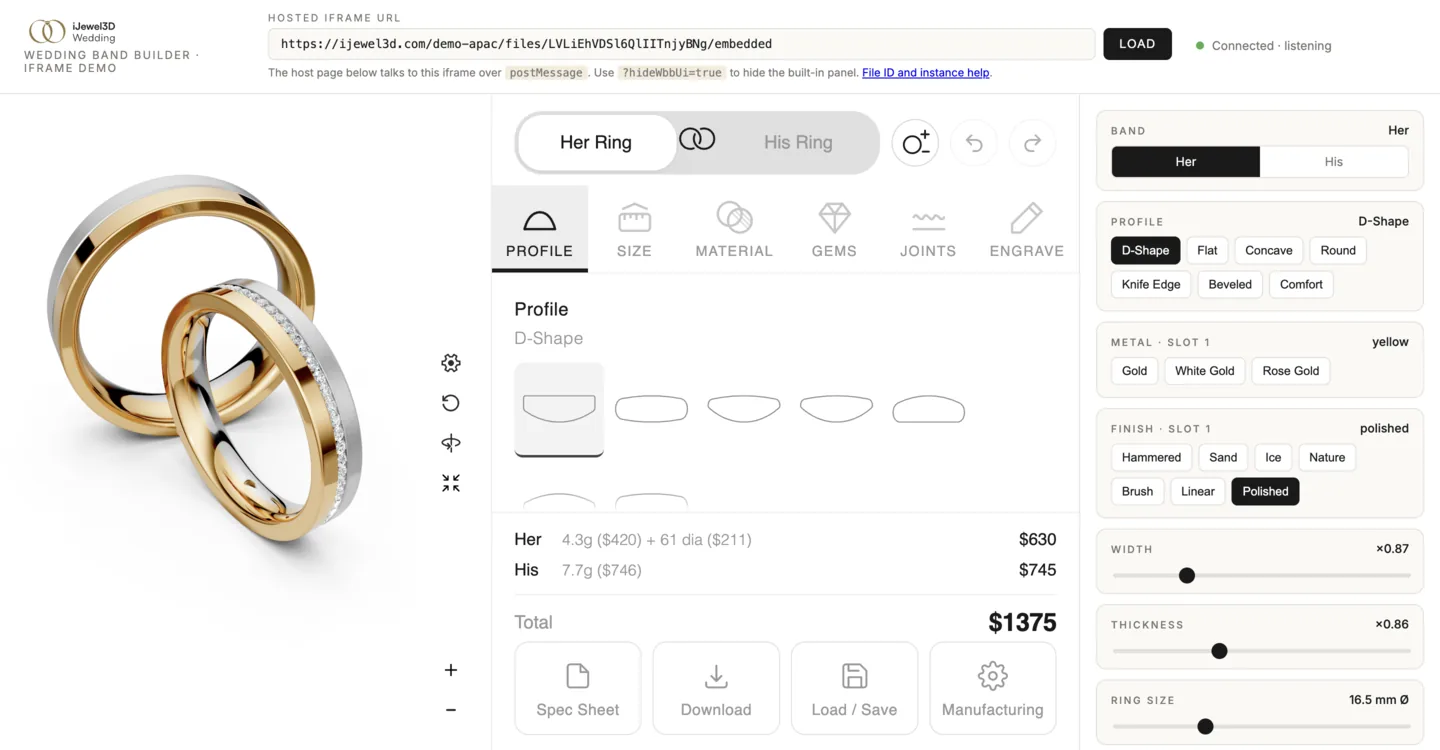 ### Communicate via postMessage
```javascript
const iframe = document.getElementById('wbb-iframe');
const viewerOrigin = new URL(iframe.src).origin;
let requestId = 0;
// Send a command
function send(method, args = []) {
iframe.contentWindow.postMessage({
id: `req-${++requestId}`, method, args,
}, viewerOrigin);
}
// Listen for events
window.addEventListener('message', (e) => {
if (e.source !== iframe.contentWindow) return;
if (e.origin !== viewerOrigin) return;
if (e.data?.event === 'ready') {
send('setProfile', [0]);
send('setMaterialRef', [1, {
base: 'yellow', variant: '18k', finish: 'polished',
}]);
}
if (e.data?.event === 'price:updated') {
document.getElementById('price').textContent =
`$${e.data.data.pricing.totalUsd.toFixed(2)}`;
}
});
```
The bridge also exposes the outside-feature methods. For example, send
`setOutsideFeatures` with one feature object and the optional band name:
```javascript
send('setOutsideFeatures', [{
inlays: [{
centerZ: 0, widthMm: 1,
metal: 'yellow', variant: '18k', finish: 'polished',
}],
overlays: [],
}]);
```
It forwards `inlays:changed`, `overlays:changed`, and `sleeve:changed` events to
the parent with the same `{ event, data }` envelope.
### Ready lifecycle
The Wedding Band plugin installs its global and postMessage exposure before it
emits `{ event: 'ready', data: {} }`. It emits `ready` exactly once for each
successful project initialization. Wait for that event before sending commands
or queries.
Importing another project or reloading the iframe starts a new lifecycle and
produces a new `ready` event. Disposing or resetting the plugin removes its
message listener and event forwarding, so an old controller cannot reply after
teardown.
**[View complete host page example](./examples/iframe-host)** for a full page with profile/material buttons and live price display.
## Headless Mode
For a self-hosted viewer page, load the iframe with `?ui=false` to hide the
built-in panel and build all controls on the host page:
```html
```
For the hosted iJewel3D route, use `hideWbbUi=true`:
```html
```
Use `postMessage` to query the catalog and control everything from your page. See [Custom UI (Headless)](./integration-headless) for a full guide on building custom controls.
### Communicate via postMessage
```javascript
const iframe = document.getElementById('wbb-iframe');
const viewerOrigin = new URL(iframe.src).origin;
let requestId = 0;
// Send a command
function send(method, args = []) {
iframe.contentWindow.postMessage({
id: `req-${++requestId}`, method, args,
}, viewerOrigin);
}
// Listen for events
window.addEventListener('message', (e) => {
if (e.source !== iframe.contentWindow) return;
if (e.origin !== viewerOrigin) return;
if (e.data?.event === 'ready') {
send('setProfile', [0]);
send('setMaterialRef', [1, {
base: 'yellow', variant: '18k', finish: 'polished',
}]);
}
if (e.data?.event === 'price:updated') {
document.getElementById('price').textContent =
`$${e.data.data.pricing.totalUsd.toFixed(2)}`;
}
});
```
The bridge also exposes the outside-feature methods. For example, send
`setOutsideFeatures` with one feature object and the optional band name:
```javascript
send('setOutsideFeatures', [{
inlays: [{
centerZ: 0, widthMm: 1,
metal: 'yellow', variant: '18k', finish: 'polished',
}],
overlays: [],
}]);
```
It forwards `inlays:changed`, `overlays:changed`, and `sleeve:changed` events to
the parent with the same `{ event, data }` envelope.
### Ready lifecycle
The Wedding Band plugin installs its global and postMessage exposure before it
emits `{ event: 'ready', data: {} }`. It emits `ready` exactly once for each
successful project initialization. Wait for that event before sending commands
or queries.
Importing another project or reloading the iframe starts a new lifecycle and
produces a new `ready` event. Disposing or resetting the plugin removes its
message listener and event forwarding, so an old controller cannot reply after
teardown.
**[View complete host page example](./examples/iframe-host)** for a full page with profile/material buttons and live price display.
## Headless Mode
For a self-hosted viewer page, load the iframe with `?ui=false` to hide the
built-in panel and build all controls on the host page:
```html
```
For the hosted iJewel3D route, use `hideWbbUi=true`:
```html
```
Use `postMessage` to query the catalog and control everything from your page. See [Custom UI (Headless)](./integration-headless) for a full guide on building custom controls.
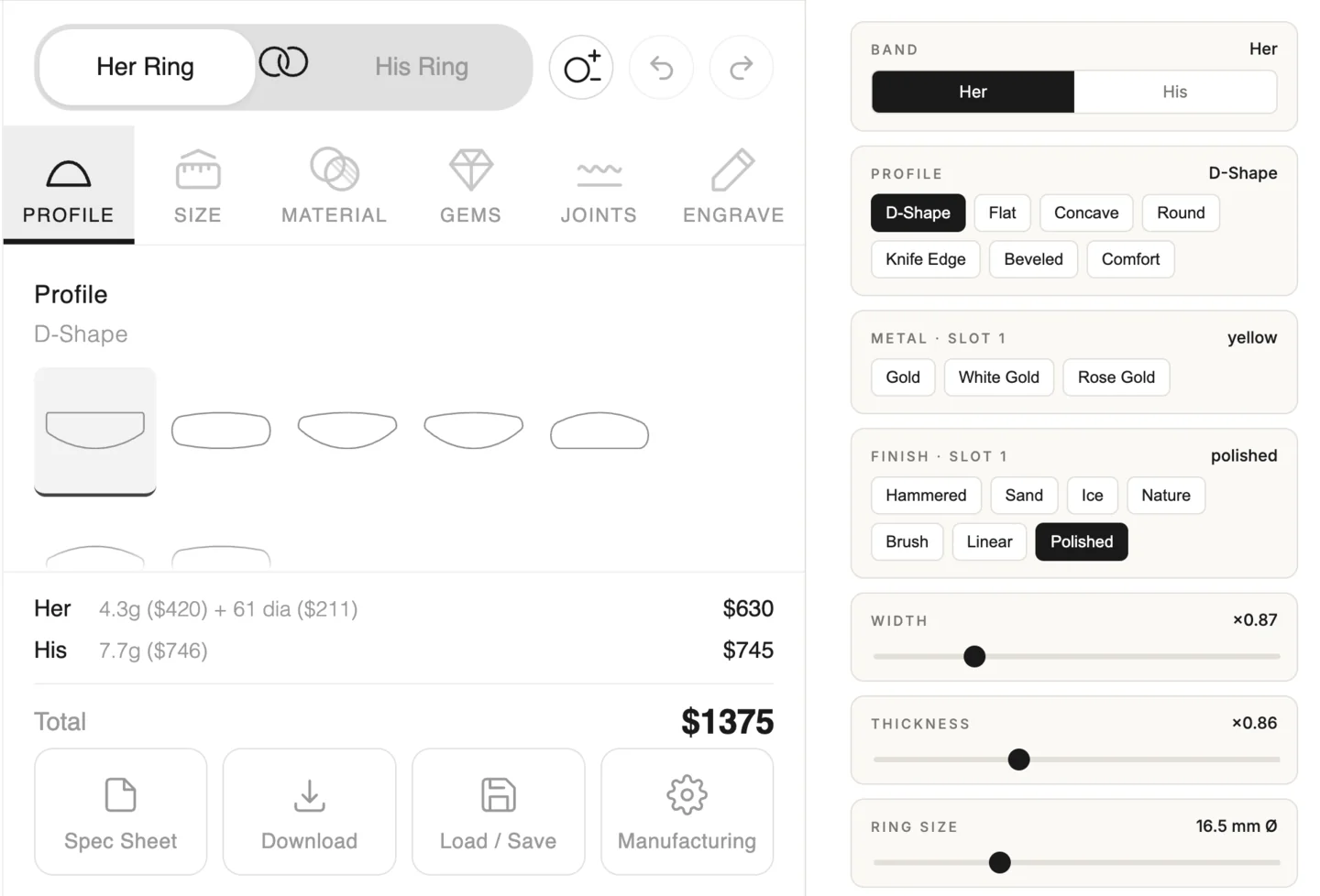 ## postMessage Protocol
**Sending commands** (all [API methods](./api-reference) are available):
```javascript
// Command: { id: 'req-1', method: 'setWidth', args: [5.0] }
// Success: { id: 'req-1', result: null }
// Error: { id: 'req-1', error: { message: '...', source: 'api' } }
```
**Receiving events** (forwarded automatically from the viewer):
```javascript
// { event: 'price:updated', data: { bandName: 'her', pricing: { totalUsd: 1250.00, ... } } }
```
## postMessage Protocol
**Sending commands** (all [API methods](./api-reference) are available):
```javascript
// Command: { id: 'req-1', method: 'setWidth', args: [5.0] }
// Success: { id: 'req-1', result: null }
// Error: { id: 'req-1', error: { message: '...', source: 'api' } }
```
**Receiving events** (forwarded automatically from the viewer):
```javascript
// { event: 'price:updated', data: { bandName: 'her', pricing: { totalUsd: 1250.00, ... } } }
```
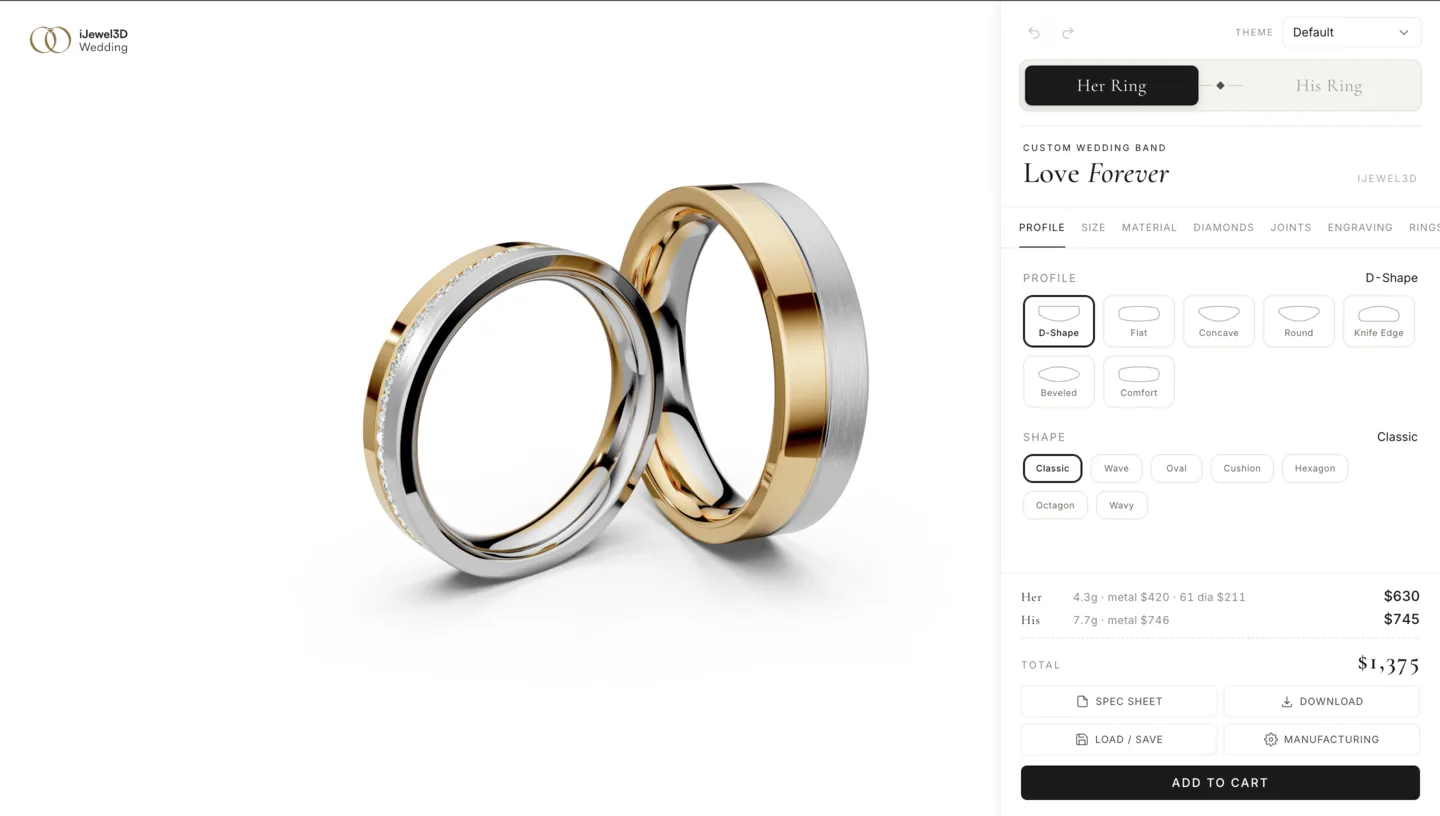 ## Overview
Set `hideWbbUi: true` in Mini Viewer's options to run in **headless mode**. The 3D viewer renders with no built-in panel. This works with both integration approaches:
| Integration | How to Enable | How to Access API |
|-------------|--------------|-------------------|
| [Script Tag](./integration-direct) | `hideWbbUi: true` in viewer options | `viewer.getPluginByType('WeddingBandBuilder').controller` |
| [iframe](./integration-iframe) | `?ui=false` URL parameter | `postMessage` from the host page |
This page covers the Script Tag approach. For iframe-based custom UI, the same concepts apply but you wrap each API call in `postMessage`. See [iframe headless mode](./integration-iframe#headless-mode).
## Getting Started
```javascript
let api;
let wbbPlugin;
// Initialize in headless mode
new ijewelViewer.Viewer(document.getElementById('viewer'), {
name: 'Wedding Band Builder',
version: 'v5',
basePath: 'https://your-cdn.com/wbb-assets/',
plugins: {
WeddingBandBuilder: {
manifestUrl: 'wedding-band-project.json',
},
},
}, {
showCard: false, showSwitchNode: false, showUiButtons: false,
showConfigurator: false, showZoomButtons: false, enableZoom: true,
hideWbbUi: true,
});
// Wait for API, then build your UI
window.addEventListener('ijewel-viewer-ready', (e) => {
wbbPlugin = e.detail.viewer.getPluginByType('WeddingBandBuilder');
api = wbbPlugin.controller;
// Read the catalog to see what's available in your manifest
const profiles = api.getAvailableProfiles();
const materials = api.getAvailableMaterials('band');
// Wire your controls to the API
buildProfileSelector(profiles);
buildMaterialSwatches(api, materials);
buildWidthSlider();
buildPriceDisplay();
});
```
## Overview
Set `hideWbbUi: true` in Mini Viewer's options to run in **headless mode**. The 3D viewer renders with no built-in panel. This works with both integration approaches:
| Integration | How to Enable | How to Access API |
|-------------|--------------|-------------------|
| [Script Tag](./integration-direct) | `hideWbbUi: true` in viewer options | `viewer.getPluginByType('WeddingBandBuilder').controller` |
| [iframe](./integration-iframe) | `?ui=false` URL parameter | `postMessage` from the host page |
This page covers the Script Tag approach. For iframe-based custom UI, the same concepts apply but you wrap each API call in `postMessage`. See [iframe headless mode](./integration-iframe#headless-mode).
## Getting Started
```javascript
let api;
let wbbPlugin;
// Initialize in headless mode
new ijewelViewer.Viewer(document.getElementById('viewer'), {
name: 'Wedding Band Builder',
version: 'v5',
basePath: 'https://your-cdn.com/wbb-assets/',
plugins: {
WeddingBandBuilder: {
manifestUrl: 'wedding-band-project.json',
},
},
}, {
showCard: false, showSwitchNode: false, showUiButtons: false,
showConfigurator: false, showZoomButtons: false, enableZoom: true,
hideWbbUi: true,
});
// Wait for API, then build your UI
window.addEventListener('ijewel-viewer-ready', (e) => {
wbbPlugin = e.detail.viewer.getPluginByType('WeddingBandBuilder');
api = wbbPlugin.controller;
// Read the catalog to see what's available in your manifest
const profiles = api.getAvailableProfiles();
const materials = api.getAvailableMaterials('band');
// Wire your controls to the API
buildProfileSelector(profiles);
buildMaterialSwatches(api, materials);
buildWidthSlider();
buildPriceDisplay();
});
```
 ## Building Controls
Each control follows the same pattern: read options from the catalog, create your UI, and call an API setter on interaction.
## Building Controls
Each control follows the same pattern: read options from the catalog, create your UI, and call an API setter on interaction.
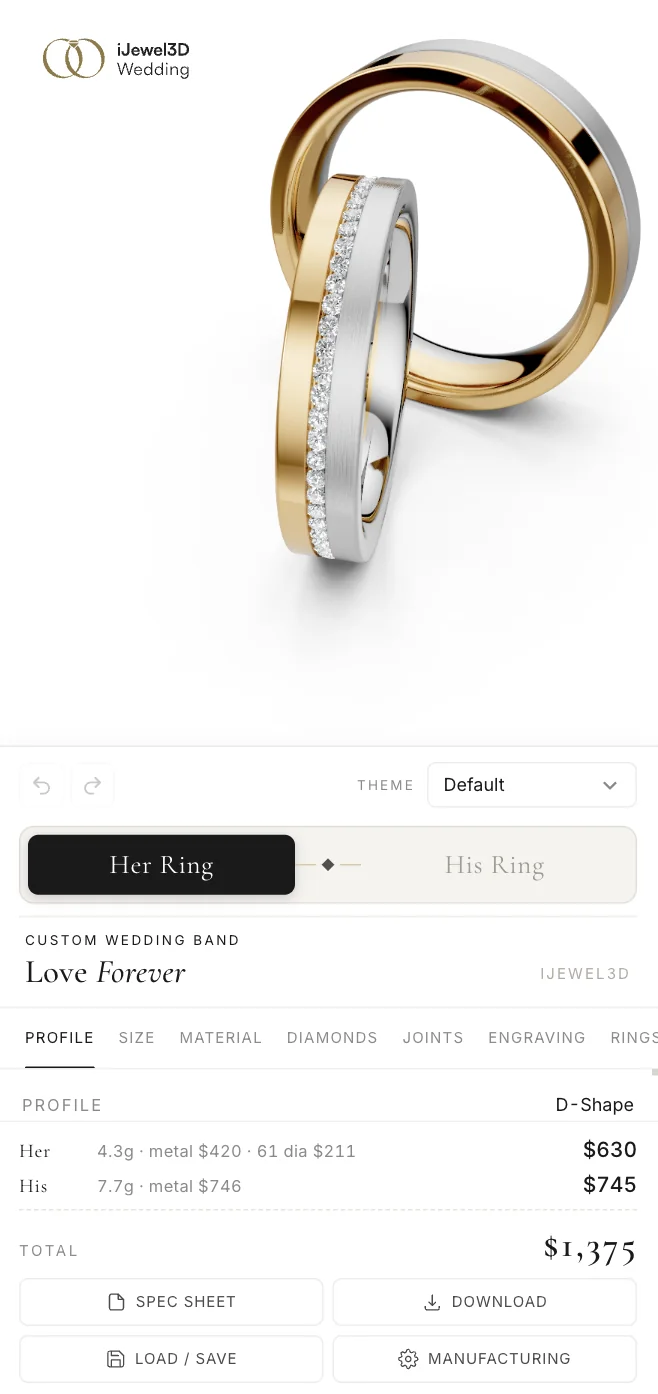
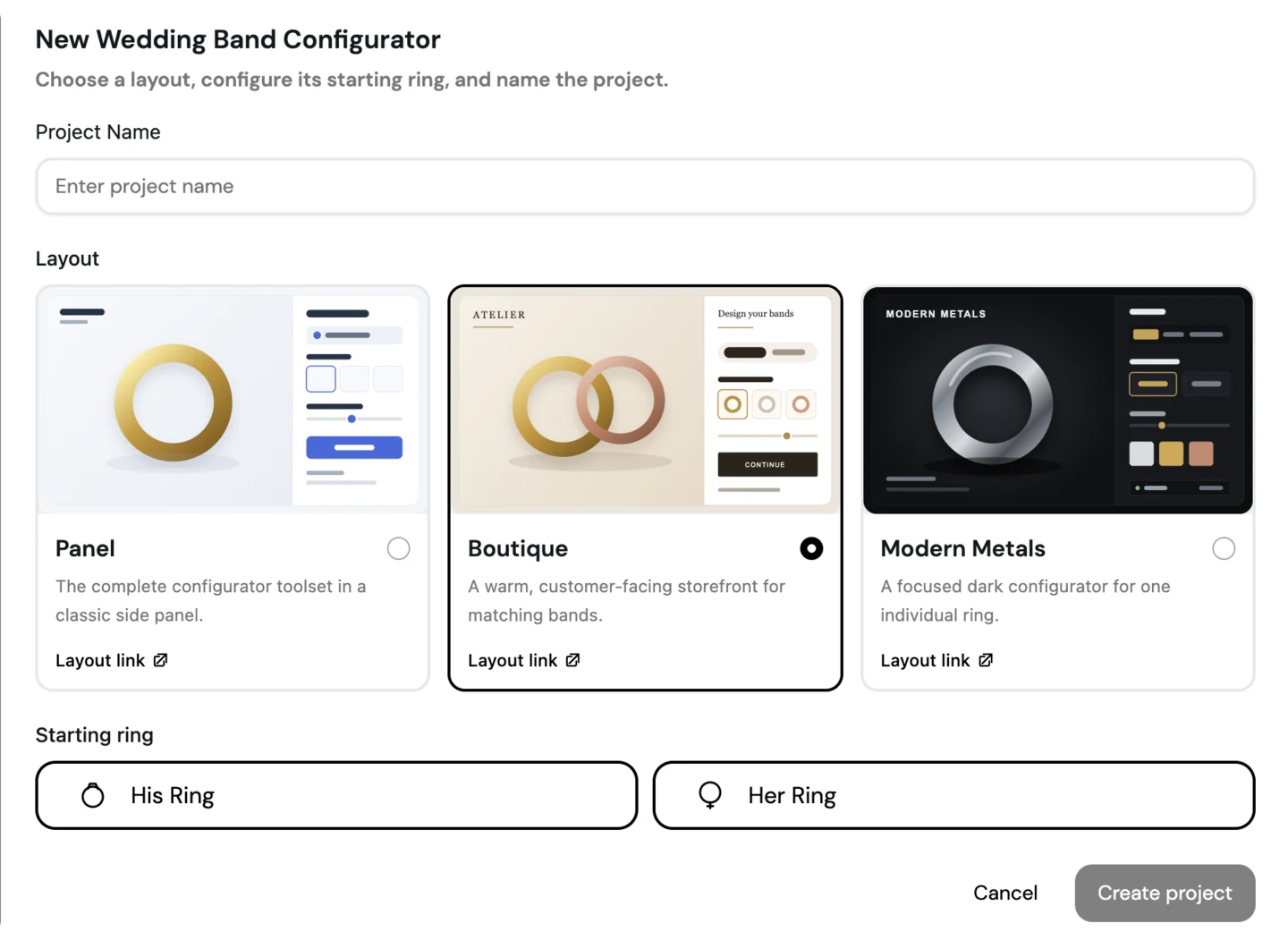 iJewel Drive asks for the layout when the project is created and stores it in
the manifest:
```json
{
"ui": {
"layout": "modern-metals",
"linkBands": false,
"theme": {
"preset": "dark",
"showRingToggle": false
}
}
}
```
For a self-hosted Modern Metals project, also define exactly one entry in
`defaults.bands`. Setting the layout name by itself changes presentation; it
does not delete extra bands from a hand-authored manifest.
iJewel Drive asks for the layout when the project is created and stores it in
the manifest:
```json
{
"ui": {
"layout": "modern-metals",
"linkBands": false,
"theme": {
"preset": "dark",
"showRingToggle": false
}
}
}
```
For a self-hosted Modern Metals project, also define exactly one entry in
`defaults.bands`. Setting the layout name by itself changes presentation; it
does not delete extra bands from a hand-authored manifest.
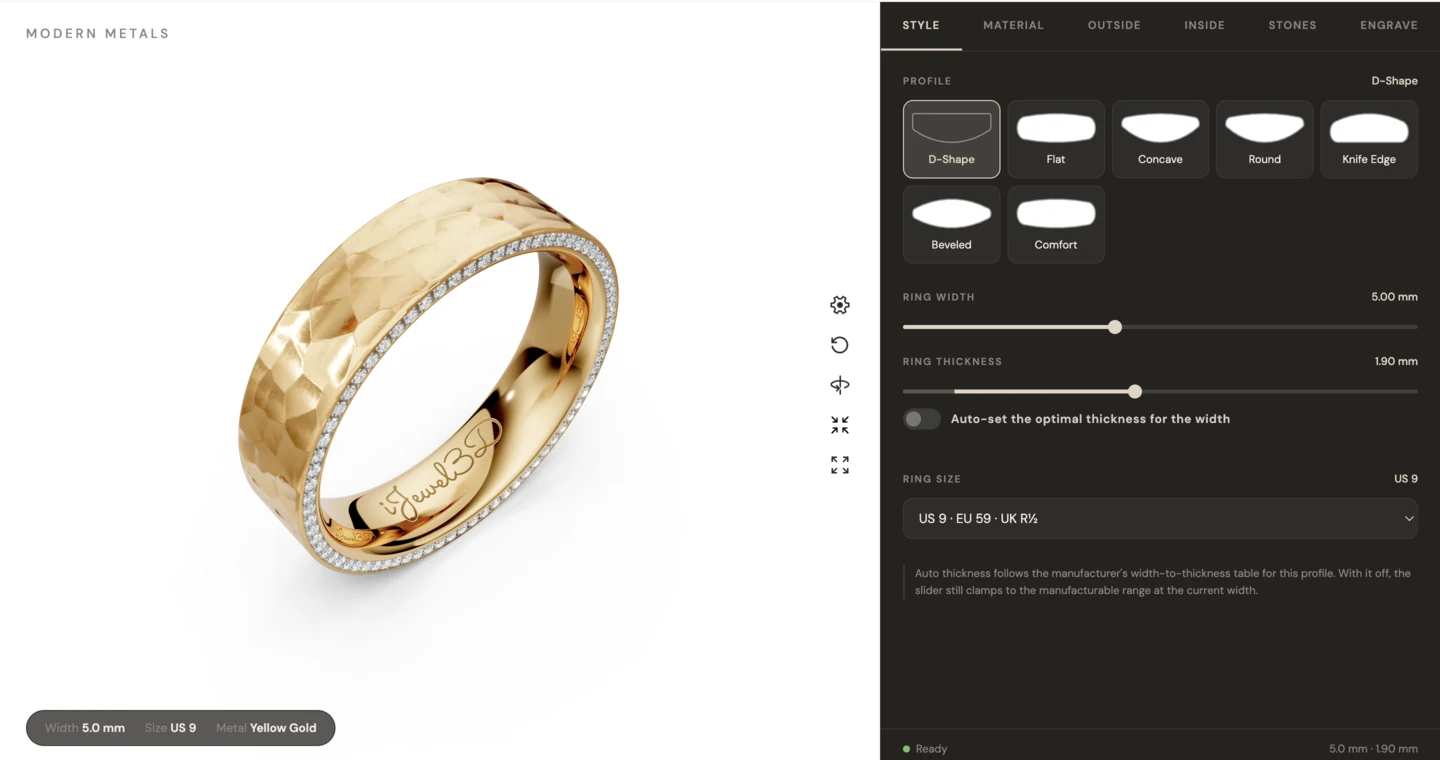 Modern Metals organizes the single-ring workflow into **Style**, **Material**,
**Outside**, **Inside**, **Stones**, and **Engrave** tabs. Its Material tab shows
the base color, then Quality when the base has multiple variants, then only the
finishes supported by that material and variant.
The Outside tab has left, center, and right slots. The outer slots can be
floating inlays or rim-anchored overlays. The center slot is always an inlay.
The Inside tab controls the bore sleeve and inside polish. This focused layout
does not expose non-circular paths, design grooves, or edge controls, although
those controller APIs remain available to a custom interface.
At runtime, use `getAvailableLayouts()`, `getLayout()`, and `setLayout(id)`.
An unknown ID is rejected with a validation warning rather than rendering an
empty panel.
## Presets
11 built-in themes, applied with one line:
```javascript
api.setTheme('luxury-gold');
```
| Preset | Character |
|---|---|
| `default` | Clean, neutral. Works with any brand |
| `luxury-gold` | Warm gold accents, serif typography |
| `modern-minimal` | Monochrome, light, minimal chrome |
| `dark` | Dark background, light text, jeweler showcase feel |
| `rose-elegant` | Rose/blush tones, elegant serif fonts |
| `coral-modern` | Clean white with a coral-red accent, rounded sans-serif |
| `fresh-teal` | Light canvas with a calm teal accent, clean sans-serif |
| `minimal-blue` | Pure white, airy spacing, blue accent, system sans-serif |
| `warm-beige` | Warm beige tones with a muted blue selection accent |
| `classic-gold` | Dark-gold accent on white, gold-gradient ring toggle |
| `ijewel` | iJewel3D's own purple-accented brand styling |
To cycle through presets interactively:
```javascript
const nextTheme = api.cycleTheme();
console.log(`Now using: ${nextTheme}`);
```
## Custom Themes
Start from a preset and override specific properties:
```javascript
api.setTheme({
preset: 'modern-minimal',
colors: {
primary: '#2E5B3C',
background: '#F5F7F5',
},
fonts: {
body: "'Cormorant Garamond', serif",
googleFonts: ['Cormorant+Garamond:wght@400;500;600'],
},
panelWidth: 380,
});
```
Or build a theme from scratch without a preset base:
```javascript
api.setTheme({
colors: {
primary: '#8B6914',
primaryHover: '#A07D1C',
text: '#1a1a1a',
textMuted: '#666666',
background: '#FAFAF8',
surface: '#FFFFFF',
border: '#E0DDD8',
},
fonts: {
body: "'Inter', sans-serif",
headline: "'Playfair Display', serif",
googleFonts: ['Inter:wght@300;400;500', 'Playfair+Display:wght@400;700'],
},
shapes: {
borderRadius: 8,
},
});
```
## Colors
All color properties are optional. Unset values fall back to the preset (or `default` if no preset).
```typescript
interface ThemeColors {
primary?: string // Accent color (buttons, active states, sliders)
primaryHover?: string // Primary hover state
secondary?: string // Secondary accent
text?: string // Main text color
textMuted?: string // Secondary/hint text
textPlaceholder?: string // Placeholder text
background?: string // Page background
surface?: string // Card/panel background
surfaceHover?: string // Surface hover state
border?: string // Border color
borderLight?: string // Subtle borders
borderHover?: string // Border hover state
}
```
## Fonts
```typescript
interface ThemeFonts {
body?: string // Body text (e.g., "'Inter', sans-serif")
headline?: string // Section headings
light?: string // Light weight variant
googleFonts?: string[] // Google Fonts to load (e.g., ['Inter:wght@300;400;500'])
}
```
Google Fonts listed in the `googleFonts` array are automatically loaded via the Google Fonts API. No manual `` tags needed.
## UI Controls
| Property | Type | Default | Description |
|---|---|---|---|
| `panelWidth` | `number` | `340` | Width of the configuration panel in pixels |
| `showPoses` | `boolean` | `true` | Show camera angle buttons |
| `showARButton` | `boolean` | `true` | Show the AR try-on button |
| `showExportButton` | `boolean` | `true` | Show export/import buttons |
| `showRingToggle` | `boolean` | `true` | Show the His/Her band toggle |
| `initialTab` | `string` | - | Which tab to open by default |
```javascript
// Hide features you don't need
api.setTheme({
preset: 'dark',
showARButton: false,
showExportButton: false,
panelWidth: 360,
initialTab: 'material',
});
```
## Custom CSS
For fine-grained control, inject raw CSS:
```javascript
api.setTheme({
preset: 'modern-minimal',
customCSS: `
.wbb-root .field-label { text-transform: uppercase; letter-spacing: 0.05em; }
.wbb-root .pricing-total { font-size: 1.4em; }
`,
});
```
All custom CSS is scoped under `.wbb-root`, so it won't affect the rest of your page.
## CSS Custom Properties
The theme system injects CSS custom properties on the `.wbb-root` element. Use these in your own stylesheets to stay in sync with the active theme:
| Property | Maps to |
|---|---|
| `--rb-color-primary` | `colors.primary` |
| `--rb-color-primary-hover` | `colors.primaryHover` |
| `--rb-color-secondary` | `colors.secondary` |
| `--rb-color-text` | `colors.text` |
| `--rb-color-text-muted` | `colors.textMuted` |
| `--rb-color-background` | `colors.background` |
| `--rb-color-surface` | `colors.surface` |
| `--rb-color-border` | `colors.border` |
| `--rb-font-body` | `fonts.body` |
| `--rb-font-headline` | `fonts.headline` |
| `--rb-radius-md` | `shapes.borderRadius` |
```css
/* Example: style your own elements to match the configurator theme */
.my-price-display {
background: var(--rb-color-surface);
color: var(--rb-color-text);
border: 1px solid var(--rb-color-border);
font-family: var(--rb-font-body);
border-radius: var(--rb-radius-md);
}
```
## Full Type Reference
```typescript
interface UITheme {
preset?: ThemePresetName
colors?: ThemeColors
fonts?: ThemeFonts
shapes?: ThemeShapes
components?: ThemeComponentOverrides
customCSS?: string
panelWidth?: number
showPoses?: boolean
showARButton?: boolean
showExportButton?: boolean
showRingToggle?: boolean
initialTab?: string
}
type ThemePresetName =
| 'default'
| 'luxury-gold'
| 'modern-minimal'
| 'dark'
| 'rose-elegant'
| 'coral-modern'
| 'fresh-teal'
| 'minimal-blue'
| 'warm-beige'
| 'classic-gold'
| 'ijewel'
```
For the complete API, see [`setTheme()`](./api-reference#settheme-theme) in the API Reference.
---
# API Reference
Complete reference for the Wedding Band Builder API.
## Accessing the API
### Direct Integration (Same Page)
```javascript
window.addEventListener('ijewel-viewer-ready', (e) => {
const viewer = e.detail.viewer;
const api = viewer.getPluginByType('WeddingBandBuilder').controller;
api.setWidthMm(4.4);
});
```
### Same-Origin iframe
The iframe page fires `ijewel-viewer-ready` on its own `window`. That event does
not bubble to the parent page. Register a parent callback before the iframe
loads, then forward the viewer from a listener inside the iframe page.
Parent page:
```html
```
```javascript
window.handleWbbViewerReady = (viewer) => {
const api = viewer.getPluginByType('WeddingBandBuilder').controller;
api.setWidthMm(4.4);
};
const iframe = document.getElementById('wbb-iframe');
iframe.src = './wbb-viewer.html';
```
Inside `wbb-viewer.html`, register this listener before creating Mini Viewer:
```javascript
window.addEventListener('ijewel-viewer-ready', ({ detail }) => {
window.parent.handleWbbViewerReady?.(detail.viewer);
}, { once: true });
```
This direct callback requires both pages to use the same origin. You can also
use the postMessage protocol below for a same-origin iframe.
### Cross-Origin (PostMessage)
For iframes on a different domain:
```javascript
// Parent page sends to iframe
const viewerOrigin = 'https://ijewel3d.com';
iframe.contentWindow.postMessage({
id: 'req-1',
method: 'setWidthMm',
args: [4.4]
}, viewerOrigin);
// Listen for responses from iframe
window.addEventListener('message', (event) => {
if (event.source !== iframe.contentWindow) return;
if (event.origin !== viewerOrigin) return;
if (event.data.id === 'req-1') {
if (event.data.error) {
// Structured error: { message, source, details }
console.log(event.data.error.message);
} else {
console.log('Result:', event.data.result);
}
}
if (event.data.event) {
console.log('Event:', event.data.event, event.data.data);
}
});
```
Events (including `'log'` and `'error'`) are automatically forwarded from the iframe to the parent window.
## Read Methods
### `getSnapshot(bandName?)`
Returns a customer-facing summary snapshot for one band. It includes the
outside and inside features and each slot's base, variant and finish. Use
`toJSON()` when exact state restoration is required.
```javascript
const snapshot = api.getSnapshot('her');
```
**Parameters:**
| Name | Type | Default | Description |
|------|------|---------|-------------|
| `bandName` | `string` | active band | `'her'` or `'his'` |
**Returns:** [`RingSnapshot`](#ringsnapshot)
### `exportConfig()`
Exports one `RingSnapshot` summary for every band included in the project. This
is the readable record for a cart, an order line, or a manufacturer handoff.
```javascript
const config = api.exportConfig();
// { her: RingSnapshot, his: RingSnapshot }
```
**Returns:** `Record
Modern Metals organizes the single-ring workflow into **Style**, **Material**,
**Outside**, **Inside**, **Stones**, and **Engrave** tabs. Its Material tab shows
the base color, then Quality when the base has multiple variants, then only the
finishes supported by that material and variant.
The Outside tab has left, center, and right slots. The outer slots can be
floating inlays or rim-anchored overlays. The center slot is always an inlay.
The Inside tab controls the bore sleeve and inside polish. This focused layout
does not expose non-circular paths, design grooves, or edge controls, although
those controller APIs remain available to a custom interface.
At runtime, use `getAvailableLayouts()`, `getLayout()`, and `setLayout(id)`.
An unknown ID is rejected with a validation warning rather than rendering an
empty panel.
## Presets
11 built-in themes, applied with one line:
```javascript
api.setTheme('luxury-gold');
```
| Preset | Character |
|---|---|
| `default` | Clean, neutral. Works with any brand |
| `luxury-gold` | Warm gold accents, serif typography |
| `modern-minimal` | Monochrome, light, minimal chrome |
| `dark` | Dark background, light text, jeweler showcase feel |
| `rose-elegant` | Rose/blush tones, elegant serif fonts |
| `coral-modern` | Clean white with a coral-red accent, rounded sans-serif |
| `fresh-teal` | Light canvas with a calm teal accent, clean sans-serif |
| `minimal-blue` | Pure white, airy spacing, blue accent, system sans-serif |
| `warm-beige` | Warm beige tones with a muted blue selection accent |
| `classic-gold` | Dark-gold accent on white, gold-gradient ring toggle |
| `ijewel` | iJewel3D's own purple-accented brand styling |
To cycle through presets interactively:
```javascript
const nextTheme = api.cycleTheme();
console.log(`Now using: ${nextTheme}`);
```
## Custom Themes
Start from a preset and override specific properties:
```javascript
api.setTheme({
preset: 'modern-minimal',
colors: {
primary: '#2E5B3C',
background: '#F5F7F5',
},
fonts: {
body: "'Cormorant Garamond', serif",
googleFonts: ['Cormorant+Garamond:wght@400;500;600'],
},
panelWidth: 380,
});
```
Or build a theme from scratch without a preset base:
```javascript
api.setTheme({
colors: {
primary: '#8B6914',
primaryHover: '#A07D1C',
text: '#1a1a1a',
textMuted: '#666666',
background: '#FAFAF8',
surface: '#FFFFFF',
border: '#E0DDD8',
},
fonts: {
body: "'Inter', sans-serif",
headline: "'Playfair Display', serif",
googleFonts: ['Inter:wght@300;400;500', 'Playfair+Display:wght@400;700'],
},
shapes: {
borderRadius: 8,
},
});
```
## Colors
All color properties are optional. Unset values fall back to the preset (or `default` if no preset).
```typescript
interface ThemeColors {
primary?: string // Accent color (buttons, active states, sliders)
primaryHover?: string // Primary hover state
secondary?: string // Secondary accent
text?: string // Main text color
textMuted?: string // Secondary/hint text
textPlaceholder?: string // Placeholder text
background?: string // Page background
surface?: string // Card/panel background
surfaceHover?: string // Surface hover state
border?: string // Border color
borderLight?: string // Subtle borders
borderHover?: string // Border hover state
}
```
## Fonts
```typescript
interface ThemeFonts {
body?: string // Body text (e.g., "'Inter', sans-serif")
headline?: string // Section headings
light?: string // Light weight variant
googleFonts?: string[] // Google Fonts to load (e.g., ['Inter:wght@300;400;500'])
}
```
Google Fonts listed in the `googleFonts` array are automatically loaded via the Google Fonts API. No manual `` tags needed.
## UI Controls
| Property | Type | Default | Description |
|---|---|---|---|
| `panelWidth` | `number` | `340` | Width of the configuration panel in pixels |
| `showPoses` | `boolean` | `true` | Show camera angle buttons |
| `showARButton` | `boolean` | `true` | Show the AR try-on button |
| `showExportButton` | `boolean` | `true` | Show export/import buttons |
| `showRingToggle` | `boolean` | `true` | Show the His/Her band toggle |
| `initialTab` | `string` | - | Which tab to open by default |
```javascript
// Hide features you don't need
api.setTheme({
preset: 'dark',
showARButton: false,
showExportButton: false,
panelWidth: 360,
initialTab: 'material',
});
```
## Custom CSS
For fine-grained control, inject raw CSS:
```javascript
api.setTheme({
preset: 'modern-minimal',
customCSS: `
.wbb-root .field-label { text-transform: uppercase; letter-spacing: 0.05em; }
.wbb-root .pricing-total { font-size: 1.4em; }
`,
});
```
All custom CSS is scoped under `.wbb-root`, so it won't affect the rest of your page.
## CSS Custom Properties
The theme system injects CSS custom properties on the `.wbb-root` element. Use these in your own stylesheets to stay in sync with the active theme:
| Property | Maps to |
|---|---|
| `--rb-color-primary` | `colors.primary` |
| `--rb-color-primary-hover` | `colors.primaryHover` |
| `--rb-color-secondary` | `colors.secondary` |
| `--rb-color-text` | `colors.text` |
| `--rb-color-text-muted` | `colors.textMuted` |
| `--rb-color-background` | `colors.background` |
| `--rb-color-surface` | `colors.surface` |
| `--rb-color-border` | `colors.border` |
| `--rb-font-body` | `fonts.body` |
| `--rb-font-headline` | `fonts.headline` |
| `--rb-radius-md` | `shapes.borderRadius` |
```css
/* Example: style your own elements to match the configurator theme */
.my-price-display {
background: var(--rb-color-surface);
color: var(--rb-color-text);
border: 1px solid var(--rb-color-border);
font-family: var(--rb-font-body);
border-radius: var(--rb-radius-md);
}
```
## Full Type Reference
```typescript
interface UITheme {
preset?: ThemePresetName
colors?: ThemeColors
fonts?: ThemeFonts
shapes?: ThemeShapes
components?: ThemeComponentOverrides
customCSS?: string
panelWidth?: number
showPoses?: boolean
showARButton?: boolean
showExportButton?: boolean
showRingToggle?: boolean
initialTab?: string
}
type ThemePresetName =
| 'default'
| 'luxury-gold'
| 'modern-minimal'
| 'dark'
| 'rose-elegant'
| 'coral-modern'
| 'fresh-teal'
| 'minimal-blue'
| 'warm-beige'
| 'classic-gold'
| 'ijewel'
```
For the complete API, see [`setTheme()`](./api-reference#settheme-theme) in the API Reference.
---
# API Reference
Complete reference for the Wedding Band Builder API.
## Accessing the API
### Direct Integration (Same Page)
```javascript
window.addEventListener('ijewel-viewer-ready', (e) => {
const viewer = e.detail.viewer;
const api = viewer.getPluginByType('WeddingBandBuilder').controller;
api.setWidthMm(4.4);
});
```
### Same-Origin iframe
The iframe page fires `ijewel-viewer-ready` on its own `window`. That event does
not bubble to the parent page. Register a parent callback before the iframe
loads, then forward the viewer from a listener inside the iframe page.
Parent page:
```html
```
```javascript
window.handleWbbViewerReady = (viewer) => {
const api = viewer.getPluginByType('WeddingBandBuilder').controller;
api.setWidthMm(4.4);
};
const iframe = document.getElementById('wbb-iframe');
iframe.src = './wbb-viewer.html';
```
Inside `wbb-viewer.html`, register this listener before creating Mini Viewer:
```javascript
window.addEventListener('ijewel-viewer-ready', ({ detail }) => {
window.parent.handleWbbViewerReady?.(detail.viewer);
}, { once: true });
```
This direct callback requires both pages to use the same origin. You can also
use the postMessage protocol below for a same-origin iframe.
### Cross-Origin (PostMessage)
For iframes on a different domain:
```javascript
// Parent page sends to iframe
const viewerOrigin = 'https://ijewel3d.com';
iframe.contentWindow.postMessage({
id: 'req-1',
method: 'setWidthMm',
args: [4.4]
}, viewerOrigin);
// Listen for responses from iframe
window.addEventListener('message', (event) => {
if (event.source !== iframe.contentWindow) return;
if (event.origin !== viewerOrigin) return;
if (event.data.id === 'req-1') {
if (event.data.error) {
// Structured error: { message, source, details }
console.log(event.data.error.message);
} else {
console.log('Result:', event.data.result);
}
}
if (event.data.event) {
console.log('Event:', event.data.event, event.data.data);
}
});
```
Events (including `'log'` and `'error'`) are automatically forwarded from the iframe to the parent window.
## Read Methods
### `getSnapshot(bandName?)`
Returns a customer-facing summary snapshot for one band. It includes the
outside and inside features and each slot's base, variant and finish. Use
`toJSON()` when exact state restoration is required.
```javascript
const snapshot = api.getSnapshot('her');
```
**Parameters:**
| Name | Type | Default | Description |
|------|------|---------|-------------|
| `bandName` | `string` | active band | `'her'` or `'his'` |
**Returns:** [`RingSnapshot`](#ringsnapshot)
### `exportConfig()`
Exports one `RingSnapshot` summary for every band included in the project. This
is the readable record for a cart, an order line, or a manufacturer handoff.
```javascript
const config = api.exportConfig();
// { her: RingSnapshot, his: RingSnapshot }
```
**Returns:** `Record